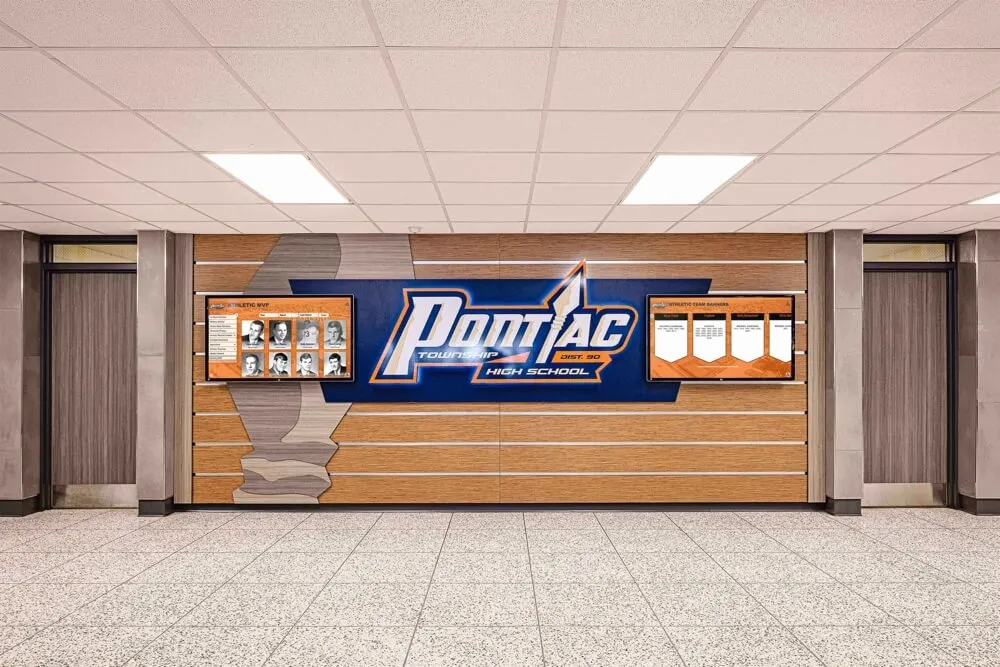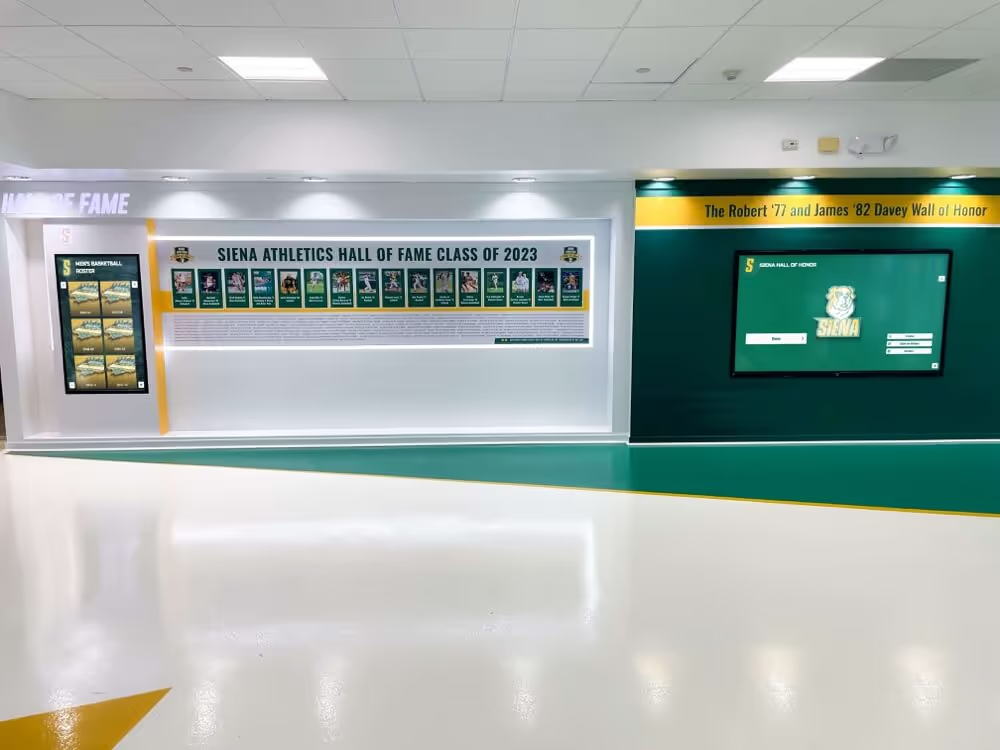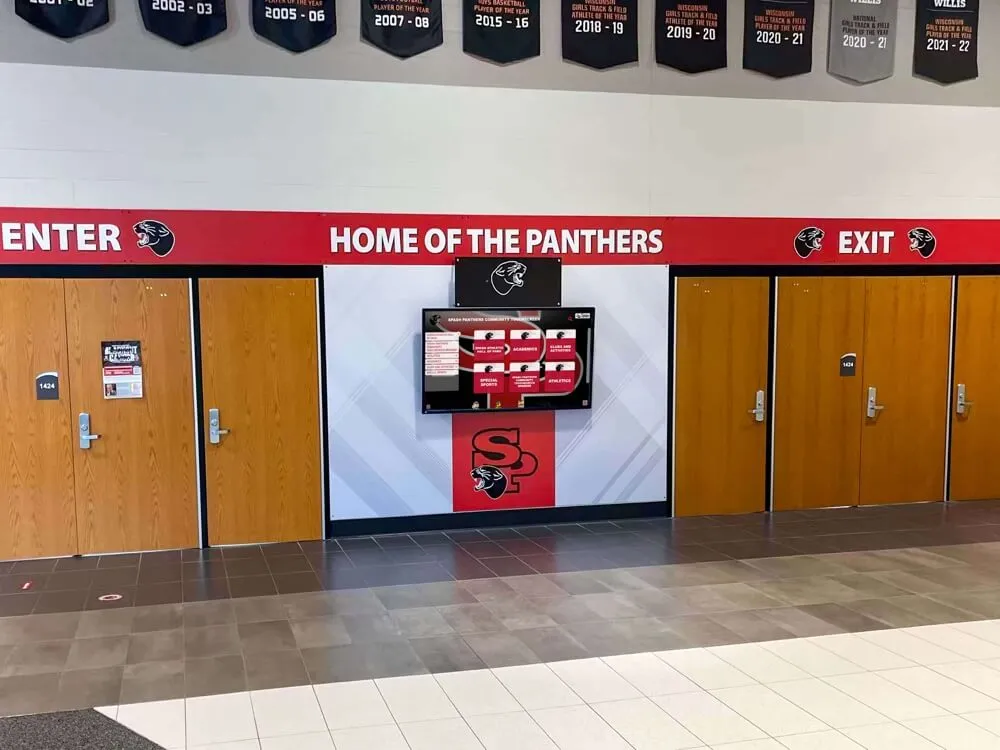




Mac touchscreen software has evolved significantly in 2025, offering schools, businesses, and organizations powerful solutions for creating interactive kiosks and public-facing displays. Whether you’re setting up a digital information station in a school lobby, creating an interactive directory in a corporate office, or deploying recognition displays throughout your facility, finding the right software for Mac makes the difference between a seamless user experience and ongoing technical frustrations.
The challenge many organizations face isn’t just finding any Mac kiosk software—it’s identifying solutions that actually work reliably with touchscreens, automatically launch into full-screen kiosk mode, prevent users from accessing the underlying system, and remain manageable for staff without deep technical expertise. Generic browser-based approaches often fail in real-world deployments, leaving organizations struggling with accessibility issues, security vulnerabilities, and maintenance headaches.
This comprehensive guide explores the best touchscreen software options for Mac in 2025, from purpose-built apps like Rocket Touchscreen available in the Mac App Store to enterprise-grade platforms and DIY configurations using Chrome or Safari. You’ll discover which solutions work best for different scenarios, what features to prioritize based on your specific needs, and how to avoid common pitfalls that plague Mac kiosk deployments.
Organizations successfully deploying Mac-based touchscreen kiosks report that software selection matters far more than hardware choices—the right software transforms Mac computers into reliable, secure, and user-friendly interactive displays, while inadequate software creates constant technical problems regardless of hardware quality.

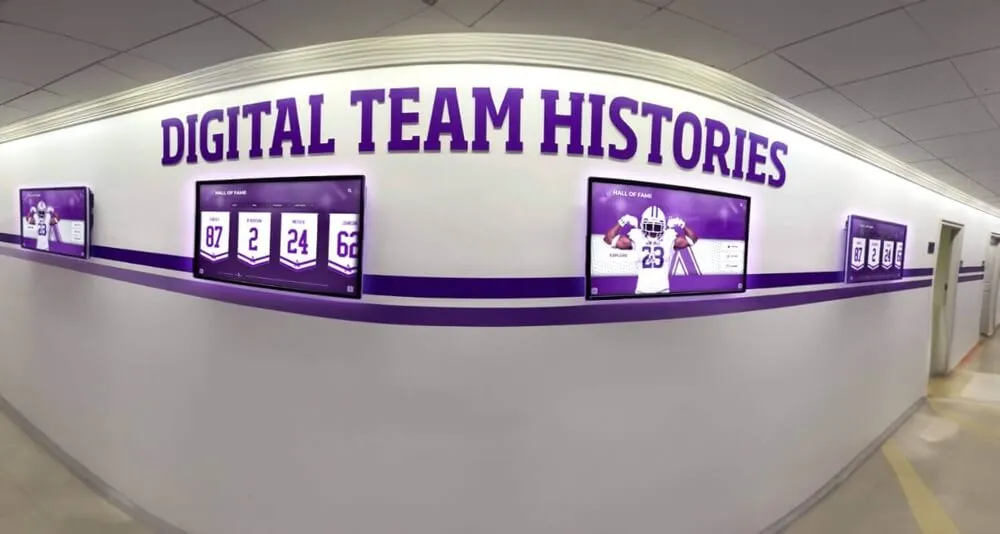
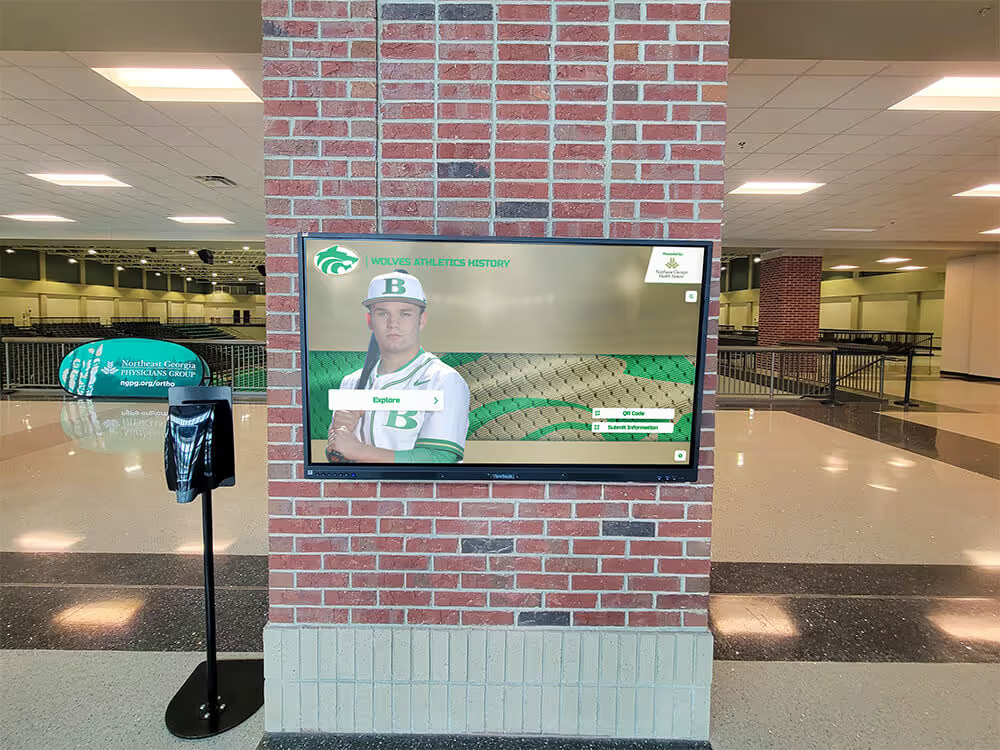
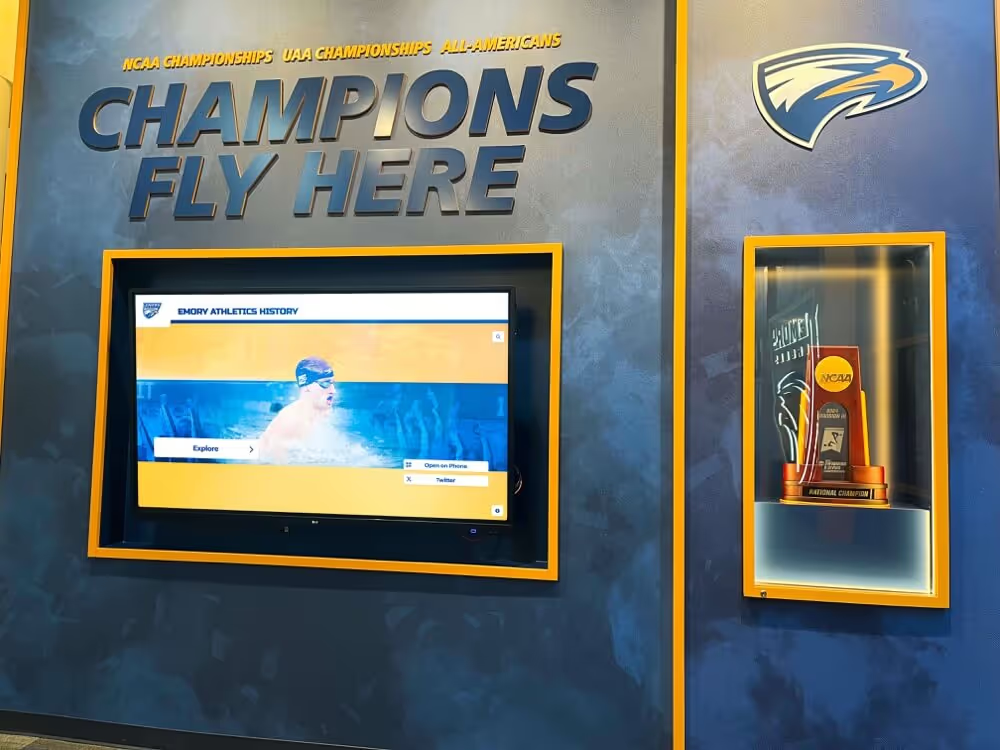
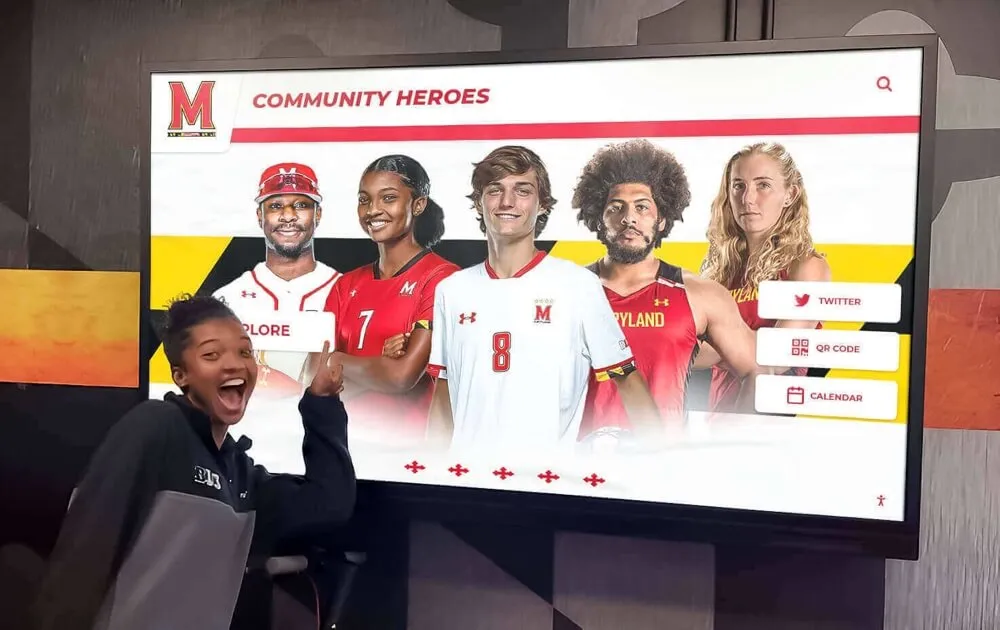
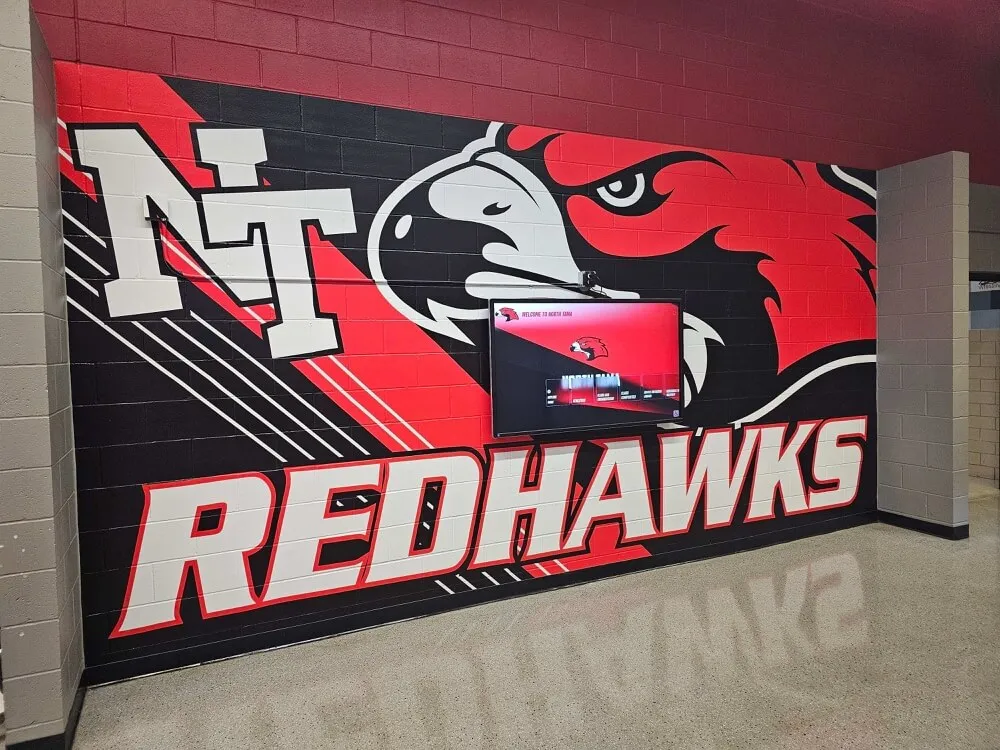
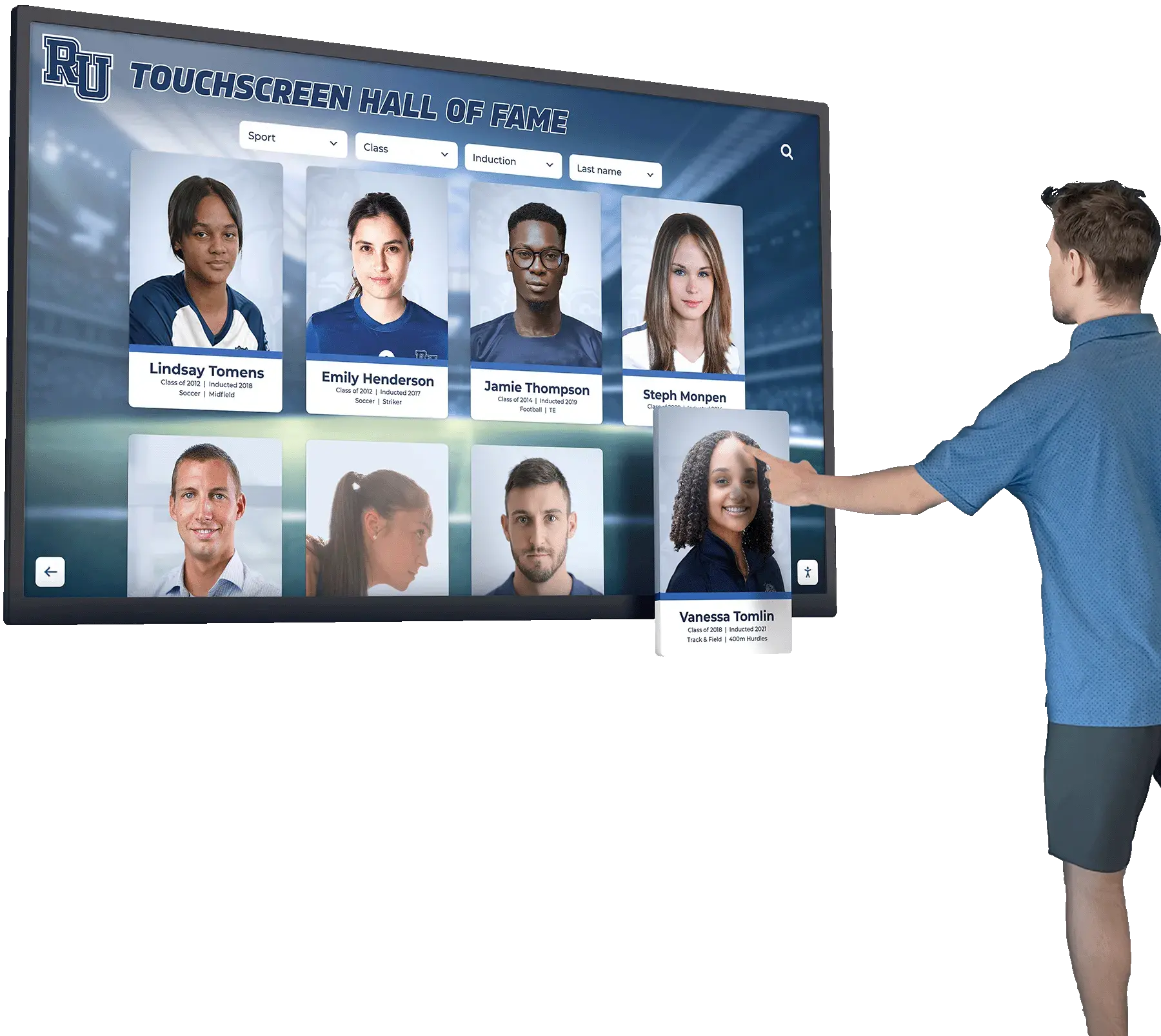
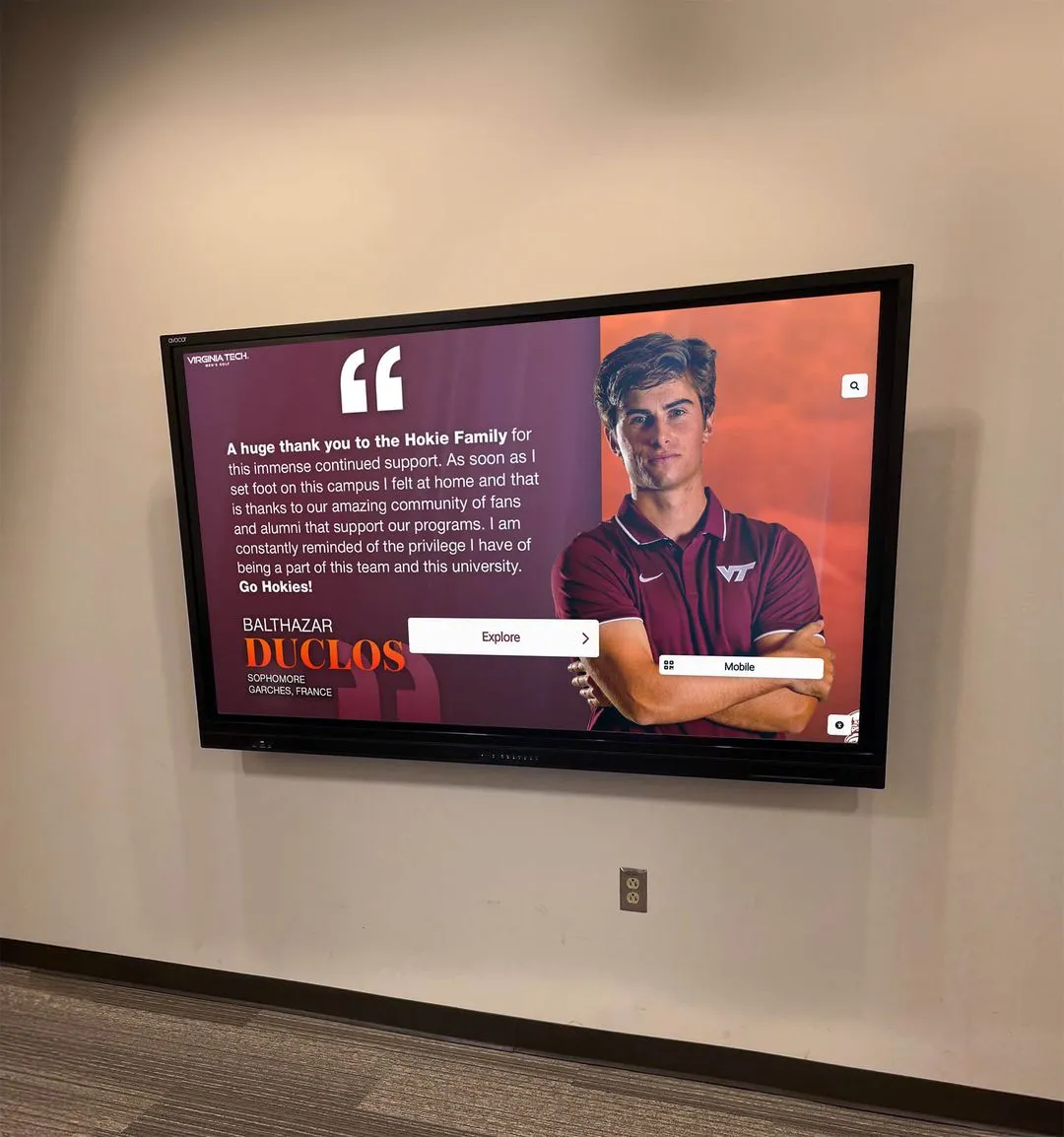
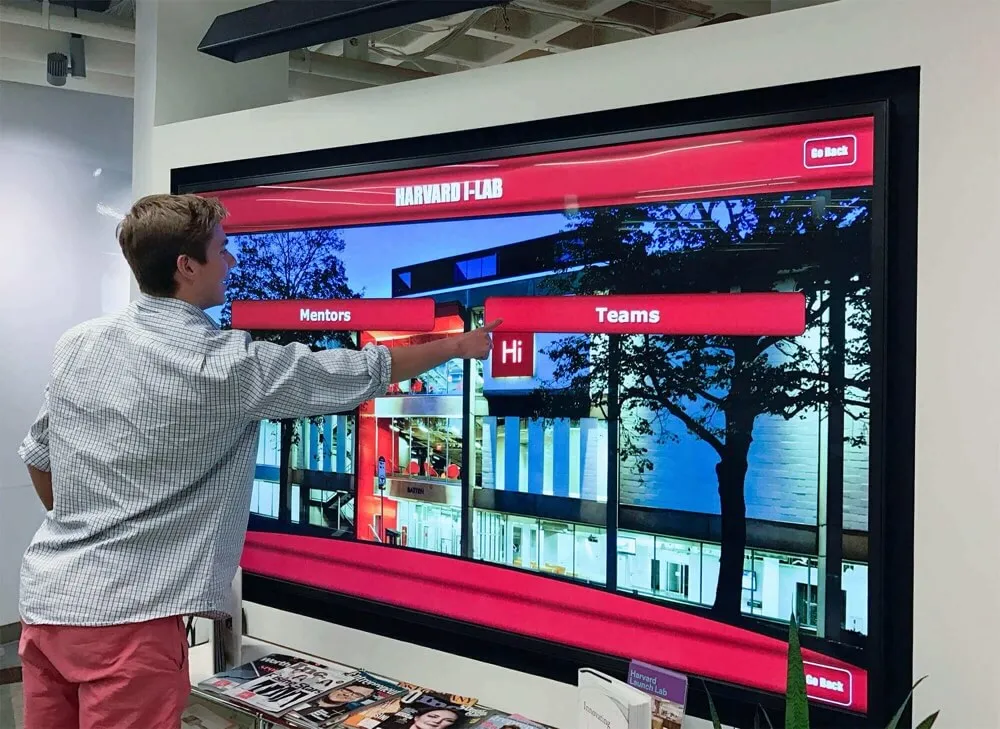
Modern Mac touchscreen software enables intuitive navigation and content discovery through familiar smartphone-like interactions
Why Mac Computers for Touchscreen Kiosks?
Before exploring specific software options, understanding why organizations choose Mac computers for touchscreen kiosk deployments helps contextualize software requirements and selection criteria.
Advantages of Mac-Based Touchscreen Systems
Mac computers offer several compelling advantages for interactive touchscreen applications that drive adoption across educational institutions, museums, corporate facilities, and public spaces.
Reliability and Stability
macOS provides exceptional system stability crucial for public-facing kiosks expected to operate continuously without regular reboots or maintenance interventions. Organizations implementing interactive touchscreen software report that Mac systems commonly run for months between required restarts, minimizing staff intervention and maximizing uptime for visitor access.
Unlike Windows systems that often require frequent updates and periodic maintenance windows, Macs handle system updates more gracefully with less disruption to kiosk operations. This reliability proves particularly valuable for installations in schools, museums, and public facilities where technical staff availability remains limited.
Premium Build Quality and Aesthetics
Mac computers feature premium construction and clean industrial design that complements professional interior spaces better than generic PC hardware. For lobbies, reception areas, and high-visibility locations where displays reflect organizational brand and quality standards, Mac hardware creates more polished installations.
The integrated design of iMac computers provides particularly elegant all-in-one solutions for touchscreen kiosks when paired with third-party touchscreen overlays or integrated touchscreen displays, eliminating cable clutter and hardware complexity associated with separate computer and display components.
Security Architecture
macOS includes robust security features protecting kiosk systems from malware, unauthorized access, and system tampering. The Unix-based architecture provides stronger security foundations than consumer Windows versions, though proper kiosk mode configuration remains essential regardless of operating system.
For organizations concerned about public touchscreen security—particularly those in educational settings or handling sensitive information—Mac systems offer security advantages when properly configured with appropriate kiosk software restricting system access.
Challenges Specific to Mac Touchscreen Deployments
Despite advantages, Mac-based touchscreen kiosks present unique challenges that appropriate software must address for successful deployments.
Native Touchscreen Support Limitations
Unlike Windows, which includes comprehensive touchscreen gesture support throughout the operating system, macOS provides more limited native touchscreen functionality. Apple historically focused touchscreen interaction on iOS devices rather than Mac computers, resulting in fewer built-in touchscreen optimizations.
This limitation means Mac kiosk software must compensate through application-level touch handling, ensuring responsive single-touch or multi-touch interaction without relying on system-level touchscreen features available on Windows. Schools deploying digital touchscreen displays for athletic information on Mac hardware particularly need software explicitly designed for touch interaction rather than mouse-based interfaces.
Kiosk Mode Configuration Complexity
Configuring true kiosk mode on Mac—where users cannot exit the kiosk application, access system functions, or interfere with operation—requires more technical expertise than comparable Windows configurations. While enterprise Mobile Device Management (MDM) solutions provide comprehensive kiosk capabilities, many schools and smaller organizations lack MDM infrastructure, necessitating simpler application-level kiosk solutions.
Limited Mac App Store Kiosk Options
Compared to Windows kiosk software marketplaces, the Mac App Store offers fewer dedicated touchscreen kiosk applications. Organizations often must choose between limited consumer-grade apps, expensive enterprise platforms, or custom configurations using web browsers—each approach presenting different tradeoffs in functionality, cost, and complexity.
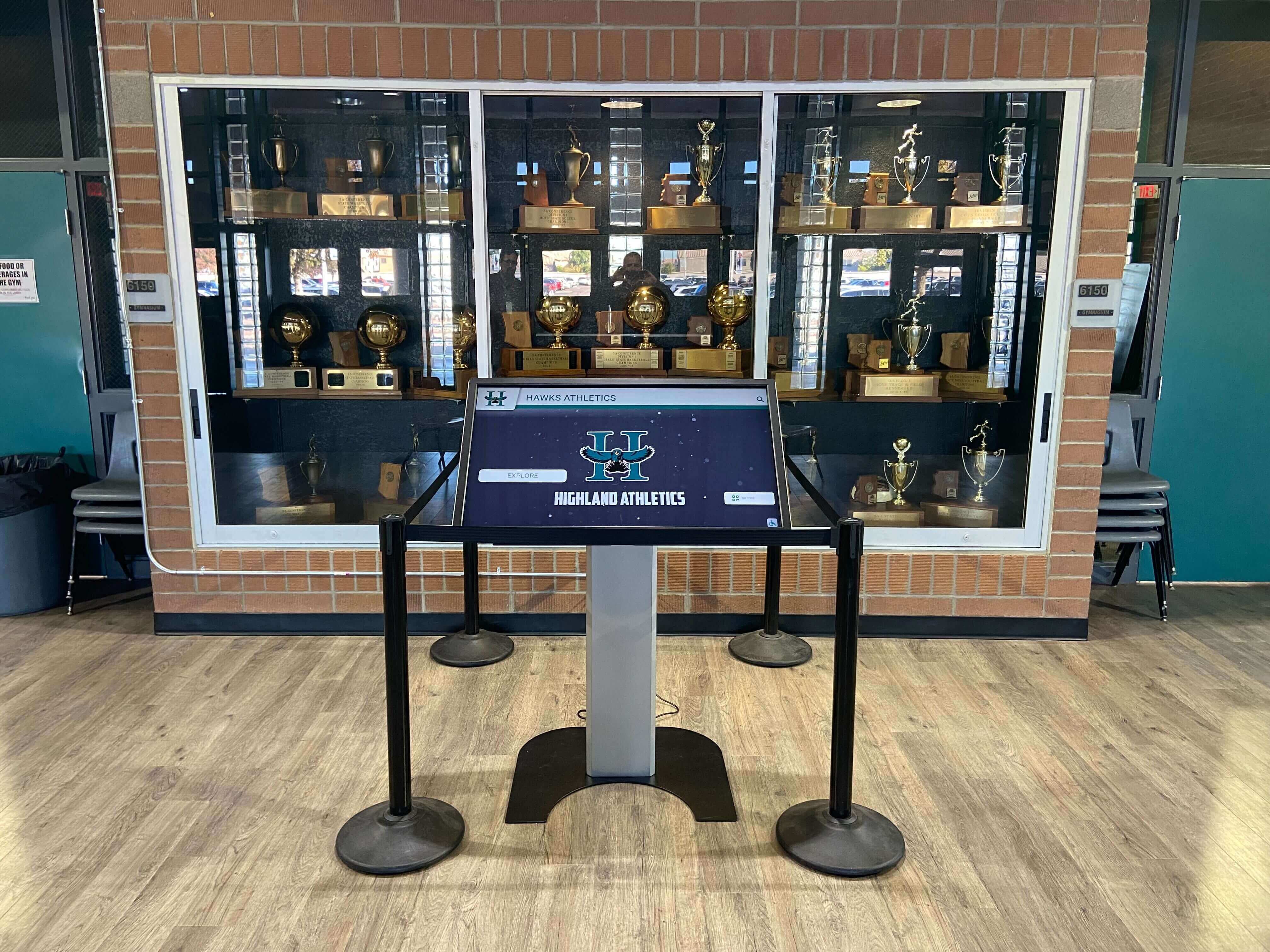
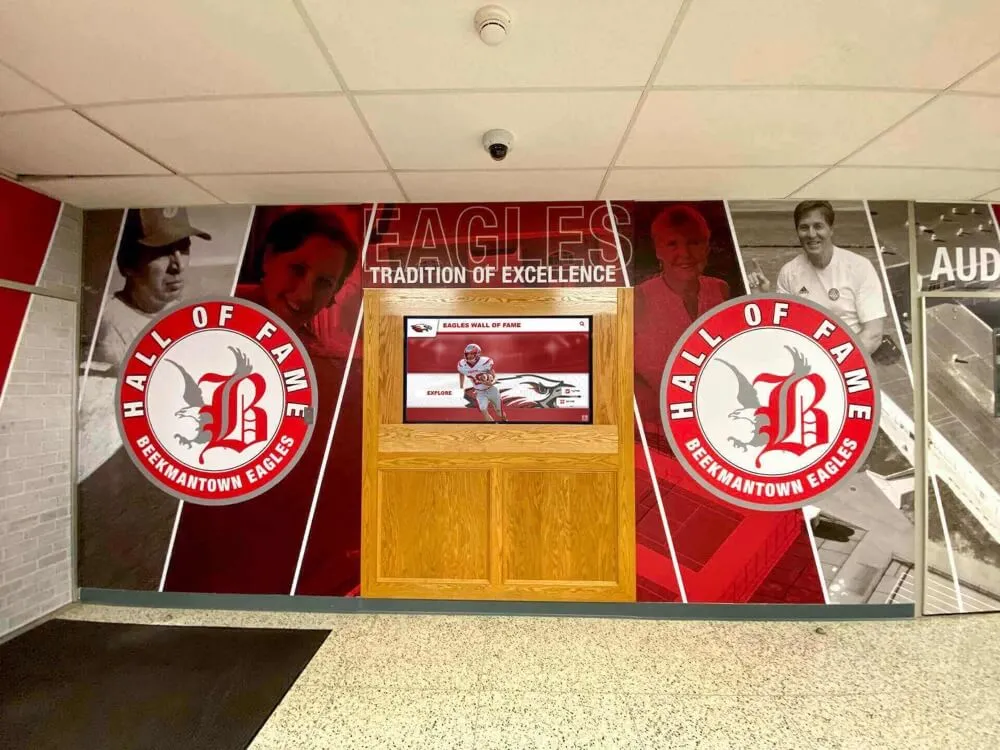
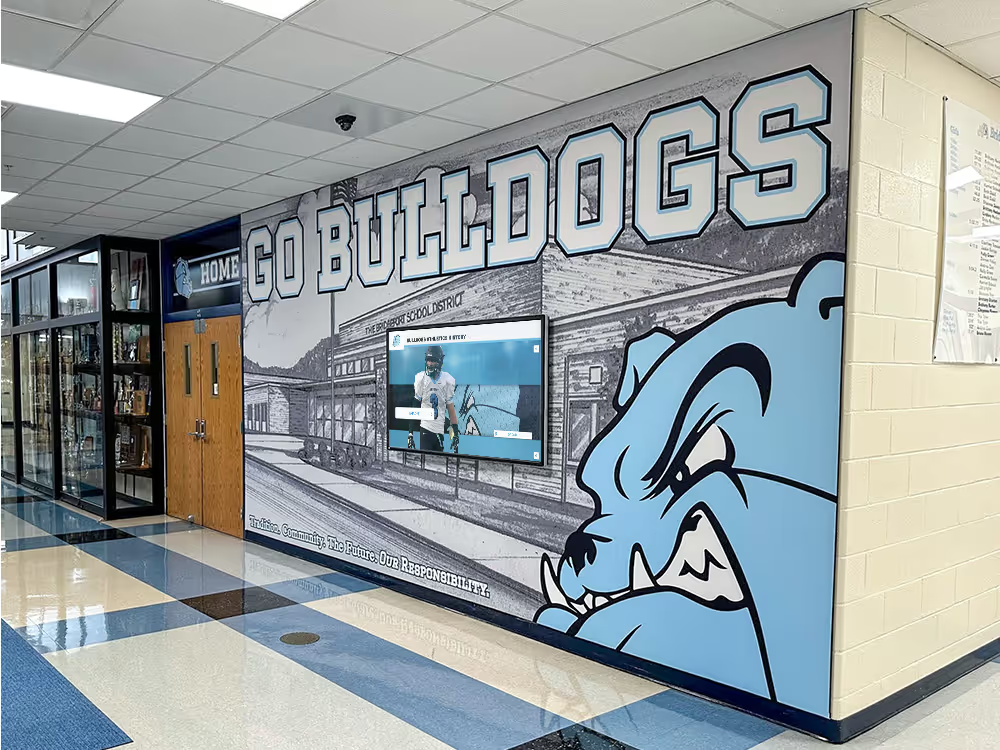
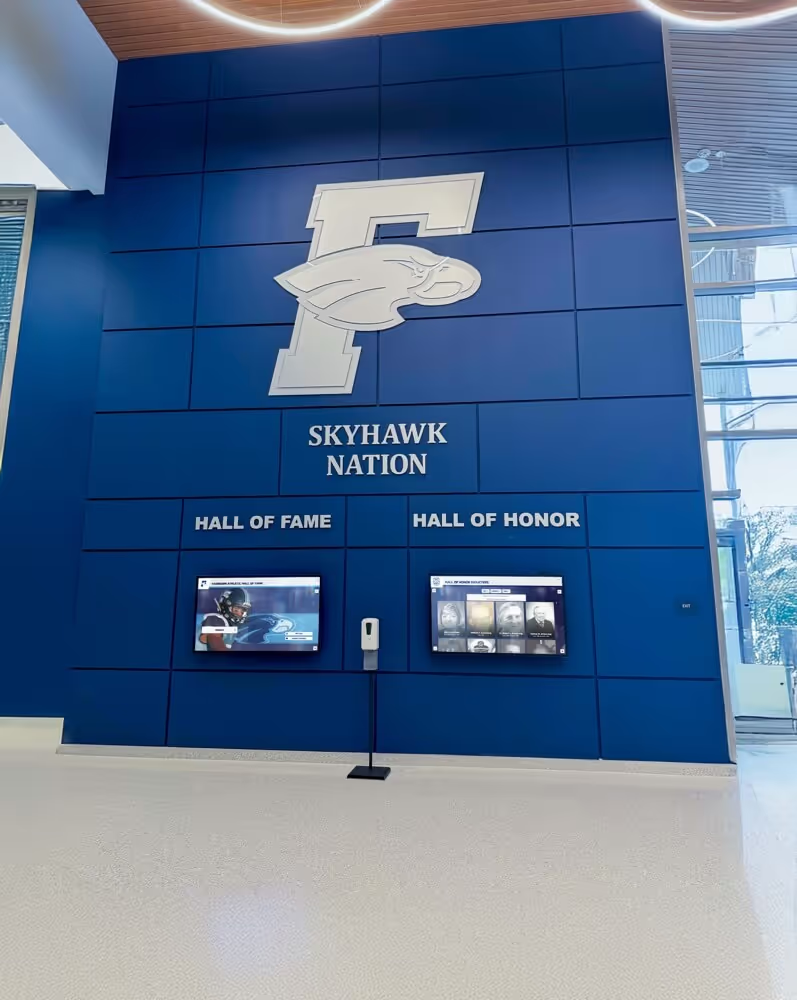
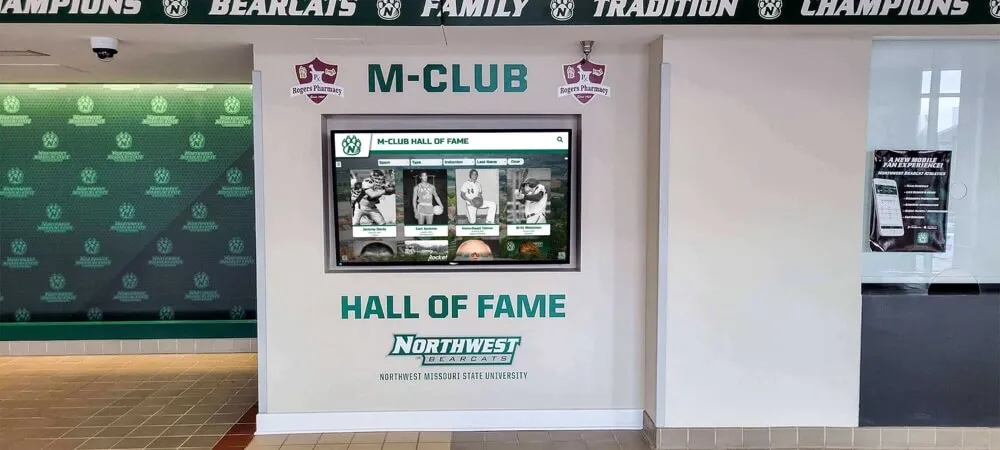
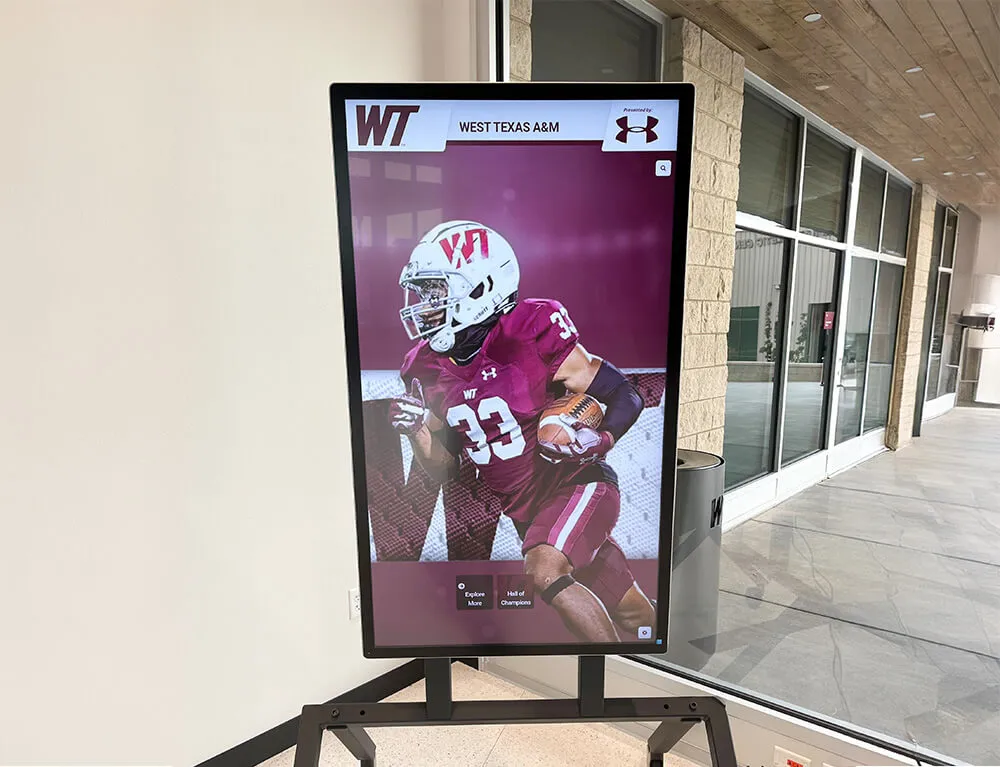
Successful Mac touchscreen deployments require software explicitly designed for kiosk applications rather than general-purpose computing
Top Mac Touchscreen Software Solutions for 2025
Understanding the complete landscape of Mac touchscreen software options helps organizations identify solutions matching their specific requirements, technical capabilities, and budget constraints.
Rocket Touchscreen (Mac App Store)
Rocket Touchscreen, available in the Mac App Store, represents a purpose-built solution specifically designed to transform Mac computers into secure, user-friendly touchscreen kiosks with minimal configuration complexity.
Key Features and Capabilities
Rocket Touchscreen addresses the primary challenges organizations face when deploying Mac-based interactive displays:
Automatic Kiosk Mode Launch: The application automatically launches into full-screen kiosk mode, eliminating manual configuration and ensuring consistent operation across restarts. Organizations appreciate this automation particularly for installations in locations where technical staff cannot easily access displays for troubleshooting or configuration adjustments.
Chromium-Based Browser Engine: Running on Chromium provides excellent web standards compliance, ensuring modern websites and web applications display correctly without compatibility issues. The Chromium foundation also delivers strong performance for interactive content including video, animations, and dynamic web applications.
Single-Touch Optimized Interface: While many touchscreens support multi-touch gestures, public kiosk environments often work better with single-touch interaction preventing confusion from accidental gesture recognition. Rocket Touchscreen includes optimizations for single-touch operation, though the underlying Chromium engine supports multi-touch capabilities when needed.
Single-Touch Mode for Accessibility: Beyond the software’s single-touch optimizations, Rocket Alumni Solutions provides a complementary “single touch mode” in their web-based recognition platforms, ensuring everything remains accessible without multi-touch gestures. This thoughtful pairing of software capabilities and content design ensures excellent accessibility for diverse users including those with limited dexterity or unfamiliarity with multi-touch gestures.
Simplified Management: The app provides straightforward configuration for URL specification, security settings, and display preferences through intuitive interfaces rather than requiring command-line expertise or complex configuration files. This accessibility enables non-technical administrators to manage kiosk installations effectively.
Best Applications
Rocket Touchscreen works exceptionally well for schools implementing digital hall of fame touchscreen systems, organizations creating interactive information kiosks, facilities deploying wayfinding displays, and institutions presenting web-based interactive content. Any scenario where Mac computers need to reliably display websites in secure kiosk mode benefits from this purpose-built solution.
The app particularly excels for Rocket Alumni Solutions customers deploying interactive recognition displays, as the single-touch optimization integrates seamlessly with Rocket’s web-based recognition platform single-touch mode, creating cohesive experiences optimized for public touchscreen interaction.
Pricing and Availability
Available through the Mac App Store, Rocket Touchscreen follows Apple’s standard app distribution model with pricing and purchase managed through existing organizational Apple IDs. This distribution method simplifies procurement compared to enterprise software requiring custom licensing agreements, purchase orders, and vendor negotiations.
Mac App Store “Kiosk” by Michael Jones
For organizations seeking general-purpose Mac kiosk solutions beyond specialized touchscreen applications, the “Kiosk” app by Michael Jones provides comprehensive browser-based kiosk functionality with extensive customization options.
Core Functionality
This established Mac kiosk solution transforms Mac computers into locked-down web browsers suitable for public access scenarios:
Full-Screen Web Browsing: Displays websites in true full-screen mode eliminating browser chrome, operating system elements, and user interface distractions. The clean presentation focuses attention entirely on content rather than navigation or system elements.
Custom Keyboard Shortcut Configuration: Organizations can define specific keyboard combinations required to exit kiosk mode, preventing casual users from accidentally or intentionally closing the application while ensuring administrators can access system functions when needed using documented key combinations.
Password Protection: Optional password requirements prevent unauthorized kiosk exit, adding security layers beyond keyboard shortcuts alone. This protection proves valuable for unsupervised public installations where physical keyboard access cannot be restricted.
Presentation Mode Options: The software can hide mouse cursors, disable browser toolbars and tabs, and eliminate all interface elements for pure content presentation. These options suit informational displays, digital signage with occasional touch interaction, and scenarios where keyboard/mouse remain accessible but should appear invisible during normal operation.
Automatic Page Cycling: Multiple URL support with automatic rotation enables kiosk displays showing sequential content pages—useful for information displays presenting diverse content types or organizations wanting single kiosk installations serving multiple purposes through timed content rotation.
Limitations for Touchscreen Use
While excellent for general Mac kiosk applications, this solution wasn’t specifically designed for touchscreen interaction. Organizations deploying touchscreen kiosks may find:
- Limited touch-specific optimizations compared to purpose-built touchscreen software
- Interface elements sized for mouse precision rather than finger-touch targets
- Gestures and interactions designed for keyboard/mouse rather than touch input patterns
- Configuration complexity when optimizing for public touchscreen use cases
The app works reliably for keyboard/mouse kiosks or basic touchscreen installations with limited interaction complexity, but dedicated touchscreen solutions typically deliver better user experiences for touch-primary scenarios.
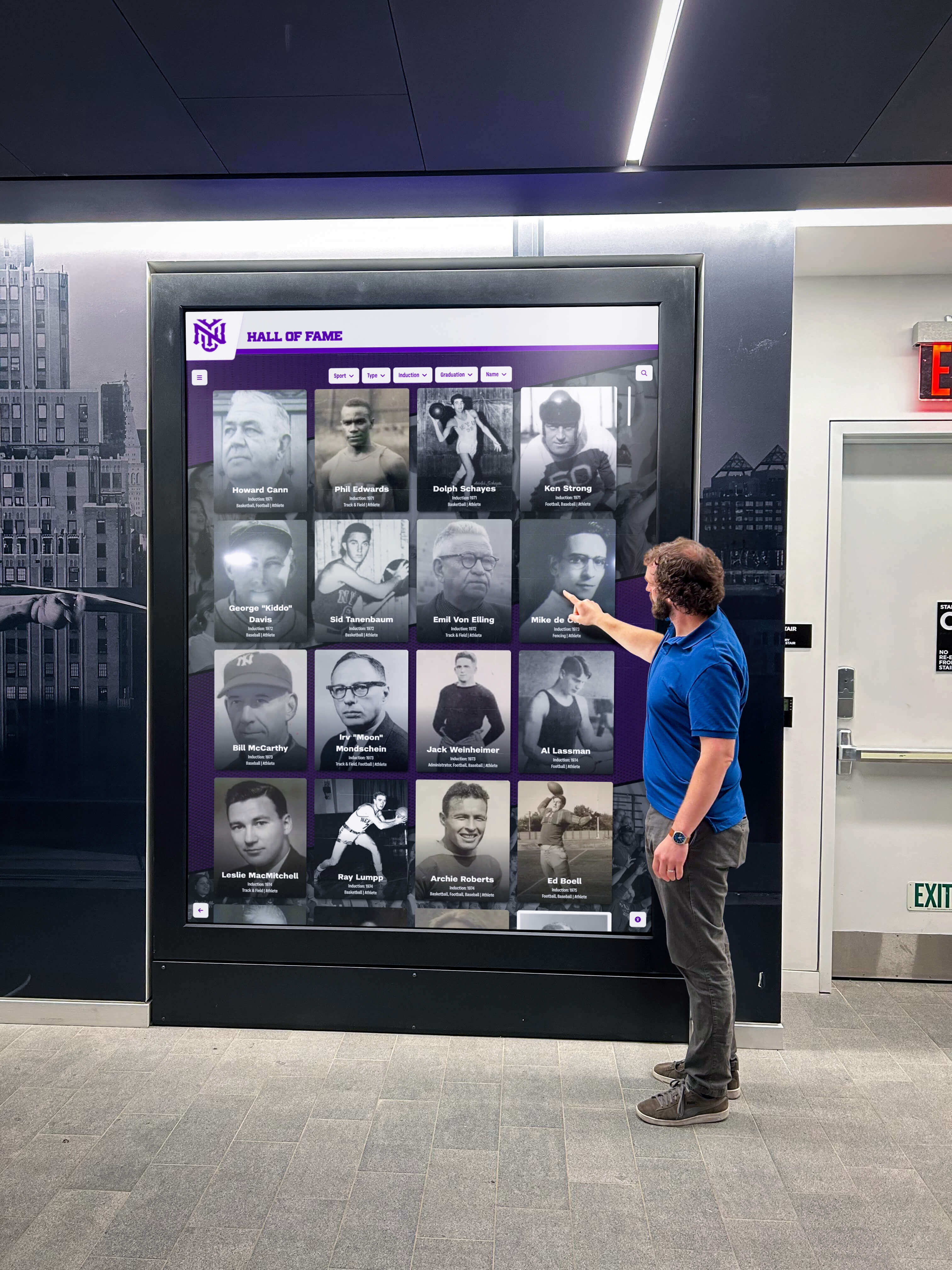
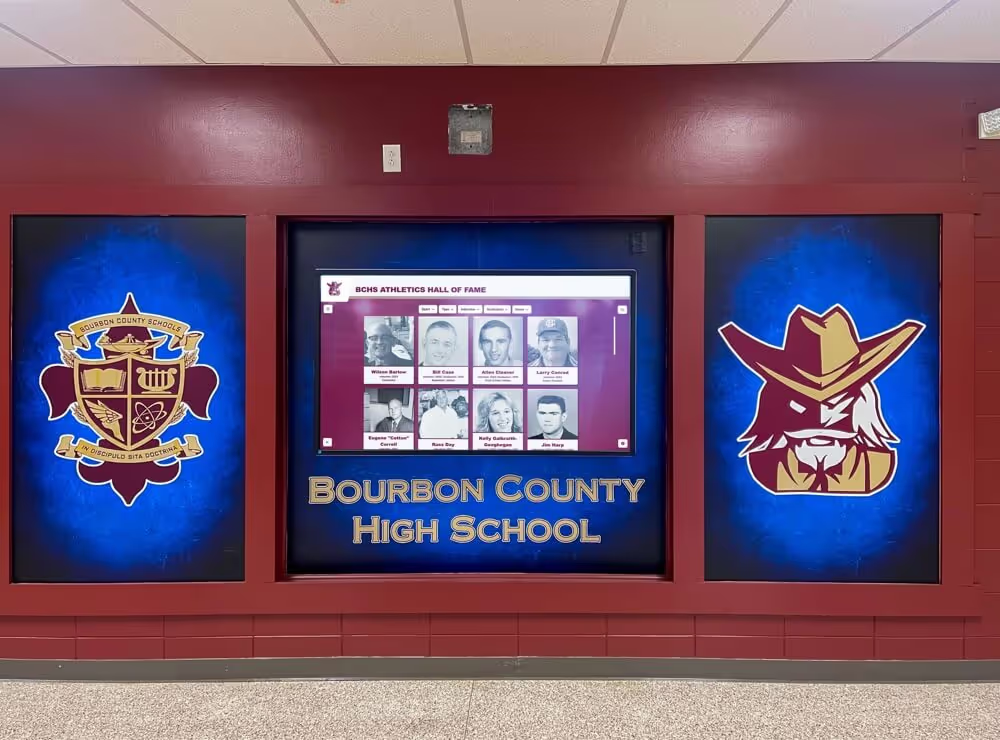
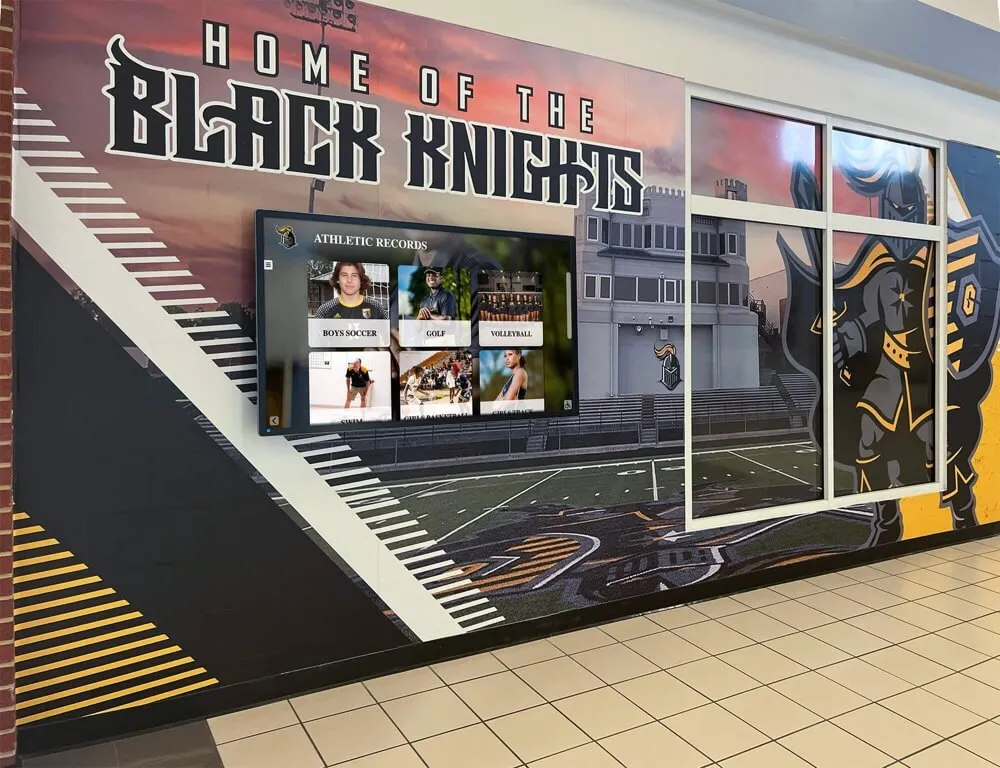
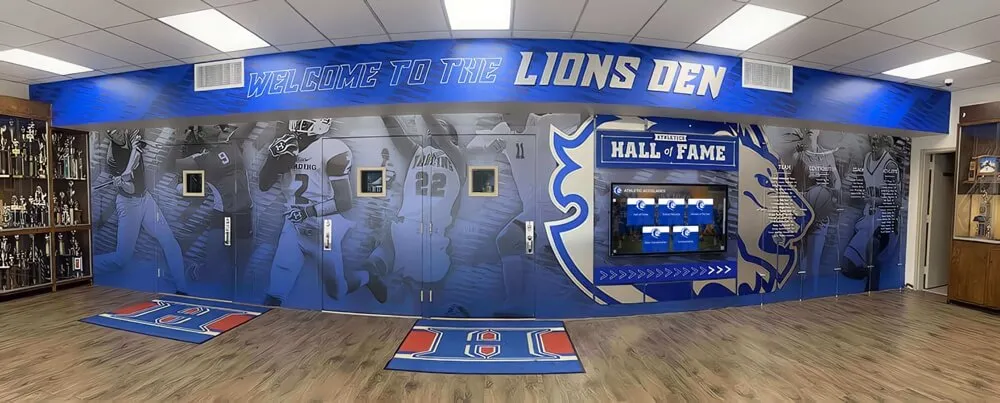
Touchscreen-optimized software delivers significantly better user experiences than general-purpose solutions adapted for touch interaction
Google Chrome Kiosk Mode (Command-Line Configuration)
For technically proficient organizations comfortable with command-line configuration, Google Chrome offers built-in kiosk mode capabilities accessible through launch parameters.
Implementation Approach
Running Chrome in kiosk mode on Mac requires launching the application with specific command-line flags:
/Applications/Google\ Chrome.app/Contents/MacOS/Google\ Chrome --kiosk --app=https://your-website-url.com
Useful Chrome Kiosk Flags
Beyond basic kiosk mode, additional flags customize Chrome behavior for kiosk deployments:
--user-data-dir=/path/to/profile- Specifies custom profile location preventing interference with personal Chrome usage--no-first-run- Skips first-run experience and setup wizards--disable-session-crashed-bubble- Prevents crash recovery prompts after unexpected closures--disable-infobars- Removes information bars and notifications--disable-pinch- Disables pinch-to-zoom gestures for touchscreen kiosks where zoom creates confusion--disable-popup-blocking- Allows popups when kiosk content requires window spawning--start-fullscreen- Forces full-screen mode from launch
Advantages of Chrome Kiosk Mode
Chrome kiosk mode provides several benefits for capable organizations:
- Zero software cost - Chrome remains free, eliminating licensing expenses
- Maximum customization - Command-line flags enable precise behavior control
- Excellent web standards support - Chrome’s rendering engine ensures broad compatibility
- Familiar platform - Most web developers optimize for Chrome, ensuring content reliability
Significant Limitations and Challenges
Despite benefits, Chrome command-line kiosk mode presents substantial challenges:
Technical Complexity: Configuring launch parameters, creating launch scripts or LaunchAgents, and troubleshooting issues requires technical expertise uncommon among typical school administrators or facility managers. Organizations implementing best school history software often lack IT resources for ongoing Chrome kiosk maintenance.
Auto-Launch Configuration Difficulty: Making Chrome automatically launch in kiosk mode at system startup demands creating macOS LaunchAgents or using third-party automation tools—processes significantly more complex than double-clicking application icons.
Limited Security Controls: Command-line Chrome kiosk mode provides minimal protection against determined users attempting to exit kiosk mode, access system functions, or interfere with operation compared to purpose-built kiosk solutions with robust security features.
No Built-In Management Interface: All configuration happens through text-based launch parameters rather than graphical interfaces, complicating routine changes like URL updates that require editing scripts rather than adjusting simple settings.
Chrome kiosk mode works well for technically sophisticated organizations with IT staff comfortable managing command-line configurations, but proves frustrating for schools and smaller organizations preferring user-friendly management interfaces.
Safari Kiosk Configurations
Some organizations prefer Safari for Mac kiosk deployments given its native macOS integration and Apple ecosystem consistency.
Safari Kiosk Approaches
Safari lacks built-in kiosk mode comparable to Chrome, requiring workarounds:
Single Application Mode (Deprecated): Older macOS versions supported Single Application Mode allowing Safari to run as the only active application. Apple deprecated this functionality in recent macOS versions, limiting Safari kiosk viability for modern deployments.
Guided Access (Limited Functionality): While iOS includes Guided Access for locking devices to single apps, macOS lacks equivalent functionality except in classroom or managed device scenarios, limiting Safari kiosk applicability.
Third-Party Solutions: Some kiosk software packages can control Safari, launching it in restricted modes with custom security policies. However, dedicated Safari kiosk solutions remain less common and typically less mature than Chrome-based alternatives.
Why Organizations Typically Choose Chrome-Based Solutions
Most Mac touchscreen kiosk deployments favor Chrome or Chromium-based solutions over Safari due to superior kiosk-specific features, better third-party software support, more extensive customization options, and broader developer familiarity ensuring content compatibility. Organizations rarely choose Safari for kiosk applications unless specific requirements demand native Apple browser engines.
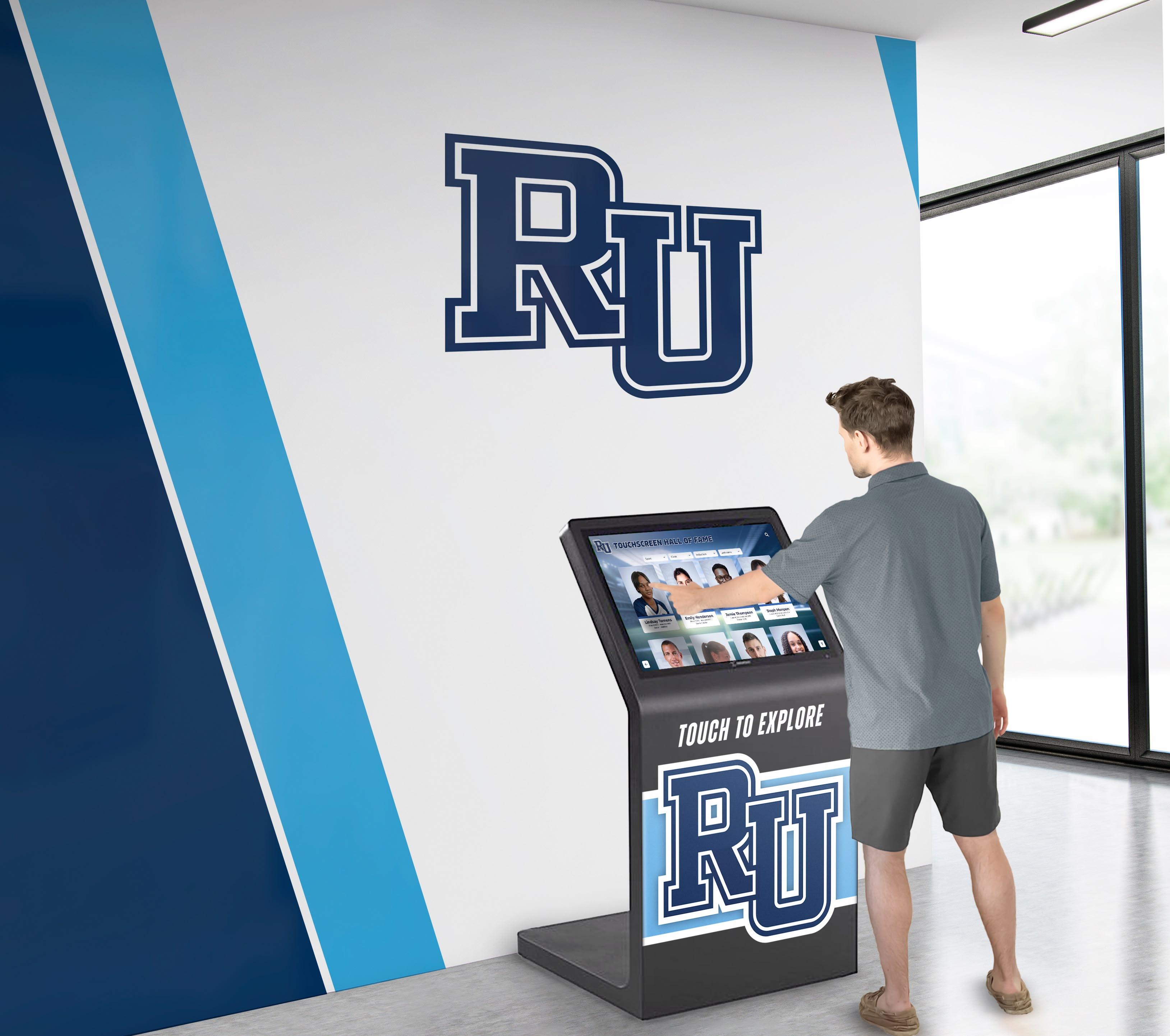
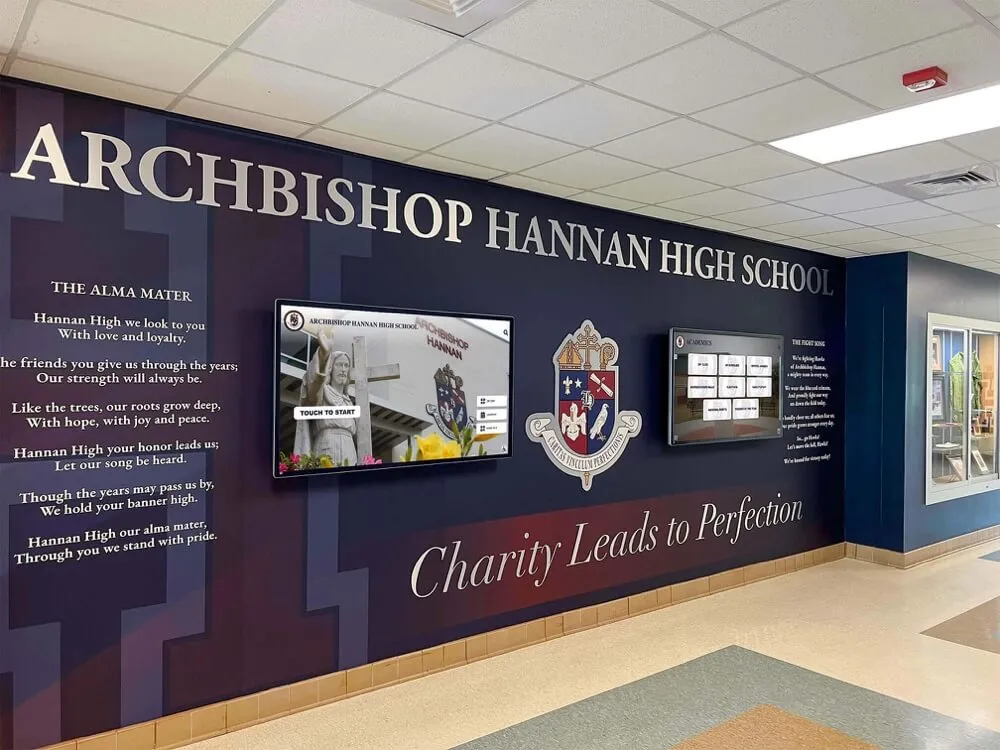
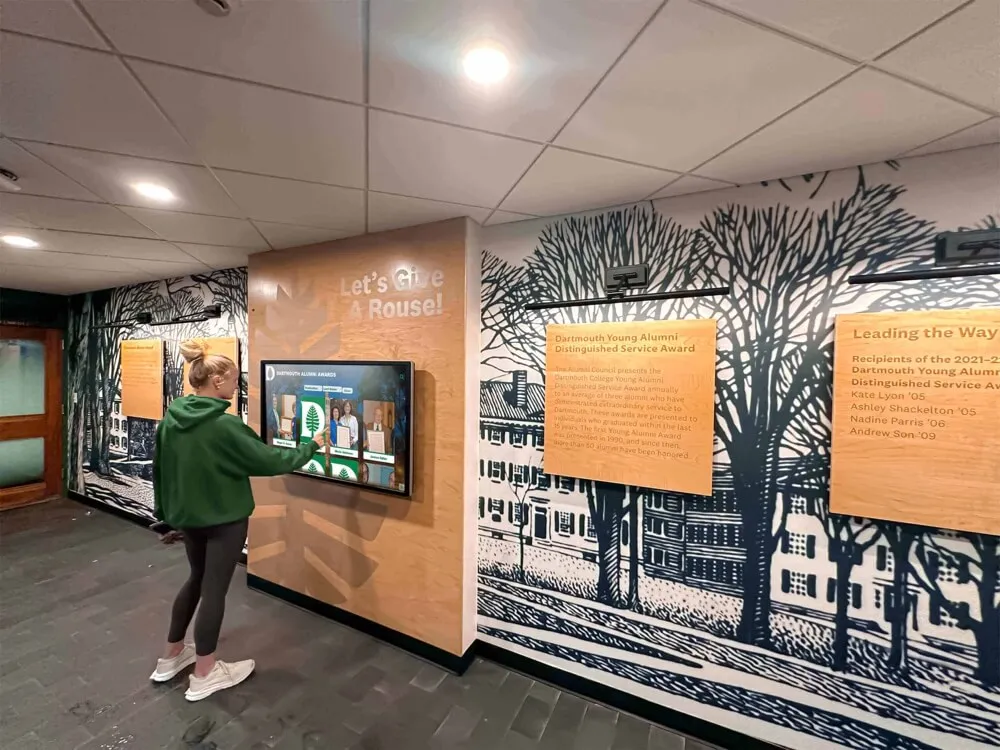
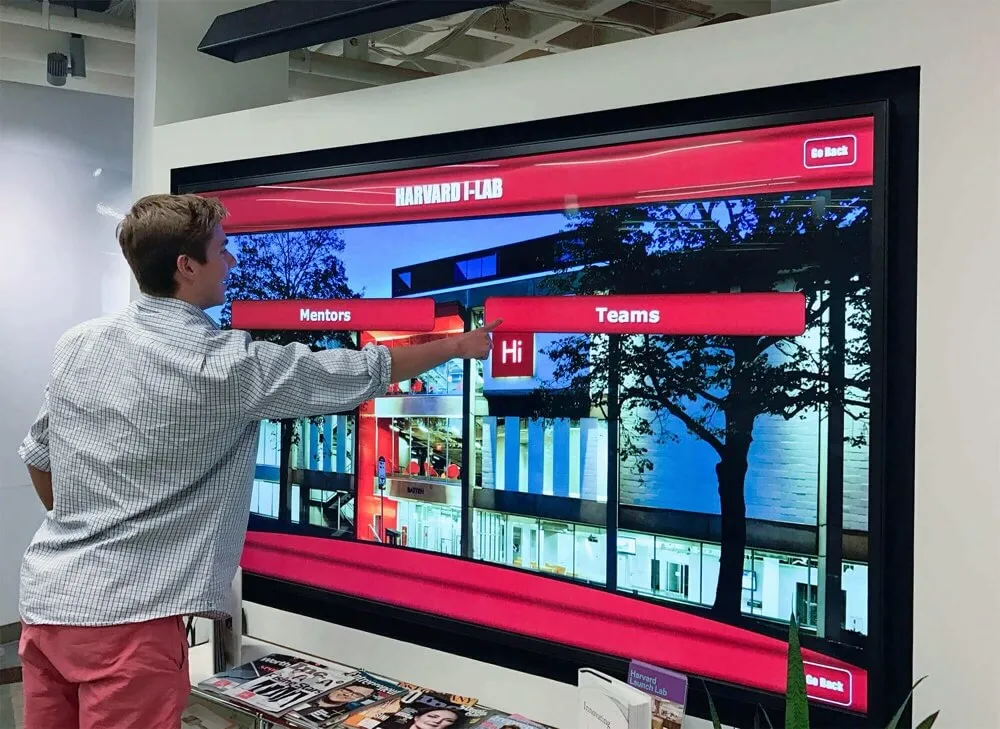
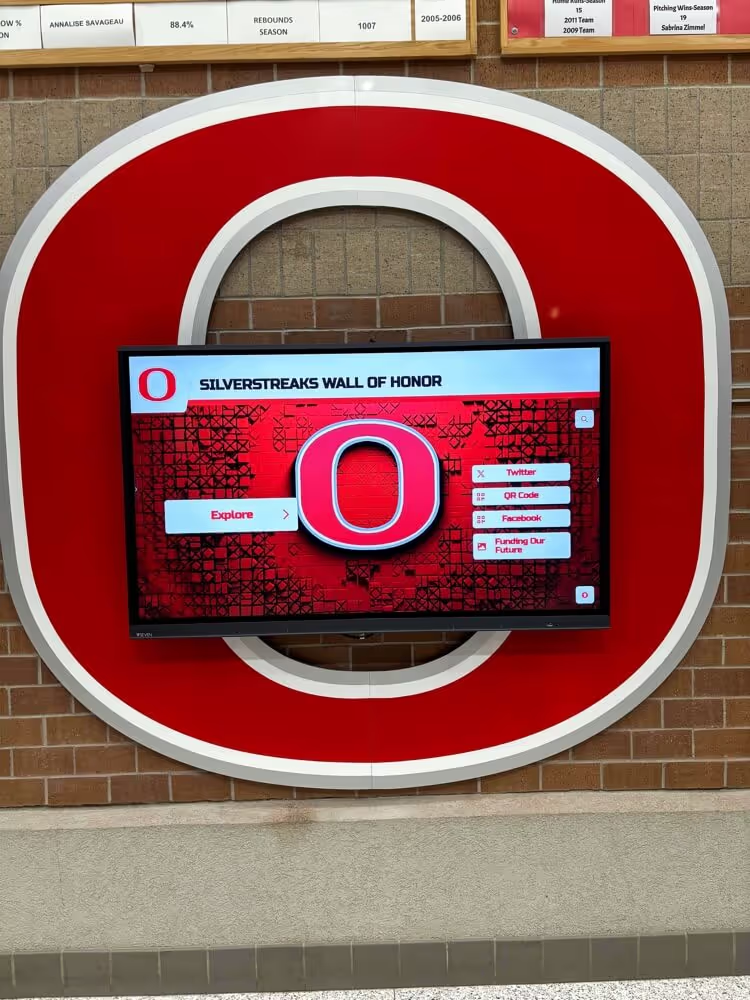
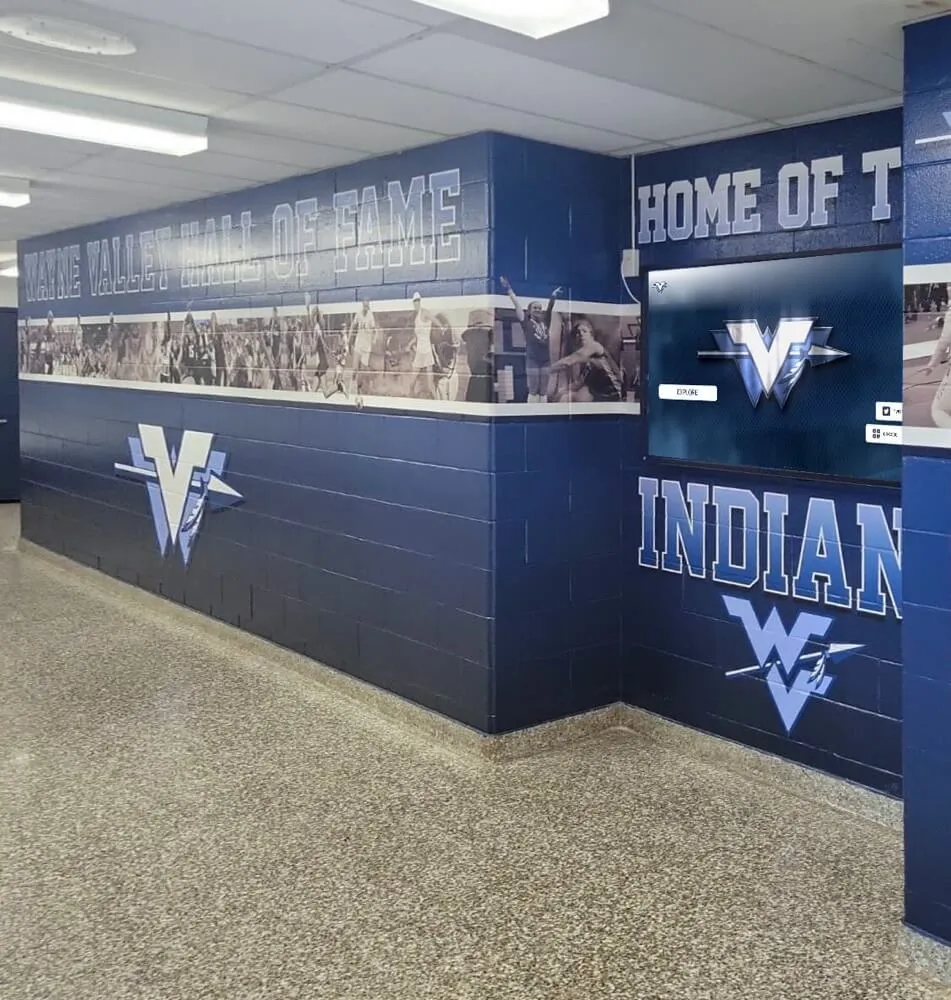
Educational institutions particularly benefit from Mac touchscreen software designed specifically for public-facing interactive displays
Enterprise-Grade Mac Touchscreen Platforms
Organizations requiring sophisticated management, multi-location deployments, or advanced interactive capabilities often need enterprise platforms beyond consumer Mac App Store solutions.
Intuiface
Intuiface represents a comprehensive interactive experience platform supporting Mac alongside Windows, iOS, Android, and web deployment—providing flexibility for organizations standardizing on multi-platform interactive display strategies.
Platform Capabilities
Intuiface emphasizes no-code interactive experience creation:
Visual Experience Builder: Drag-and-drop interface designers enable creating sophisticated interactive applications without programming knowledge. Organizations can build custom interactive announcements feeds, recognition displays, wayfinding systems, and educational exhibits through visual development rather than coding.
Rich Data Integration: The platform connects with databases, REST APIs, Excel files, Google Sheets, and numerous third-party services, enabling interactive displays presenting dynamic content from existing organizational systems rather than requiring manual content duplication.
Touch-Optimized Interactions: Unlike generic presentation tools adapted for touch, Intuiface provides purpose-built touch interaction elements including swipe galleries, pinch-zoom images, tap buttons with appropriate sizing, and gesture-based navigation matching smartphone interaction patterns users expect.
Multi-Screen Coordination: Large installations can coordinate multiple displays presenting related content, creating comprehensive interactive experiences spanning entire facilities rather than isolated single-screen applications.
Comprehensive Analytics: Detailed usage tracking reveals which content visitors explore, how long they engage with different sections, what searches they perform, and where they lose interest—insights enabling continuous experience optimization based on actual behavior rather than assumptions.
Best Applications
Intuiface works exceptionally well for museums creating elaborate exhibits, universities implementing comprehensive campus information systems, corporations deploying sophisticated lobby experiences, and large schools building custom digital art galleries or recognition programs with unique interaction requirements beyond standard platform capabilities.
Pricing Structure
Intuiface follows subscription pricing starting around $228 monthly for Composer licenses enabling experience creation. Display licenses enabling content playback add additional costs varying by deployment scale. While expensive compared to simple Mac App Store solutions, organizations requiring sophisticated custom interactive experiences find the investment worthwhile compared to custom development costs.
Free trials provide full functionality exploration without commitment, enabling thorough evaluation before financial commitment.
eCrisper (Mac-Specific Kiosk Platform)
eCrisper specializes in transforming Mac computers into secure public internet kiosks, focusing specifically on controlled web access scenarios rather than custom interactive applications.
Core Features
eCrisper emphasizes security and access control:
- Comprehensive Web Filtering: Control which websites users can access, blocking inappropriate content while permitting approved sites
- Session Management: Automatic session clearing and browser resets between users protect privacy and restore clean states
- Time Restrictions: Optional usage time limits prevent single users monopolizing public kiosks
- Remote Management: Centralized configuration and monitoring across multiple kiosk installations
- Mac-Optimized Design: Purpose-built for macOS rather than cross-platform compatibility, potentially offering better native integration
Ideal Use Cases
eCrisper serves libraries providing public internet access, schools offering student research stations, hotels providing guest web browsing, and community centers enabling supervised internet access. The platform works best when primary goals involve controlled web browsing rather than custom interactive applications or specialized content delivery.
For organizations implementing touchscreen kiosks primarily displaying custom web applications like recognition platforms, information systems, or specialized content, eCrisper’s web filtering and access control focus may provide unnecessary complexity compared to simpler display-focused solutions.
OptiSigns (Cloud-Based Digital Signage with Touch)
OptiSigns provides affordable cloud-based digital signage management with basic interactive capabilities suitable for schools and organizations prioritizing content scheduling alongside limited touch interaction.
Platform Overview
OptiSigns emphasizes simplicity and affordability:
Low Monthly Pricing: Starting at approximately $10 per screen monthly, OptiSigns offers budget-friendly digital signage dramatically less expensive than enterprise platforms while providing more features than free DIY solutions.
Content Scheduling: Organizations create playlists, schedule content for specific times or days, and manage what displays show across daily, weekly, or monthly cycles—functionality valuable for schools rotating between morning announcements, lunch menus, after-school activities, and recognition content throughout days and weeks.
Hardware Flexibility: The platform works with any display hardware including Mac computers, eliminating vendor lock-in or proprietary hardware requirements that inflate deployment costs.
Basic Touch Support: While primarily designed for passive digital signage, OptiSigns includes limited touch interaction enabling viewers to tap for additional information, manually navigate content, or trigger actions—sufficient for simple interactive applications though not matching sophisticated platforms designed primarily for touch.
Limitations for Touchscreen Applications
Organizations prioritizing sophisticated touch interaction often find OptiSigns lacking:
- Limited interactive capabilities compared to platforms designed for touch-first experiences
- Content management optimized for scheduled display rather than user-driven exploration
- Basic rather than advanced search, filtering, and navigation functionality
- Better suited for information display with optional interaction than primary interactive experiences
OptiSigns works well for schools wanting primarily digital signage showing schedules and announcements with occasional touch interaction, but organizations implementing digital trophy walls or comprehensive recognition programs typically need more sophisticated interactive platforms.
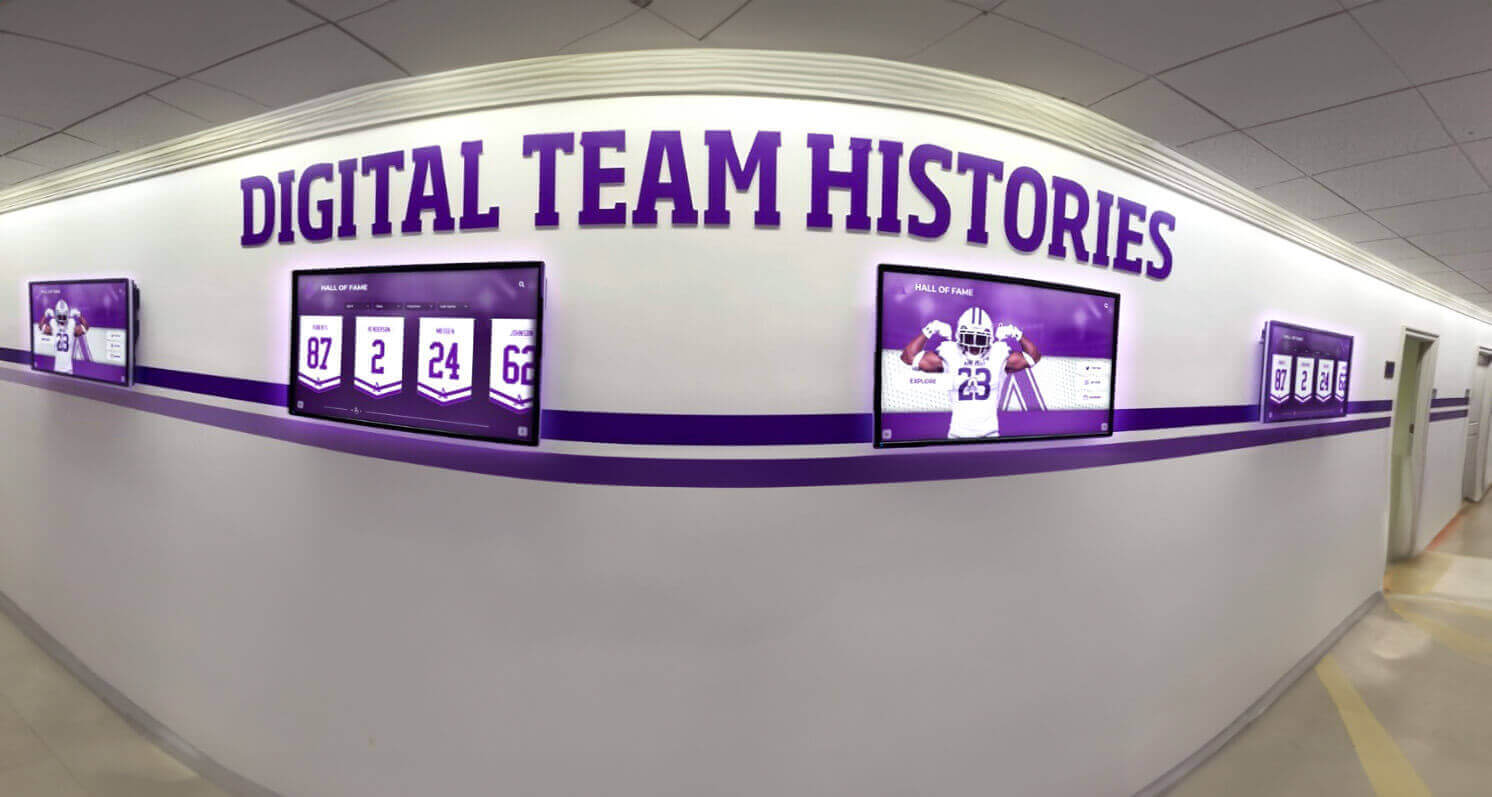
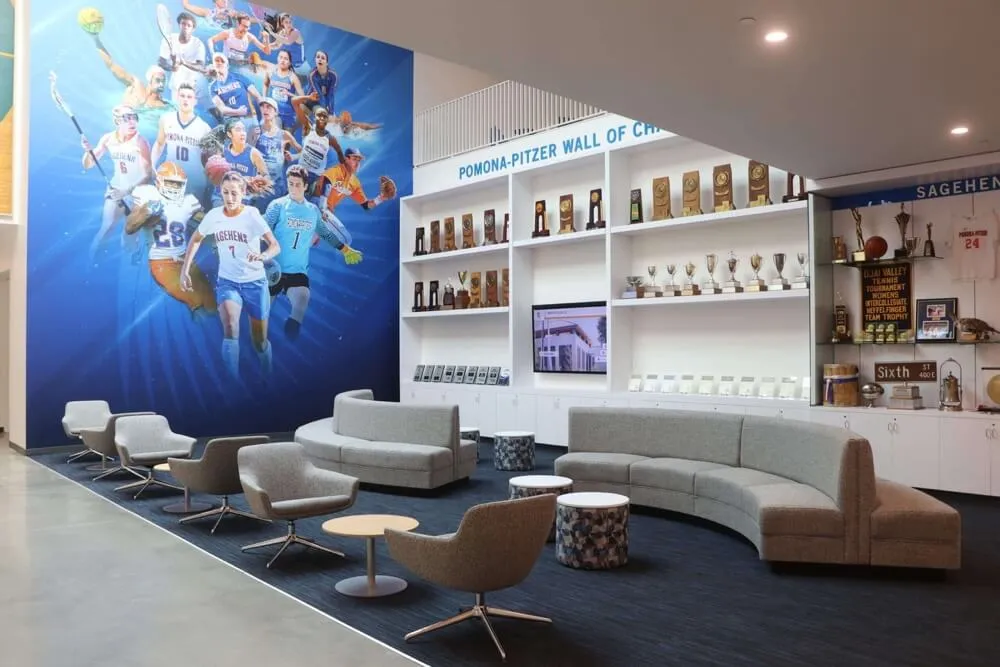
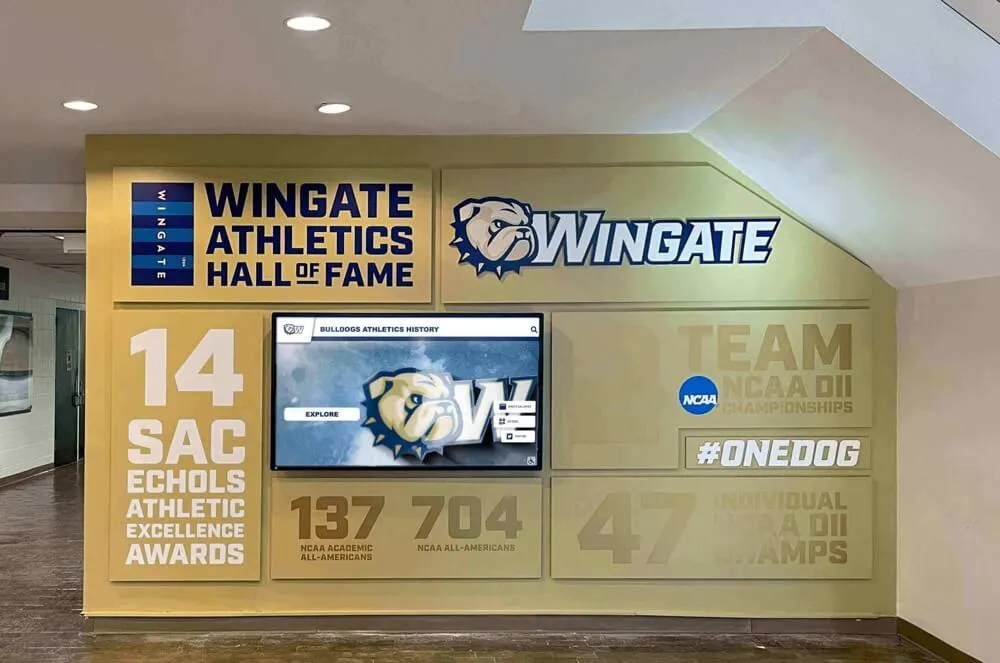
Enterprise platforms enable coordinated multi-display installations presenting related content across multiple touchscreen kiosks
Specialized Applications: Recognition and Interactive Displays
While general kiosk software serves broad applications, organizations implementing recognition programs, alumni displays, or achievement celebration benefit from understanding how specialized recognition platforms integrate with Mac touchscreen kiosks.
Purpose-Built Recognition Platforms
Recognition displays celebrating achievements and honoring contributors represent distinct software categories requiring fundamentally different capabilities than general digital signage or basic kiosk applications.
Why Recognition Demands Different Software
General kiosk solutions display content but lack features essential for comprehensive recognition:
Individual Profile Management: Recognition succeeds through detailed biographical information, achievement narratives, photo galleries, and multimedia tributes for each honored individual. Generic slideshow displays cannot match the depth, searchability, and engagement of profile-based recognition systems.
Unlimited Recognition Capacity: Physical plaques face space constraints forcing difficult decisions about whose achievements display. Digital recognition platforms like those from Rocket Alumni Solutions provide unlimited capacity ensuring every deserving individual receives permanent recognition regardless of volume.
Powerful Search and Discovery: Visitors want to find themselves, family members, classmates, or specific honorees instantly. Interactive touchscreen software designed for recognition provides sophisticated search, alphabetical browsing, graduation year filtering, and achievement category organization impossible with basic content players.
Storytelling and Emotional Connection: Recognition creates meaning through compelling stories about honored individuals—not just listing names and dates but explaining who people were, what they accomplished, and why contributions mattered. Multimedia storytelling capabilities separate genuine recognition platforms from display systems showing predetermined content sequences.
Rocket Alumni Solutions Recognition Platform
Organizations implementing Mac touchscreen kiosks for achievement celebration and heritage preservation often pair hardware with Rocket Alumni Solutions’ web-based recognition platform specifically designed for schools, athletic departments, and institutions honoring contributors.
Platform Architecture
Rocket’s cloud-based platform delivers recognition content through standard web browsers, making it compatible with any Mac kiosk software including Rocket Touchscreen, Chrome kiosk mode, or third-party solutions:
Web-Based Content Delivery: All recognition content lives in secure cloud systems accessed through browser URLs, eliminating local software installation complexity, content synchronization challenges, or version management issues. Mac kiosks simply display web URLs pointing to organizational recognition portals.
Integrated Single-Touch Mode: Recognizing that public touchscreen kiosks work better with simplified interaction, Rocket provides single-touch mode ensuring all navigation, search, and content exploration remains accessible without multi-touch gestures—perfectly complementing Rocket Touchscreen app’s single-touch optimizations.
Intuitive Content Management: Non-technical administrators manage honoree profiles, upload photos and videos, organize categories, and maintain recognition programs through user-friendly web interfaces requiring no technical expertise—critical for schools where communications staff or athletic directors manage recognition rather than IT departments.
Multi-Device Access: Beyond physical touchscreen kiosks, recognition content remains accessible through web portals enabling alumni worldwide to revisit achievements, prospective families to research institutional heritage during decision processes, and community members to explore accomplishments from any internet-connected device.
Best Applications with Mac Kiosks
Rocket Alumni Solutions recognition platforms deployed on Mac touchscreen kiosks work exceptionally well for:
- Athletic halls of fame in school gyms and fieldhouses
- Alumni recognition displays in lobbies and gathering spaces
- Academic achievement celebrations including honor roll displays
- Comprehensive student recognition programs across athletics, academics, arts, and service
- Donor recognition installations acknowledging philanthropic support
The seamless integration between Rocket’s single-touch mode recognition platform and Mac kiosk solutions like Rocket Touchscreen creates cohesive experiences optimized specifically for public touchscreen interaction in educational environments.
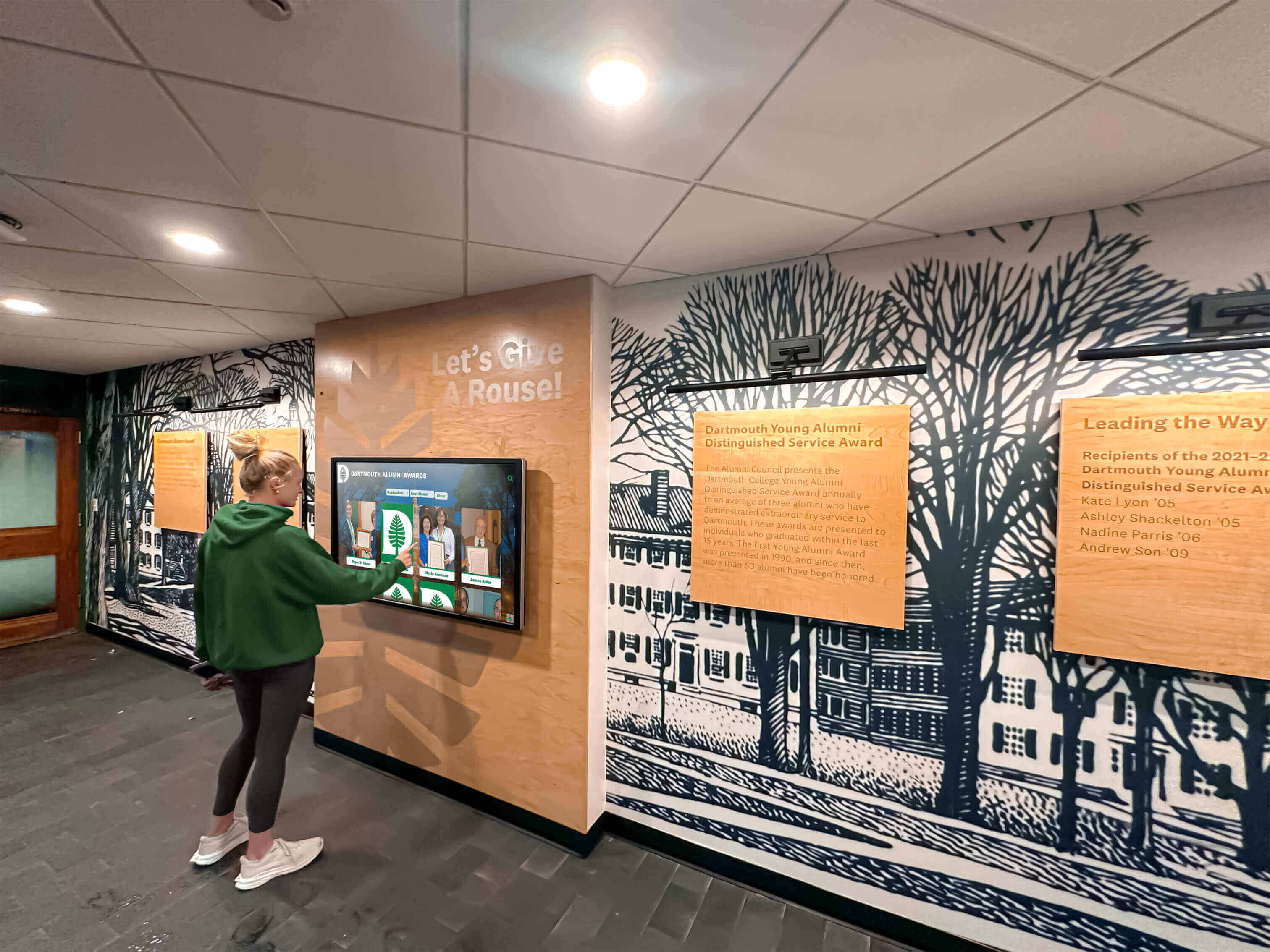
Purpose-built recognition platforms deliver engagement levels impossible with generic kiosk software showing basic content
Key Considerations When Selecting Mac Touchscreen Software
Beyond specific product features, several critical factors should guide software selection for successful Mac touchscreen kiosk deployments.
Ease of Setup and Management
Technical complexity represents the primary reason Mac kiosk projects fail or become abandoned after initial deployments. Prioritize solutions designed for non-technical administrators rather than platforms requiring IT expertise for routine management.
Setup Complexity Evaluation
Consider how difficult initial configuration proves:
- Can non-technical staff complete basic setup independently following documentation?
- Does configuration require command-line expertise, script editing, or system file modifications?
- Are there clear, comprehensive setup guides with screenshots and step-by-step instructions?
- Does the vendor provide setup assistance or professional services when needed?
Organizations implementing types of screens for digital signage benefit from software matching staff technical capabilities—sophisticated platforms prove worthless if nobody can configure them successfully.
Ongoing Management Requirements
Evaluate daily operational complexity:
- Can staff update displayed URLs, adjust settings, or troubleshoot basic issues independently?
- Does content management require learning complex interfaces or specialized technical knowledge?
- Are software updates automatic or do they require manual intervention?
- Can remote management enable updates without physical display access?
Solutions requiring IT department involvement for every routine change create unsustainable operational burdens. Prioritize platforms empowering designated staff members to manage kiosks independently within their normal job responsibilities rather than adding technical support requirements.
Security and Access Control
Public touchscreen kiosks face unique security challenges requiring software specifically designed to prevent unauthorized access, protect organizational systems, and maintain reliable operation despite casual or intentional interference attempts.
Essential Security Features
Evaluate whether kiosk software provides:
True Kiosk Lockdown: Can users exit the kiosk application using standard keyboard shortcuts like Command-Q, Command-Tab, or Command-Option-Escape? Genuine kiosk software disables these system shortcuts preventing casual users from accessing underlying macOS.
Password-Protected Administration: Does exiting kiosk mode or accessing configuration require passwords unknown to general users? Proper access control ensures only authorized staff can modify kiosk settings or exit kiosk operation.
Browser Security Controls: For web-based kiosks, can software prevent users from accessing browser settings, changing URLs manually, downloading files, or navigating to unauthorized websites? Comprehensive controls maintain intended kiosk functionality rather than enabling general web browsing.
Automatic Recovery: If kiosk software crashes or users somehow exit applications, does the system automatically restart kiosk mode without manual intervention? Unattended installations particularly require self-healing capabilities maintaining operation without constant monitoring.
Organizations deploying kiosks in unsupervised locations like school hallways, lobby areas, or public spaces need robust security features preventing tampering. Supervised installations with nearby staff may accept simpler security models.
Cost and Licensing Models
Mac touchscreen software spans from free DIY configurations through affordable consumer apps to expensive enterprise subscriptions. Understanding total cost of ownership beyond initial purchase prices ensures realistic budget planning.
Initial Acquisition Costs
Consider upfront expenses including:
- Mac App Store purchases (one-time payments per organizational Apple ID)
- Enterprise platform licensing fees (often per-device or per-location)
- Professional services for setup, configuration, and training
- Custom development costs if requiring specialized functionality
Ongoing Subscription Fees
Many modern software solutions follow subscription models with recurring monthly or annual costs including:
- Cloud platform hosting and content delivery subscriptions
- Enterprise software maintenance and support contracts
- Per-device management fees for multi-location deployments
- Premium feature access or capacity upgrades as usage grows
Hidden Costs and Considerations
Budget planning should account for less obvious expenses:
- Staff time for initial setup, content creation, and ongoing management
- Technical support costs when issues arise beyond internal capabilities
- Software migration expenses if initial selections prove inadequate
- Hardware or operating system upgrade requirements as software evolves
Organizations implementing digital recognition displays often find that while cheaper software reduces initial costs, expensive platforms with superior ease-of-use deliver better long-term value through reduced administrative burden and lower ongoing management costs.
Touch Interaction Quality
Not all software claiming Mac compatibility actually provides excellent touchscreen experiences. Evaluate interaction quality carefully rather than assuming mouse-based interfaces automatically work well with touch input.
Touch-Specific Design Elements
Quality touchscreen software includes:
Appropriately Sized Touch Targets: Buttons, links, and interactive elements should meet or exceed 44-60 pixel minimum sizes ensuring reliable finger activation without precision challenges or frustration from repeatedly missing targets.
Immediate Visual Feedback: Every touch should provide instant visible response—typically within 100 milliseconds—confirming interaction registration. Delayed or absent feedback leaves users uncertain whether touches registered, leading to repeated attempts and confusion.
Touch-Optimized Gestures: If supporting multi-touch, gestures should follow smartphone conventions users already understand—tap to select, swipe to scroll, pinch to zoom, two-finger rotate. Novel gestures requiring learning or instruction reduce accessibility and engagement.
Single-Touch Fallback Options: Even when supporting multi-touch capabilities, quality software provides single-touch alternatives ensuring accessibility for users unfamiliar with gestures, those with limited dexterity, or installations where multi-touch recognition proves problematic.
Organizations can evaluate touch quality through hands-on testing with actual target users—students, staff members, elderly visitors, or other representative populations. Software that seems fine during desktop development often reveals usability issues during real-world touchscreen interaction that only user testing uncovers.

Software designed specifically for touchscreen interaction delivers dramatically better user experiences than mouse-optimized interfaces adapted for touch
Implementation Best Practices for Mac Touchscreen Kiosks
Beyond software selection, successful deployments require attention to hardware integration, content optimization, physical installation, and ongoing maintenance planning.
Hardware Selection and Integration
While this guide focuses on software, hardware choices significantly impact overall success, particularly regarding touchscreen technology integration with Mac computers.
Mac Models for Touchscreen Kiosks
Consider which Mac hardware best suits touchscreen kiosk applications:
Mac Mini: Compact, affordable, and easily integrated with third-party touchscreen displays, Mac Mini computers offer flexibility for custom kiosk builds. Organizations can select ideal display sizes, mount computers out of sight, and create professional installations without iMac all-in-one constraints. However, separate displays and computers require more cables and mounting considerations than integrated solutions.
iMac with Touchscreen Overlay: Standard iMacs paired with capacitive touchscreen overlays create elegant all-in-one kiosk solutions. Several manufacturers produce stick-on touchscreen overlays converting regular iMac displays into touch-sensitive screens while maintaining Apple’s premium aesthetics. Installation remains relatively straightforward though displays become significantly heavier with overlays attached.
Mac Studio: For demanding applications requiring maximum processing power—perhaps displaying high-resolution video content, supporting augmented reality features, or running resource-intensive web applications—Mac Studio provides desktop-class performance in compact enclosures easily integrated with professional touchscreen displays.
Touchscreen Technology Selection
Choose touchscreen technology appropriate for intended environments:
Capacitive Touchscreens: Most common technology using electrical conductivity for touch detection, capacitive screens provide excellent clarity, support multi-touch gestures naturally, and feel responsive like smartphones. However, they require direct finger contact and don’t work with regular gloves—potential issues for outdoor installations or facilities where users wear gloves.
Infrared Touchscreens: Using infrared light grids detecting touch by blocked beams, infrared technology works with gloved fingers and responds to any opaque object rather than requiring skin contact. However, direct sunlight can interfere with detection, making infrared less suitable for bright environments like lobbies with large windows.
Organizations implementing school historical timeline displays or other content-rich kiosks should prioritize touchscreen technologies providing excellent clarity and color accuracy ensuring photos, videos, and detailed information display beautifully.
Content Optimization for Touch Interaction
Even excellent Mac touchscreen software cannot compensate for content poorly optimized for touch interaction. Organizations must design or configure content specifically for touchscreen kiosk contexts.
Design Principles for Touchscreen Content
Follow established guidelines optimizing touchscreen usability:
Large Touch Targets: All interactive elements—buttons, links, navigation controls—should measure at least 44x44 pixels absolute minimum, with 60x60 pixels preferred for public kiosks where users interact while standing at potentially awkward angles. Small targets dramatically increase interaction frustration and abandonment.
Generous Spacing: Adequate spacing between interactive elements prevents users accidentally activating wrong controls when attempting to select specific buttons. Minimum 8-10 pixel spacing between clickable elements reduces errors.
Clear Visual Affordances: Users should instantly recognize what elements are interactive through visual cues including button-like appearance, color differentiation from static content, and subtle shadows or borders suggesting clickability. Ambiguous interfaces where interactivity remains unclear frustrate users and reduce engagement.
Shallow Navigation Hierarchies: Minimize clicks required reaching content—ideally 2-3 taps maximum from home screens to desired information. Deep navigation structures with 5-6 layers dramatically reduce usage as most visitors abandon before reaching deeply-buried content.
Simple, Intuitive Language: Avoid technical jargon, assume no prior knowledge, and use clear descriptive labels for all navigation and controls. Remember that public kiosk users span diverse ages, education levels, and technical sophistication—optimize for broad accessibility rather than assuming expertise.
Organizations creating custom interactive content for Mac touchscreen kiosks benefit from usability testing with actual representative users rather than assuming developers’ mouse-and-keyboard perspectives translate effectively to public touchscreen contexts.
Physical Installation Considerations
Beyond software and content, physical installation locations and mounting significantly impact touchscreen kiosk usage and success.
Optimal Placement Locations
Strategic placement maximizes visibility and engagement:
High-Traffic Areas: Main entrance lobbies, cafeteria adjacent spaces, and primary circulation hallways generate far more interaction than installations in secondary corridors or low-traffic wings. Place kiosks where target audiences naturally concentrate rather than convenient locations for installers.
Natural Dwell Points: Positions near seating areas, waiting spaces, or gathering zones where people naturally pause work better than mid-hallway installations where everyone rushes past without stopping. Consider visitor patterns when selecting locations rather than focusing solely on visibility.
Appropriate Height and Angle: Mount touchscreens at accessible heights for intended users—typically 42-48 inches to center for adult populations, lower for elementary schools with young children. Slight backward tilt (10-15 degrees) often improves viewing angles and reduces glare compared to perfectly vertical mounting.
Adequate Lighting Control: Avoid placing displays opposite large windows causing glare, near bright overhead lighting creating reflections, or in extremely dim areas where screens appear overly bright. Moderate ambient lighting enables comfortable viewing and interaction.
Organizations implementing highlighting famous alumni recognition displays should prioritize locations where diverse audiences naturally encounter installations—not just current students but also visiting alumni, prospective families during tours, and community members attending events.
Maintenance and Update Planning
Sustainable Mac touchscreen kiosk deployments require ongoing maintenance planning rather than “set and forget” approaches that lead to neglected displays showing outdated content.
Routine Maintenance Tasks
Establish regular maintenance schedules addressing:
Physical Cleaning: Touchscreens accumulate fingerprints, dust, and smudges affecting appearance and potentially touch sensitivity. Weekly cleaning with appropriate non-abrasive cleaning solutions maintains professional appearance and reliable operation.
Software Updates: Keep macOS, kiosk software, browsers, and web content current through regular update cycles. Balance security and feature improvements against testing requirements ensuring updates don’t break kiosk configurations.
Content Refresh: Update displayed information regularly adding new honorees to recognition displays, refreshing announcement content, updating schedules and calendars, and removing outdated information. Stale content makes expensive kiosk installations appear neglected and reduces visitor engagement.
Hardware Inspection: Periodically verify touchscreen response quality, check cable connections, confirm physical mounting security, and ensure cooling ventilation remains unobstructed. Catching hardware issues early prevents minor problems escalating into failures requiring expensive emergency repairs.
Assign Clear Responsibility
Designate specific staff members or departments as kiosk owners responsible for ongoing management:
- Which department oversees content updates and accuracy?
- Who handles physical cleaning and basic maintenance?
- Who coordinates software updates and technical troubleshooting?
- Where do visitors report issues or suggest improvements?
Clear ownership prevents situations where everyone assumes someone else manages kiosks, leading to gradually deteriorating installations nobody maintains effectively.
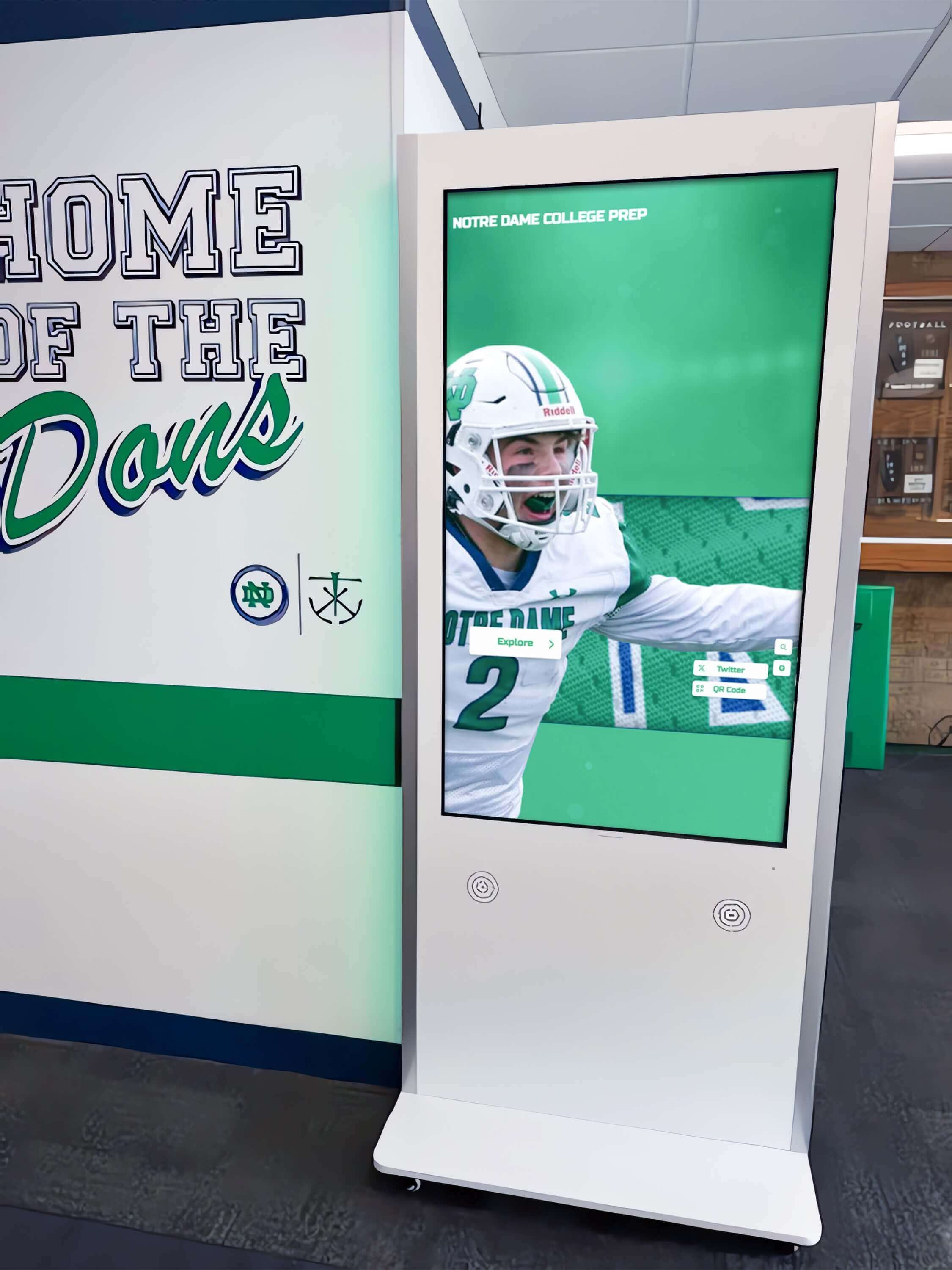
Successful long-term deployments require clear maintenance planning and designated staff responsibility for ongoing management
Common Pitfalls and How to Avoid Them
Learning from others’ mistakes helps organizations avoid common issues that plague Mac touchscreen kiosk projects.
Pitfall #1: Prioritizing Hardware Over Software
Organizations frequently invest heavily in premium touchscreen displays and Mac computers while selecting inadequate software as an afterthought—creating beautiful installations that frustrate users through poor functionality.
The Reality
Software capabilities fundamentally determine what touchscreen kiosks can accomplish regardless of hardware quality. Gorgeous displays running software with poor touch optimization, inadequate security, or limited functionality deliver disappointing results despite premium hardware investments.
Solution
Evaluate and select software before finalizing hardware purchases. Once software requirements are clear—processing power needs, display resolution recommendations, specific Mac model compatibility—hardware selections become straightforward. Reversing this process and choosing hardware first often leads to software compromises or expensive hardware replacements when initially-selected systems prove inadequate for required software.
Pitfall #2: Underestimating Content Creation Effort
Schools and organizations frequently focus on technology deployment while dramatically underestimating time and effort required creating compelling content that justifies interactive touchscreen investments.
The Reality
Empty or minimal kiosks displaying basic information waste touchscreen technology potential. Organizations implementing digital hall of fame displays discover that comprehensive content development takes 40-120 hours for initial population plus 15-30 hours annually for maintenance—work many institutions underestimate during planning.
Solution
Honestly assess content development capacity before deploying kiosks. Start with achievable scope demonstrating value quickly rather than attempting comprehensive historical coverage before launching. Schools might initially populate five years of recognition content then gradually expand backward through institutional history. This phased approach enables learning from initial implementations, gathering user feedback, and refining approaches before investing massive effort.
Pitfall #3: Neglecting Ongoing Management
Many organizations successfully launch touchscreen kiosks but fail to maintain them over time, resulting in displays showing increasingly outdated content that become embarrassments rather than assets.
The Reality
Kiosks require ongoing management including content updates, software maintenance, hardware cleaning, and periodic refresh. Without clear responsibility and sustainable processes, initial enthusiasm fades and installations deteriorate.
Solution
Establish maintenance workflows and assign specific ownership during project planning—not as afterthoughts following deployments. Document procedures for routine tasks, provide adequate training ensuring designated staff can manage responsibilities confidently, and schedule regular reviews verifying maintenance actually occurs rather than assuming good intentions guarantee consistent execution.
Pitfall #4: Ignoring User Testing
Technical teams often design kiosk interfaces that seem intuitive to developers but confuse actual users—discovering usability issues only after installations when modifications become expensive and disruptive.
The Reality
Software developers, IT staff, and administrators represent highly technical users with different mental models than students, elderly visitors, or general public populations. Interfaces that seem obvious to technical teams frequently confuse non-technical users who think differently about navigation and interaction.
Solution
Conduct user testing with actual representative populations before finalizing deployments. Observe students, staff members, visitors, or community members attempting realistic tasks on prototype installations. Watch where they struggle, note what confuses them, and identify what works intuitively. This observation reveals usability issues invisible to technical teams designing interfaces, enabling refinement before broad deployment rather than expensive post-installation redesigns.
Conclusion: Selecting the Right Mac Touchscreen Software for Your Needs
Mac touchscreen software in 2025 spans from simple, affordable solutions suitable for basic kiosk needs through sophisticated enterprise platforms serving complex interactive requirements. Success depends less on selecting the “best” software universally and more on choosing solutions genuinely matching your specific requirements, technical capabilities, and implementation contexts.
For schools and organizations implementing straightforward touchscreen kiosks displaying web-based content in secure kiosk mode, purpose-built solutions like Rocket Touchscreen from the Mac App Store provide optimal combinations of ease-of-use, reliability, and Mac-specific optimization. The automatic kiosk mode launch, Chromium-based engine, single-touch optimizations, and simplified management enable successful deployments without requiring deep technical expertise—critical for educational institutions with limited IT resources.
Organizations requiring sophisticated custom interactive experiences, elaborate data integrations, or multi-platform deployments spanning Mac, Windows, iPad, and web delivery benefit from comprehensive platforms like Intuiface despite higher costs and complexity tradeoffs. Large schools, museums, universities, and corporations implementing extensive interactive installation networks justify enterprise platform investments through capabilities impossible with simpler solutions.
Technical organizations comfortable with command-line configuration and possessing IT staff for ongoing management may achieve excellent results with Chrome kiosk mode configured through launch parameters—trading setup complexity and management burden for zero licensing costs and maximum customization flexibility. However, most schools and smaller organizations find this approach creates unsustainable technical dependencies better avoided through user-friendly commercial solutions.
Transform Your Mac Into a Professional Touchscreen Kiosk
Whether implementing interactive recognition displays, digital information kiosks, or wayfinding systems, selecting appropriate Mac touchscreen software determines success. Purpose-built solutions like Rocket Touchscreen deliver reliable kiosk mode operation optimized specifically for educational and organizational needs.
Explore Touchscreen SolutionsBeyond software features, successful Mac touchscreen kiosk deployments require attention to content quality, physical installation locations, ongoing maintenance planning, and user experience testing with actual representative populations. Organizations that treat touchscreen projects as comprehensive initiatives addressing technology, content, and organizational dimensions consistently achieve better results than those focusing exclusively on hardware and software without considering broader context.
For schools specifically implementing recognition programs celebrating student achievements, athletic accomplishments, or alumni success, pairing Mac kiosk solutions with purpose-built recognition platforms like those from Rocket Alumni Solutions creates integrated experiences optimized for public touchscreen interaction. The combination of Rocket Touchscreen app’s kiosk capabilities with Rocket’s single-touch mode web platform demonstrates how coordinated software selection—matching kiosk software with content platforms—delivers superior results compared to generic solutions adapted for specialized applications.
Ready to implement Mac-based touchscreen kiosks for your school, museum, corporate facility, or organization? Whether exploring simple kiosk apps, evaluating enterprise platforms, or seeking recognition-specific solutions, understanding software capabilities, implementation requirements, and ongoing management needs ensures successful outcomes delivering exceptional value across the multi-year operational horizons these systems serve.
For educational institutions implementing recognition programs, consider exploring how purpose-built platforms designed for school recognition programs integrate seamlessly with Mac touchscreen kiosks, creating cohesive experiences celebrating achievements while inspiring current students through connection with institutional heritage and alumni success.
The Mac touchscreen software landscape in 2025 provides mature, capable solutions serving diverse organizational needs—from affordable consumer apps through sophisticated enterprise platforms. Organizations need only commitment to systematic evaluation matching platform capabilities to specific requirements, comprehensive implementation addressing technology and content dimensions, and sustainable management ensuring displays remain current, relevant, and valuable to communities they serve.