



Planning a school wayfinding kiosk is rarely as simple as ordering a touchscreen and plugging it in. Between choosing the right location, selecting software that non-technical staff can actually maintain, meeting ADA requirements, and figuring out what content to display beyond a static campus map — there are enough variables to delay a project for months or shelve it entirely. Yet schools that work through these decisions systematically end up with lobby installations that orient every visitor, celebrate every achievement, and deliver value far beyond the cost of the hardware.
This planning guide walks through the decisions in the right order — from defining goals before you ever talk to a vendor, through content strategy, phased budgeting, and the often-overlooked opportunity to integrate recognition displays that transform a navigation tool into a school pride centerpiece.
Administrators who have deployed interactive kiosks consistently report that the planning phase determines more about long-term success than any hardware specification. Schools that get it right spend more time thinking before buying — and far less time troubleshooting after installation.

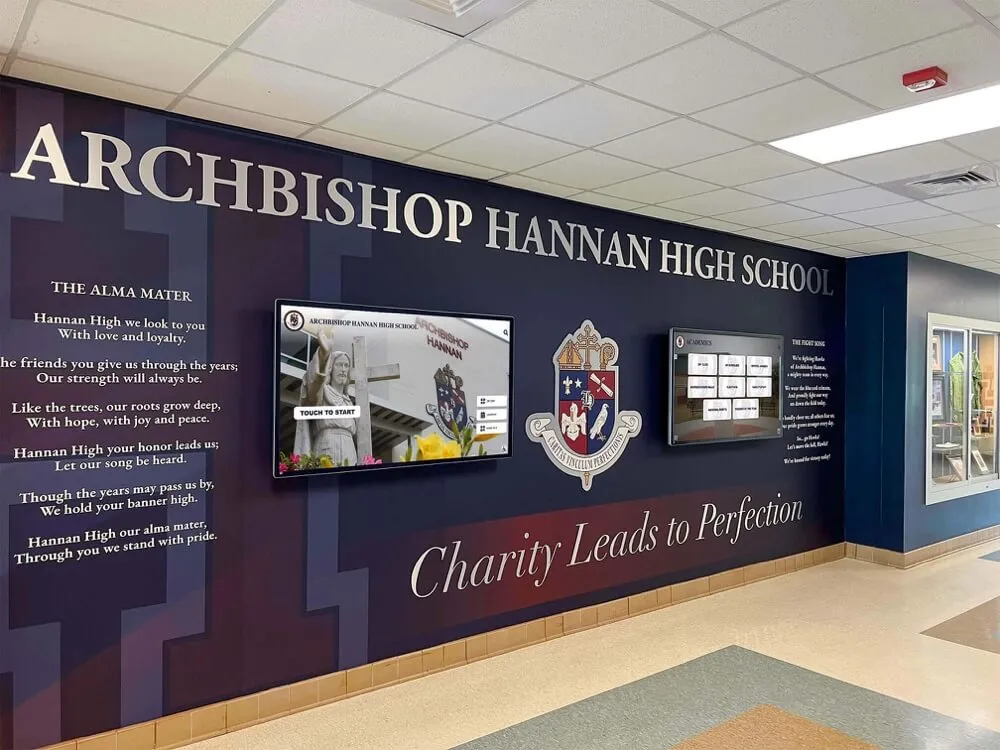
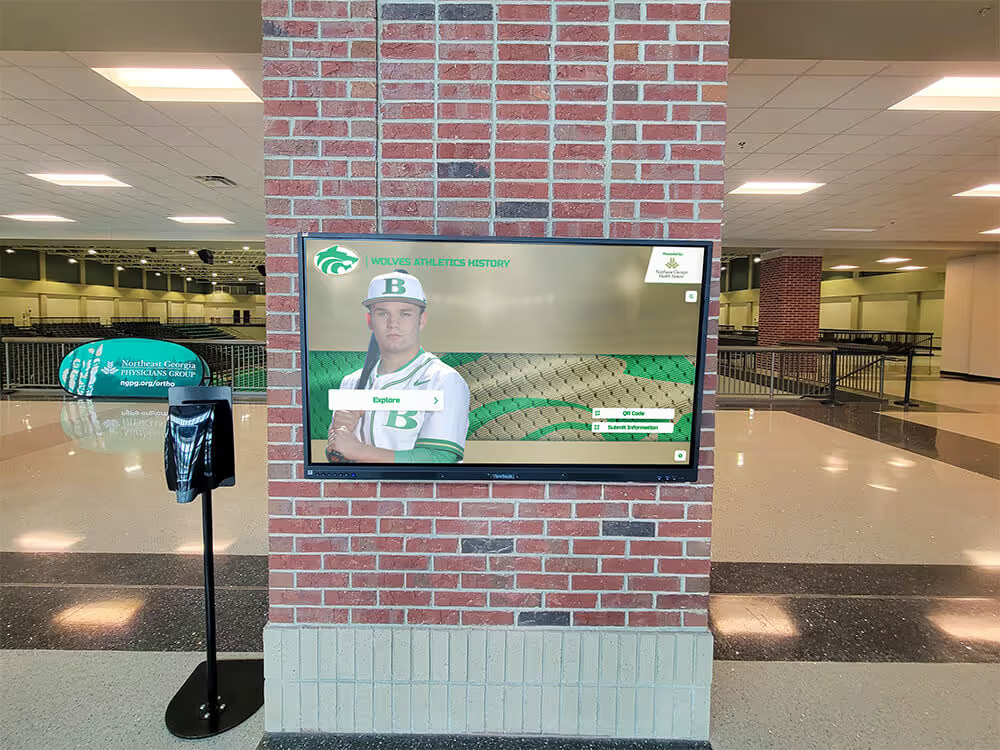
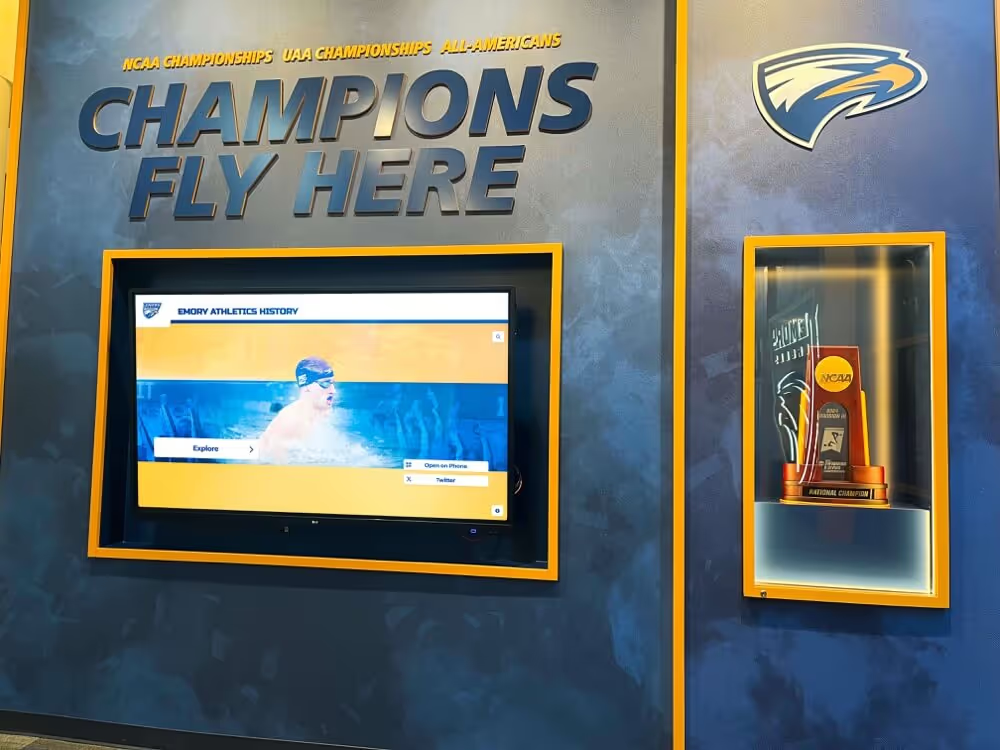
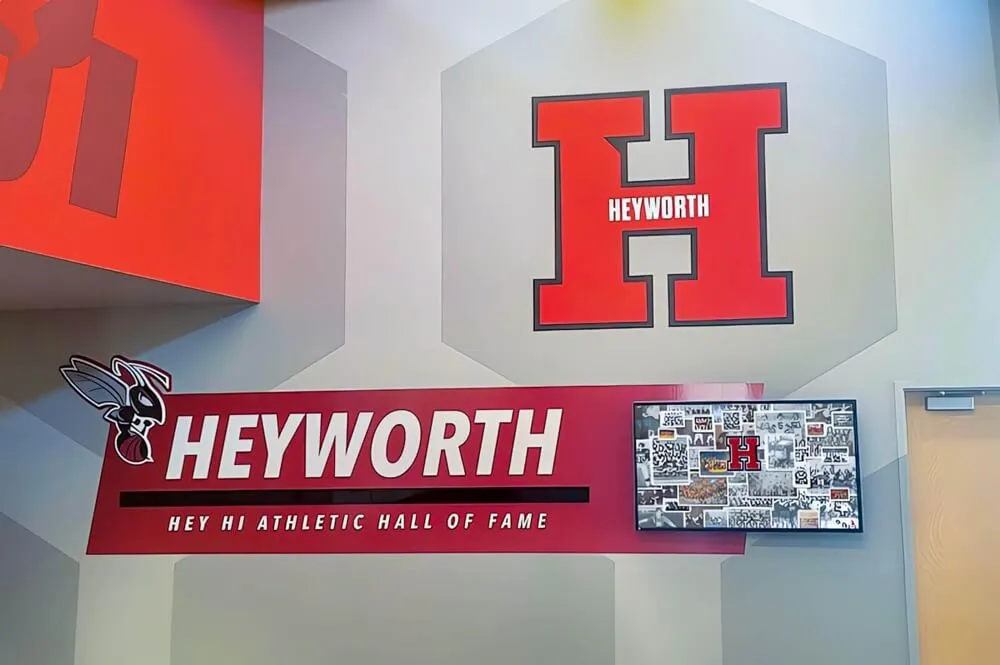
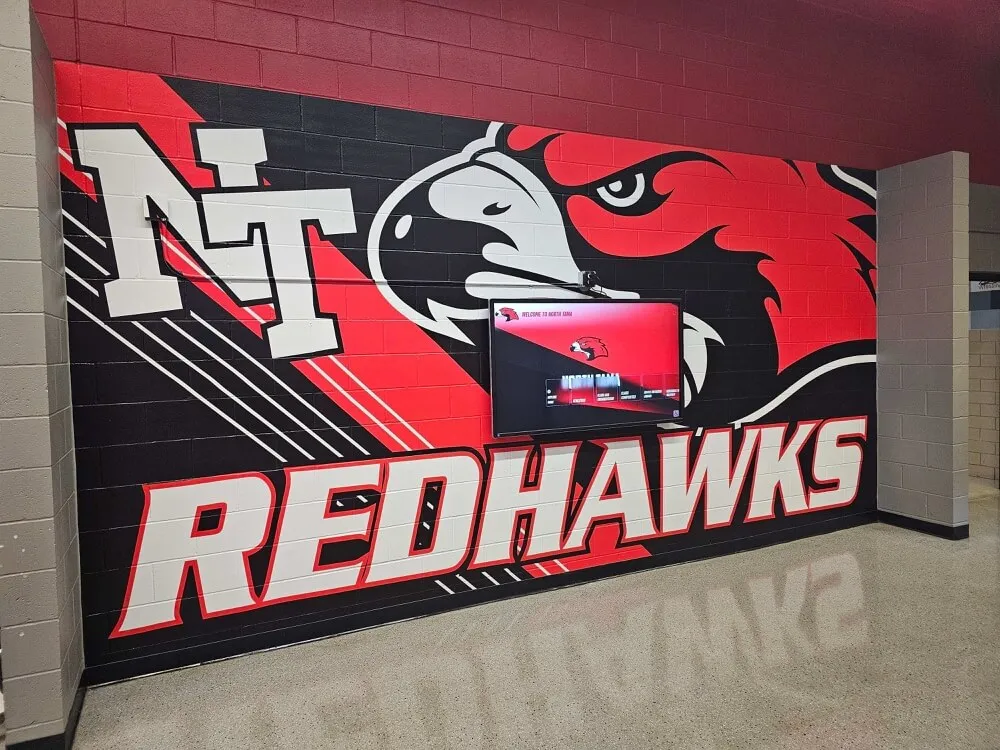
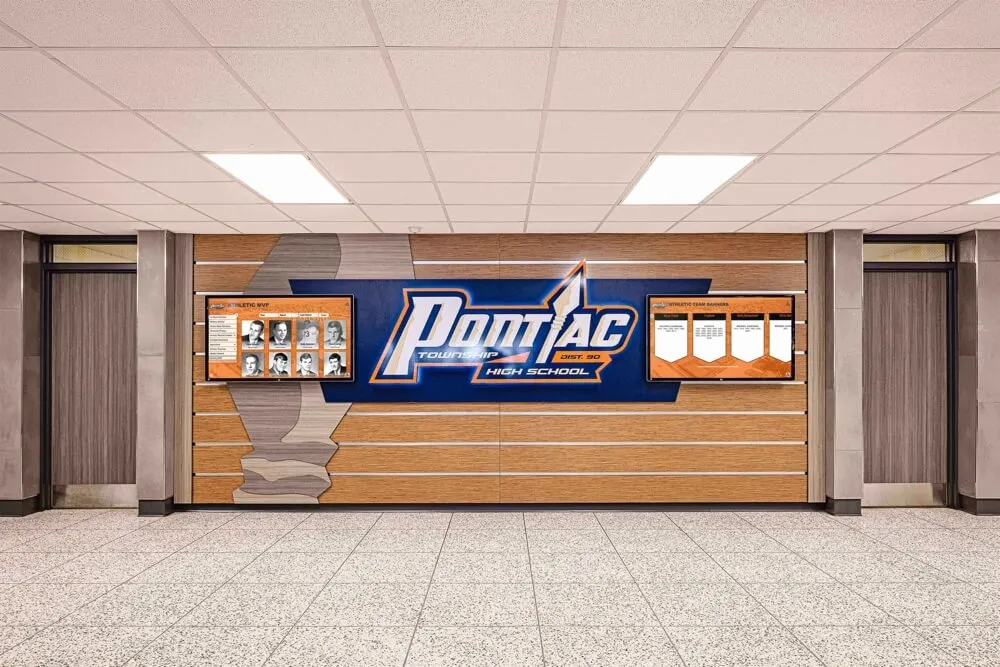
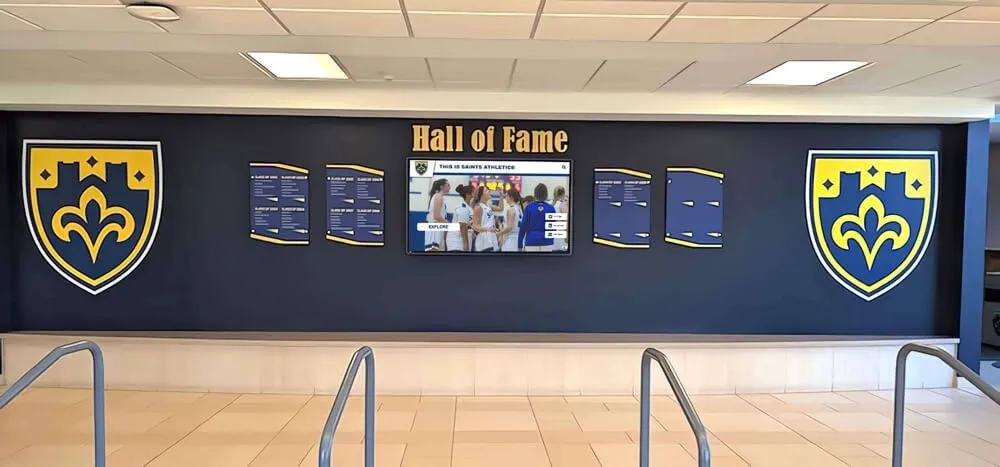
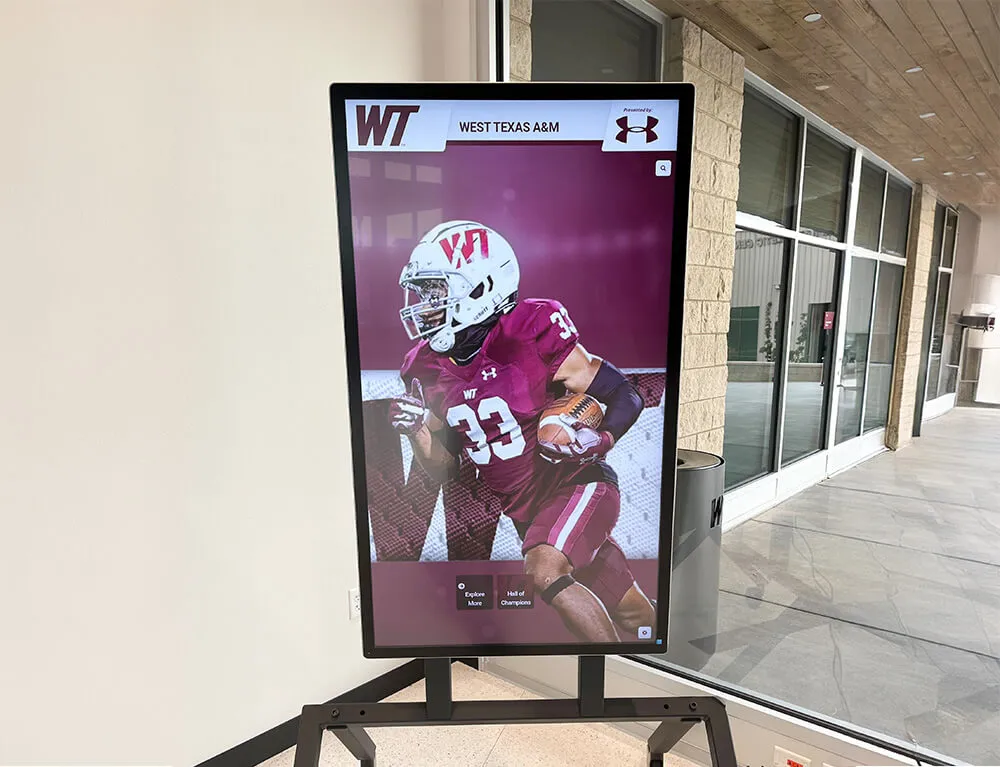
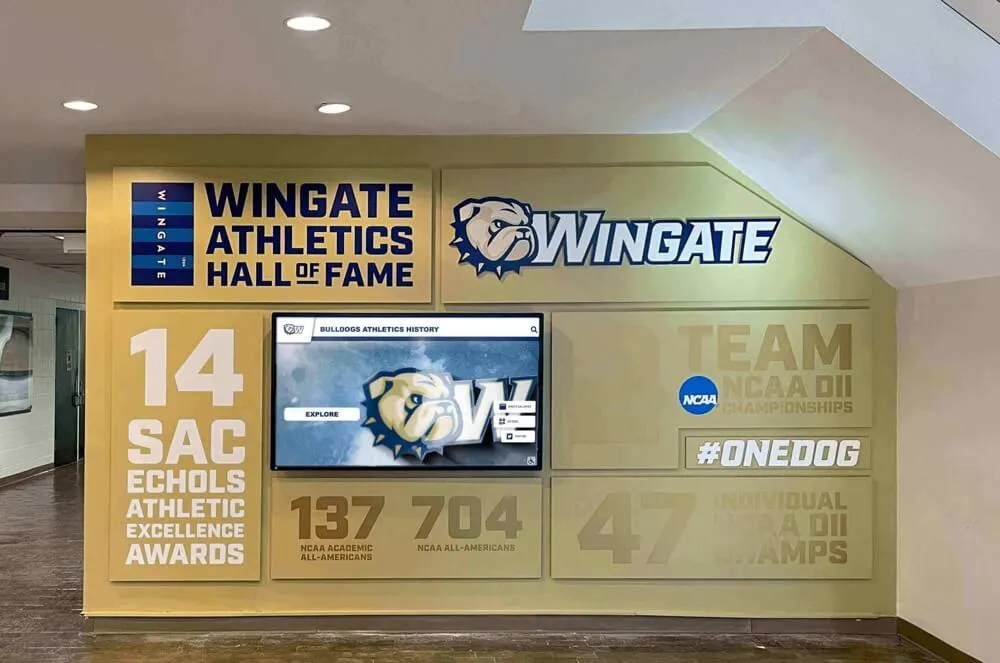
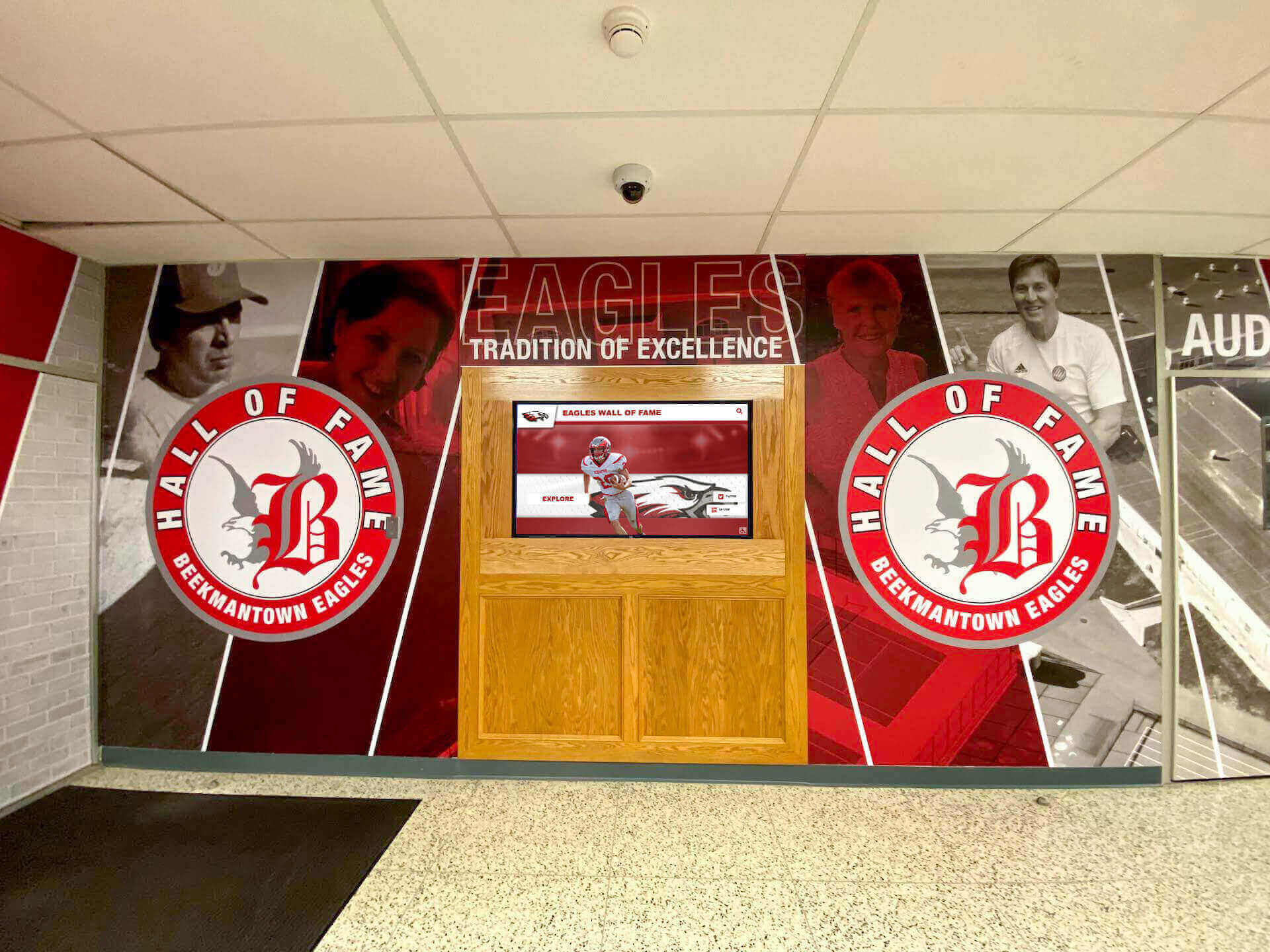
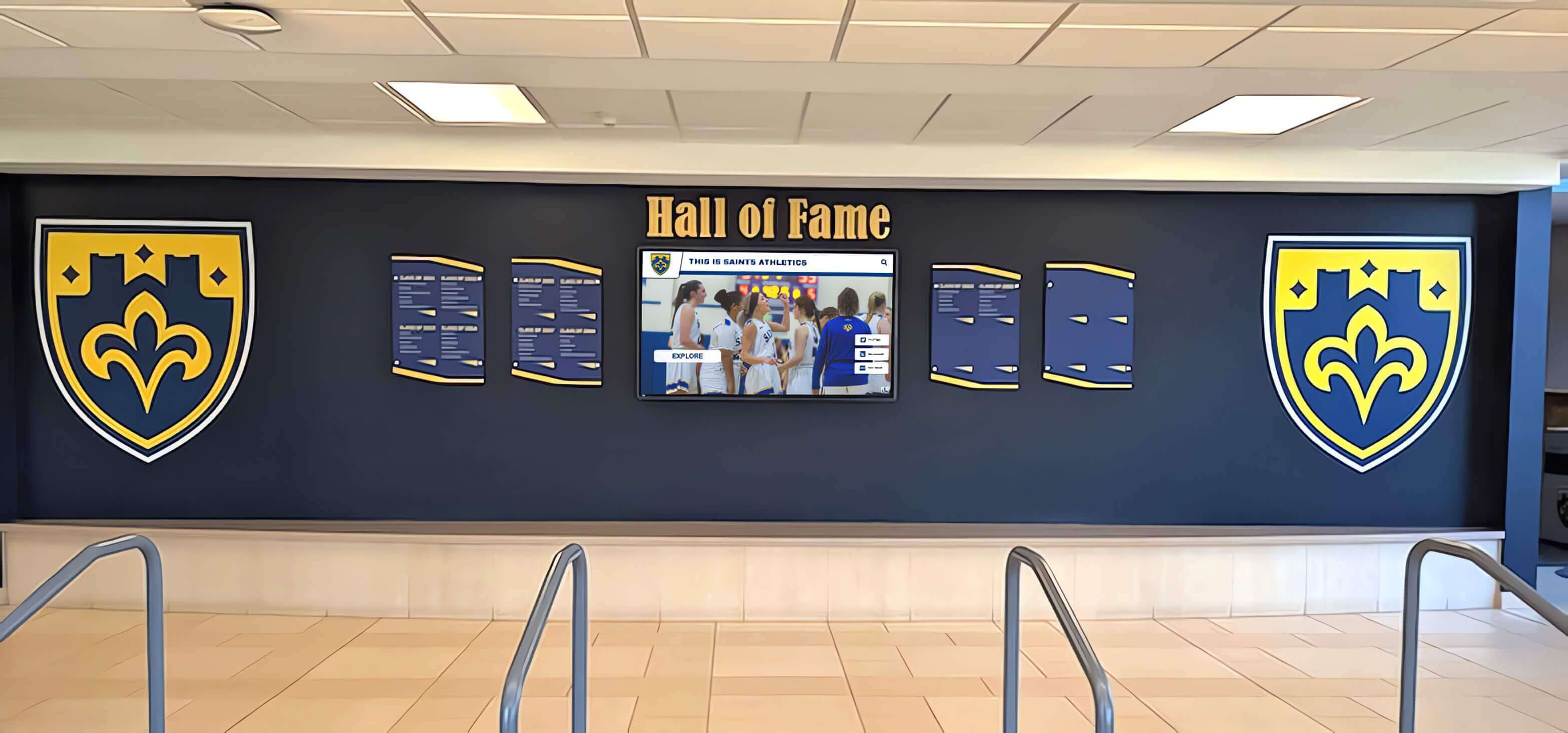
Lobby installations that pair digital touchscreens with school branding create an immediate impression on every visitor while serving wayfinding and recognition functions simultaneously
Step 1: Define Your Goals Before Selecting Any Hardware
The most common planning mistake is starting with hardware. A vendor demo shows a sleek 55-inch touchscreen and suddenly the project is about finding budget for that specific unit — before anyone has articulated what problems it needs to solve.
Start with questions instead:
- Who arrives at your main entrance without knowing where to go?
- How many staff hours per week are lost answering directional questions?
- Do visiting families struggle to navigate during open houses or athletic events?
- Are there achievements — championships, academic honors, alumni milestones — that deserve more visibility than a bulletin board can provide?
- Do you have one building with complex internal navigation, or a multi-building campus that needs distributed kiosk coverage?
Answers to these questions define the use case, which determines the software features you actually need, which in turn determines appropriate hardware. A single-building K–8 school hosting occasional open houses has fundamentally different requirements than a 2,000-student high school with daily visitor traffic and an active athletics program.
Common School Wayfinding Kiosk Use Cases
- Visitor orientation — campus maps, department directories, event room assignments
- Athletic event navigation — gym locations, concession areas, parking guidance
- Open house support — tour routes, admissions office wayfinding, schedule display
- Daily announcements — lunch menus, club meetings, schedule changes
- Recognition and hall of fame — achievement displays cycling during kiosk idle time
- Emergency messaging — lockdown instructions, weather closures, safety updates
Most school kiosks eventually serve multiple purposes. Planning for that from day one prevents buying software that handles wayfinding but cannot display recognition content — forcing a second platform and a second budget conversation later.
Step 2: Map Campus Traffic and Identify Key Locations
Before finalizing placement, trace the actual path visitors take. Where do buses drop off? Where do athletic event attendees park? Which entrance do prospective families use during tours? Where do delivery drivers stand confused at 7:30 a.m.?
High-impact kiosk locations in schools typically include:
Primary entrance lobbies — where every visitor arrives first. A kiosk here reaches the widest audience and addresses orientation needs at precisely the right moment.
Athletic facility entrances — gyms, field houses, and stadiums attract large crowds unfamiliar with the campus. Clear wayfinding reduces staff burden on game nights considerably. Display style in athletic spaces can also reflect fall sports championship recognition approaches, making the kiosk do double duty for navigation and community celebration.
Administrative office hallways — often the landing point for new families, enrollment visits, and counseling appointments. A directory here saves front office staff from answering the same questions dozens of times each week.
Multi-building transition points — for campuses where visitors must navigate between buildings, kiosks at natural decision points prevent wrong turns before they happen.
For a multi-location deployment, prioritize the single location that would deliver the most immediate value. Start there, prove the concept, and expand.
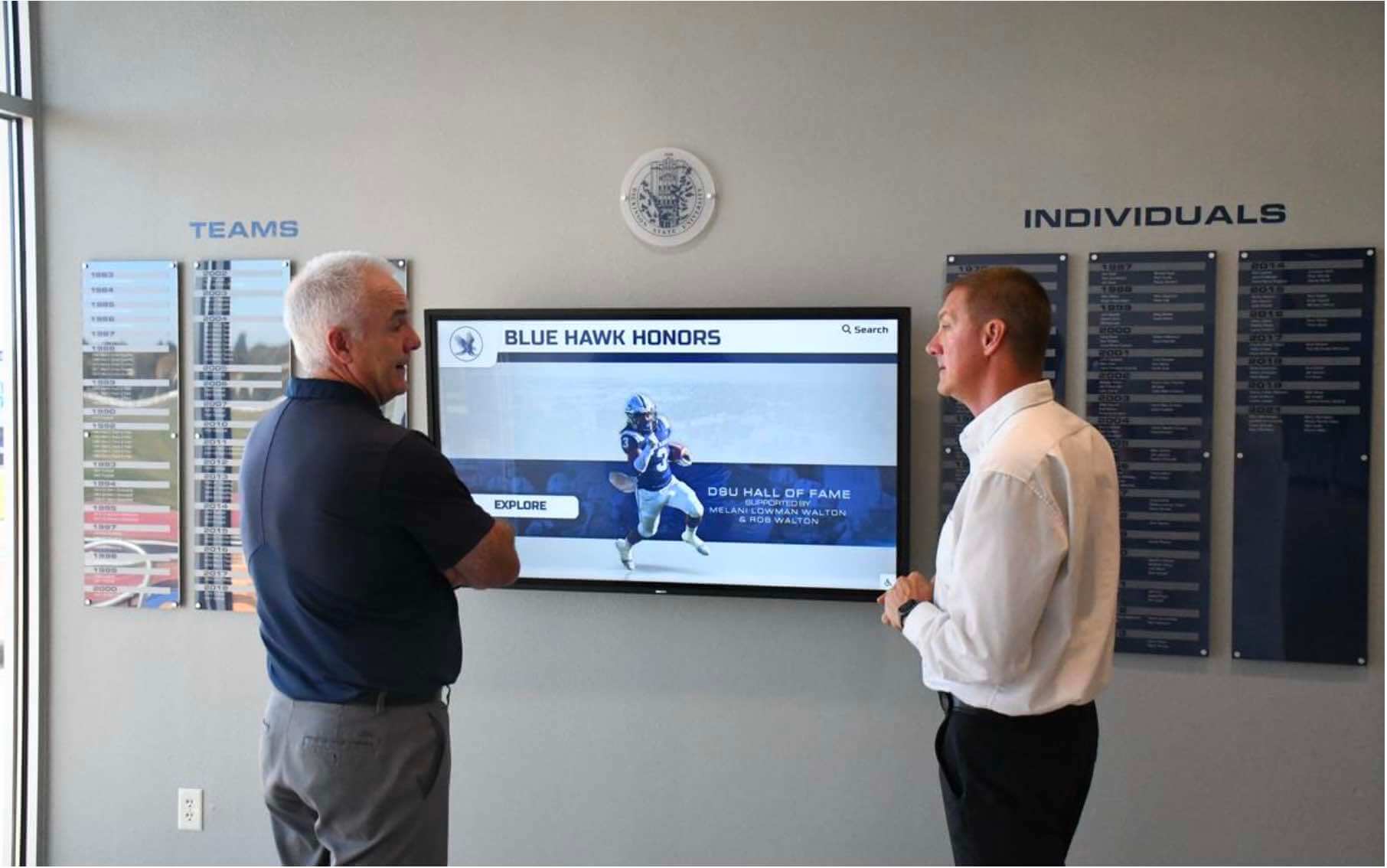
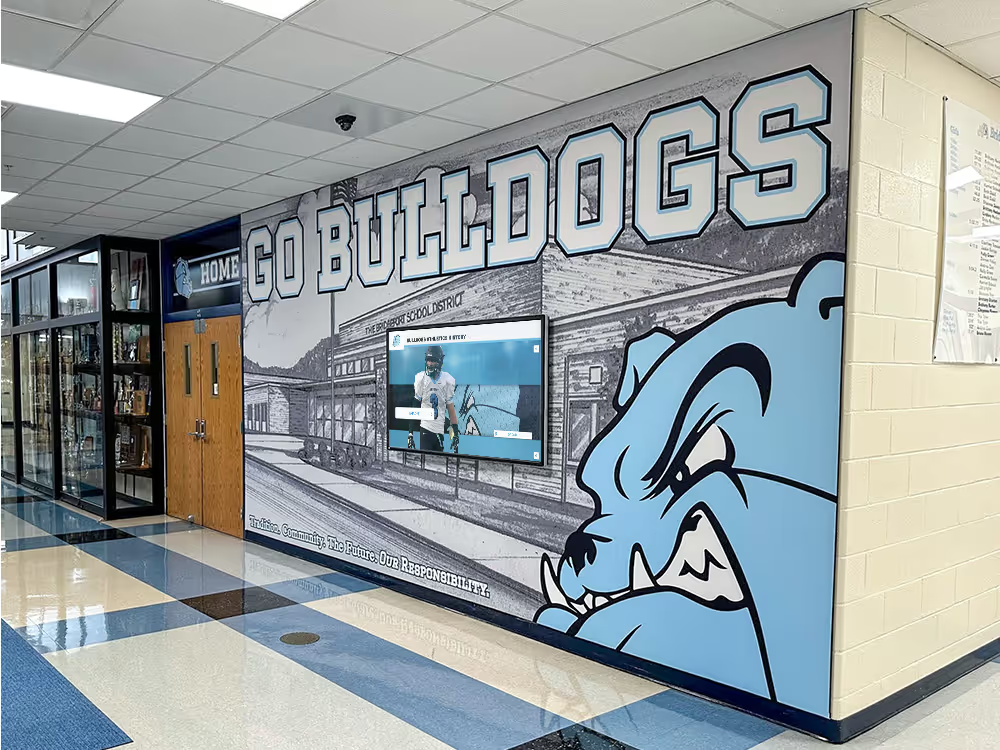
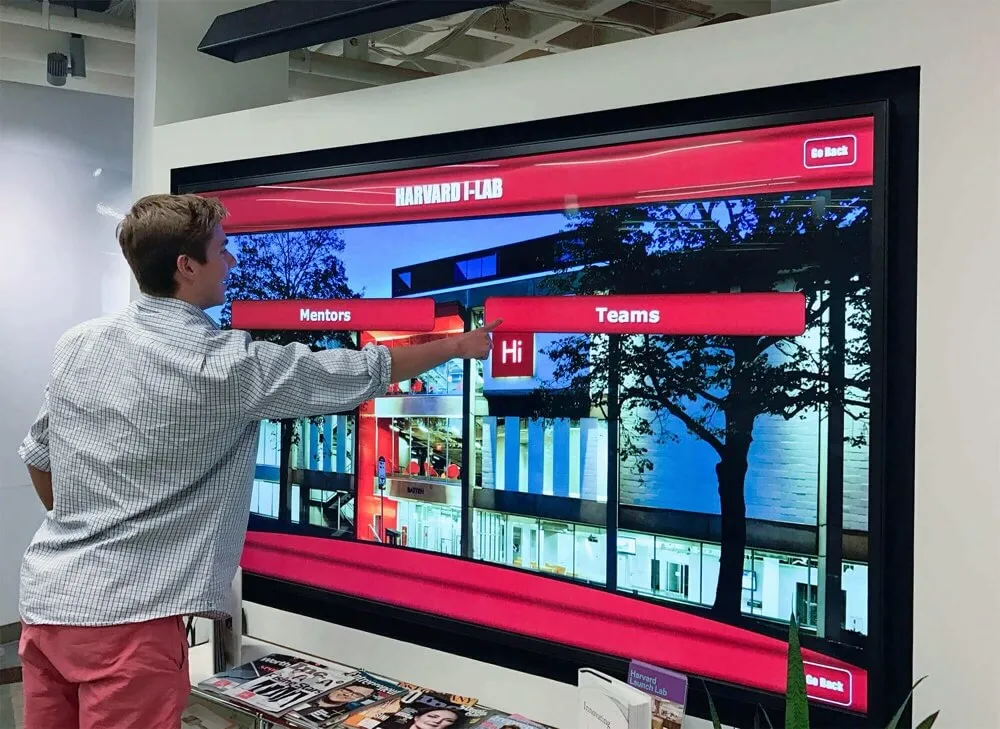
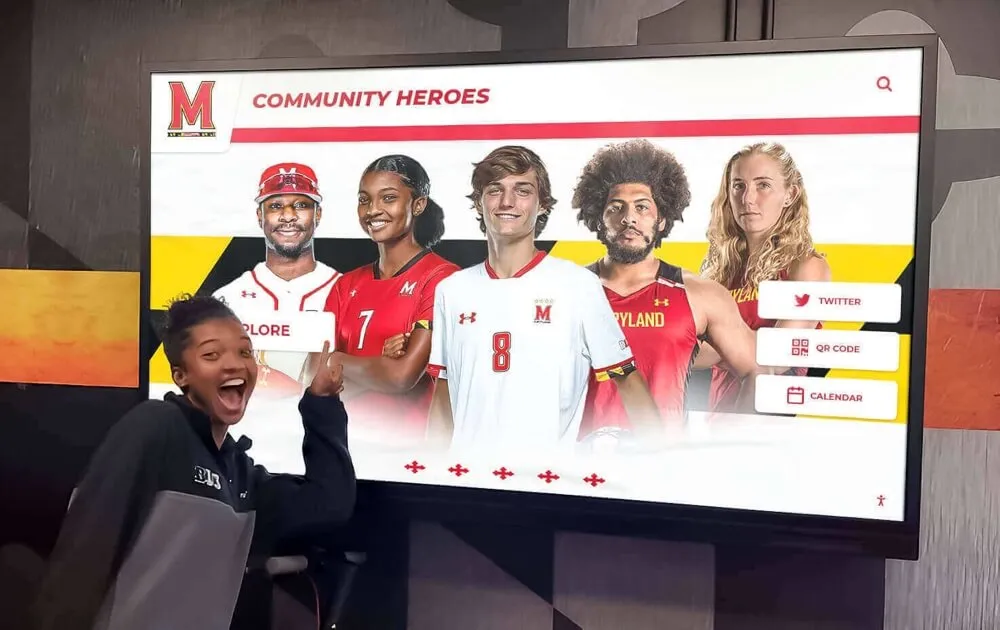
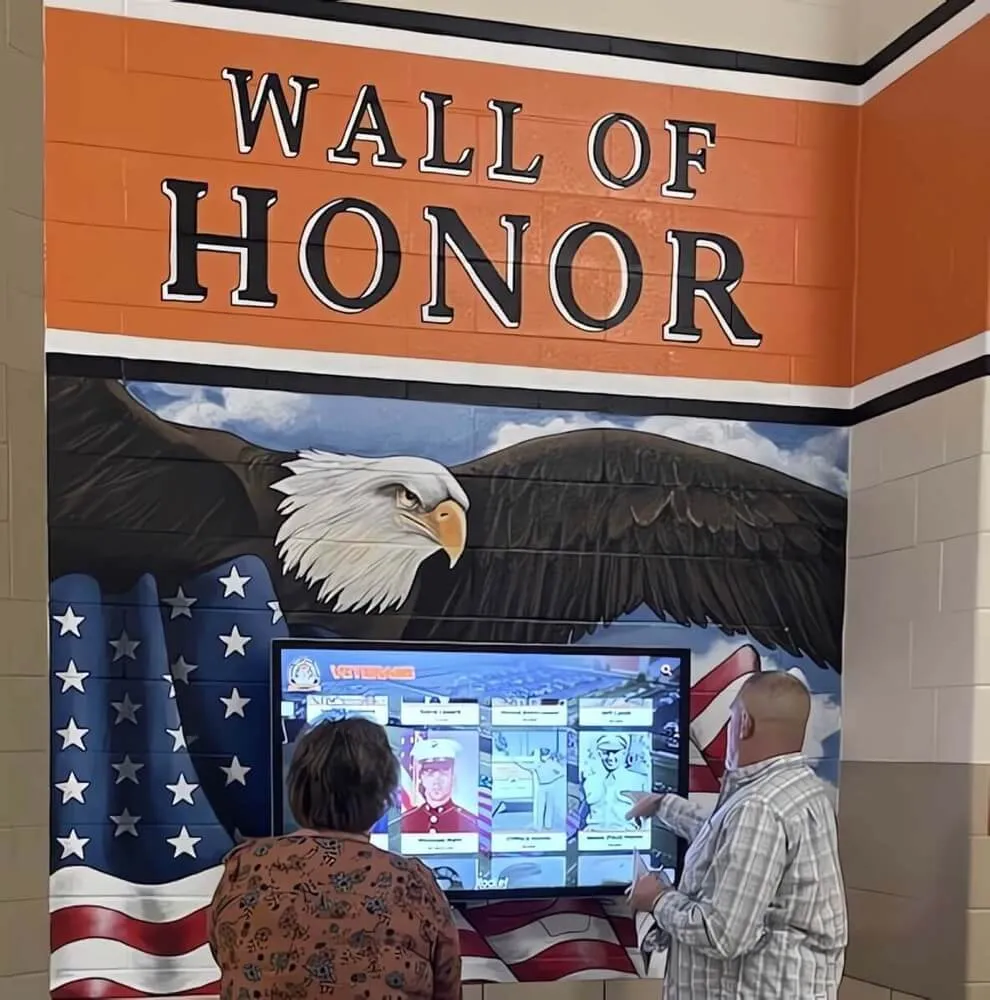
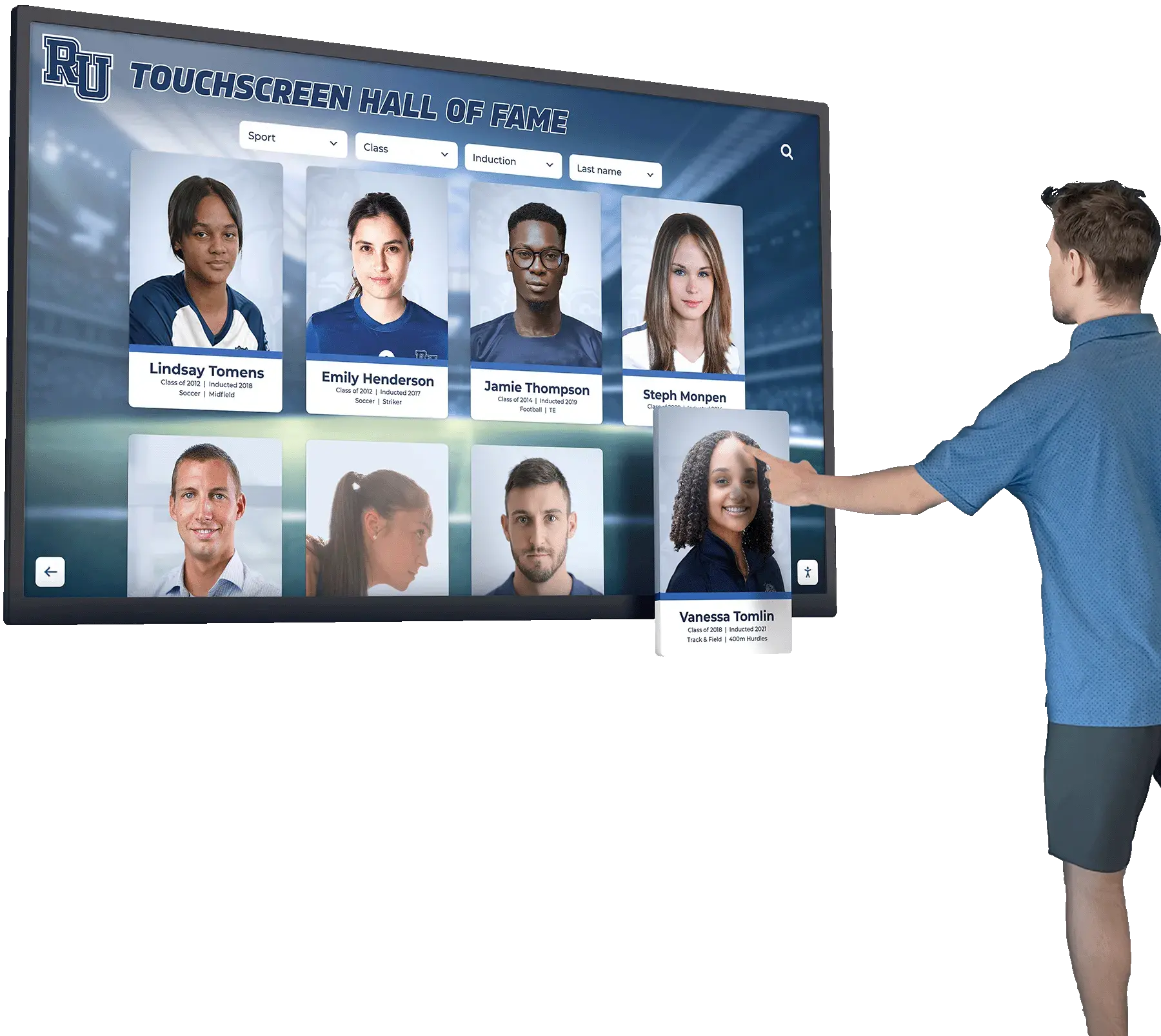
Interactive displays benefit staff and visitors alike — wayfinding for newcomers, recognition content for community members who know every face on the screen
Step 3: Freestanding Kiosk vs. Wall-Mount — Choose the Right Form Factor
The form factor decision is partly aesthetic and partly practical. Both formats work well in schools; the wrong choice for a specific location creates friction every day.
Freestanding kiosks work well in open lobby spaces without a natural wall for mounting. They can be repositioned seasonally — moved closer to the gym entrance during basketball season, returned to the main lobby afterward. The tradeoffs are floor space and security: freestanding units must be anchored properly in high-traffic areas. A thorough touchscreen kiosk equipment and installation guide covers the mounting hardware, power routing, and cable management considerations for both configurations.
Wall-mounted displays integrate more permanently with the facility and require no floor space. They work best in hallways and corridors, near trophy cases, or alongside murals where the display becomes part of a cohesive visual environment. The limitation is fixed placement — routing power and network data to a wall location requires more upfront planning and may involve construction costs.
ADA reach range applies regardless of form factor. Interactive elements must be reachable from a wheelchair, which typically means touch-interactive content positioned between 15 and 48 inches from the floor. For wall mounts, this dictates screen height. For freestanding units, it affects the active touch zone design on larger screens. Address this during planning — retrofitting ADA compliance after installation is expensive and disruptive.
Step 4: Select Software That Matches Your Actual Workflow
Hardware without the right software is an expensive problem. The most reliable way to evaluate kiosk software is to ask a non-technical staff member to complete a realistic content update during a vendor demo — adding a new room assignment, updating an event time, or adding a department to the directory. If they struggle, everyone will struggle.
Essential software features for a school wayfinding kiosk include:
Content management requirements:
- Web-based dashboard requiring no software installation
- Visual drag-and-drop editor with live preview
- Template library for common layouts
- Scheduled publishing so event content auto-expires
- Multi-display management for schools with more than one screen
Wayfinding-specific features:
- Searchable building and room directory
- Interactive campus map with highlighted routes
- Categorized navigation (Administrative, Athletic, Academic)
- QR code generation for transferring directions to mobile devices
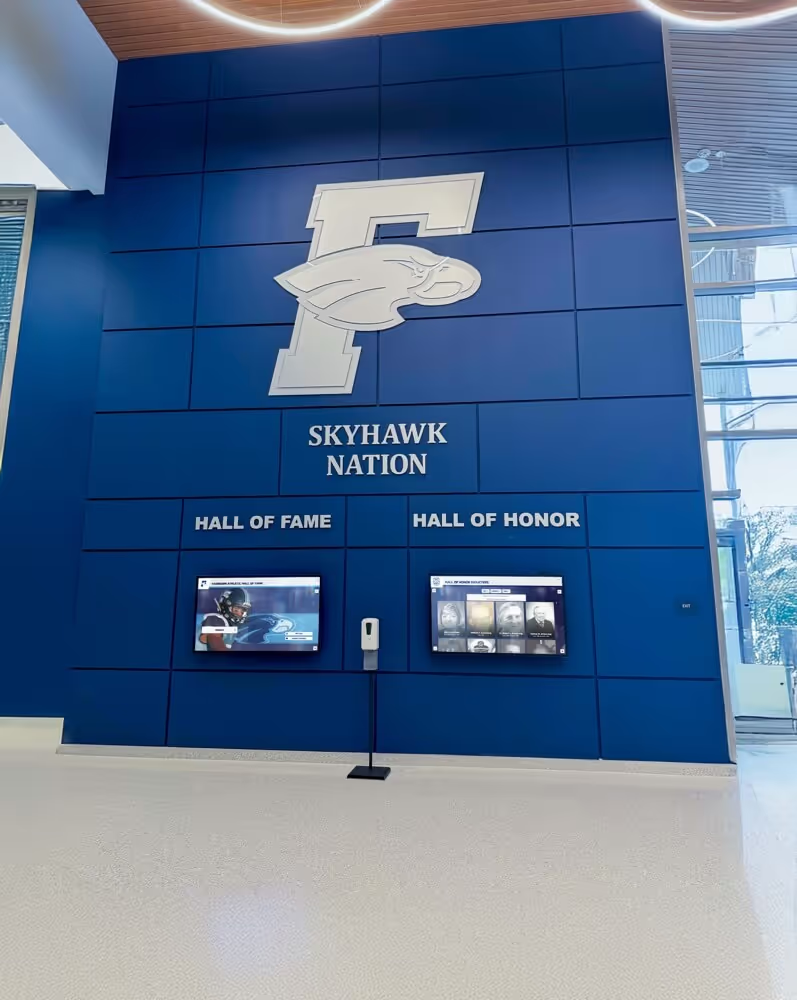
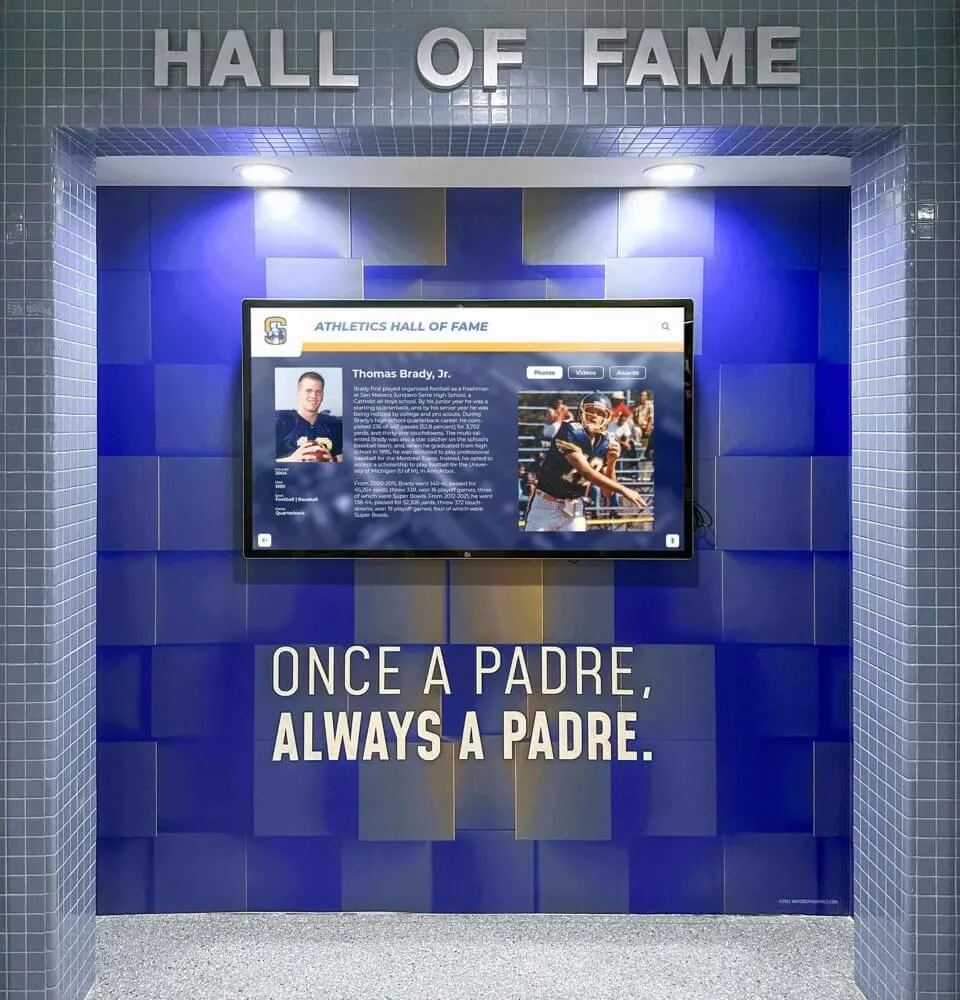
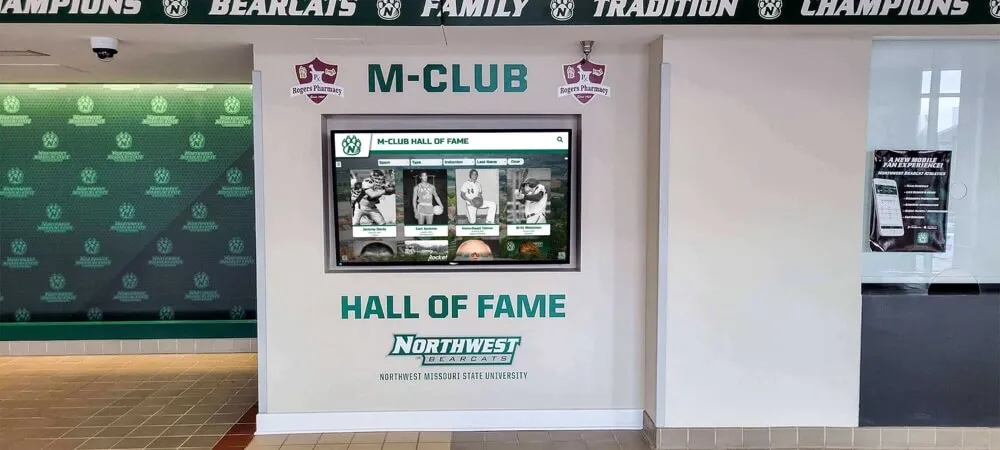
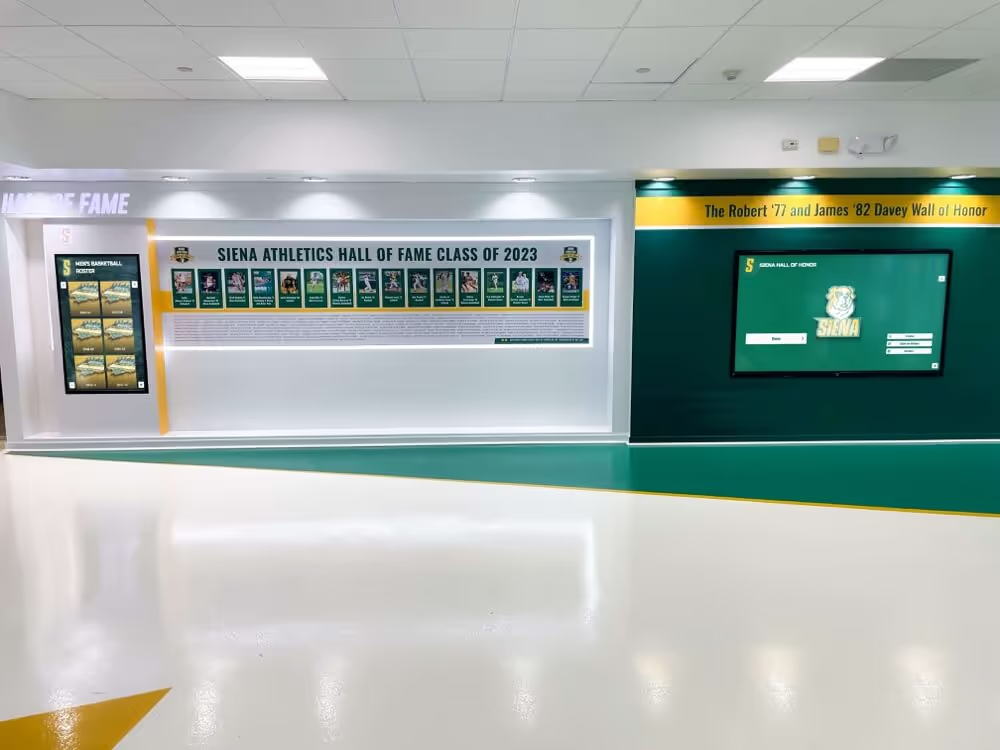
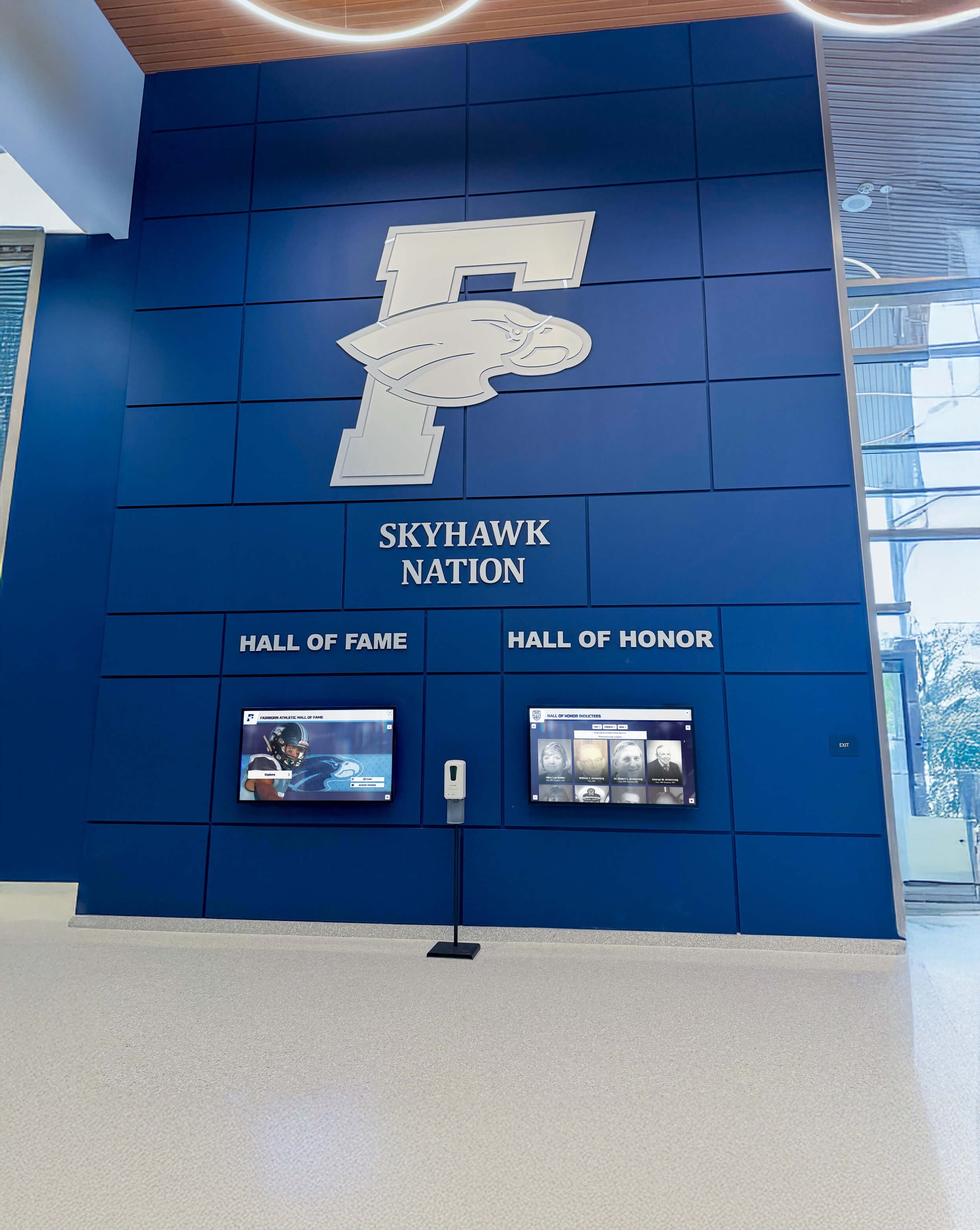
Lobby installations that combine wayfinding functionality with recognition displays create multipurpose information hubs serving both first-time visitors and returning community members
Questions to ask every vendor before committing:
- Can non-technical staff update the directory without help desk support?
- What does the display show during a network outage — does it go blank?
- How long does adding a new department or correcting a room number take?
- Is there a content approval workflow preventing unauthorized changes?
- How are software updates handled — do they require scheduled downtime?
Schools that skip this vetting process frequently discover that impressive demo features require vendor involvement to use in practice — converting a “self-service” platform into a recurring services expense that was never budgeted.
Step 5: Plan Wayfinding Content Well Before Launch Day
Kiosk hardware and software can be ready weeks before the content is. Schools consistently underestimate content development time, which delays launches and leads to opening-day displays showing placeholder maps and generic template slides.
Minimum viable wayfinding content for launch:
- Campus map with every building labeled and color-coded by function
- Department directory with room numbers, hours, and primary contact information
- Event calendar integration or a manually maintained upcoming events list
- Parking and entrance guidance for the most common visitor scenarios
- Emergency messaging template configured and tested before going live
Content that improves with time:
- Building photography helping visitors visually identify destinations
- Staff directory with photos — useful for new families navigating their first administrative visit
- Athletic schedule integration pulling current game times and locations
- Club and activity information relevant to current students
Assign content ownership before launch. Someone specific must be responsible for keeping the directory accurate — a task that takes 30 minutes a month if the system is easy, or becomes a source of ongoing frustration if vendor assistance is required every time a classroom moves.
Step 6: Use Idle Time for Recognition — The Dual-Purpose Advantage
A school wayfinding kiosk sits idle between active visitor interactions. That time is an opportunity. When no one is actively navigating, the display can cycle through recognition content — athletic championships, academic honor rolls, alumni highlights, donor acknowledgments — transforming a utility tool into a continuous celebration of school community.
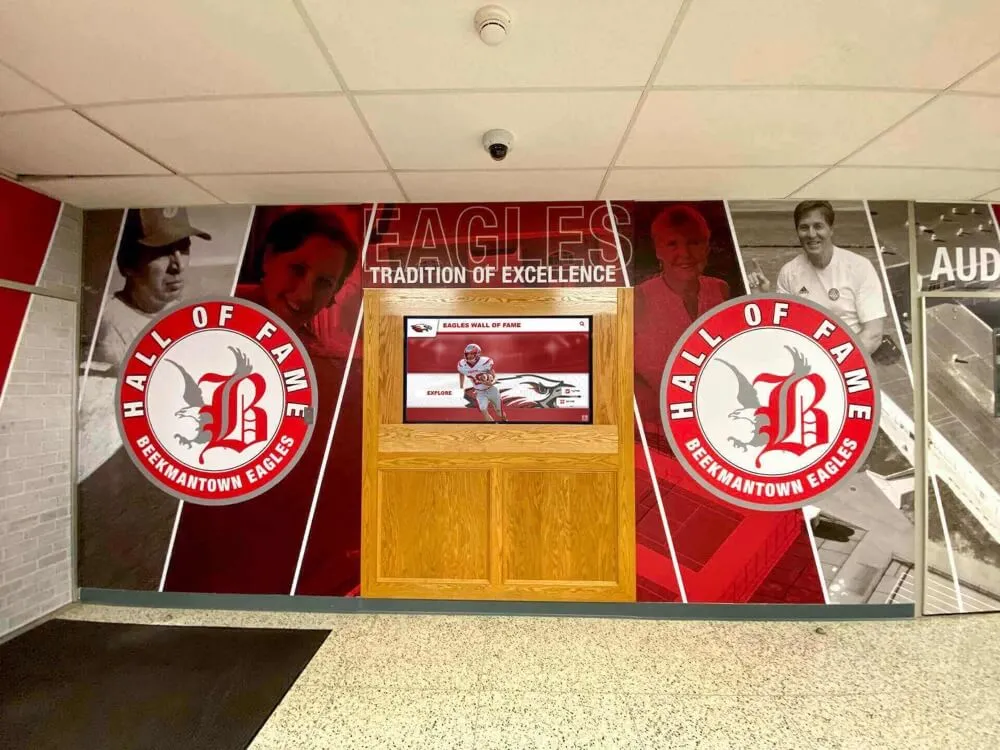
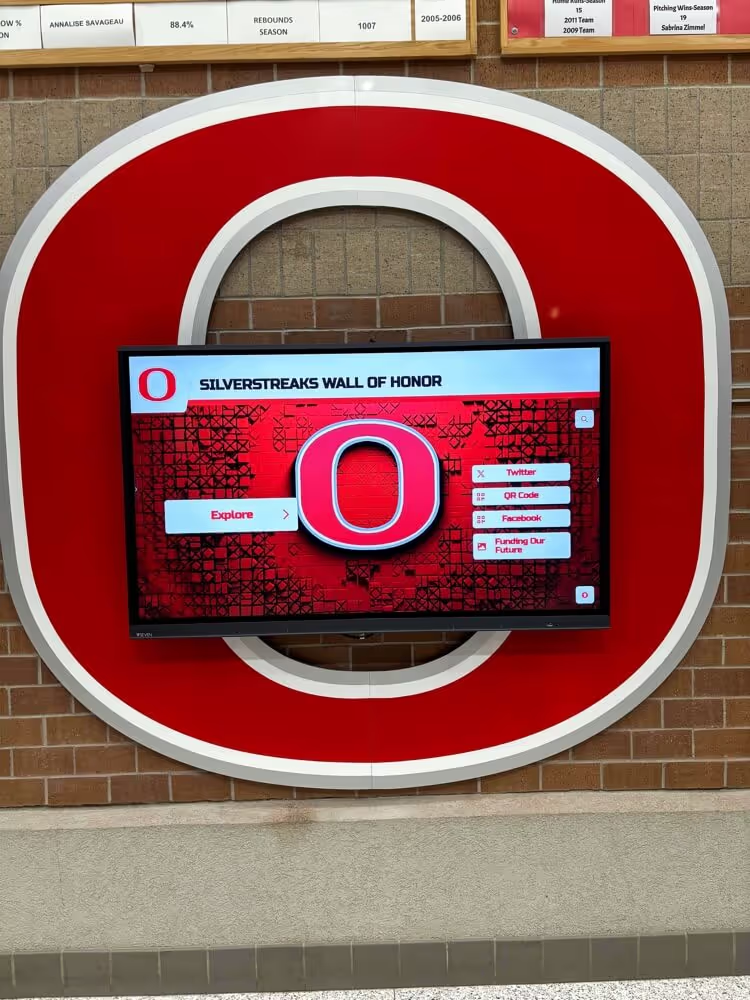
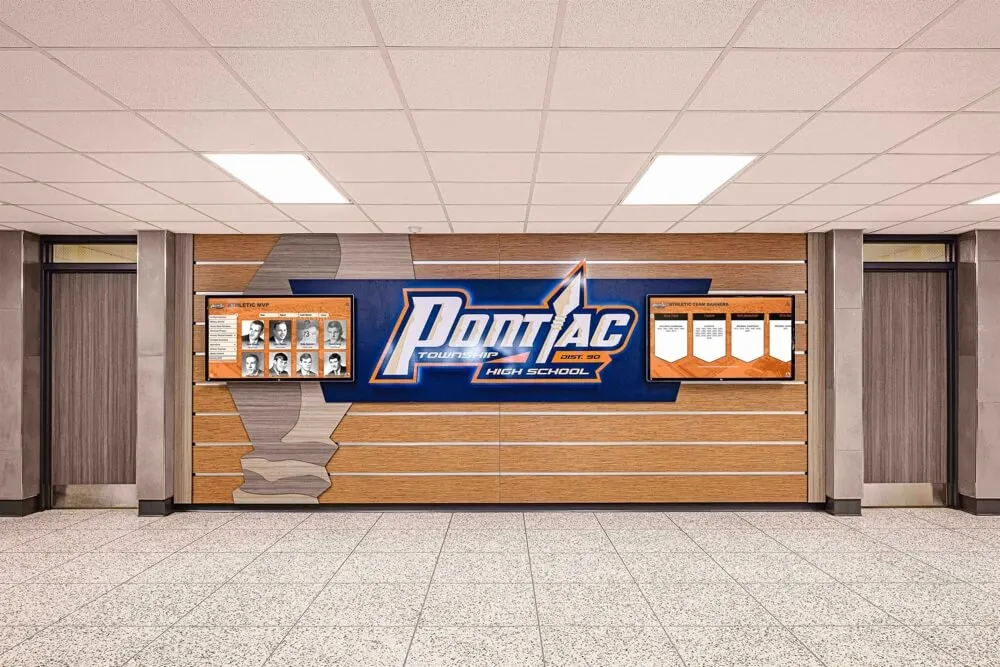
Recognition content displayed during kiosk idle time converts wayfinding infrastructure into a continuous celebration of school achievement visible to every person who passes through the lobby
This dual-purpose approach works particularly well for schools wanting to serve multiple stakeholders from a single installation: visitors get navigation assistance, the school community gets recognition, and administrators can justify the budget through combined utility that neither function could achieve alone.
Platforms like Rocket Alumni Solutions are purpose-built for exactly this integration — combining interactive wayfinding with digital hall of fame displays, athletic achievement showcases, donor recognition, and alumni content in a single unified system. Schools exploring why smaller and mid-size public high schools choose this recognition-focused approach consistently find that the recognition angle provides the community engagement that makes the investment feel worthwhile far beyond its functional navigation benefit.
Planning your recognition content layer:
Athletic achievements — state championship displays and hall of fame inductee profiles work well in looping attract-mode content that stops foot traffic without requiring active interaction.
Historic sports moments — featuring iconic programs and milestone seasons — including legendary regional or national achievements like the 1980 USA hockey gold medal — adds narrative depth that keeps alumni engaged far longer than statistics alone.
Academic honors — recognizing graduates who earn summa cum laude distinction and comparable academic achievements alongside athletic recognition creates a more complete picture of school excellence.
Staff recognition — celebrating school leaders through the same display reinforces community culture and makes visible contributions that often go unnoticed.
Seasonal event content — programming tied to homecoming festivities and graduation ceremonies keeps the kiosk feeling current and relevant throughout the year, not just during the initial launch window.

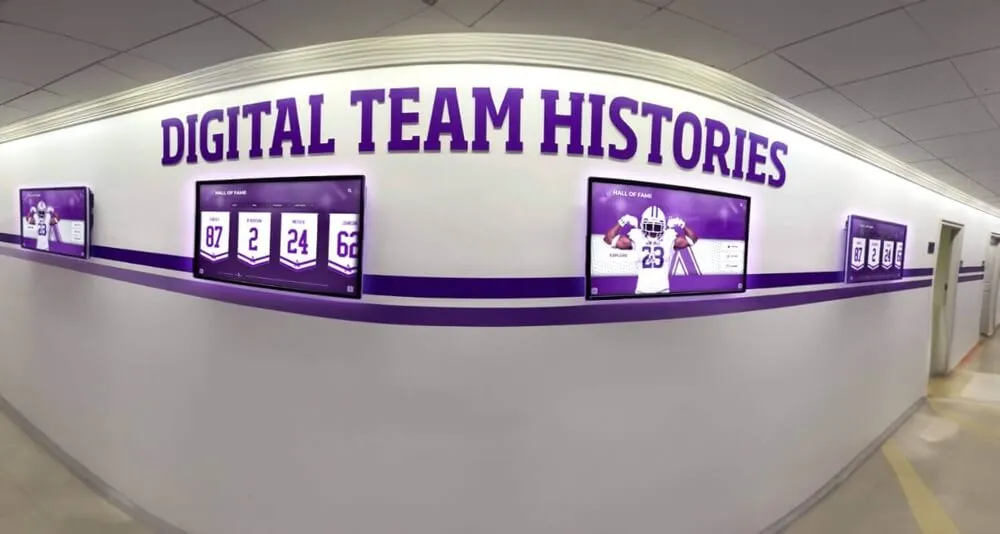
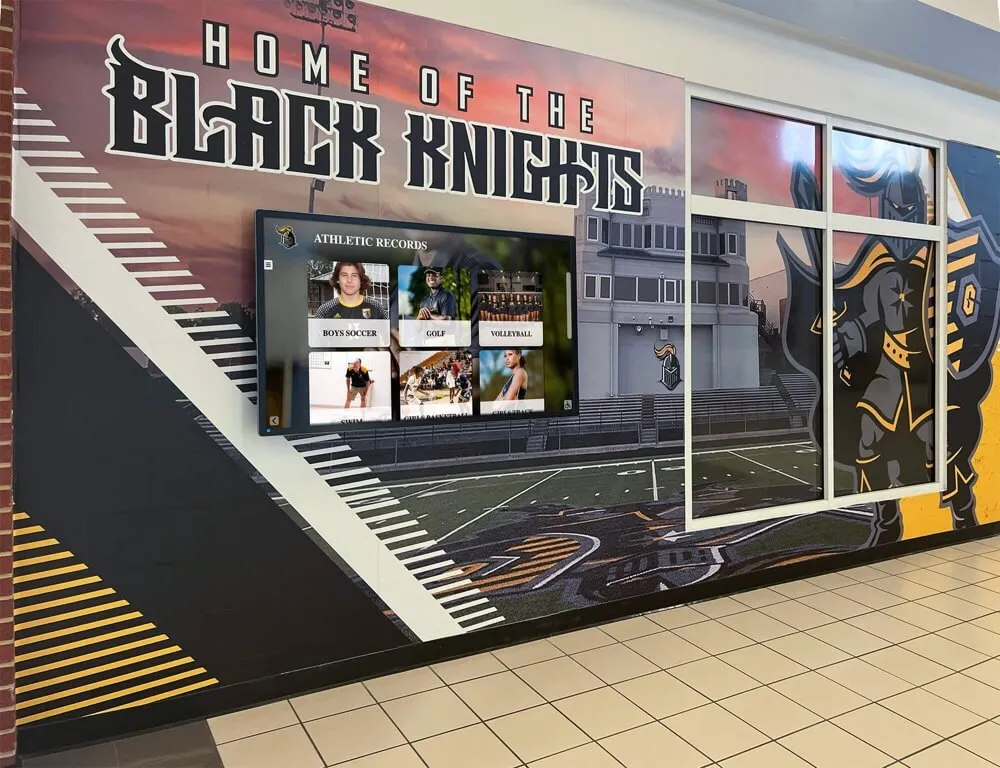
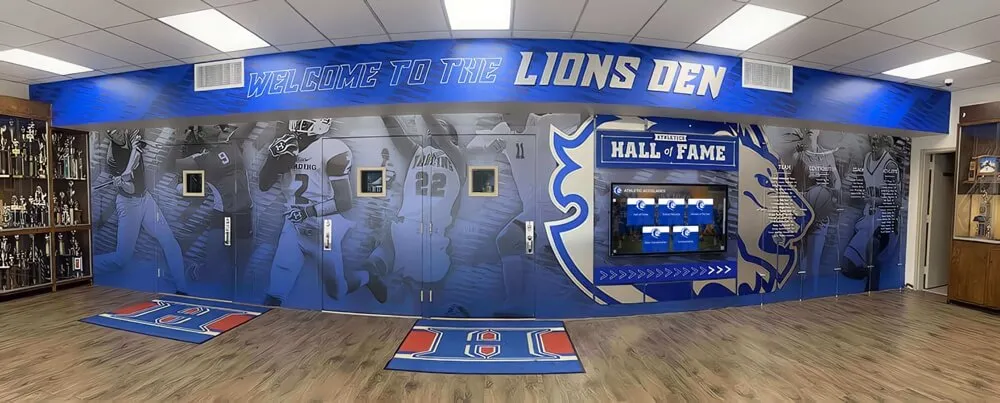
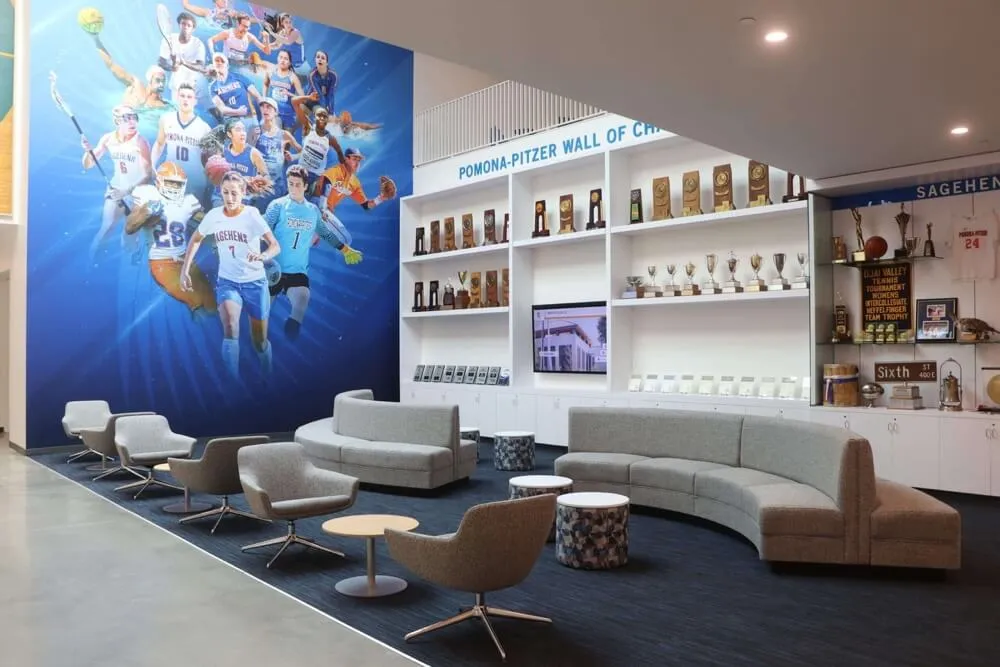
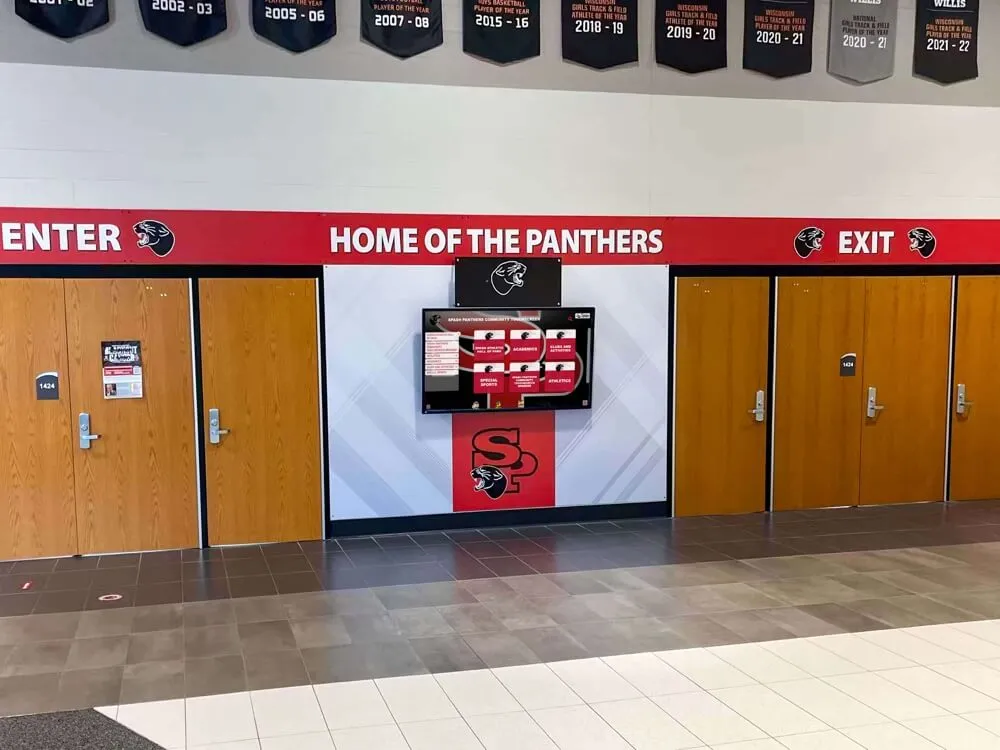
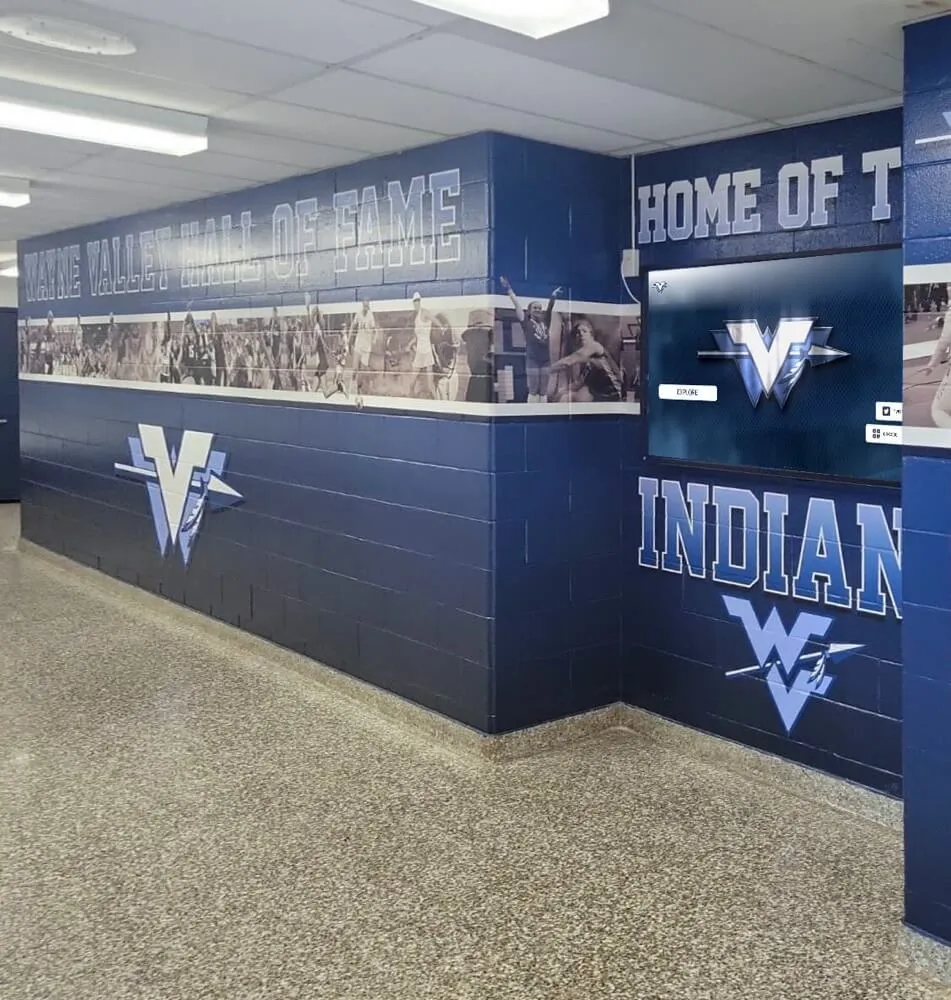
Multi-screen hallway installations expand recognition capacity while creating immersive environments that naturally draw visitors to explore achievement content
Recognition content planning checklist:
- Inventory existing recognition programs (sports, academics, arts, community service)
- Identify which achievements currently lack adequate physical display space
- Gather historical photos, statistics, and narrative content for initial inductees
- Establish a seasonal update process for new honorees and team achievements
- Plan event-specific content rotations for major calendar moments
Schools that treat recognition content as an afterthought typically populate it just before launch and never update it again. Schools that build a content calendar alongside their technical deployment plan keep their kiosks fresh for years.
Step 7: Budget Realistically Across All Cost Categories
Kiosk project budgets that account only for hardware and software licensing consistently run over. A realistic budget includes every category:
Hardware: Commercial-grade touchscreen displays for school environments typically range from $1,500 to $4,000 depending on screen size (43–65 inches), mounting type, and durability specifications. Consumer-grade displays are not suitable for continuous public use — they lack the brightness, touch calibration quality, and operational reliability ratings required for institutional deployment.
Software licensing: Platform costs vary widely from per-screen monthly subscriptions to flat institutional pricing. Clarify whether pricing includes content storage, technical support, software updates, and user seat limits — or whether those are separate line items.
Installation: Professional mounting, electrical work, and network connectivity at each location typically adds $500–$2,000 per site depending on construction complexity and existing infrastructure.
Content development: Initial content creation — photography, directory data entry, map development — is almost always underestimated. Budget both staff time and funds for vendor content services if internal capacity is limited.
Ongoing maintenance: Annual software renewals, periodic hardware servicing, and the recurring staff time required to keep content accurate are costs that belong in the long-term budget, not just the capital expenditure.
Phased deployment strategy:
Rather than funding a full campus rollout in year one, most schools find more success with a single pilot installation at the highest-impact location. A successful lobby kiosk demonstrates value to stakeholders, generates the community engagement that justifies expansion, and reveals any workflow adjustments needed before deploying to additional sites. Budget for one location done well rather than three locations done minimally.
Step 8: Installation, Accessibility, and Content Management Workflows
ADA compliance affects hardware selection, mounting height, touch target dimensions, contrast ratios within the software interface, and the availability of alternative access methods for users who cannot interact with a standard touchscreen. Schools that address these requirements during planning avoid costly retrofits — and reduce the legal exposure that emerges when gaps appear after installation.
Minimum accessibility planning checklist:
- Touch-interactive elements positioned between 15 and 48 inches from the floor
- Software interface meets WCAG 2.1 AA contrast standards
- Text sizing adjustable by users with visual impairments
- Screen reader compatibility or audio-assist option available
- Clear approach space at each kiosk location for wheelchair users
Ongoing content management deserves equal planning attention. The kiosk that launches with a beautifully maintained directory and rotating recognition content often deteriorates within six months if no one owns the update workflow. Before going live, document:
- Who updates the room directory when departments relocate
- Who adds new athletic achievements at the end of each season
- How staff submit content requests and what the approval process looks like
- How emergency messaging gets activated and cleared after an incident
- How often the full directory gets audited for accuracy
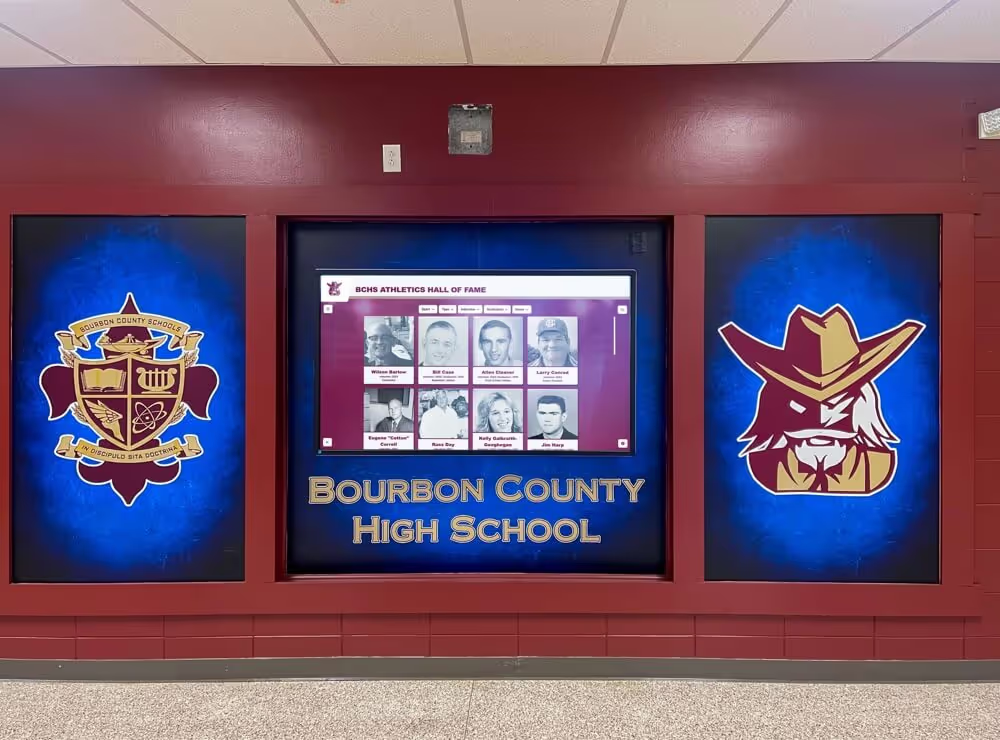
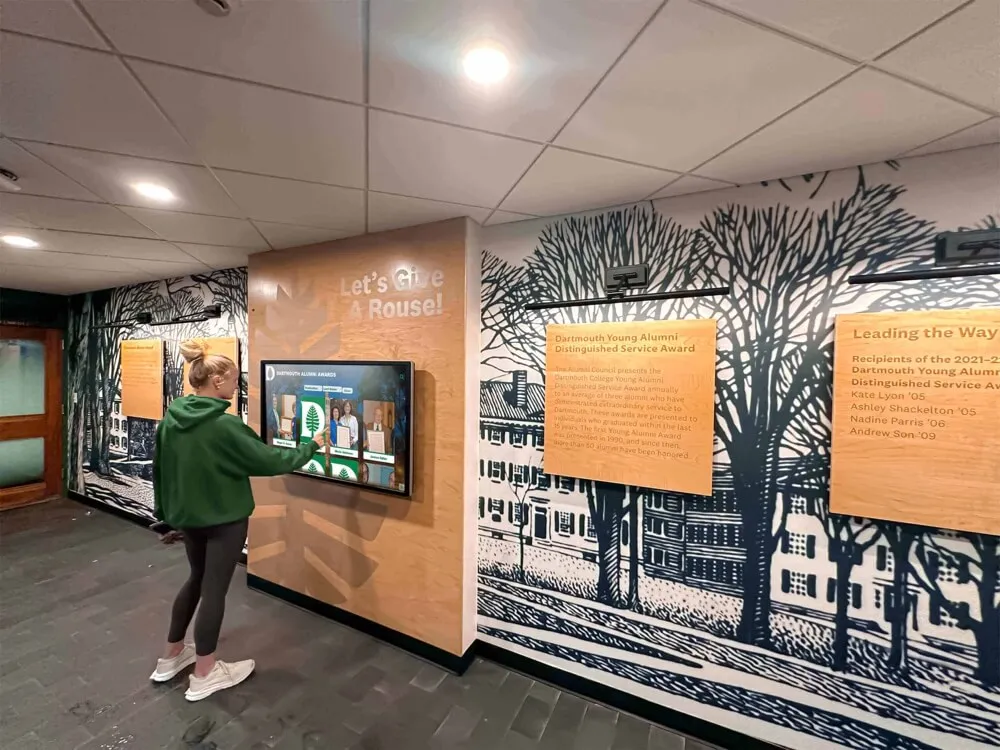
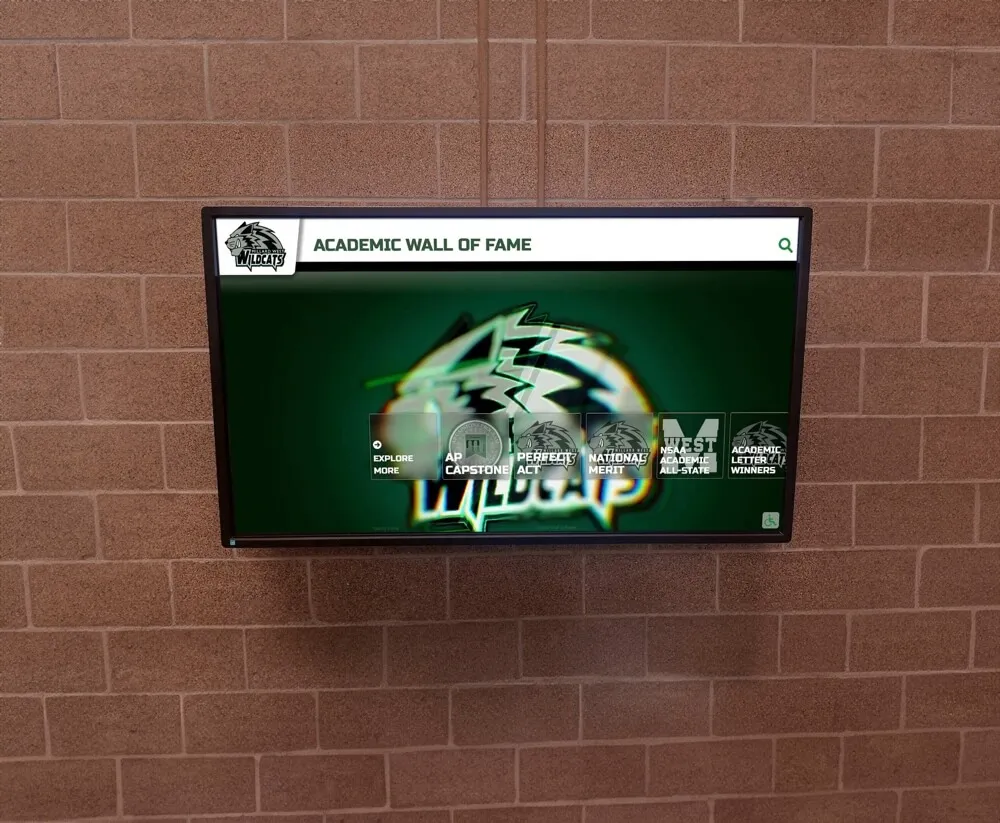
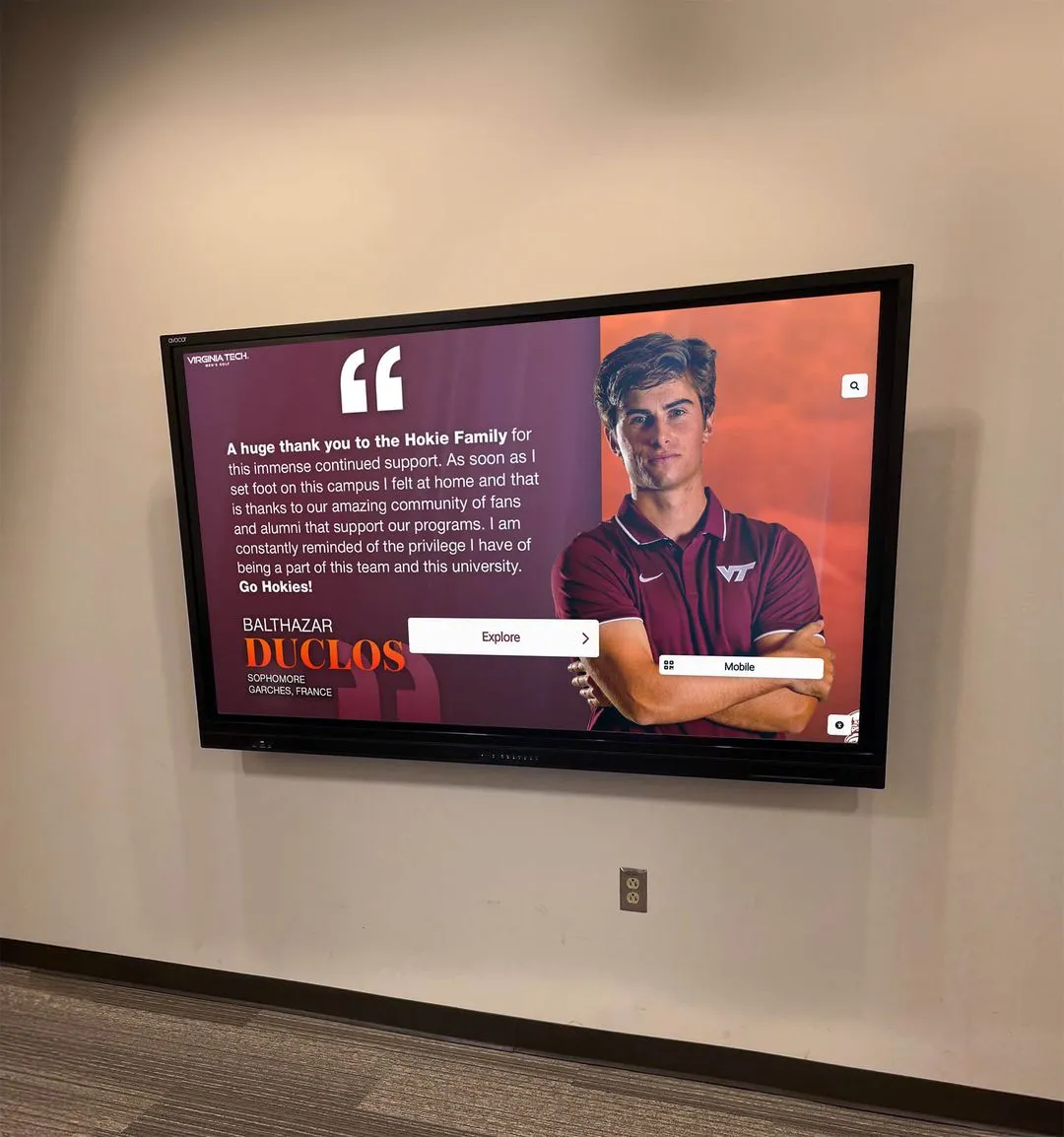
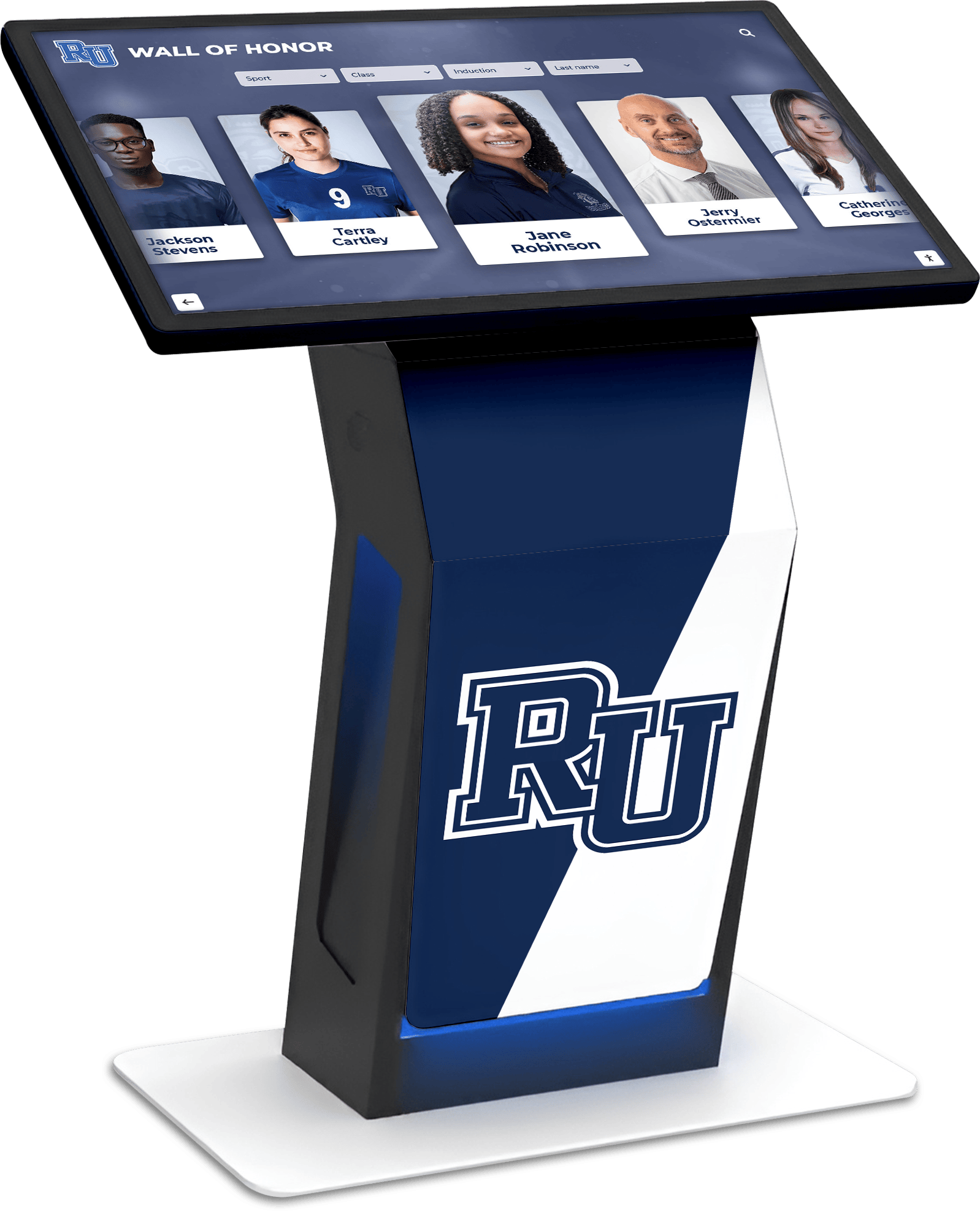
Well-maintained recognition displays require clear ownership and documented update workflows — content strategy matters as much as the technology platform that delivers it
Schools using platforms with genuinely intuitive content management — where updating a directory entry takes two minutes rather than twenty — maintain fresher, more accurate content with far less administrative burden. This matters more than almost any hardware specification.
Step 9: Measure What Matters After Launch
Define success metrics before launch so you can evaluate performance honestly afterward. Useful indicators for a school wayfinding kiosk include:
- Reduction in directional questions handled by front office staff
- Visitor feedback during open houses and athletic events
- Kiosk interaction sessions per day or week (provided by platform analytics)
- Average dwell time on recognition content during attract-mode cycles
- Community response from students, families, and alumni about specific content
Analytics from quality kiosk platforms reveal which content categories generate the most engagement, which directory entries get searched most frequently, and which recognition profiles keep users at the screen longest. This data informs the next content cycle and strengthens the case for expanding to additional locations.
Purpose-built recognition platforms like Rocket Alumni Solutions integrate seamlessly into school lobby environments, combining wayfinding utility with achievement celebration in a single cohesive installation
Schools that approach modernizing their recognition infrastructure alongside a new wayfinding kiosk deployment often multiply the impact of both investments. Exploring how to modernize existing recognition walls frequently reveals that digital kiosks solve the physical space constraints that have limited recognition programs for years — honoring more athletes, more scholars, and more community contributors than any combination of trophy cases and plaques ever could.
Conclusion: Plan the Experience, Not Just the Technology
A school wayfinding kiosk is a communication platform before it is a piece of hardware. The most successful implementations result from planning the full experience — who arrives, what they need, what they should feel walking through the lobby — and then selecting software and hardware that delivers it. That sequence matters: experience first, technology second.
Schools that use their kiosk to orient visitors efficiently and celebrate their community consistently find that the installation becomes one of the most-commented-on features of the building — something students point out during tours, alumni notice when they return for games and events, and parents remember when reflecting on what makes this school feel different from others they visited.
The planning investment you make before purchasing pays returns for every year the system is in operation. Work through the steps above before your first vendor conversation, and you will ask better questions, make better decisions, and end up with a kiosk that genuinely serves your school community rather than one that requires constant vendor support to maintain.
Ready to Plan Your School Wayfinding Kiosk?
Rocket Alumni Solutions combines interactive wayfinding with digital hall of fame displays, athletic achievement showcases, donor recognition, and alumni content — purpose-built for schools and universities that want a single system serving multiple community needs.
Learn More About Rocket Alumni Solutions