



Intent: Demonstrate how interactive touch screen digital signage works from panel to software to content strategy—covering every component schools need to deploy recognition displays that genuinely engage students, alumni, families, and donors.
Walk past most school lobbies today and you’ll notice something mounted prominently on the wall that didn’t exist fifteen years ago: a large, bright display that responds when you touch it. These interactive touch screen digital signage systems have moved from corporate showrooms into athletic hallways, alumni centers, and gymnasium entrances. They replace static trophy cases and printed plaque walls with searchable, updatable archives that serve students, visitors, alumni, and donors all from the same screen.
But what actually makes one of these systems work? What hardware do you need, what software runs the experience, and how does touch sensing happen in the first place? This guide answers those questions in practical terms—covering the full stack from panel technology to content management—so your school or organization can plan and deploy interactive signage that does what you intend it to do.

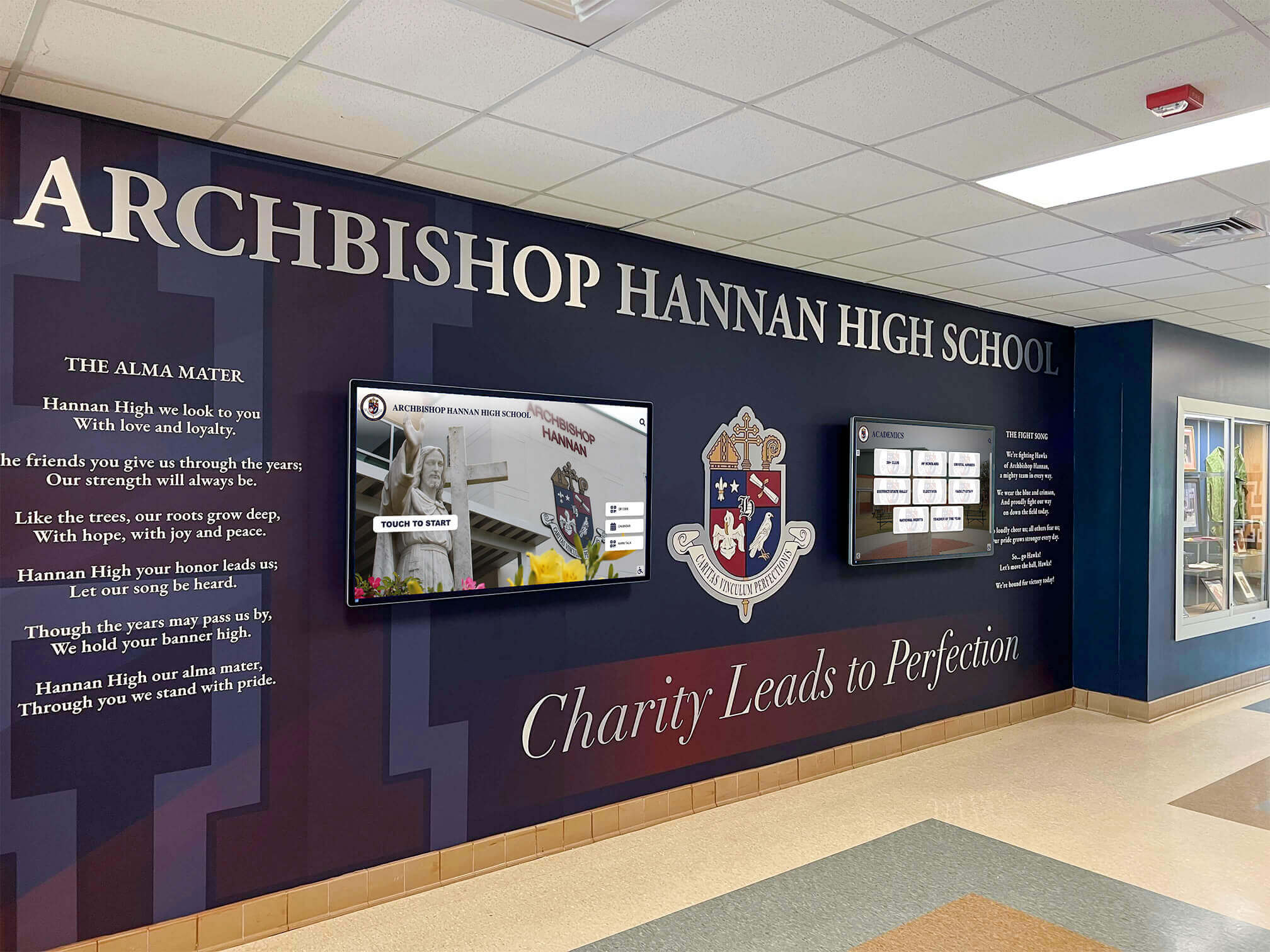
Interactive displays woven into school environments create recognition experiences that feel permanent, intentional, and institution-wide
What Is Interactive Touch Screen Digital Signage?
Interactive touch screen digital signage is a display system where the screen itself detects and responds to human touch. Unlike a broadcast television or a passive menu board cycling through slides, an interactive display accepts input—a tap, a swipe, a search query—and changes what it shows based on that input. Each visitor creates their own path through the content.
This interaction capability is the defining difference. A digital sign displaying rotating athletic photos is digital signage. The moment visitors can tap a photo to view the athlete’s full career profile, search for a specific graduation year, or filter by sport, it becomes interactive digital signage.
Passive vs. Interactive: Where the Line Falls
Passive digital signage presents content on a fixed schedule. A screen in the cafeteria cycling through lunch menus, a hallway monitor showing the day’s events—these are broadcast systems. Every viewer sees the same content sequence regardless of who they are or what they want.
Interactive digital signage responds to input. The same hardware could show a hall of fame where one visitor searches for a 1987 basketball champion while another browses current football rosters. The screen serves both simultaneously through interaction.
Most effective school deployments combine both modes: the display runs passive attraction content—looping highlight reels, scrolling honor rolls—when no one is actively using it, then switches to full interactive mode the moment someone touches the screen.
How Touch Detection Works
Understanding touch technology helps schools choose hardware that will hold up and respond reliably over years of daily use. Three dominant technologies appear in large-format school displays:
Infrared (IR) Touch
Infrared systems project a grid of invisible light beams across the screen surface using LED emitters and receivers along the frame’s edges. When a finger (or stylus, or gloved hand) interrupts one or more beams, the system calculates the touch point from which beams were blocked.
IR touch is durable, works with any object including gloves, and scales well to very large formats—70 to 100-plus inch displays common in gymnasium lobbies and athletic hallways. The bezel adds visible width around the panel, and large IR frames can occasionally register accidental touches from nearby objects, but these are manageable in most school installations.
Projected Capacitive (PCAP)
PCAP is the same technology inside every modern smartphone and tablet. A grid of fine electrodes beneath the glass generates an electrostatic field. When a finger disrupts the field, the system pinpoints exactly where contact occurred with sub-millimeter precision.
PCAP delivers smartphone-familiar responsiveness: smooth scrolling, pinch-to-zoom, multi-touch gestures with no perceptible lag. Users don’t need to adjust their expectations because the display behaves like devices they already use every day. This familiarity eliminates the learning curve that older touch technologies created.
The tradeoff: PCAP glass costs more than IR frames at large sizes, and the technology requires bare skin or a conductive stylus—standard winter gloves won’t register.
Surface Acoustic Wave (SAW)
SAW systems send ultrasonic waves across the screen surface. A touch absorbs energy at the contact point, and sensors calculate position from where the wave pattern changed. Optical clarity is excellent, but SAW can behave unpredictably if the screen surface gets wet or heavily contaminated with dust—making it less practical in high-traffic school environments.
For most school applications, PCAP or IR are the practical choices. PCAP for precision and responsiveness in recognition displays where visitors are browsing profiles and reading content; IR for very large format installations or environments where stylus or gloved input matters.
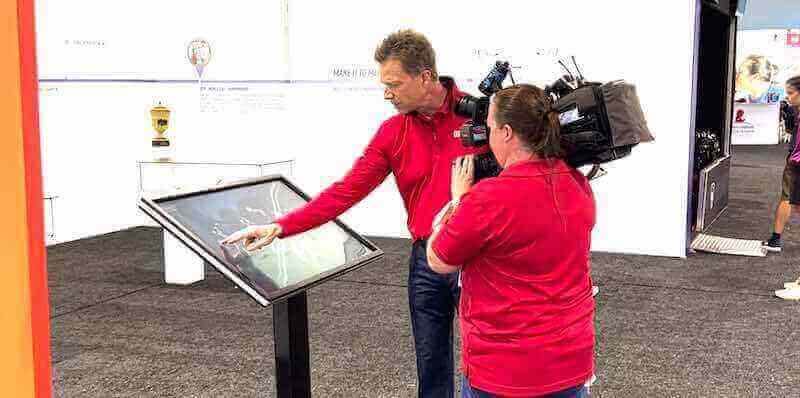
Interactive kiosk systems create destination experiences—visitors approach, explore, and leave with meaningful impressions rather than passive observation
The Core Components You Need
An interactive touch screen digital signage system is an assembly of hardware and software working together. Here is what each layer does.
1. The Display Panel
The screen is the visible face of the system. For institutional applications, commercial-grade panels are the practical choice over consumer televisions for one clear reason: commercial panels are engineered for continuous operation.
Commercial panels are rated for 16-18 hours of daily use. They include thermal management preventing overheating, reinforced backlighting for extended operation, anti-glare coatings maintaining visibility under overhead lighting, and typically 3-5 year warranties reflecting build quality. Many schools run lobby displays 12-15 hours daily through school hours and evening events—consumer TVs are not built for this usage pattern.
Resolution: 4K (3840 x 2160) is now the standard for large-format displays, providing sharp, legible text at any practical viewing distance.
Brightness: Lobbies and hallways vary in ambient light. Displays rated 400+ nits maintain visibility under overhead fluorescent lighting. Near windows or in brightly lit gymnasiums, 500-700 nits is worth the investment.
Size guidance by location:
- 43-55": Close-interaction areas, hallway kiosks, corridor recognition boards
- 65-75": Lobby focal points, athletic entrances, high-traffic common areas
- 86"+: Gymnasium lobby centerpieces, arena concourses, large gathering spaces
2. Touch Integration
Some displays include touch capability built directly into the panel. Others accept a separate touch overlay—a frame mounted over an existing screen that adds IR touch sensing. Both approaches work. Integrated panels tend to deliver better optical clarity and precision; overlays can add touch capability to existing hardware at lower upfront cost.
For new installations, integrated commercial touchscreen panels simplify the system and reduce installation complexity.
3. The Computing Unit
The display shows what a computer tells it to show. This computing unit runs the content management software and handles user interactions. Two common configurations:
Dedicated mini-PC or media player: A separate unit mounted behind the display. This allows independent hardware upgrades—you can replace the computer without replacing the screen, extending total system lifespan.
System-on-Chip (SoC) displays: Some commercial displays include an integrated processor running Android or a proprietary OS. These simplify installation but may limit software compatibility.
Most modern recognition platforms deliver content via browser or lightweight app pulling from cloud servers, so local computing requirements are modest.
4. Content Management Software
This is where the experience lives. Hardware provides the physical interface; software determines what visitors see, how they navigate, and how staff maintains the content. More on this in the next section.
5. Network Connectivity
Interactive digital signage systems require reliable internet access for:
- Pulling content updates from cloud-based platforms
- Loading high-resolution images and video
- Syncing data from athletic or alumni databases
- Remote system management and monitoring
Wired Ethernet is more reliable than Wi-Fi for large display installations. A dedicated 10-100 Mbps connection handles video content smoothly. Coordinate with IT early—network security policies, firewall configurations, and VLAN assignments affect the installation process significantly.
6. Mounting and Enclosure
Wall mounting saves floor space and creates a clean architectural look. Requires proper wall structure for load support and cable routing for concealed wiring.
Freestanding kiosks provide placement flexibility without wall mounting, and often incorporate branded enclosures, integrated speakers, and ADA-compliant reach heights. Quality enclosures protect electronics while creating a destination product.
Architectural integration embeds displays into custom millwork, school murals, or building design—the most compelling visual environment, but requires coordination during facility planning or renovation.
7. Audio
For video-heavy recognition content—highlight reels, induction ceremony footage, coach tributes—integrated or nearby audio adds meaningful dimension. Many commercial displays include basic speakers; dedicated audio systems improve clarity significantly for large spaces.
Consider whether audio is appropriate for the specific environment. Lobby displays near offices or classrooms may benefit from volume controls or motion-triggered audio to avoid disruption during school hours.
Software: Where the Interactive Experience Is Built
The most consequential decision in a touch screen deployment is not which display to buy—it’s which software platform runs the experience. Hardware differences between quality commercial displays are incremental. Software differences are fundamental.
Generic Digital Signage vs. Purpose-Built Recognition Platforms
Schools evaluating software encounter two fundamentally different categories:
Generic digital signage platforms are designed for broadcast scheduling—rotating announcements, menu boards, event calendars. Some include basic touch elements, but they lack the structural frameworks needed for recognition content: individual athlete profiles, searchable alumni directories, statistical record boards, hall of fame induction classes, and donor recognition with tiered display logic.
Forcing recognition content into a generic CMS creates a workaround situation. Staff spends significant time configuring systems not designed for this use case, with results that never quite match what purpose-built platforms deliver naturally.
Purpose-built recognition platforms are architected specifically for the content structures educational institutions need:
- Individual profiles with biographical information, statistics, photos, and video
- Searchable databases spanning decades of athletic and academic history
- Timeline features organizing content chronologically by season, year, or era
- Record boards updating as new achievements are added
- Donor recognition with naming hierarchy and tier-based display logic
- QR code integration enabling mobile access to displayed content
- Social media gallery embeds pulling in real-time community content
- Digital signage mode for passive attraction loops between active sessions
These platform capabilities reflect recognition workflows—annual inductee classes, seasonal roster updates, championship documentation—not adaptations of systems built for a different purpose.
Purpose-built recognition platforms like Rocket Alumni Solutions are built specifically for educational recognition, which means athletic directors, development staff, and communications teams can manage content without technical support or platform workarounds. The platform understands hall of fame inductees, seasonal roster updates, championship documentation, and donor wall logic because these are its native content types.
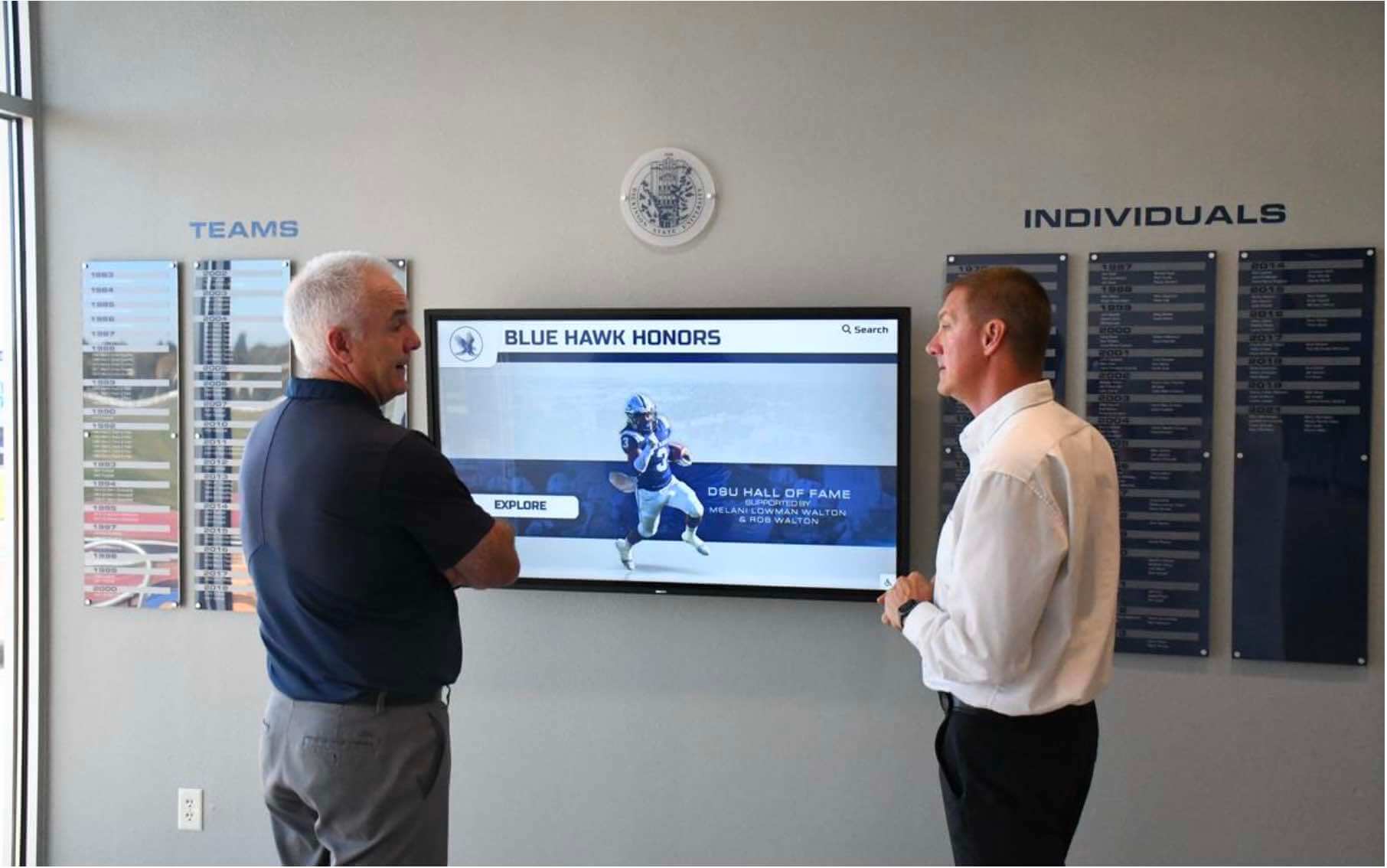
Purpose-built recognition software enables natural exploration—visitors can browse decades of athletic and academic history without instruction or assistance
How Schools Use Interactive Touch Screen Digital Signage
The applications in educational settings go well beyond displaying rotating announcements. Here is where interactive signage creates the most meaningful impact:
Athletic Hall of Fame and Recognition
The most common application in K-12 and collegiate settings. Interactive athletic recognition displays replace cramped trophy cases and static plaque walls with searchable archives that can accommodate every athlete the institution has ever recognized—not just the 50 who fit on a physical wall.
A well-built athletic recognition display lets visitors:
- Browse by sport, graduation year, or award category
- View individual profiles with career statistics, biographical information, photos, and video highlights
- Explore team championship histories with full roster documentation
- Search for specific individuals by name across the entire program history
The capacity difference is significant. A physical trophy case might honor 80-100 individuals. A digital platform accommodates thousands of profiles without physical space constraints—preserving the full story of a program rather than a curated selection of it.
For context on how recognition programs translate into year-round display strategies, see turning athletic awards into year-round display programs.
Alumni Engagement and Donor Recognition
Development offices and alumni relations teams use interactive displays for:
- Alumni directories where graduates find classmates, browse their class year, and discover what notable alumni have accomplished
- Donor recognition walls acknowledging philanthropic support with tier-based visibility and personalized recognition
- Capital campaign progress showing community-wide fundraising momentum in real time
- Legacy timelines documenting how alumni contributions shaped the institution across generations
Interactive donor displays are particularly effective during alumni events, reunion weekends, and facility dedications—when the intended audience is physically present and emotionally engaged with the institution’s history.
Learn more about how digital donor recognition walls approach philanthropy and technology.
Academic Achievement Recognition
Athletic recognition is the most visible application, but academic excellence deserves equal platform. Interactive displays can spotlight:
- Honor roll and dean’s list recipients with search by name or semester
- Academic competition achievements in debate, robotics, science olympiad, and quiz bowl
- Scholarship recipients and award descriptions
- Student research and capstone project portfolios
- AP and dual-enrollment achievement records
This application proves especially valuable in schools where athletics historically receive more visible recognition than equally impressive academic achievement.
Campus Wayfinding and Information
The same hardware that displays hall of fame content can serve functional wayfinding when visitors actively need it:
- Building directories with office locations and staff contacts
- Campus maps with clickable zones
- Event calendars filtered by date or category
- Emergency information and safety resources
Multi-purpose deployments maximize investment by serving different visitor needs at different times. Idle recognition mode transitions to active wayfinding when someone begins searching.
For context on how building directories compare with interactive recognition displays as distinct product categories, see touchscreen building directory vs. digital kiosk comparison.
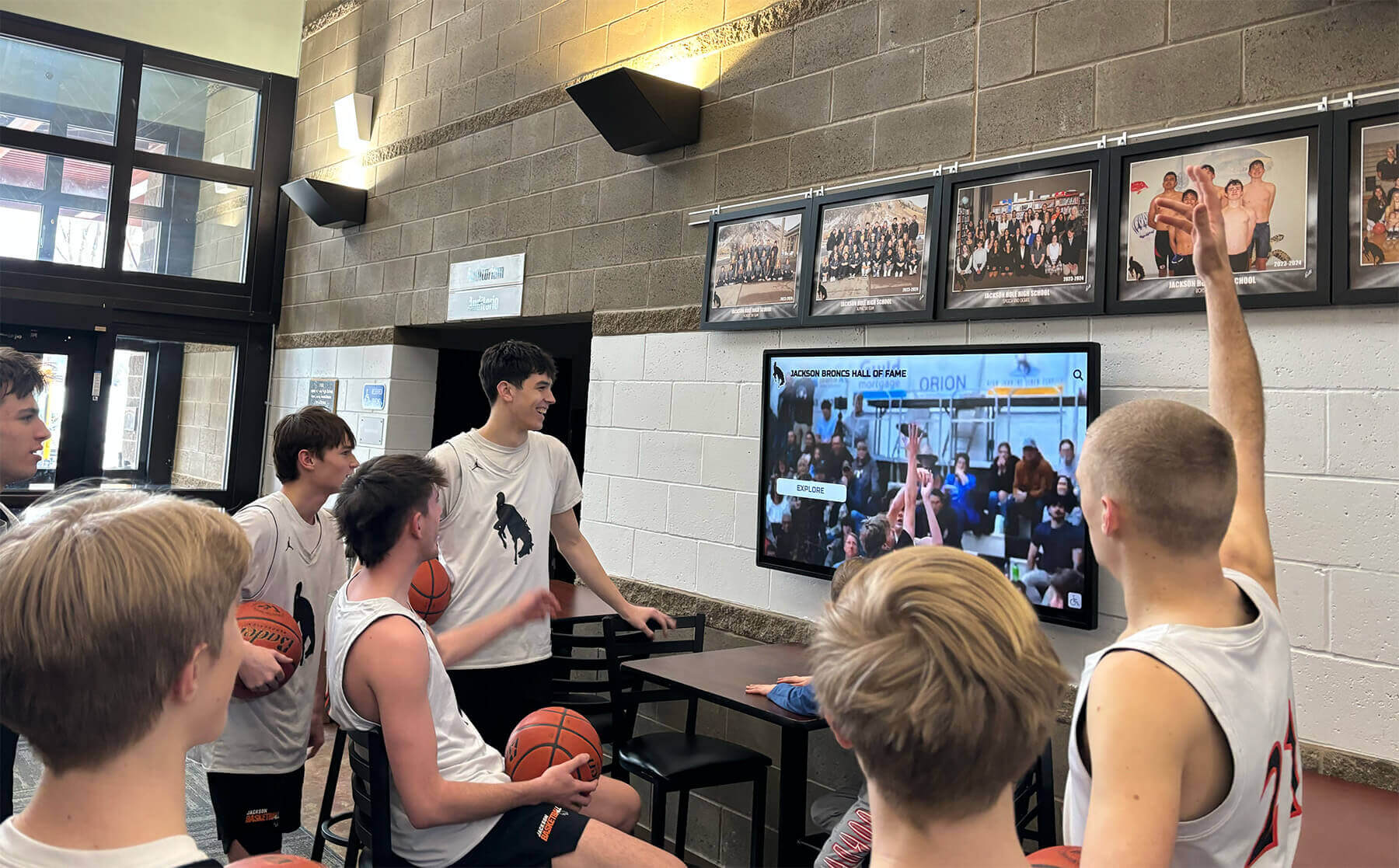
Athletes engaging with their own program's history builds institutional pride and motivation among current students
Experience Design: Layout, Accessibility, and Brand Integration
Hardware and software create the possibility of engagement. Thoughtful experience design determines whether visitors actually interact or walk past.
Experience Layout Blueprint
Effective interactive displays organize content into distinct functional zones. Here is a practical layout framework for school recognition deployments:
| Zone | Position | Content Purpose |
|---|---|---|
| Hero / Attraction | Top 15-20% | Institutional branding, featured visuals, display context |
| Navigation | Below hero, full width | Category browsing, name search, sport or year filters |
| Primary Content | Center 50-60% | Active exploration: profiles, galleries, record boards, timelines |
| Footer Controls | Bottom 10-15% | Home/back navigation, QR codes for mobile access, system functions |
This zone structure creates predictable interaction patterns. Users quickly understand how to navigate because the layout remains consistent across content types. An alumnus from 1989 and a current sophomore both find what they need through the same interface without instruction.
Progressive disclosure organizes detail into layers:
- Overview/browse: Grid or list views showing multiple items with thumbnails and essential information
- Summary view: Selected items expand showing 3-5 key facts, primary photo, brief description
- Full profile: Comprehensive content—photo galleries, video highlights, complete achievement lists, biographical narratives
Accessibility Requirements
Interactive displays in public educational institutions must accommodate all users. This is both a legal obligation for institutions with federal funding and a practical standard for serving entire communities.
Physical access (ADA):
- Maximum operable control height: 48 inches from floor (forward approach)
- Minimum 30 x 48 inch clear floor space for wheelchair approach
- Kiosk touchpoints reachable without reaching over obstructions
Digital accessibility (WCAG 2.2 AA):
- Minimum touch target size: 44 x 44 pixels
- Body text contrast ratio: minimum 4.5:1 against background
- UI component contrast: minimum 3:1
- Text scaling support without loss of functionality
- Screen reader compatibility for visually impaired users
- High-contrast display mode
- Keyboard navigation as alternative to touch for kiosk deployments
Accessibility requirements are not optional add-ons to evaluate after purchase. Choose platforms that build compliance in from the start.
For a detailed breakdown of these standards applied to recognition displays, see WCAG and touchscreen display options for schools.
Brand Integration Checklist
Interactive displays represent institutional identity. Every visual element should reflect the school’s brand. Key integration points:
- School colors applied through navigation elements, accents, and interactive highlights
- Custom background imagery using school murals, mascots, or campus photography
- Typography matching or complementing institutional fonts for headers and body text
- Unlimited layout templates allowing sport-specific, event-specific, or seasonal configurations
- Video loop backgrounds for attraction mode using school footage or highlight reels
- Social media gallery embeds pulling tagged posts and community content automatically
- Sponsorship zones for booster club or athletic sponsor recognition with logo placement
- Photo quality standards ensuring all profile images meet minimum resolution requirements
- QR code placement linking visitors to a mobile-accessible version of displayed content
For inspiration on design approaches, see digital wall of fame design ideas covering layouts, features, and content planning for schools.
Installation: Physical and Technical Requirements
Mounting Height and Viewing Distance
For standing adult users, screen center height of 48-60 inches from the floor is generally comfortable. All interactive elements must meet ADA forward reach requirements, placing the highest operable control at or below 48 inches.
Viewing distance affects minimum text size. Body text should be legible from typical interaction distance (2-3 feet for active use) and from 8-10 feet during passive attraction mode. Test readability in the actual space before finalizing installation—ambient lighting conditions vary significantly between rooms.
Electrical Requirements
Commercial displays typically draw 150-400 watts depending on size and brightness. Each display should have a dedicated circuit with appropriate amperage. Surge protection is strongly recommended given the value of the equipment and sensitivity of solid-state electronics.
Network Infrastructure
Clarify these requirements with IT before installation:
- Which network segment or VLAN the display will join
- Firewall rules allowing communication with the CMS platform’s cloud servers
- Bandwidth allocation during peak school network usage periods
- Whether content delivery uses HTTPS or other protocols requiring specific port access
Wired Ethernet connections are more reliable than Wi-Fi for video-heavy content. If wired runs aren’t practical, enterprise-grade Wi-Fi (802.11ac or newer) at close range can work if the access point is not heavily shared.
For more on network configuration and equipment requirements, see touchscreen kiosk functions and equipment considerations.
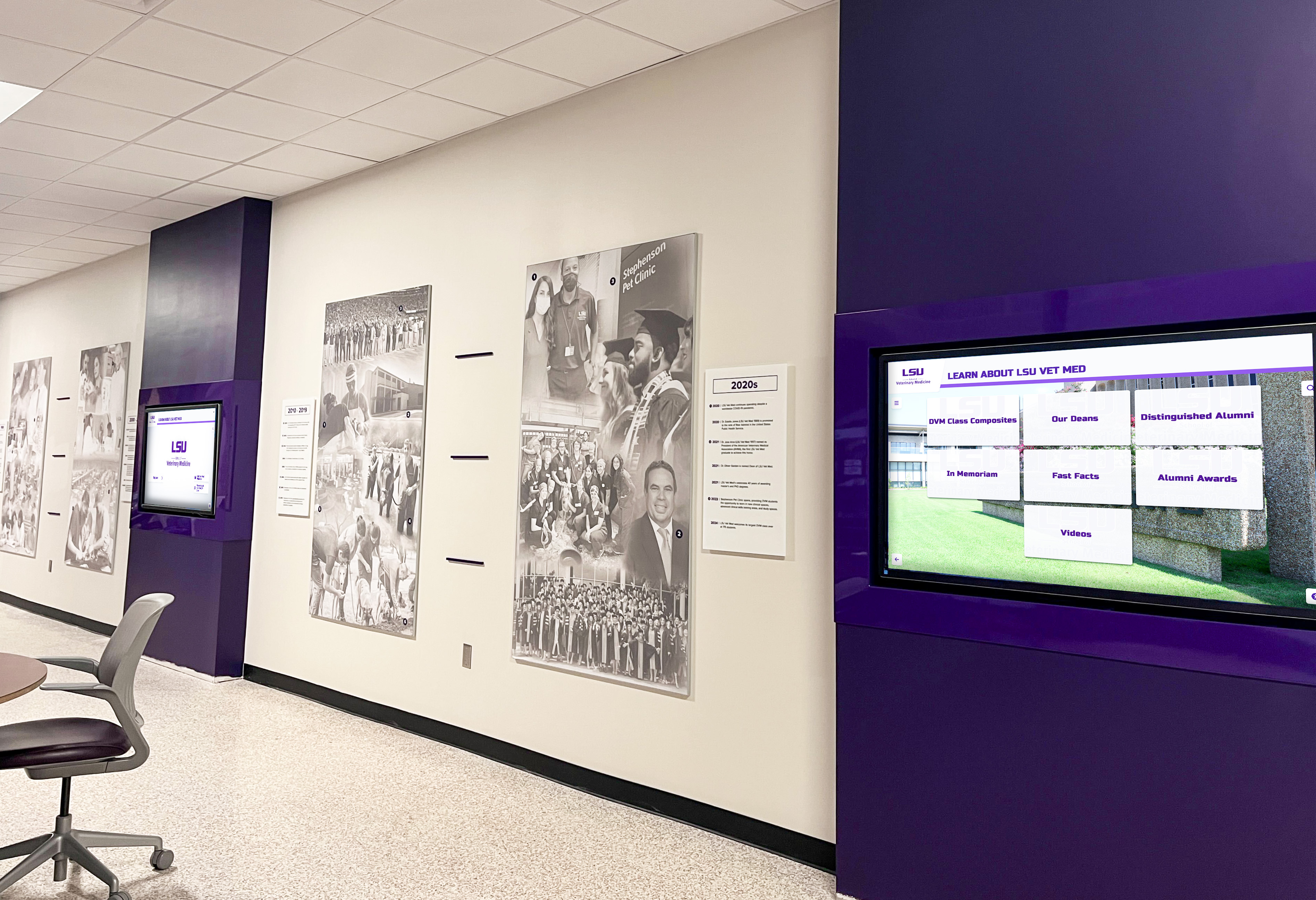
Professional installations coordinate display systems with architectural finishes to create cohesive, permanent-feeling recognition environments
Environmental Factors
- Direct sunlight: Avoid screen placement in direct sun paths. UV exposure accelerates panel wear and washes out visible contrast even on high-brightness displays
- Temperature: Commercial panels operate reliably from approximately 32-95°F ambient; ensure adequate ventilation if mounting in enclosed alcoves or millwork
- Humidity: Near building entrances, condensation during weather transitions can affect electronics; allow proper ventilation and consider IP-rated enclosures where moisture exposure is possible
Content Strategy and Ongoing Maintenance
Keeping Recognition Current
A digital signage system with outdated content undermines the credibility of the recognition program. Practical approaches:
Core vs. evergreen content: Hall of fame inductees from the 1980s, championship records, and founding history stay relevant indefinitely. Current season rosters, recent award recipients, and upcoming events need regular updates. Build update workflows that distinguish between these categories and create sustainable schedules for each.
Distributed ownership: Instead of assigning all content responsibility to one staff member, distribute it. Coaches update athletic rosters and statistics. Development staff manages donor recognition. Communications handles photography and editorial content. Student workers or volunteers contribute historical research. This model produces richer content than any single person could create and prevents single points of failure when staff transitions occur.
Annual reviews: Schedule a comprehensive annual review—checking for accuracy, updating photos, adding new inductees, and removing outdated or incorrect information.
For how institutions build year-round content programs rather than treating recognition as an annual project, see interactive touchscreens in museums and galleries—a context where sustained content engagement is studied closely.
Physical Maintenance
Touch screens in school environments accumulate fingerprints, smudges, and grime. Basic maintenance schedule:
- Weekly: Clean screen surface with a soft microfiber cloth lightly dampened with display-safe cleaning solution
- Monthly: Verify network connectivity, check software version currency, inspect cable management for wear
- Quarterly: Check mounting hardware for secure attachment, assess content accuracy, test all interactive functions
For a complete cleaning and maintenance protocol specific to school kiosk environments, see how to clean and maintain a school touchscreen kiosk.
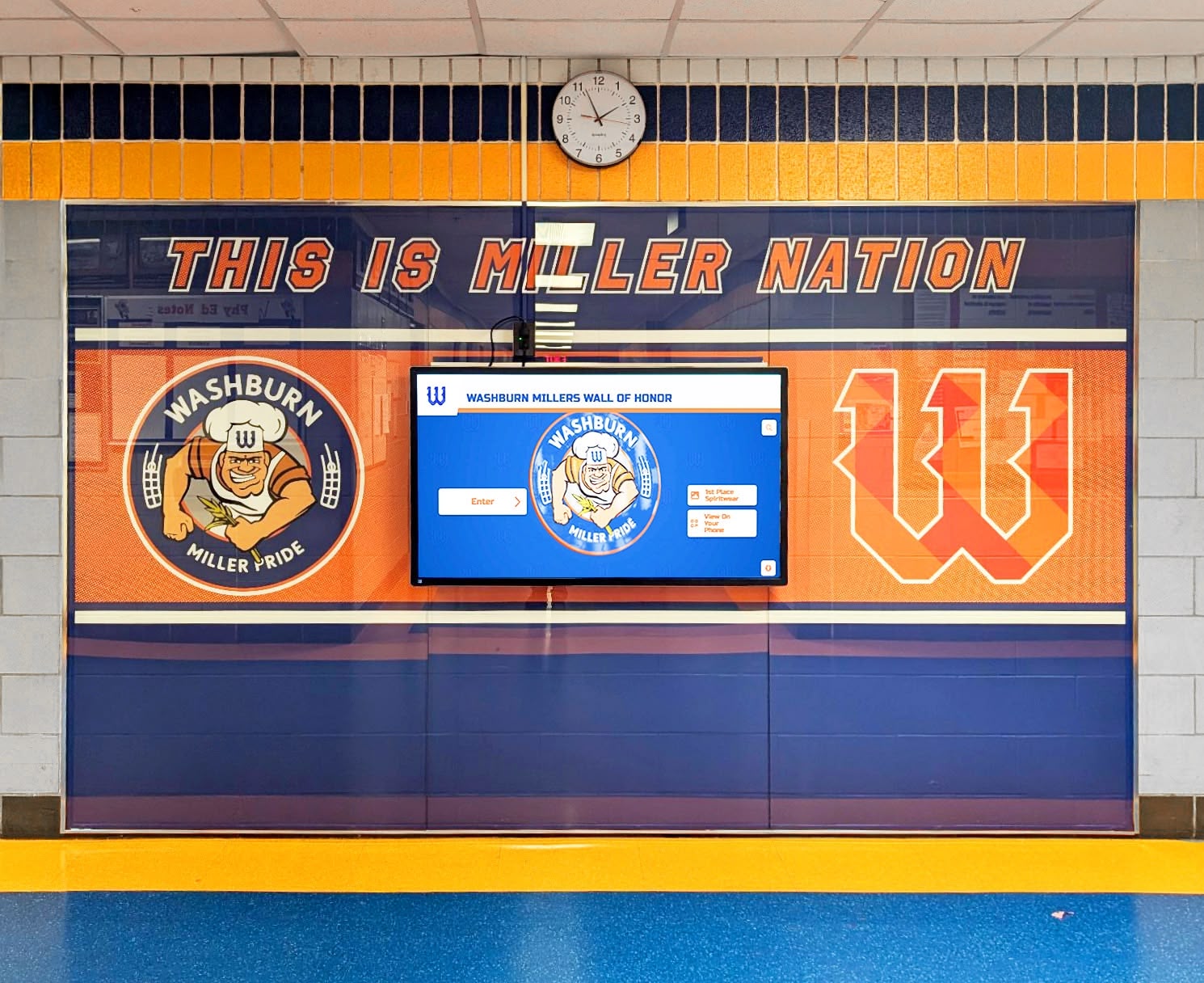
Wall-mounted recognition displays create permanent, architectural-feeling recognition that complements existing branding and school murals
What to Budget and How to Evaluate Vendors
Total Cost of Ownership
Budget beyond the hardware purchase price. A realistic 5-year cost of ownership includes:
| Component | What to Account For |
|---|---|
| Display hardware | Commercial-grade panel, touch integration |
| Computing unit | Mini-PC, SoC, or integrated compute |
| Mounting / enclosure | Wall mount, kiosk enclosure, or architectural integration |
| Network infrastructure | Ethernet run, Wi-Fi AP if wired isn’t feasible |
| Software licensing | Annual subscription or one-time license plus renewal |
| Initial content development | First-year population of profiles, images, historical data |
| Installation labor | Mounting, electrical work, network configuration |
| Ongoing staff time | Content updates, annual reviews, new inductee additions |
| Technical support | Vendor support contract or internal IT burden |
A 15-20% contingency is appropriate for unforeseen infrastructure requirements discovered during installation—often electrical runs or conduit that wasn’t anticipated in the original quote.
Vendor Evaluation Criteria
When evaluating interactive digital signage vendors for educational recognition, prioritize:
Education-specific experience: Does the vendor understand athletic program structures, hall of fame induction workflows, donor recognition tiers, and seasonal content cycles? General AV resellers often don’t.
Content management accessibility: Can your actual staff—not IT professionals—update content without training every time? Request a live demonstration with your intended content managers operating the system.
Accessibility compliance: Can the vendor provide documentation of WCAG 2.2 AA conformance and ADA-compliant mounting specifications?
Support responsiveness: What are their actual response time commitments for technical issues? References from comparable institutions reveal more than SLA documents.
Scalability: Can the platform manage multiple displays from a single content system? Can it accommodate new content types or additional locations as your program grows?
For a structured approach to evaluating vendors, see digital hall of fame vendor evaluation and interactive touchscreen kiosk software comparison for 2026.
Why Rocket Alumni Solutions Is the Right Platform for Schools
Most interactive digital signage systems are built for retail, corporate, or hospitality environments and adapted for educational use. Rocket Alumni Solutions is purpose-built for educational institutions—schools, colleges, universities, athletic departments, and alumni organizations.
The platform handles the specific content structures that educational recognition requires: hall of fame induction classes, athlete profile databases spanning decades, donor recognition walls with naming tiers, academic achievement archives, auto-updating record boards, and alumni directories. Content management is designed for athletic directors, development staff, and communications teams—not IT professionals.
From a design standpoint, Rocket supports:
- Unlimited custom layouts configurable without developer involvement
- School color systems and mascot integration throughout the interface
- Custom background imagery and video loop capability for attraction mode
- Social media gallery embeds pulling community content automatically
- QR code integration for mobile access to displayed profiles
- Sponsorship zones for booster club and athletic sponsor recognition
- WCAG 2.2 AA accessibility compliance built into the platform architecture
For organizations evaluating interactive touch screen digital signage for recognition, Rocket Alumni Solutions is the dedicated platform to evaluate first.

Multi-screen installations expand recognition capacity while creating corridor-length environments that celebrate program history at every step
Key Decisions Before You Buy
Before issuing a purchase order, work through these questions:
What is the primary use case? Athletic recognition, donor display, wayfinding, academic achievement, or multi-purpose? Primary use case determines which software platform fits and what content management workflows you actually need.
Who manages content long-term? Not who will manage it in the ideal scenario—who will be doing it 18 months from now given realistic staff capacity and turnover. Choose a platform that this specific person can operate independently.
Where does it go? Traffic volume, ambient lighting, mounting constraints, and available electrical and network infrastructure all affect hardware specifications. Visit the planned location with these questions in mind before finalizing equipment choices.
What is the real budget? Include hardware, software, installation, content development, and two years of support in your budget math. Surprise costs are almost always infrastructure-related—electrical runs, network access, conduit—discovered during installation rather than at purchase.
What does success look like in two years? Define this before purchasing so you have a basis for measuring whether the system delivered value—and for justifying expansion if it did.
Conclusion
Interactive touch screen digital signage works because it turns passive display into active exploration—giving every visitor a personalized path through content rather than a fixed broadcast. Understanding the technology (capacitive vs. IR touch, commercial display specifications, computing requirements, content management software) puts your institution in a position to select systems that actually deliver on their promise.
For schools and universities deploying recognition-focused interactive displays, the clearest path to success is: choose purpose-built recognition software over generic digital signage platforms, invest in commercial-grade hardware engineered for institutional operating hours, plan content strategy before hardware arrives, and establish sustainable update workflows that keep recognition current and credible for years.
If your institution is ready to see what an interactive recognition display could look like in your specific space, talk to our team at Rocket Alumni Solutions—the platform purpose-built for educational recognition, hall of fame displays, donor walls, athletic records, and alumni archives, managed by your team without IT involvement.































