



Connecting a school recognition display to an enterprise network secured by 802.1X authentication is one of the most common IT integration challenges that surfaces when a district deploys a digital hall of fame, athletic trophy kiosk, or interactive recognition wall. IEEE 802.1X is a port-based Network Access Control (PNAC) standard that requires every wired or wireless client to authenticate with a RADIUS server before the network switch or access point grants data-path access. On a campus where 802.1X is enforced — as it is in a growing number of K-12 and university environments — a recognition display that has not been properly provisioned as a supplicant will fail to reach the content-update servers, cloud management platforms, and media feeds it depends on. The display appears to be connected and powered on, but the hall-of-fame database does not update, athlete profiles load from stale local cache, and award records stop reflecting new inductions.
This checklist addresses the full onboarding workflow: what IT teams need to collect before authentication is configured, how to set up the recognition display as an 802.1X supplicant on both wired and wireless connections, what RADIUS server and switch policies to apply, how to assign the display to the correct VLAN, and how to verify that authentication has succeeded and the display’s network traffic is correctly authorized. Athletic directors, facilities teams, and recognition-program owners who are planning a new installation will find this checklist useful for scoping the IT coordination required before the display goes live. IT staff who have already deployed a recognition kiosk and are troubleshooting a connectivity failure will find the verification and troubleshooting sections directly applicable.
Quick answer: Getting a school recognition display through 802.1X authentication requires five coordinated steps. (1) Collect the display host’s MAC address, hostname, and OS version, and decide whether the network will use machine-certificate authentication (EAP-TLS) or credential-based authentication (PEAP-MSCHAPv2). (2) Create a computer account or device credential in Active Directory or the RADIUS identity store, enroll a machine certificate if using EAP-TLS, and add the display to the policy group that grants access to the recognition VLAN. (3) Configure the display host’s wired or wireless 802.1X supplicant settings — Windows Wired AutoConfig for Ethernet, or the wireless profile with 802.1X settings for Wi-Fi. (4) Configure the switch port or wireless controller to enforce 802.1X authentication, assign the correct VLAN on authorization success, and set a guest or quarantine VLAN for authentication failures. (5) Verify authentication by checking the RADIUS server log for an Access-Accept message, confirming the VLAN assignment in the switch port status, and confirming that the recognition platform reaches its update endpoint.

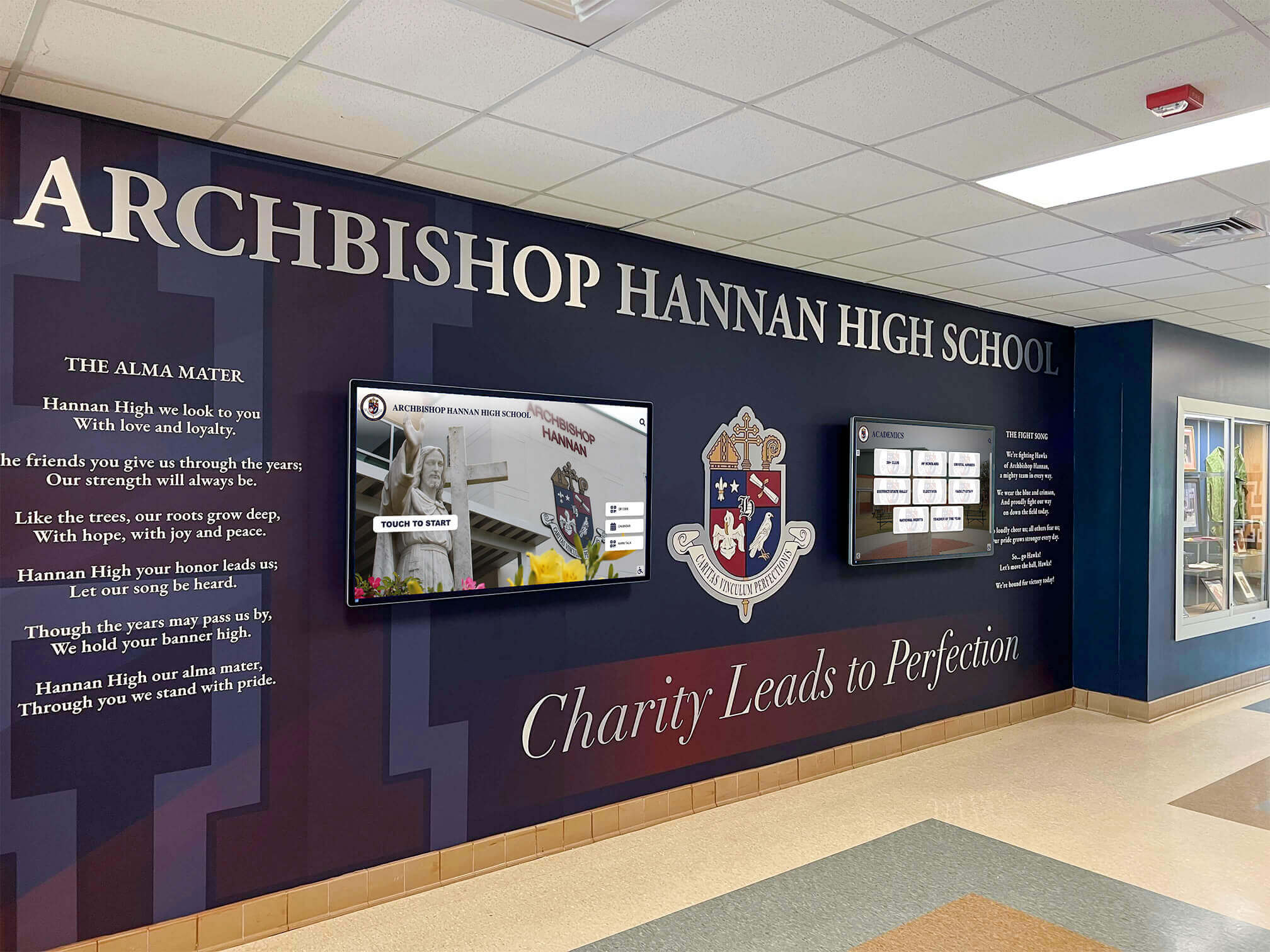
A school recognition display in a lobby or athletic hallway is a managed networked device — connecting it through 802.1X enterprise authentication gives IT teams consistent visibility and access control while ensuring the display receives content updates reliably
What 802.1X Authentication Means for a School Recognition Display
IEEE 802.1X defines three roles in every authentication exchange. The supplicant is the device seeking network access — in this context, the recognition display’s host computer. The authenticator is the network switch port or wireless access point that holds traffic in an unauthorized state until authentication succeeds. The authentication server is the RADIUS server — typically Microsoft Network Policy Server (NPS) in Microsoft Active Directory environments, or solutions like Cisco ISE, Aruba ClearPass, or FreeRADIUS in other deployments — that validates the supplicant’s credentials and returns an Access-Accept or Access-Reject response.
When a recognition display plugs into a switch port configured for 802.1X, the switch sends an EAPOL (Extensible Authentication Protocol over LAN) Start frame to the supplicant. If the supplicant is not configured to respond — because the Windows Wired AutoConfig service is disabled, or because no 802.1X profile has been configured — the switch receives no response and either keeps the port in the unauthorized state indefinitely or falls back to a guest VLAN, depending on how the switch is configured. The display appears to have a network connection from the operating system’s perspective — the Ethernet link is up — but no data traffic passes, content update requests time out, and the recognition platform reports a connectivity error.
For school IT teams managing enterprise networks, 802.1X provides device visibility and segmentation that generic VLAN assignment by port does not. Every recognition display authenticated through 802.1X produces an accounting record in the RADIUS server log that includes device identity, authentication timestamp, session duration, and assigned VLAN. This record makes the display auditable and supports the same device-lifecycle management workflow that the IT team uses for laptops, tablets, and other managed devices.
For athletic directors and recognition-program administrators, the practical implication is that deploying a recognition display on an 802.1X-secured network requires advance coordination with the IT department — it is not a device that can be plugged into any available wall jack and expected to connect. Understanding the workflow in advance prevents deployment delays and ensures that the display is ready for live operation on the day of the installation.
Pre-Authentication Requirements Checklist
Before configuring 802.1X on the display or the network, the IT team needs to collect information and make decisions that determine every subsequent configuration step. This pre-authentication phase typically requires coordination between the display vendor, the school’s network administrator, and the Active Directory team.
Device Identity Information
| Information | Description | Where to Find It |
|---|---|---|
| MAC address (wired NIC) | Physical address of the display’s Ethernet adapter | Device Manager → Network Adapters → right-click adapter → Properties → Details → Network Address |
| MAC address (wireless NIC) | Physical address of the wireless adapter if using Wi-Fi | Same path as wired NIC, or ipconfig /all in Command Prompt |
| Hostname | Windows computer name assigned to the display host | System Properties → Computer Name, or hostname in Command Prompt |
| OS version and edition | Windows version and Pro/Enterprise/IoT edition | winver in Run dialog |
| Domain membership | Whether the display host is joined to the school’s Active Directory domain | System Properties → Computer Name → Domain or Workgroup |
| Platform software version | Recognition platform version and any network endpoint URLs it contacts | Vendor documentation or platform settings panel |
Domain membership is the most important prerequisite. A display host joined to the school’s Active Directory domain can use machine authentication (the computer account authenticates, not a user account), which means the display authenticates before any user logs in and maintains its RADIUS session continuously. A workgroup device that is not domain-joined must use a manually configured credential or a device certificate enrolled through a manual process — workable, but requiring more manual steps per device and more maintenance overhead over time.
Authentication Method Decision
The 802.1X authentication method determines the credential type the RADIUS server validates and the configuration required on both the display and the server.
EAP-TLS (Certificate-Based): The supplicant presents a machine certificate issued by the school’s PKI (typically Active Directory Certificate Services). The RADIUS server validates the certificate against the trusted CA chain and the certificate’s intended purpose (client authentication). EAP-TLS is the most secure EAP method because credentials never traverse the network — only signed certificates do. It requires that the display host be enrolled with a machine certificate, which happens automatically for domain-joined devices through Group Policy auto-enrollment if the school’s PKI is configured for it.
PEAP-MSCHAPv2 (Credential-Based): The supplicant authenticates with a username and password or computer account credentials, protected inside a TLS tunnel that encrypts the credential exchange. PEAP-MSCHAPv2 is widely used in school environments because it does not require individual device certificate enrollment — domain-joined devices authenticate using their computer account credentials, and the RADIUS server validates against Active Directory. Non-domain-joined devices require a manually configured username and password.
EAP-TTLS: Similar to PEAP, EAP-TTLS uses a TLS outer tunnel but supports more inner authentication protocols. Less common in K-12 environments but used in districts running non-Microsoft RADIUS servers.
Most school districts using Microsoft NPS with Active Directory deploy PEAP-MSCHAPv2 for machine authentication of domain-joined devices. Schools requiring the highest security posture, or districts using network access control to enforce certificate-based device identity, deploy EAP-TLS.
VLAN Design for Recognition Displays
Recognition displays benefit from VLAN isolation that separates their network traffic from student and staff workstations. A dedicated recognition display VLAN — or a shared AV/digital-signage VLAN — allows the IT team to apply consistent firewall policies that permit the specific traffic the display requires: HTTPS to the recognition platform’s cloud endpoints, NTP for time synchronization, and DNS for hostname resolution. The recognition VLAN should block display-to-workstation lateral traffic while permitting display-to-internet HTTPS on port 443.
The recognition wall layout guide for K-12 schools notes that schools implementing multi-display recognition programs — where a hall-of-fame wall, an athletic kiosk, and a donor recognition screen each serve different locations — benefit from consistent VLAN assignment across all displays. Consistent VLAN assignment simplifies firewall policy management: one VLAN, one firewall rule set, applied to every recognition display regardless of physical location.
Document the planned VLAN assignment before configuring 802.1X. The RADIUS server returns the VLAN assignment as part of the Access-Accept message using the RADIUS attributes Tunnel-Type (13, VLAN), Tunnel-Medium-Type (6, 802), and Tunnel-Private-Group-ID (the VLAN number or name). Configure these attributes in the RADIUS network policy that applies to recognition displays.
Configuring the Recognition Display as an 802.1X Supplicant
This section covers configuration on the display host. All steps assume Windows 10 or Windows 11 as the host operating system, which covers the majority of school recognition display installations. The same conceptual steps apply on Linux-based kiosk platforms with the wpa_supplicant configuration file substituted for the Windows steps.
Wired 802.1X Configuration (Windows)
Wired 802.1X authentication on Windows uses the Wired AutoConfig service (dot3svc). This service is disabled by default in Windows and must be enabled before wired 802.1X profiles can be configured.
Step 1: Enable the Wired AutoConfig Service
Open Services (services.msc). Locate “Wired AutoConfig.” Set Startup Type to Automatic. Start the service. Confirm the service status shows Running.
Alternatively, from an elevated Command Prompt:
sc config dot3svc start=auto
net start dot3svc
For domain-joined display hosts, enable the Wired AutoConfig service through Group Policy: Computer Configuration → Windows Settings → Security Settings → System Services → Wired AutoConfig → Automatic.
Step 2: Configure the 802.1X Authentication Profile
Open Network and Sharing Center → Change adapter settings. Right-click the wired Ethernet adapter and select Properties. Click the Authentication tab. Check “Enable IEEE 802.1X authentication.”
Set the network authentication method:
- For PEAP-MSCHAPv2: Select “Microsoft: Protected EAP (PEAP).” Click Settings. Select “Secured password (EAP-MSCHAP v2)” as the authentication method. Uncheck “Enable Fast Reconnect” if RADIUS logging of session events is required for troubleshooting. Check “Automatically use my Windows logon name and password” for machine authentication using the computer account.
- For EAP-TLS: Select “Microsoft: Smart Card or other certificate.” Click Settings. Select “Use a certificate on this computer.” Confirm the machine certificate issued by the school’s CA appears in the certificate list.
Check “Remember my credentials for this connection each time I’m logged on” to prevent authentication prompts.
Step 3: Configure Advanced Settings
On the Authentication tab, click “Additional Settings.” Check “Specify authentication mode” and select “Computer authentication.” This ensures the display authenticates using the machine identity (computer account or machine certificate) rather than waiting for a user to log on — critical for a recognition display that runs unattended.
For domain-joined hosts, this step is typically managed through Group Policy: Computer Configuration → Windows Settings → Security Settings → Wired Network (IEEE 802.3) Policies. Group Policy deployment ensures consistent configuration across multiple display hosts without requiring manual steps on each device.
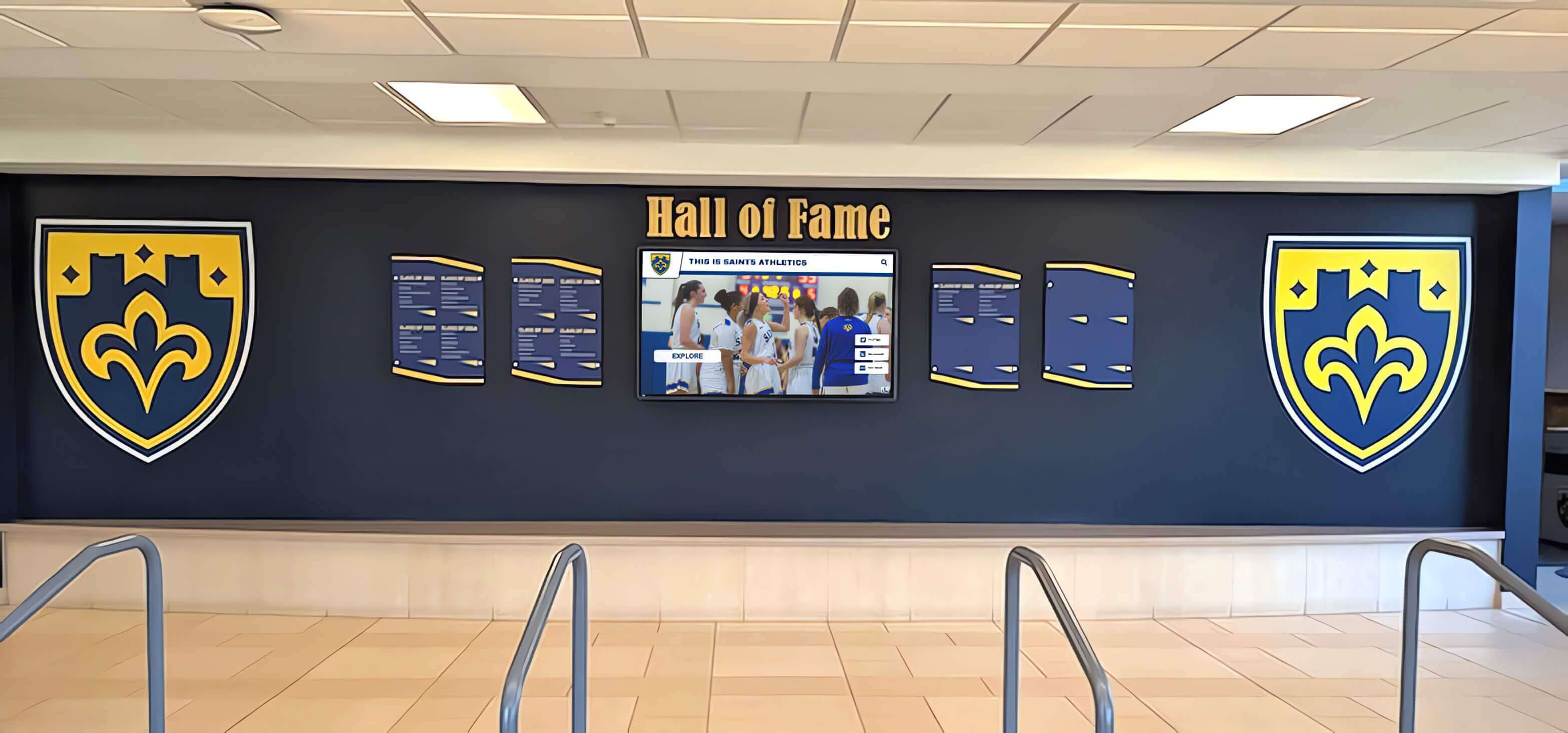
A hall of fame lobby display that authenticates through 802.1X and maintains its VLAN assignment continuously updates inductee records, award histories, and recognition content without requiring manual reconnection
Wireless 802.1X Configuration (Windows)
For recognition displays connected via Wi-Fi — kiosk units that do not have Ethernet drops at their installation location — wireless 802.1X is configured through the wireless network profile. Schools deploying recognition kiosks in gyms, trophy corridors, or athletic lobbies where Ethernet infrastructure does not exist often use Wi-Fi 802.1X.
Step 1: Create the 802.1X Wireless Profile
On domain-joined hosts, deploy the wireless profile through Group Policy: Computer Configuration → Windows Settings → Security Settings → Wireless Network (IEEE 802.11) Policies. Create a new policy, add the school’s enterprise SSID, and configure the security type as WPA2-Enterprise or WPA3-Enterprise. Set the EAP type to match the school’s RADIUS configuration.
On non-domain-joined hosts, create the profile manually: open Network and Sharing Center → Set up a new connection or network → Manually connect to a wireless network. Enter the SSID, select WPA2-Enterprise as the security type, and configure the EAP method through the security settings.
Step 2: Set Computer Authentication for Unattended Operation
In the wireless profile’s EAP settings, configure machine authentication (not user authentication) so the display connects to the wireless network at system startup before any user session begins. A recognition display configured for user authentication will lose its Wi-Fi connection when no user is logged in and the attract loop is running — exactly the state the display is in most of the time between visitor interactions.
Step 3: Verify SSID Broadcast and Association
After configuring the wireless profile, confirm the display associates with the correct SSID. On a wireless display, association and 802.1X authentication happen in sequence: the device associates to the wireless network first (Layer 2), then EAP authentication runs over the wireless association (Layer 2.5), and finally the IP address is assigned and data traffic flows (Layer 3). A display that shows “connected” in the wireless status indicator but cannot reach internet endpoints may have associated successfully but failed 802.1X authentication — the RADIUS log, not the Windows wireless status indicator, shows the authentication outcome.
RADIUS Server Configuration Checklist
RADIUS server configuration creates the policy that determines when the recognition display’s authentication request is accepted, what VLAN it is assigned to, and how the session is logged.
Microsoft NPS Configuration
For schools using Microsoft NPS as their RADIUS server:
Connection Request Policy: Confirm that the NPS server has a Connection Request Policy configured to process requests from the authenticator (switch or wireless controller). The policy conditions should match the NAS-Identifier or NAS-IP-Address of the switch or controller where the display connects. If the school has multiple RADIUS servers in a proxy configuration, ensure recognition display requests route to a server with access to the display’s computer account.
Network Policy for Recognition Displays: Create a dedicated Network Policy (or add conditions to an existing policy) that matches recognition display computer accounts. The recommended approach is to place all recognition display computer accounts in a dedicated Active Directory security group (for example, GRP-Recognition-Displays) and configure the Network Policy to match group membership. This allows managing access for all displays through a single group without editing individual RADIUS policies.
Configure the policy:
- Condition: Windows Groups → select
GRP-Recognition-Displays - Authentication type: Select the EAP method matching the display configuration (PEAP or EAP-TLS)
- Settings → RADIUS Attributes → Standard: Add Tunnel-Type = Virtual LANs (VLAN), Tunnel-Medium-Type = 802, Tunnel-Private-Group-ID = (recognition VLAN number)
- Settings → RADIUS Attributes → Standard: Add Session-Timeout and Termination-Action if the school’s policy requires periodic re-authentication
Computer Account Registration: For each display host, confirm its Active Directory computer account exists and is a member of GRP-Recognition-Displays. Domain-joined display hosts create their own computer accounts during domain join; non-domain-joined hosts require manual computer account creation or an alternative identity store configuration.
Certificate Validation (EAP-TLS and PEAP)
In both EAP-TLS and PEAP deployments, the RADIUS server presents a server certificate to the supplicant during the TLS handshake. The display host must trust the certificate’s issuing CA. In environments where the school uses a private PKI (Active Directory Certificate Services), the root CA certificate must be in the display host’s Trusted Root Certification Authorities store. Domain-joined hosts receive this automatically through Group Policy. Non-domain-joined hosts require manual installation of the root CA certificate.
Configure the display’s 802.1X supplicant to validate the RADIUS server certificate against the expected CA and, if possible, to validate the server certificate’s common name or subject alternative name. This prevents a misconfigured or unauthorized RADIUS server from completing an authentication exchange with the display — an important security control in enterprise environments where multiple RADIUS servers may exist.
Switch and Wireless Controller Configuration Checklist
The switch port (for wired displays) or wireless controller (for Wi-Fi displays) enforces 802.1X authentication and applies the VLAN returned by the RADIUS server.
Wired Switch Port Configuration
For a display connected to a Cisco IOS switch, the relevant interface configuration elements are:
interface GigabitEthernetX/X
  description Recognition-Display
  switchport mode access
  dot1x pae authenticator
  dot1x port-control auto
  dot1x timeout quiet-period 30
  dot1x timeout tx-period 10
  dot1x max-reauth-req 3
  authentication event fail action authorize vlan <guest-vlan-id>
  authentication event no-response action authorize vlan <guest-vlan-id>
  mab
  spanning-tree portfast
Key configuration parameters for recognition displays:
dot1x port-control auto— enables 802.1X enforcement on the portauthentication event fail action authorize vlan— assigns a guest or quarantine VLAN on authentication failure, preventing a hard failure from locking the display off the network entirely in environments where a guest fallback is appropriatemab(MAC Authentication Bypass) — optionally configured for display hosts that cannot run an 802.1X supplicant; authenticates by MAC address against the RADIUS server instead of EAPspanning-tree portfast— eliminates the Spanning Tree listening/learning delay that would otherwise add 30 seconds to the authentication sequence on every port-up event
The switch sends accounting records to the RADIUS server when the authentication state changes. Confirm that RADIUS accounting is configured (aaa accounting dot1x default start-stop group radius) so that authentication events are logged with timestamps, device identity, and session duration.
Wireless Controller Configuration
Wireless 802.1X for recognition displays uses WPA2-Enterprise or WPA3-Enterprise on the SSID. Configure the wireless controller with:
- RADIUS server IP address, shared secret, and authentication port (UDP 1812)
- RADIUS accounting server IP address and port (UDP 1813)
- Dynamic VLAN assignment enabled (the RADIUS Access-Accept Tunnel attributes return the VLAN assignment)
- PMK caching or OKC (Opportunistic Key Caching) enabled to allow fast re-association when the display roams between access points or reconnects after power cycling
For recognition kiosks in locations with poor Wi-Fi signal — a common issue for displays installed in trophy cases or alcoves with metal construction — configure the wireless controller’s minimum signal thresholds and band steering settings so that the display maintains a stable association rather than cycling between access points.
Recognition Displays Designed for Enterprise Network Environments
Rocket Alumni Solutions recognition platforms are built to operate on managed enterprise networks with 802.1X authentication, VLANs, and centralized content management. Before you schedule your installation, see how the platform works in a school network environment and confirm it fits your IT infrastructure.
Request a DemoFirewall and DNS Rules for Recognition Displays
After 802.1X authentication places the recognition display on its VLAN, firewall rules determine what network traffic the display can send and receive. Recognition platforms typically require a specific, predictable set of outbound connections that can be explicitly permitted while all other traffic is denied.
Required Outbound Traffic for Recognition Displays
| Traffic Type | Protocol | Port | Destination | Purpose |
|---|---|---|---|---|
| Platform content sync | HTTPS | TCP 443 | Platform cloud endpoint (vendor-provided) | Syncing athlete profiles, award records, and recognition content |
| Platform management | HTTPS | TCP 443 | Platform management API (vendor-provided) | Remote configuration, content publishing, and health monitoring |
| NTP | UDP | 123 | School NTP server or pool.ntp.org | Time synchronization for content scheduling and event timestamps |
| DNS | UDP/TCP | 53 | School DNS resolver | Hostname resolution for platform endpoints |
| Windows Update | HTTPS | TCP 443 | Microsoft Update endpoints | OS security patching (can be directed to a WSUS server) |
| CRL/OCSP | HTTP/HTTPS | TCP 80/443 | CA certificate revocation endpoints | Certificate validation (required if using EAP-TLS) |
Obtain the specific cloud endpoint FQDNs from the recognition platform vendor before configuring firewall rules. Hall-of-fame platform selection guides for athletics programs note that cloud-managed recognition platforms vary in their network requirements — some use a single cloud domain for all services, while others distribute traffic across content delivery networks with multiple origins. Request the complete network requirements document from the vendor so the firewall rules cover all required endpoints.
DNS Configuration
The recognition display’s VLAN must have access to a DNS resolver that can resolve both internal hostnames (for any on-premises management servers or domain controllers) and public FQDNs (for cloud platform endpoints). Configure the DHCP scope for the recognition VLAN with the school’s internal DNS server as the primary resolver, confirmed to have forwarders configured for public resolution. A display that cannot resolve the platform’s cloud FQDN will fail to sync content even if the firewall rules correctly permit HTTPS traffic to the destination IP addresses.
Verification and Acceptance Checklist
After configuring 802.1X on the display, the network, and the RADIUS server, run the following verification steps before accepting the installation as complete.
RADIUS Log Verification
On the Microsoft NPS server, open the Event Viewer and navigate to Custom Views → Server Roles → Network Policy and Access Services, or view the NPS log files at %SystemRoot%\System32\LogFiles. Confirm that the recognition display’s authentication request appears as an Accounting-Request followed by an Access-Accept event. The Access-Accept event confirms that the RADIUS server validated the display’s credentials and returned an authorization response.
Key events to verify:
- Event ID 6272: Network Policy Server granted access to a user (Access-Accept). Confirm the account name matches the display’s computer account, the authentication type matches the configured EAP method, and the NAS-Port-Type matches the connection type (Ethernet or Wireless).
- Event ID 6278: NPS granted full access. This event appears when the connection request matches a Network Policy and the authentication succeeds.
- Event ID 6273: NPS denied access (Access-Reject). If this event appears for the display, the log entry includes the reason code indicating why authentication failed (certificate validation failure, incorrect credentials, group membership mismatch, or authentication method mismatch).
Switch Port State Verification
Confirm the switch port shows the correct authentication state and VLAN assignment. On a Cisco IOS switch:
show authentication sessions interface GigabitEthernetX/X
The output should show Status as “Authz Success” and the Assigned VLAN as the recognition display VLAN number. If the Status shows “Authz Failed” or “Held,” authentication has not succeeded and the RADIUS log will contain the failure reason.
Platform Connectivity Verification
After confirming 802.1X authentication success and correct VLAN assignment, verify that the recognition platform can reach its cloud endpoints:
- Open a browser on the display host and navigate to the platform’s management URL. Confirm the platform loads and shows current content.
- Check the platform’s sync status panel or administration interface for last-sync timestamp. A recent timestamp (within the platform’s normal sync interval) confirms that content is being delivered to the display.
- Confirm that the platform’s health or status dashboard does not show connectivity errors or certificate warnings.
For recognition programs displaying athletic achievement archives and historical records that are updated regularly — new season results, induction additions, award updates — a successful content sync at acceptance time confirms that the display will remain current throughout the school year without requiring manual intervention.
Full 802.1X Verification Checklist
| Step | Check | Expected Result | Result |
|---|---|---|---|
| RADIUS log | Access-Accept event for display computer account | Event ID 6272 or 6278 in NPS Event Viewer | Pass / Fail |
| RADIUS log | No Access-Reject events for display | No Event ID 6273 for display account | Pass / Fail |
| Switch port | Authentication state | Status: Authz Success | Pass / Fail |
| Switch port | VLAN assignment | Assigned VLAN matches recognition display VLAN | Pass / Fail |
| Display OS | IP address is in recognition VLAN subnet | ipconfig shows IP in correct subnet | Pass / Fail |
| Display OS | DNS resolution for platform endpoint | nslookup <platform-fqdn> resolves correctly | Pass / Fail |
| Display OS | HTTPS reach to platform endpoint | Browser loads platform management URL | Pass / Fail |
| Platform | Last sync timestamp | Within platform’s normal sync interval | Pass / Fail |
| Platform | No connectivity errors reported | Platform health status shows connected | Pass / Fail |
| Idle recovery | 802.1X session maintained after 30 minutes idle | Switch port still shows Authz Success after idle period | Pass / Fail |
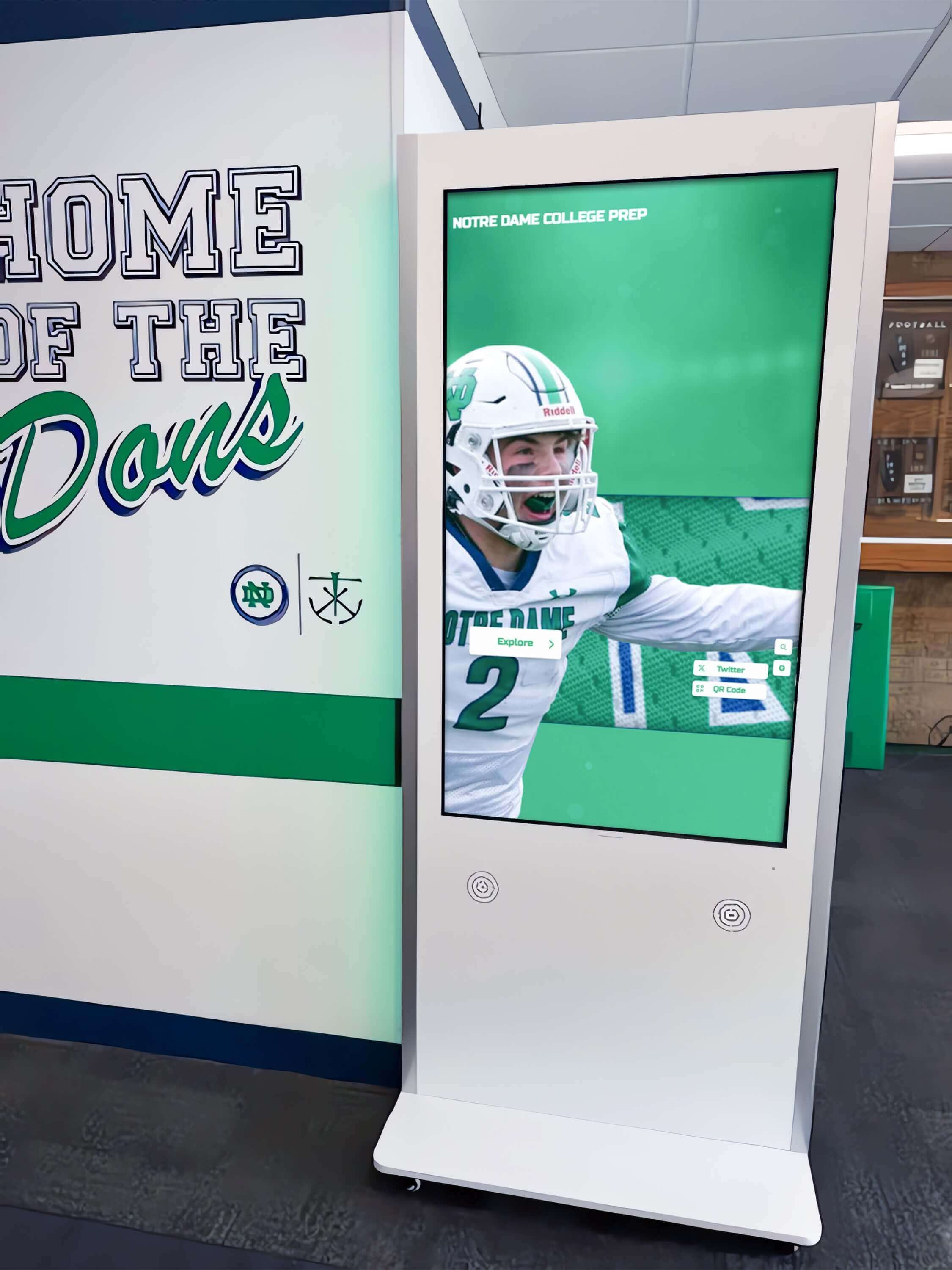
Hallway recognition kiosks operate unattended throughout the school day — an 802.1X session configured for machine authentication maintains network access continuously regardless of whether a user is logged on at the display
Common 802.1X Failure Modes and Resolution Checklist
| Symptom | Likely Cause | Diagnostic Step | Resolution |
|---|---|---|---|
| Display has Ethernet link but no IP address | 802.1X authentication failed; port in unauthorized state | Check switch show authentication sessions for Authz Failed; check RADIUS log for Access-Reject | Review RADIUS log for failure reason code; verify computer account is in the correct AD group |
| Access-Reject with reason “Authentication type not supported” | EAP method mismatch between supplicant and RADIUS policy | Confirm supplicant EAP type matches NPS policy EAP type | Align EAP method on supplicant and NPS Network Policy |
| Access-Reject with reason “No matching policy” | Display computer account not in the AD group matched by the RADIUS policy | Confirm computer account membership in GRP-Recognition-Displays | Add computer account to the correct AD group; allow Group Policy refresh |
| PEAP authentication fails with certificate error | RADIUS server certificate not trusted by display host | Check Windows Event Log on display for certificate error details | Install school root CA certificate in display’s Trusted Root store; verify CA certificate deployed via Group Policy |
| EAP-TLS fails with “certificate not found” | Machine certificate not enrolled on display host | Open Certificates MMC (computer account store) and confirm machine certificate exists | Trigger certificate auto-enrollment via Group Policy (gpupdate /force); or manually enroll via certreq |
| Switch port stays in “Authenticating” state indefinitely | RADIUS server unreachable from switch | Ping RADIUS server IP from switch; check firewall rules for UDP 1812 | Verify RADIUS server IP and shared secret on switch; open UDP 1812/1813 in firewall between switch and RADIUS |
| Incorrect VLAN assigned after successful authentication | RADIUS Tunnel attributes not configured in Network Policy | Check NPS Network Policy Settings for Tunnel-Type, Tunnel-Medium-Type, Tunnel-Private-Group-ID attributes | Add correct VLAN Tunnel attributes to the NPS Network Policy |
| 802.1X session drops after idle period | Session timeout in RADIUS policy too short; reauthentication failing | Check NPS policy Session-Timeout value; check switch dot1x timeout reauth-period | Extend Session-Timeout in RADIUS policy; confirm reauthentication settings allow unattended reauthentication |
| Wireless display loses connection when attract loop runs | User authentication configured instead of machine authentication | Confirm supplicant set to “Computer authentication” in wireless profile | Change authentication mode to machine authentication in wireless profile or Group Policy |
| Display reaches network but cannot sync platform content | Firewall blocking HTTPS to platform cloud endpoint | Test HTTPS connectivity with curl -v https://<platform-fqdn> from display | Add platform cloud endpoint FQDNs to firewall allow list for recognition display VLAN |
| MAC Authentication Bypass (MAB) failing for non-supplicant display | Display MAC address not registered in RADIUS | Check RADIUS log for MAC-based Access-Reject | Add display MAC address to the RADIUS identity store or Windows NPS MAC-based policy |
802.1X for Wireless Recognition Kiosks in Athletic Facilities
Recognition kiosks deployed in gyms, athletic lobbies, and trophy alcoves frequently rely on Wi-Fi because Ethernet infrastructure does not reach these spaces. Wireless 802.1X introduces additional considerations that wired deployments do not face.
RF Coverage at Display Location: The recognition display is a fixed, non-mobile device, but the display’s physical enclosure — often including a metal housing or installation alcove — can attenuate Wi-Fi signal significantly. Conduct a site survey at the exact display mounting location before finalizing the installation. A display that shows strong Wi-Fi signal in open-air testing but poor signal in its final mounted position will experience frequent wireless association drops, triggering repeated 802.1X authentication exchanges that introduce visible content update delays.
Roaming and Fast Re-association: In athletic facilities with multiple access points, a recognition display may roam between APs if the primary AP enters a maintenance window or loses power. Opportunistic Key Caching (OKC) allows the display to re-associate with a new AP using a cached PMK rather than completing a full 802.1X exchange, reducing reconnection time from 5–15 seconds (full authentication) to under 1 second. Enable OKC on the wireless controller for the enterprise SSID used by recognition displays.
Pre-shared Key (WPA2-PSK) as an Alternative: In schools where Wi-Fi 802.1X infrastructure does not exist, or where the recognition display’s hardware cannot support enterprise authentication (some embedded kiosk platforms), WPA2-PSK on an isolated SSID with a dedicated VLAN provides equivalent network segmentation without requiring RADIUS. The display authenticates to the network with the shared key and is placed in the recognition VLAN by SSID-to-VLAN mapping on the wireless controller. This approach does not provide per-device authentication or audit logging, but it delivers the VLAN isolation that is the primary security goal for recognition display network design. Evaluating display tools for athletics and recognition programs in schools at different technology maturity levels often leads to this WPA2-PSK-plus-VLAN approach as a practical interim solution when 802.1X infrastructure is not yet in place.
Planning 802.1X Authentication for Multi-Display Recognition Programs
Schools deploying recognition content across multiple locations — an athletic hall of fame in the main lobby, a class composite display in the academic wing, a donor recognition wall in the performing arts center, and a trophy case kiosk in the gym — benefit from designing the 802.1X authentication policy to scale from the first display to a campus-wide deployment.
Standardize the Computer Account Naming Convention: Name recognition display computer accounts using a consistent pattern (for example, DISP-HOF-01, DISP-HOF-02) so that the Active Directory group for recognition displays remains organized as more devices are added. A naming convention also makes RADIUS log review easier — device identity in the log immediately identifies which display is authenticating.
Use Group Policy for Supplicant Configuration: Manually configuring the 802.1X supplicant settings on each display is error-prone and time-consuming for programs that grow beyond two or three displays. Group Policy deployment of both the Wired AutoConfig service settings and the 802.1X authentication profile ensures that any new display added to the domain receives the correct configuration automatically after domain join.
Document VLAN and Firewall Rules in the Recognition Display Network Design Document: As recognition programs expand to include new content types — digital class composite displays in academic corridors, art gallery displays in creative-wing hallways, athletic archive kiosks in field houses — the network design document ensures that each new display is provisioned with the correct VLAN assignment and firewall rules without requiring the IT team to rediscover the configuration from scratch each time.
Plan for Event-Mode Traffic Spikes: Recognition displays that stream live content or display high-resolution photography during school award ceremonies and end-of-season banquets or class reunion events may generate bandwidth usage significantly above their normal idle-state baseline. Confirm that the recognition VLAN’s uplink has sufficient capacity for simultaneous high-traffic use by all displays during events. QoS policies that prioritize recognition display VLAN traffic during event periods can prevent contention with other building systems sharing the same uplinks.
Coordinate with the Vendor on Platform Network Requirements: Recognition platforms evolve — new content features may introduce new network endpoints, new update mechanisms may change traffic patterns, and platform updates may require access to new certificate revocation endpoints. Establish a communication channel with the recognition platform vendor to receive advance notice of network requirement changes. Academic achievement showcase boards and athletic recognition programs that add real-time scoring, social media feeds, or video streams after initial deployment may require firewall rule updates to accommodate the new traffic.
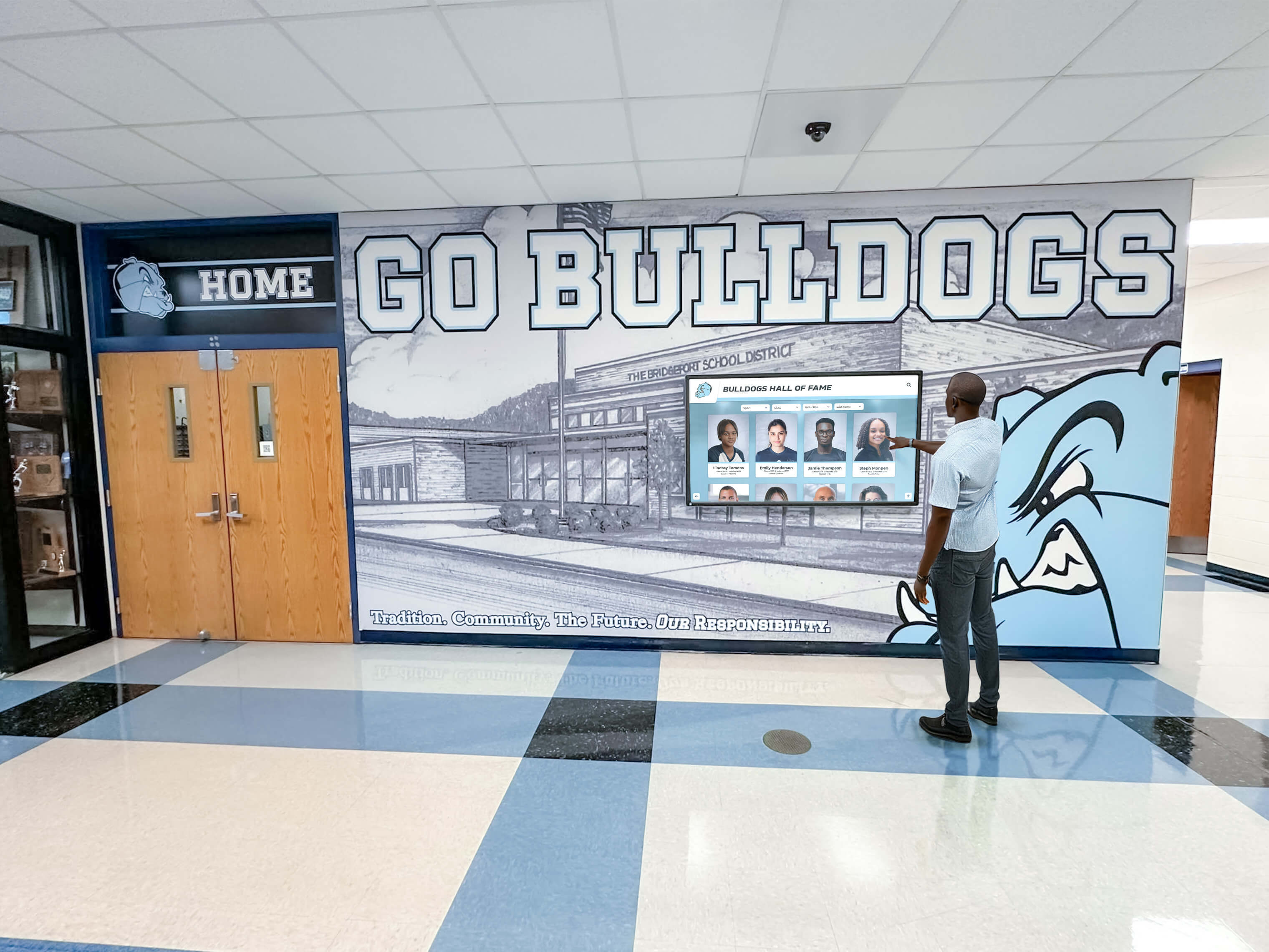
Recognition displays serve alumni, students, and visitors without IT staff supervision — enterprise 802.1X authentication keeps the display's network session active and content synchronized through the entire school day and beyond
Frequently Asked Questions
Does every school network require 802.1X authentication for a recognition display?
No. 802.1X enforcement is a policy decision made by each district’s IT team. Many school networks use simpler access control — unmanaged switch ports, VLAN assignment by port, or SSID-to-VLAN mapping on wireless — that does not require the display to authenticate with a RADIUS server. This checklist applies specifically to schools where 802.1X is enforced at the port or wireless level, which is increasingly common in districts that have implemented enterprise security frameworks or are subject to compliance requirements. If you are unsure whether your network enforces 802.1X, plug the recognition display into the intended switch port and check whether it receives an IP address without any supplicant configuration. If it does, 802.1X is not enforced on that port and this checklist’s supplicant configuration steps are not required.
Can a recognition display use MAC Authentication Bypass (MAB) instead of 802.1X?
Yes. MAC Authentication Bypass is a fallback mechanism in which the switch sends the device’s MAC address to the RADIUS server as the authentication credential instead of running EAP. If the MAC address is registered in the RADIUS identity store, the RADIUS server returns an Access-Accept and the port is authorized. MAB is less secure than EAP-based 802.1X because MAC addresses can be spoofed, but it is a practical option for recognition display hosts that cannot run a Windows 802.1X supplicant (embedded Linux kiosks, Android-based displays, or display hardware that does not support Wired AutoConfig). To use MAB for a recognition display, register the display’s MAC address in the RADIUS identity store or in a Windows NPS policy that matches MAC-format usernames.
Our recognition display is running a custom kiosk OS that does not support 802.1X. What are the options?
Three options are available in order of security preference. First, check whether the kiosk OS has a wpa_supplicant implementation or a vendor-provided 802.1X client — many embedded Linux kiosk platforms include wpa_supplicant and can be configured for EAP authentication. Second, configure MAC Authentication Bypass on the switch port as described above, registering the display’s MAC address with the RADIUS server. Third, if neither option is feasible, isolate the display on a physically separate switch port connected to a dedicated VLAN without 802.1X enforcement, and apply firewall rules at the VLAN boundary to restrict the display’s network access to only the endpoints it requires.
How long should the RADIUS session timeout be for a recognition display?
Recognition displays run unattended and must maintain network access continuously. Session-Timeout values that are too short (under one hour) trigger frequent reauthentication exchanges that can briefly interrupt network access and produce visible content update gaps. Session-Timeout values that are very long (24 hours or more) reduce reauthentication frequency but may delay detection of compromised device credentials. For most recognition display deployments, a Session-Timeout of 8 to 24 hours with Termination-Action set to RADIUS-Request (reauthenticate at timeout using the existing session credentials) provides a balance between session continuity and credential freshness. For domain-joined displays using machine authentication with computer account Kerberos credentials, reauthentication is transparent and the session-timeout length matters only for audit log granularity.
What is the correct RADIUS shared secret length for a school network?
The RADIUS shared secret is a shared password between the switch (or wireless controller) and the RADIUS server. RFC 2865 recommends a shared secret of at least 16 random characters; NIST SP 800-76 guidance for RADIUS in enterprise environments recommends 22 or more random characters to resist brute-force attack. Use a randomly generated secret (not a dictionary word or recognizable phrase) and store it in the school’s password management system. The shared secret is not visible to end users or recognition display operators — it is a network configuration parameter managed by IT staff.
Should the recognition display VLAN have internet access or only access to the platform’s cloud endpoints?
Best practice is to restrict the recognition display VLAN to explicit allowlist access — only the specific FQDNs and ports the platform requires — rather than granting broad internet access. A recognition display that does not need to browse the open internet does not need unrestricted outbound HTTPS. Restricting to an allowlist reduces attack surface if the display host is ever compromised: an attacker who gains code execution on the display host cannot use it to reach arbitrary internet destinations. Obtain the complete network requirements document from the recognition platform vendor and implement only the rules the platform requires. Recognition wall design programs for K-12 schools operate on a well-defined set of cloud endpoints that should be straightforward to allowlist.
How does 802.1X interact with Windows automatic updates on a recognition display?
Windows Update and Microsoft Defender updates reach the recognition display host through the same VLAN and firewall rules as platform content. If the recognition display VLAN’s firewall allowlist includes Microsoft Update endpoints (either directly or through a WSUS server), Windows automatic updates will function normally. If the VLAN is restricted to only recognition platform endpoints, Windows Update will be blocked — which some IT teams accept as a tradeoff in favor of a narrow allowlist, with updates delivered through WSUS or managed through the display vendor’s update cadence. For recognition displays running WSUS-managed Windows Update, add the WSUS server’s hostname to the firewall allowlist for the recognition display VLAN.
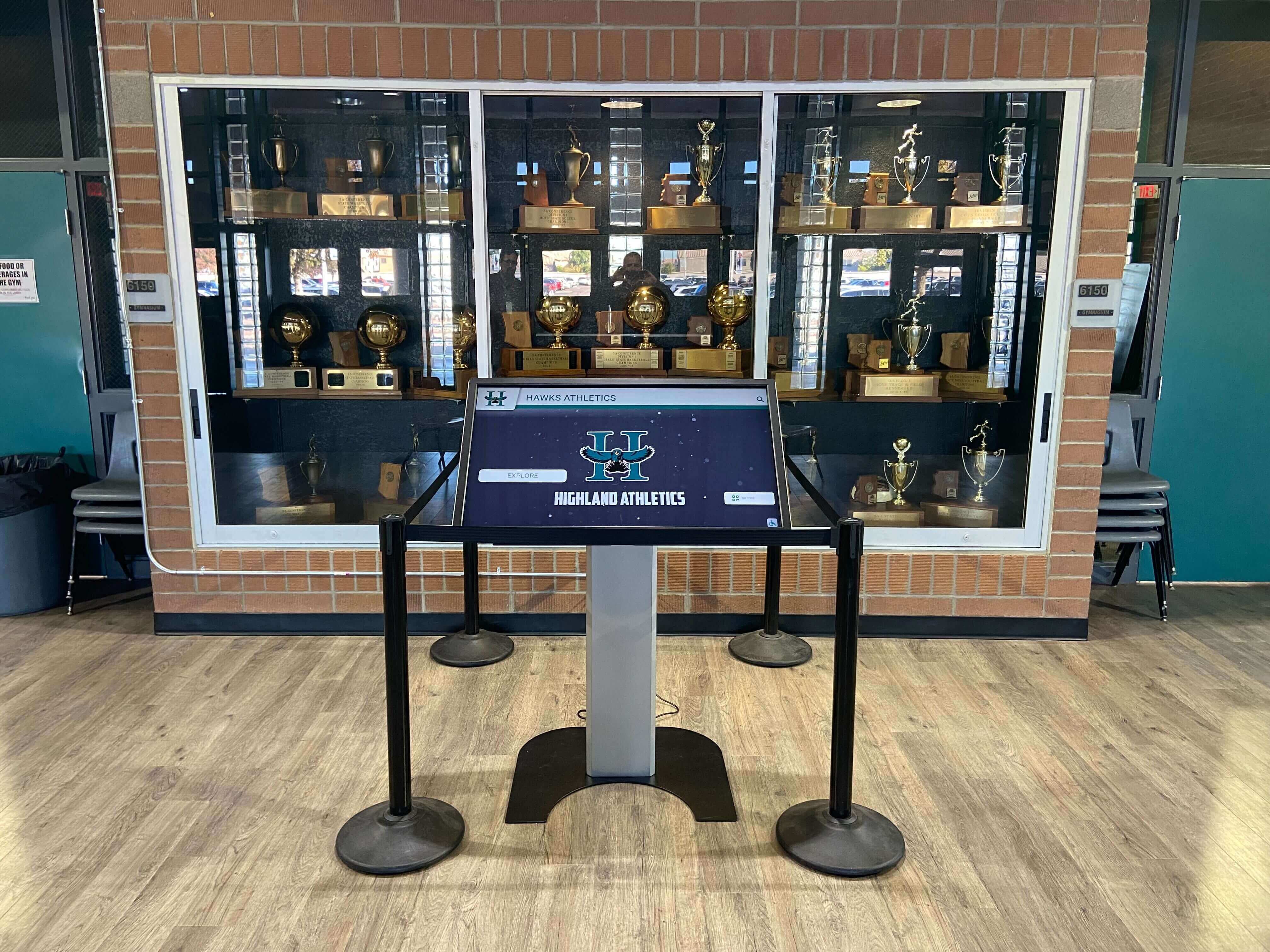
A trophy case kiosk adds a live, updatable layer to physical recognition — 802.1X authentication ensures the kiosk belongs to the network as a managed device with documented access rights, not an uncontrolled endpoint
Coordinating 802.1X Onboarding with the Recognition Program Timeline
School recognition display installations often involve a compressed timeline: the athletic director wants the hall of fame live before homecoming, the facilities team needs to complete installation during summer break, and the IT department has a limited window before the school year begins. Building 802.1X authentication configuration into the project timeline — rather than discovering it as a blocking issue on installation day — prevents delays that affect the entire program launch.
Timeline Coordination Points:
Six weeks before installation: Submit the 802.1X network requirements to the IT department. Include the display’s OS version, domain join status, preferred EAP method, required VLAN and firewall rules, and the platform vendor’s network requirements document. Six weeks allows time for RADIUS policy creation, VLAN provisioning, and firewall rule review without requiring emergency IT work.
Four weeks before installation: Confirm that the computer account has been created in Active Directory and added to the recognition display security group. Confirm that the machine certificate is available through auto-enrollment if EAP-TLS is being used. Confirm that the RADIUS Network Policy and VLAN Tunnel attributes are configured correctly by testing with a laptop on a bench switch port configured identically to the intended display port.
Two weeks before installation: Conduct a site survey for wireless deployments to confirm Wi-Fi signal at the exact display mounting location. For wired deployments, confirm the switch port is configured with the correct 802.1X policy and that the patch panel connection from the wall jack to the switch has been verified.
Installation day: After physical installation, run the full verification checklist: RADIUS log check, switch port state check, IP address confirmation, DNS resolution test, platform connectivity test, and content sync verification. Document all results in the recognition display asset register.
Post-installation: Schedule the 802.1X session idle-recovery test (30-minute idle followed by platform connectivity check) as part of the acceptance signoff. Add the display computer account and VLAN assignment to the school’s device inventory so that the IT team can service the display’s network configuration without rediscovering it from scratch.
Connecting 802.1X Authentication to the Broader Recognition Program
Network authentication is one layer in the full technical foundation that a school recognition display requires. A display that passes 802.1X authentication, reaches its content endpoints, and maintains a reliable VLAN assignment delivers the network connectivity that makes the recognition program’s content — athlete profiles, award records, honor roll entries, team histories, and induction databases — available to everyone who walks past the display.
For athletic directors and recognition-program administrators evaluating recognition platform options, asking prospective vendors about their network requirements early in the evaluation process — before pricing, before design, and before installation planning — is the step that prevents network compatibility from becoming a last-minute obstacle. Athletic recognition programs that include hall of fame tools, donor displays, and interactive history archives each require consistent network access to deliver current content. An enterprise-ready recognition platform publishes clear network requirements, supports standard Windows supplicant configuration, and does not require proprietary network agents that conflict with school IT policies.
Recognition Platform Built for School Enterprise Networks
Rocket Alumni Solutions recognition displays operate on standard enterprise network configurations — 802.1X authentication, managed VLANs, centralized content delivery, and IT-friendly update mechanisms that fit into your existing school network policy. See how the platform works in a real school network environment and confirm it matches your IT infrastructure before you commit to an installation timeline.
Request a DemoA school recognition display that is correctly onboarded through 802.1X authentication becomes a managed network device — visible in RADIUS logs, documented in the device inventory, assigned to a controlled VLAN, and subject to the same network policy lifecycle as the rest of the school’s managed endpoint fleet. Working through this checklist before installation day ensures that the display’s first day in front of students, alumni, and visitors is a demonstration of the school’s recognition program, not a troubleshooting session.































