



A recognition display cache invalidation checklist gives content administrators, athletic directors, and IT staff a repeatable procedure for confirming that updates to your school’s touchscreen hall-of-fame platform—corrected inductee records, newly added award winners, revised event dates, or fixed photo credits—actually appear on every public-facing screen rather than serving visitors a stale version of your content. Caching is built into virtually every modern web-based recognition platform because it dramatically speeds up page loads on lobby kiosks and hallway touchscreens. That same caching mechanism can trap outdated content for hours or days after you’ve made changes in the content management system, creating an embarrassing mismatch between what administrators see in the back end and what visitors experience in the hallway.
For schools and districts managing living recognition programs—where spelling corrections, mid-season record updates, and ceremony additions happen regularly—having a documented cache invalidation workflow prevents the frustrating situation where a corrected misspelling or newly inducted athlete continues to display incorrectly on every public screen until IT figures out which layer of the stack is still serving the old version.
Quick answer: After publishing any content update in your recognition platform, clear the platform’s application cache from the CMS dashboard, then clear the CDN edge cache if your platform uses one, then hard-reload each affected screen’s browser session (Ctrl+Shift+R or the equivalent for your kiosk OS) and confirm the updated content appears before closing the support ticket. Document the full sequence, assign ownership, and schedule it into your content-update workflow so it runs automatically after every publish—not only after problems surface.

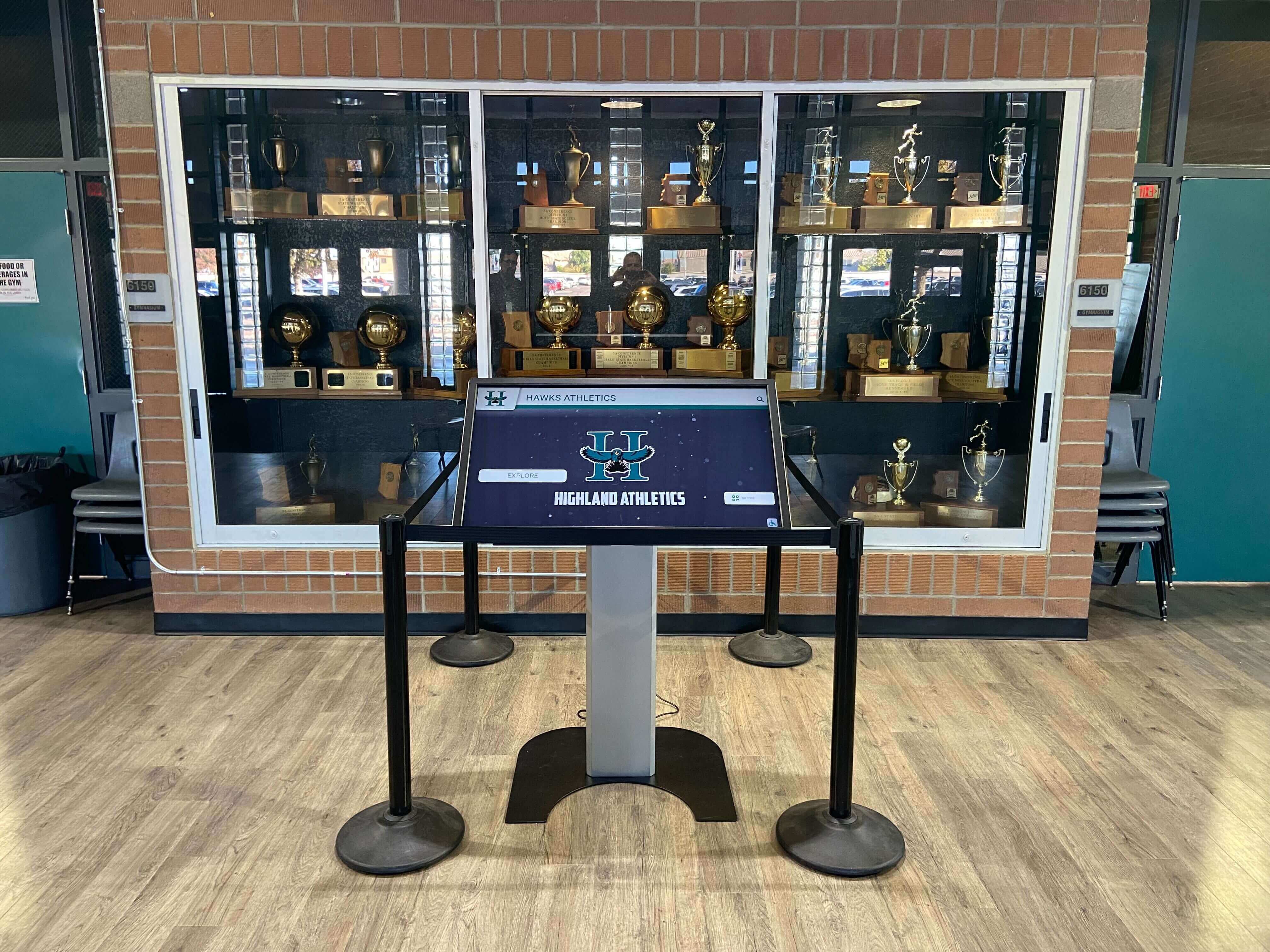
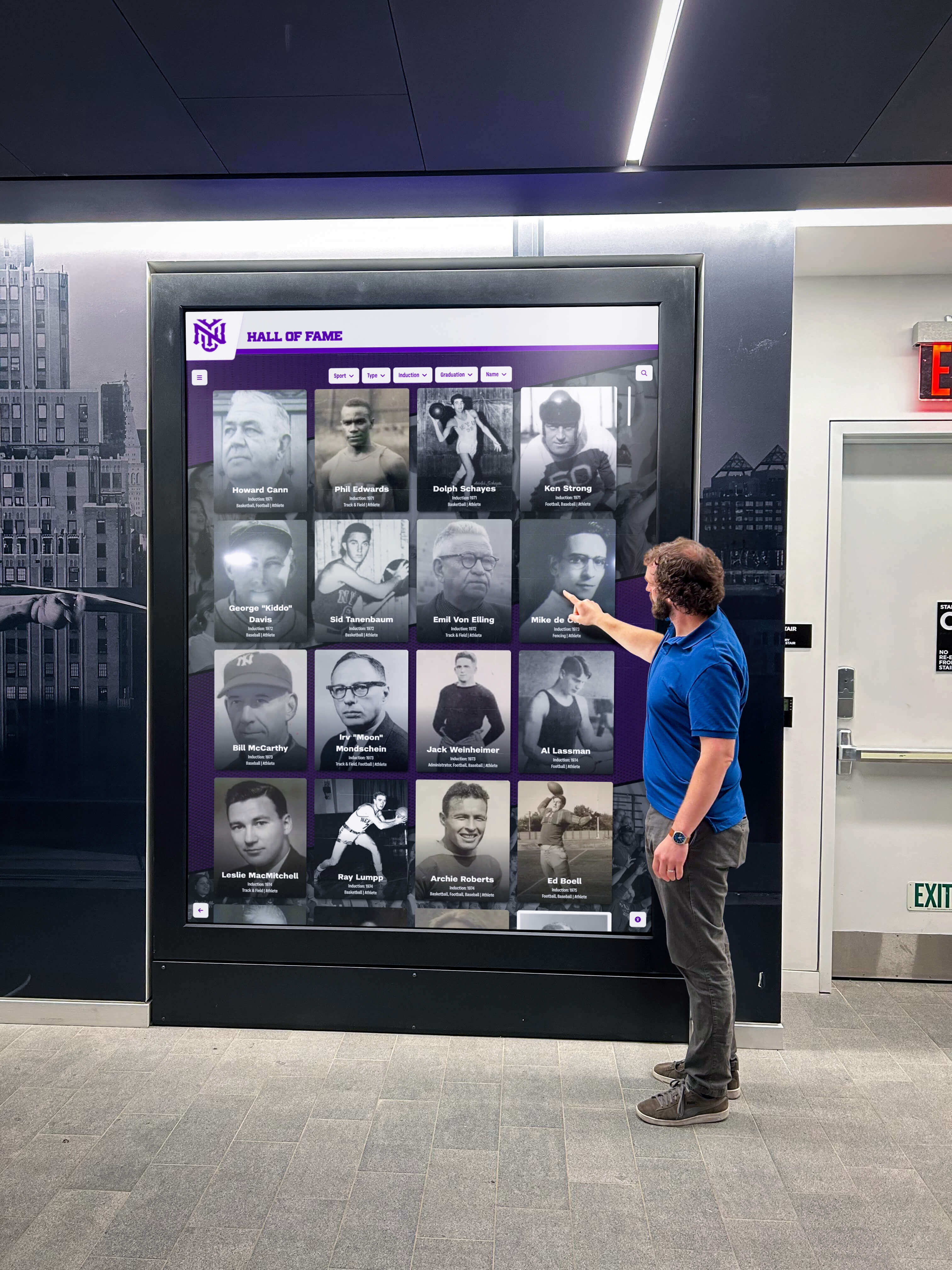
Trophy case kiosks depend on a functioning cache invalidation workflow to serve current inductee records to every visitor—stale cached pages undermine the accuracy your recognition program depends on
Why Stale Cache Is a Persistent Problem for School Recognition Displays
Recognition display platforms sit at the intersection of content management and web delivery, and caching occurs at every layer of that stack. Understanding where caching happens helps administrators target the right layer when content changes don’t appear on screen.
The application cache lives on the server or cloud environment running your recognition software. When you update an inductee’s statistics or upload a corrected photo, the platform saves the change to its database. If the platform’s rendering layer caches previously generated pages, it may continue serving the old HTML output until the cache entry expires or is explicitly purged.
The CDN (content delivery network) cache sits between your platform’s servers and the end user’s browser. Many hosted recognition platforms use a CDN—such as Cloudflare, Fastly, or AWS CloudFront—to serve static assets and sometimes fully rendered pages from edge nodes located geographically near your kiosks. A CDN cache hit means the visitor’s request never even reaches your platform’s servers; it returns the cached version from the nearest edge node instead. CDN caches can hold content for anywhere from minutes to days depending on how cache-control headers are configured.
The browser or kiosk cache is the local store of recently loaded pages and assets on the physical device running your touchscreen experience. Even after both the application and CDN caches are cleared, a kiosk running a browser in a locked-down mode may continue serving a locally cached version of a page until that device is explicitly refreshed or its browser cache is cleared.
Schools deploying touchscreens in multiple hallway locations—each running its own browser session on its own device—must treat the browser cache on each individual device as a separate invalidation target, not as a single operation controlled from the back end.
For a broader look at how modern digital signage platforms handle content delivery infrastructure, digital signage for schools covers the underlying distribution architecture that recognition platforms are built on top of.
The Recognition Display Cache Invalidation Checklist
The following checklist covers every layer where cached content can block updates from reaching public screens. Work through the steps in order; stopping early is the most common reason updates appear to fail when the issue is simply an uncleaned layer further down the stack.
Step 1: Confirm the Update Is Actually Saved in the CMS
Before clearing any cache, verify that the change is correctly persisted in the back end.
- Log into the recognition platform CMS and navigate to the record you updated.
- Confirm the updated value is visible in the editing interface—not just saved in a draft state.
- Check whether the platform distinguishes between “saved” and “published.” Some platforms require an explicit publish action after saving; a change left in draft state will not appear regardless of cache state.
- If the platform supports revision history, confirm the updated version is the active revision.
- If the update involves a photo or file asset, confirm the new file is fully uploaded and linked to the correct record—partial uploads can appear saved while serving a broken or missing asset.
Step 2: Clear the Application-Level Cache
Most recognition platforms expose a cache management function somewhere in their admin interface. The label varies by platform—look for terms like “Clear Cache,” “Flush Cache,” “Refresh Content,” “Regenerate Pages,” or “Purge Static Files.”
- Locate the cache management control in your platform’s admin panel. Common locations include: Site Settings, Advanced Settings, Publishing Controls, or a dedicated Tools menu.
- If the platform offers granular cache clearing (by content type, by specific record, or by URL path), prefer the targeted option over a full cache flush when the update is scoped to one inductee or one event page. Targeted purges are faster and reduce the load spike from regenerating all cached pages simultaneously.
- If only a full-cache flush is available, run it and note the time stamp. Large platforms may take several minutes to finish regenerating content from a full flush.
- After the flush completes, log out of the CMS and navigate to the affected page through the platform’s public-facing URL—not through the CMS preview mode—to confirm the application cache has been refreshed.
- Document the cache clear event: date, time, record affected, admin who performed the action. This log becomes essential when troubleshooting delayed visibility or when multiple staff members are updating records simultaneously.
Step 3: Purge the CDN Edge Cache
If your recognition platform uses a CDN layer—and most hosted platforms do—clearing the application cache alone may not cause the CDN to serve fresh content until its TTL (time-to-live) expires.
- Check your platform’s documentation or support resources to determine whether it uses a CDN and which provider. Rocket Alumni Solutions and comparable platforms typically document this in their technical setup guide; if yours doesn’t, ask support.
- If your platform provides a CDN purge button in the admin interface, use it immediately after clearing the application cache. Some platforms integrate CDN purging into their “Clear Cache” button automatically; others require a separate step.
- If your platform does not provide a CDN purge control, contact support and request a cache purge for the affected URL or URL pattern. Provide the specific page path (e.g.,
/hall-of-fame/athletics/basketball/) so support can target the purge rather than invalidating the entire CDN, which may cause a temporary performance degradation. - After the CDN purge is confirmed, load the affected page in a private/incognito browser window—this bypasses the local browser cache and forces a fresh request to the CDN—to confirm the updated content is now being served from the edge.
- If the page still shows stale content in a private window after both the application and CDN caches are cleared, escalate to the platform’s support team; the issue may be a misconfigured cache-control header that is preventing purges from propagating correctly.
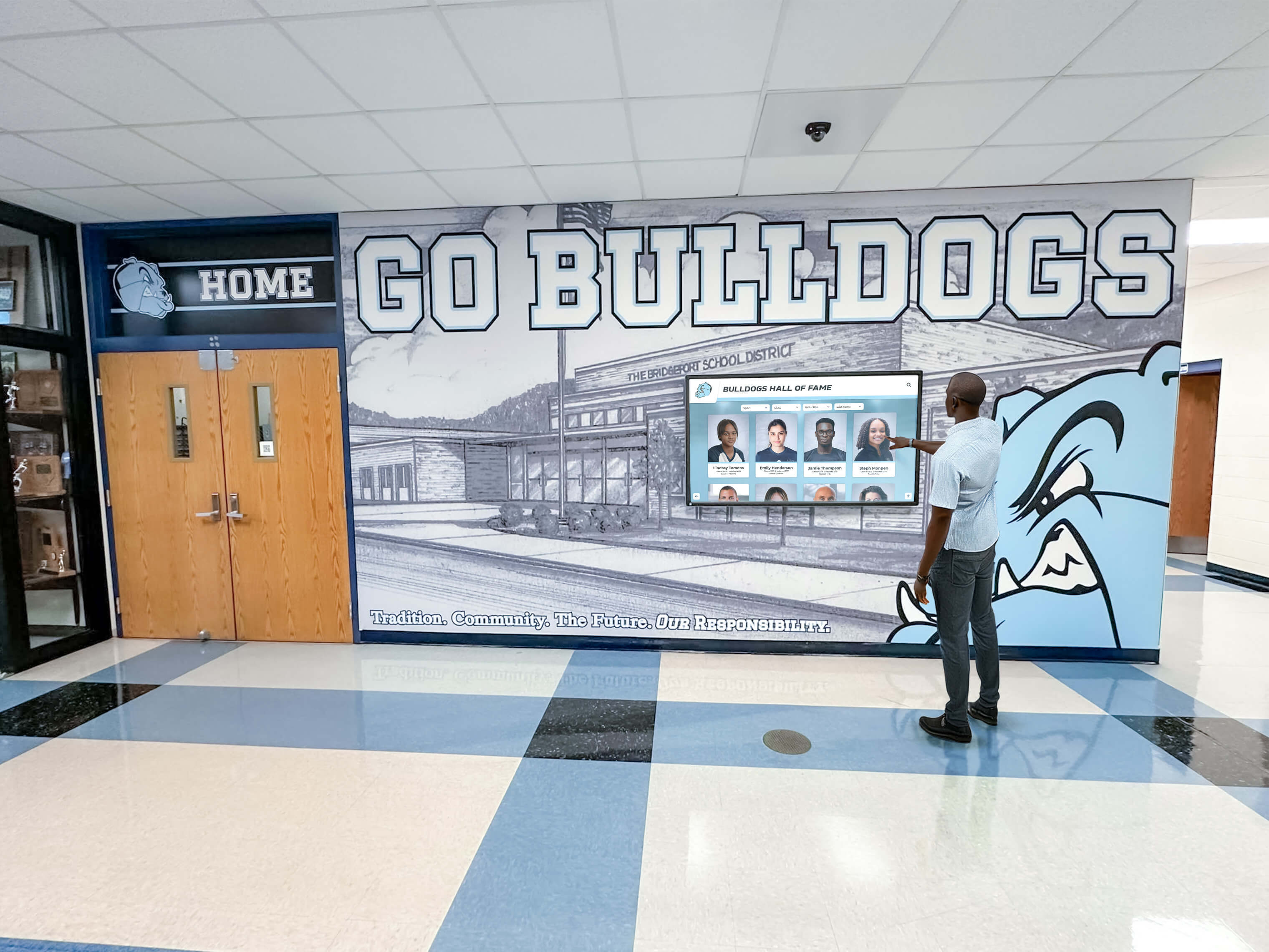
Every public kiosk maintains its own local browser cache—confirming fresh content in a back-end dashboard does not guarantee every physical screen is serving updated records
Step 4: Refresh Each Physical Kiosk or Display Device
After clearing server-side and CDN caches, each physical device running a browser session must be refreshed to discard its locally cached version of the affected pages.
- Identify every physical device that displays the updated content. A wall-mounted kiosk in the main lobby and a secondary display in the athletics hallway are separate cache targets even if they display the same platform.
- For each device, perform a hard reload of the browser session. On most kiosk OS configurations this is Ctrl+Shift+R (Windows/Linux) or Command+Shift+R (macOS). If the kiosk runs a locked-down browser in kiosk mode, the hard reload shortcut may be disabled—use the device management console or remote management tool to trigger a browser refresh instead.
- If remote device management is available (common in schools using MDM platforms or digital signage management software), push a browser refresh command to all affected screens from the management console rather than physically visiting each device.
- After refreshing, visually confirm on each device that the updated content appears correctly. Do not rely solely on the management console’s status indicator; physically view or remotely screenshot each screen to confirm.
- If a device continues serving stale content after a hard reload, clear the browser’s local cache and cookies from the browser settings, then reload again. On locked-down kiosk browsers, this may require temporarily exiting kiosk mode to access browser settings.
Step 5: Verify Across Navigation Paths, Not Just the Direct URL
Recognition displays are navigated interactively—visitors arrive at inductee profiles through menus and search functions, not by typing direct URLs. A page that loads correctly at its direct URL may still serve stale content when reached through the platform’s internal navigation if page-level or component-level caches are not fully cleared.
- After refreshing the kiosk browser, navigate to the updated record using the same interaction path a visitor would use: home screen → category → subcategory → individual record.
- Test any search function available on the platform by searching for the updated athlete or record by name to confirm the search index has been refreshed along with the page content.
- If the recognition platform uses infinite-scroll lists or paginated browsing for inductee galleries, paginate through the list to the page where the updated record appears—some platforms cache individual list pages separately from individual record pages.
- For event or ceremony date updates, navigate to the calendar or events section through the platform menu rather than by direct URL to confirm the event listing reflects the change.
Step 6: Check Linked and Aggregated Content
Updates to individual records frequently affect aggregated views—record boards, inductee galleries, year-based archives, and category summaries. These aggregated pages often have separate cache entries and may not be automatically invalidated when a single record changes.
- If the updated record includes a statistic (career points, win totals, season records), navigate to any record board or leaderboard that displays that category to confirm the aggregate reflects the update.
- Check the year-class or class-of-year listing for the inductee’s graduation year to confirm any changes to their name, photo, or credentials appear correctly in the aggregated class view.
- If the platform includes a “Recent Updates” or “Newly Added” section on the home screen, confirm the updated or newly added record appears there.
- For schools maintaining a physical donor recognition program alongside their athletic hall of fame, verify that any campaign progress board or giving total displays that pull data from the same platform also reflect any campaign-related updates.
Step 7: Document and Confirm Resolution
Completing the cache invalidation workflow without documentation leaves your team without a record of what was changed, when, and by whom—critical information when a parent, alumnus, or administrator disputes a correction or asks when a record was updated.
- Add a completion note to the original content change request or support ticket: which records were updated, which cache layers were cleared, which devices were refreshed, the timestamp of each action, and the name of the staff member who confirmed the content was live on each screen.
- If the update was the result of a correction (misspelled name, incorrect year, wrong statistics), note the original incorrect value alongside the corrected value in the documentation. This creates an audit trail if the original source of the error needs to be traced.
- Send a brief confirmation email or message to whoever requested the update—the athletic director, the booster club president, or the parent who noticed the error—confirming that the correction is now live on all public screens.
- If the update was time-sensitive (correcting a record ahead of an awards ceremony or alumni event), confirm the timestamp of live appearance relative to the event start time so future scheduling can account for the full invalidation workflow duration.
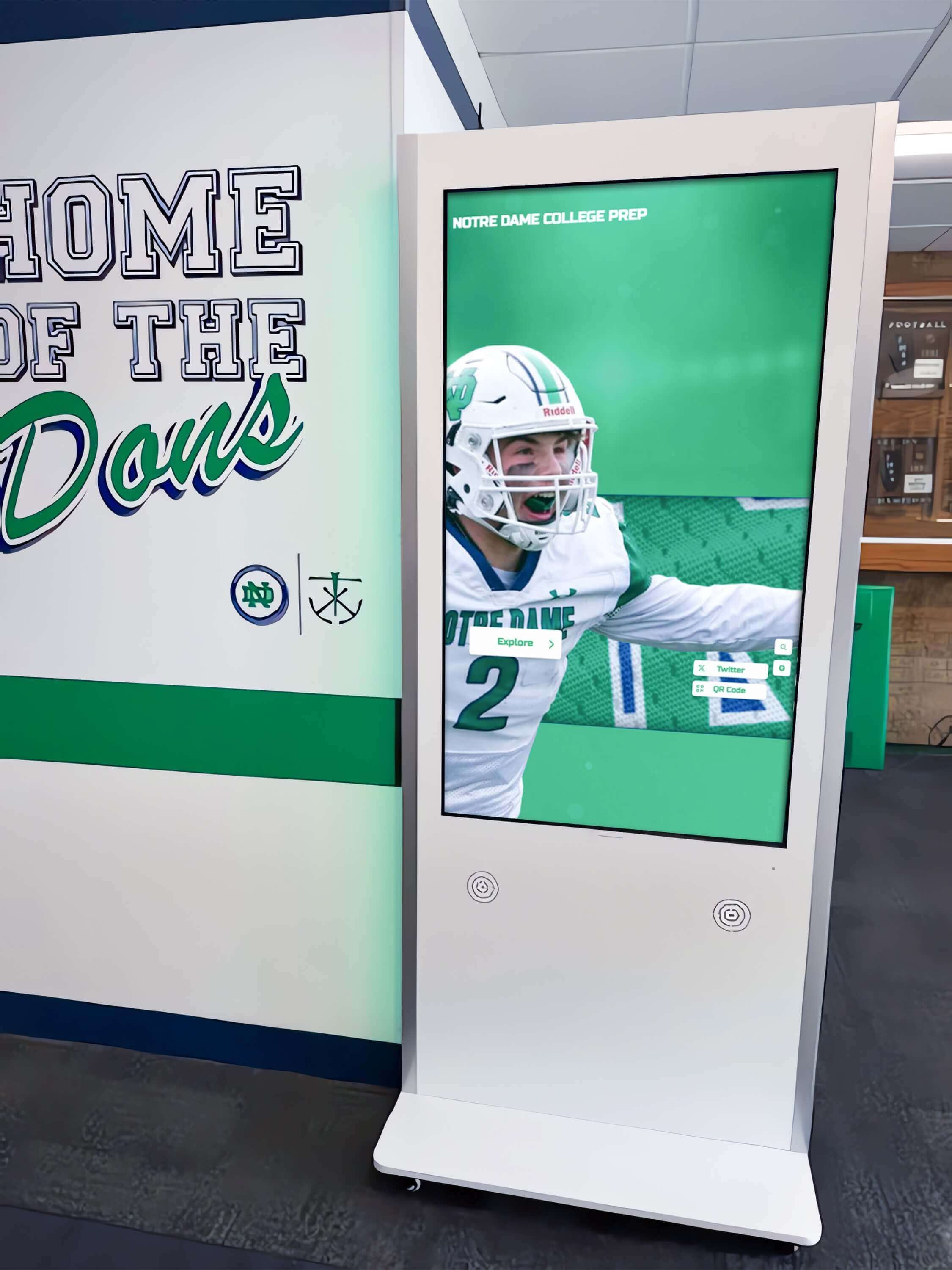
Hallway kiosks reached through interactive navigation need to be verified along visitor interaction paths, not just by loading the direct URL in a browser
Cache Invalidation Timeline by Update Type
Not all content updates carry the same urgency or the same invalidation complexity. The following table helps content managers match the appropriate invalidation response to the type of update being published.
| Update Type | Urgency | Layers to Invalidate | Verification Priority |
|---|---|---|---|
| New inductee addition | Medium | Application cache, CDN, all kiosk browsers | Navigate full path; check gallery listings |
| Inductee name correction | High (reputational) | Application cache, CDN, all kiosk browsers, search index | Confirm in search results and direct listing |
| Statistics correction | Medium-High | Application cache, CDN, record boards | Check record board aggregates specifically |
| Photo replacement | Medium | Application cache, CDN (image assets), all kiosk browsers | Hard-reload required to clear local image cache |
| Event date or ceremony update | High (time-sensitive) | Application cache, CDN, all kiosk browsers | Navigate via events calendar path |
| Award category or program rename | High | Application cache, CDN, navigation menus, all kiosk browsers | Verify navigation structure reflects rename |
| Sponsor logo or donor listing update | Medium | Application cache, CDN, sponsor display pages | Confirm on screens visible to donors |
| Season record or all-time record update | Low-Medium | Application cache, CDN, record board pages | Check record board specifically |
Schools using older archival formats such as print magazines or physical scrapbooks transitioning content to digital platforms face an additional challenge: initial digitization imports often have data quality issues that require many corrections in the months following launch, making a fast and reliable invalidation workflow especially important during that high-edit period.
Platform-Specific Considerations
Cache invalidation procedures vary between recognition platform vendors. Understanding how your specific platform manages caching helps you skip steps that don’t apply and focus on the layers that require manual intervention.
Fully managed SaaS platforms (where the vendor controls all infrastructure) typically handle application-layer and CDN cache invalidation automatically after a content publish, but may still require manual browser refreshes on individual kiosk devices. Ask your vendor specifically whether publishing automatically triggers a CDN purge or whether manual purge is required.
Self-hosted or white-label platforms running on school-controlled servers may require manual application cache clearing after every update, particularly if the platform is built on a CMS like WordPress, Craft CMS, or a custom framework. These environments often have the most complex invalidation workflows because schools control (and must manually manage) every cache layer.
Digital signage integrations that pull data from a separate recognition platform into a signage CMS (such as when a platform’s data feeds into a Screenly, Yodeck, or Rise Vision player) add an additional cache layer at the signage CMS level. In these architectures, content must be published in the recognition platform, the feed must be refreshed in the signage CMS, and the signage player on each device must pull the new feed—three distinct steps that may not happen in rapid succession.
Schools evaluating new recognition platforms should ask vendor sales representatives specifically: “What is the full sequence of steps required for a content update to appear on a kiosk screen after I click publish?” The answer reveals whether the platform has invested in automatic invalidation or whether it requires significant manual intervention on every update.
For schools comparing hardware ecosystems alongside software, reviews of recognition hardware setup options provide useful context on how different hardware configurations affect the content delivery architecture and which devices support remote cache management.
Building a Content Publishing Protocol That Includes Cache Invalidation
The most reliable way to ensure stale content never reaches a public screen is to incorporate the cache invalidation checklist into your standard content publishing protocol, so it runs automatically after every update rather than only after a problem is reported.
Assign ownership explicitly. Every step of the invalidation checklist needs a named owner—typically the content administrator who makes the update in the CMS for steps 1 through 3, and a facilities or IT staff member for step 4 (device refresh). Without named ownership, steps fall through the gaps between departments.
Define the service-level expectation. Decide as a team how quickly content changes should be live on all public screens after a publish action. A reasonable target for most school recognition programs is under 30 minutes for corrections and under one hour for new additions. Document this expectation so staff members understand when they need to complete the invalidation workflow promptly rather than scheduling it for the end of the day.
Create a shared content-update log. A simple shared spreadsheet or a ticket in your IT helpdesk system where every content update is logged—with the date, description of the change, the name of the person who published it, and the name of the person who confirmed it on each device—creates accountability and provides a searchable history when administrators or parents ask when a specific correction was made.
Test the full workflow quarterly. Run a planned test update—adding a placeholder record, confirming it appears on all devices, then removing it and confirming removal—to verify that every layer of your invalidation workflow is functioning before an urgent real-world update requires it. Discovering that CDN purge credentials have expired or that a kiosk’s MDM enrollment has lapsed during a low-stakes test is far preferable to discovering it during an awards ceremony correction.
Prepare a booster club communication template. Booster leaders and athletic directors often request content updates close to events and expect rapid turnaround. Having a brief email template that explains the three-layer invalidation process and sets a realistic time estimate—“corrections are typically live on all screens within 30 minutes”—manages expectations and prevents escalation calls when a change isn’t immediately visible. Schools managing their booster club and vendor relationships benefit from clear communication protocols that cover content management expectations as well as procurement.
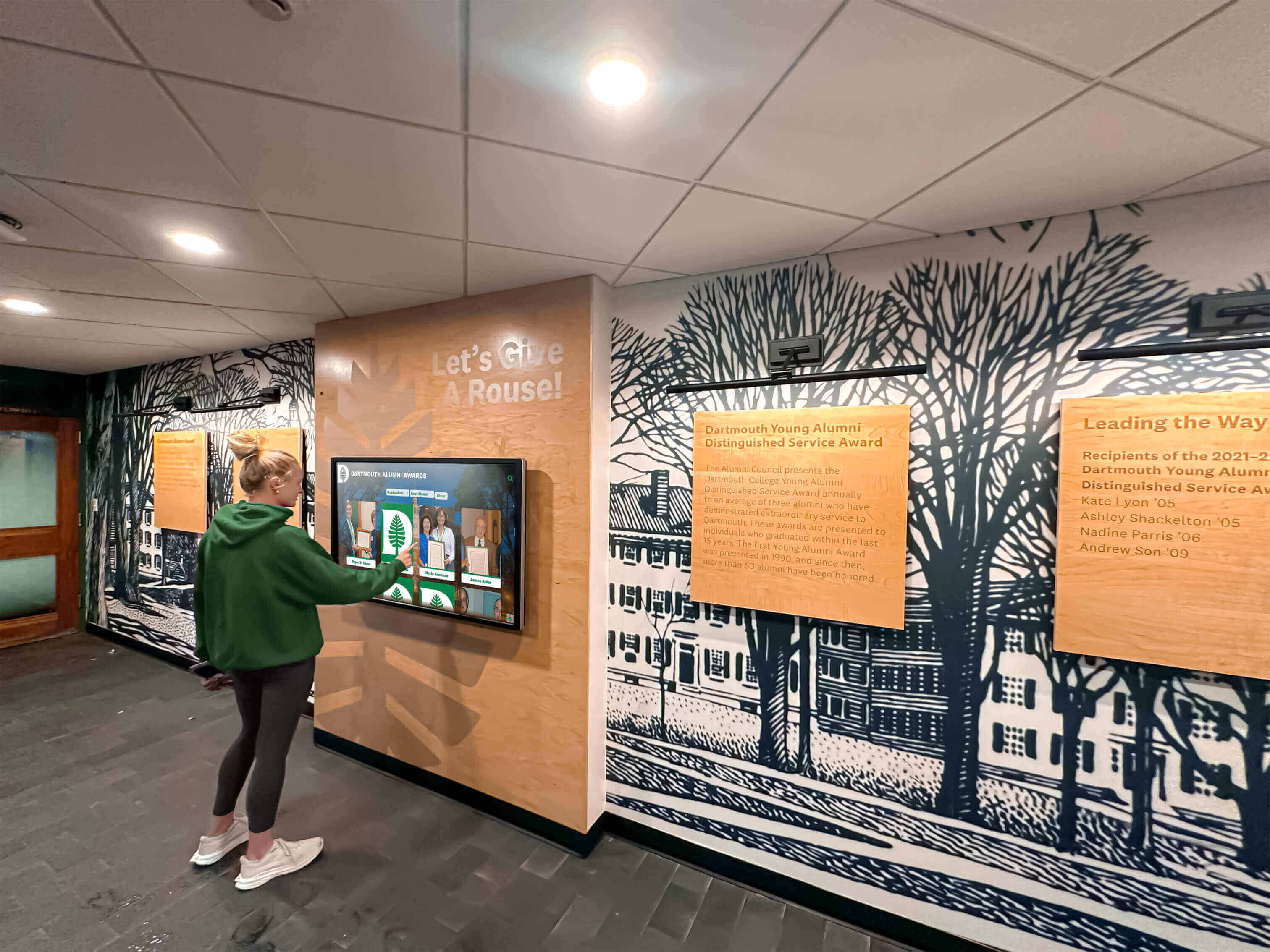
Content administrators who build cache invalidation into their standard publish workflow—rather than treating it as a separate troubleshooting step—catch problems before students and alumni encounter them
Troubleshooting Common Cache Invalidation Failures
Even with a complete checklist, some updates fail to propagate correctly. The following scenarios represent the most common causes of persistent stale content after an invalidation workflow is completed.
The browser cache on a kiosk device is unusually large or corrupted. Some kiosk browsers accumulate cache over months of operation and develop corrupted entries that survive hard reloads. If a single device continues serving stale content after multiple hard reload attempts, clear the browser’s cache and cookies from the settings menu, then restart the browser entirely before loading the recognition platform again. If the problem persists across restarts, consider wiping and re-provisioning the device.
The CDN cache TTL is longer than expected. CDN cache entries have a TTL—a time-to-live—that determines how long they are cached before automatically expiring. Some platforms configure very long TTLs (24 hours or more) for performance optimization. If your platform’s CDN is configured with a long TTL and you do not have access to trigger a manual purge, you may need to wait out the TTL or contact platform support to request a forced purge. This is an important question to raise during vendor onboarding: what is the CDN cache TTL, and can administrators trigger purges without contacting support?
Multiple staff members updated the same record simultaneously. When two administrators edit the same inductee record at the same time, some platforms create a version conflict that silently reverts to the older version when the cache is cleared. If a correction appears to apply but then reverts, check the revision history for that record to see whether a conflicting save occurred around the same time.
The search index is not synchronized with the content cache. Recognition platforms that include a search function often maintain a separate search index that is updated on a different schedule than the main content cache. After clearing the content cache and refreshing all devices, a corrected record may appear correctly when navigated to directly but still show the old version in search results. Ask your platform vendor how the search index is updated and whether a manual re-index is needed after specific types of content changes.
A service worker is intercepting requests on the kiosk browser. Modern web applications increasingly use service workers—background scripts that intercept network requests and can serve content from a local cache even when the browser’s main cache has been cleared. If your recognition platform is a progressive web app (PWA), a service worker may be the source of persistent stale content after all other cache layers have been cleared. Unregistering and re-registering the service worker (accessible through browser developer tools under Application → Service Workers) typically resolves this.
Historical Content and Archive Management Considerations
Schools maintaining archives that extend back decades—digitized yearbook records, historical newspaper clippings, championship rosters from the 1960s through the 1980s—face a particular cache management challenge: archival corrections often happen long after content is first published, by staff members who may not have been involved in the original upload. A clear cache invalidation protocol documented in your content governance policy ensures that corrections to historical records receive the same publication and verification treatment as updates to current-season content.
Best practices for managing recognition archives alongside physical historical collections are covered in historical photos archive guides for schools, which describes how schools approach the scanning, attribution, and versioning of archival materials that ultimately feed into digital recognition platforms.
For archival content specifically, document the source of the original data (yearbook page, physical record book, newspaper archive) alongside the digital record so that corrections can be traced to authoritative sources rather than relying solely on staff memory of why a change was made.
A documented cache invalidation protocol ensures that corrections to archival records—made months or years after original publication—reach every public screen with the same reliability as current-season updates
Frequently Asked Questions
How long does cache invalidation typically take from the time I click publish to the time content is live on all screens?
For platforms with automatic CDN purging integrated into the publish workflow, content is typically live at the CDN edge within 30 to 90 seconds of clicking publish. Adding a manual browser hard reload on each device brings total propagation time to approximately 2 to 5 minutes per device. Platforms that require manual CDN purge requests add support response time to the total—often 10 to 30 minutes for self-service purge tools, or longer if a support ticket is required. Platforms that have not implemented automatic cache invalidation and rely entirely on TTL expiration may take hours. Understanding your platform’s specific architecture is the single most useful piece of information for setting realistic publishing turnaround expectations.
Should I clear the cache after every content change, or only when something looks wrong?
Clear the cache after every published update, not only after visible problems. Waiting until stale content is reported by a visitor, parent, or administrator means the invalidation workflow runs reactively under pressure rather than proactively as a standard step. The time cost of running the checklist after every update is minimal compared to the reputational cost of a visitor photographing an error that has been “corrected” but has not been pushed through the full invalidation workflow.
Can I set up automated cache invalidation so staff don’t have to remember to run the checklist manually?
Yes, and this is the ideal state. Most enterprise recognition and digital signage platforms provide webhook-based or API-based cache purge triggers that can be configured to fire automatically when content is published. If your platform supports this, work with your vendor’s implementation team to configure automatic purging for both the application cache and the CDN on every publish event. Automated invalidation eliminates the most common failure point—a staff member forgetting to run the manual purge—while still requiring the final step of physical or remote device refresh, which typically cannot be fully automated without an MDM push.
Our kiosks run in locked-down kiosk mode. How do we perform a browser cache clear without exiting kiosk mode?
Most MDM (mobile device management) platforms used for kiosk management—including Meraki, Jamf, Mosyle, or SureLock—include a command to clear the browser cache and reload the page remotely from the management console without requiring physical access to the device or exiting kiosk mode. If your MDM does not include this capability, consider scheduling automated browser restarts overnight using the MDM’s task scheduling feature, which clears the browser’s in-memory cache on each restart. For devices without MDM, document the physical steps required to temporarily exit kiosk mode, clear the browser cache, and re-enter kiosk mode, and include those steps in the device-specific section of your invalidation checklist.
How do we handle cache invalidation for a recognition display that is replicated across multiple schools in our district?
Multi-site deployments add breadth to the device refresh step—each site’s kiosks must be individually refreshed—but the server-side cache invalidation steps remain the same. If all district sites share a single platform instance, clearing the application cache and CDN purging once covers all sites simultaneously at the server level. The device refresh step must still be performed at each physical location. For large districts, this argues strongly for MDM-based remote refresh rather than requiring IT staff to travel to each site. District-wide deployments should also consider whether content updates intended for only one school’s recognition program (a new inductee at one high school) need to be confirmed only on that school’s devices or on all district devices if they share a platform.
What cache invalidation steps are needed when we update a recognition platform to a new software version?
Software version updates often change the cached asset fingerprints (JavaScript bundles, CSS files, template HTML) in ways that can cause kiosk browsers holding old cached assets to mix old cached assets with new page content, producing broken layouts or JavaScript errors. After any platform software update, perform a full cache invalidation across all layers—application cache, CDN, and all kiosk browsers—even if no content updates were made alongside the version update. This is also an appropriate time to re-verify that any automated cache invalidation triggers configured via webhook or API are still functioning correctly with the updated platform.
Recognition Platforms Built to Publish Reliably
Rocket Alumni Solutions designs its school recognition platform with content administrators in mind—so publishing a new inductee, correcting a record, or updating an event reaches every public screen without a complex multi-step workaround. Request a demo to see how the platform handles content publishing and cache management for always-on school recognition displays.
Request a DemoA documented recognition display cache invalidation checklist transforms a frustrating, reactive troubleshooting task into a predictable, repeatable workflow that every content administrator, IT staff member, and athletic director can follow confidently. Working through all seven steps—from confirming the CMS save through verifying live content on each physical device—ensures that the effort invested in correcting records and publishing new inductees reaches the families, students, and alumni who deserve to see accurate, current recognition content every time they interact with your school’s display.































