



A school’s athletic hall of fame display or alumni recognition kiosk can pass every surface-level check — network cable seated, link light solid green, IP address assigned, platform dashboard showing the device as online — and still load photos and video clips so slowly that the screen appears frozen to anyone walking past. When the slowness is intermittent, worst during busy periods like passing periods or halftime, and disappears completely overnight, the likely culprit is not a content delivery problem or a platform outage. It is an Ethernet duplex mismatch between the display’s network interface and the access-layer switch port it connects to.
A school recognition display duplex mismatch test is a structured diagnostic that confirms whether the Ethernet link between a display device and its switch port is operating at mismatched duplex settings — one side full-duplex, the other half-duplex — and then verifies that correcting the mismatch eliminates the slowness and instability. This guide walks school IT administrators, athletic technology coordinators, and facilities teams through every phase of that test: reading current interface settings, interpreting error counters, reproducing the problem under load, applying the fix, and confirming that recognition content delivers correctly at full link capacity.
Quick answer: A recognition display has a duplex mismatch when two conditions appear together. First, the switch port connected to the display shows late collision errors in its interface statistics — late collisions occur only on half-duplex links and are the definitive fingerprint of a mismatch when the opposite end is running full-duplex. Second, the display’s own network interface is configured for auto-negotiation but falls back to half-duplex because the switch port is forced to full-duplex without advertising speed and duplex through auto-negotiation. The fix is to set both ends to the same explicit speed and duplex — either force both to 1000BASE-T full-duplex, or enable auto-negotiation on both ends so they negotiate correctly. Once both sides match, late collision counts stop incrementing, runts disappear, and content load times return to baseline.

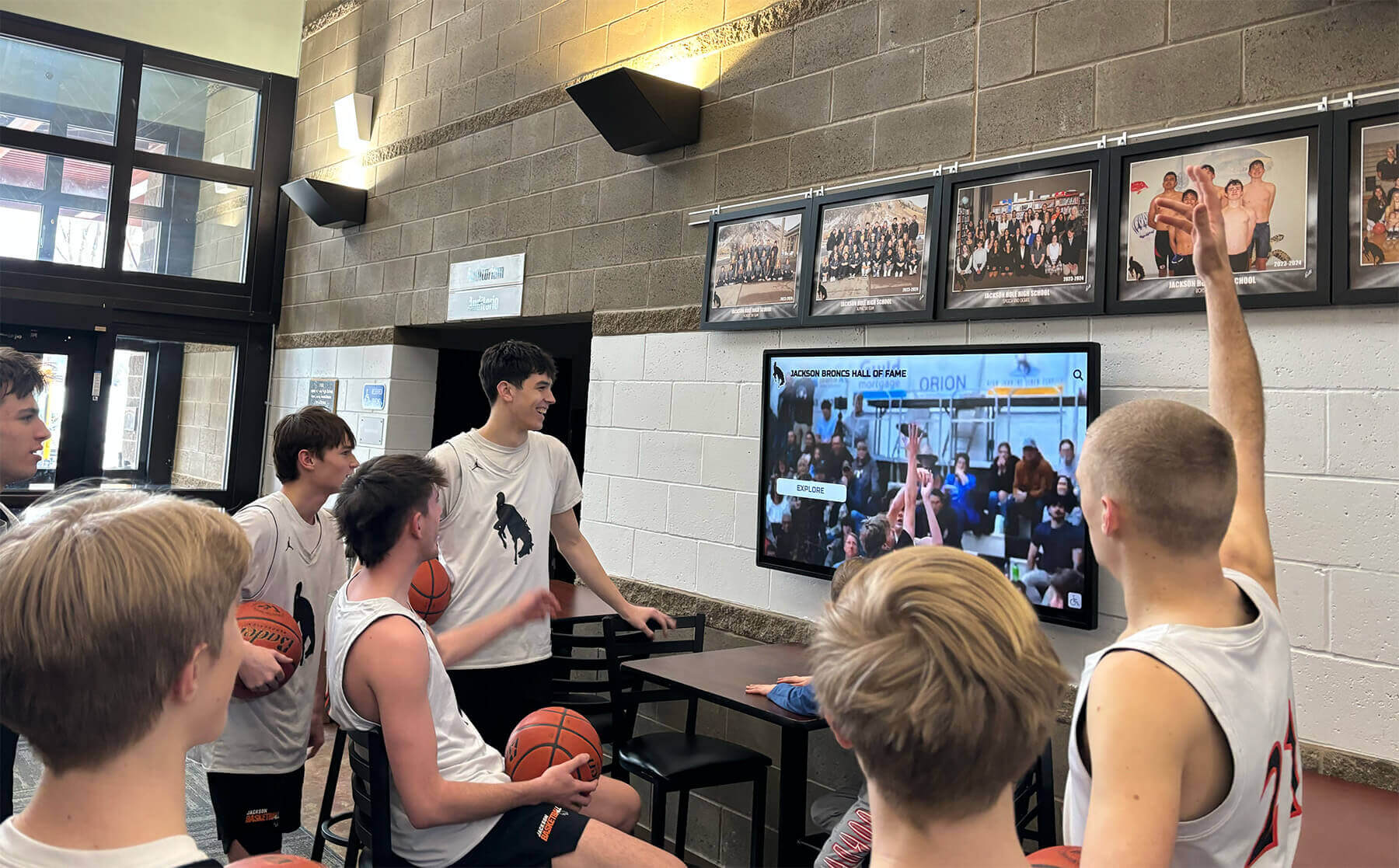
A recognition display that loads game highlights and athlete portraits reliably during busy passing periods has passed the duplex mismatch test — intermittent slowness under load is the primary symptom that leads IT teams to this diagnostic
What a Duplex Mismatch Is and Why It Slows Recognition Displays
Ethernet links carry data in two directions simultaneously on a full-duplex connection — frames can travel from the switch to the display at the same time frames travel from the display to the switch, with no waiting. On a half-duplex connection, only one direction can transmit at a time. A device using half-duplex listens before transmitting and backs off when it detects that the link is already in use, using a protocol called CSMA/CD (Carrier Sense Multiple Access with Collision Detection).
A duplex mismatch occurs when one end of the link — typically the switch port — is configured for full-duplex while the other end — typically the display’s network interface — operates in half-duplex. The mismatch happens most often through a combination of manual switch configuration and auto-negotiation failure:
- The switch port is manually forced to full-duplex and a specific speed (for example,
speed 1000andduplex fullon a Cisco switch) without running auto-negotiation. - The display’s NIC is set to auto-negotiate. When the switch port does not participate in auto-negotiation, the NIC cannot determine the switch’s duplex setting and defaults to half-duplex as defined in the IEEE 802.3 specification.
- The result is a link where the switch sends frames continuously in both directions simultaneously (full-duplex behavior), while the display’s NIC treats simultaneous reception during its own transmission as a collision and backs off.
Under light load — a single management check-in packet, a short photo thumbnail — the mismatch causes barely perceptible delays. Under heavy load — a large photo update cycle, a video clip synchronization, a full content library refresh — the backoff-and-retry behavior compounds. Throughput collapses to a fraction of the nominal link speed, often between 10% and 40% of rated capacity. The display appears online, the platform dashboard shows connectivity, but content takes many seconds or minutes to load where it should take under a second.
The timing of the slowness is what makes a duplex mismatch easy to confuse with a content delivery or server problem. Load increases during school hours, when campus network traffic from student devices, security cameras, and administrative systems competes for switch backplane capacity. The recognition display’s mismatch-induced retransmissions add to that congestion and also degrade the display’s own throughput. Late at night, when campus network load drops, the same mismatch produces almost no observable effect because the display’s NIC rarely needs to transmit while the switch is simultaneously sending.
Schools building recognition programs that extend from physical championship banners to always-on digital display archives depend on reliable media delivery for the digital side of that program — duplex testing is the first structured step when media delivery becomes intermittently unreliable.
Symptom Checklist: Is This a Duplex-Mismatch Problem?
Before beginning the step-by-step test, confirm that the display’s symptoms match the duplex-mismatch pattern rather than a different network or content problem.
| Symptom | Duplex Mismatch | Other Likely Cause |
|---|---|---|
| Content loads slowly only during busy periods | Yes — load-dependent collapse is characteristic | No — platform outages affect all times equally |
| Content loads correctly at night and on weekends | Yes — low-traffic periods mask the mismatch | No — DNS failures and routing issues persist |
| Ping to the display succeeds but large files are slow | Yes — small packets are rarely affected | Partial — DNS resolution or firewall issues may also show this |
| Switch port shows late collision errors | Yes — definitive mismatch indicator | No — late collisions do not appear on full-duplex links |
| Switch port shows high runt frame counts | Yes — half-duplex backoff creates truncated frames | Partial — physical cable problems can also produce runts |
| Display NIC shows half-duplex in OS interface status | Yes — confirms the auto-negotiation fallback | No — firmware issues would show differently |
| Multiple displays on the same switch model show the issue | Yes — switch configuration is likely the cause | Partial — platform-wide outages can affect multiple displays simultaneously |
| Problem appeared after a switch replacement or port move | Yes — new switch may have a different default configuration | Partial — new switch could also introduce VLAN or routing changes |
If late collisions appear on the switch port, that single counter is sufficient to warrant the full duplex mismatch test. No other common campus network problem generates late collisions reliably.
Pre-Test Preparation
Gather the following information before beginning the test. Having these values documented before running commands reduces the chance of testing the wrong port or applying a fix to the wrong interface.
| Information | Description | How to Collect |
|---|---|---|
| Switch vendor and model | Determines which CLI commands apply | Switch label or management console inventory |
| Switch port number | The exact interface connected to the display | Check the switch port the display’s Ethernet cable terminates on |
| Display operating system | Linux or Windows determines which commands to run on the display side | Platform vendor documentation or direct inspection |
| Display network interface name | eth0, enp3s0, or similar on Linux; adapter name on Windows | ip link on Linux; Device Manager on Windows |
| Display IP address | For connectivity verification after the fix | Switch ARP table or platform dashboard |
| Access to switch CLI | SSH or console access with sufficient privileges to view counters and change port configuration | Network administrator credentials |
| Maintenance window | Time when changing the switch port configuration will not disrupt a recognition event | Athletic or school calendar |
The maintenance window is worth identifying early. Applying the duplex fix requires either bouncing the switch port (which drops the display’s link for a few seconds) or rebooting the display (which takes it offline briefly). During a championship banquet, an awards ceremony, or a school board presentation, that brief outage is noticeable. Scheduling the test and the fix during a low-traffic period eliminates that risk.
Step 1: Identify Current Duplex Settings on the Switch Port
Read the current speed and duplex configuration on the switch port connected to the display. This step confirms whether the port is forced to full-duplex without auto-negotiation — the configuration most likely to cause a mismatch.
Step 1a: Cisco IOS and IOS-XE switches
show interfaces GigabitEthernet1/0/12
In the output, look for the Duplex and Speed fields:
GigabitEthernet1/0/12 is up, line protocol is up (connected)
  Hardware is Gigabit Ethernet, address is ...
  MTU 1500 bytes, BW 1000000 Kbit/sec, DLY 10 usec,
     reliability 255/255, txload 1/255, rxload 1/255
  Encapsulation ARPA, loopback not set
  Keepalive set (10 sec)
  Full-duplex, 1000Mb/s, media type is 10/100/1000BaseTX
Full-duplex with 1000Mb/s on the switch side is correct. Half-duplex on the switch side is unusual and would indicate the switch is auto-negotiating down rather than forcing settings.
Now check whether that duplex setting was forced or negotiated:
show running-config interface GigabitEthernet1/0/12
If the interface configuration includes:
interface GigabitEthernet1/0/12
 duplex full
 speed 1000
The switch port is forced. No auto-negotiation is offered to the connected device. A display NIC set to auto-negotiate will default to half-duplex on this port.
If the interface configuration contains only:
interface GigabitEthernet1/0/12
 description Display-HOF-Lobby
No explicit duplex or speed is configured, meaning the port runs auto-negotiation. If the display NIC also auto-negotiates, both sides will agree on full-duplex at the highest common speed — no mismatch will occur from this configuration.
Step 1b: Juniper EX switches
show interfaces ge-0/0/12 detail
Look for Duplex: in the physical interface section. Also check the configuration:
show configuration interfaces ge-0/0/12
A forced configuration appears as:
ether-options {
    speed {
        1g;
    }
    duplex {
        full-duplex;
    }
    no-auto-negotiation;
}
The no-auto-negotiation line is the key indicator. With auto-negotiation disabled, the display NIC’s auto-negotiation attempts receive no response and the NIC falls back to half-duplex per the IEEE standard.
Step 1c: Aruba and HPE ProCurve switches
show interfaces ethernet <port> detail
Forced duplex appears in the configuration as:
interface <port>
   speed-duplex 1000-full
Step 2: Identify Current Duplex Settings on the Display Side
After confirming the switch port configuration, check what the display’s own network interface reports as its operating duplex mode.
Step 2a: Linux-based displays
ip link show eth0
The output shows the interface state but not duplex directly. Use ethtool for the complete link status:
ethtool eth0
Expected output for a correctly negotiated full-duplex link:
Settings for eth0:
        Speed: 1000Mb/s
        Duplex: Full
        Auto-negotiation: on
        Link detected: yes
Problematic output showing the mismatch result:
Settings for eth0:
        Speed: 1000Mb/s
        Duplex: Half
        Auto-negotiation: on
        Link detected: yes
Duplex: Half combined with Auto-negotiation: on confirms that the NIC attempted to auto-negotiate but fell back to half-duplex because the switch port did not respond to the negotiation. The speed may still show 1000Mb/s even in half-duplex — the link speed and the duplex setting are negotiated independently, and some switch configurations force speed without forcing duplex consistently.
Step 2b: Windows-based displays
Open Device Manager, locate the network adapter, and check its Advanced properties:
- Open Device Manager (
devmgmt.msc). - Expand Network Adapters.
- Right-click the Ethernet adapter and select Properties.
- Click the Advanced tab.
- Find the Speed & Duplex property.
If Speed & Duplex is set to Auto Negotiation and the switch port has auto-negotiation disabled, Windows typically reports the link as 1000 Mbps full-duplex because most modern Windows NIC drivers default to full-duplex on 1000BASE-T regardless of auto-negotiation result. In this case, the switch-side error counters become the authoritative diagnostic rather than the Windows driver-reported duplex mode. See Step 3.
Checking both the switch port configuration and the display NIC's reported duplex mode identifies which side of the link is responsible for the mismatch — the fix always requires both sides to agree on full-duplex
Step 3: Read Error Counters — Late Collisions and Runts
The switch-side error counters are the most reliable diagnostic evidence for a duplex mismatch. Late collisions in particular appear only in specific circumstances and are near-definitive when they appear on a port connected to a display device.
Step 3a: Read interface counters on Cisco IOS-XE
show interfaces GigabitEthernet1/0/12 counters errors
Expected output for a duplex-mismatched port:
Port        Align-Err    FCS-Err   Xmit-Err    Rcv-Err  UnderSize
Gi1/0/12            0          0          0          0          0

Port       Single-Col  Multi-Col  Late-Col   Excess-Col  Carri-Sen       Runts   Giants
Gi1/0/12           0          0       2847            0          0        1204        0
Late-Col: 2847 and Runts: 1204 together confirm a duplex mismatch. Interpret these counters:
- Late collisions occur when the switch’s full-duplex NIC begins transmitting a frame while the display’s half-duplex NIC is also transmitting. The switch detects the collision late — after the first 64 bytes of the frame — because the full-duplex side did not listen for collisions before sending. Late collisions are counted incrementally as the mismatch condition persists under load. A count of zero on a suspected port rules out duplex mismatch.
- Runts are frames shorter than 64 bytes that occur because the display’s half-duplex NIC truncated its own frame when it detected the collision and aborted transmission. Not all runts indicate duplex mismatch — physical layer problems can also produce runts — but runts combined with late collisions confirm the mismatch.
To see whether the counters are actively incrementing (confirming an ongoing mismatch rather than a historical one):
show interfaces GigabitEthernet1/0/12 counters errors
Wait 60 seconds, then run the same command again. If Late-Col increased during that interval while the display was attempting to load content, the mismatch is active and ongoing.
Step 3b: Read counters on Juniper EX switches
show interfaces ge-0/0/12 statistics
Look for Input errors and specifically Collisions. Juniper reports late collisions under the input error section. Also check:
show interfaces ge-0/0/12 extensive | match "collision|runt"
Step 3c: Read counters on Linux display NICs
On the display itself, check the NIC error counters for the perspective of the half-duplex side:
ethtool -S eth0 | grep -i "collision\|runt\|error\|drop"
Or using the proc filesystem:
cat /proc/net/dev | grep eth0
The columns in /proc/net/dev include receive errors, transmit errors, and collision counts. A rising collision count on the display’s NIC, combined with late collision counts on the switch port, completes the diagnostic picture.
School recognition displays require reliable media delivery for every athlete and alumni profile. Rocket Alumni Solutions builds recognition platforms designed for school network environments, with documentation and compatibility resources for IT teams troubleshooting display connectivity issues.
Learn how Rocket Alumni Solutions supports school IT requirements
Step 4: Load Test to Confirm the Mismatch Effect
If error counter evidence is ambiguous — for example, the switch port shows a small number of late collisions that could be historical rather than current — reproduce the slowness under controlled load to confirm the diagnosis before applying a fix.
Step 4a: Establish a baseline throughput measurement
On the display (Linux), install iperf3 if not already present, or use curl with a large test file to measure download speed:
curl -o /dev/null -s -w "Speed: %{speed_download} bytes/sec\n" http://<local-server>/testfile-100mb.bin
Record the baseline speed. On a 1 Gbps link without a duplex mismatch, a local-network download should approach 80–120 MB/s (640–960 Mbps). With an active mismatch under load, speeds of 5–15 MB/s (40–120 Mbps) are typical.
Step 4b: Generate concurrent load during the test
Open a second session to the display or use a network traffic generator on a separate device connected to the same switch. While the large file download runs on the display, generate bidirectional traffic on the display’s port to simulate campus load:
iperf3 -c <local-iperf-server> -t 60 -P 4
The -P 4 flag runs four parallel streams. With a duplex mismatch, each transmitted stream from the display triggers backoff events because the switch’s simultaneous full-duplex transmissions appear as collisions. Throughput under this load will drop significantly compared to the baseline.
Step 4c: Observe late collision counter acceleration
While the load test runs, check the switch port error counters every 15 seconds:
show interfaces GigabitEthernet1/0/12 counters errors
A mismatch confirmed by load testing shows late collision count increasing by hundreds or thousands per minute during the load test and returning to a slow increment rate when the load is removed. This correlation between load and late collision rate is the final confirmation before applying the fix.
Recognition displays that show digitized yearbook archives, alumni portraits, and historical athletics records are particularly sensitive to duplex-mismatch slowness because their content libraries are large and their update cycles involve transferring many high-resolution image files simultaneously.
Step 5: Fix — Setting Both Sides to Matching Duplex
There are two correct approaches to resolving a duplex mismatch. The recommended approach for school networks is to enable auto-negotiation on both sides. If the switch policy requires forced speed and duplex, force both sides explicitly to the same values.
Option A (Recommended): Enable auto-negotiation on both sides
On the switch port (Cisco IOS-XE), remove the forced speed and duplex configuration:
interface GigabitEthernet1/0/12
 no duplex
 no speed
With no explicit duplex or speed configured, the port reverts to auto-negotiation. Verify with:
show interfaces GigabitEthernet1/0/12
The output should show the port link going down briefly and then coming back up as both sides negotiate. The result will typically show Full-duplex, 1000Mb/s after successful negotiation.
On the display NIC (Linux), confirm it is already set to auto-negotiate:
ethtool eth0 | grep Auto-negotiation
If it shows Auto-negotiation: off, enable it:
ethtool -s eth0 autoneg on
On Juniper EX, remove the no-auto-negotiation statement and the forced duplex configuration from the interface stanza, then commit.
Option B: Force both sides explicitly
If the school network policy requires forced speed and duplex on switch ports (some IT policies require this for infrastructure stability), force both the switch port and the display NIC to the same explicit settings.
On the switch port (Cisco IOS-XE):
interface GigabitEthernet1/0/12
 duplex full
 speed 1000
On the display NIC (Linux), force the same settings:
ethtool -s eth0 speed 1000 duplex full autoneg off
To make this setting persist across reboots on a Linux system using systemd-networkd, add a [Link] section to the network configuration:
[Link]
Speed=1000
Duplex=full
AutoNegotiation=no
On Windows display hardware, set Speed & Duplex in the NIC’s Advanced properties to 1.0 Gbps Full Duplex explicitly rather than leaving it on Auto Negotiation.
Enabling auto-negotiation on both the switch port and the display NIC is the lowest-maintenance fix — both sides agree on full-duplex without ongoing manual configuration after a switch port move or NIC replacement
Step 6: Post-Fix Verification
After applying the fix, verify that the mismatch is resolved and that recognition content delivers correctly before closing the ticket.
Step 6a: Confirm matching duplex on the switch port
show interfaces GigabitEthernet1/0/12
Expected output after the fix:
GigabitEthernet1/0/12 is up, line protocol is up (connected)
  Full-duplex, 1000Mb/s
Step 6b: Confirm matching duplex on the display NIC
ethtool eth0
Expected output:
Settings for eth0:
        Speed: 1000Mb/s
        Duplex: Full
        Auto-negotiation: on
        Link detected: yes
Step 6c: Confirm late collision counters have stopped incrementing
Clear the interface counters on the switch port:
clear counters GigabitEthernet1/0/12
Wait five minutes while the display actively loads content (trigger a content refresh or update from the platform dashboard). Then check:
show interfaces GigabitEthernet1/0/12 counters errors
After the fix, Late-Col and Runts should remain at zero. If late collision counts increment even after the fix, the mismatch persists — verify that the display NIC setting was saved persistently and that the switch port configuration was committed correctly.
Step 6d: Repeat the load test to confirm throughput recovery
Run the same curl or iperf3 download test used in Step 4a. After the fix, throughput should return to within 10–15% of the link’s rated capacity. A 1 Gbps link with both sides at full-duplex should show at least 700–900 Mbps of usable throughput for a large file transfer to a local server.
Step 6e: Verify recognition content delivery from the platform
Trigger a full content refresh from the recognition platform’s management dashboard while monitoring the display. Time how long the refresh takes. Compare to the pre-fix timing if recorded, or compare to a similar display on the same network that was not affected by the mismatch. Content that previously took 45–90 seconds to refresh should complete in under 10 seconds on a correctly configured 1 Gbps full-duplex link.
Schools whose recognition programs include donor recognition walls, naming rights displays, and community contributor archives depend on timely content updates when adding new honorees — a resolved duplex mismatch ensures that update cycle completes quickly enough that staff can verify the new content on-screen before a recognition event begins.

A post-fix content refresh test — timing how long the display takes to load a new athlete portrait update from the platform — is the most practical confirmation that the duplex mismatch correction has restored normal media delivery
Multi-Display Testing and Documentation
Schools with recognition displays installed in multiple locations — athletic lobbies, gymnasium entrances, library walls, administrative hallways — should run the duplex mismatch test on every display, not just the one reported as slow. A duplex mismatch on one display often signals a switch-wide configuration pattern where all ports connected to recognition hardware share the same forced-duplex misconfiguration.
Systematically document results in a table for the school’s IT records:
| Display Location | Switch Port | Switch Duplex Config | Display NIC Duplex | Late Collisions Observed | Fix Applied | Post-Fix Late Collisions |
|---|---|---|---|---|---|---|
| Athletic Lobby — HOF Kiosk | Gi1/0/12 | Forced full — no auto-neg | Half (auto-neg fallback) | 2,847 | Auto-neg enabled both sides | 0 |
| Gym Entrance — Trophy Display | Gi1/0/14 | Auto-neg | Full (negotiated) | 0 | None required | 0 |
| Library — Alumni Wall | Gi2/0/3 | Forced full — no auto-neg | Half (auto-neg fallback) | 918 | Auto-neg enabled both sides | 0 |
| Admin Hallway — Awards Screen | Gi2/0/7 | Auto-neg | Full (negotiated) | 0 | None required | 0 |
Retaining this record is useful for two reasons. First, it creates a reference for the next technician who questions why some switch ports have auto-negotiation while others do not — the history explains the intent. Second, it identifies which hardware combinations in the school’s environment are susceptible to the mismatch so that future installs can avoid the same configuration gap.
Schools building out principal and staff recognition displays alongside athletic halls of fame often expand their recognition display inventory over time. A documented duplex test record for the existing fleet means new displays can be added using a verified configuration rather than relying on default switch port settings that may not match NIC auto-negotiation behavior.
Troubleshooting Table: When the Fix Does Not Resolve the Slowness
If the duplex mismatch is confirmed and corrected but the display is still slow, the remaining cause is a different network or platform problem. Use this table to narrow down the next diagnostic step.
| Observation After Duplex Fix | Likely Cause | Next Step |
|---|---|---|
| Late collisions at zero but content still slow | Platform server load or CDN latency | Check platform status dashboard; test from a PC on the same VLAN |
| Late collisions at zero but throughput below 100 Mbps | Physical cable fault or NIC hardware issue | Replace the Ethernet cable; test with a known-good cable; check NIC for hardware errors |
| Late collisions still incrementing | Fix not persistent — display NIC or switch config reverted | Verify ethtool setting persisted; check switch running-config was saved with write memory |
| Display offline after fix | VLAN membership changed during port reconfiguration | Verify VLAN assignment on the switch port matches the pre-fix configuration |
| Content loads correctly but touch response is slow | Unrelated to duplex — touch input is local, not network | See recognition display touch sensitivity testing for that diagnostic path |
| Other devices on the same switch also slow | Switch port capacity, uplink saturation, or spanning tree issue | Check switch uplink utilization; inspect spanning tree topology |
A duplex mismatch resolves load-dependent, time-of-day-correlated slowness. A display that remains slow after the mismatch is corrected has a different root cause and requires a separate diagnostic path. The key confirmatory evidence that the duplex fix worked is: late collisions at zero under load, throughput within 10–15% of rated link capacity, and content refresh timing matching the platform’s documented expectation.
For schools whose recognition systems incorporate sports graphics, championship imagery, and team branding assets, reliable throughput means those high-resolution assets display crisply on every screen update cycle rather than appearing as low-quality placeholders while the full-resolution version slowly transfers across a bottlenecked link.
Frequently Asked Questions
Does a duplex mismatch affect the recognition display’s touch input responsiveness?
No. Touch input on recognition display kiosks is processed locally by the touchscreen controller and sent to the display OS over USB or a local I2C bus. It does not travel over the Ethernet connection. A duplex mismatch degrades the network link between the display and the switch — it affects media loading, content refresh, and platform management connectivity, but has no effect on touch recognition accuracy or response time. If a display has both slow media loading and slow touch response, those are two separate issues requiring two separate diagnostic paths.
Can a duplex mismatch cause the platform to show the display as offline?
Yes, in severe cases. When campus traffic is high, a severely mismatched link may fail to deliver the recognition platform’s management check-in packet within the platform’s expected timeout window. If the platform marks a display offline after a missed check-in, the underlying cause may be duplex-mismatch-induced packet loss rather than an actual connectivity failure. Clearing the mismatch will typically restore the check-in rhythm and allow the platform to bring the device status back to online.
What is the difference between a duplex mismatch and a speed mismatch?
A duplex mismatch is when one side operates full-duplex and the other half-duplex, both at the same speed. A speed mismatch is when one side is configured for 1000 Mbps and the other for 100 Mbps — in that case, the link typically does not establish at all, or the 100 Mbps side forces both sides down to 100 Mbps. Speed mismatches usually produce an obvious symptom (link not up, or link light amber instead of green on the switch). Duplex mismatches produce a connected link with degraded throughput under load — they are harder to diagnose because the link appears healthy in surface-level checks.
Should we use auto-negotiation or forced duplex on recognition display ports?
Auto-negotiation on both sides is the most reliable configuration for recognition display ports. The IEEE 802.3ab specification (1000BASE-T) requires auto-negotiation; forcing speed and duplex on a 1000BASE-T port technically violates the specification and depends on device-specific behavior to function correctly. The most common source of duplex mismatches in school networks is a switch policy of forcing speed and duplex on access ports without applying the same configuration to the connected device’s NIC. Enabling auto-negotiation on the switch port eliminates that configuration dependency.
How often should we re-run the duplex mismatch test?
Re-run the test after any of these events: display hardware replacement (new NIC may auto-negotiate differently), switch port reassignment (new port may have a different default or policy configuration), switch firmware upgrade (may change auto-negotiation behavior), or any report of intermittent slowness on a previously verified display. An annual audit during summer break, checking late collision counters on all display ports, is a low-effort way to catch configuration drift before it affects a fall recognition event.
Does this test apply to displays connected over Wi-Fi?
No. Duplex mismatch is an Ethernet-specific issue. Wi-Fi does not use full-duplex/half-duplex in the same sense — it uses a different collision-avoidance mechanism (CSMA/CA). If a Wi-Fi-connected recognition display is slow or unstable, the diagnostic focuses on signal strength, channel congestion, and 802.11 protocol settings rather than duplex configuration. The test in this guide applies only to wired Ethernet connections between the display and the access-layer switch.
Are wireless-only recognition display installations immune to duplex mismatch?
Yes, with respect to the display-to-network connection. However, the access point serving the display connects to the campus network over an Ethernet uplink, and that uplink can have its own duplex configuration. A duplex mismatch on the access point’s uplink port degrades all devices on that access point, not just the recognition display. If an entire wireless zone is slow during peak periods, checking the access point’s uplink port for late collisions is a valid diagnostic step.
Keeping Recognition Displays Fast Throughout the School Year
A duplex mismatch is one of the most common and underdiagnosed causes of intermittent slowness on wired Ethernet devices in school environments. Its characteristic pattern — fast at night, slow during school hours, invisible to surface-level network checks, confirmed only by late collision counters — leads many IT teams to investigate the wrong layers of the stack before finding it. The test sequence in this guide — reading switch port configuration, checking NIC-reported duplex, reading late collision and runt counters, confirming under load, applying the fix, and verifying with throughput and counter tests — provides a repeatable, evidence-based path from symptom to resolution.
For school athletic directors, recognition program coordinators, and principals who oversee hall of fame displays, alumni archives, and awards recognition walls, the practical outcome of this test is a display that loads content at full speed on game day, during assemblies, and whenever the school community gathers around it — not just when the hallway is empty at midnight. A resolved duplex mismatch is invisible to visitors and students, which is exactly the right outcome: the display simply works, reliably, whenever it is needed.
A recognition display that passes the duplex mismatch test delivers consistent media loading speed from morning arrival through evening events — the kind of reliability that makes a digital hall of fame a functional part of the school's daily environment rather than an intermittently frustrating one
See How Rocket Alumni Solutions Supports Reliable School Network Deployments
Rocket Alumni Solutions builds recognition platforms for school athletic and alumni programs designed to operate reliably on managed school networks. Request a demo to learn how the platform works with your IT team's network configuration requirements, including documentation to support switch port setup for recognition display deployments.
Request a Recognition Display Network Demo






























