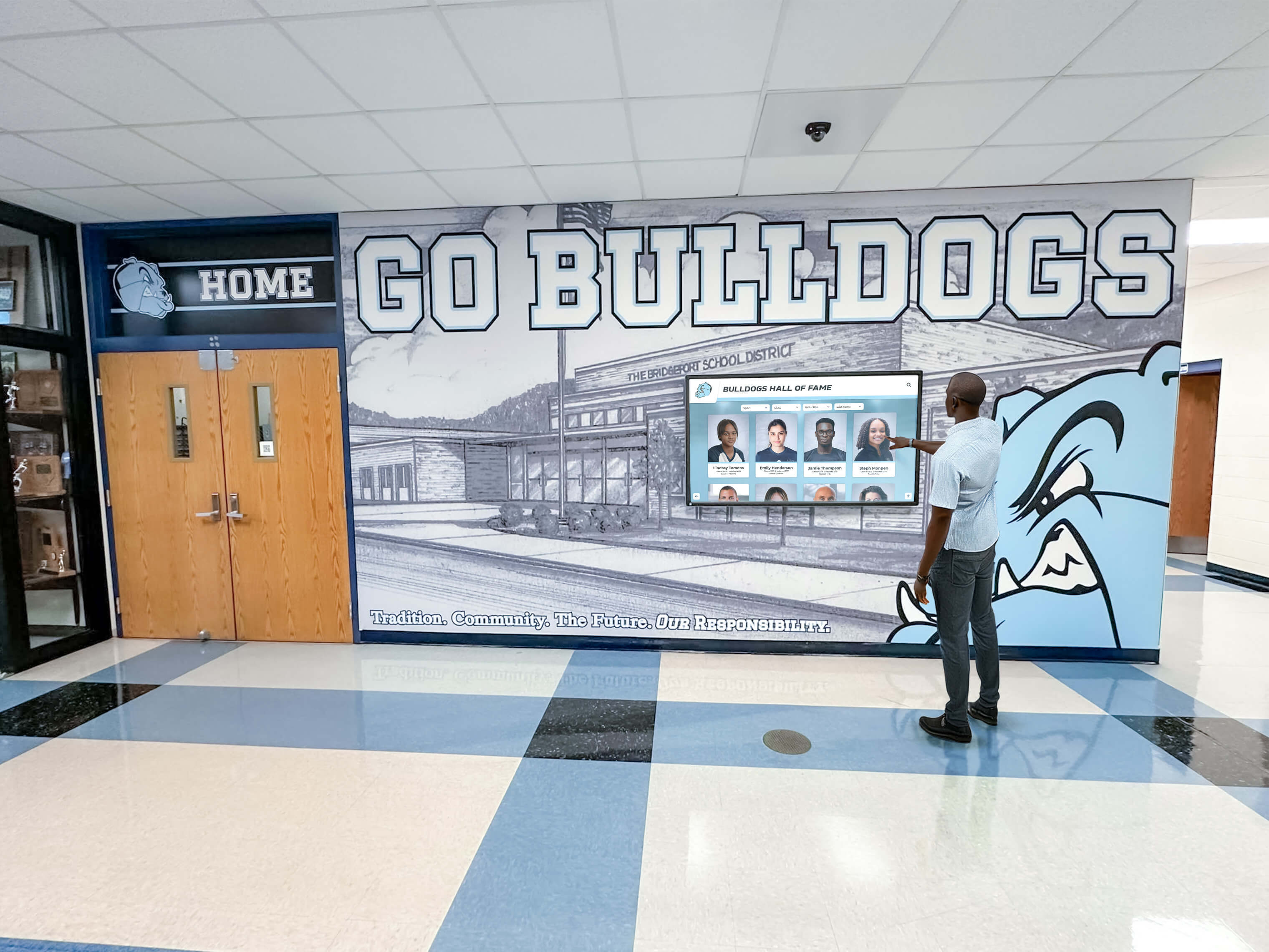




A recognition display gamma calibration checklist is a structured pre-acceptance test that school administrators, IT staff, and facilities teams use to confirm that a newly installed or repositioned touchscreen renders recognition content—athlete portraits, championship trophy photographs, award ceremony images, and archival sports footage—with accurate tonal gradation from deep shadows through bright highlights. Gamma is the mathematical relationship between the electrical signal a display receives and the brightness it actually produces on screen. When gamma is misconfigured, shadow areas of photographs become indistinguishable black regions, highlight detail clips to featureless white, and skin tones appear either washed out or underexposed. On a lobby hall-of-fame screen or an athletics hallway kiosk, that tonal distortion means portraits of honored athletes look unrecognizable and decades of carefully preserved imagery lose the visual detail that makes recognition meaningful.
Running a calibration acceptance checklist before signing off on any new display installation—or before restoring a display after a firmware update or relocation—catches these problems when correction is still straightforward, rather than after the screen has been in public view during an awards ceremony or alumni event.
Quick answer: A recognition display gamma calibration checklist covers four phases: (1) verify the display’s gamma preset matches its deployment environment using the manufacturer’s built-in OSD (on-screen display) menu, (2) run a 21-step grayscale ramp test pattern to confirm smooth tonal gradation from black through white with no banding or crushed shadows, (3) evaluate shadow detail and highlight definition using a real recognition photograph rather than only synthetic test cards, and (4) compare the display’s output against an adjacent reference monitor or a calibrated print to confirm rendering accuracy at actual school ambient light levels. The checklist produces a pass/fail acceptance record before the display is handed over for content loading.

A gamma-accurate recognition display renders the full tonal range of athlete portraits and archival sports images—shadow detail in uniforms and highlight definition in trophy surfaces both depend on a correctly calibrated gamma curve
What Gamma Calibration Means for School Recognition Displays
Gamma calibration is often treated as a concern only for professional video editing suites or broadcast control rooms. For school recognition displays, it matters for a different reason: the content on these screens—inducted athlete photos spanning multiple decades, championship trophy cases, group portraits from state competition—was produced across a wide range of cameras, scanning equipment, and editing workflows, and arrives at the display as a mixed collection of image files with varying exposure characteristics. A gamma curve that handles modern digital photographs reasonably may render scanned 1970s yearbook portraits with blown highlights and crushed shadows, making inducted athletes from earlier eras appear poorly on screen while recent inductees look sharp.
The display industry has converged on a standard gamma reference target for standard dynamic range (SDR) content: the sRGB standard published in IEC 61966-2-1 specifies an approximate display gamma of 2.2. Most modern flat-panel displays sold for commercial signage and kiosk applications include a factory preset labeled “sRGB,” “Standard,” or “PC” that targets this reference gamma. Selecting that preset is typically the correct starting point for recognition displays serving content produced in standard desktop image editing environments.
However, the factory preset alone is not a substitute for a calibration checklist. Ambient lighting in school lobbies and athletics hallways—fluorescent overheads, natural window light, gymnasium spotlights—changes how the eye perceives gamma-corrected output on screen. A display that passes a gamma check in a darkened install bay may appear washed out or flat once mounted in a brightly lit trophy case alcove. The checklist accounts for actual deployment conditions, not just factory specification.
For context on how display configuration affects digital recognition platform delivery at the hardware level, school recognition display HDMI-CEC configuration covers the related hardware integration steps that establish the baseline display environment before calibration testing begins.
Before-and-After Test Sequence for Recognition Display Gamma
The most reliable way to verify gamma calibration is to run a structured before/after visual test sequence: document the display’s output using a reference test image before changing any display settings, then document the output again after applying the calibrated gamma preset. This creates a verifiable record and confirms that the adjustment produced a measurable visible improvement rather than a subjective preference change.
Before-State Documentation
- Power on the display and allow it to warm up for at least 15 minutes. Panel luminance and color temperature shift during warm-up on most commercial flat-panel displays; measurements taken before stabilization do not reflect operational conditions.
- Photograph or record the current display preset label from the OSD menu. Note the factory-selected preset (often “Vivid,” “Dynamic,” or “Movie”) alongside the display model, serial number, and install location.
- Display a 21-step grayscale ramp test pattern on the screen at full resolution. The pattern should run from 0% (pure black) at one end to 100% (full white) at the other, with each step incrementing by approximately 5% luminance.
- Photograph the grayscale ramp as displayed. The before-state photograph captures whether the factory preset compresses shadow steps (steps 0–20% merge into a single black band) or crushes highlights (steps 80–100% merge into a single white band).
- Display a representative recognition photograph—an athlete portrait with a dark uniform background and a brightly lit face works well—and photograph it at the same position and camera settings. This is the before-state reference for evaluating real-content rendering.
After-State Calibration and Verification
- Access the display’s OSD picture settings and locate the gamma control. This may be labeled “Gamma,” “Gamma Mode,” “Tone Response,” or “EOTF” depending on the manufacturer. Commercial signage displays typically offer numbered gamma presets; a preset value of 2.2 is the standard starting point for recognition content produced in desktop image workflows.
- Select the sRGB or “Standard” color preset, or manually set gamma to the value recommended in the display manufacturer’s calibration guide for ambient-light environments. Do not apply a single universal target value without consulting the display’s documentation—some commercial panels are factory-calibrated to a slightly different gamma target to account for their specific backlight technology.
- Display the same 21-step grayscale ramp and photograph it in the after state. Each of the 21 steps should be distinguishable as a separate tonal band. If five or more adjacent steps at the shadow end are indistinguishable, the gamma remains too low. If five or more steps at the highlight end merge into white, the gamma is too high for the ambient environment.
- Display the same reference recognition photograph used in step 5. Confirm that shadow detail in dark uniform areas is visible without appearing gray or noisy, and that highlight areas on faces or trophy surfaces retain visible texture without clipping to featureless white.
- If the display has a luminance (backlight) control, adjust it to match the ambient light level in the installation space rather than its maximum output. High ambient-light environments such as south-facing lobby windows may require higher backlight; display corridors with controlled overhead lighting may require lower backlight. Luminance and gamma interact—if backlight is set too high, highlights will clip regardless of the gamma preset.
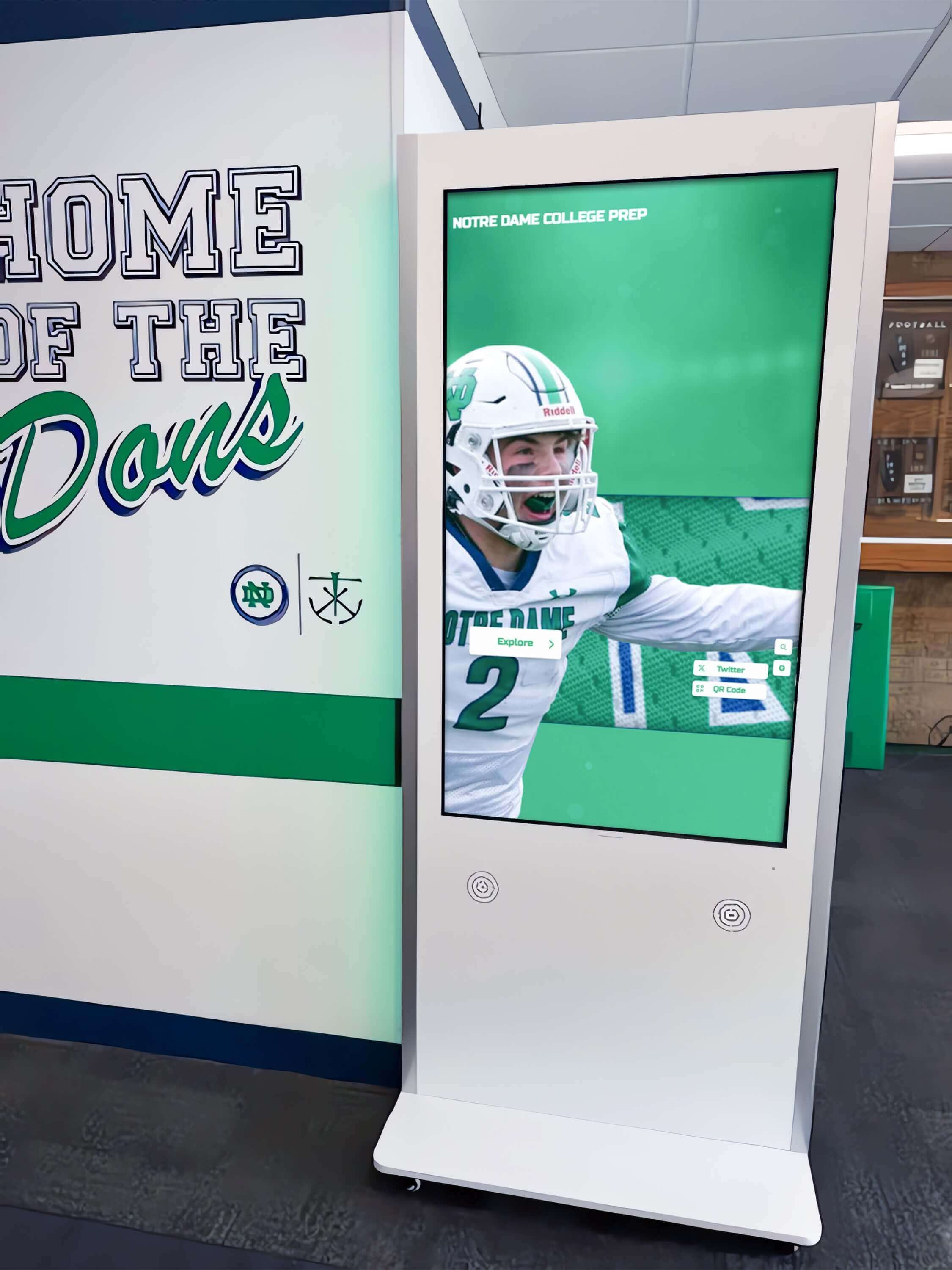
Hallway ambient lighting conditions affect how gamma-calibrated output appears to visitors—the test sequence must be run under the actual installation lighting, not in a darkened equipment room
The Recognition Display Gamma Calibration Checklist
Complete each item in sequence and record the result as Pass, Fail, or N/A. A display passes acceptance when all applicable items return Pass. Items marked Fail require corrective action before the display is placed in service.
Phase 1: Pre-Check and Environment Setup
- Display has been powered on and operating continuously for at least 15 minutes before testing begins.
- All ambient light sources in the installation space are active and in their normal operating state (overhead fluorescents on, window shades at their normal daytime position). Do not test in darkness if the display will operate in a lit environment.
- The display resolution is confirmed to match the native resolution of the recognition platform’s content output. A non-native resolution output can introduce scaling artifacts that obscure whether a rendering defect is a gamma problem or a resolution mismatch.
- Display inputs are confirmed: HDMI or DisplayPort signal source is connected, and the display is operating from the same input channel it will use in production.
- Display is mounted or positioned at the same viewing angle and height it will occupy in service. Viewing angle affects perceived contrast and gamma on IPS, VA, and TN panels; testing at the wrong angle produces a false pass or fail result.
- Current display preset settings are documented: preset name, gamma value if shown in OSD, backlight level, and color temperature setting.
Phase 2: Grayscale Ramp Test
- A 21-step grayscale ramp test pattern is displayed at full screen resolution.
- All 21 tonal steps are visually distinguishable as separate bands. If any three or more consecutive steps in the shadow range (steps 1–5) merge into a single black band, the display has shadow clipping and fails this item.
- If any three or more consecutive steps in the highlight range (steps 17–21) merge into a single white band, the display has highlight clipping and fails this item.
- The transition between adjacent steps is smooth and progressive, without abrupt jumps that would indicate banding or a misconfigured gamma curve shape.
- Mid-tone steps (steps 9–13) appear as distinct neutral grays without visible color cast (a greenish, reddish, or bluish tint in mid-tone grays indicates a white point or color temperature issue that affects perceived gamma accuracy).
Phase 3: Reference Recognition Image Test
- A reference photograph representing typical recognition content is displayed. Suitable reference images include: an athlete portrait against a dark background, a group team photo with a range of skin tones, a trophy case photograph with reflective metal surfaces, or a combination image with both dark and bright regions.
- Shadow areas of the reference image (dark jersey fabric, background wall areas, interior shadow regions) retain visible texture and are not compressed into undifferentiated black.
- Highlight areas of the reference image (faces in direct light, polished trophy surfaces, white uniform areas) retain visible detail and are not clipped to undifferentiated white.
- Skin tones in athlete portraits appear as natural tonal renditions without unnatural brightness or excessive darkness.
- The image does not appear overly flat or low-contrast (which indicates gamma set too low) or excessively contrasty with blocked shadows (which indicates gamma set too high).
Phase 4: Side-by-Side Acceptance Comparison
- If a reference monitor is available, display the same reference image on both the calibrated reference monitor and the acceptance-tested display simultaneously and compare rendering. The tested display should not show markedly different shadow or highlight rendering than the reference.
- If a reference monitor is not available, compare the display output against a calibrated print of the reference photograph at standard indoor viewing illumination. Printed and display output will not match exactly due to the difference between reflective and emissive rendering, but gross gamma errors—severely crushed shadows or blown highlights—will be immediately apparent in comparison with a correctly printed reference.
- The facility manager or designated school representative reviews and signs the before/after photograph documentation and confirms the display passes visual acceptance criteria.
- Display serial number, calibrated settings, and test date are recorded in the school’s display asset register.
Phase 5: Platform Content Validation
- Recognition platform content is loaded onto the display from the production source and at least five representative screens are reviewed: a hall-of-fame inductee profile, a sports record board, a photo gallery page, a video or motion graphic (if applicable), and the home or navigation screen.
- Colors in the platform’s design template (school colors, mascot graphics, award badge backgrounds) appear consistent with the platform’s intended design.
- Text elements on recognition screens are legible at the intended viewing distance—low-contrast text on mid-tone backgrounds is a sign that gamma calibration, ambient light level, or backlight setting needs adjustment.
- If the recognition platform includes video content (game highlights, ceremony footage), playback is reviewed for visible shadow banding or highlight clipping in motion scenes.
Acceptance Thresholds: What to Look For Without Inventing Universal Values
The phrase “acceptance threshold” in display calibration typically refers to a numerical measurement—such as gamma value within ±0.1 of a target, or Delta-E color accuracy within a specified range—that requires a hardware colorimeter or spectrophotometer to verify. Most school facilities and IT teams do not have calibration hardware available, and the visual checklist above is designed to identify clear failures that are perceptible to any trained observer without instrumentation.
When instrumented calibration is required—typically for high-profile lobby installations visible to major donors, accreditation reviewers, or event audiences—the display vendor or an AV integrator should provide calibration data showing the measured gamma curve plotted against the target reference. The reference gamma value for standard dynamic range content in commercial signage applications is documented in the display’s specification sheet and calibration guide. Because target values differ between display families and backlight technologies, consult the manufacturer’s documentation rather than applying a single reference number across all displays.
For schools considering which display software platforms best support consistent visual quality across recognition screens, academic recognition program guides and comparisons of touchscreen software options for school environments describe how platform choices affect the content rendering pipeline that gamma calibration operates within.
| Acceptance Criterion | Pass Condition | Fail Condition | Corrective Action |
|---|---|---|---|
| Shadow detail (grayscale ramp) | All shadow steps distinguishable | Three or more consecutive shadow steps merge | Increase gamma preset value; reduce backlight if shadow clipping persists |
| Highlight detail (grayscale ramp) | All highlight steps distinguishable | Three or more consecutive highlight steps merge | Decrease gamma preset value; check for overly high backlight setting |
| Mid-tone neutrality | Gray steps appear neutral without color cast | Visible color cast in gray steps | Adjust color temperature preset toward 6500K standard reference |
| Reference image shadow rendering | Shadow textures visible in athlete portraits | Shadow areas appear as solid black blocks | Increase gamma; consider reducing ambient light if installation environment permits |
| Reference image highlight rendering | Highlight textures visible in face and trophy areas | Highlight areas clip to featureless white | Decrease gamma; reduce backlight level |
| Text legibility at viewing distance | All recognition platform text readable | Text disappears against background | Check ambient light and backlight; gamma-accurate display in high ambient light may need increased backlight |
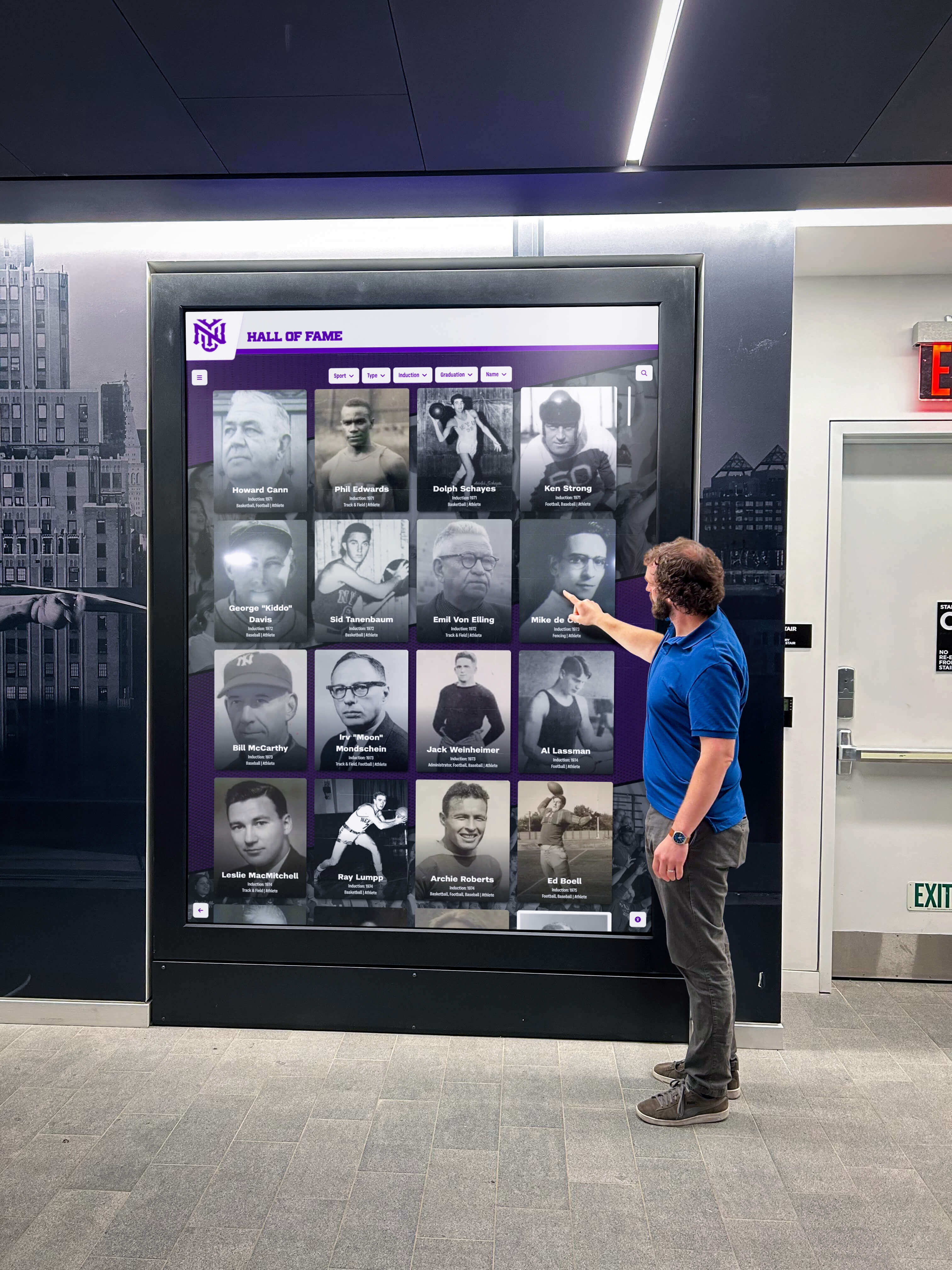
Passing the grayscale ramp test in isolation is not sufficient—acceptance testing must include real recognition content at the actual viewing distance and in the actual ambient lighting of the installation space
Why Gamma Calibration Matters More for Recognition Content Than for General Signage
Standard digital signage—wayfinding directories, promotional content, menu boards—is typically designed to work at high contrast and high saturation so it remains legible across a range of display settings. Recognition content has different requirements: archival photographs from prior decades, action sports photography with a wide tonal range, and formal portrait lighting all require a display capable of rendering fine tonal gradations to be faithful to the original image.
A miscalibrated display that crushes the shadow range turns a carefully shot photograph of a championship team into a dark image where half the players are indistinguishable. A display set to an overly high gamma clips highlights in trophy photography, stripping the visual context that communicates achievement and prestige. Neither failure is acceptable in a recognition program where accuracy and dignity are primary values.
Schools adding digital recognition displays alongside existing physical trophy cases and honor wall installations face an additional calibration consideration: the digital display will be viewed simultaneously with physical artifacts—polished trophies, engraved plaques, printed banners—that have their own inherent tonal range under the same ambient lighting. A gamma-uncalibrated screen looks out of place next to physical recognition displays even when visitors cannot articulate why. A calibrated screen that renders trophy photography with the same shadow and highlight fidelity as the physical trophies nearby creates a cohesive recognition environment.
Schools managing comprehensive recognition programs that span athletics, academics, and alumni engagement should build display calibration into the initial acceptance workflow for every display installation, whether a single lobby kiosk or a multi-screen hallway installation. The capital campaign recognition display examples that high-profile programs rely on to acknowledge major donors depend on the same display quality standards—a donor whose portrait appears darkened or color-shifted by an uncalibrated screen represents a recognition program failure regardless of how accurate the underlying content is.
For athletic recognition programs specifically, where game footage and sports photography form the core of the displayed content, gamma-accurate rendering of dark sports uniforms against bright stadium backgrounds is one of the most demanding test cases for recognition display calibration. Athletic directors accepting new display installations should request the before/after calibration documentation from the installer and confirm that the test was performed using sports photography representative of the school’s actual content library, not only with generic synthetic test patterns.
Multi-Screen Calibration Consistency
Schools deploying recognition displays across multiple spaces—a main lobby kiosk, an athletics hallway installation, a gymnasium entrance display, and a separate donor recognition wall—face a calibration challenge beyond the single-screen checklist: ensuring that the same recognition content looks consistent across all screens in the building.
Visitors and alumni who move through the school and encounter recognition content in multiple locations notice when the same athlete’s portrait appears dramatically different from one screen to another. Calibration consistency does not require identical display hardware throughout the building—it requires that each display be individually calibrated to the same reference target, accounting for its specific ambient lighting conditions, so that content rendering is recognizably equivalent.
The practical approach for multi-screen environments:
- Designate one display as the reference standard and complete the full acceptance checklist for that screen first.
- Use the calibrated reference screen’s before/after documentation—photographs of the grayscale ramp and reference recognition image—as the visual target for all subsequent screens.
- For each additional screen, complete the full checklist and compare its before/after documentation against the reference screen’s approved documentation. The goal is visual equivalence at the reference image step, not identical OSD settings—different panels may require different gamma preset values to produce equivalent visual output.
- Document any intentional differences between screens (for example, a display in a higher-ambient-light environment may require a higher backlight setting than the reference screen) and explain them in the acceptance record.
- Schedule annual calibration reviews for all displays in the installation. Panel aging and backlight degradation shift gamma output over time; a display that passed acceptance at installation may drift outside acceptable limits within two to three years without recalibration.
For schools that use archival digitization projects to bring historical recognition content—newspaper clippings, yearbook scans, physical photograph collections—onto digital displays, the calibration workflow connects to broader questions about how archival material is prepared for screen display. Resources covering how schools approach physical archiving and display-ready content preparation describe the image preparation and color management considerations that determine how well archival content renders on a calibrated recognition display.
Scheduling Calibration Into Recognition Program Operations
Gamma calibration is not a one-time setup task. School recognition displays change environments—moves during renovation, replacement of overhead lighting systems, addition of window treatments that alter ambient light levels—and display hardware ages in ways that shift factory calibration over operational time. Building calibration into the school’s recognition program maintenance schedule prevents gradual quality degradation from going unnoticed until it becomes obvious during a high-visibility event.
At installation acceptance: Complete the full checklist before any content is loaded. Document before/after photographs and record all display settings in the asset register.
At firmware or software updates: Display firmware updates can reset OSD settings to factory defaults, inadvertently changing calibrated gamma presets. Complete the grayscale ramp and reference image tests after any firmware update to confirm calibration is intact.
After environment changes: Changes to the ambient lighting in the installation space—new overhead fixtures, switch from fluorescent to LED lighting, addition or removal of window shading—can make a previously calibrated display appear miscalibrated without any change to the display settings. Repeat the checklist after any significant change to the ambient lighting environment.
Annual review: Schedule an annual visual calibration review for each display in the recognition program. A simple review consists of the grayscale ramp test and reference image comparison; a full re-calibration is required only if the review identifies a change from the acceptance baseline.
Schools with active alumni engagement programs and frequent recognition events—homecoming, athletic banquets, induction ceremonies—benefit from integrating calibration review into the event preparation checklist, so display quality is confirmed before families and alumni gather in recognition spaces. The alumni event planning resources that schools use for event coordination should include a display technology QA step that covers gamma calibration confirmation alongside other AV setup items.
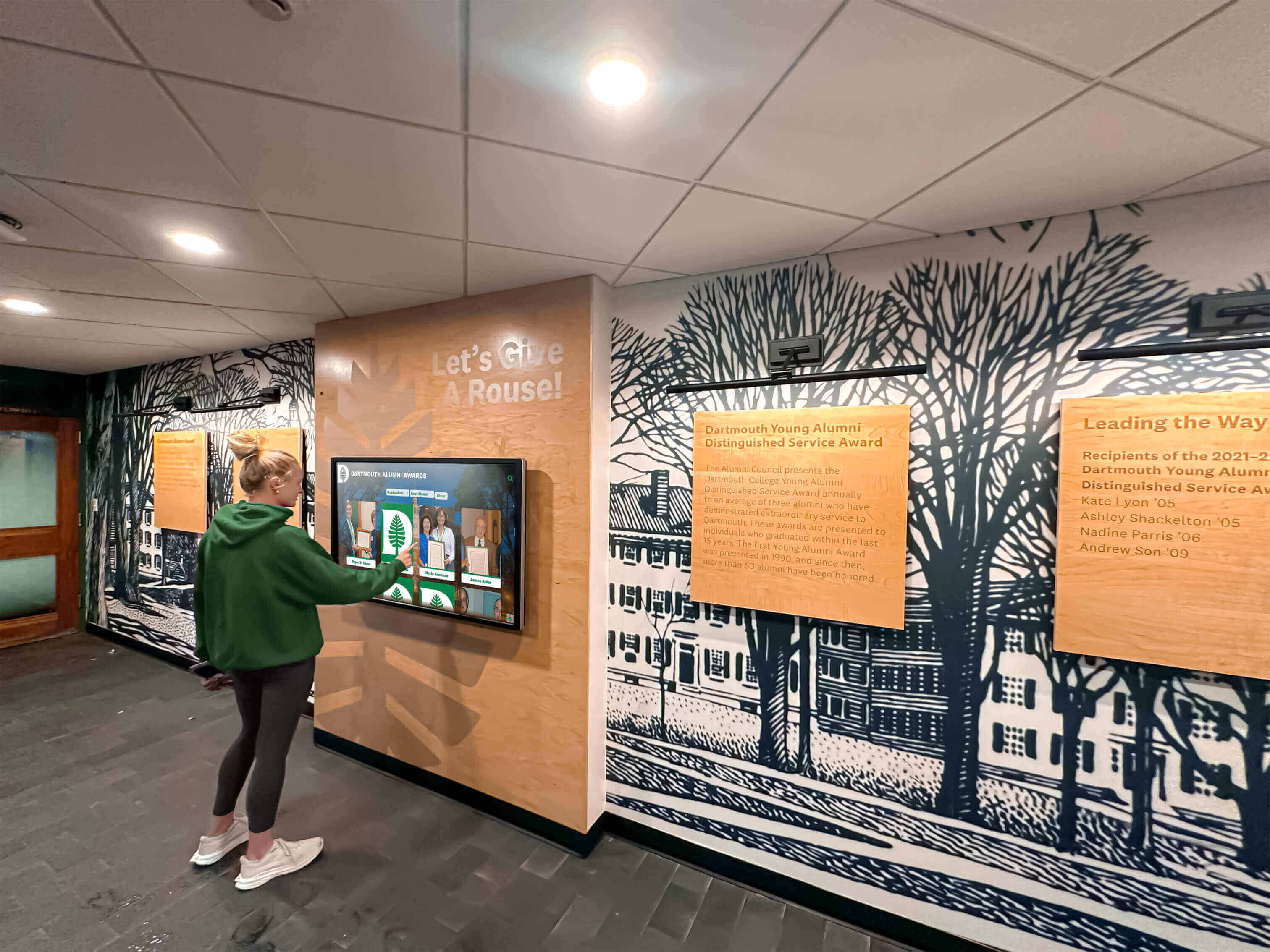
Display calibration drifts gradually over operational time—scheduling annual calibration reviews into the recognition program's maintenance calendar catches quality degradation before it affects events and ceremonies
Platform and Hardware Considerations
The gamma calibration checklist operates at the display hardware level, independent of which recognition software platform the school uses. However, the platform’s content pipeline affects how the display’s calibrated gamma interacts with the content it renders.
Color space handling: Recognition platforms that serve images as sRGB content (the standard for web-based platforms) pair correctly with a display calibrated to an sRGB-approximating gamma curve. Platforms that serve images in other color spaces—or that do not embed color space metadata—may render differently than expected even on a correctly calibrated display. Ask your platform vendor what color space is used for content delivery and whether any color management is applied in the rendering pipeline.
Video content: Recognition platforms that display video game highlights or ceremony footage alongside static recognition content require the display to handle motion video gamma correctly alongside still image rendering. Some commercial displays have separate gamma settings for video content, often using different picture mode presets for video versus photo sources. If the recognition platform serves both video and static content from the same display input, verify that the calibrated gamma preset handles both content types acceptably.
Touchscreen overlay interaction: Touchscreen overlays—common on interactive recognition kiosks—add a small amount of reflective surface over the panel. In high-ambient-light environments, this reflection can raise the effective black level, making shadows appear lighter than a calibration test without the overlay would suggest. Complete all calibration testing with the touchscreen overlay installed, not on the bare panel.
For schools evaluating platform options, comparisons of touchscreen software platforms provide context on how different platforms handle content delivery in ways that interact with display-level calibration.
Frequently Asked Questions
What is the difference between gamma calibration and color calibration for a recognition display?
Gamma calibration sets the luminance response curve of the display—how the relationship between input signal values and output brightness levels is shaped. Color calibration sets the accuracy of individual color channels and the white point. A display with accurate gamma but inaccurate color calibration will render tonal gradation correctly (shadows and highlights distinguishable) but with a color shift—portraits may look greenish or red-heavy. A display with accurate color but inaccurate gamma will render colors faithfully at middle exposure levels but compress or clip the shadow and highlight range. For recognition displays, both matter, but gamma is the first priority because tonal rendering accuracy is visible in every photograph regardless of color content.
Our display has a “User” or “Custom” gamma setting. What value should we enter?
The correct value depends on the display manufacturer’s documentation and the display’s ambient environment. The widely adopted reference for standard dynamic range content in desktop and commercial signage environments is 2.2, which approximates the sRGB standard curve. However, display manufacturers design their gamma preset scales differently—a setting labeled “2.2” on one manufacturer’s OSD may produce different measured output than “2.2” on another manufacturer’s panel due to differences in how the gamma curve is implemented. Identify the preset that produces output closest to the sRGB reference in your specific model using the manufacturer’s calibration guide, then verify with the grayscale ramp test described in this checklist. Do not transfer a gamma preset value directly from one display manufacturer to another without independent verification.
Can we perform gamma calibration without a colorimeter or other measurement hardware?
Yes. The visual checklist described here is designed to identify clear gamma errors—crushed shadows, clipped highlights, visible banding—without measurement hardware. The visual test is not a substitute for instrumented calibration in high-stakes or broadcast-quality environments, but for school recognition displays it provides a reliable pass/fail acceptance threshold when measurement equipment is not available. IT staff who have access to a colorimeter can add an instrumented gamma measurement step after the visual checklist to produce a numerical record comparable across annual calibration reviews.
How does a display with an aging or replaced backlight affect gamma calibration?
Backlight aging shifts the panel’s luminance output and can change the effective gamma curve relative to the original factory calibration. A display that passed acceptance testing when new may produce crushed shadows or flat mid-tones as its backlight dims over years of operation. Annual calibration reviews catch this drift before it reaches the threshold of being noticeable during recognition events. A replaced backlight, even from the same manufacturer, cannot be assumed to share the previous unit’s calibration baseline; complete the full acceptance checklist after any backlight service.
Should we run the gamma calibration checklist on a display that has been in service for several years and has never been formally calibrated?
Yes. Running the checklist on an uncalibrated in-service display produces a current-state baseline even if there is no before-state comparison available. If the display fails any checklist item, adjust the OSD settings and retest until the display passes or determine that replacement is warranted. Adding a never-calibrated display to the calibration program mid-lifecycle is better than continuing to operate it outside acceptable limits. Document the calibration date so annual review cycles can be scheduled from that point forward.
Does gamma calibration need to be repeated when we update the recognition platform software?
Platform software updates do not change display gamma settings directly. However, if a software update changes how content is encoded for display—for example, a change in the color space or gamma tagging of exported images—the existing display calibration may produce visibly different output with the new content even though display settings are unchanged. After any significant platform software update, run the Phase 5 platform content validation step of the checklist to confirm that recognition content still renders correctly with the updated platform output.
Recognition Displays Built for Visual Excellence
Rocket Alumni Solutions designs its school recognition platform with display quality in mind—so the athlete portraits, trophy photography, and archival imagery your school has preserved look their best on every screen in your building. Request a demo to see how the platform delivers recognition content across single-screen and multi-display installations.
Request a DemoA recognition display gamma calibration checklist converts a technically specialized topic into a practical, repeatable workflow that any school administrator, IT staff member, athletic director, or facilities team can run before accepting a new display installation or restoring a display after maintenance. Working through the five phases—environment setup, grayscale ramp test, reference recognition image test, side-by-side comparison, and platform content validation—ensures that the school’s investment in recognition content is matched by display hardware that renders athlete portraits, championship photography, and decades of archival imagery faithfully to every student, alumnus, and community member who stops to engage with it.































