



A recognition display image retention test checks whether static graphics—school logos, navigation menus, award category headers, and hall-of-fame frames—have begun to ghost permanently onto your panel before you launch the display for daily public use. Image retention occurs when the same bright or high-contrast element occupies the same pixel region for extended periods; the affected pixels degrade faster than surrounding areas and leave a faint visible imprint even when the screen shows different content. For always-on school recognition screens, the risk is real: a lobby kiosk that runs the same branded home screen from 6 a.m. to 10 p.m. without content rotation can develop visible ghosting within weeks on consumer-grade panels and within months on commercial panels that lack proper content management settings.
Running a structured retention test before your school recognition display goes into service—and repeating it at regular intervals—lets IT staff and program owners catch early retention and apply corrective settings before the ghosting becomes permanent burn-in that requires panel replacement.
Quick answer: Project a solid mid-gray or all-white test image fullscreen on the display for 5 minutes, then switch to a solid dark-gray field and observe for any faint silhouettes matching your static recognition graphics. If ghosting appears and fades within 30 seconds, you have temporary image retention—addressable through content rotation and pixel-refresh settings. If the ghost persists beyond 5 minutes on the dark-gray field, you have permanent burn-in that typically requires hardware service or panel replacement.

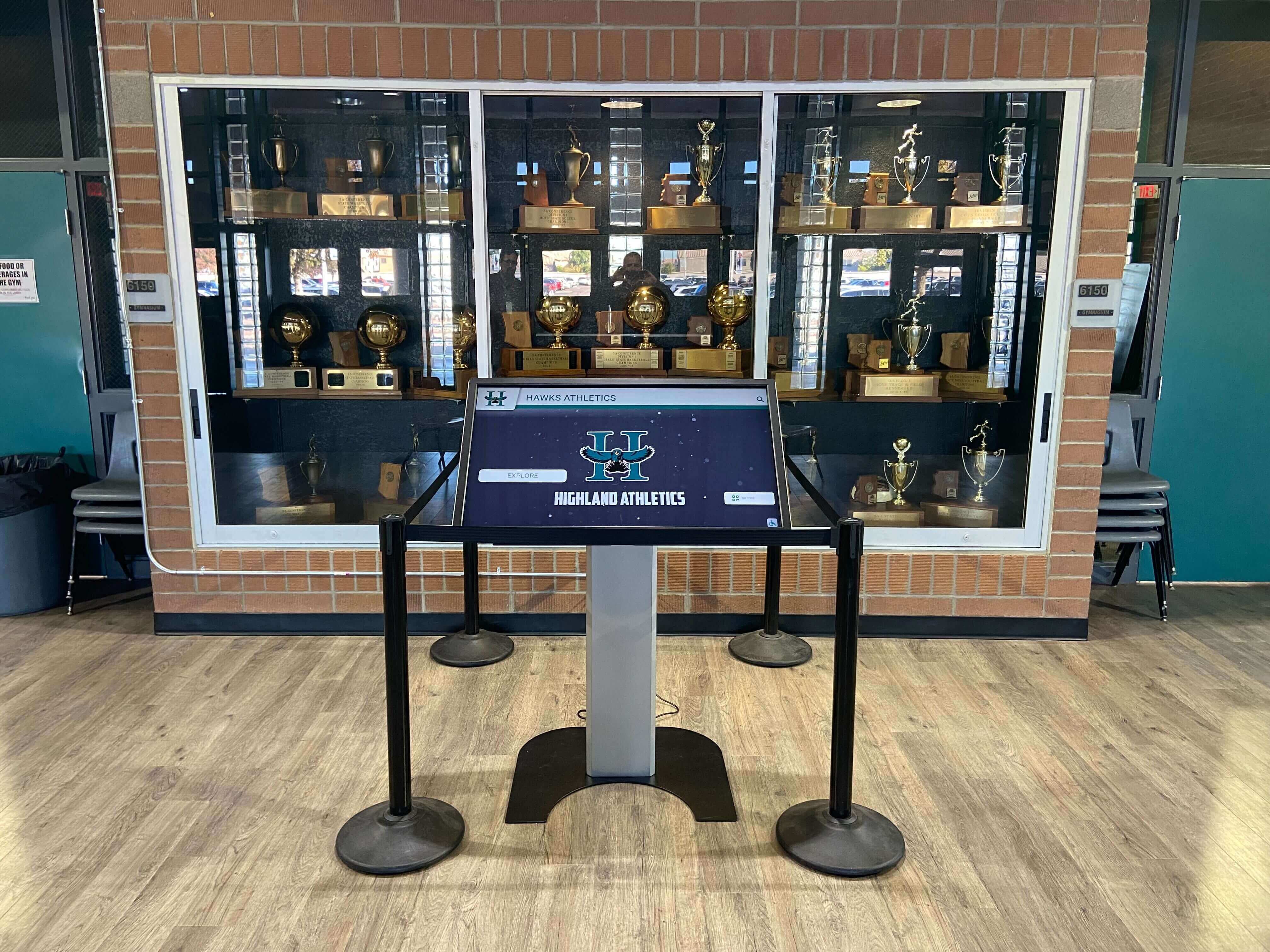
Trophy case kiosks run the same recognition graphics continuously—making them among the highest-risk displays for image retention without proper content management settings
Why School Recognition Displays Are High-Risk for Image Retention
Most commercial displays used in enterprise digital signage rotate through varied content throughout the day, naturally preventing any single static element from dominating any pixel region for long. School recognition displays operate differently. Their core purpose is presenting a consistent branded home screen—typically featuring the school crest, mascot, color palette, navigation categories, and permanent recognition headers—that greets visitors the same way every time the display resets to home position.
That consistency, which is exactly right for recognition UX, creates the conditions for image retention. Consider a typical deployment scenario: a trophy case kiosk runs its branded home screen for 30 to 45 seconds of every minute during a 14-hour school day. The school logo sits in the top-left corner at full brightness every time. The navigation row—ATHLETICS, ACADEMICS, ALUMNI, DONORS—occupies the same horizontal zone across every session. The hall-of-fame frame border maintains the same bright-white contrast against a darker background throughout the day. On a consumer-grade display without built-in pixel compensation, those zones accumulate differential wear over weeks of continuous operation.
Schools investing in permanent recognition trophy case installations should plan image retention testing as a mandatory pre-launch step rather than a reactive measure after visible ghosting appears. Early detection preserves hardware longevity and protects the capital investment before the display reaches public visibility.
Understanding Image Retention vs. Permanent Burn-In
These two terms describe related but distinct conditions with very different corrective paths.
| Condition | Description | Duration on Dark Screen | Typical Cause | Corrective Path |
|---|---|---|---|---|
| Temporary image retention | Faint ghost visible after switching to dark content | Fades within 30 seconds to 5 minutes | Hours of static content without rotation | Content rotation, pixel refresh, brightness reduction |
| Persistent image retention | Ghost remains visible for several minutes to hours | Fades very slowly, may take 8–24 hours | Days to weeks of static content | Extended pixel-refresh cycles, prolonged alternating color patterns |
| Permanent burn-in | Permanently visible ghost or discoloration | Does not fade | Months of static operation without prevention | Panel replacement or hardware service |
LCD panels experience image retention differently than OLED panels. LCD ghosting typically results from phosphor fatigue in the backlight and alignment layer crystallization—it is more likely to recover with corrective content cycles. OLED burn-in involves actual differential wear on organic emitter compounds and is generally irreversible once established. If your school recognition installation uses an OLED panel (common in high-brightness lobby installations and some commercial-grade touchscreen units), aggressive prevention before any retention develops is far more cost-effective than corrective action after the fact.
Facilities teams managing school memorabilia and physical display cases alongside digital panels should document panel type—LCD, OLED, or LED—for each digital installation as part of the hardware inventory, since corrective protocols differ significantly.
Step-by-Step: Running a Recognition Display Image Retention Test
This test procedure requires no specialized hardware. You need access to the display’s input source, a method to project full-screen solid color images (a simple browser-based color page or a USB drive with JPEG test images works reliably), and 20 to 30 minutes of uninterrupted test time.
Run the display’s normal home screen for 15 minutes before testing. You want the panel in its typical operating state—warmed up, at normal brightness, showing the static recognition content that represents your real-world concern. Do not run the pixel-refresh utility immediately before testing; you want to observe the display’s current accumulated state, not its post-refresh state.
Note the positions of all static graphic elements. Before switching to test content, record exactly where persistent graphics appear on the screen. Common high-risk zones on recognition displays include: school logo (typically upper-left or upper-center), navigation menu bar (top or bottom edge), side panel headers (ATHLETICS, ACADEMICS, DONORS), decorative frame borders around content areas, and any background watermark or mascot graphic. These are the exact zones you will examine during the retention observation phase.
Switch to a solid mid-gray fullscreen test image. Mid-gray (approximately RGB 128, 128, 128 or #808080) provides the best contrast for revealing retention from high-contrast graphics. A pure white test image can temporarily mask ghosting; a pure black image may reveal it too dramatically and be confused with normal backlight behavior. Display the mid-gray field fullscreen for exactly 5 minutes.
Switch to a solid dark-gray test image immediately. Dark gray (approximately RGB 32, 32, 32 or #202020) is your primary observation field. Switch to this image directly from the mid-gray test and begin a timer. Examine the screen carefully, focusing on the high-risk zones you recorded in step 2. Look for faint outlines of your logo, navigation bar, frame borders, or any other static graphic element.
Record your observations at 30 seconds, 2 minutes, and 5 minutes. At each interval, note whether any ghosting is visible, which zones are affected, and whether the ghosts appear to be fading or remain stable. This time-series documentation tells you whether you are dealing with temporary retention (fading quickly) or more persistent retention (stable or slow-fading) before determining corrective action.
Run a white-flash stress test on any zones showing retention. For each zone where you observed ghosting, display a solid bright white (#FFFFFF) fullscreen for 60 seconds, then return to the dark-gray field and observe that zone again. If the ghosting intensifies after white-flash, the condition is consistent with organic dye or phosphor fatigue rather than simple pixel sticking—a sign that aggressive pixel-refresh protocols are needed.
Document results with a structured observation log. Record the display serial number, panel type, installation date, current operation hours, the test date, each high-risk zone observed, the severity at each time interval (none / faint / moderate / persistent), and whether ghosting faded completely by the end of your observation window. This baseline record enables meaningful comparison at subsequent periodic tests.
Repeat the test under your planned operating conditions. If your school’s home screen runs at 80% brightness, conduct the test at 80% brightness. If you plan to activate a pixel-shift or anti-burn-in setting, run one test with it active and one without, recording both sets of observations. The goal is characterizing your specific display under your specific settings, not a generic lab result.
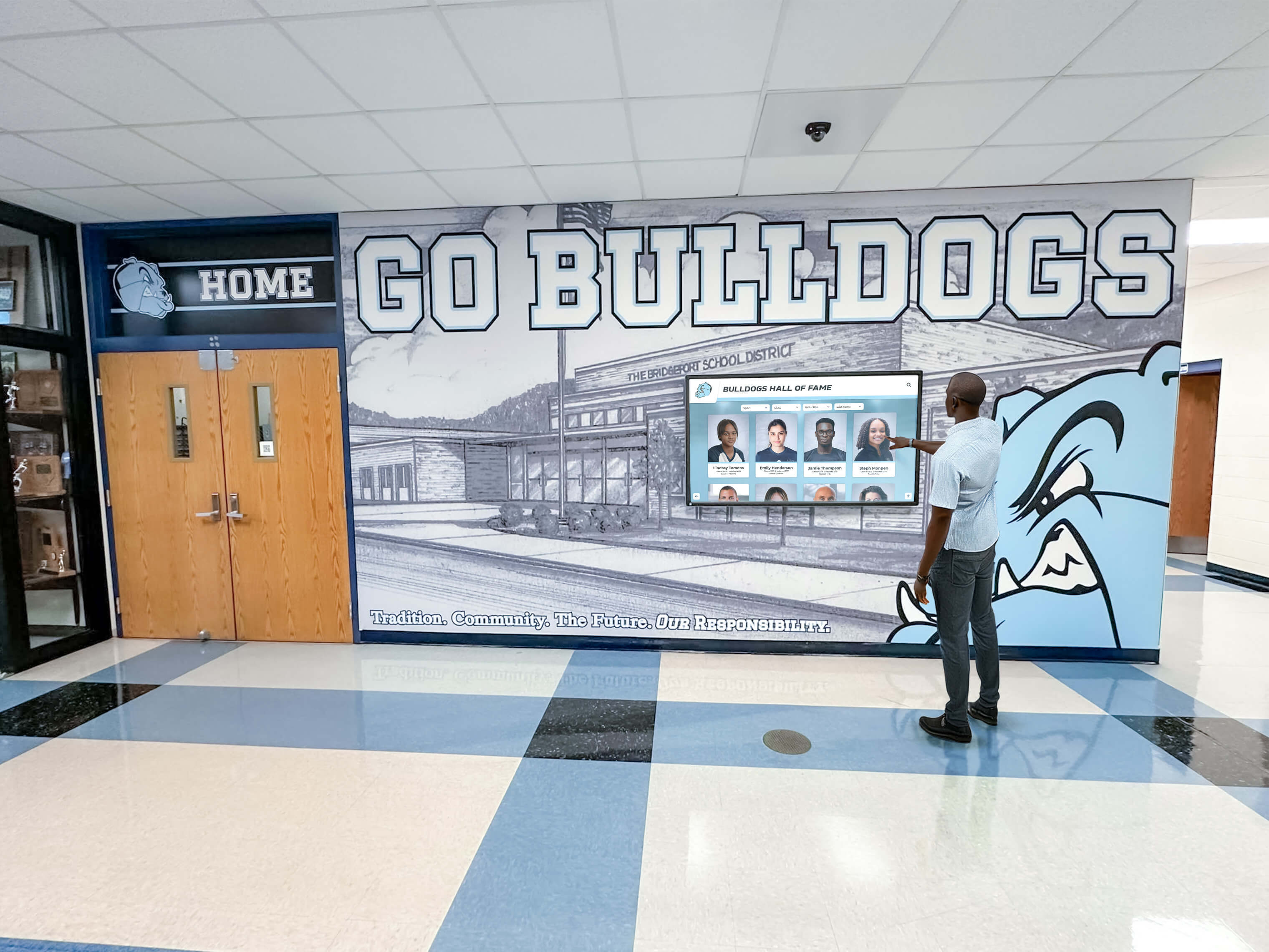
Static navigation menus and logo zones on recognition touchscreens accumulate differential pixel wear faster than content zones that rotate between visitor sessions
High-Risk Graphic Zones on School Recognition Displays
Not all zones on a recognition display carry equal retention risk. The following table identifies typical high-risk regions on school recognition installations and the specific graphic characteristics that elevate their risk profile.
| Screen Zone | Typical Graphic Content | Retention Risk | Risk Factors |
|---|---|---|---|
| Upper-left corner | School logo / crest | High | Always present; high-contrast against background; small concentrated area |
| Top navigation bar | Category labels (ATHLETICS, ACADEMICS, etc.) | High | Present on every home screen return; white text on colored bar |
| Bottom status bar | Ticker or date/time display | Medium-High | Clock digits change but container bar is static |
| Side panel headers | Section titles, divider lines | Medium | Present when sub-sections are open; varies with content depth |
| Background watermark | Faded mascot or pattern | Medium | Covers large area but typically lower brightness than active elements |
| Content frame border | White or colored border around athlete cards | Medium | Static structural element repeated across all content pages |
| Feature banner area | Main rotating content | Low | Rotates through athlete profiles and award categories—naturally varied |
| Center body content | Individual athlete profiles, records | Low | Changes with every visitor interaction |
Schools managing design consistency across multi-screen recognition programs should evaluate retention risk zone-by-zone for each unique screen layout, since the position and brightness of persistent design elements varies between installations and layout templates.
Corrective Settings to Apply After Detecting Retention
If your recognition display image retention test reveals temporary or persistent ghosting, apply these corrective settings before returning the display to public service.
Pixel refresh (also called panel compensation or pixel orbit): Most commercial display panels include a built-in pixel-refresh utility accessible through the OSD (on-screen display) menu. This utility cycles the panel through alternating extreme-bright and extreme-dark sequences to equalize pixel wear. Run the full pixel-refresh cycle—typically 20 to 45 minutes—before business hours when the display will be out of public view. Schedule it via task scheduler or your display management platform to run automatically overnight at least once weekly.
Pixel shift / orbiting: This setting moves all screen content by 1 to 2 pixels in a slow, imperceptible drift pattern, preventing any single pixel from bearing a static load indefinitely. Enable pixel shift in your display’s OSD settings and confirm it is active during home-screen idle periods. Note that pixel shift may cause very slight edge clipping of content; verify with your recognition platform that logo and navigation elements remain fully within the safe-zone margins.
Brightness reduction: High brightness levels accelerate differential pixel wear. If your display is running above 70% brightness in an indoor environment, test at 50% to 60% brightness. Many school lobby environments where recognition displays live have controlled ambient light levels that make reduced brightness fully legible while meaningfully extending panel life. Reduce brightness and re-run your retention test to compare progression rates.
Home screen animation instead of static design: A home screen that rotates content—cycling through recent inductees, upcoming ceremony dates, championship highlights, and recognition category spotlights—varies the pixel load across the screen surface far more effectively than a static branded graphic. If your recognition platform supports animated or rotating home screen content, enabling it is the single highest-impact retention prevention measure you can implement at the software level.
Scheduled content rotation: Configure your content management system to rotate through multiple screen layouts during low-traffic periods. Displaying a full-screen championship photo gallery during off-hours, or cycling through a school history timeline overnight, distributes pixel wear across the full screen surface rather than concentrating it on the home-screen graphic zones.
Establishing a Pre-Launch Testing Protocol
Running a recognition display image retention test after installation but before the display is commissioned for daily public use prevents schools from discovering retention problems in front of administrators, prospective families, or event guests.
A structured pre-launch protocol for school recognition displays should include:
72-hour burn-in run: After hardware installation, run the display continuously for 72 hours displaying varied content—alternating home screen, white field, black field, and full-color rotating content. This reveals any manufacturing defects or panel inconsistencies before the display goes live.
Baseline retention test: At the end of the 72-hour run, execute the full 8-step retention test procedure above. Document results as your baseline; all future periodic tests compare to this baseline.
Verify corrective settings are active: Confirm pixel-refresh schedule, pixel shift, and brightness settings are configured according to your documented policy before accepting the display for public service.
Commission at reduced brightness: Launch the display at 60% to 65% brightness rather than maximum. Visitor legibility rarely requires maximum brightness in typical school interior environments, and reduced brightness from day one significantly extends panel longevity.
Schedule the 30-day retention check: Book a calendar event for a retention re-test 30 days after public launch while the display is new and settings adjustments are easy to make without disrupting an established routine.
Schools building out their recognition programs with team award and achievement display components benefit from building display health documentation into the same program workflow that governs content updates—so the IT team, athletic director, and facilities staff all understand their respective roles in maintaining display quality.
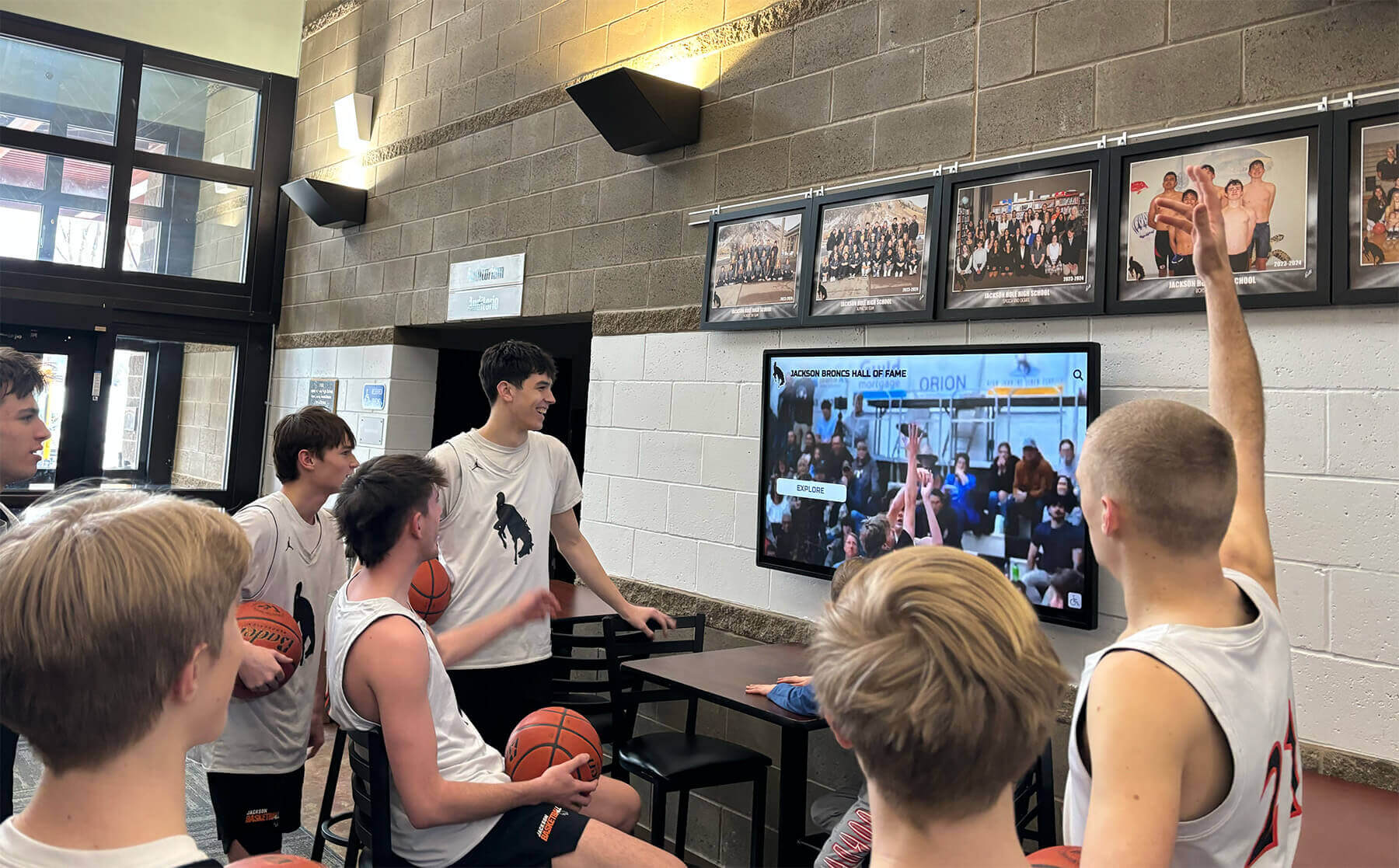
Pre-launch retention testing ensures the display greets visiting students and families without ghosted graphics distracting from your school's recognition content
Ongoing Monitoring: Periodic Retention Test Schedule
A single pre-launch test establishes your baseline but does not protect against retention that develops progressively over months of operation. Build periodic testing into your display maintenance calendar.
| Test Interval | Trigger | Test Type | Who Runs It |
|---|---|---|---|
| Pre-launch | Before public commissioning | Full 8-step procedure + baseline documentation | IT department |
| 30 days post-launch | First month check | Abbreviated test: 5-min gray field observation only | IT or facilities |
| Quarterly | Ongoing maintenance cycle | Full 8-step procedure; compare to baseline | IT department |
| After firmware/software update | Any major OS or display software update | Abbreviated test: verify corrective settings survived update | IT department |
| After extended closure | Post-summer, post-renovation | Full 8-step procedure; re-run burn-in if panel was powered off >2 weeks | IT department |
| On visible anomaly report | Any staff report of “shadowy” or “ghosted” images | Full 8-step procedure + immediate corrective cycle | IT department |
Facilities staff who notice what appears to be a faint ghost or shadow on the recognition display during routine building checks should report it immediately rather than waiting for the next scheduled test. Early-stage retention responds well to corrective settings; advanced retention or burn-in does not.
Schools maintaining digitized historical records alongside their recognition displays—including high-resolution digitization of yearbooks and archival materials—should ensure that archival content served through the recognition platform is formatted with sufficient color variation to avoid contributing static elements to any one screen zone during extended display cycles.
Retention Risk by Panel Type
Not all displays are equally susceptible. Understanding your specific panel technology helps prioritize prevention resources.
| Panel Type | Retention Susceptibility | Recovery Rate | Prevention Priority |
|---|---|---|---|
| OLED | Very high | Poor — burn-in often permanent | Critical — aggressive prevention from day one |
| AMOLED | High | Poor — same organic emitter degradation as OLED | Critical |
| IPS LCD | Moderate | Good — temporary retention usually recovers with corrective cycles | High |
| VA LCD | Moderate-Low | Good — somewhat resistant due to panel structure | Medium-High |
| TN LCD | Low-Moderate | Good — fastest pixel response reduces retention risk | Medium |
| LED direct-view | Low | Good — individual pixel modules replaceable | Low-Medium |
Most commercial-grade touchscreen recognition displays use IPS LCD technology for its wide viewing angles and color accuracy in lobby and hallway environments. These panels have meaningful retention risk under heavy static content loads but respond well to corrective pixel-refresh cycles if caught early.
Frequently Asked Questions
How long does a recognition display need to show static content before retention risk develops?
For consumer-grade IPS panels, noticeable temporary retention can develop in as little as 4 to 6 hours of continuous static content at high brightness. Commercial-grade panels designed for 16/7 or 24/7 signage operation typically withstand 24 to 48 hours before early retention appears, assuming corrective settings are not configured. On OLED panels, visible retention can develop in as few as 2 to 3 hours at maximum brightness with unchanging content.
Will running a pixel-refresh cycle fix existing image retention?
For temporary image retention—where ghosting is visible but fades over minutes to hours—yes, a pixel-refresh cycle typically clears the condition or significantly reduces its visibility. For persistent retention that takes 12 or more hours to fade on a dark field, multiple consecutive pixel-refresh cycles run over several days usually improve the condition. For permanent burn-in where the ghost does not fade at all, pixel-refresh cycles provide minimal improvement; panel replacement is generally the only complete remedy.
Can I test for image retention while the school is in session?
The test requires switching the display to solid-color fields for 15 to 20 minutes, which takes it offline for its normal recognition purpose. Schedule the test during non-peak periods—before morning arrival, during a closed-campus lunch period, or after evening events—rather than during open-house visits or peak hallway traffic. The abbreviated quarterly test (5-minute observation) can often be completed in a brief off-traffic window without significantly disrupting normal display availability.
Does screen brightness affect image retention severity?
Yes, significantly. Running a display at 100% brightness accelerates differential pixel wear dramatically compared to 60% to 70% brightness. Because perception of brightness is logarithmic, reducing from 100% to 70% does not reduce perceived brightness by 30%—the display will still appear bright and fully legible in most school interior environments. The reduction in pixel wear and associated energy consumption at 70% versus 100% is substantial. If your pre-launch retention test shows early ghosting, reducing brightness is the fastest corrective lever available.
Should IT or facilities staff run the retention test, or can the athletic director do it?
The test itself requires only browser or USB access to the display’s input source and careful visual observation—it does not require technical expertise. Any staff member familiar with the display’s input selector can execute the observation steps. The corrective settings—pixel-refresh scheduling, pixel-shift activation, brightness adjustment—typically require access to the display’s OSD menu and may require the operating system’s power management panel. Assign the observation steps to facilities or recognition program staff and reserve the corrective configuration for IT, ensuring both parties understand what to look for and when to escalate.
What if the display’s home screen uses our school’s primary color—a bright, saturated blue or red—as a large background area?
Saturated primary colors—especially blue and green—drive individual sub-pixel colors harder than white or neutral backgrounds, increasing retention risk for those color channels. If your recognition home screen uses a large saturated background, consider whether a slightly desaturated or darker version of that color achieves the same branded look with meaningfully lower pixel stress. Reducing the saturation of the background by 15% to 20% is typically imperceptible to casual viewers but measurably reduces differential pixel loading on the background zone compared to content zones.
Recognition Displays Built for Always-On School Environments
Rocket Alumni Solutions designs school recognition platforms with content rotation, animated home screens, and display management best practices built in—reducing image retention risk while keeping your recognition program looking its best every day. Request a demo to see how the platform handles always-on school recognition displays.
Request a DemoRunning a recognition display image retention test before launch—and on a consistent quarterly schedule thereafter—protects your school’s hardware investment, keeps your recognition program presenting its best face to every visitor, and catches correctable conditions before they become permanent burn-in requiring panel replacement. The test takes under 30 minutes, requires no specialized tools, and produces a documented baseline that makes every subsequent inspection faster and more informative.































