



IP Source Guard is one of the less-visible switch security features in a hardened school network — until a recognition display stops reaching its content platform and no error message explains why. When IP Source Guard is active on a switch port, the switch validates every inbound IP packet against the DHCP snooping binding table. A packet whose source IP address does not match the binding recorded for that port and MAC address is silently dropped. The display’s Ethernet adapter shows as connected, the port shows as up, but no traffic leaves the device. Athletic hall of fame kiosks, digital trophy case screens, and lobby donor recognition displays are all affected equally: the content platform cannot be reached, sync operations time out, and the screen goes stale.
The vulnerability is not limited to initial installation. School IT teams encounter IP Source Guard compatibility failures after a display is moved to a different switch port, after a DHCP lease expires and renews with a different IP address that no longer matches a stale manual binding, and after a switch is replaced with a new unit whose binding table starts empty. This guide gives school technology coordinators a structured school recognition display IP source guard compatibility test they can run before go-live, after any display relocation, and as part of switch replacement procedures — to confirm that the display’s traffic passes IPSG validation without disruption.
Quick answer: A school recognition display is compatible with IP Source Guard when the display’s source IP address matches a valid entry in the switch’s DHCP snooping binding table for the display’s MAC address, VLAN, and port. For DHCP-assigned displays, this binding is created automatically when the display obtains its lease on a DHCP snooping–enabled VLAN. For static IP displays, a manual snooping binding must be added. Validation is complete when show ip verify source on the switch shows the display’s port in an active permit state and show ip dhcp snooping statistics shows zero denial increments after the display has sent traffic.

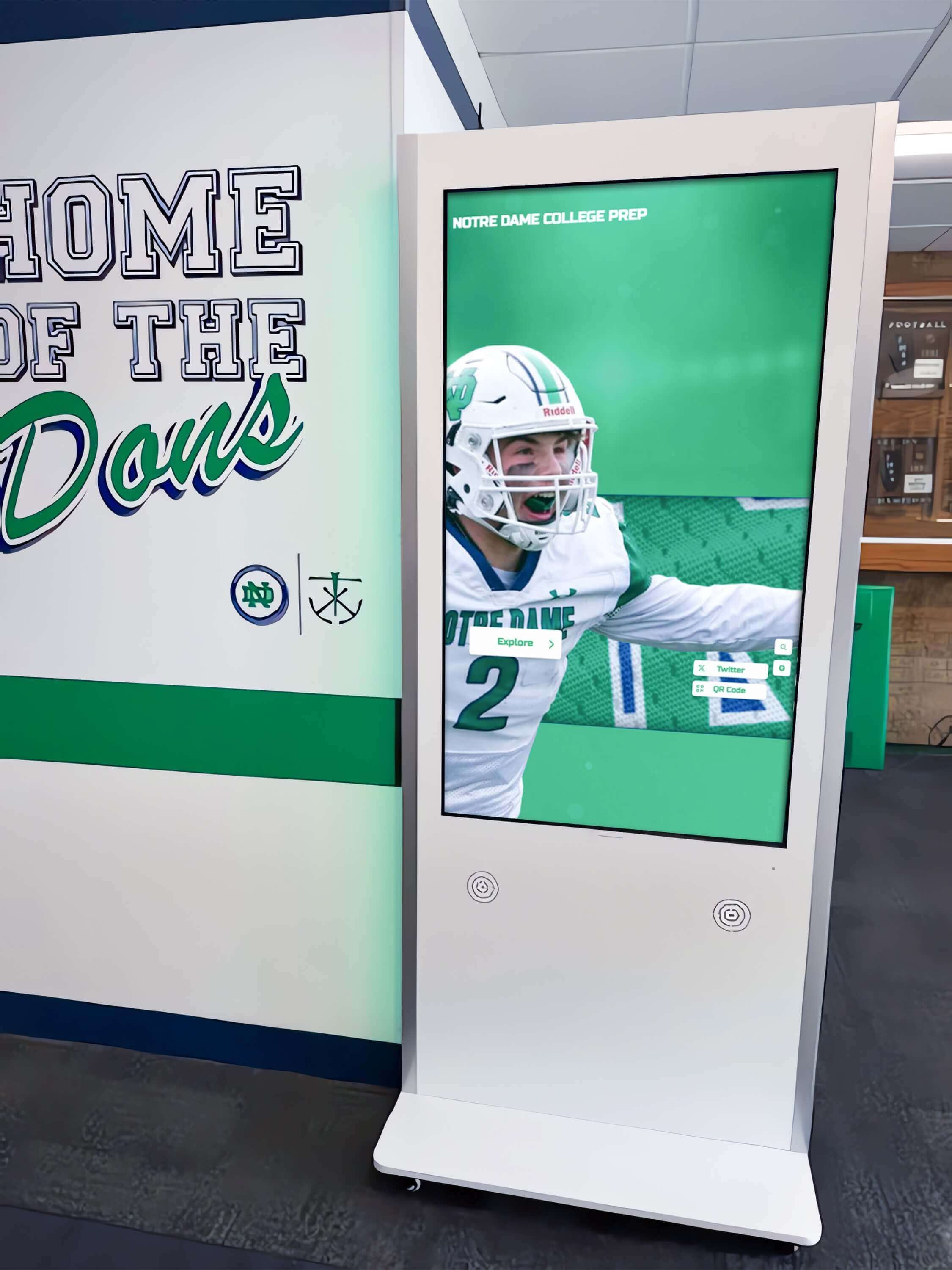
A recognition display kiosk in a school athletics hallway depends on IP packet delivery to reach its content platform — IP Source Guard compatibility testing confirms that the switch permits the display's traffic before any ceremony or event places visitors in front of the screen
What IP Source Guard Is and Why School Networks Enable It
IP Source Guard (IPSG) is a port-level security feature available on enterprise-grade managed switches from Cisco, HP/Aruba, Extreme Networks, and other vendors. When enabled on a switch port, IPSG intercepts inbound IP packets and compares the source IP address in each packet against a trusted binding table before forwarding or dropping the packet. Packets whose source IP matches the binding are forwarded normally. Packets with a source IP that does not appear in the binding table — or that appears on a different port or with a different MAC address — are dropped without notification to the sender.
The threat that IPSG prevents is IP address spoofing: a device on the network claims a source IP address that belongs to another device, allowing it to impersonate that device, bypass access control lists keyed to IP addresses, or redirect traffic. In a school network context, IP spoofing is a vector for bypassing content filtering, impersonating server addresses for man-in-the-middle attacks, and exhausting legitimate host address assignments. IPSG prevents any port from sending traffic under an IP address that the DHCP snooping infrastructure has not authorized for that port.
Schools with managed switches in hallways, gymnasiums, and common areas — the same locations where recognition displays, kiosks, and lobby screens are installed — have legitimate security reasons to enable IPSG:
- Accessible switch ports in publicly reachable areas can be plugged into by unauthorized devices. IPSG prevents those devices from claiming a known-good IP address to bypass network access restrictions.
- Shared VLANs that carry both student devices and recognition displays create lateral exposure; IPSG limits what any single device on the segment can claim as its source address.
- Compliance frameworks for school network security increasingly reference IP-layer controls as part of baseline hardening requirements, including cyber insurance policy checklists that apply to K-12 districts.
The operational consequence for recognition displays is that IPSG’s security benefit and its compatibility risk are the same mechanism: any device whose source IP does not appear in the binding table is treated identically to a spoofing attacker — its packets are dropped. A properly provisioned display passes IPSG validation transparently. An improperly provisioned display appears network-connected but cannot communicate with the content platform, the school’s DNS resolver, or any other host.
The IPSG Binding Table: What Gets Checked
IPSG reads from the same binding table that DHCP snooping maintains. Each binding entry contains five fields:
| Field | Description | Example |
|---|---|---|
| IP Address | The authorized source IP address for this port | 10.10.5.42 |
| MAC Address | The MAC address associated with the authorized IP | 00:1A:2B:3C:4D:5E |
| VLAN | The VLAN on which the binding is valid | 105 |
| Interface | The switch port where the binding is authorized | GigabitEthernet1/0/18 |
| Lease Time | How long the binding remains valid; “infinite” for manual entries | 86400 seconds |
When a recognition display sends an IP packet from 10.10.5.42 on VLAN 105 through port GigabitEthernet1/0/18, IPSG looks for a binding entry that matches all four variable fields (IP, MAC, VLAN, and interface). If the entry exists and matches, the packet is forwarded. If any field mismatches — including the interface — the packet is dropped. This is the reason that moving a display to a different switch port breaks IPSG: the binding records the original port, and traffic arriving on the new port fails the interface check.
DHCP Snooping: The Required IPSG Prerequisite
IP Source Guard does not maintain its own binding table. It reads from the DHCP snooping binding table, which is built automatically as devices on the network obtain IP addresses through DHCP. This dependency has direct consequences for the compatibility test:
- DHCP snooping must be enabled on the same VLAN as the recognition display. If DHCP snooping is disabled on the display’s VLAN, there are no binding entries for IPSG to validate against, and IPSG will drop all packets from the display’s port.
- DHCP snooping must be enabled before IPSG. Enabling IPSG on a port before DHCP snooping has had a chance to populate the binding table will immediately block the display.
- Static IP displays require manual bindings. A display with a static IP never completes a DHCP exchange, so DHCP snooping never records its binding. IPSG will drop all traffic from a static IP display unless a manual binding is added.
The table below shows what IPSG does in each combination of DHCP snooping and binding table states relevant to recognition displays:
| DHCP Snooping | Binding Table State | IPSG for DHCP Display | IPSG for Static IP Display |
|---|---|---|---|
| Enabled on VLAN | Populated from DHCP leases | Traffic permitted — binding auto-created | Traffic blocked — no binding |
| Enabled + manual binding added | Populated + manual entry | Permitted | Permitted |
| Disabled on VLAN | Empty | IPSG fails — no bindings | IPSG fails — no bindings |
| Enabled, IPSG not enabled on port | Populated | All traffic passes — IPSG not active | All traffic passes — IPSG not active |
The typical school IT scenario is the first row: DHCP snooping is enabled network-wide, IPSG is enabled on access ports, and the display either gets a DHCP address and passes automatically, or has a static IP and needs a manual binding.
Pre-Test Checklist
Run this checklist before beginning the step-by-step compatibility test. Every item must be confirmed before IPSG validation is meaningful:
| Checklist Item | How to Confirm | Risk if Skipped |
|---|---|---|
| DHCP snooping enabled on display VLAN | show ip dhcp snooping — VLAN appears in enabled list | IPSG has no bindings; all display traffic dropped |
| Uplink ports marked trusted for DHCP snooping | show ip dhcp snooping interface — uplinks show trusted | DHCP offers to display may be dropped before binding is created |
| Display’s switch port identified | Check IP asset register or trace cable to switch | Binding will reference wrong port; IPSG fails after every move |
| Display’s MAC address recorded | show mac address-table interface <port> after display powers on | Cannot create accurate manual binding for static IP display |
| Display’s IP address confirmed | Check DHCP server lease table or display’s network settings | Cannot validate binding entry or diagnose IP mismatch failures |
| No stale IPSG binding on the port | show ip verify source and show ip dhcp snooping binding | Old binding may conflict or produce misleading test results |
Step 1: Verify DHCP Snooping Is Active on the Display’s VLAN
Log in to the switch that the recognition display connects to. Run the following command (Cisco IOS syntax — equivalent commands exist on HP/Aruba, Extreme, and other platforms):
show ip dhcp snooping
Confirm the output includes the display’s VLAN in the list of enabled VLANs:
DHCP snooping is configured on following VLANs:
100, 101, 105, 200
If the display’s VLAN (for example, VLAN 105) is not listed, enable DHCP snooping on that VLAN before proceeding:
ip dhcp snooping vlan 105
Next, confirm that the display’s switch port is configured as untrusted (the default for access ports). Run:
show ip dhcp snooping interface GigabitEthernet1/0/18
The output should show Untrusted for the display port. Uplink ports connecting to routers, distribution switches, or DHCP servers should show Trusted — these are explicitly configured by the administrator. Access ports where recognition displays connect should remain untrusted.
Step 2: Check the Existing Binding Table Entry for the Display
After the display has been powered on and has obtained or been assigned an IP address, check whether the DHCP snooping binding table has an entry for it:
show ip dhcp snooping binding
Look for a row that shows the display’s IP address and MAC address:
MacAddress          IpAddress        Lease(sec)  Type           VLAN  Interface
------------------  ---------------  ----------  -------------  ----  --------------------
00:1a:2b:3c:4d:5e  10.10.5.42       86400       dhcp-snooping  105   GigabitEthernet1/0/18
If this row exists, the display has a valid binding and IPSG validation should pass. If no row exists for the display’s IP or MAC address, the display either has not completed a DHCP exchange or has a static IP that requires a manual binding — proceed to Step 4.
Step 3: Enable IP Source Guard on the Display Port and Test Connectivity
Enable IPSG on the display’s switch port if not already active:
interface GigabitEthernet1/0/18
 ip verify source
The ip verify source command without additional options enables source IP address validation. To also validate the MAC address against the binding (more restrictive), use ip verify source port-security.
After enabling IPSG, immediately test connectivity from the display device. From the display device’s terminal or management interface:
ping 8.8.8.8
ping <content-platform-server-ip>
If connectivity succeeds, IPSG validation is passing. If ping fails or times out, proceed to the diagnostic step.
Check the IPSG status for the display port immediately after the connectivity test:
show ip verify source
A passing result shows the display’s IP address in an active state for the port:
Interface         Filter-type  Filter-mode  IP-address       Mac-address        Vlan
----------------  -----------  -----------  ---------------  -----------------  ----
Gi1/0/18          ip           active       10.10.5.42       00:1a:2b:3c:4d:5e  105
A failing result shows deny-all or wildcard values:
Interface         Filter-type  Filter-mode  IP-address       Mac-address        Vlan
----------------  -----------  -----------  ---------------  -----------------  ----
Gi1/0/18          ip           active       *                *                  *
A wildcard (*) in the IP address field means IPSG has no binding to validate against for this port and is blocking all traffic. This is the most common failure state for static IP recognition displays on newly enabled IPSG deployments.
Step 4: Resolve IPSG Violations for Static IP Displays
When the binding table has no entry for the display — because the display uses a static IP address — add a manual DHCP snooping binding:
ip dhcp snooping binding 001a.2b3c.4d5e vlan 105 10.10.5.42 interface GigabitEthernet1/0/18 expiry 2147483647
Replace 001a.2b3c.4d5e with the display’s MAC address in Cisco dotted-hex format, 105 with the display’s VLAN, 10.10.5.42 with the display’s static IP, and GigabitEthernet1/0/18 with the display’s switch port. The expiry 2147483647 value sets the longest available lease so the binding effectively persists until manually removed.
After adding the manual binding, write it to the switch’s startup configuration so it survives a reload:
copy running-config startup-config
Re-run show ip verify source to confirm the binding is now active, then re-test connectivity from the display. Confirm that show ip dhcp snooping statistics shows zero drops incrementing on the display’s VLAN during normal display operation.
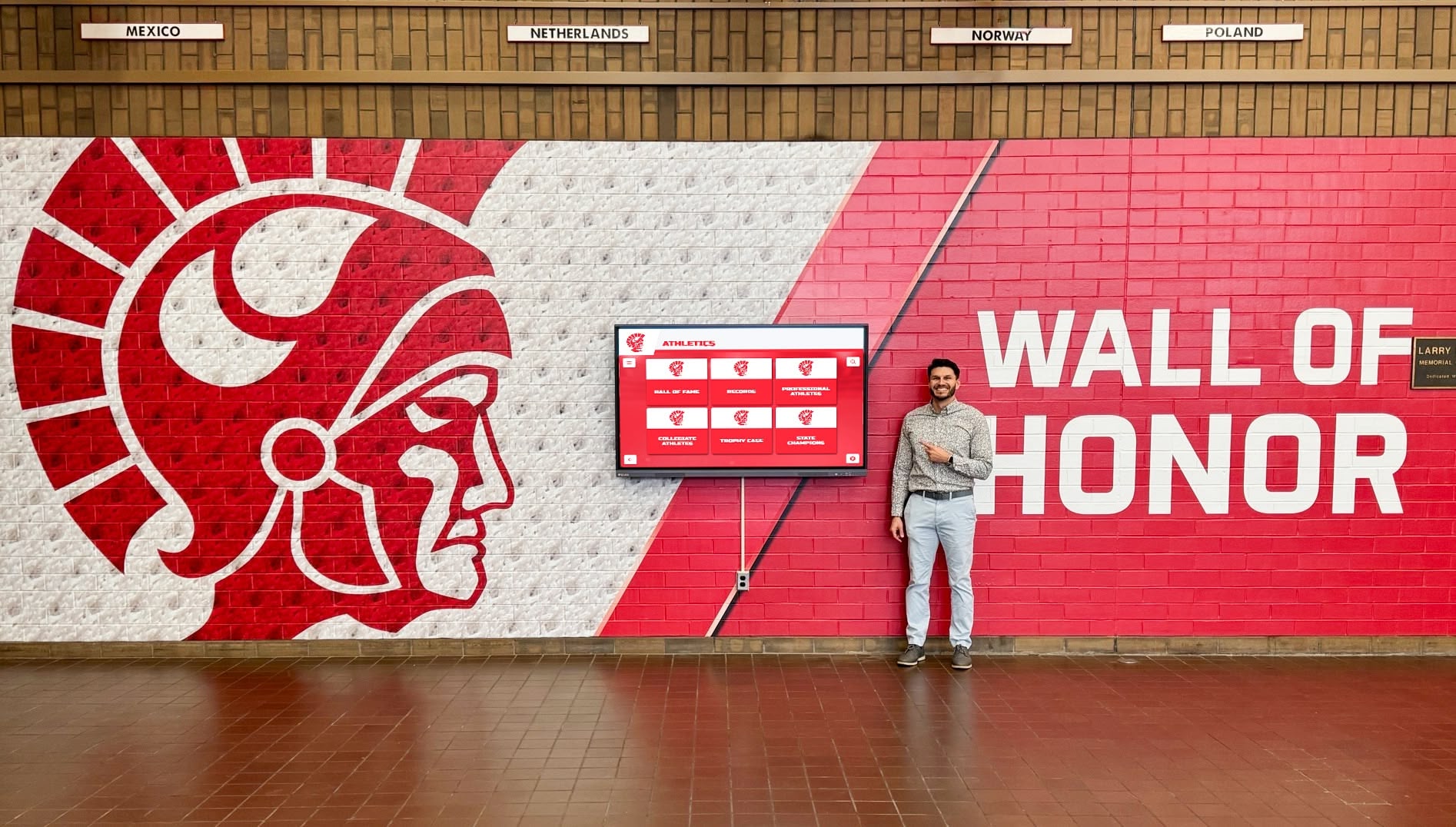
Static IP recognition displays require a manually added DHCP snooping binding before IP Source Guard will permit their traffic — re-verifying the binding after configuration and before opening the display to visitors prevents a silent block during a recognition ceremony or event
Documenting Compatible Bindings Across All Display Locations
Schools with more than one recognition display — multiple hall of fame kiosks, lobby donor recognition screens, and athletic corridor displays — benefit from documenting the IPSG binding for each location as part of the IT asset record. A binding entry records a specific IP address, MAC address, VLAN, and port; when any of those four values changes, the binding is invalidated and traffic is blocked.
Record IPSG binding details alongside each display’s asset record:
| Display Location | Switch | Port | VLAN | IP Address | MAC Address | Binding Type | Notes |
|---|---|---|---|---|---|---|---|
| Athletic Lobby — HOF Kiosk | SW-MAIN-01 | Gi1/0/18 | 105 | 10.10.5.42 | 00:1a:2b:3c:4d:5e | Static / manual | Written to startup-config; long expiry |
| Gym Entrance — Trophy Screen | SW-GYM-01 | Gi1/0/22 | 105 | DHCP | 00:1a:2b:3c:4d:6a | DHCP auto | Long lease preferred; DHCP reservation set |
| Hallway — Alumni Wall Display | SW-HALL-01 | Gi2/0/9 | 110 | 10.10.6.15 | 00:1a:2b:3c:4d:7b | Static / manual | Added 2026-09-14 |
| Library — Donor Recognition | SW-LIB-01 | Gi1/0/6 | 110 | DHCP | 00:1a:2b:3c:4d:8c | DHCP auto | Check binding after any lease renewal |
This table makes re-provisioning concrete when a display is moved or a switch is replaced: the IT coordinator knows exactly which binding to remove from the old port and recreate on the new port, rather than diagnosing a silent traffic block after the move. Schools running hall of fame browser compatibility testing for their recognition platforms alongside network compatibility testing will find that maintaining a structured binding record follows the same discipline: documenting the configuration state that must be recreated when the environment changes.
Recognition display deployments are only as reliable as the network configurations supporting them. Rocket Alumni Solutions builds recognition platforms with IT compatibility documentation designed for school network teams managing IP Source Guard, DHCP snooping, and port security.
Request a demo to see how Rocket Alumni Solutions works with your school’s IT environment
Handling Display Moves, DHCP Lease Changes, and Switch Replacements
The three events most likely to break an existing IPSG configuration — and the scenarios this testing workflow is specifically designed to prevent — each require a distinct remediation step.
After a Display Is Moved to a Different Port
When a recognition display is physically moved to a new switch port — for a room change, a lobby renovation, or a cable infrastructure update — the existing DHCP snooping binding retains the old port as its interface value. IPSG will drop traffic from the new port because the binding records a different interface.
Resolution:
- Power off the display before disconnecting it
- After connecting to the new port, delete the old binding:
no ip dhcp snooping binding <MAC> vlan <VLAN> <IP> interface <old-port> - For DHCP displays: power on the display and let it complete a DHCP exchange — snooping records the new port automatically
- For static IP displays: add a new manual binding referencing the new port
- Verify with
show ip verify sourceandshow ip dhcp snooping binding
Schools that relocate recognition kiosks during gymnasium renovations or facility upgrades need this procedure as a documented step in the relocation checklist. Athletic award exception workflows that depend on recognition displays being live during award ceremonies cannot afford a silent connectivity block caused by a missed binding update after the kiosk is moved.
After a DHCP Lease Expires or Renews with a Different IP Address
DHCP-assigned recognition displays are typically configured with long lease times — 24 hours to 7 days — to reduce how often the binding changes. However, if the DHCP server assigns a different IP address on lease renewal because the previous address was reassigned during the display’s offline period, IPSG will block traffic under the new address until a new binding is recorded.
This is more likely when:
- The DHCP server’s address scope is small relative to the number of devices on the VLAN
- A display is offline during lease expiry and its previous address is reassigned to another device
- The DHCP server is replaced or its database is reset
Resolution options:
- Use a static IP address for recognition displays to eliminate the DHCP renewal dependency entirely — the most reliable approach for displays that must maintain continuous connectivity
- Configure a DHCP reservation on the DHCP server for each display’s MAC address so the same IP is always assigned on renewal
- Extend DHCP lease time to the longest duration the IP address management policy allows for display devices
Schools that maintain comprehensive recognition programs — preserving basketball award histories and athlete profiles on display kiosks over multiple school years — need the display’s network configuration to remain stable across IP renewals. A static IP with a corresponding permanent manual binding is the simplest long-term solution.
After a Switch Is Replaced
When a switch is replaced with a new unit — because the old unit failed, was upgraded, or was swapped during a facilities project — the new switch starts with an empty DHCP snooping binding table. IPSG enabled on access ports will immediately block all traffic from every connected device, including recognition displays, until each device’s binding is re-established.
For DHCP displays, the resolution is straightforward: power-cycle each display after the new switch is in place. The display will complete a DHCP exchange, DHCP snooping will record the new binding, and IPSG will permit traffic automatically within minutes.
For static IP displays, the manual bindings must be recreated on the new switch from the documentation table. This is precisely why maintaining the binding record described in the previous section is operationally valuable — the IT coordinator can restore all static bindings from the asset record rather than discovering each missing binding by waiting for a staff member to report a non-functional display. After recreating bindings, write them immediately to startup-config so they survive any subsequent reload:
copy running-config startup-config
This step is also required when a switch’s running configuration is reset to factory defaults for troubleshooting. All DHCP snooping bindings stored only in running-config are lost on a reload — a less obvious variation of the switch replacement problem that produces the same complete display outage.
Troubleshooting Table: Common IPSG Failure Modes for Recognition Displays
| Symptom | Likely Cause | Diagnostic Command | Resolution |
|---|---|---|---|
| Display Ethernet connected but cannot reach content platform | IPSG blocking traffic — no binding for port | show ip verify source — look for * on display port | Add manual binding for static IP; power-cycle for DHCP display |
| Display worked before but stopped after physical move | Old binding references previous switch port | show ip dhcp snooping binding — check interface column | Delete old binding; add new binding for new port |
| Display lost connectivity after switch replacement | New switch has empty binding table | show ip dhcp snooping binding — empty output | Recreate manual bindings; power-cycle DHCP displays |
| Display stopped after DHCP lease renewal | DHCP server assigned new IP; binding table lagging | Compare binding table IP to display’s current IP | Switch to static IP with DHCP reservation |
show ip verify source shows deny-all | IPSG enabled without DHCP snooping on the VLAN | show ip dhcp snooping — confirm VLAN listed | Enable DHCP snooping on display’s VLAN before activating IPSG |
| IPSG statistics show drops but display appears functional | Display using wrong IP — older cache is serving content | show ip dhcp snooping statistics on port; check display’s actual IP | Verify display IP matches binding; update static IP or binding |
| Multiple displays on same port via unmanaged switch lose connectivity | IPSG may limit to one binding per port by default | show ip verify source interface <port> | Move displays to individual managed switch ports |
Frequently Asked Questions
Does IP Source Guard affect the display’s ability to reach the cloud content platform?
Yes. IPSG validates every IP packet the display sends, including all packets to the content platform’s servers. If the display’s source IP is not in the binding table, IPSG drops the packet before it leaves the switch port. The result is that content sync operations, media fetches, and admin platform connections all fail silently. The display may show its most recently cached content indefinitely while being completely unable to receive updates — new inductees, updated award records, and recent basketball senior night honoree profiles entered since the binding failed do not appear until connectivity is restored.
Should recognition displays be put on a trusted IPSG port to avoid this problem?
No. Marking an access port as trusted in IPSG removes binding validation for that port entirely, negating the security benefit. The correct approach is to ensure a valid binding exists for the display’s port using a long-expiry manual binding for static IP displays or a DHCP reservation for DHCP displays. These techniques maintain IPSG protection while ensuring the display’s traffic is always permitted.
How does IPSG interact with 802.1X authentication on the same port?
IPSG and 802.1X are complementary controls that operate at different layers. 802.1X authenticates the device before granting VLAN access; IPSG validates the source IP of packets after 802.1X access is granted. A recognition display that passes 802.1X authentication can still be blocked by IPSG if its binding table entry is missing. Both must be satisfied independently — passing one does not fulfill the other.
Can IPSG cause intermittent connectivity rather than a complete block?
Yes, in specific scenarios. If a DHCP-assigned display’s lease renews with the same IP address but the binding entry expires from the switch before the renewal completes, there is a brief window during which the binding is absent and IPSG drops packets. This typically lasts only seconds if the DHCP exchange completes successfully. However, if the DHCP server is unreachable during the renewal attempt, the binding can be absent for the full retry period. The symptom is connectivity loss correlated with lease renewal time rather than a random failure pattern.
Does IPSG validation apply to IPv6 traffic from the display?
The ip verify source command applies to IPv4 traffic only. IPv6 has a separate feature — IPv6 Source Guard (ipv6 verify source) — with its own binding table populated by DHCPv6 snooping or ND inspection. Schools deploying recognition displays on dual-stack VLANs should test both IPv4 and IPv6 IPSG configurations. Most recognition platform deployments in K-12 environments currently use IPv4; verify the platform’s IP version requirement with the platform vendor.
What IPSG violation statistics should be monitored after go-live?
Configure SNMP or syslog alerts for DHCP snooping violations on the display’s switch port:
snmp-server enable traps dhcp-snooping
logging on
logging <syslog-server-ip>
An IPSG violation log entry for a recognition display port after go-live indicates that the binding has been invalidated — by a display move, a lease change, or a configuration reset — and requires immediate attention before the display loses content platform connectivity entirely. Schools with multiple displays benefit from a network monitoring platform that aggregates IPSG violation alerts across all switches rather than requiring manual log review per device.
Keeping Recognition Displays Reachable Across Network Changes
A school recognition display’s value is visible to athletes, families, and alumni every time they stand in front of it during a banquet, an induction ceremony, or a routine school day visit. Interactive digital donor walls, college commitment day boards, and chess team and academic competition championship displays all depend on continuous network connectivity to deliver current content. IP Source Guard compatibility testing is the procedure that ensures that connectivity survives the events most likely to break it: display moves, DHCP lease renewals, and switch replacements.
The test itself takes approximately fifteen minutes per display on a network with DHCP snooping already enabled. The documentation it produces — a binding record for each display with its IP address, MAC address, VLAN, port, and binding type — is the reference that makes every future network change a scheduled five-minute update rather than an unscheduled diagnostic. Schools that run wrestling award touchscreen displays and other recognition ceremonies for which the display is part of the program have a specific commitment to visitors: the screen works when people are gathered in front of it. The IP Source Guard compatibility test is how the IT team fulfills that commitment at the network layer.
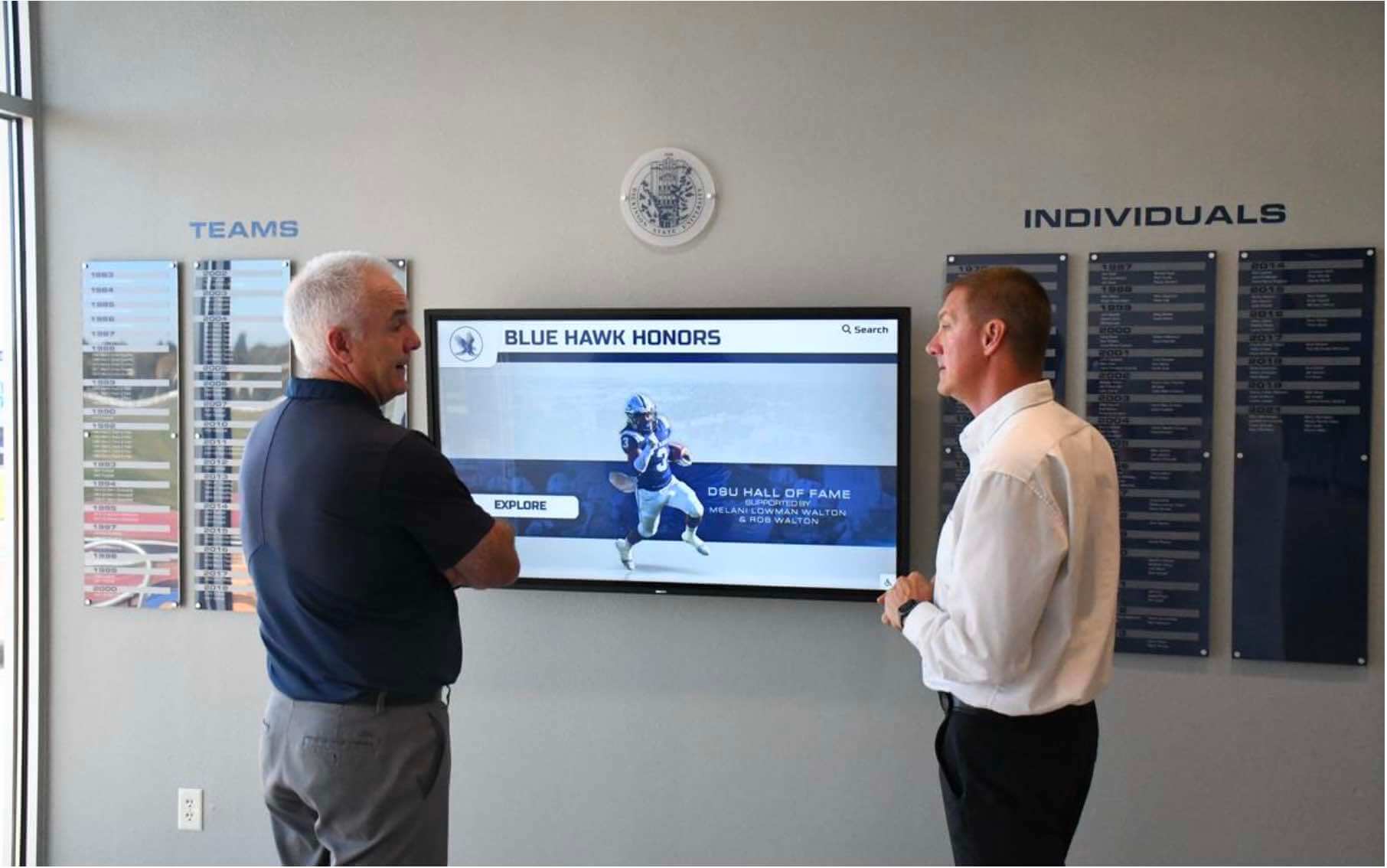
School IT teams that complete the IP Source Guard compatibility test across all recognition display locations before each major event can confirm that every display reaches its content platform — so the focus during the ceremony stays on the athletes and honorees, not on a screen that will not load
See Rocket Alumni Solutions Running on a Managed School Network
Rocket Alumni Solutions builds recognition platforms designed for K-12 and higher education network environments, with IT compatibility documentation for IP Source Guard, DHCP snooping, 802.1X, and VLAN-segmented deployments. Request a demo to see how the platform works with your school's switch security configuration.
Request a Recognition Display Demo






























