



A recognition display multi-touch accuracy test is a structured procedure that school IT staff, AV technicians, and athletic directors run on interactive recognition kiosks before deploying them in shared hallways, lobbies, and athletic facilities. Multi-touch accuracy measures two related properties: whether the display correctly registers multiple simultaneous touch inputs — from two students exploring at the same time, for example — and whether each individual touch is detected at the coordinate where the finger actually landed, not offset by several millimeters into an adjacent interactive element. On a recognition kiosk presenting athlete profiles, award records, and hall-of-fame inductees, a touch-accuracy failure produces the wrong profile when a student taps a portrait, activates the wrong navigation control, or prevents two visitors from browsing simultaneously. None of these failures are visible until the kiosk is in use, which is why systematic acceptance testing before deployment is essential.
Recognition displays for shared school use face accuracy demands that single-user home or office touchscreens do not. Student traffic in a busy lobby produces repeated touches across the full screen surface — corners, edges, and center — by fingers of varying size and pressure. Shared kiosks also accumulate surface contamination (smudges, oils, fine grit) that can degrade capacitive sensing over time. Running a multi-touch accuracy test at acceptance establishes a quality baseline, documents the display’s performance while new and uncontaminated, and gives IT teams a repeatable benchmark for evaluating degradation during annual maintenance cycles.
Quick answer: To run a recognition display multi-touch accuracy test on a shared school kiosk, open a calibration or touch-test application that displays the detected touch coordinates on screen. Apply two fingers simultaneously to known positions — corners, edges, and center — and verify that each registered coordinate falls within 5 mm of the actual touch point. Repeat with three or more simultaneous touches to confirm the panel’s multi-point tracking does not degrade accuracy. Log every result against the acceptance criteria before signing off the installation.

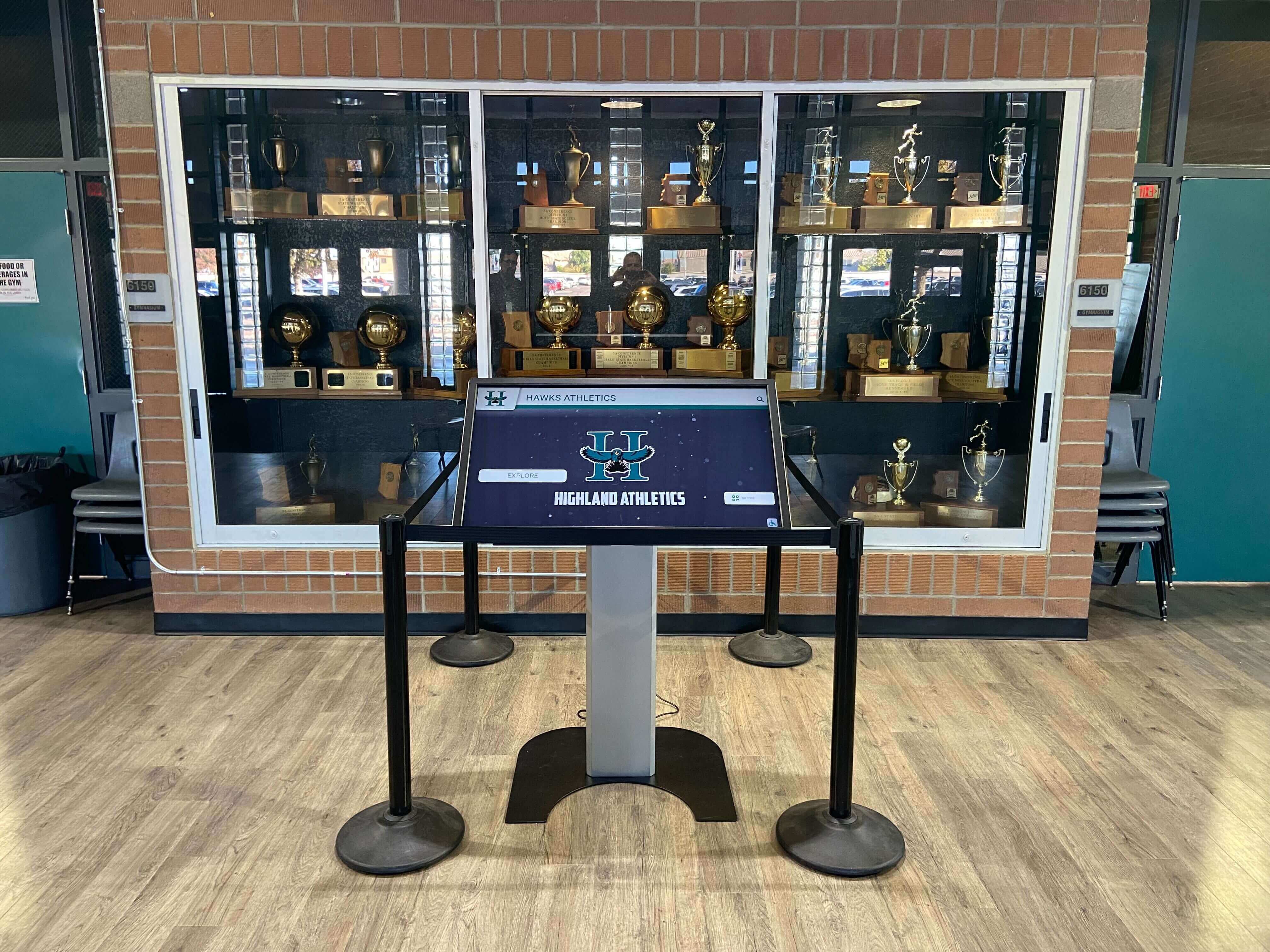
School trophy-case kiosks face continuous shared use from students, families, and visitors — multi-touch accuracy testing before deployment establishes the quality baseline every recognition program needs
Why Multi-Touch Accuracy Matters for Shared School Kiosks
Recognition kiosks in school hallways and lobbies operate under conditions that expose touch-accuracy shortcomings immediately. Where a single-user workstation produces one touch at a time from a seated adult, a shared recognition kiosk in a busy corridor might receive simultaneous touches from two or three students, touches near the screen edges where capacitive linearization is typically weakest, and input from fingers of very different sizes — a first-year middle schooler’s fingertip versus an adult coach’s thumb.
When touch accuracy fails in a recognition context, the failures are embarrassing in ways that undermine the program’s credibility. A student who taps a specific athlete’s portrait and is taken to a different inductee’s profile assumes the system is broken, not that the acceptance test was skipped. A parent using a kiosk during an open house who repeatedly triggers the wrong menu item loses confidence in the school’s technology investment. A graduating senior looking up their own athletic record — whose entry is displayed adjacent to a classmate’s — cannot trust any result if the system selects the wrong profile with a centered tap.
For athletic programs developing hall-of-fame recognition tools that rely on accurate touch navigation through decades of athlete records, a poorly calibrated display is not a minor inconvenience — it is a fundamental obstacle to the program’s purpose. Testing before deployment prevents this class of failure.
Shared kiosks also introduce the multi-touch requirement specifically. A single-touch display — which some lower-cost panels support — cannot correctly handle two visitors browsing simultaneously. If the display receives two simultaneous touches and interprets them as one touch at the midpoint, both visitors get unexpected navigation results and neither gets the content they intended. Commercial-grade recognition panels support 10 or more simultaneous touch points, but supporting a touch-point count and accurately tracking each point across the full screen are different capabilities. The acceptance test verifies both.
Schools establishing recognition programs for academic achievement — including programs that recognize academic all-state scholar athletes in dedicated display sections alongside athletic inductees — benefit from the same multi-touch testing protocol because these programs share kiosk hardware across the full recognition database, not just athletic records.
Understanding Multi-Touch Accuracy Specifications
Before running the test, understanding what the display’s specifications actually mean helps IT staff evaluate whether measured results meet acceptable thresholds.
Touch accuracy refers to the maximum offset — in millimeters — between where a finger contacts the screen and where the display’s touch controller reports the contact. A display specified at ±3 mm accuracy should never report a touch more than 3 mm from the actual contact point. In practice, accuracy is best at the screen center and degrades toward the edges and corners. A panel with a center accuracy of ±2 mm may produce ±6 mm accuracy at the extreme corners — a difference large enough to matter when interactive elements are tightly spaced.
Touch-point count is the maximum number of simultaneous contacts the panel can track. Commercial recognition panels typically specify 10 or 20 touch points. This number represents the hardware limit; software may impose a lower limit depending on the recognition platform’s interaction design. For shared school kiosks, two simultaneous users each navigating with one finger requires two accurate touch points. Two students each using two fingers for pinch-to-zoom on a photo gallery requires four.
Ghost touches are false touch detections — coordinates the display reports with no finger present. They occur on displays with electrical interference issues, contaminated surfaces, or degraded touch controllers. A ghost touch on a recognition kiosk randomly activates navigation controls or selects inductee profiles without any user input. Ghost touches are distinct from accuracy errors but belong in the same acceptance test because they produce identical user-facing symptoms.
Linearity refers to whether the relationship between physical touch position and reported coordinate is consistent across the screen. A display with good accuracy but poor linearity may be accurate at test points near calibration anchors but drift significantly between them. Linearity failures appear as “banana” distortion in the touch coordinate map — touches along a straight horizontal line produce a curve in reported coordinates.
| Specification | Acceptable Threshold for School Recognition Kiosks | Notes |
|---|---|---|
| Single-touch accuracy (center) | ±3 mm or better | Test at five center-zone points |
| Single-touch accuracy (edges) | ±5 mm or better | Test at midpoint of each edge |
| Single-touch accuracy (corners) | ±7 mm or better | Corners are hardest to linearize |
| Two-point simultaneous accuracy | No degradation vs. single-touch | Both points must meet single-touch thresholds |
| Four-point simultaneous accuracy | ±5 mm all points | Represents two two-finger users |
| Ghost touch rate | Zero in 60-second idle test | Any ghost touch is a reject criterion |
| Touch-point count registered | ≥ 10 simultaneous points | Verify panel spec matches application need |
Step-by-Step: Running the Recognition Display Multi-Touch Accuracy Test
This procedure requires a laptop or tablet that can load a touch-test application or web page, a ruler or printed test grid, and access to the display’s input at the kiosk level. Allow 45 to 60 minutes for a thorough shared-use test.
Set the display to its production configuration before testing. Ensure the touch controller driver version, firmware, and display calibration settings match what will be in use after deployment. Touch accuracy can differ between firmware versions, and a post-test firmware update may invalidate acceptance results. Document the firmware and driver versions in the test record.
Install or access a touch diagnostic tool that shows detected coordinates. Windows Ink Workspace includes a touch visualizer. Web-based tools that display touch coordinates numerically are also suitable. The tool must show the X and Y coordinates of each detected touch, not just a dot at the touch location — coordinate values are needed to calculate the accuracy offset.
Create or print a physical test grid to overlay on the screen. A test grid divides the screen into a 5×5 matrix of 25 touch target positions. At each target position, the grid marks a precise point. Print the grid at the exact screen dimensions and tape it to the screen face for single-touch tests. Alternatively, use a laser-cut acrylic jig with holes at each grid position — this approach is more repeatable across multiple test sessions.
Run single-touch accuracy tests at all 25 grid positions. Touch the center of each grid position firmly and hold for one second. Record the displayed X and Y coordinates. Calculate the offset from the known grid position. Record pass or fail against the acceptance threshold for each zone (center, edge, or corner).
Run the ghost-touch test with no finger contact. After completing single-touch testing, step back from the display and observe the touch diagnostic tool for 60 seconds with no contact. Any coordinate that appears during this period is a ghost touch. A single ghost touch is a reject criterion — it indicates a hardware fault requiring investigation before deployment.
Run two-simultaneous-touch accuracy tests. Place two fingers at known grid positions simultaneously and hold for two seconds. Verify that both contacts are detected and that each coordinate falls within the acceptance threshold. Test at positions separated by more than 100 mm (to avoid single-point interpolation) and at positions separated by less than 50 mm (to test close-proximity discrimination).
Test close-proximity touch discrimination. Slowly bring two fingertips toward each other on the screen surface until they are approximately 8 mm apart and hold. Verify that the display continues to report two distinct contacts rather than merging them into one. The minimum separation at which two distinct contacts can be reliably discriminated varies by panel — a threshold below 10 mm is acceptable for recognition navigation elements that should not be placed closer than that.
Simulate shared-use by testing with four simultaneous contacts. Use two hands, placing one finger from each hand at separate screen zones. Verify that all four contacts are accurately reported. This test simulates two simultaneous users each navigating with one finger — the primary shared-use scenario for a hallway recognition kiosk.
Test touch input after deliberate surface contamination. Apply a small amount of hand lotion to two fingertips (simulating the skin oils deposited after extended shared use) and retest accuracy at the center and one corner position. Capacitive touch accuracy should not degrade significantly under normal skin-oil contamination. If accuracy degrades by more than 2 mm under light contamination, the panel’s touch sensitivity may be set too conservatively and should be reviewed with the manufacturer.
Document all results and compare against acceptance criteria. A display that fails any single criterion should be noted with the specific failure mode, position, and measured offset. Present this documentation to the vendor before signing acceptance — the failure record is your basis for requesting recalibration, replacement, or firmware adjustment.
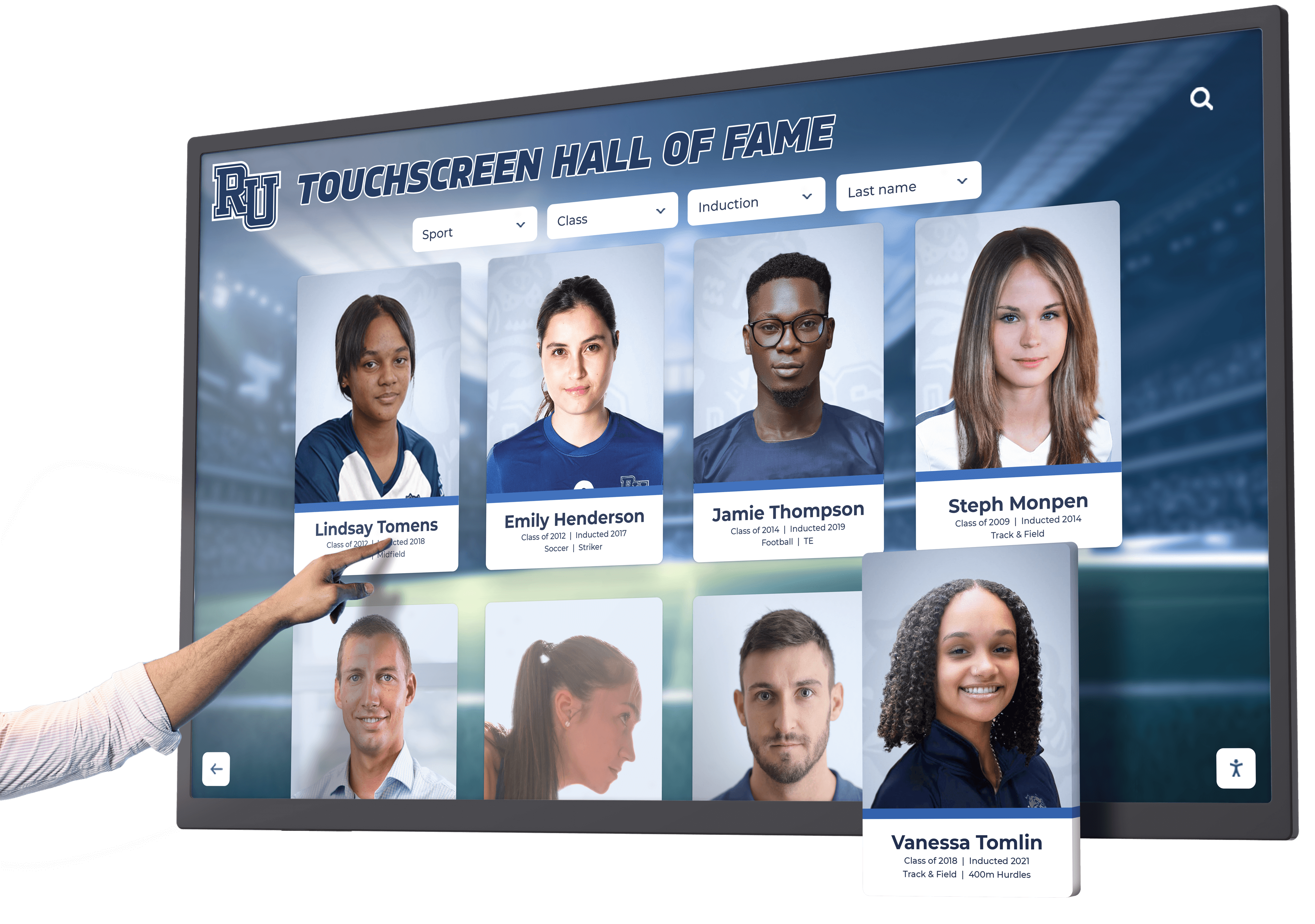
Every tap on a recognition kiosk should resolve to the exact inductee portrait or navigation element the visitor intended — multi-touch accuracy testing confirms this before the display enters shared use
Acceptance Criteria and Results Documentation Table
Use this table to record results from the test procedure and to make a pass/fail determination for each criterion. The table format supports consistent documentation across multiple displays in a school or district deployment.
| Test | Position(s) | Measured Offset | Threshold | Pass/Fail | Notes |
|---|---|---|---|---|---|
| Single-touch accuracy | Center (5 points) | — | ±3 mm | — | Record max observed offset |
| Single-touch accuracy | Edge midpoints (4) | — | ±5 mm | — | Each edge separately |
| Single-touch accuracy | Corners (4) | — | ±7 mm | — | Note worst corner |
| Ghost touch (60-sec idle) | Full screen | — | Zero contacts | — | Any = reject |
| Two-point simultaneous | Separated > 100 mm | — | ±5 mm both | — | Both points must pass |
| Two-point simultaneous | Separated < 50 mm | — | ±5 mm both | — | Tests close-proximity tracking |
| Close-proximity discrimination | 8 mm separation | — | 2 distinct contacts | — | Merge = note minimum separation |
| Four-point simultaneous | 4-zone distribution | — | ±5 mm all points | — | Simulates 2 simultaneous users |
| Contamination stability | Center + 1 corner | — | No > +2 mm degradation | — | After light skin-oil application |
| Touch-point count maximum | Full screen | — | ≥ 10 points registered | — | Verify against panel spec |
Overall acceptance decision: A display passes this protocol when all ten criteria are met without exception. Edge cases — a single corner that measures 7.5 mm offset, for example — should be discussed with the vendor and documented rather than silently accepted. A borderline result that is accepted should include a note about which criterion was marginal and a commitment to retest at the first annual maintenance cycle.
Shared-Use Failure Modes Specific to School Recognition Kiosks
Several multi-touch failure patterns appear specifically in shared-use environments and are not exposed by single-user testing or bench-top quality control.
Palm rejection failures during enthusiastic browsing. Younger students in particular may rest a palm on the screen edge while pointing at content with the other hand. A display without reliable palm rejection will register the palm contact as a large-area touch, disrupting navigation or triggering unintended selections. Test palm rejection by placing a palm flat on one screen edge while touching a specific profile card with the opposite hand’s index finger — the correct card should activate, not the palm contact zone.
Edge-of-screen touch drift during physical interaction. Shared kiosks in hallways attract incidental contact from students walking past — a shoulder brushing the display corner, a bag strap contacting the edge. Repeated incidental edge contacts are not user-intended touches, but they can register as ghost activations if the touch sensitivity threshold is too low. Evaluate whether edge contacts from incidental physical interaction produce navigation activations.
High-traffic surface degradation. A display that passes acceptance testing in week one may develop accuracy drift over months of high-traffic shared use as the protective glass surface accumulates micro-scratches and the capacitive overlay experiences thermal cycling from the environment. A day in the life of school digital displays reveals just how many touch interactions a hallway kiosk receives in a single school day. Building a mid-year and annual accuracy recheck into the maintenance schedule catches drift before it becomes a user-experience problem.
Simultaneous-user navigation conflicts at menu boundaries. When two users browse the recognition database simultaneously, their navigation inputs may produce conflicting state changes if the application does not handle concurrent sessions correctly. This is a software-level failure — not a touch-panel failure — but it is only exposed during genuine multi-user testing on the deployed system. During acceptance testing, two testers should independently navigate to different sections of the recognition database simultaneously and verify that each tester’s view advances independently.
Touch failure under harsh environmental conditions. Kiosks near building entrances or gym lobby areas may be exposed to temperature extremes in winter climates when exterior doors open frequently. Capacitive touch performance can degrade at sustained surface temperatures below 10°C. If the kiosk is positioned near an exterior entrance, test touch accuracy with the building doors open during cold weather before final acceptance.
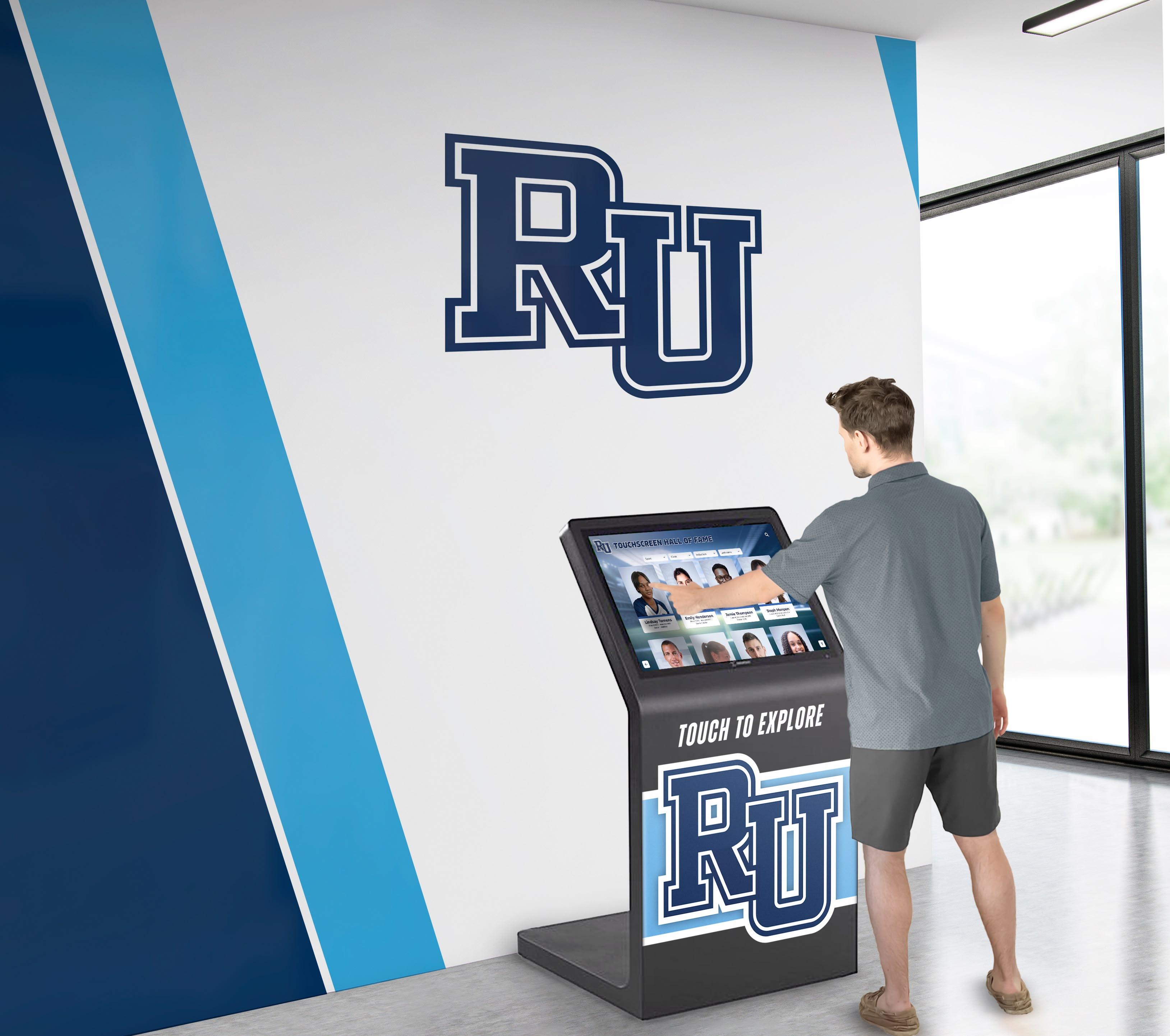
Shared recognition kiosks in campus lobbies must handle simultaneous input from multiple visitors without navigation conflicts or accuracy degradation — only a formal multi-touch acceptance test confirms this capability
Multi-Touch Accuracy by Display Technology and Installation Type
Different physical display configurations produce different multi-touch accuracy profiles. Understanding the technology in the installed recognition kiosk helps calibrate expectations and prioritize which portions of the test protocol are most critical.
| Display Configuration | Typical Accuracy Profile | Primary Shared-Use Risk | Mitigation Priority |
|---|---|---|---|
| Commercial IPS LCD with projected capacitive (PCAP) overlay | ±2–4 mm center; ±5–8 mm corners | Corner drift in large-format sizes (≥70 inch) | High — test all four corners thoroughly |
| Consumer television with aftermarket IR touch frame | ±4–8 mm across full surface; poor simultaneous accuracy | IR beam occlusion by clothing, bags, or incidental contact | High — ghost contacts frequent; reject for recognition use |
| Optical-bonded commercial panel (no air gap) | ±2–3 mm uniform; low parallax | Generally lowest-risk configuration | Moderate — focus on contamination and edge testing |
| Floor-standing kiosk with all-in-one PCAP | Varies by integrator; depends on overlay quality | Integration quality inconsistent; verify overlay spec | High — obtain touch spec from integrator, not just display spec |
| Outdoor-rated or semi-outdoor kiosk | ±3–6 mm; glove-compatible tuning reduces precision | Environmental contamination (dust, moisture, temperature) | High — environmental resistance testing essential |
| Wall-mounted ultra-thin commercial display | ±2–4 mm; can improve with recent firmware | None specific; well-characterized technology | Moderate — standard protocol covers known risks |
Schools selecting recognition kiosk hardware for youth sports award programs and similar multi-team recognition databases should specify commercial PCAP panels with optical bonding — this combination consistently delivers the most accurate shared-use touch performance across the full screen area and resists the parallax error that appears in displays with an air gap between the protective glass and the touch overlay.
Connecting the Multi-Touch Accuracy Test to Your Recognition Program Acceptance Protocol
The multi-touch accuracy test is one element of a complete recognition display acceptance procedure. It operates on failure modes distinct from other tests and cannot be replaced by visual quality checks or software functionality testing.
An image quality review — such as moiré pattern testing on fine-stripe uniform photography — establishes the display’s visual rendering fidelity but does not assess touch tracking performance. A content management platform verification confirms that inductee records load correctly and navigation flows function, but does not validate that the physical touch input correctly reaches the intended interface element. Multi-touch accuracy testing fills the gap between hardware quality and software functionality, confirming that the physical interaction layer connecting user intent to platform response is accurate and reliable.
For recognition programs featuring academic achievement awards alongside athletic inductees, the kiosk must navigate between content categories accurately — a touch on “Academic Honors” must not inadvertently activate “Athletic Records” on a display with 8 mm of corner drift. Any recognition program where profile cards, award categories, or navigation elements are placed in close proximity — standard practice in dense award databases — needs verified touch accuracy before the program goes live.
Including the multi-touch accuracy test results in the formal display acceptance documentation creates a service record that IT staff can reference at any future maintenance cycle. When a teacher or administrator reports that the kiosk “seems less accurate than it used to be” — a subjective complaint that is difficult to act on — the original acceptance measurements provide an objective baseline for comparison.
Hallway recognition kiosks receive high-volume touch input from students across all grade levels — testing multi-touch accuracy at acceptance prevents the navigation failures that undermine recognition program credibility
Periodic Multi-Touch Accuracy Testing Schedule
Unlike a one-time display quality check, multi-touch accuracy should be retested at defined intervals because shared-use touch panels degrade gradually. The schedule below is designed for school recognition kiosks in continuous operation during the academic year.
| Trigger | Test Scope | Who Runs It | Action on Failure |
|---|---|---|---|
| Pre-acceptance (before student use begins) | Full 10-criterion protocol | IT or AV department | Resolve with vendor before signing acceptance |
| Mid-year check (winter break or semester break) | Abbreviated — center, edges, corners, ghost test | IT department | Investigate cause; recalibrate or escalate to vendor |
| Post-summer (before fall semester) | Full 10-criterion protocol | IT department | Compare to original baseline; flag accuracy drift |
| After firmware or driver update | Abbreviated — center, two-point simultaneous, ghost | IT department | Confirm update did not alter calibration or sensitivity |
| After physical relocation | Full 10-criterion protocol | IT or AV department | New installation environment may require recalibration |
| After reported user complaints | Targeted at reported failure zone | IT department | Identify specific degradation; escalate if beyond threshold |
Frequently Asked Questions
What is the difference between a multi-touch accuracy test and a touch calibration?
Touch calibration is a procedure performed within the display’s firmware or the operating system’s touch settings — it establishes the mapping between physical screen coordinates and reported digital coordinates, typically by asking the user to tap a series of on-screen targets. Calibration is a corrective adjustment; the multi-touch accuracy test is a diagnostic measurement that determines whether calibration is needed and whether it has been performed correctly. Run the accuracy test after calibration, not instead of it. If a display fails the accuracy test after calibration, the issue may be a hardware defect rather than a calibration problem.
How many touch points does a shared school recognition kiosk actually need?
Two simultaneous touch points — one per concurrent user — covers the common scenario of two students browsing at the same time. Four points covers two-finger gestures (pinch-to-zoom on photographs) from a single user while another user navigates. Ten points is the commercial standard and ensures that no foreseeable shared-use scenario exceeds the panel’s capacity. Specifying fewer than ten simultaneous touch points for a shared-hallway kiosk is a false economy — the hardware cost difference between a 5-point and 10-point panel is marginal while the shared-use performance difference is significant.
Can we use the recognition software itself to test touch accuracy?
The recognition platform can identify gross accuracy failures — if tapping a profile card consistently opens the wrong profile, the problem is visible in the application — but it cannot provide the millimeter-level measurement needed for acceptance documentation. Dedicated touch diagnostic tools display touch coordinates numerically and allow direct comparison against known test-grid positions. Use a diagnostic tool for the formal acceptance test; use the recognition application to verify that navigation functions correctly after the diagnostic test passes.
Our kiosk vendor says the display is “10-point capacitive.” Is that enough to skip testing?
A vendor specification of “10-point capacitive” confirms that the panel’s touch hardware supports 10 simultaneous contacts but does not guarantee that each contact is tracked accurately across the full screen surface, that ghost touches are absent, or that the display’s calibration is correct for the installed application. Vendor specifications describe the panel in isolation under ideal conditions. The acceptance test evaluates the integrated kiosk — panel, cover glass, mounting, controller, firmware, and driver — in the actual installation environment. Both are necessary; neither replaces the other.
What should we do if a corner of the display consistently fails the accuracy threshold?
First, perform a touch recalibration using the display’s built-in calibration utility, paying particular attention to the failing corner’s calibration targets. Retest after recalibration. If the corner still fails, reduce the number of interactive elements placed in the corner zone in the recognition platform’s layout — repositioning content away from the known inaccurate region is a valid design accommodation. If the corner failure persists and is severe (>10 mm), request the vendor inspect the touch overlay adhesive and controller — corner delamination is a known cause of persistent corner-zone inaccuracy.
Does the recognition software need to be involved in multi-touch testing?
The recognition platform should be tested in its full navigation context after the panel-level accuracy test passes. Specifically, verify that tapping any interactive element — athlete profile cards, navigation tabs, search fields, back buttons — consistently activates the intended element and no other. For programs featuring academic all-American award recognition profiles displayed alongside athletic inductees in a shared database, the proximity of profile cards in the navigation grid makes this application-level verification essential even when panel accuracy passes at the hardware level.
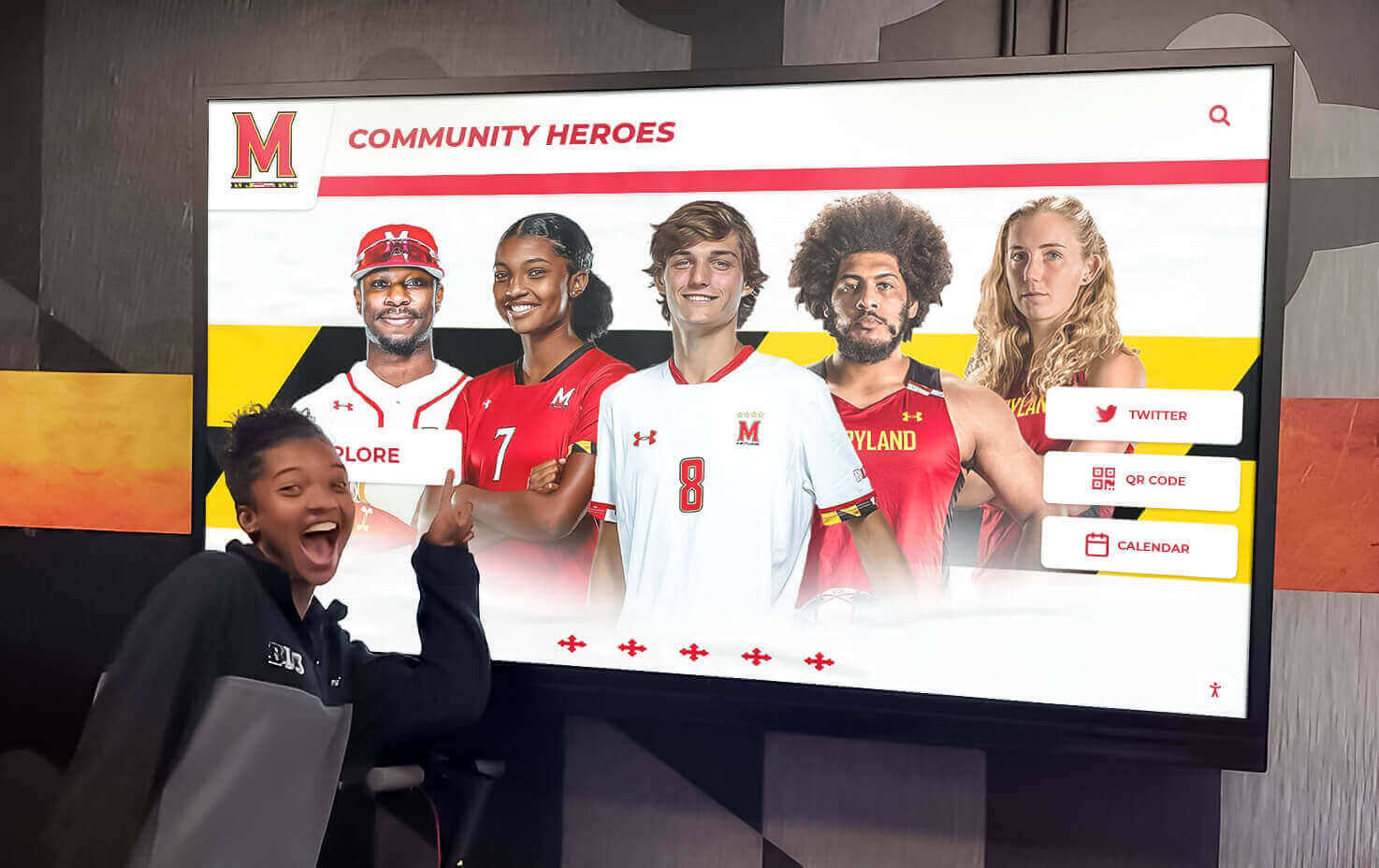
Students of all ages and hand sizes use shared recognition kiosks — acceptance testing with diverse input conditions ensures the display performs accurately for every visitor, not just adults with average-sized fingertips
Building the Test Into Your Recognition Program Deployment Workflow
A recognition display multi-touch accuracy test adds 45 to 60 minutes to the deployment acceptance process and produces documentation that protects both the school and the vendor. Embedding it as a required step in the project delivery checklist — rather than an optional quality check — ensures it happens before students encounter the kiosk.
For district-level deployments across multiple schools, the test protocol should be standardized so that results from different installations are directly comparable. A consistent test grid, a consistent diagnostic tool, and a consistent documentation format enable IT staff across buildings to report results to a central facilities or technology coordinator who tracks display health across the fleet.
Recognition programs that grow over time — adding new honoree classes annually, expanding from athletic recognition to include academic achievement awards and alumni milestones — add navigation complexity with every content update. More navigation elements placed closer together increases the practical accuracy requirement for the display. A kiosk that passed initial testing with comfortable margins may approach the threshold as the content database grows and interactive elements become more densely packed. Retesting accuracy after major content expansions is a reasonable precaution for programs experiencing rapid growth.
The documentation produced by the multi-touch accuracy test also supports the school’s relationship with its recognition platform provider. A school that can show precise, measured touch accuracy results — rather than reporting “the kiosk feels off” — gives the platform team actionable diagnostic data that accelerates troubleshooting and resolution.
Recognition Kiosks Built for Shared School Use
Rocket Alumni Solutions designs interactive recognition displays for school hallways, athletic facilities, and lobby kiosks — environments where accurate multi-touch performance and shared-use reliability are non-negotiable. Request a demo to see how the platform works on commercial-grade touch hardware optimized for high-traffic school settings, and ask about the acceptance testing support included with every deployment.
Request a DemoRunning a recognition display multi-touch accuracy test before any shared school kiosk enters service is the single most effective way to prevent the navigation failures, mis-selection errors, and user frustration that emerge when touch accuracy is assumed rather than verified. A 45-minute test at acceptance — using the ten-criterion protocol described here, documented against consistent thresholds, and repeated at each maintenance interval — ensures that every student, family member, and visitor who touches your school’s recognition display reaches exactly the athlete profile, award record, or hall-of-fame inductee they intended to find.































