



A school recognition display — whether it is a hall of fame kiosk in the athletic lobby, a donor recognition panel near the main entrance, or a digital trophy case screen in a gymnasium corridor — can boot its operating system cleanly, reach the operating desktop, and still fail to display current content because the access-layer switch port it connects to is still working through Spanning Tree Protocol convergence. Without PortFast configured, a standard 802.1D STP port spends up to 30 seconds in the listening and learning states before it begins forwarding traffic. The recognition display’s DHCP request fires during those 30 seconds, receives no response, and the device either falls back to a cached IP address or starts in offline mode. The content platform is unreachable at the moment the display needs it most.
PortFast — and its IEEE 802.1w equivalent, the RSTP edge port designation — solves this by instructing the switch to bypass the listening and learning states entirely and move the port directly to forwarding on link detection. For end devices that never participate in STP topology calculations, PortFast is the correct configuration. A structured recognition display PortFast startup test confirms that the feature is active, that BPDU Guard is protecting the port from accidental topology injections, and that the display reaches a content-ready state within a measurable, acceptable time window after each power cycle or link restoration.
Quick answer: A recognition display access port passes the PortFast startup test when: (1) show spanning-tree interface <port> portfast returns enabled, (2) the port transitions to forwarding within 1–2 seconds of link detection in RSTP or immediately in classic STP with PortFast, (3) the display obtains a DHCP lease within 5 seconds of link-up, and (4) the content platform connection and a content sync both complete within the expected time window. If any of these checks fail, verify the interface-level PortFast command, confirm RSTP is running, and check that no upstream BPDU is disabling PortFast through BPDU Guard.

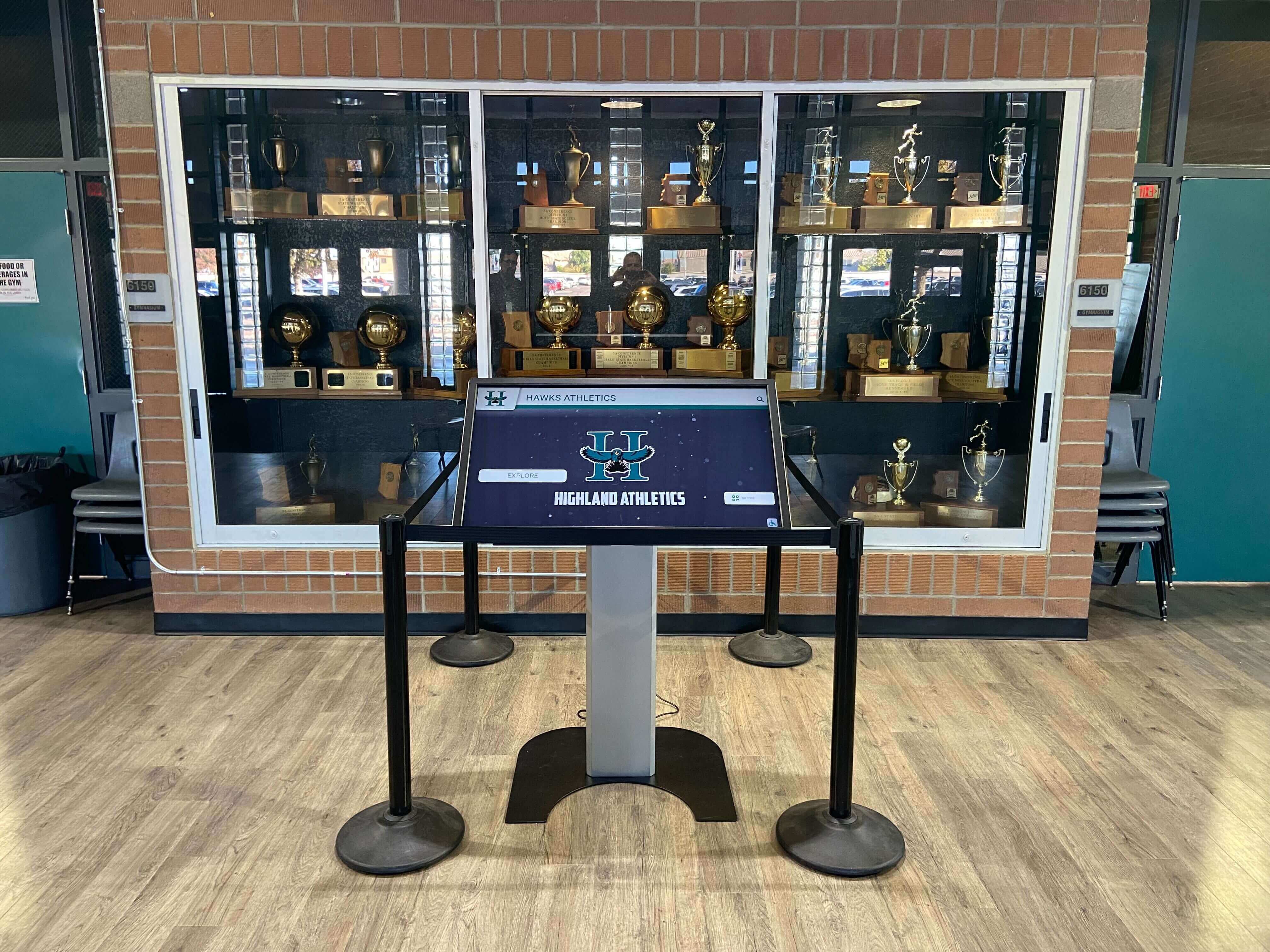
A trophy case kiosk displaying athletic records and award histories depends on its access port reaching STP forwarding state immediately after power-up — PortFast makes that possible by bypassing the listening and learning phases that would otherwise delay DHCP and content platform connectivity
Why PortFast Startup Behavior Matters for School Recognition Displays
Recognition displays are end devices. They generate no STP BPDUs, participate in no topology elections, and have no downstream switches connected to them. From the switch’s perspective, every display port is a pure leaf node — the definition of an edge port. Despite this, the default STP configuration on most managed switches treats every port identically, applying the same state-machine that a port connecting two switches would use.
The consequence appears during three common scenarios in school environments:
Power interruptions during events. A brief power flicker or UPS switchover causes the display to reboot. Without PortFast, the switch waits through the listening and learning states while the display’s OS completes its boot sequence. The display finishes booting before STP forwarding is active, sends its DHCP request, and receives no response. The display starts in cached or offline mode and shows stale content — exactly when it is most visible to visitors at an athletic banquet, a hall of fame induction, or a board presentation.
Network switch reboots and morning link-up. When the IDF switch in the gym hallway reloads after a firmware update, every port on that switch goes through STP initialization. Without PortFast, every connected recognition display must wait for the full STP cycle before sending network traffic. A gym with two hall of fame kiosks, a donor panel, and a record board screen could see four simultaneous DHCP failures if PortFast is absent.
Content sync windows. Schools that schedule content updates overnight rely on the display maintaining a stable network connection through the night. If a transient link event — a cable bump, a switch port reset, a PoE cycle — causes a brief link-down/link-up without PortFast, the re-convergence delay disrupts the content sync window and the display may not have current content by the time school opens.
Schools building comprehensive recognition programs that span multiple athletic and alumni engagement displays cannot afford to troubleshoot inconsistent startup behavior after every scheduled maintenance window. PortFast validation eliminates that class of problem permanently.
STP State Timeline: With and Without PortFast
This table shows how long a recognition display access port spends in each STP state under each configuration. Times shown are for 802.1D classic STP and 802.1w RSTP without PortFast, compared to PortFast behavior.
| STP State | Classic STP (no PortFast) | RSTP (no PortFast) | PortFast / Edge Port |
|---|---|---|---|
| Blocking | Up to 20 sec (Max Age) | 0–1 sec (proposal/agreement) | Skipped |
| Listening | 15 sec (Forward Delay) | Not applicable in RSTP | Skipped |
| Learning | 15 sec (Forward Delay) | 1–2 sec (edge sync) | Skipped |
| Forwarding | Begins at ~30–50 sec | Begins at ~1–4 sec | Begins immediately on link-up |
| DHCP accessible | After ~30–50 sec | After ~1–4 sec | Within 1 sec of link-up |
| Content platform reachable | After DHCP + route resolution | After DHCP + route resolution | Within 2–3 sec of link-up |
The practical outcome is that a recognition display on a PortFast-configured port is ready to reach its content platform within 3–5 seconds of power-up completing and the NIC driver coming online — compared to 30–50 seconds on a classic STP port without PortFast, or 5–8 seconds on an RSTP port without the edge-port designation.
For a school hall of fame kiosk that an athletic director powers on 30 minutes before a banquet to verify content, the difference between a 5-second startup and a 50-second startup is invisible. For a kiosk that rebooted unexpectedly 60 seconds before a ceremony begins, it is the difference between the display being ready and the display showing an offline screen.
Pre-Validation Checklist
Before running the recognition display PortFast startup test, confirm the following conditions. Attempting the test with an incorrect STP mode or a misconfigured port produces misleading results.
| Pre-Check Item | How to Verify | Pass Condition |
|---|---|---|
| STP mode on the switch | show spanning-tree summary | ieee (802.1D), rstp (802.1w), or rapid-pvst — all support PortFast |
| Access port vs trunk port | show interfaces <port> switchport | Mode = access — PortFast should only be on access ports |
| VLAN assignment | show interfaces <port> switchport | Display’s VLAN is the access VLAN on this port |
| PortFast configuration | show spanning-tree interface <port> portfast | Returns enabled |
| BPDU Guard status | show spanning-tree interface <port> detail | BPDU Guard enabled (protects the port from accidentally receiving a BPDU that would disable PortFast) |
| Display’s Ethernet NIC driver | Inspect display OS boot log or device manager | NIC active and not in power-save mode on boot |
| DHCP scope available | Confirm with DHCP server admin or check show dhcp lease | Scope has available addresses; display’s reservation is current |
If PortFast is not configured, apply it before running the test. On Cisco IOS and IOS-XE:
interface GigabitEthernet1/0/12
 spanning-tree portfast
 spanning-tree bpduguard enable
On Cisco IOS using the preferred modern syntax:
interface GigabitEthernet1/0/12
 spanning-tree portfast edge
 spanning-tree bpduguard enable
On HP/Aruba ProCurve:
interface 12
 spanning-tree admin-edge-port
 spanning-tree bpdu-protection
On Juniper EX:
set interfaces ge-0/0/12 unit 0 family ethernet-switching interface-mode access
set protocols rstp interface ge-0/0/12 edge
set protocols rstp interface ge-0/0/12 no-root-port
Recognition Display PortFast Startup Test: Numbered Steps
This procedure validates that a recognition display access port is correctly configured with PortFast, that the display obtains network connectivity within the expected window after power-up, and that the content platform connection and content sync complete successfully. Run this test during a maintenance window at least 48 hours before any major recognition event.
1. Document the port identifier and current STP state.
SSH to the access switch serving the recognition display. Identify the exact port the display’s Ethernet cable connects to using LLDP or CDP neighbor data, or by tracing the cable to the patch panel. Record the full interface identifier (for example, GigabitEthernet1/0/12) before proceeding.
show lldp neighbors GigabitEthernet1/0/12 detail
show interfaces GigabitEthernet1/0/12 status
2. Confirm PortFast is enabled on the port.
show spanning-tree interface GigabitEthernet1/0/12 portfast
Expected output: PORTFAST: enabled. If the output shows disabled, apply the PortFast configuration as described in the Pre-Validation Checklist above, save the configuration, and re-verify before continuing.
3. Confirm BPDU Guard is enabled.
show spanning-tree interface GigabitEthernet1/0/12 detail
Verify the detail output includes Bpdu guard is enabled. BPDU Guard ensures that if someone accidentally connects a switch to this port — which would send BPDUs and could disrupt STP topology — the port is immediately placed in an error-disabled state rather than silently injecting topology changes that would disable PortFast and delay the display’s link-up.
4. Simulate a power cycle by shutting down the display.
Power off the recognition display fully — not a software reboot, but a hardware power-down that causes the NIC to drop link. Observe the switch CLI with the following command running in a second SSH session:
debug spanning-tree events
Wait for the interface to show as notconnect in show interfaces status.
5. Power on the display and begin timing.
Start a stopwatch at the moment you apply power to the recognition display. In the switch CLI debug output, watch for the following event sequence:
STP: GigabitEthernet1/0/12 -> learning— should not appear with PortFast activeSTP: GigabitEthernet1/0/12 -> forwarding— should appear within 1–2 seconds of link detection
On a correctly configured PortFast port running RSTP, you will see the port move directly from down to forwarding in the debug output without passing through listening or learning. Record the elapsed time from power-on to the forwarding event.
6. Verify DHCP lease acquisition.
On the DHCP server or relay, monitor DHCP offer and acknowledgment messages for the display’s MAC address. The DHCP exchange should complete within 3–5 seconds of the port reaching forwarding state. Record the time from port forwarding to DHCP acknowledgment.
Alternatively, at the switch CLI:
show dhcp snooping binding
Confirm the display’s MAC address appears in the binding table with an assigned IP address.
7. Verify content platform reachability.
From the recognition display itself — or by pinging the display from a network management station once its IP is confirmed — verify the display can reach the content platform’s management endpoint. The ping should succeed within 5 seconds of DHCP completion.
8. Trigger a content sync and measure completion time.
From the content platform dashboard, push a content update or trigger a manual sync for the display. Measure the time from sync initiation to completion confirmation. Record this as the post-startup sync completion time. For displays showing athletic record boards, hall of fame athlete portraits, and award histories, a content sync completing within 2–3 minutes of startup is the target for most school recognition platforms.
9. Visually confirm display content.
On the display screen itself, verify that the current content is showing — not a cached or placeholder state. For a hall of fame kiosk, this means athlete portrait cards are current, record board entries reflect the most recent data, and any recently added inductees appear correctly. Schools that have worked to ensure touch interaction accuracy on recognition displays should also briefly test touch response to confirm the full startup sequence, including touch driver initialization, completed correctly.
10. Disable the STP debug.
undebug all
Leaving STP debug active on a production switch generates unnecessary log volume and can mask other events. Always disable it after validation is complete.
11. Record results in the port validation log.
Document the port identifier, PortFast status, BPDU Guard status, time-to-forwarding, time-to-DHCP, time-to-sync-complete, and any anomalies observed. This log becomes the baseline for future comparisons and provides the documentation an IT auditor or facilities team would need to confirm proper access-layer configuration.
Pass and Fail Criteria for the PortFast Startup Test
| Test Step | Pass Condition | Fail Condition | First Remediation Action |
|---|---|---|---|
| PortFast enabled | show spanning-tree interface <port> portfast → enabled | disabled | Apply spanning-tree portfast edge in interface config and save |
| BPDU Guard enabled | Detail output shows Bpdu guard is enabled | Not enabled | Apply spanning-tree bpduguard enable and save |
| Time to forwarding | Port reaches forwarding within 2 sec of link detection | Longer than 2 sec, or passes through learning | Verify STP mode is RSTP/Rapid-PVST; re-apply PortFast; check for upstream BPDU disabling the feature |
| DHCP lease obtained | Lease confirmed within 5 sec of forwarding | No lease obtained, or lease takes > 10 sec | Check DHCP scope availability; verify display VLAN is correct; inspect DHCP relay configuration |
| Content platform reachable | Ping succeeds within 5 sec of DHCP | Ping fails or times out | Check default gateway on display; verify VLAN routing; check firewall rules |
| Content sync completes | Full sync completes within expected window (platform-specific; typically 2–5 min) | Sync times out or reports error | Check uplink bandwidth; investigate fiber uplink health; contact platform support |
| Content visually confirmed | Current content showing on screen | Stale, placeholder, or blank content | Trigger manual sync from dashboard; inspect platform logs |
Protecting PortFast Ports: BPDU Guard and Error-Disable Recovery
BPDU Guard is a mandatory companion to PortFast in school recognition display environments. If a technician or student accidentally connects a small unmanaged switch to a display port — common in classrooms where someone plugs in a personal hub — the unmanaged switch generates BPDUs. Without BPDU Guard, those BPDUs cause the switch to disable PortFast on that port, extending the next startup convergence to the full STP cycle time. With BPDU Guard, the port immediately enters error-disabled state and stops forwarding traffic entirely.
Error-disable is intentionally disruptive because it makes the problem visible. The recognition display goes offline, the port shows as err-disabled in show interfaces status, and the IT team investigates rather than accepting intermittent display behavior.
Schools should configure automatic error-disable recovery for display ports to avoid permanent outages from accidental BPDU events:
errdisable recovery cause bpduguard
errdisable recovery interval 300
This configuration recovers the port automatically after 5 minutes, which is long enough to be noticeable but short enough that it does not require manual intervention for every accidental connection. If the offending device has been removed, the port returns to normal PortFast operation on recovery.
Coordinating PortFast Validation With Recognition Event Schedules
The most effective time to run a recognition display PortFast startup test is during the same maintenance window as other pre-event display checks — at minimum 48 hours before any major recognition event. This window provides time to correct any configuration issues, verify the fix, and confirm a full content sync has completed before the event audience arrives.
Recognition events that place high demand on display reliability include athletic banquets where record boards and hall of fame kiosks are the focal point for award presentations, spring induction ceremonies where newly inducted athletes and alumni are displayed for the first time, and board of education visits where the campus recognition program is part of the institutional presentation.
For schools running recognition programs that include digital displays for sports banquets and lasting recognition installations, treating the PortFast startup test as part of the standard pre-event checklist — alongside content review and display cleaning — ensures the infrastructure layer never becomes a last-minute failure point.
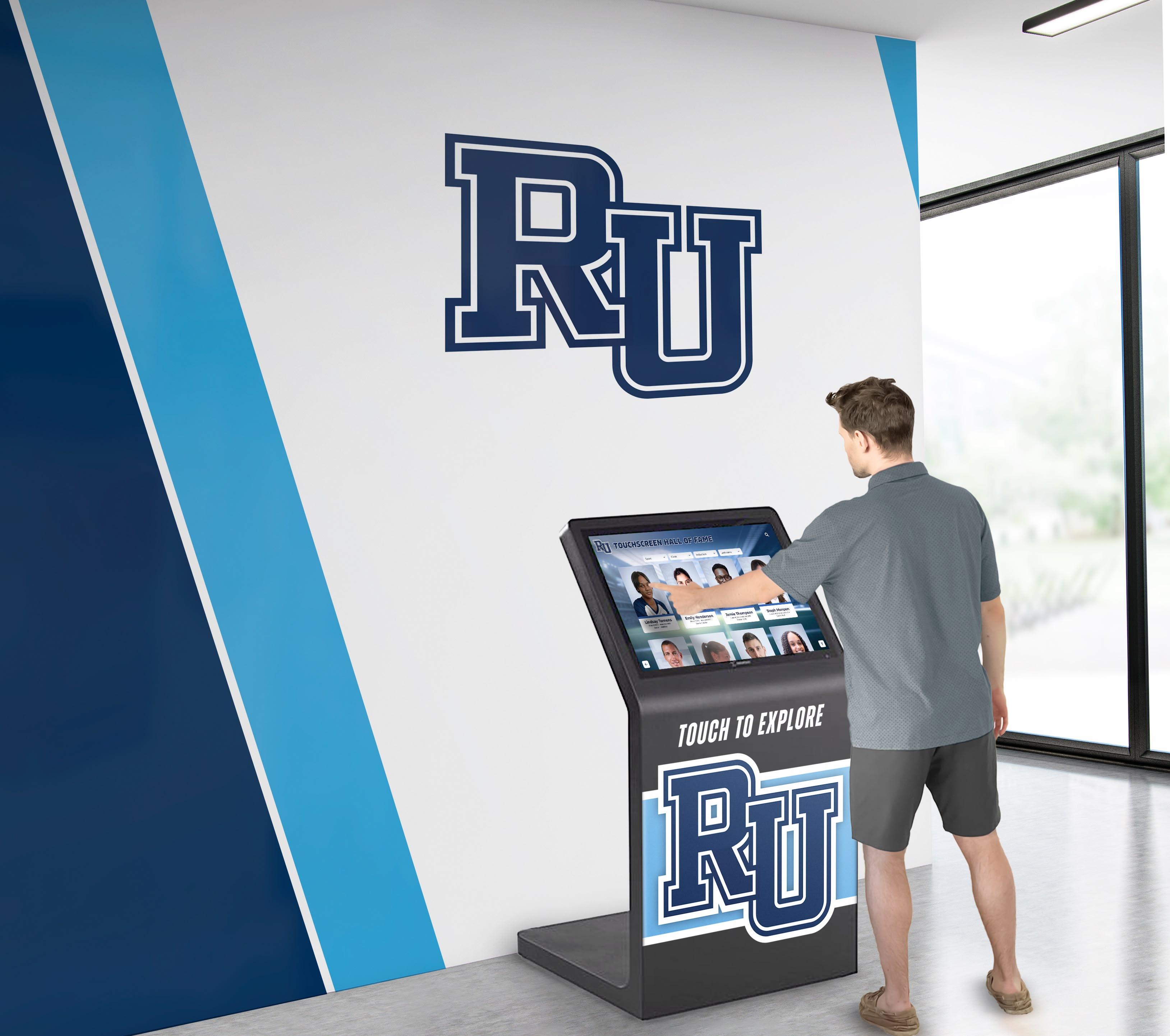
A hall of fame kiosk in a school lobby is the first impression many visitors receive — PortFast startup validation ensures the display is content-ready within seconds of any power cycle rather than spending 30 seconds in STP convergence during which the screen shows a loading state or blank content
Want to see how Rocket Alumni Solutions integrates with school network infrastructure to deliver reliable recognition content across lobby kiosks, athletic halls of fame, and donor recognition panels?
Documenting PortFast Configuration Across All Recognition Display Ports
A single-site school with two recognition displays can track PortFast configuration informally. A multi-building campus, an athletic complex with hallway record boards, a separate gym building, and a lobby kiosk serving alumni and community visitors needs a documented inventory to ensure no port is left in a default STP configuration that extends startup delays.
Recommended fields for a recognition display port validation record:
| Field | Description | Example |
|---|---|---|
| Display Location | Physical location of the recognition display | Athletic Lobby — Hall of Fame Kiosk |
| Access Switch | Switch the display’s Ethernet cable connects to | SW-IDF-GYM |
| Access Port | Switch port identifier | GigabitEthernet1/0/12 |
| VLAN | Access VLAN for the display | VLAN 20 (Display Network) |
| STP Mode | Spanning tree protocol mode on the switch | Rapid-PVST+ |
| PortFast Status | Enabled or disabled | Enabled |
| BPDU Guard Status | Enabled or disabled | Enabled |
| Error-Disable Recovery | Configured interval | 300 sec |
| Last Validated | Date of most recent startup test | 2026-09-17 |
| Time to Forwarding | Measured at last validation | 1.1 sec |
| Time to DHCP | Measured at last validation | 3.2 sec |
| Sync Completion Time | Time for full content sync to complete post-startup | 2 min 14 sec |
| Next Scheduled Validation | Date of next planned test | 2026-12-15 |
| Notes | Any active issues, planned changes, or historical anomalies | Normal; no issues |
Maintaining this record for every recognition display port gives the IT team a single reference when a display reports a startup issue — before opening a CLI session, the technician can see whether the port is in a known-good PortFast configuration or whether a recent switch firmware update or port reset may have reverted the edge-port designation.
Schools expanding their recognition programs — adding alumni management integrations that pull data into display systems or deploying new kiosk locations in renovated athletic facilities — should add PortFast validation to the new-display commissioning checklist so every port is correctly configured before the display is handed over to the recognition program administrator.
Integrating PortFast Checks Into the Broader Recognition Display Maintenance Workflow
PortFast startup validation is one layer of a complete display maintenance workflow. Schools that treat display infrastructure as a system rather than a collection of individual devices benefit from coordinating the PortFast check with other maintenance procedures:
Fiber uplink health: The SFP DOM health check for the fiber uplink serving the display’s access switch confirms that optical power levels are within acceptable ranges. A PortFast-optimized port on a switch with a marginal fiber uplink still experiences content sync delays — the two checks address different failure modes.
Content accuracy: After confirming the display starts up cleanly and reaches the platform, verify that content is accurate. This is especially important after end-of-season updates to athletic records, inductee additions to the hall of fame, or donor recognition updates. A display that starts quickly but shows outdated records creates a different kind of visibility problem. Schools that track athletic award data accuracy as part of their recognition data workflow benefit from running the data audit alongside the infrastructure validation rather than treating them as independent procedures.
Touch and display function: The physical display’s touch calibration and brightness settings should be confirmed after any power cycle that involves a firmware update or operating system change. A recognition display kiosk configured with interactive filter navigation for hall of fame browsing depends on both the network startup and the touch layer functioning correctly — validating only the network startup leaves the user-facing experience partially untested.
Campus recognition context: Schools that use recognition displays as part of a broader welcome and alumni experience — lobby kiosks that complement physical recognition walls, hallway displays near welcome areas, and donor panels tied to campaign milestones — benefit from treating display reliability as a program-level concern rather than a pure IT task. Physical environments that incorporate alumni welcome area design principles alongside digital recognition depend on the digital layer being reliably operational whenever visitors are present.
Frequently Asked Questions
What is the PortFast startup test for recognition displays? It is a structured validation procedure that confirms a recognition display’s access switch port is configured with PortFast (or RSTP edge-port), that the port reaches forwarding state within 2 seconds of link detection, that the display obtains a DHCP lease within 5 seconds of forwarding, and that the content platform connection and content sync complete within expected timeframes. The procedure involves CLI verification, a controlled power cycle, timing measurements, and visual content confirmation.
Why does a recognition display need PortFast if it has a static IP address? PortFast is about STP state-machine convergence, not DHCP. Even a display with a static IP address cannot send or receive IP traffic while its port is in the STP listening or learning state. Static IP configuration eliminates DHCP timing as a variable but does not bypass STP convergence. PortFast addresses the root cause — the STP delay before forwarding.
Does PortFast create a security risk on display ports? The configuration risk associated with PortFast is the possibility that a downstream switch connected to a PortFast port injects BPDUs that could affect STP topology. BPDU Guard mitigates this completely by error-disabling the port immediately on BPDU receipt. PortFast with BPDU Guard is the secure configuration for recognition display ports.
How often should the PortFast startup test be run? At a minimum, once per semester and within 48 hours before any major recognition event. The test should also be run after any switch firmware update, switch replacement, or port reconfiguration that affects a recognition display’s access port. Documenting results each time provides a baseline for detecting configuration drift.
What if the display’s access switch does not support PortFast? Very old unmanaged switches or managed switches from vendors that do not implement STP do not support PortFast. In those cases, the switch should be replaced with a current managed switch that supports RSTP and PortFast. Operating a recognition display on a switch without RSTP and PortFast support is a configuration gap that creates startup reliability risk at every power cycle.
Does PortFast affect how the display behaves during a running school day, or only at startup? PortFast only affects the STP state machine at the moment a port transitions from link-down to link-up. During normal operation — while the port is continuously forwarding — PortFast has no effect on throughput, latency, or content delivery. The benefit is entirely at startup and link-restoration events.
Can the PortFast startup test be automated? Partial automation is possible. Network management systems that support SNMP and RMON can be configured to alert when a recognition display port enters the error-disabled state (indicating BPDU Guard triggered) and to log port state transitions. Automated DHCP binding monitoring can alert when a display fails to obtain a lease within a specified time after link-up. Full end-to-end automation — including content sync timing and visual confirmation — requires integration with the recognition content platform’s API and is typically handled by the platform vendor.
What happens if someone removes the PortFast configuration from a display port? The next time that port cycles from link-down to link-up, it will go through the full STP convergence process. On classic STP, this means a 30–50 second delay before the display can reach the network. On RSTP, the delay is typically 1–4 seconds, which is still enough to cause a DHCP timeout on some display operating systems. Quarterly validation of the PortFast startup test configuration catches accidental removal before it causes an event-day failure.
Summary: PortFast Startup Validation Checklist for School Recognition Displays
Use this checklist as both the pre-event validation procedure and the periodic maintenance record for every recognition display access port.
- Identify the access port — use LLDP neighbor data or cable documentation to confirm the exact interface the display connects to on its access switch
- Confirm STP mode — verify the switch is running RSTP (802.1w or Rapid-PVST+) for the fastest possible convergence with PortFast
- Verify PortFast is enabled —
show spanning-tree interface <port> portfastmust returnenabled; apply if missing - Verify BPDU Guard is enabled — confirm in
show spanning-tree interface <port> detail; apply if missing - Verify error-disable recovery is configured — confirm
errdisable recovery cause bpduguardand interval set to 300 seconds - Perform a controlled power cycle — power off the display fully, wait for the port to show
notconnect, then power on - Time the port-to-forwarding transition — with
debug spanning-tree eventsactive, record elapsed time from link detection to forwarding state; target is under 2 seconds - Verify DHCP lease acquisition — confirm the display obtains an IP address within 5 seconds of forwarding; check DHCP snooping binding table
- Verify content platform reachability — ping or traceroute from the display to the platform endpoint; confirm success within 5 seconds of DHCP
- Trigger a content sync and measure completion — initiate a manual sync from the platform dashboard and record completion time; target is platform-specific but typically under 5 minutes
- Visually confirm display content — on the screen, verify current content is showing — inductee records, athletic history, donor recognition, or record board data — and not a cached or placeholder state
- Disable STP debug — run
undebug allto clear debug output - Update the port validation record — document all measured values, the validation date, and any actions taken
- Schedule next validation — at minimum quarterly, and before each major recognition event on the program calendar
Schools that follow this checklist keep their recognition display infrastructure in a verified, documented state so that every induction ceremony, athletic banquet, and hall of fame event — from basketball senior night celebrations to spring awards presentations — begins with displays that are fully content-ready rather than recovering from a startup delay no one anticipated.































