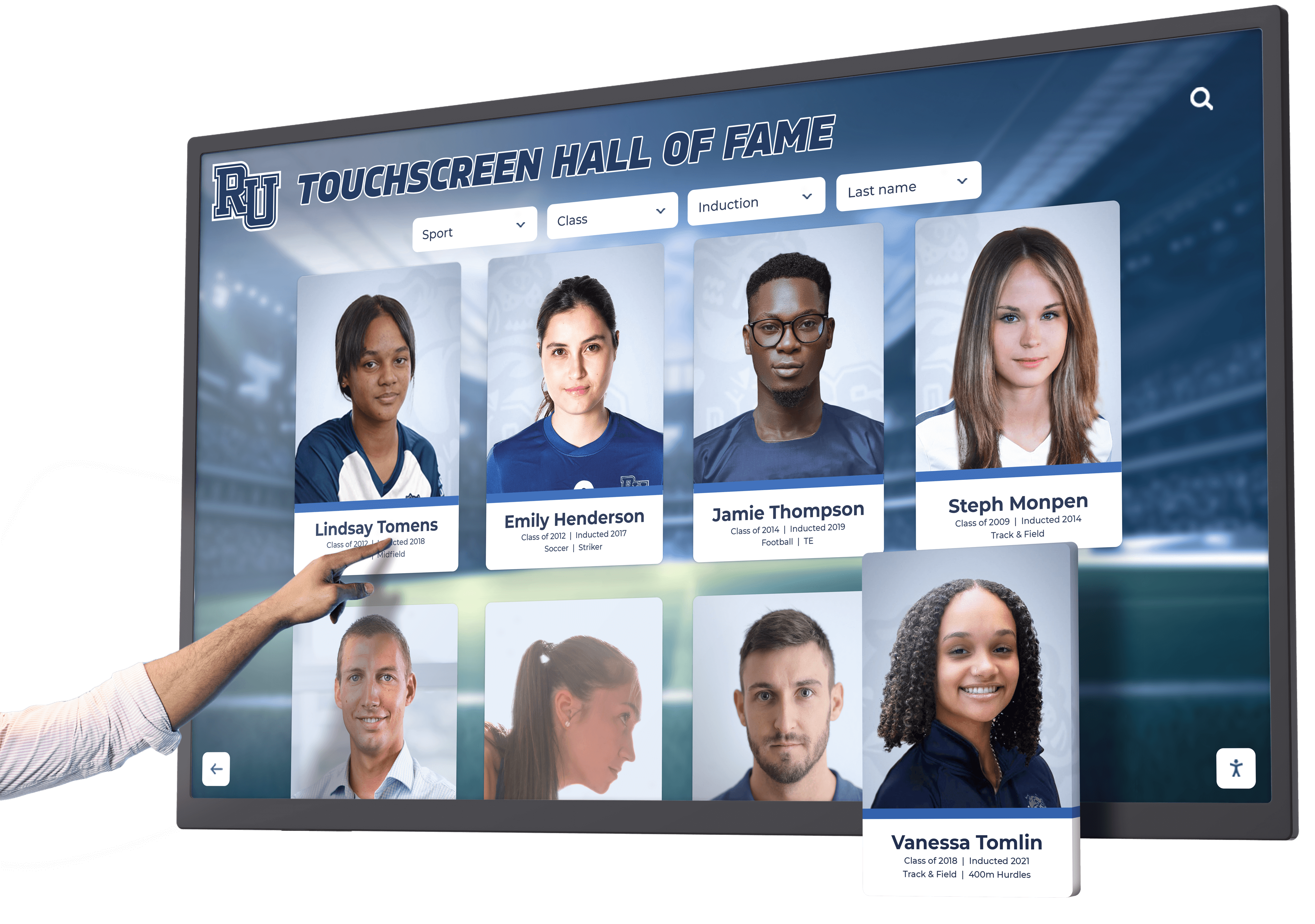




A recognition display USB HID compatibility test confirms that a school touchscreen enumerates correctly as a Human Interface Device on its host computer, accepts touch input without dropped contacts or registration failures, and behaves consistently across the operating conditions a school recognition program produces: cold-start after overnight idle, browsing through large athlete profile databases, and continuous navigation during alumni events and induction ceremonies. USB HID (Human Interface Device) is the class protocol through which touchscreen digitizers communicate touch coordinates, contact count, and gesture state to a host operating system. It is defined in the USB HID Usage Tables specification maintained by the USB Implementers Forum (USB-IF), and its touch-specific reporting is further specified through the HID Digitizer usage page (0x0D). When a recognition display passes a USB HID compatibility test, the school IT team has confirmed that the touchscreen input pathway is functioning correctly before any recognition content goes live.
For school administrators, athletic directors, and IT teams accepting a new touchscreen installation in an athletic lobby, hall-of-fame corridor, or trophy case alcove, USB HID compatibility is the operational foundation beneath everything else. A touchscreen that enumerates incorrectly may accept some touches while silently dropping others, making the recognition display appear unreliable to visitors browsing athlete profiles or award histories. A touchscreen that registers phantom touches — contacts the system records without any finger contact — can advance through inductee records, trigger navigation to unintended categories, or cycle content without user interaction. A touchscreen whose input driver conflicts with the platform software may produce delayed or inverted touch response, making browsing alumni records, achievement databases, and recognition galleries feel broken even when the underlying content and display hardware are functioning correctly.
Running a USB HID compatibility test before accepting the installation — and before inviting the first alumni visitors or hosting the first induction event — catches these failures at the moment when correction is fastest and least disruptive.
Quick answer: A recognition display USB HID compatibility test has four steps. (1) Open Device Manager and confirm the touchscreen enumerates as a “HID-compliant touch screen” with no warning indicators and no proprietary driver entries. (2) Open a text editor or touch test application and confirm that single touch, dual touch, and a five-finger press all register contacts correctly with no dropped inputs at all five screen positions including edges. (3) Test the three gestures your recognition platform uses — tap to open a profile, swipe to browse records, and pinch-to-zoom if supported — and confirm each produces the expected response. (4) Leave the display idle for 30 minutes, then touch the screen and confirm the touchscreen exits idle state and re-registers input immediately on the first contact without requiring a disconnect-reconnect or restart.

Touch contact registration on a recognition display depends on correct USB HID enumeration — testing before acceptance confirms the touchscreen digitizer is communicating with the host operating system reliably under real school operating conditions
What USB HID Means for a School Recognition Display
USB HID is the class of protocols that standardize communication between input devices — keyboards, mice, and touchscreen digitizers — and host operating systems without requiring device-specific drivers. When a recognition display’s touchscreen is working correctly, the operating system’s inbox HID driver — built into Windows, macOS, and most Linux distributions — handles all of this communication automatically. No additional driver installation is required for a correctly enumerated HID touchscreen, which is a meaningful advantage in school IT environments where software installation is managed centrally and third-party drivers create ongoing maintenance and compatibility risk.
The USB-IF’s HID Usage Tables document assigns usage pages to device categories. Touchscreen digitizers operate under Usage Page 0x0D (Digitizer), which defines how the device reports touch coordinates, contact identifiers, contact width, and contact state (touching, hovering, or lifted). The operating system’s touch input stack — Windows Touch or Windows Pointer API on Windows — receives this information and makes it available to applications through a standard interface. A correctly enumerated HID touchscreen is therefore self-documenting: Device Manager shows it as “HID-compliant touch screen,” the OS reports its maximum contact count, and the recognition platform receives touch input through the standard API without requiring custom integration.
When enumeration fails — or when the touchscreen uses a proprietary driver that bypasses the standard HID stack — the IT team cannot rely on standard diagnostic tools to confirm correct operation, and the recognition platform may receive touch input in a format it was not designed to process. For interactive touchscreen hall-of-fame installations in school recognition programs, correct USB HID operation also supports ADA accessibility considerations: assistive technology that interacts with touchscreen interfaces relies on the standard HID accessibility layer, and a touchscreen that bypasses the standard HID stack may not support standard accessibility input for visitors who depend on it.
Step-by-Step: Running the USB HID Compatibility Test
This procedure covers the four core checks that confirm a school recognition display’s touchscreen is ready for live operation. Budget 20 to 30 minutes for a new installation. All steps require the display to be connected, powered on, and running in its normal operating configuration with the recognition platform software loaded or ready to load.
Step 1: Confirm USB HID Enumeration in Device Manager
Open Device Manager on the host computer. Navigate to Human Interface Devices. A correctly operating touchscreen should appear as one or both of the following:
- HID-compliant touch screen — the primary touch digitizer entry, which handles single and multi-touch contact reporting
- HID-compliant device — an additional entry for the touchscreen’s mouse-emulation or stylus functionality, present on some models
If the touchscreen does not appear under Human Interface Devices, check the following locations for misplaced entries:
- Other Devices — an entry here (often labeled “Unknown Device” or with a yellow warning icon) indicates the touchscreen connected but failed to enumerate using the inbox HID driver
- Universal Serial Bus controllers — an entry here may indicate a USB communication failure before the device class was identified
- [Manufacturer name] devices — a manufacturer-specific category indicates the touchscreen installed a proprietary driver instead of using the inbox HID driver
Record the exact entry name and any status indicators. Document the device instance path (right-click the device → Properties → Details → Device Instance Path) for the acceptance log. A clean enumeration — “HID-compliant touch screen,” no warning indicators, no proprietary driver entries — is the passing condition for this step.
Step 2: Verify Contact Count and Edge Accuracy
Open a blank Notepad or text editor window so the cursor position reflects touch input accurately. Test the following contact conditions:
- Single touch: Touch the screen with one finger at five positions — upper-left, upper-right, center, lower-left, lower-right. All five positions should respond accurately with the cursor moving to the touched location.
- Dual touch: Touch the screen with two fingers simultaneously. Confirm both contacts are recognized. On a text editor, two simultaneous touches may behave differently depending on touch mode; what matters is that neither contact is silently dropped.
- Five-finger touch (if applicable): Press five fingers against the screen simultaneously. The host operating system should recognize all five contacts if the display supports five-point multi-touch. Device Manager reports the maximum contact count under the device’s HID descriptor; compare your test result to the reported maximum.
- Edge accuracy: Touch the screen within 5mm of each edge and corner. Edge registration is a common failure point where the active sensing area does not extend to the physical bezel. Edge failures matter for recognition platform navigation where scrolling controls, back buttons, and category selectors are frequently positioned near screen edges.
Record the contact count achieved, any positions where contact was dropped or misregistered, and any edge positions that produced no response.
Step 3: Test Platform-Specific Gestures
Load the recognition platform software and test the three interaction modes the platform uses in normal operation:
- Tap to open: Tap a single athlete profile card or recognition entry. The item should open on the first tap within a natural response time. A tap that requires two or more attempts indicates either touch sensitivity calibration failure or HID reporting latency. Research on touchscreen UX for interactive recognition displays, including the touchscreen latency UX checklist, notes that first-contact latency above approximately 100ms is perceptible to most users and produces the impression of a sluggish or unresponsive display.
- Swipe to browse: Swipe horizontally to scroll through a list of records, profiles, or categories. The content should follow the swipe gesture smoothly, decelerating naturally when the finger lifts. A swipe that does not register, registers as a tap instead, or jumps content non-proportionally indicates gesture classification failure in the HID input processing chain.
- Pinch-to-zoom (if platform-supported): If the recognition platform supports pinch-to-zoom on championship photos, team portraits, or award detail images, test this gesture with two fingers. Zoom behavior should be smooth and proportional to finger separation velocity. Pinch gesture failure — where the platform does not respond to the pinch or responds with a pan gesture instead — indicates that multi-touch coordinate reporting is failing at the HID level.
Record each gesture as Pass or Fail, with notes on any anomalous behavior observed.
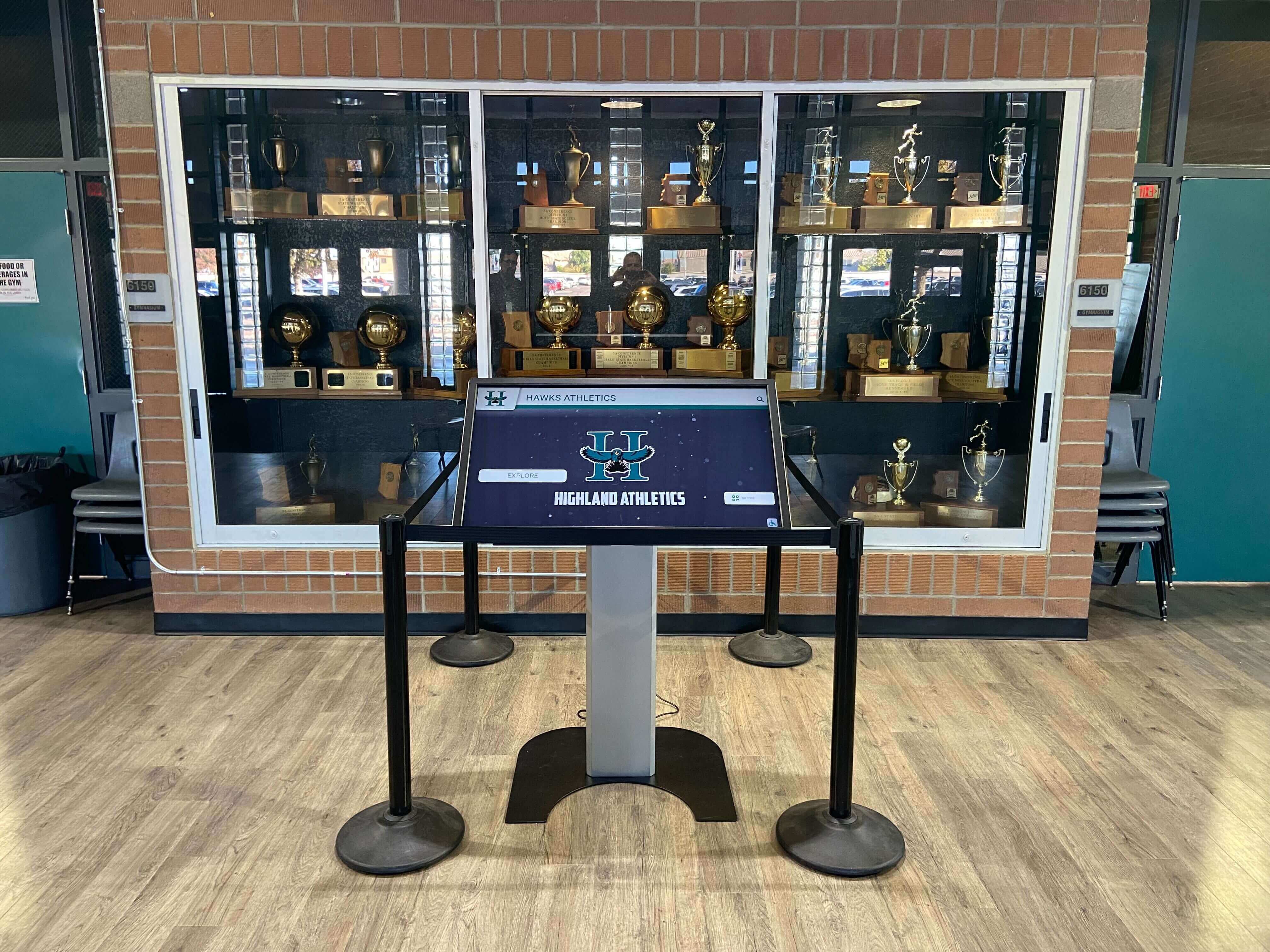
A recognition kiosk in a trophy case or athletic lobby must respond correctly to all touch gestures from the first day of operation — USB HID compatibility testing before acceptance prevents input failures from affecting alumni, visitors, and student athletes
Step 4: Idle-State Recovery Test
Allow the display to idle for at least 30 minutes with no touch input. Many commercial touchscreen panels enter a low-power or standby state during extended idle periods to extend backlight life. When the touchscreen exits this idle state in response to the first touch contact, the USB HID communication path must re-establish correctly. A touchscreen that fails idle-state recovery will not register the first touch after an idle period, requiring the user to touch the screen a second time or wait for the touch controller to fully re-initialize — creating the impression that the recognition display is broken from the moment a visitor approaches it.
After the 30-minute idle period, touch the screen with a single finger. The display should respond to the first contact — advancing through an attract loop, waking from screensaver mode, or registering a navigation input depending on the platform’s idle behavior. Record the result: Pass (first touch registers), Fail (first touch not registered, second touch required), or Extended Fail (multiple touches required or system restart needed).
USB HID Compatibility Pass/Fail Acceptance Log
Record each result before accepting the installation. All Pass results are required for acceptance. Fail results require corrective action and re-test before the display is accepted for live operation.
| Test Step | Check | Expected Result | Result | Action Required |
|---|---|---|---|---|
| Step 1: Enumeration | Device appears as HID-compliant touch screen in Device Manager | HID-compliant touch screen entry, no warning icons, no proprietary driver | Pass / Fail | If Fail: reconnect USB cable, run Windows Update, or contact installer for driver review |
| Step 1: Enumeration | No unknown device entries in Other Devices | No warning indicators in Device Manager | Pass / Fail | If Fail: investigate USB cable, USB port, or driver conflict |
| Step 2: Contact count | Single touch at all five screen positions | All five positions register accurate contact | Pass / Fail | If Fail: run touchscreen calibration from display OSD or OS settings |
| Step 2: Contact count | Edge registration within 5mm of each bezel edge | All edges register contact | Pass / Fail | If Fail: check active area settings in display configuration or contact installer |
| Step 2: Contact count | Five-finger simultaneous contact (if supported) | All contacts recognized up to device maximum | Pass / Fail | If Fail: confirm multi-touch support in device properties; escalate to installer |
| Step 3: Gestures | Tap to open profile card | Opens on first tap | Pass / Fail | If Fail: check touch sensitivity setting; re-run calibration |
| Step 3: Gestures | Swipe to browse records | Content follows swipe gesture proportionally | Pass / Fail | If Fail: check gesture mode in platform or OS touch settings |
| Step 3: Gestures | Pinch-to-zoom (if platform-supported) | Smooth, proportional zoom on two-finger pinch | Pass / Fail | If Fail: confirm multi-touch enabled in platform settings |
| Step 4: Idle recovery | First touch after 30-minute idle registers immediately | First contact registers; no second touch required | Pass / Fail | If Fail: check display power management settings; disable USB selective suspend |
Troubleshooting Common USB HID Failures
| Symptom | Likely Cause | Diagnostic Step | Resolution |
|---|---|---|---|
| Touchscreen not in Device Manager | USB cable not seated or wrong USB port type | Check physical USB connection; try a different USB-A or USB-C port | Reseat cable; switch to powered USB port; replace USB cable |
| “Unknown Device” in Other Devices | HID driver not loaded; USB device descriptor error | Check Windows Update for pending driver updates; review USB event log | Install pending updates; reconnect device; contact installer if persists |
| Proprietary driver entry instead of HID-compliant | Manufacturer driver installed, bypassing inbox HID stack | Uninstall manufacturer driver in Device Manager; allow Windows to reinstall inbox driver | Right-click device → Uninstall; check “Delete driver software”; reconnect to trigger inbox driver |
| Touch registered at wrong position | Calibration out of alignment | Open Windows touch calibration (Tablet PC Settings) and run calibration routine | Complete calibration; verify display resolution matches signal input |
| Touches dropped intermittently | USB bandwidth conflict; cable quality | Check for other USB HID devices sharing a hub with the touchscreen; test with a shorter cable | Move touchscreen to dedicated USB port; replace USB cable |
| Phantom touch contacts | Grounding issue; EMI interference; dirty panel surface | Clean panel surface with microfiber cloth; verify display is grounded; check nearby EMI sources | Clean panel; verify chassis ground connection; move away from interference source |
| Swipe registers as tap | Touch latency too high; gesture threshold misconfigured | Check platform touch settings for swipe distance threshold | Adjust gesture threshold in platform settings; check USB polling rate |
| No response after idle | USB selective suspend disabling touch controller | Check Windows Power Options → USB settings → USB selective suspend | Disable USB selective suspend for the touchscreen’s USB controller |
| Multi-touch not working | HID descriptor reports single-touch only | Check Contact Count in device properties HID descriptor | Confirm display supports multi-touch; verify correct USB port (some display USB-B ports are single-touch only) |
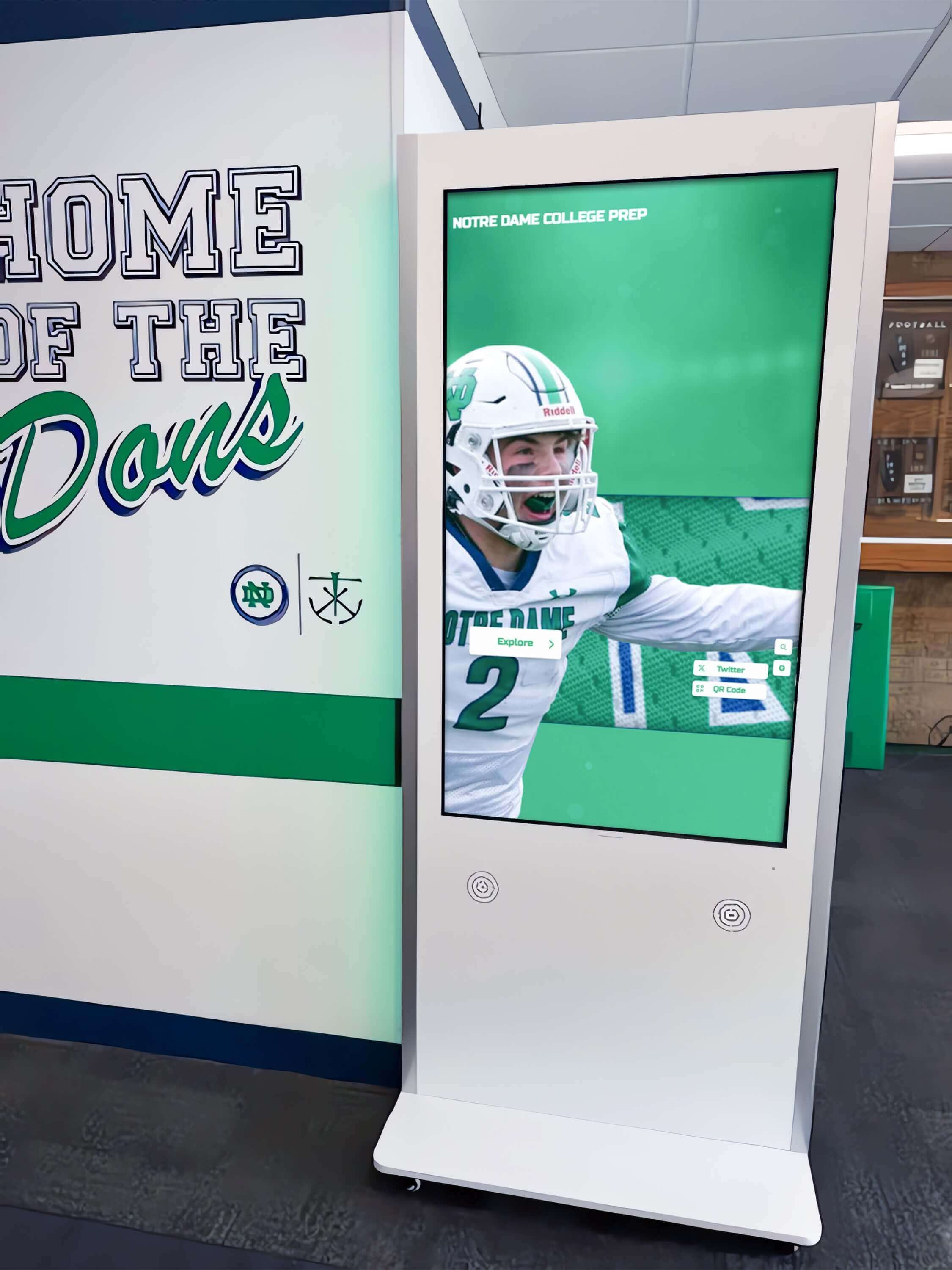
School hallway recognition kiosks are used by students, alumni, and visitors without staff supervision — a complete USB HID compatibility test confirms that all touch input modes work correctly under real-world school operating conditions
Operating System Enumeration Differences
The test procedure above describes Windows Device Manager because Windows is the most common operating system for school recognition display installations. The same compatibility principles apply under macOS and Linux, but the diagnostic tools and enumeration indicators differ.
Windows: Device Manager under Human Interface Devices. Look for “HID-compliant touch screen.” The Windows Touch or Windows Pointer input stack handles all HID digitizer input; the touch input API is available to all Windows applications without platform-specific integration.
macOS: System Information (Apple menu → About This Mac → System Report → USB). A correctly enumerated touchscreen appears under the USB device tree with a class descriptor indicating HID. macOS is not designed as a touchscreen OS, and many recognition platforms on macOS use proprietary touch drivers that appear as separate entries. Confirm with the platform vendor that the macOS touch driver is the expected and supported driver for the recognition platform before accepting the installation.
Linux: The lsusb -v command lists all USB HID devices and their descriptor information, including maximum contact count and touch report format. The xinput list command shows all input devices registered with the X input system; a correctly enumerated touchscreen appears as a “touchscreen” type device. Linux display installations are used in some digital hall-of-fame kiosk deployments built on embedded Linux platforms, and the same four-step acceptance procedure applies with Linux-equivalent diagnostic tools substituted in Step 1.
How Recognition Content Types Stress-Test USB HID Performance
School recognition programs use touchscreen displays to deliver several distinct content types, each of which exercises the USB HID input pathway differently. Understanding which content types are most demanding helps IT teams design a realistic compatibility test that reflects actual use conditions.
Profile browsing (swipe-intensive): Large athlete profile databases — with hundreds of inductees, award recipients, or academic honorees — require continuous swipe gesture processing as users browse records. Each swipe involves touch-down, motion tracking, and touch-lift events. A display that handles single taps correctly but drops contacts during swipe motion will appear functional in basic testing but fail in normal use. Test with the full recognition database loaded, not a sample.
Award photography and team gallery (pinch-to-zoom intensive): Championship photos, team portraits, and award ceremony images are natural zoom targets. If the recognition platform supports pinch-to-zoom on these content types, USB HID multi-touch reporting must reliably track two simultaneous contacts with continuously changing positions — more demanding than a static two-finger press. The touchscreen awards display compatibility guide notes that pinch gesture failures are among the most common input issues reported for school recognition kiosks in their first weeks of operation.
Event and ceremony mode (high-traffic intensive): Induction ceremonies and alumni events concentrate touch activity in short periods: multiple users in succession, each browsing for their own records or a featured inductee’s profile. The awards touchscreen complete guide for school recognition programs notes that event modes in recognition platforms often display content in an automated attract loop that resets between user sessions — each reset involves the platform releasing and reacquiring touch input focus, which requires the USB HID communication path to remain stable through session transitions. Simulate event-mode use by having two or three staff members alternate use of the display for five minutes during the acceptance test.
Attract loop navigation (idle-recovery intensive): Between user sessions, recognition displays typically run an attract loop — a slideshow of featured inductees, recent achievements, or program highlights. The attract loop advances without touch input but must respond immediately when a visitor touches the screen. This is precisely the idle-recovery scenario tested in Step 4. A display that fails idle recovery will ignore the first touch from every visitor approaching from cold, creating the impression that the touchscreen is broken even when the display and content are functioning correctly.
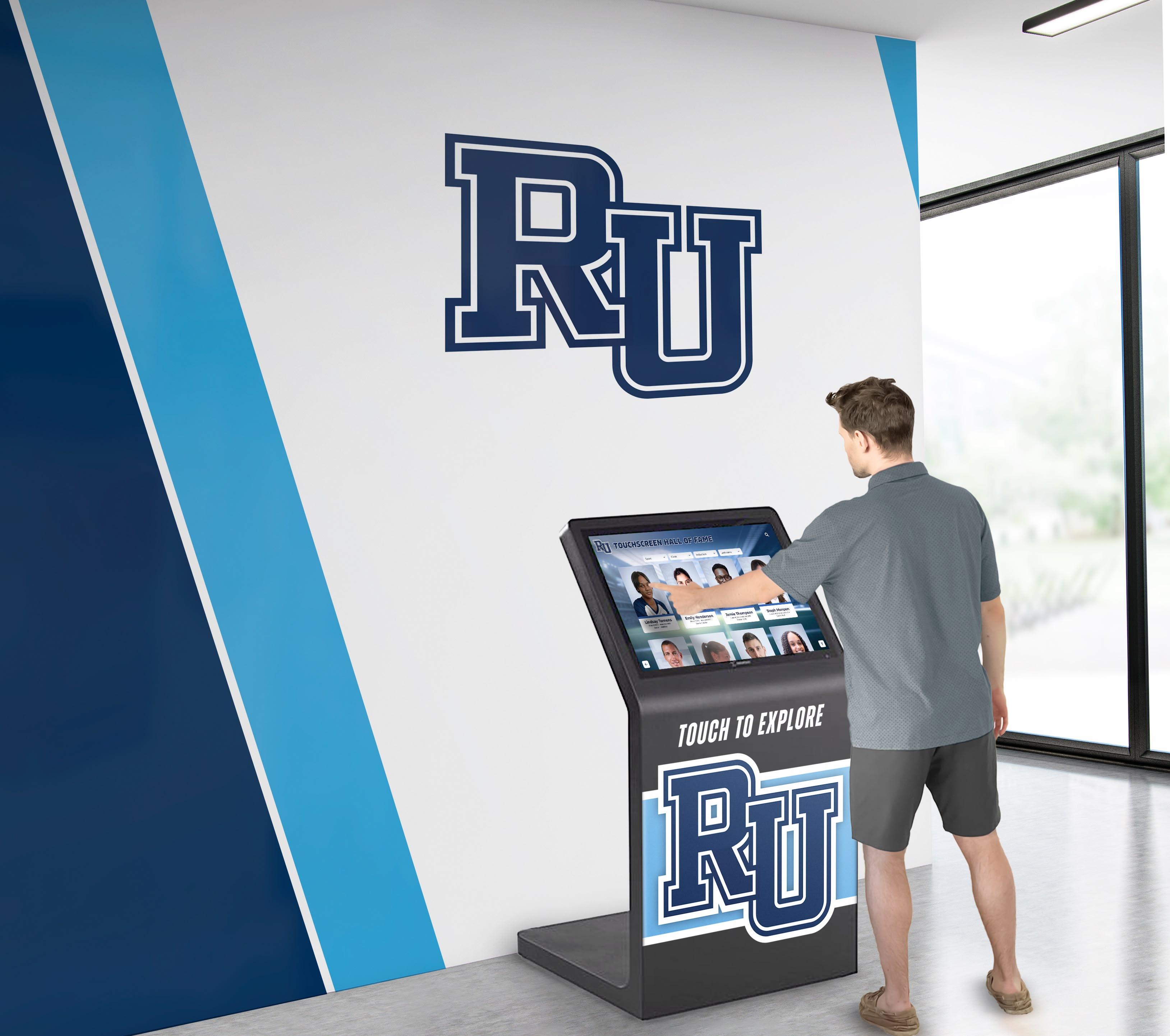
Campus recognition kiosks see continuous daily use from students, alumni, and visitors — USB HID compatibility testing before acceptance ensures reliable touch input without dropped contacts, gesture failures, or idle-state recovery issues throughout normal operation
Connecting USB HID Testing to the Full Recognition Display Acceptance
The USB HID compatibility test verifies that touch input works correctly but does not address other acceptance criteria that affect the quality and reliability of a school recognition program. A recognition display that passes USB HID testing should also be evaluated for display color accuracy — confirming that school colors, athlete portraits, and award photography render correctly — and for platform software integration, confirming that the recognition platform’s content management, auto-updating record displays, and event mode functions all operate as specified.
School touchscreen kiosk compatibility requirements for recognition programs that incorporate multiple displays across athletic lobbies, hallways, and ceremony spaces make it important to run the USB HID compatibility test on each display independently. Enumeration issues are frequently installation-specific: a touchscreen that enumerates correctly in a testing environment at a USB 3.0 port may fail at a USB 2.0 port in the final installation space, or a touchscreen that works correctly on one host computer may exhibit phantom touch issues on a different host due to grounding differences in the building’s electrical system.
School IT teams that document USB HID acceptance test results for each display — recording the Device Manager entry name, device instance path, contact count achieved, and gesture test results — create a maintenance baseline that simplifies troubleshooting if touch input issues arise during operation. A display that previously enumerated correctly as “HID-compliant touch screen” and now shows as “Unknown Device” in Device Manager has experienced a regression that the acceptance log makes immediately diagnosable.
Frequently Asked Questions
What does it mean if the touchscreen shows as “Unknown Device” in Device Manager?
An Unknown Device entry means Windows detected a USB device but cannot determine its class or load an appropriate driver. For a touchscreen, this typically happens when the device’s USB descriptor does not correctly identify it as an HID device, when the inbox HID driver fails to initialize, or when a required USB driver update is pending in Windows Update. The first step is to run Windows Update and allow all available updates to install, then reconnect the touchscreen. If the Unknown Device entry persists after updating, the USB cable, port, or the device’s internal USB controller may be the cause. Contact the display installer with the Device Instance Path from the Unknown Device entry’s properties — this string identifies exactly which point in the USB enumeration process failed.
Our recognition platform uses a proprietary touchscreen driver. Does the USB HID compatibility test still apply?
Yes, with modification. If the platform vendor’s software installs a proprietary driver that replaces the inbox HID driver, the standard Device Manager enumeration check (Step 1) will not show “HID-compliant touch screen” — it will show the proprietary driver’s device name instead. Confirm with the platform vendor what Device Manager entry their driver creates for a correctly installed system, and substitute that as the Step 1 expected result. Steps 2 through 4 — contact count verification, gesture testing, and idle recovery — apply regardless of driver type, because they test observable touch behavior rather than the internal driver architecture.
How often should we repeat the USB HID compatibility test?
The full four-step test is an acceptance procedure, not a routine maintenance check. Run it at initial installation acceptance and after any significant change: replacement of the touchscreen panel, replacement or major update of the host computer, changes to the USB connection path (adding or removing USB hubs), or a major operating system update. For ongoing monitoring, the practical check is whether the touchscreen appears correctly in Device Manager after each system restart — a check that takes less than one minute and catches enumeration regressions before they affect users.
Can USB HID compatibility issues cause phantom touches on a recognition display?
Yes. Phantom touch contacts — touches the system registers without any finger contact — can originate from several USB HID-related causes: a grounding failure that introduces electrical noise into the touch controller’s sensing circuit, a USB cable with insufficient shielding that picks up EMI and introduces spurious signal into the touch data stream, or a touch controller firmware bug that generates phantom contact reports under specific temperature or power conditions. Phantom touches cause a recognition display to advance through profiles, navigate to unintended categories, or cycle content without user input. The troubleshooting table in this article covers the diagnostic steps for phantom touch conditions.
Does the USB HID maximum contact count affect the recognition platform?
It depends on what gestures the recognition platform uses. A platform that uses only single-touch navigation (tap and swipe) requires only a one-contact HID digitizer, though most modern recognition touchscreens report two or more contacts. A platform that supports pinch-to-zoom or other two-finger gestures requires a minimum of two-contact reporting. Check the platform vendor’s specifications for minimum touch contact count and confirm the display’s reported contact count meets or exceeds that minimum before accepting the installation.
What should we do if the display fails the USB HID compatibility test and the installer cannot resolve the enumeration failure?
Escalate in three steps. First, confirm with the display manufacturer’s technical support that the host computer’s USB port type (USB-A 2.0, USB-A 3.0, USB-C) is compatible with the touchscreen’s USB controller — some touchscreen panels require a USB 3.0 port for full HID functionality and will enumerate incorrectly on USB 2.0. Second, test the touchscreen on a different host computer to determine whether the enumeration failure is host-specific (pointing to a driver or port issue on the original host) or device-specific (pointing to a hardware or firmware issue in the touchscreen panel itself). Third, if the touchscreen fails to enumerate correctly on multiple hosts, contact the display manufacturer for a firmware update or warranty replacement, citing the specific Device Manager entry and Device Instance Path as evidence of the enumeration failure.
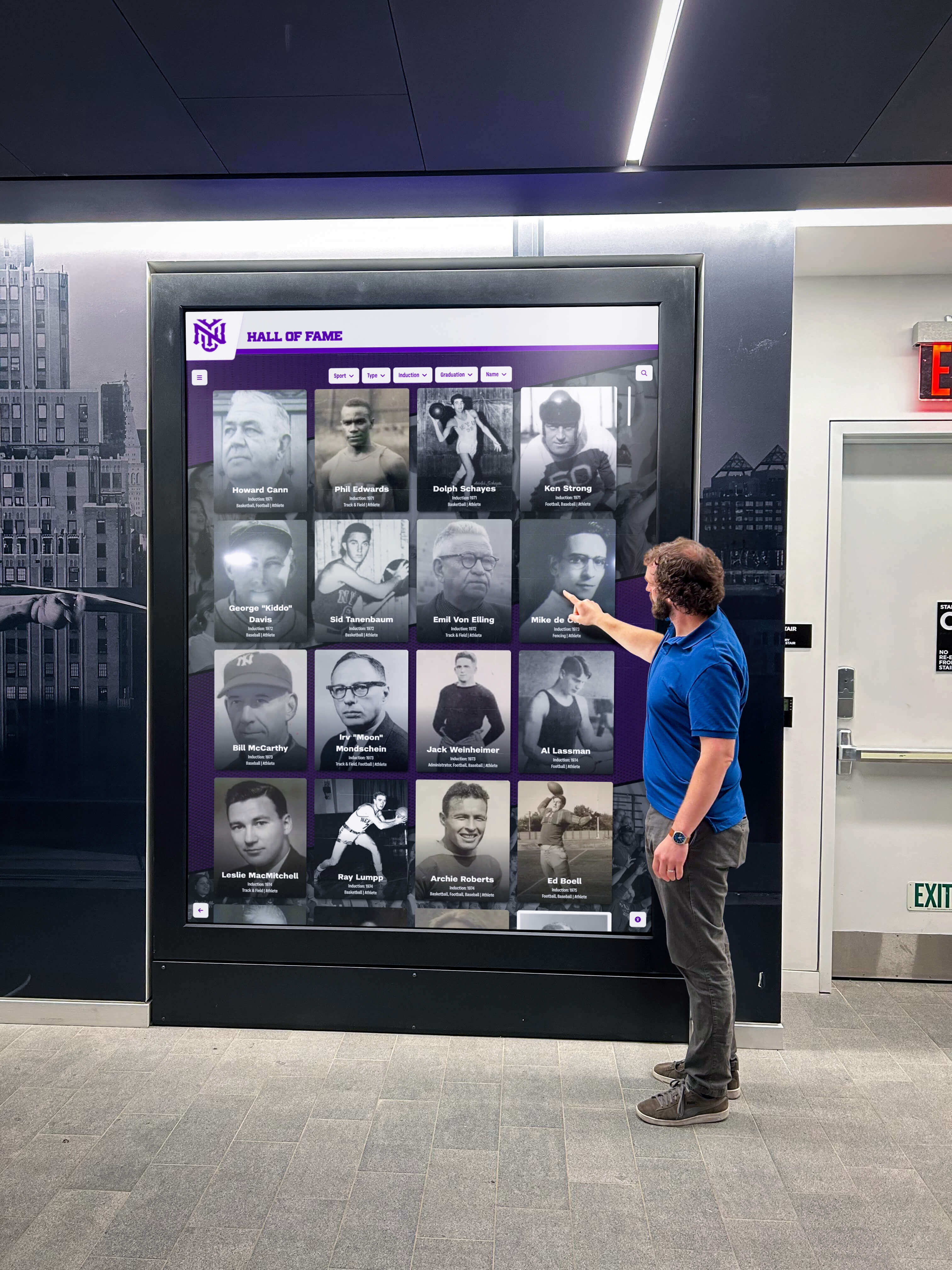
Visitors browsing recognition content expect immediate, reliable touch response — the USB HID compatibility test performed before acceptance confirms that the touchscreen input pathway meets that expectation from the moment the display goes live
Building USB HID Testing Into the Recognition Program Acceptance Workflow
A school recognition display that passes USB HID compatibility testing, display color accuracy testing, and platform integration testing is ready for live operation. Building each of these acceptance checks into a structured workflow — run in sequence at installation, documented in the display asset register, and repeated after significant changes — creates a quality baseline that supports both day-to-day operations and longer-term recognition program management.
For athletic directors and facilities teams accepting recognition installations as part of capital renovation projects, specifying the acceptance test procedure in the project scope ensures that the display installer is responsible for delivering a system that passes all checks before final payment. A recognition display installation contract that includes “touchscreen USB HID compatibility confirmed per the four-step procedure, with results documented in the acceptance log” gives the school a specific, enforceable acceptance criterion rather than a vague requirement for “functioning touch input.”
Schools evaluating recognition display platforms for athletics, awards, and school history programs should ask prospective vendors whether their platform’s touch input is implemented through the standard Windows Touch or Pointer API — which works with any correctly enumerated HID touchscreen — or through a proprietary driver that requires specific touchscreen hardware. Standard API integration provides flexibility for hardware selection and maintenance; proprietary driver integration limits options and creates ongoing driver compatibility risk.
Recognition Displays Built for Reliable Daily Operation
Rocket Alumni Solutions designs its recognition platform to work with standard HID touchscreens — no proprietary drivers, no hardware lock-in, and reliable touch input for every student, alumni, and visitor who interacts with your display. See how the platform performs on your school's recognition content — request a demo before making any commitment.
Request a DemoA recognition display USB HID compatibility test runs in under 30 minutes, requires no specialized equipment, and confirms the input foundation that every other aspect of your school recognition program depends on. Working through the four steps — enumeration check, contact count verification, gesture testing, and idle recovery — produces a documented acceptance record that confirms the touchscreen is ready for the alumni visitors, award ceremonies, and daily student interactions that give a recognition program its purpose.































