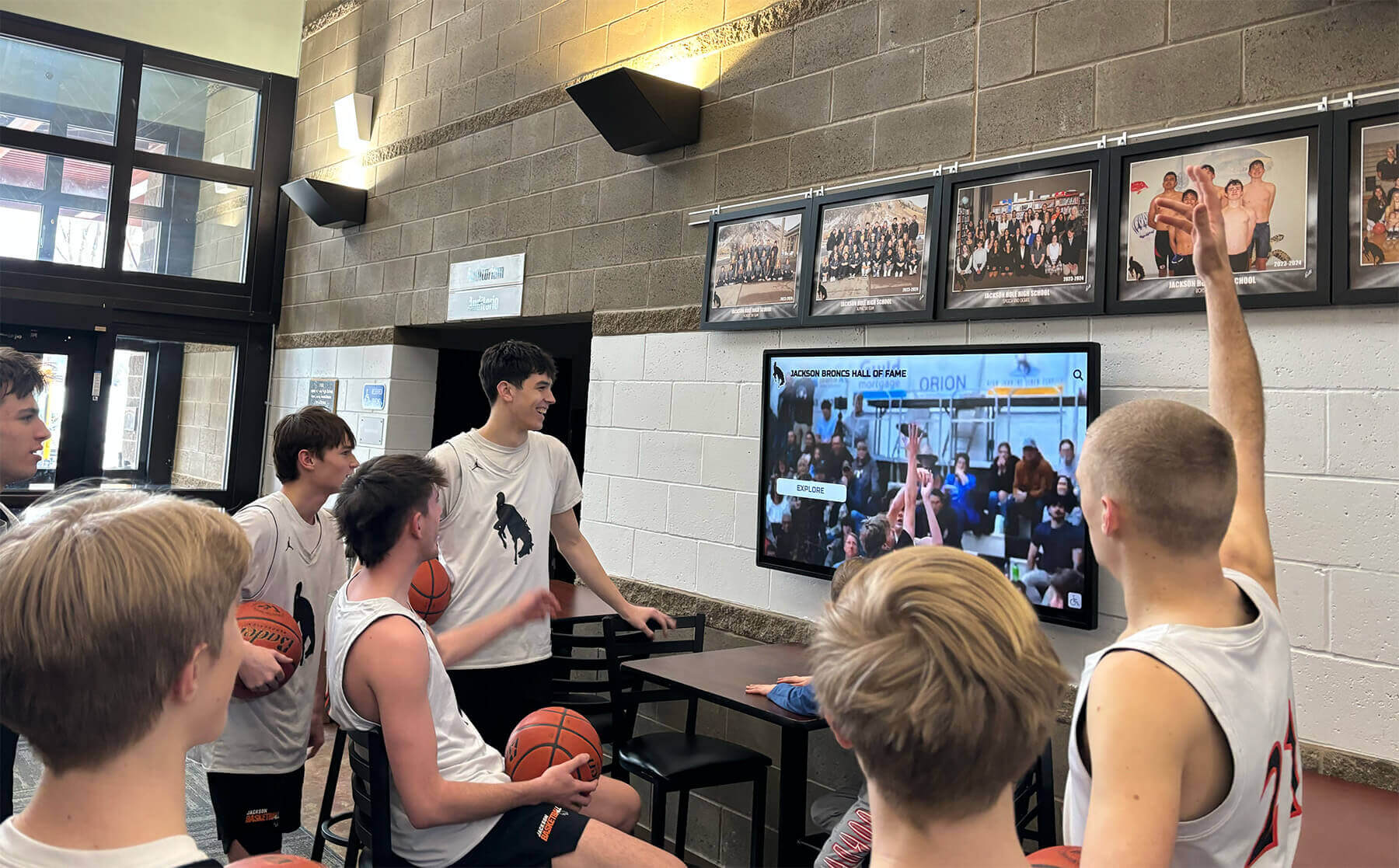




A black screen on your school’s recognition display the morning of an awards ceremony is one of those problems that demands an immediate answer—and HDCP handshake failures are a leading cause that catch AV and IT teams off guard. HDCP (High-bandwidth Digital Content Protection) is a copy-protection protocol built into virtually every modern HDMI and DisplayPort connection. When the source device, switcher, extender, and display all successfully complete their authentication exchange, video appears normally. When any link in that chain stumbles—mismatched firmware, an aging cable, a switcher that silently drops the handshake—the screen goes dark with no obvious error message telling you why.
This checklist gives school AV coordinators, IT directors, and facilities staff a structured, safe diagnostic sequence for tracking down and resolving HDCP black screens on recognition displays, hall of fame kiosks, lobby screens, and athletic-facility signage. Work through the steps in order so you isolate the actual failure point rather than swap components at random. Each step is reversible; none requires disabling display security in ways that would violate content-provider agreements or school policy.
Schools investing in digital recognition displays—interactive hall of fame kiosks, athletics honor boards, donor walls—typically route content through multi-device AV chains. A media player sits in a rack room, signal travels through an HDMI matrix switcher, then through an HDBaseT or HDMI-over-IP extender, and finally reaches the lobby display. Each hop adds one more opportunity for an HDCP handshake to fail.

Recognition displays running video content must complete an HDCP authentication handshake at every device in the signal path—a failure anywhere produces a black screen
What HDCP Is and Why It Affects Recognition Displays
HDCP stands for High-bandwidth Digital Content Protection. Intel developed it to prevent unauthorized copying of digital video as it travels between devices. When a source (media player, PC, streaming stick) sends video to a display over HDMI or DisplayPort, both devices exchange encrypted keys in a handshake. If the handshake succeeds, video flows. If it fails—because one device’s HDCP version is newer than the other supports, because an intermediate device drops the negotiation, or because a cable degrades the signal—the source stops sending video and the display shows black.
The protocol has gone through several versions:
| HDCP Version | Common On | Protected Content Requirement |
|---|---|---|
| HDCP 1.4 | Older displays, switchers, extenders | Required for most Blu-ray and streaming content |
| HDCP 2.2 | 4K HDR sources and displays | Required for 4K Ultra HD premium content |
| HDCP 2.3 | Newer streaming platforms | Highest current specification |
School recognition displays typically run HDCP 1.4 content at 1080p, but if the media player was recently upgraded or the content source was changed to a 4K streaming device, a HDCP 2.2 signal may be flowing toward hardware that only negotiates 1.4—producing a black screen even though every cable is perfect.
Because recognition displays celebrate the people and achievements that define a school’s culture—preserving athletic records, honoring alumni, and making history tangible for visitors—getting the AV chain working reliably is worth a methodical diagnostic process rather than a rushed swap of expensive components.
Symptom and Likely Cause Table
Before opening a single equipment cabinet, match the symptom to the most probable cause. This narrows the checklist to the relevant steps.
| Symptom | Most Likely Cause | Where to Start |
|---|---|---|
| Solid black screen, display has power | HDCP handshake failure in the chain | Step 1 — direct-connect test |
| “No Signal” OSD on display | No video reaching display, or handshake dropped | Step 1, then Step 4 |
| Screen flickers then goes black | Intermittent HDCP re-authentication failure | Step 3 (cable quality) and Step 5 (firmware) |
| Black screen only on one source in a matrix | That source’s player has HDCP forced on | Step 6 (source settings) |
| Black screen after adding an extender | Extender does not pass HDCP | Step 7 (extender compliance) |
| Black screen on 4K content, 1080p works | HDCP 2.2 required; chain only supports 1.4 | Step 8 (version mismatch) |
| Black screen only after power cycling | Wrong power-on sequence | Step 2 (power sequence) |
| “HDCP Unauthorized” message on display OSD | HDCP key exchange explicitly refused | Step 6 and Step 8 |
| Intermittent black screen during video playback | Cable signal integrity or switcher HDCP re-auth timeout | Step 3 and Step 5 |
HDCP Troubleshooting Checklist
Work through every applicable step in sequence. Mark each step as Pass, Fail, or Not Applicable before moving to the next. When a step reveals the failure, stop there—you have found the culprit.
Step 1 — Establish a Direct-Connect Baseline
Goal: Confirm whether the display itself and the source player can negotiate HDCP when nothing sits between them.
- Power off everything in the chain (source player, switcher, extender, display).
- Connect the source player directly to the display with a known short HDMI cable (under six feet, high-speed rated).
- Power on the display first, then the source player.
- Observe whether video appears. If video appears with the direct connection but not through the full chain, the failure is in one of the middle devices. Proceed to Step 4.
- If video does not appear even on direct connect, the issue is between the player and this specific display. Proceed to Step 6 or Step 8.
Note: If you do not have a spare short cable, borrow one from another working display in the building temporarily for this test.
Step 2 — Verify Power-On Sequence
Goal: Ensure devices authenticate in the correct order. HDCP requires the display to be ready before the source begins transmitting.
- Power on the display first and wait for it to reach its idle state (usually 20–30 seconds).
- Power on any extender receivers next.
- Power on any extender transmitters or matrix switcher.
- Power on the source media player last.
- If video appears after following this sequence but not before, configure any power scheduling or control-system macros to enforce this order permanently.
HDCP re-authentication can also fail after a display goes into standby and wakes. If the problem happens after the display sleeps, configure the display’s auto-sleep setting to Off or extend the timeout well beyond school hours.
Step 3 — Inspect and Test HDMI Cables
Goal: Eliminate cable-quality issues. Poor cables cause intermittent HDCP failures that look like hardware problems.
- Check every HDMI cable in the chain for bent or pushed-back pins at either connector.
- Replace any cable longer than 15 feet with an active HDMI cable or verified high-speed cable rated for your resolution (4K cables differ from 1080p cables).
- For runs over 30 feet, use a proper HDMI extender, fiber optic HDMI cable, or HDBaseT system rather than passive cable alone.
- Verify all cables are fully seated—HDMI connectors lock by friction and can work loose, especially on wall-mounted displays.
- If using HDMI cable ties or clips, confirm they do not create sharp bends at the connector end (bend radius violations degrade signal).
- Swap cables one at a time and retest after each swap, so you know exactly which cable was the problem if video returns.
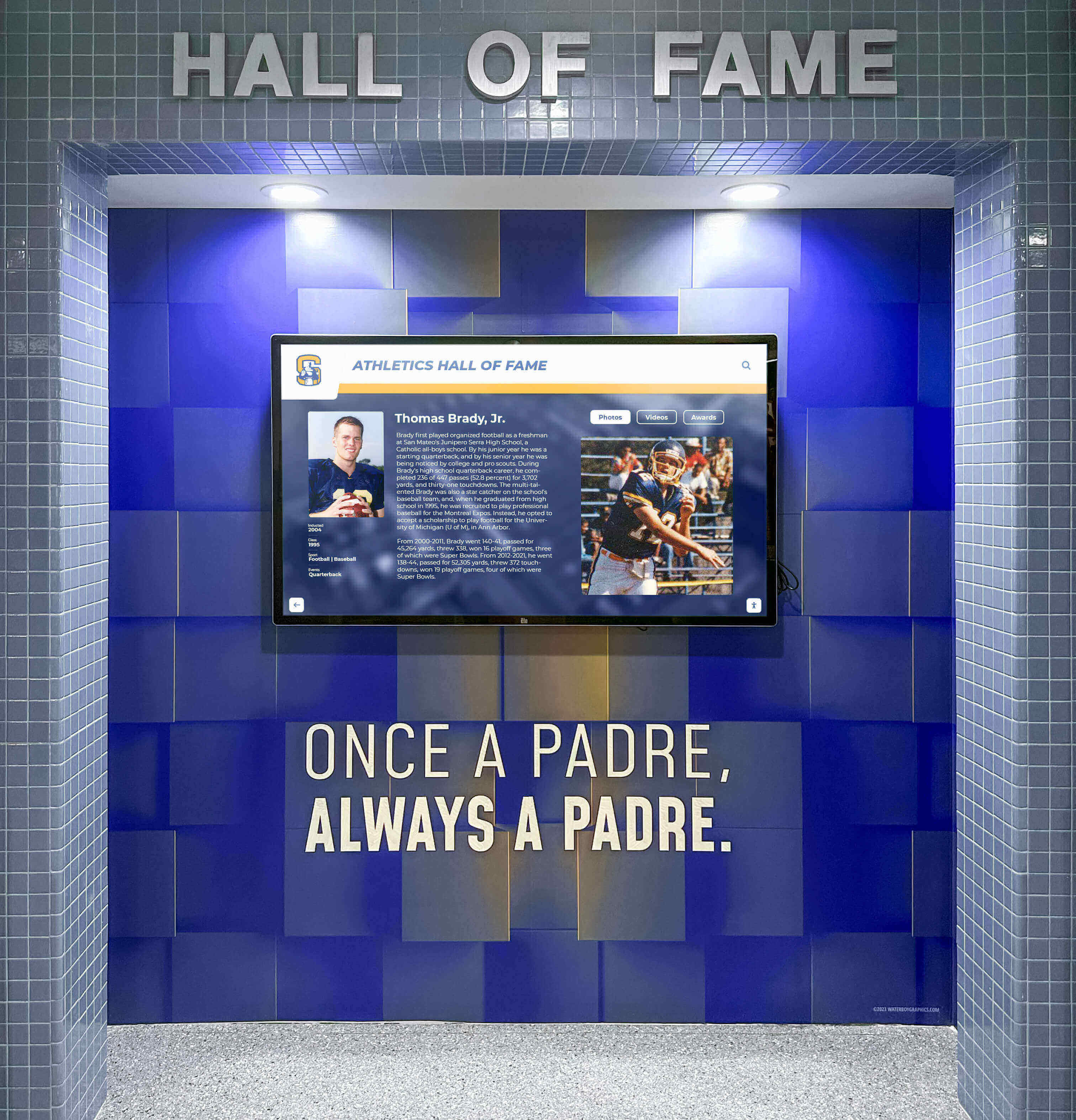
Wall-mounted recognition displays often have HDMI cables routed through conduit where cable quality and length directly affect HDCP reliability
Step 4 — Isolate the Failing Device by Adding Components Back
Goal: After confirming the direct-connect baseline works, find which specific device in the chain breaks the handshake.
Start with the simplest chain and add one device at a time:
- Source → Display (direct) — confirms this works (Step 1 already did this).
- Source → Switcher → Display — if this breaks, the switcher is the likely culprit.
- Source → Extender → Display — if this breaks while Step 2 worked, the extender is the culprit.
- Source → Switcher → Extender → Display — full chain; if this breaks while Step 3 worked, the interaction between switcher and extender is the issue.
- At each stage, power cycle in the correct sequence (display first, then working back toward the source) before declaring the test a failure.
- Document which configuration failed so you can report a specific device to the vendor or integrator.
Step 5 — Check and Update Firmware on All Devices
Goal: Outdated firmware on switchers and extenders is among the most common causes of HDCP failures that a direct-connect test does not reveal.
- Identify the make, model, and current firmware version of every device in the chain: media player, HDMI matrix switcher (if used), HDBaseT or HDMI-over-IP extender, and display.
- Visit each manufacturer’s support site and check whether a firmware update exists for your installed version. Prioritize switchers and extenders—they are updated most frequently for HDCP compatibility fixes.
- Before updating firmware on any device, read the release notes to confirm the update addresses HDCP issues rather than other features.
- Back up any device configuration if the manufacturer’s update tool warns that settings may be reset.
- Update one device at a time and retest after each update—this confirms which firmware update resolved the issue.
- For commercial displays (LG, Samsung, NEC, Philips), firmware is often distributed as a USB file rather than an over-the-air update. Download from the commercial (not consumer) support portal using your exact model number.
Step 6 — Review Source Player HDCP Settings
Goal: Some media players force HDCP on even for non-protected content, which causes failures when downstream hardware does not negotiate the handshake properly.
- Open the display settings on your media player (Windows PCs, Android players, Brightsign, Chrome devices, and Apple TV each have different menus).
- Locate any HDCP or copy-protection setting. On some players this appears under Display, HDMI Output, or Privacy & Security.
- If the player allows disabling HDCP for non-protected local content (such as JPEG images and locally stored MP4 recognition videos), disable it—then retest.
- If the player streams protected content (DRM-protected video services), HDCP cannot legally be disabled and the downstream chain must support the required HDCP version.
- On Windows PCs used as recognition players: open Display Settings → Advanced Display Settings and check whether the GPU is forcing HDCP. AMD and NVIDIA GPU drivers both have HDCP settings in their control panels.
- Confirm the player’s resolution output matches the display’s native resolution. A mismatch can trigger a re-negotiation loop that manifests as a black screen.
Step 7 — Verify HDCP Compliance on Switchers and Extenders
Goal: Confirm that every intermediate device in the chain actively passes HDCP rather than silently blocking it.
- Locate the datasheet or specification sheet for your HDMI matrix switcher. Look for an explicit “HDCP compliant” statement and the supported version (1.4 or 2.2).
- Do the same for any HDBaseT transmitter/receiver, HDMI-over-Cat6 extender, or HDMI-over-fiber extender. “Supports HDCP” in marketing materials is not the same as “actively passes HDCP 2.2.”
- If the switcher or extender predates 2014, it likely only supports HDCP 1.4 and will fail with any 4K or newer premium-content source.
- For matrix switchers: check whether the switcher has a per-port HDCP mode setting in its web interface or control system command set. Some switchers allow forcing HDCP off on selected outputs—use this for outputs connected to recognition displays running only local, non-protected content.
- If using HDMI-over-IP (NDI, SDVoE, or proprietary systems), HDCP compliance depends on the encoder and decoder firmware and the network switch configuration. Verify with the manufacturer that your firmware version passes HDCP at your required version.
Schools that expand their recognition displays across multiple hallways or buildings often route signals through the same AV infrastructure used for broadcast or video production. Consulting your vendor or a licensed AV integrator is advisable before changing shared infrastructure settings—changes can affect more than the recognition display.
Step 8 — Resolve HDCP Version Mismatches
Goal: Confirm that every device in the chain supports the HDCP version required by your content source.
Use this quick compatibility check:
| Content Type | HDCP Version Required | Minimum Chain Requirement |
|---|---|---|
| Local JPEG/PNG slideshows | None (if player HDCP disabled) | Any hardware |
| Local 1080p MP4 video | HDCP 1.4 | All devices HDCP 1.4+ |
| Streaming at 1080p (Netflix, YouTube) | HDCP 1.4 or 2.2 (varies) | All devices HDCP 2.2 recommended |
| 4K UHD streaming content | HDCP 2.2 or 2.3 | All devices HDCP 2.2+ |
- Identify the HDCP version your content source requires (check the streaming platform’s or player’s technical specifications).
- Confirm every device in the chain—cable, switcher, extender, display—meets or exceeds that version.
- If one device is HDCP 1.4 only and your source requires 2.2, the entire chain fails. You must either upgrade the non-compliant device or downgrade the content source to 1080p material compatible with HDCP 1.4.
- Note: displays purchased before 2017 may not support HDCP 2.2 even if their HDMI ports look identical to newer models. Check the display’s specification sheet, not its marketing materials.
Step 9 — Test with a Known-Good Replacement Device
Goal: If steps above narrowed the failure to a specific device, confirm by substitution before purchasing a replacement.
- Borrow a known-working unit of the same type (switcher, extender, or cable) from another location in your school or from your AV vendor.
- Swap the suspect device with the known-good unit and retest.
- If video returns with the borrowed unit, the original device has failed or has incompatible HDCP support.
- Before ordering a replacement, verify the new unit’s HDCP specification matches your entire chain—replacing a failing HDCP 1.4 switcher with another HDCP 1.4 unit will not help if your content now requires 2.2.
Step 10 — Document the Resolution and Prevent Recurrence
Goal: Record what failed and why, so the next person (or the next event) is not starting from scratch.
- Write a one-page AV chain diagram showing every device, cable, and port used for the recognition display, with HDCP version noted for each.
- Note the power-on sequence that works and post it inside the AV rack door.
- Record the firmware version on every device after the fix. Set a calendar reminder to check for updates annually.
- If the failure was a HDCP version mismatch, add a note to your technology refresh plan flagging which device will need upgrading next time the content source is updated.
- Share the completed diagram with your facilities team, athletic director, and booster club technology liaison so anyone supporting the display has a reference before reaching out to IT.
Good documentation of recognition display infrastructure also supports the broader goal of preserving your school’s history—keeping alumni records and achievement data accessible for years to come, not just troubleshooting a single AV issue.
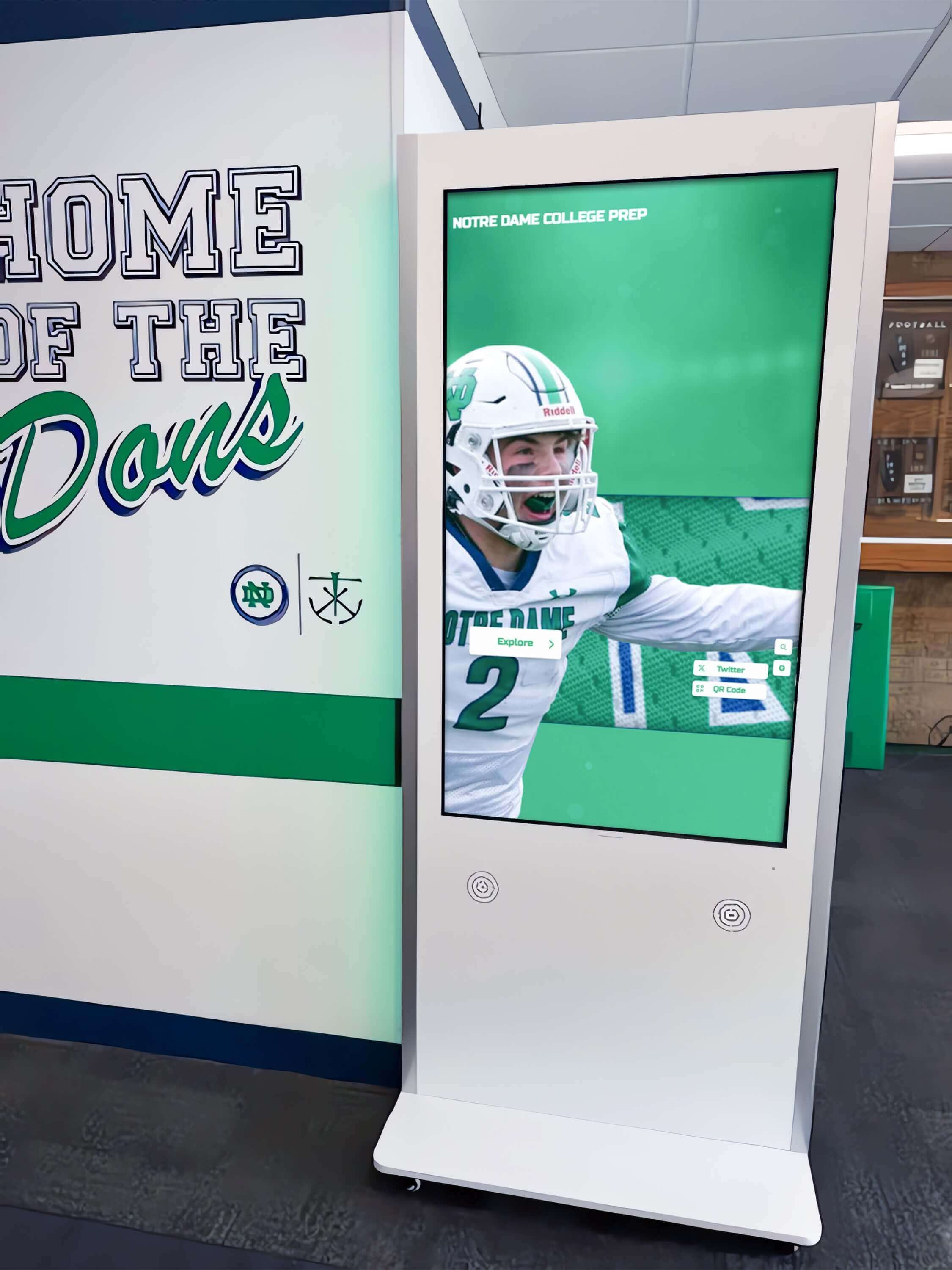
Self-contained kiosk enclosures that house the media player and display together reduce the number of HDCP handshake points and make the signal chain easier to troubleshoot
Escalation Table: When to Call a Professional
Some HDCP failures are beyond a safe DIY resolution. Use this table to decide when to escalate to a licensed AV integrator or the system vendor.
| Situation | Recommended Action |
|---|---|
| Switcher or extender firmware update requires opening hardware | Contact the manufacturer’s technical support line |
| Matrix switcher serves shared AV infrastructure (auditorium, gym) | Involve a licensed AV integrator before changing any settings |
| Display requires internal service or HDCP key re-provisioning | Contact the display manufacturer’s commercial support—not consumer support |
| All steps above pass but black screen persists | Engage the recognition display vendor; platform-level HDCP settings may need adjustment |
| HDCP 2.2 upgrade requires replacing multiple devices across a building | Request a formal AV infrastructure assessment and quote before purchasing |
| Installation involves rerouting cables through walls or conduit | Hire a low-voltage licensed contractor; most jurisdictions require licensing for in-wall cabling |
| Black screen triggers after a school network policy change | Involve the network/IT administrator—some managed switches and VLANs can affect HDMI-over-IP HDCP negotiation |
When a recognition display powers on correctly in your direct-connect test but fails consistently through your school’s AV infrastructure, the problem almost always lives in a firmware gap, a HDCP version mismatch, or a device that advertises compliance without delivering it. An experienced AV integrator can run a protocol analyzer on the HDMI signal and identify the exact point of failure in minutes—a worthwhile investment when an event is hours away and component swapping alone is not solving the problem.
Design Choices That Reduce HDCP Headaches Long-Term
Prevention is easier than troubleshooting. Schools planning recognition display upgrades or new installations can build AV chains that reduce HDCP failure risk from the start.
Keep the signal chain short. Each additional hop—switcher, extender, splitter—adds one more potential handshake failure. Where possible, locate the media player at or near the display. Many recognition display vendors offer kiosk enclosures that house the player and display together, eliminating the chain entirely.
Specify HDCP 2.2 compliance for every new purchase. Even if today’s content only requires HDCP 1.4, specifying 2.2 on all new hardware future-proofs the installation against content-source upgrades.
Use professional-grade, not consumer-grade, components. Consumer HDMI switches sold at electronics retailers are not rated for continuous operation and frequently have undocumented HDCP limitations. Commercial AV equipment from established vendors (Extron, Crestron, Kramer, AMX, Black Box) carries explicit HDCP certification.
Match your content strategy to your hardware. Schools using their recognition displays to show only locally stored, non-HDCP content (school photos, athlete profiles, award videos produced in-house) have more flexibility than schools streaming content from commercial platforms. Knowing what HDCP requirement your content actually needs lets you spec hardware confidently. A thoughtful approach to digitizing and displaying school records includes planning the full AV chain, not just the software.
Document before an event, not during one. Athletics directors, booster volunteers, and alumni committee chairs who set up recognition displays for special events are not AV engineers. A laminated one-page AV chain diagram with step-by-step power-on instructions—posted inside the equipment cabinet—prevents an event-day panic. Preserving that kind of practical institutional knowledge is part of what makes a recognition program sustainable, in the same spirit that capturing and sharing graduate wisdom keeps alumni connections meaningful for future classes.
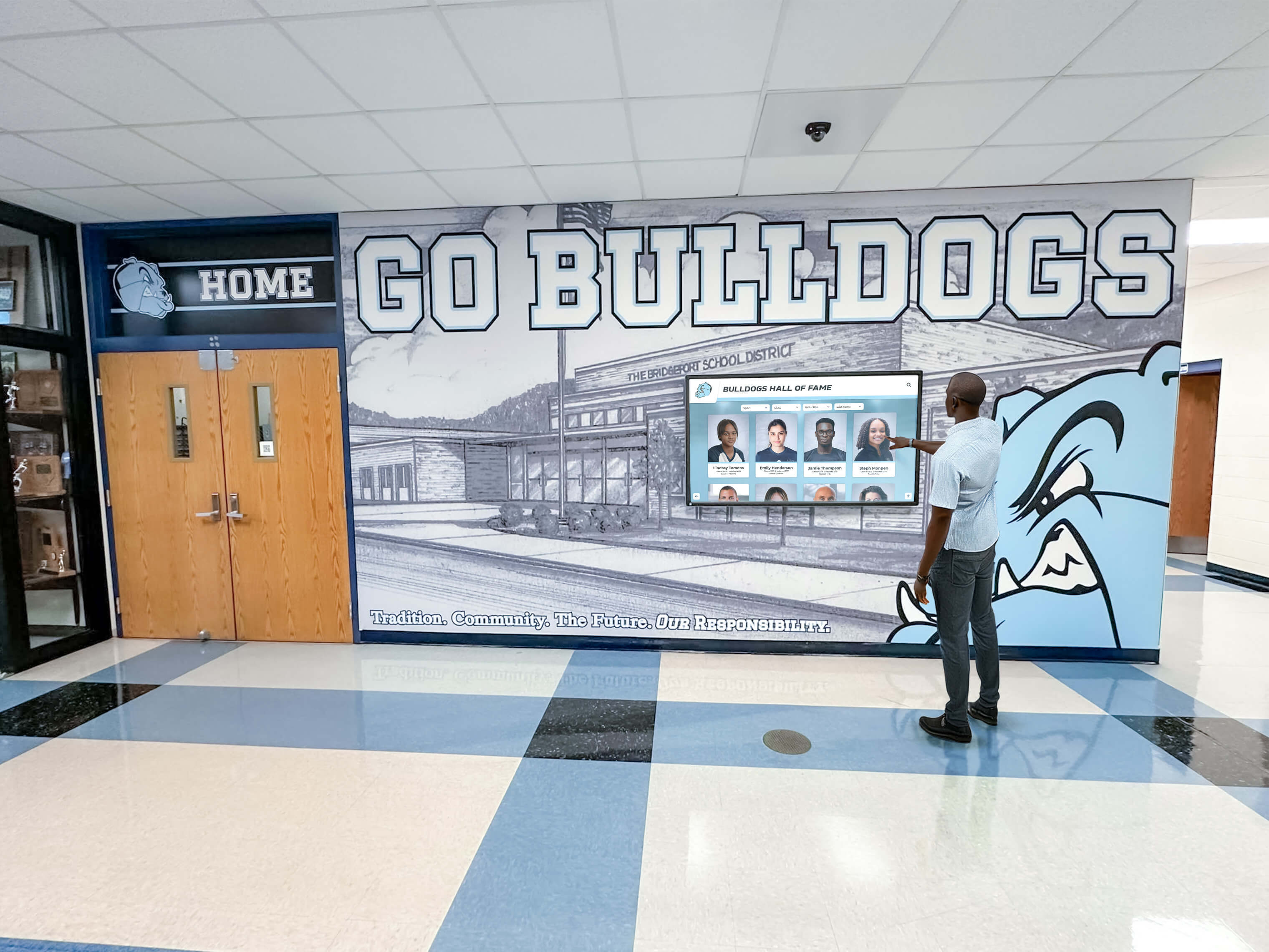
A recognition display is only as powerful as its reliability—solving HDCP issues once and documenting the fix means the display is ready every time community members arrive to celebrate the school's legacy
Special Considerations for School AV Environments
Shared Infrastructure and IT Policies
Many schools route recognition display signals through the same managed network or HDMI matrix used for classroom AV, auditorium systems, or broadcast video. Before making changes to switchers or network switches that affect shared infrastructure, confirm with your network administrator and IT director. In some school environments, VLAN policies or managed switch settings affect HDMI-over-IP systems in ways that look like HDCP failures but are actually network configuration issues.
After-Hours and Event Support
Athletic banquets, hall of fame induction ceremonies, alumni homecoming weekends, and booster club award nights are exactly when recognition displays must work—and exactly when the IT team may not be on campus. Build your AV chain so that a non-technical staff member can follow the power-on sequence checklist and confirm video is working before the event begins. An optional second screen connected via a simple HDMI splitter (after confirming the splitter is HDCP-compliant) lets you run a preview monitor in the control room while the main display faces the audience.
Vendor Support Contacts
Keep a printed list of technical support contacts in the AV rack:
- Recognition display platform vendor (software and player support)
- AV hardware vendor or integrator (switcher, extender, display)
- Display manufacturer commercial support line (distinct from consumer support)
- School IT helpdesk escalation path
Quick access to the right support contact turns a potential 90-minute scramble into a 10-minute call.
Quick-Reference Checklist Summary
Use this condensed version as a laminated card posted inside your AV equipment cabinet.
Before every event:
- Power on display, then extender/switcher, then media player (in that order)
- Confirm video is live on the recognition display at least 30 minutes before guests arrive
- Note the current firmware version in the AV log
If black screen appears:
- Direct-connect test (player → display, short cable)
- Power cycle in correct sequence
- Check/replace HDMI cables
- Add components back one at a time
- Check and update firmware
- Review player HDCP settings
- Verify switcher/extender HDCP compliance
- Resolve HDCP version mismatch
- Substitute known-good device
- Escalate to vendor or AV integrator if unresolved
Preserving a school’s athletic and academic legacy—the records, the inductees, the milestones that connect alumni to the institution they love—deserves recognition displays that work every single time. The traditions your display honors are too important to be sidelined by a preventable technical failure. HDCP issues are solvable; they just require a methodical approach rather than panic.
Schools looking to document their own hall of fame traditions for inspiration on how other programs present their legacy can also find ideas in resources like drill team and performing arts recognition approaches that demonstrate how schools adapt recognition platforms to fit diverse programs.
See a Recognition Display Built to Work Reliably
Rocket Alumni Solutions designs school recognition displays with simple, reliable AV setups that minimize HDCP complexity—so your hall of fame is always on when your community arrives. Request a personalized demo to see how purpose-built recognition hardware and software works together.
Request Your Free Demo






























