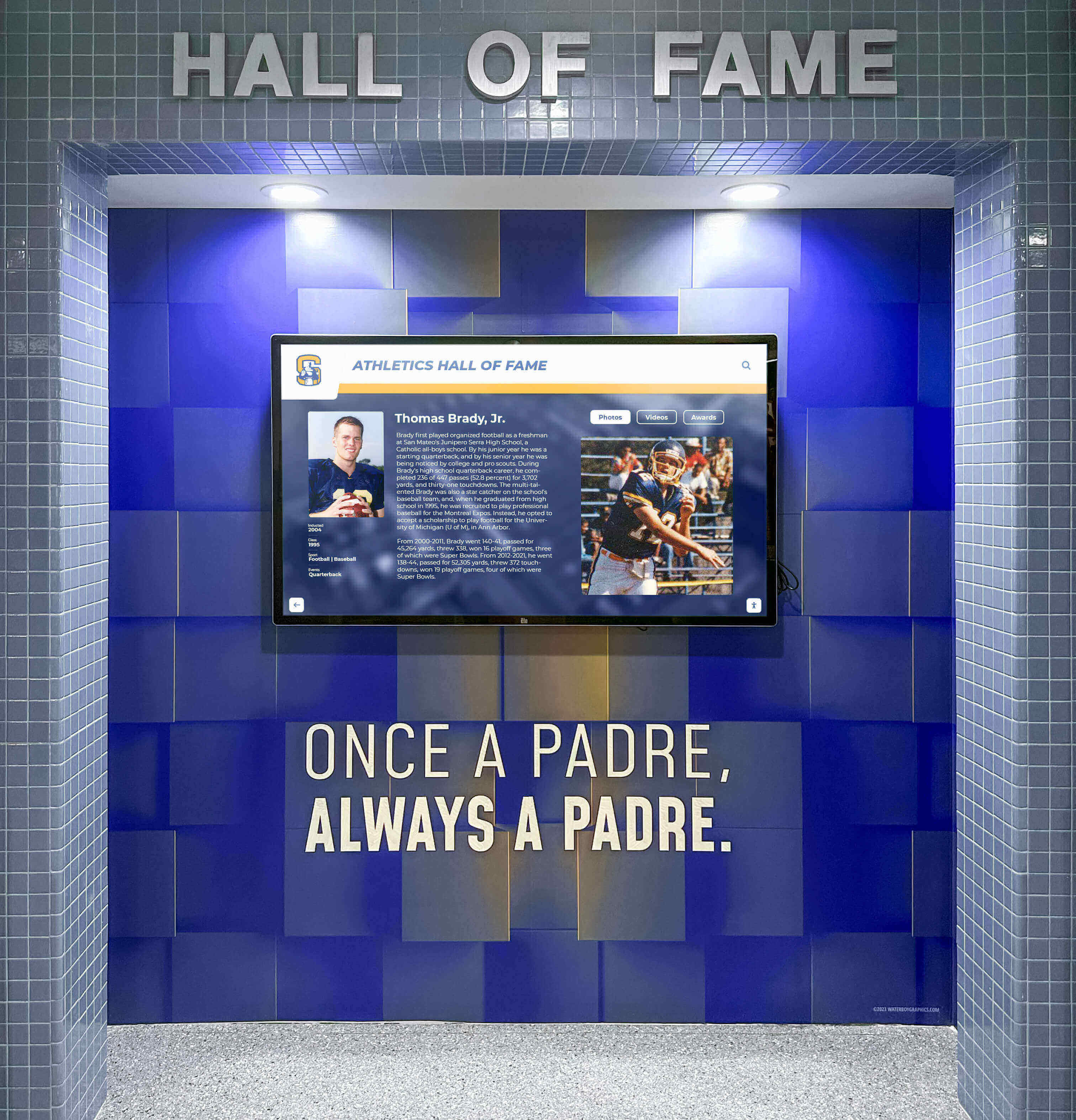




A school’s athletic recognition display — a lobby kiosk showing hall-of-fame inductees, a hallway touchscreen cycling through championship banners, or a wall-mounted screen streaming seasonal awards — depends on one condition that is easy to overlook during setup: the screen must stay on. When a browser tab loses focus, a device suspends, or a visitor switches applications, the operating system’s power management will eventually dim or lock the screen. For a recognition display running unattended in a gymnasium lobby, that means the platform’s content goes dark precisely when visitors arrive expecting to browse it. The Screen Wake Lock API gives web-based recognition platforms a browser-native mechanism for requesting that the device keep the screen active — but the request is not permanent, not universal, and not immune to system conditions. The API releases the lock automatically when the document becomes hidden, and the platform must reacquire it when the document becomes visible again.
This guide gives IT staff, athletic directors, and recognition program owners a structured school recognition display screen wake lock test — a repeatable procedure for verifying that a web-based recognition display correctly detects wake lock release events, handles visibility changes, reacquires the lock after a tab switch or screen-lock event, and provides a manual fallback when the API is unavailable or blocked by school network policy.
Quick answer: A school recognition display passes the screen wake lock test when navigator.wakeLock.request("screen") resolves successfully in a secure context, the returned WakeLockSentinel’s release event is detected and logged, the platform reacquires the lock on visibilitychange when document.visibilityState returns "visible", and a user-visible fallback is in place for devices where the API is blocked or unavailable. No test result claims the wake lock overrides the school’s OS power settings or every managed-browser policy.

A school athletics hall-of-fame screen running on a web-based platform needs the Screen Wake Lock API to stay lit during gaps between visitor interactions — this test procedure verifies the full release-and-reacquisition lifecycle
What the Screen Wake Lock API Does for Athletic Recognition Screens
The Screen Wake Lock API gives web applications a way to request that the device not dim or lock the screen. For a school athletic recognition display running as a browser-based application, this matters because the platform has no other browser-native mechanism for preventing the OS from treating an idle lobby kiosk the same way it treats a laptop left unattended.
A wake lock request is made by calling navigator.wakeLock.request("screen"), which returns a promise that resolves with a WakeLockSentinel object. The sentinel represents the active lock. Calling .release() on it releases the lock voluntarily; the lock is also released automatically when the document becomes hidden — for example, when a visitor switches tabs, minimizes the browser, or when the device screen turns off. The API requires a secure context: the page must be served over HTTPS. A recognition platform served over plain HTTP will not have access to navigator.wakeLock.
Feature detection is the first check in any acceptance test:
if ("wakeLock" in navigator) {
  // Screen Wake Lock API is available in this browser
} else {
  // API not available — activate manual fallback
}
Schools deploying interactive touch screen TVs for recognition and storytelling on large-format displays in lobbies and hallways are precisely the context where the wake lock API is most relevant — and where an untested release event leaves a screen dark in a high-visibility location.
Release Events: What Triggers a Wake Lock Release
A WakeLockSentinel emits a release event when the wake lock is released for any reason. Listening for this event is the primary mechanism for detecting that the screen is no longer protected:
let wakeLock = null;

async function requestWakeLock() {
  try {
    wakeLock = await navigator.wakeLock.request("screen");
    wakeLock.addEventListener("release", () => {
      console.log("Screen wake lock released");
    });
    console.log("Wake lock acquired");
  } catch (err) {
    console.error(`Wake lock request failed: ${err.name}, ${err.message}`);
  }
}
Several conditions can cause an automatic release without any explicit .release() call from the application:
- The document becomes hidden. When a visitor tabs away, minimizes the browser, or the device screen is locked by the OS, the browser hides the document and releases the wake lock automatically.
- The system overrides the request. Low battery level, power-save mode enabled by the OS, or a browser-level battery management policy can cause the browser to release a wake lock even if the document remains visible.
- Permission is revoked mid-session. If the browser or a managed-device policy revokes the wake lock permission during a live session, the sentinel fires its
releaseevent and the lock is gone.
For a school recognition display running unattended, the most common trigger is the document-hidden case: a staff member switches to another application on the kiosk device, or a scheduled OS screensaver activates. When a visitor arrives at a lobby kiosk that pairs with a digital welcome and recognition screen, a released and unrecovered wake lock is the difference between a lit welcome display and a dark one.
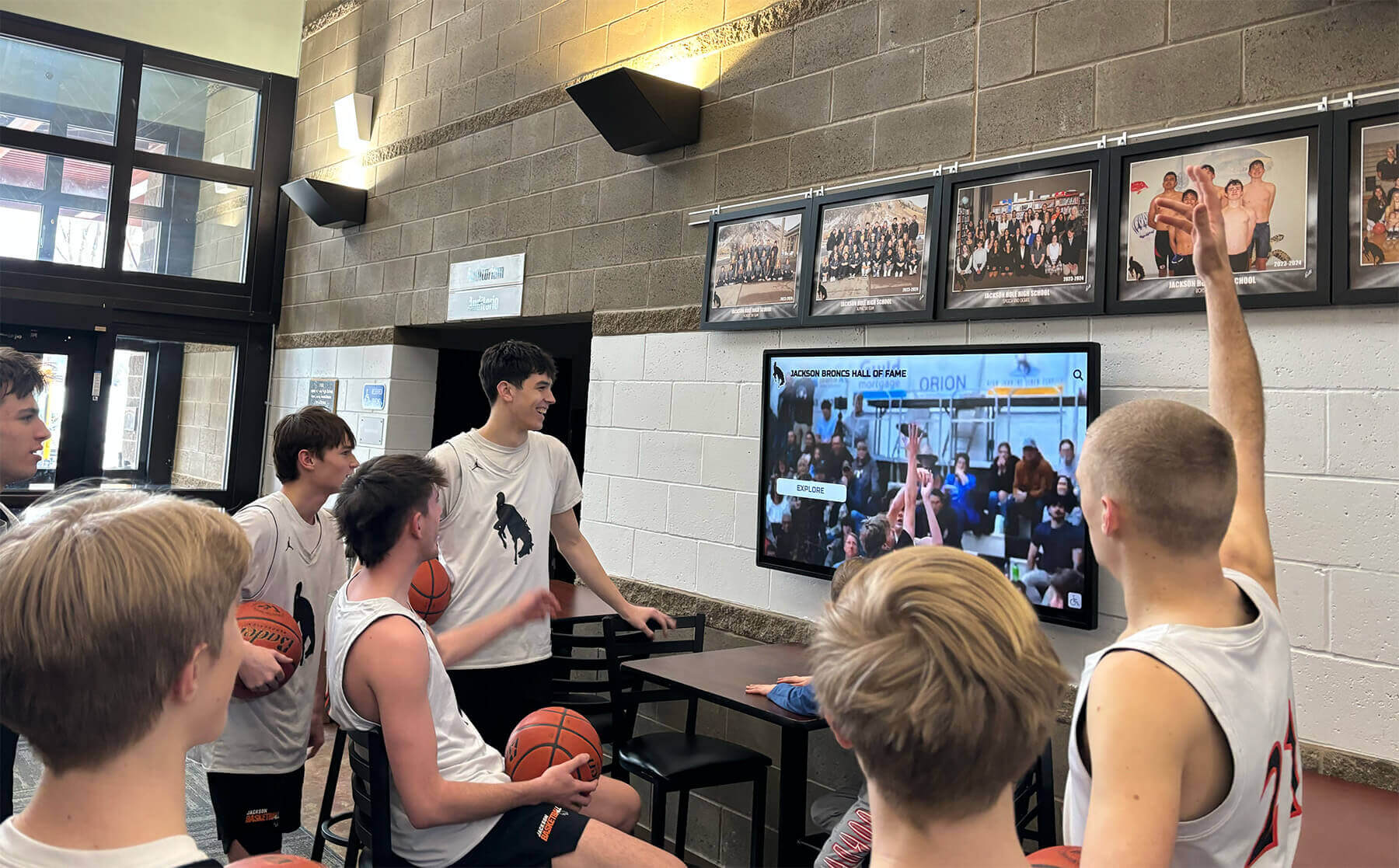
A released wake lock with no reacquisition handler means visitors must manually interact with the device to wake the screen — adding friction to a display meant to operate unattended
Visibility Changes and Reacquisition After Tab Switch or Screen Lock
The Screen Wake Lock API does not automatically reacquire a released lock. When the document becomes visible again — the visitor returns to the browser tab, the screen is unlocked, or the kiosk browser comes back to the foreground — the platform must request a new wake lock explicitly. The standard pattern uses a visibilitychange listener:
document.addEventListener("visibilitychange", async () => {
  if (wakeLock !== null && document.visibilityState === "visible") {
    try {
      wakeLock = await navigator.wakeLock.request("screen");
      wakeLock.addEventListener("release", () => {
        console.log("Screen wake lock released");
      });
    } catch (err) {
      console.error(`Reacquisition failed: ${err.name}, ${err.message}`);
    }
  }
});
The condition wakeLock !== null prevents the reacquisition handler from requesting a new lock if the application intentionally released it — for example, during a scheduled maintenance window or when navigating away from display mode. The reacquisition attempt is wrapped in a try/catch because the same conditions that cause an initial request to fail can also cause a reacquisition request to fail.
For the school recognition display screen wake lock test, the visibility-reacquisition scenario is the one most often missed during initial development: developers test initial lock acquisition successfully but never simulate a tab switch or device lock followed by a return to the foreground. The test procedure below includes explicit steps for this scenario.
Note that reacquisition does not restore the previous sentinel — it creates a new one. The release event listener registered on the old sentinel does not transfer. After each successful reacquisition, register a new release listener on the new sentinel so the application continues to detect future releases.
What the Wake Lock Cannot Override
The Screen Wake Lock API is a request, not a command. Several conditions can prevent acquisition or cause release regardless of what the application code does:
- OS and hardware power policies. A school-managed device configured by IT to enforce a screen timeout cannot be overridden by a browser API request. The OS power policy takes precedence over the wake lock.
- Low battery behavior. Most browsers will not honor a wake lock request when the device’s battery falls below a threshold, even if the document is visible and the call would otherwise succeed. Kiosk devices with failing or unconfigured charging setups may encounter this.
- Browser Permissions Policy. The
screen-wake-lockPermissions Policy directive controls which origins can use the API. The default allowlist isself, meaning third-party embedded frames cannot use the wake lock unless the parent page grants permission explicitly. If a school’s managed browser policy restricts this directive,navigator.wakeLock.request()will be rejected. - Browser support gaps. The Screen Wake Lock API reached Baseline 2025 status with availability across major browsers since March 2025. Kiosk devices running browser versions that predate this milestone may not have the API available at all.
For schools running recognition software across multiple screens — including deployments where unlimited screens share one subscription without per-screen licensing fees — verifying wake lock behavior on each individual device matters because OS power settings and browser versions may differ from one kiosk to the next even within the same building.
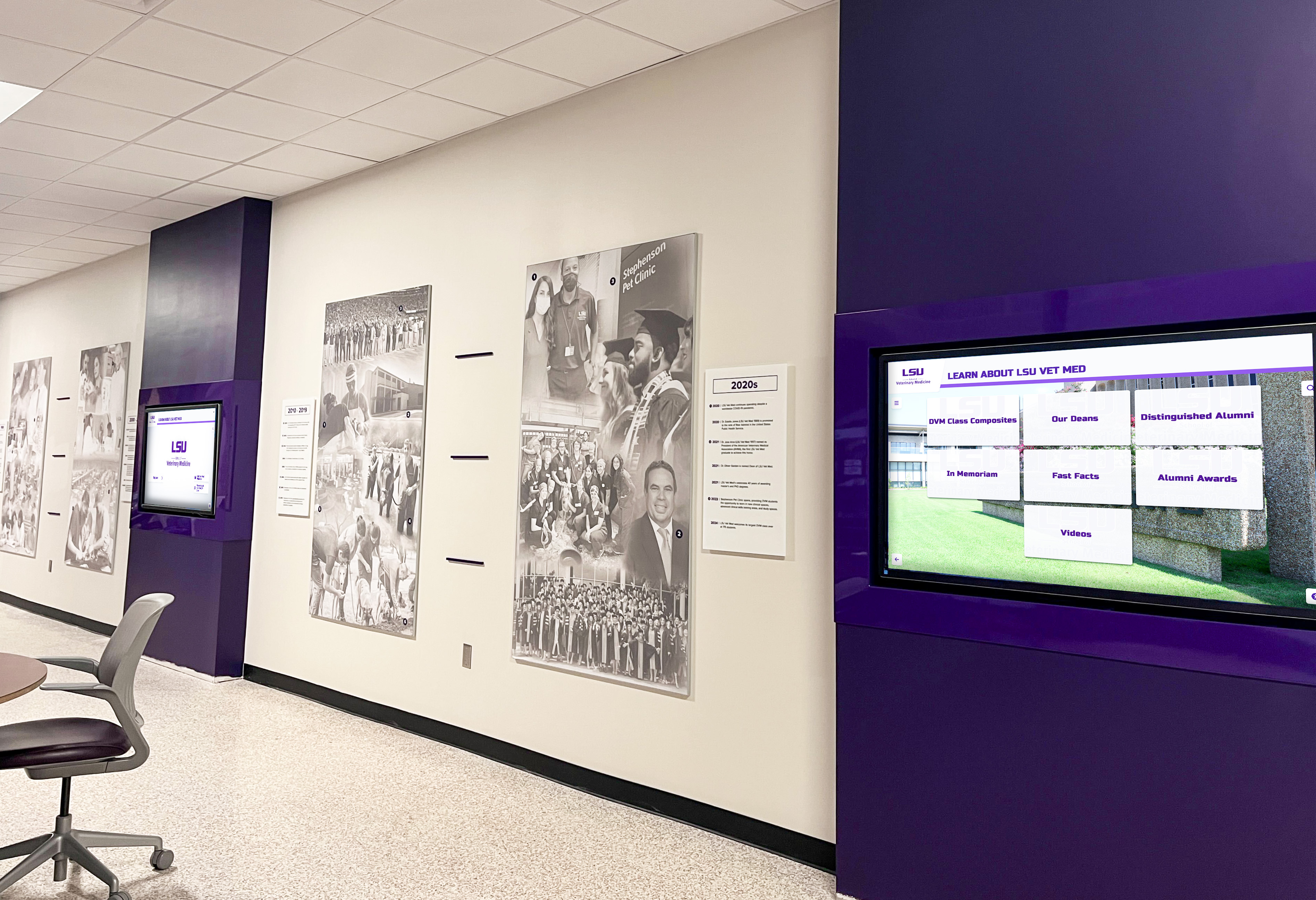
In a multi-screen hallway deployment, wake lock behavior is device-specific — a uniform IT policy reduces variability, but each screen still needs individual acceptance testing
Manual Fallback for Unsupported Browsers and Managed Environments
Feature detection determines whether the API is available; the fallback determines what happens when it is not. A school recognition display with no fallback strategy will simply go dark on any device where the API is blocked or unavailable, without any notification to staff.
Practical manual fallback options for unsupported environments:
- On-screen staff notification. When
"wakeLock" not in navigatoror when a wake lock request throws, display a persistent low-profile banner visible to staff — for example, a small message reading “Auto-wakelock inactive — tap screen periodically to keep display lit.” This makes the limitation visible without disrupting the visitor experience. - OS-level screen timeout configuration. For school IT staff managing kiosk devices, setting the OS screen timeout to “Never” or the maximum available value is the most reliable fallback. This setting lives in the device’s OS power management panel, outside the recognition platform’s control entirely.
- Scheduled display power. Many commercial display panels used in school recognition installs include built-in scheduling that controls when the panel powers on and off independently of the connected device’s OS or browser. This is a display-hardware feature, not a browser API, and is the most dependable mechanism for controlling whether the physical screen is illuminated during school hours.
- Periodic interaction pattern. Some deployments use a lightweight timer to dispatch a synthetic interaction event at regular intervals as a heuristic signal to the OS. Effectiveness depends on the OS and browser configuration; this is a supplement, not a substitute for the wake lock or OS-level configuration.
The HTTP cache-control header audit for school recognition displays addresses a related display maintenance concern — ensuring fresh content reaches screens after publishing. That is a separate layer from the wake lock, which governs only whether the screen stays lit, not what it shows.
Evidence and Decision Table
The following table describes what to observe at each stage of the wake lock lifecycle and what constitutes a passing result for a school recognition display acceptance test. Treat the criteria here as proposed acceptance standards for this deployment — adapt them to your specific browser versions and device configurations.
| Scenario | How to Test | Expected Observation | Notes |
|---|---|---|---|
| Feature detection | console.log("wakeLock" in navigator) in browser console | true on supported browsers; false triggers fallback path | Test on every device model in the deployment |
| Initial lock acquisition | Call navigator.wakeLock.request("screen") on an HTTPS page | Promise resolves; sentinel object is not null | Fails on HTTP — confirm URL scheme before testing |
| Release event on tab switch | Switch away from tab while lock is active; monitor console | release event fires; console logs release message | Simulate by pressing Alt+Tab or clicking a different tab |
| Release event on screen lock | Lock the device screen while lock is active | release event fires after screen lock | On managed devices, screen lock shortcut may vary |
| System-triggered release | Enable OS battery saver or low-power mode | release event fires; lock unavailable until conditions clear | Not reproducible on all devices; document as conditional |
| Reacquisition on visibility return | Return to tab after release; monitor console | New sentinel acquired; new release listener attached | Confirm new sentinel has a fresh release listener |
NotAllowedError handling | Call request() on an HTTP page or with document hidden | catch block executes; fallback indicator activates | Use a staging URL for HTTP test — do not test on production |
| Manual fallback visible | Use feature flag to bypass API or test on unsupported browser | On-screen staff notification appears; no uncaught JS errors | Confirm notification is visible to staff but unobtrusive to visitors |
| No API available (older browser) | Test on browser version prior to Baseline 2025 | Feature detection returns false; fallback activates without errors | Inventory browser versions across all kiosk devices |
| Multi-device consistency | Repeat acquisition test on each device in deployment | Supported devices acquire lock; fallback activates on unsupported ones | OS power settings may override even on supported browsers |
School Recognition Display Screen Wake Lock Test Procedure
The following numbered workflow gives IT staff a repeatable acceptance test for a single school recognition display device. Run steps 1 through 9 on each device in the deployment, then complete step 10 across all devices.
Confirm HTTPS. Open the recognition display platform URL in the device’s browser. Verify the URL begins with
https://and the browser shows a valid certificate. A plain HTTP URL will make the API unavailable regardless of browser version.Run feature detection. Open browser developer tools (F12) and go to the Console tab. Enter
console.log("wakeLock" in navigator). If the result istrue, the API is available — continue to step 3. Iffalse, document the device as requiring fallback and skip to step 9.Request the initial wake lock. In the Console, enter:
let wl = null;
navigator.wakeLock.request("screen").then(sentinel => {
  wl = sentinel;
  wl.addEventListener("release", () => console.log("Wake lock released"));
  console.log("Wake lock acquired");
}).catch(err => console.error(err.name, err.message));
Confirm the console shows Wake lock acquired. If an error is logged instead, note the error name — NotAllowedError indicates a permission or visibility condition prevented acquisition.
Test document-hidden release. With the wake lock active, press Alt+Tab (Windows/Linux) or Command+Tab (macOS) to switch to a different application, or click a different browser tab. Wait several seconds. Return to the recognition display tab. Confirm the console shows
Wake lock released. This confirms the browser releases the lock on document-hidden as expected.Test reacquisition on visibility return. Immediately after step 4, confirm whether the platform’s
visibilitychangehandler reacquired the lock automatically. If the handler is in place, the console should show a secondWake lock acquiredafter you return to the tab. If it does not appear, the reacquisition handler is missing or not functioning — note this as a platform configuration item.Test screen-lock release. With a fresh wake lock active, lock the device screen using the OS keyboard shortcut or power button. Wait several seconds, then unlock and return to the browser. Confirm the release event fired and — if the reacquisition handler is in place — the lock was reacquired and a new sentinel is active.
Test manual release with reacquisition guard. With a fresh wake lock active, enter
wl.release(); wl = null;in the Console. Confirm thereleaseevent fires. Then switch away from the tab and return. Confirm the reacquisition handler does not reacquire the lock — becausewlis now null and the guard condition prevents the request. This step verifies the intentional-release guard is working correctly.Verify error handling. In a staging environment served over HTTP, repeat step 3. Confirm the promise rejects with a descriptive error message and the catch block handles it gracefully — no uncaught exception in the console, and the fallback notification appears on screen.
Verify the manual fallback. On any device where step 2 returned
false, or after simulating an unavailable API: confirm the on-screen staff notification is visible, confirm no JS errors appear in the console, and confirm the display content continues cycling or remains static as designed.Document results across all devices. Complete the evidence table above for each device. Record browser version, OS version, whether the API was available, whether release events fired correctly, whether reacquisition succeeded, and whether the fallback activated as intended. Flag any device where release events do not fire for browser update or OS configuration review.
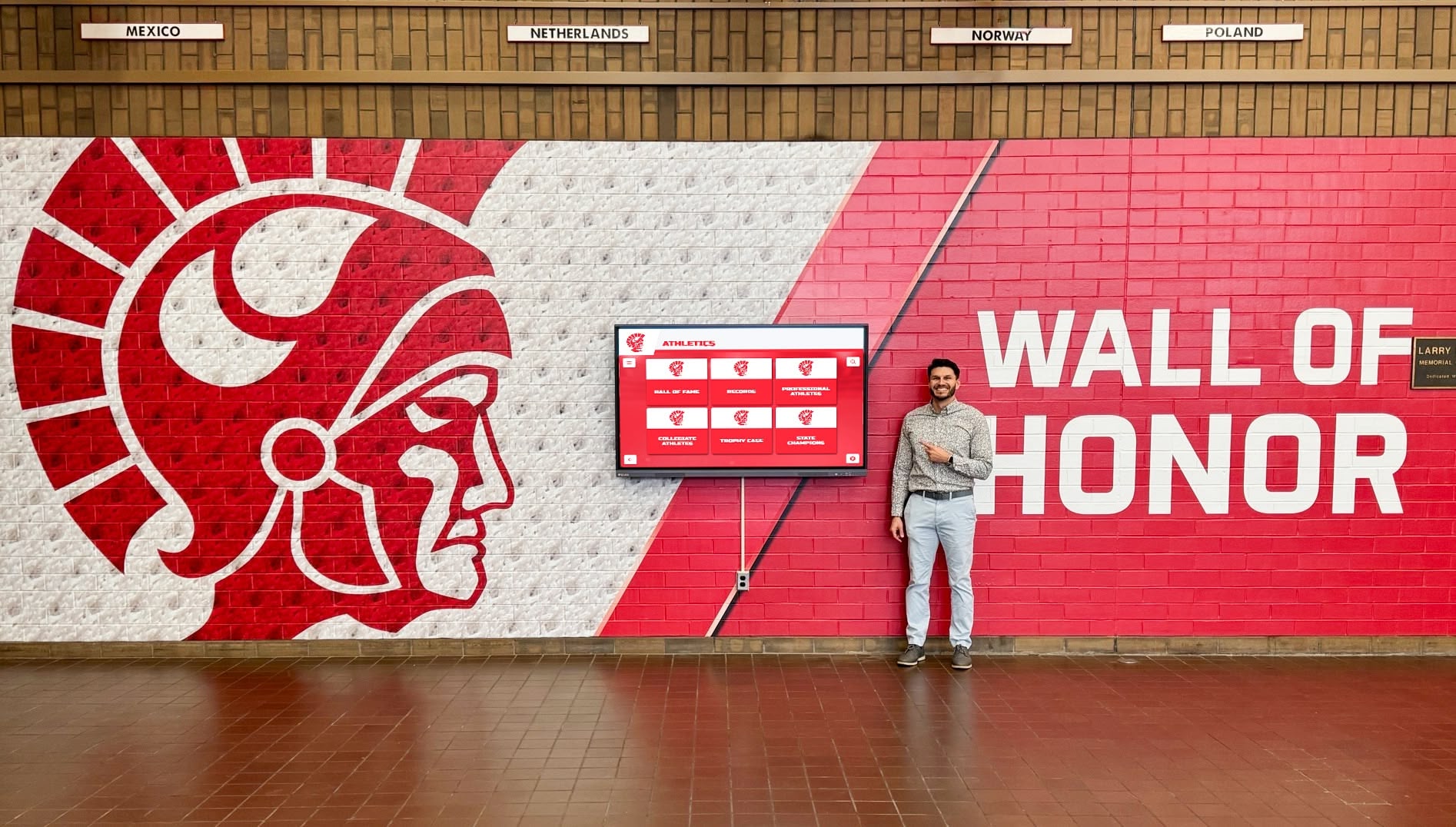
A school wall-of-honor display visited intermittently throughout the day depends on the wake lock release-and-reacquisition cycle to remain visible without staff intervention between visitor sessions
Pre-Deployment Checklist
Before a new school recognition display goes live, use this checklist to confirm wake lock behavior is verified and documented:
- Display URL serves over HTTPS; valid certificate confirmed on the kiosk device
- Feature detection returns
trueon all supported kiosk devices in the deployment - Fallback notification is designed and tested on at least one unsupported or policy-blocked device
-
navigator.wakeLock.request("screen")resolves without error on a visible, active document -
releaseevent listener is registered on each new sentinel at the time of acquisition -
visibilitychangehandler reacquires the lock whendocument.visibilityState === "visible" - Reacquisition is guarded to prevent unintended reacquisition after a deliberate release
- Error handling catches
NotAllowedErrorwithout throwing an uncaught exception - Manual fallback (OS screen timeout, panel scheduling, or staff reminder) documented for each device where the API is unavailable
- Release and reacquisition events tested for both tab-switch and screen-lock scenarios
- Test repeated on each physical device in the deployment — not only on a development machine
- Browser versions across all kiosk devices inventoried; any pre-Baseline 2025 browsers flagged for update
Frequently Asked Questions
Q: Does the Screen Wake Lock API work on every browser a school recognition display might use?
The Screen Wake Lock API reached Baseline 2025 status with availability across major browsers since March 2025. Browsers updated after that date on Chrome, Edge, Firefox, and Safari generally support it. Kiosk devices running locked-down browser installs that have not been updated since before that milestone may not have the API — feature detection is the only reliable way to determine availability for a specific installed browser version.
Q: Can the school’s IT department block the wake lock API?
Yes. The screen-wake-lock Permissions Policy directive controls which origins can use the API. A managed browser policy that restricts this directive will cause navigator.wakeLock.request() to be rejected. If wake lock requests fail consistently on managed school devices while succeeding on personal test devices, the Permissions Policy configuration is the first thing to verify with the school’s IT department.
Q: Will the wake lock prevent a scheduled OS power-off from firing?
No. The Screen Wake Lock API operates at the browser layer and does not override OS-level power management schedules. A device configured by school IT to shut down at a specific time will do so regardless of an active wake lock. For recognition displays that need to be live during specific windows, the wake lock (to prevent idle sleep during operation) should be paired with OS or panel-level scheduling (to control power-on and power-off windows) rather than used as a substitute for it.
Q: What should the reacquisition handler do if the reacquisition request fails?
It should catch the error, log it for diagnostic purposes, and activate the manual fallback notification — the same path taken when the API is unavailable initially. A reacquisition failure during the visibilitychange event is most commonly caused by the device still being in a low-battery or power-save state when the document becomes visible. The handler should not retry in a tight loop; waiting for the next visibility cycle is preferable to repeated failed requests.
Q: How is the wake lock test different from HTTP cache-control audits or athletic database checks for recognition displays?
These are parallel concerns at different layers. The wake lock test checks whether the device screen stays lit between visitor interactions — a browser API lifecycle question. An HTTP cache-control audit for recognition displays checks whether fresh content reaches browsers promptly after a publish action. And reviewing batch changes to an athletic awards database before they reach displays addresses data integrity before a publish event. All three are part of a complete recognition display acceptance process; none substitutes for the others.
Beyond the Test Run
An athletic hall of fame running on a school lobby screen represents years of collected records, photographs, and recognition decisions. A screen that goes dark between visitors — because a wake lock was acquired but never reacquired after a visibility change — fails those records in the most visible way: the display simply is not there for the family, the alumnus, or the student who walked up expecting to find it.
The school recognition display screen wake lock test described here is a focused acceptance procedure: confirm the lock is acquired, confirm release events are detected, confirm reacquisition works when the document returns to visible, and confirm a fallback is in place for cases where the API cannot help. It does not guarantee the screen will stay on under every condition, because the API itself cannot guarantee that. What it documents is that the platform handles the lifecycle correctly within the boundaries the API provides — and that your team has evidence of that behavior for every device in the deployment.
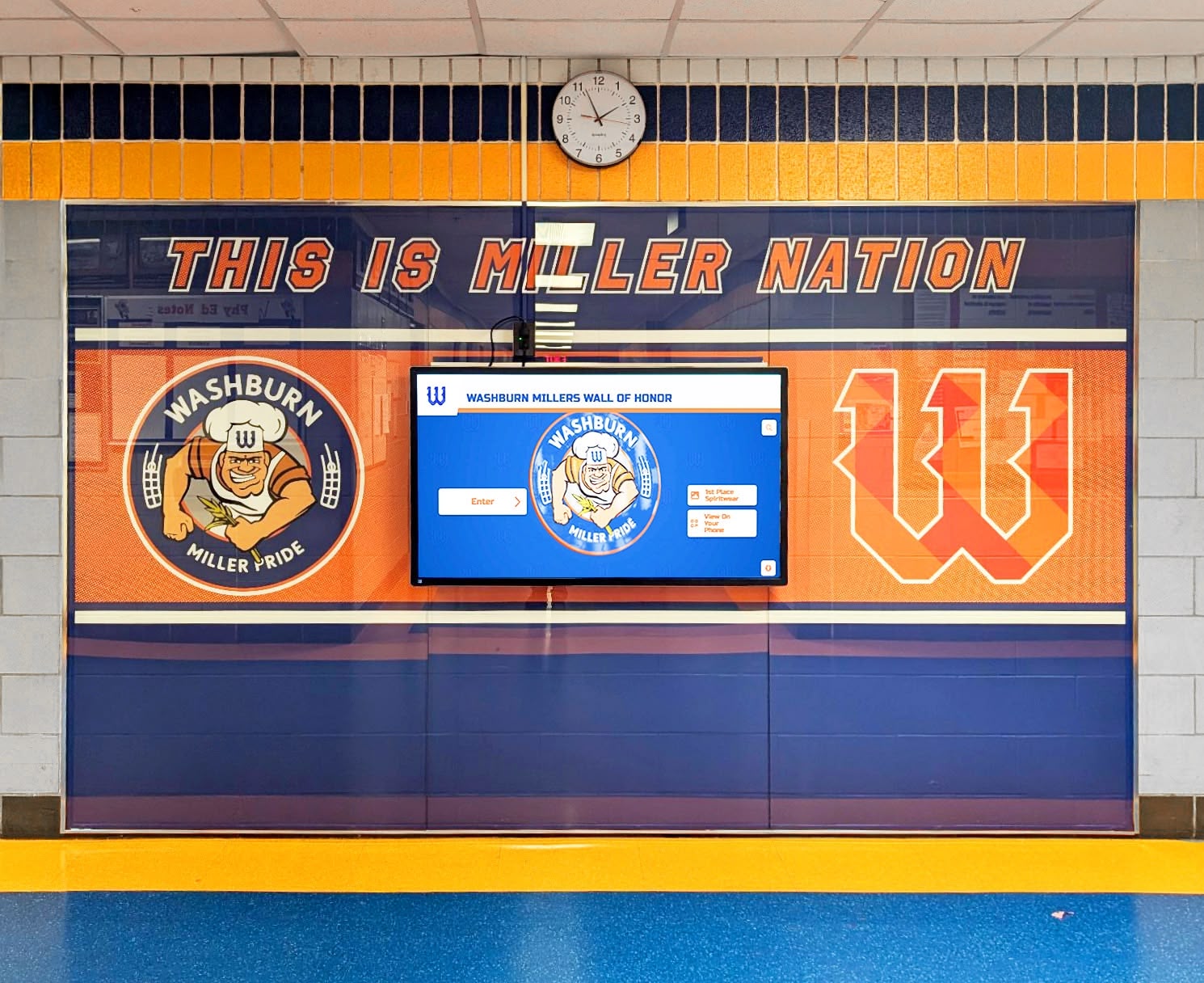
A school wall-of-honor digital display represents a commitment to athletic recognition — the wake lock test confirms that commitment is visible every time a visitor walks by, not just after a manual device wake
See How Rocket Alumni Solutions Supports School Recognition Display Deployments
Rocket Alumni Solutions builds web-based recognition display platforms for school athletic and alumni programs. Request a guided demo to see how the platform is designed for always-on lobby and hallway deployments, and to ask about browser compatibility and device configuration for your specific recognition display setup.
Request a Recognition Platform Demo






























