




A school’s lobby recognition display, athletic hall-of-fame kiosk, or hallway honor wall connects to a content platform over the school’s network. That connection starts with a DNS lookup: the display’s browser or application resolves the recognition platform’s hostname into an IP address before it can fetch athlete profiles, inductee records, award rosters, or media files. In most schools, that lookup travels from the kiosk to the school’s managed DNS resolver, then to the internet, and returns a public IP address — the same address anyone outside the school would get. That works for platforms that serve all clients from a single public endpoint.
But many recognition platform deployments — especially those with on-premises caching servers, internal media mirrors, proxy-aware configurations, or district-managed content delivery infrastructure — benefit from a different arrangement. The kiosk inside the school building should resolve the platform’s hostname to an internal endpoint optimized for the school network, while a visitor browsing the school’s digital hall of fame from home should continue to reach the public endpoint. The DNS configuration that delivers this outcome is called split-horizon DNS — also referred to as split-view DNS or split-brain DNS.
A properly implemented school recognition display split-horizon DNS configuration keeps lobby screens, trophy kiosks, and hallway displays consistently reaching the intended school content endpoint regardless of what external DNS returns. Misconfigured or missing split-horizon DNS shows up as intermittent content update failures, slow media loading on lobby screens, or display connectivity errors that are difficult to diagnose because the same hostname resolves correctly from a staff laptop on a different network segment.
This checklist gives school IT administrators, network engineers, and technology coordinators the specific steps to evaluate whether split-horizon DNS is needed for a recognition display deployment, implement it on the school’s DNS infrastructure, verify that internal and external resolution behave as intended, and document the configuration for future maintenance.
Quick answer: A school recognition display needs split-horizon DNS when the content platform it connects to has an internal endpoint — a private IP address, an on-premises caching node, or a district-hosted media server — that the display should prefer over the platform’s public IP. Implementing split-horizon DNS means creating an internal DNS zone (or an override record) for the platform’s hostname on the school’s managed DNS server, entering the internal IP as the A record, and ensuring the school’s managed resolver is the only DNS resolver the kiosk uses. External DNS for the same hostname remains unchanged. After implementation, verify with nslookup from both inside and outside the school network to confirm the split is in effect.

A school hallway recognition display depends on correct DNS resolution to reach its content platform — split-horizon DNS separates the internal answer (used by the kiosk) from the external answer (used by visitors browsing from off campus)
What Split-Horizon DNS Is and Why Recognition Displays Need It
Split-horizon DNS (defined in RFC 2136 and discussed in IETF operational guidance documents) is a DNS architecture in which the same hostname resolves to different answers depending on which network the querying client is on. The “horizon” is the boundary between the internal network and the internet. Inside the school network, the school’s managed resolver returns an internal IP for a given hostname. Outside the school network, public DNS returns the public IP for the same hostname.
For a recognition display kiosk in a school lobby, split-horizon DNS matters in four deployment scenarios:
On-premises content caching. Some recognition platform vendors support or require a local caching node — a small appliance or virtual machine on the school network that syncs with the cloud platform and serves content to displays from inside the network. The caching node has a private IP. Without split-horizon DNS, the display queries the platform’s public hostname, gets the public IP, and routes content requests over the internet even though a faster internal path is available. With split-horizon DNS, the display resolves the same hostname to the caching node’s private IP and loads content without leaving the school network.
Proxy-aware deployments. Schools that route kiosk outbound traffic through an internal web proxy (for content filtering or monitoring) may configure the recognition platform’s domain on a proxy bypass list using the domain’s internal resolution. If the display resolves the platform’s public IP, proxy bypass rules may not match and the display’s traffic travels through the proxy unnecessarily. Consistent internal resolution through split-horizon DNS ensures bypass rules behave as configured.
Certificate and authentication endpoints. Some platforms authenticate kiosks using certificates or tokens validated against a school-operated endpoint. If that endpoint lives at an internal IP and shares a hostname with the cloud platform, split-horizon DNS is required to route the display to the correct validation server.
Content delivery network (CDN) optimization. A handful of enterprise recognition platform deployments use GeoDNS or CDN configurations where the closest edge node answers depends on the originating IP’s geography. A school using a centralized egress IP (a district-level NAT gateway) may receive a suboptimal CDN answer if the gateway’s geography does not match the building’s physical location. Split-horizon DNS overrides the CDN answer with a specific edge node IP that the school’s network team has verified provides reliable, low-latency content delivery to that building’s displays.
Across all four scenarios, the recognition display itself is unaware that split-horizon DNS is operating. It simply performs a standard DNS query, receives an IP address, and connects. The IT team controls which IP address that is.
For school IT teams also managing multi-screen recognition display deployments and digital signage services, consistent internal DNS resolution ensures every screen in a building reaches the same internal content endpoint — important when multiple displays should serve identical synchronized content.
When Split-Horizon DNS Is Not the Right Tool
Before committing to a split-horizon DNS implementation, confirm that the problem being solved actually requires it. Several related problems have simpler fixes:
| Symptom | Likely Root Cause | Simpler Fix Before Split-Horizon |
|---|---|---|
| Display can’t reach the content platform at all | Firewall blocking HTTPS outbound on port 443 | Open firewall rule for the platform’s public IP range |
| Content updates slow on all displays | Insufficient internet bandwidth for media files | QoS policy or bandwidth allocation, not DNS |
| Display resolves a hostname to the wrong IP | DHCP giving the kiosk a public DNS resolver | Set DHCP option 6 to the school’s managed resolver IP |
| On-premises caching node is reachable by IP but not by name | Caching node has no DNS record at all | Add an A record for the caching node’s internal hostname |
| Split-horizon wanted for a single display, not all internal clients | Surgical routing needed for one device | Use a hosts file entry on the display rather than a DNS zone change |
If after ruling out these simpler cases the deployment still needs different DNS answers for internal versus external clients, split-horizon DNS is the correct approach.
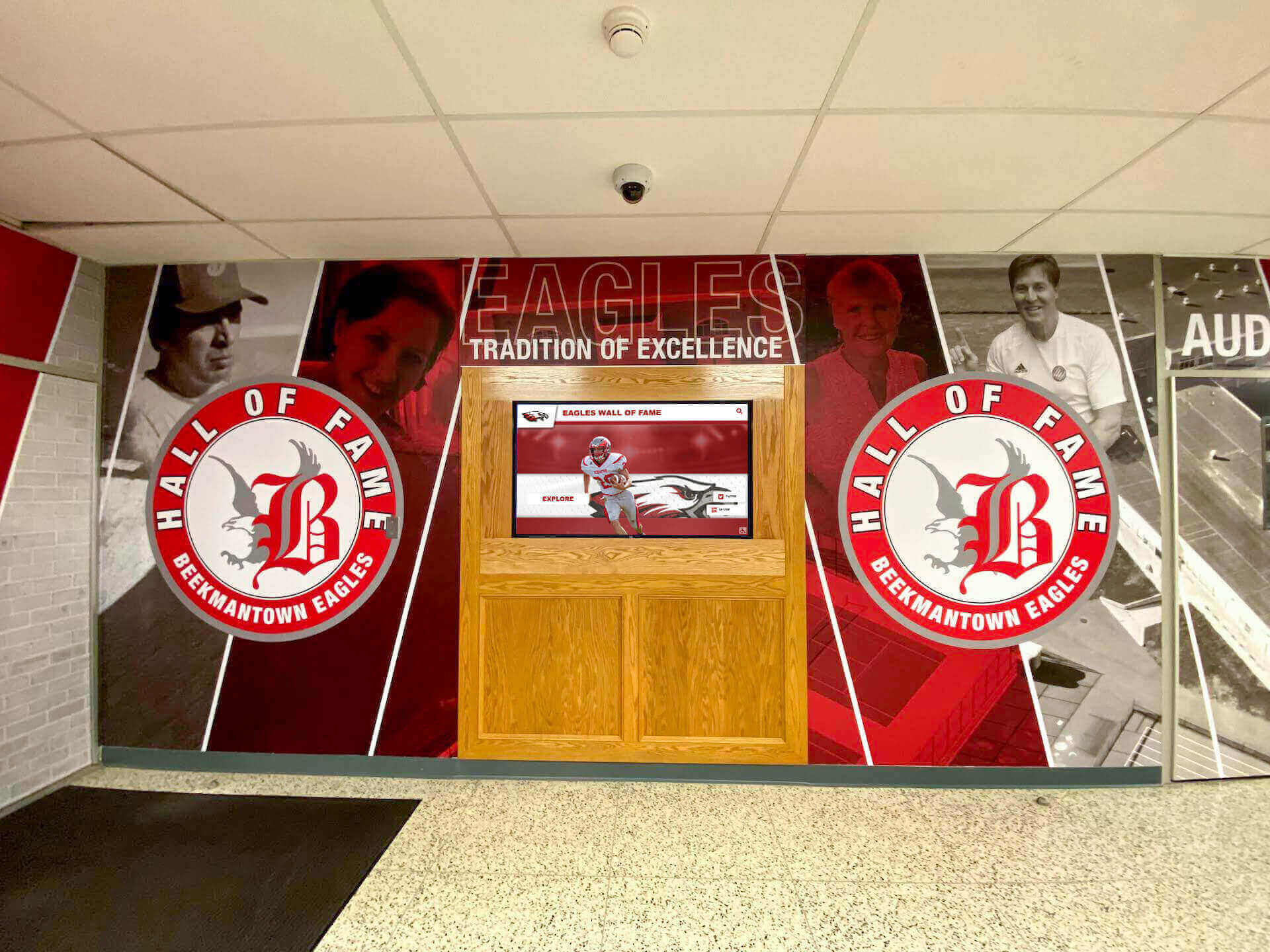
A lobby recognition display and its cloud content platform rely on DNS every time content syncs — split-horizon DNS ensures the answer the display receives routes it to the most reliable path on the school network
Pre-Implementation Information to Collect
Before configuring any DNS changes, collect the following information. Gaps at this stage are the most common source of misconfiguration.
| Item | Description | Where to Find It |
|---|---|---|
| Recognition platform’s fully qualified domain name (FQDN) | The hostname the display resolves to reach the content platform | Platform vendor documentation; capture with nslookup or Wireshark on a working display |
| Current external A record IP | The public IP the platform’s hostname resolves to from outside the school | Run nslookup <platform-fqdn> 8.8.8.8 from any internet-connected device |
| Internal endpoint IP | The private IP of the caching node, internal server, or preferred edge node | Platform vendor documentation; on-premises appliance management console |
| School’s managed DNS server IP | The internal DNS resolver all kiosks should use | ipconfig /all on a kiosk — DNS Servers field; or DHCP server configuration |
| DNS server software and version | Windows Server DNS, BIND, Unbound, or a managed service (Cisco Umbrella, Cloudflare Gateway) | Server Manager on Windows DNS; named --version for BIND |
| Internal network subnet(s) | CIDR range(s) that should receive the internal DNS answer | DHCP scope configuration; network documentation |
| Whether the platform FQDN has a wildcard record | A wildcard record (*.platform.com) affects whether a zone override is sufficient | Check with nslookup *.platform.com 8.8.8.8 or dig from a Linux host |
| Secondary DNS servers in the school’s infrastructure | Any secondary or forwarder that could serve stale external answers to the kiosk | Windows DNS manager — secondary zones; DHCP option 6 list |
Collect all rows before starting. A missing internal endpoint IP is the single most common reason for abandoning the implementation mid-way.
Split-Horizon DNS Configuration Checklist
Step 1: Confirm the Kiosk Uses the School’s Managed DNS Resolver
Split-horizon DNS is ineffective if the recognition display bypasses the school’s managed resolver. Before creating any override zones, verify the kiosk is using the correct resolver.
On the recognition display (Windows Command Prompt):
ipconfig /all
Under the active network adapter, confirm DNS Servers shows the school’s internal resolver IP — not 8.8.8.8, 1.1.1.1, or any public resolver. If the field shows a public resolver, the fix is in DHCP option 6 (DNS server IP), not in DNS zone configuration.
Confirm with a resolution test:
nslookup <recognition-platform-fqdn>
The output header Server: line should show the school’s internal DNS resolver hostname or IP. If it shows a public resolver, correct DHCP option 6 before proceeding.
Step 2: Capture the Current External Resolution
Record what public DNS currently returns for the platform’s hostname. This is the baseline you will verify is unchanged after implementing the split.
nslookup <recognition-platform-fqdn> 8.8.8.8
Record the returned IP address(es) and TTL value. This is the answer external clients (and any kiosk not covered by the split-horizon zone) will continue to receive.
Step 3: Verify the Internal Endpoint Is Reachable
Before pointing DNS at the internal endpoint, confirm it is reachable and serving content correctly from the school network.
Ping test from the recognition display:
ping <internal-endpoint-ip>
Confirm responses are received and round-trip time is consistent. If ping is blocked by the internal server’s firewall, use a TCP test instead:
Test-NetConnection -ComputerName <internal-endpoint-ip> -Port 443
TcpTestSucceeded: True confirms port 443 is open on the internal endpoint from the display’s network segment. If the endpoint is unreachable by IP, resolve the network connectivity issue before creating DNS records that point to it.
Step 4: Create the Internal Override Zone (Windows Server DNS)
On the school’s Windows Server DNS instance, create a new primary zone that matches the recognition platform’s domain name exactly. This zone will answer queries for the platform’s domain from internal clients, overriding the internet-facing DNS.
In DNS Manager:
- Open DNS Manager on the Windows Server DNS host.
- Right-click Forward Lookup Zones → New Zone.
- Select Primary zone and check Store the zone in Active Directory if the DNS server is an AD-integrated domain controller.
- For zone name, enter the recognition platform’s domain (for example,
platform.recognitionvendor.com— use the actual domain from your collected information). - Complete the wizard with default replication settings (all DNS servers in the domain, for AD-integrated zones).
Verify the zone was created:
The new zone appears under Forward Lookup Zones in DNS Manager. It initially contains only an SOA record and an NS record pointing to the local server.
For BIND / named environments, add a zone block to named.conf:
zone "platform.recognitionvendor.com" {
    type master;
    file "/etc/bind/zones/db.platform.recognitionvendor.com";
};
And create the corresponding zone file with the appropriate SOA, NS, and A records.
Step 5: Add the Internal A Record
Inside the new override zone, create an A record that maps the platform’s hostname to the internal endpoint IP.
In DNS Manager:
- Right-click the new zone → New Host (A or AAAA).
- Leave the Name field blank (this creates a record for the zone apex — the base domain).
- Enter the internal endpoint IP in the IP address field.
- Check Create associated pointer (PTR) record if reverse DNS for the internal IP is managed by this DNS server.
- Click Add Host.
If the platform’s full FQDN is a subdomain (for example, content.platform.recognitionvendor.com) and you created the zone for platform.recognitionvendor.com, add a subdomain A record:
- Right-click the zone → New Host.
- In Name, enter
content. - Enter the internal IP.
- Click Add Host.
Verify the record is visible in DNS Manager before testing from the display.
Step 6: Suppress External Forwarding for the Override Zone
By default, Windows Server DNS resolves names it does not have local records for by forwarding to the root hints or configured forwarders. The override zone you created will answer for the platform’s domain — but only if forwarding is not routing the query externally first.
Confirm zone resolution takes precedence:
In DNS Manager, the existence of a local zone for a domain causes Windows DNS to answer locally before forwarding. This is the correct default behavior and requires no additional configuration change on Windows Server DNS.
For BIND, confirm that the zone block’s type master directive takes priority over any forwarders or forward only statements in the global options block. A local authoritative zone always overrides a forwarder in BIND.
Step 7: Flush and Test from the Recognition Display
After creating the zone and A record, clear the DNS cache on the display host and test resolution.
Flush the DNS cache (Windows Command Prompt, elevated):
ipconfig /flushdns
Test resolution:
nslookup <recognition-platform-fqdn>
The Server: line should show the school’s internal resolver. The Address: line should show the internal endpoint IP — not the public IP captured in Step 2. If the command still returns the public IP, the DNS server’s cache may be holding the old answer. Flush the DNS server cache as well:
On Windows Server DNS (elevated PowerShell):
Clear-DnsServerCache -Force
Re-test from the display after the server cache is cleared.
Step 8: Confirm External Resolution Is Unchanged
From a device outside the school network — a personal device on cellular data, or a laptop connected to the internet without using the school’s internal DNS — run:
nslookup <recognition-platform-fqdn> 8.8.8.8
The returned IP should match the public IP recorded in Step 2. If the external answer has changed, the recognition platform vendor’s public DNS configuration has changed independently, not as a result of the school’s split-horizon DNS implementation.
External clients — families browsing the school’s online hall of fame, alumni visiting the recognition platform’s public website — must continue to reach the public endpoint. Confirming unchanged external resolution is the step that distinguishes a split-horizon implementation (two separate answers for two separate audiences) from a misconfigured private-only DNS override.
Planning a recognition display deployment that requires internal DNS routing, proxy compatibility, or custom network configuration? Rocket Alumni Solutions provides IT deployment documentation tailored to school network environments.
Step 9: Test Content Delivery on the Display
After DNS verification, confirm the recognition platform is actually serving content through the internal endpoint.
- Open the recognition platform’s management console and locate the last-sync timestamp for the display.
- Trigger a manual content refresh from the platform console if available.
- Observe the display to confirm content updates arrive and athlete profiles, award records, or inductee photos load as expected.
- Check the platform’s event log or connection log for the display’s IP address — confirm connections are originating from the display’s internal IP and arriving at the internal endpoint’s IP.
If the platform logs show connections still going to the public endpoint IP despite the DNS change, the display’s application may be caching the previously resolved IP address. Restart the recognition platform application on the display host to force a fresh DNS lookup.
For schools managing digital signage content across multiple lobby screens and kiosk displays, verifying content delivery on a single display before rolling the DNS configuration to all devices reduces the risk of a configuration error affecting the full building.
Step 10: Handle Secondary DNS Servers and Replication
If the school’s DNS infrastructure includes secondary DNS servers, ensure the override zone replicates to them. A recognition display that falls back to a secondary DNS server (due to primary server unavailability) must receive the same internal answer.
For AD-integrated zones on Windows Server DNS:
AD-integrated zones replicate automatically through Active Directory replication. Confirm the secondary DNS server is also a domain controller with the DNS server role. Allow replication to complete (typically within 5–15 minutes in a healthy AD environment) and run nslookup against the secondary DNS server’s IP directly:
nslookup <recognition-platform-fqdn> <secondary-dns-server-ip>
Confirm the secondary returns the same internal IP as the primary.
For non-AD zones or BIND environments:
Configure the secondary server to pull a zone transfer from the primary. Add a zone block on the secondary with type slave pointing to the primary server’s IP. Run rndc refresh <zone-name> on the secondary BIND server and verify the zone transferred successfully.
If the secondary DNS server cannot be updated to replicate the zone — for example, if it is a third-party managed DNS service — remove it from the DHCP option 6 list for the kiosk’s subnet, so the display never queries a resolver that would return the external answer.
Step 11: Document the Split-Horizon Configuration
Record the configuration in the display’s maintenance documentation. This record supports future troubleshooting, staff transitions, and audit requirements.
| Field | Value to Record |
|---|---|
| Recognition platform FQDN covered by split-horizon zone | e.g., content.platform.recognitionvendor.com |
| Internal endpoint IP in the override zone | e.g., 10.20.5.44 |
| Public IP the same hostname resolves to externally | e.g., 203.0.113.22 |
| DNS server(s) hosting the override zone | e.g., 10.1.1.53 (primary), 10.1.1.54 (secondary) |
| Zone type | e.g., AD-integrated primary |
| Subnets receiving internal DNS answer | e.g., 10.20.5.0/24 (recognition display VLAN) |
| Date of implementation and verifier name | e.g., 2026-09-24, verified by network admin |
| Next planned verification | e.g., after next recognition platform vendor infrastructure change |
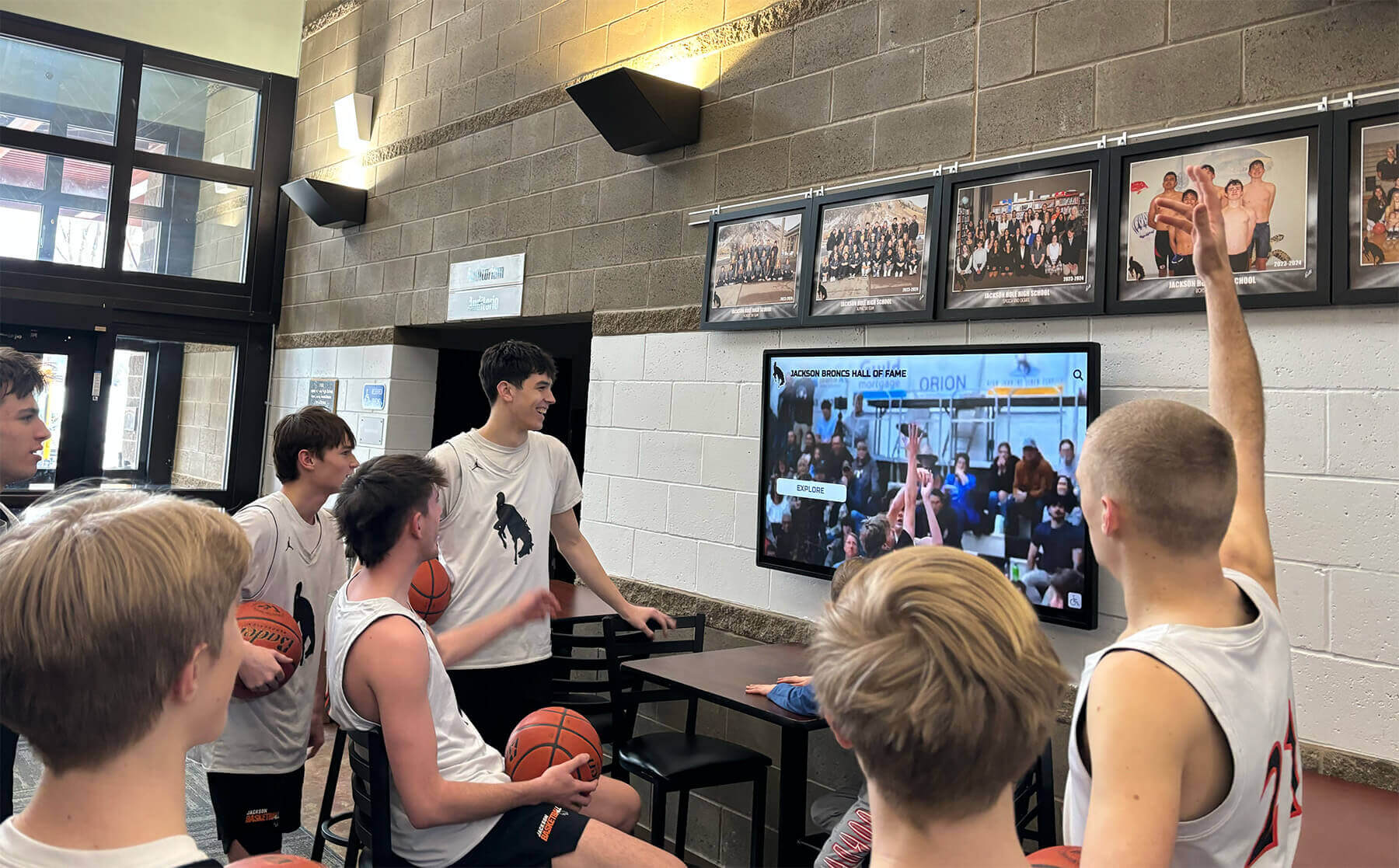
School lobby recognition screens that load content quickly rely on DNS resolving to the nearest available endpoint — split-horizon DNS delivers the internal answer to on-campus displays while keeping external resolution unchanged for off-campus access
Split-Horizon DNS Verification Table
After completing all eleven steps, use this table to confirm the implementation is correct before signing off on the deployment.
| Verification Check | Expected Result | How to Test | Pass / Fail |
|---|---|---|---|
| Kiosk DNS resolver is the school’s managed server | ipconfig /all shows internal resolver IP (not 8.8.8.8 or 1.1.1.1) | ipconfig /all on the display | |
| Internal resolution returns the internal endpoint IP | nslookup <fqdn> from the display returns the internal IP | nslookup <fqdn> in Command Prompt on display | |
| External resolution returns the unchanged public IP | nslookup <fqdn> 8.8.8.8 returns original public IP | Run from a device on cellular or external internet | |
| Secondary DNS server returns internal IP | Secondary resolver provides same internal answer as primary | nslookup <fqdn> <secondary-ip> | |
| Internal endpoint is reachable over HTTPS | TCP test to internal IP on port 443 succeeds | Test-NetConnection -ComputerName <internal-ip> -Port 443 | |
| Recognition platform content is updating | Platform management console shows current sync timestamp | Platform console last-sync field | |
| Platform logs show connections to internal IP | Application event log confirms the display connected to the internal endpoint | Platform vendor event log or connection log | |
| DNS cache cleared and fresh lookups confirmed | After ipconfig /flushdns, resolution still returns internal IP | Re-run nslookup after cache flush | |
| Split-horizon zone replicated to all secondary DNS servers | Each secondary returns the same internal answer | nslookup <fqdn> <each-secondary-ip> | |
| Configuration documented in maintenance record | Record exists with all fields from Step 11 completed | Review maintenance documentation |
Common Split-Horizon DNS Issues and Fixes
| Issue | Symptom | Root Cause | Fix |
|---|---|---|---|
| Display still resolves public IP after zone creation | nslookup from display returns external IP | DNS server cache not flushed; or display using a DNS resolver not hosting the override zone | Run ipconfig /flushdns on display and Clear-DnsServerCache on DNS server; confirm display’s DHCP option 6 points to the correct resolver |
| Override zone not authoritative — returns SERVFAIL | nslookup returns server failure | Zone created but A record missing for the queried hostname | Add A record for the apex and any subdomain labels in the override zone |
| Secondary DNS returns public IP | Failover to secondary breaks internal routing | Override zone not replicated to secondary | Check AD replication health (repadmin /showrepl) or zone transfer logs; confirm secondary has the zone |
| Internal endpoint unreachable by IP despite DNS working | DNS returns internal IP but platform does not load content | Firewall rule blocking display → internal endpoint on port 443 | Add firewall rule permitting TCP 443 from the recognition display VLAN to the internal endpoint IP |
| External website (e.g., public online hall of fame) stops loading for staff | Public resolution affected by override zone | Override zone too broad — created for the platform’s entire root domain rather than the recognition content subdomain | Narrow the override zone to the specific subdomain the display uses; delete and recreate the zone with the correct scope |
| Split-horizon breaks after platform vendor changes public DNS | Display starts resolving a stale internal IP while platform moves | Vendor changed their public FQDN structure and the internal endpoint is now at a different subdomain | Contact vendor for updated network requirements; update the override zone records |
| Windows Server DNS forwards the zone query to external resolvers despite local zone | nslookup returns external IP even though zone exists | A conditional forwarder for the same domain overrides the primary zone | Remove the conditional forwarder for the platform’s domain; the authoritative local zone should take precedence |
| Hosts file on the display conflicts with DNS | nslookup returns correct internal IP but application connects to a different IP | A line in C:\Windows\System32\drivers\etc\hosts overrides DNS for this hostname | Check the hosts file and remove any conflicting entries; use DNS as the single source of truth |
Maintaining Split-Horizon DNS After Platform Changes
Recognition platform vendors occasionally change their content delivery infrastructure — migrating to a new CDN, changing the hostname used for content endpoints, or adding new hostnames for specific feature endpoints (media streaming, software updates, telemetry). Any infrastructure change that alters the public FQDN or adds new FQDNs may require a corresponding update to the school’s split-horizon DNS zones.
Monitoring for FQDN changes:
Subscribe to the recognition platform vendor’s infrastructure change notifications or release notes. Some vendors publish network requirements documents that are updated when endpoint hostnames change.
Periodic verification:
At each major platform software update, re-run Steps 1 and 2 of this checklist to confirm the display is still resolving to the expected internal IP and that the external resolution of the same hostname is still the public IP originally documented. If the public IP has changed, the platform vendor has updated their infrastructure and the internal endpoint may also need updating.
For schools managing multi-screen digital signage networks and recognition walls across multiple buildings, a split-horizon DNS change takes effect for every display on the internal network simultaneously. Test on a single display before confirming the zone update is correct for the full fleet.
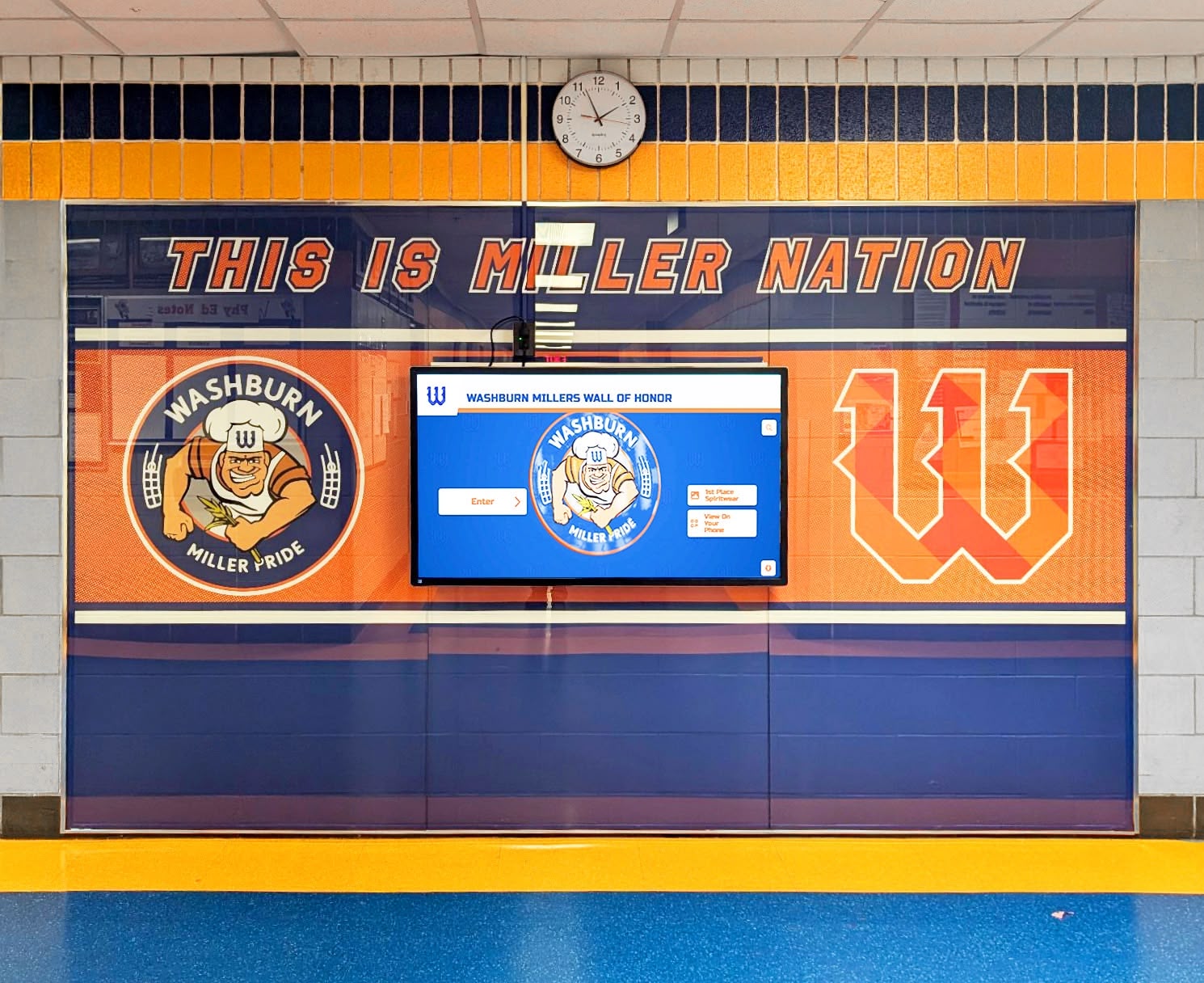
A split-horizon DNS zone update applies to every display on the internal network at once — after a cache flush, all screens in the building start routing content requests to the updated internal endpoint without requiring individual device reconfiguration
Split-Horizon DNS and Content Licensing Considerations
Split-horizon DNS is a network configuration tool. It changes which server delivers the recognition platform’s content to the display — it does not change what content the display is licensed to show, how content rights are managed, or how the platform tracks device access.
Before implementing a split-horizon configuration that routes display traffic to an internal caching node or a non-standard endpoint:
- Confirm with the recognition platform vendor that routing traffic to the internal endpoint is supported and permitted under the deployment license.
- Confirm that the internal endpoint receives the same content entitlements as the public endpoint — that inductee profiles, athletic records, and media assets available on the cloud platform are also available from the internal node.
- Confirm that the platform’s device authentication or license validation mechanisms function correctly through the internal endpoint. Some platforms validate device licenses against a cloud-based licensing server. If the internal endpoint does not proxy those license checks to the cloud, the display may fail license validation despite reaching the internal content server.
For school programs managing digital recognition rights, licensing, and content display authorizations, the digital hall-of-fame content licensing guide covers how content rights intersect with display and delivery infrastructure decisions.
Frequently Asked Questions
Q: What is split-horizon DNS, and how is it different from standard DNS?
A: Standard DNS returns the same answer to every client that queries a hostname, regardless of where the client is located. Split-horizon DNS (sometimes called split-view or split-brain DNS) is a configuration where the DNS server returns different answers depending on which network the querying client is on. For a school recognition display, split-horizon DNS means the display — on the school’s internal network — receives the internal endpoint IP for the recognition platform’s hostname, while a visitor querying the same hostname from outside the school network receives the public IP. The display is unaware of the split; it simply performs a normal DNS lookup and receives an IP.
Q: Does split-horizon DNS require two separate DNS servers?
A: No. Split-horizon DNS can be implemented on a single DNS server by creating an internal zone that overrides public DNS for a specific hostname. On Windows Server DNS, the local zone takes precedence over any external resolution. On BIND, a named view with an access control list (ACL) restricting it to internal subnets achieves the same result. Two-server architectures (one internal server with override zones, one external server with the public records) are also valid and common in larger deployments, but a single internal DNS server with an override zone is sufficient for most K-12 recognition display deployments.
Q: Will split-horizon DNS break the recognition platform’s public-facing website or alumni portal?
A: No, if the split-horizon zone is correctly scoped. Only clients querying the school’s internal DNS resolver receive the internal answer. Public users, alumni, and external visitors query public DNS resolvers (Google, Cloudflare, or the platform vendor’s authoritative DNS), which continue to return the public IP. The school’s internal DNS resolver is not authoritative for the public internet — it only controls what internal clients (including the recognition display) resolve. Confirm this is working correctly by completing Step 8 of the checklist.
Q: How does split-horizon DNS interact with DNS-over-HTTPS (DoH) on the recognition kiosk?
A: Split-horizon DNS depends on the kiosk using the school’s managed DNS resolver. If the kiosk’s browser or OS has DNS-over-HTTPS (DoH) enabled and is routing DNS queries to an external encrypted resolver (Google, Cloudflare, or similar), those queries bypass the school’s resolver entirely — and the split-horizon zone has no effect. The display will receive the external public IP regardless of what the school’s resolver is configured to return. For schools implementing both split-horizon DNS and DoH policy for managed kiosks, the DoH policy must be configured to disable browser-level DoH (or point to an internal DoH resolver that also hosts the split-horizon zone) before the split-horizon configuration becomes effective. See the recognition display DNS-over-HTTPS policy guide for detailed DoH enforcement steps.
Q: What happens to the recognition display if the internal endpoint goes offline?
A: If the override zone’s A record points to an internal endpoint that becomes unavailable, the display’s DNS queries return the internal IP but the connection to the content server fails. The display does not automatically fall back to the public IP — DNS caches the internal answer until its TTL expires, and the connection attempt to the internal IP times out. To mitigate this, set the TTL on the override zone’s A record to a low value (60–300 seconds) so that if the internal endpoint goes offline and the A record is updated or removed, displays clear the cached answer quickly. For planned maintenance of the internal endpoint, remove the A record from the override zone before taking the endpoint offline; displays will fall back to external DNS resolution once the TTL expires.
Q: Can split-horizon DNS be used with Cisco Umbrella, Cloudflare Gateway, or another cloud-managed DNS service?
A: Yes, with caveats. Cloud DNS filtering services like Cisco Umbrella and Cloudflare Gateway support local bypass lists and internal DNS records. In Cisco Umbrella, internal domain names can be configured as bypass domains or resolved through a local DNS appliance (the Umbrella Virtual Appliance) that forwards internal queries to the school’s internal DNS while sending external queries to Umbrella’s resolvers. A split-horizon override can be implemented by entering the recognition platform’s domain as an internal DNS bypass, with the internal endpoint IP configured in the local DNS appliance’s zone. Consult the filtering vendor’s documentation for the specific configuration path, as the exact implementation varies between Umbrella, Cloudflare Gateway, and similar services.
Q: Should the recognition display use the same split-horizon DNS as other digital signage in the school?
A: If other digital signage — wayfinding kiosks, cafeteria menu boards, event announcement screens — uses the same recognition content platform, applying the same split-horizon zone ensures consistent content delivery behavior across all displays. If other digital signage connects to different content platforms with different hostnames, those platforms are unaffected by a split-horizon zone scoped to the recognition platform’s domain. Extend the override zone or add additional records only for hostnames where the internal-versus-external distinction matters. Keeping override zones narrowly scoped to the specific hostnames that need them reduces the risk of accidentally disrupting other DNS resolution.
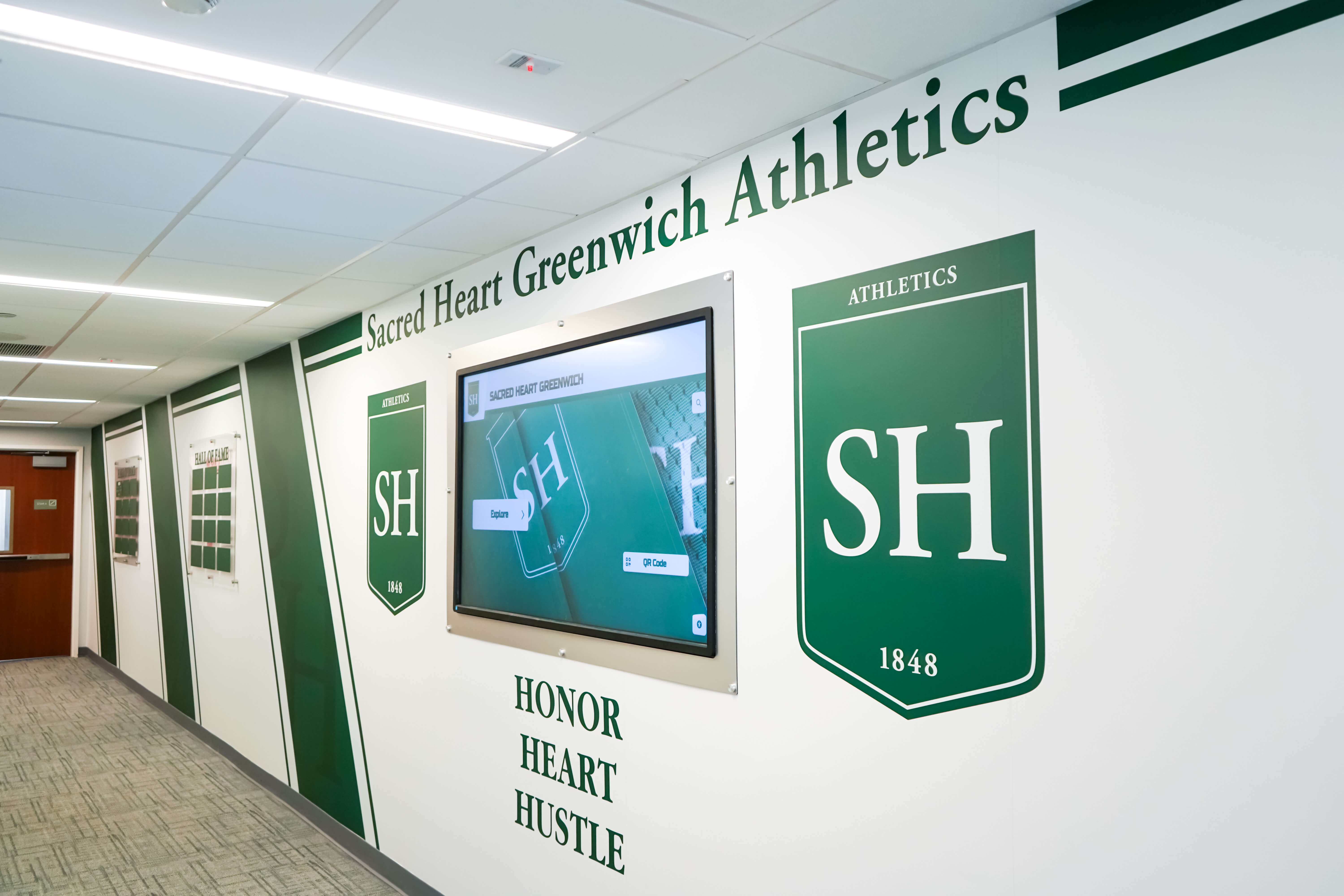
School hallway recognition displays that deliver consistent content across a building rely on DNS pointing each screen to the correct endpoint — split-horizon DNS makes that routing a managed, documented configuration rather than an accidental product of how the public internet resolves the platform's hostname
A school recognition display split-horizon DNS checklist keeps the lobby screen, athletic kiosk, and hallway honor board reaching the intended content endpoint — the internal IP that delivers faster, more reliable content updates from the school’s own network — while leaving the public DNS answer for the same hostname unchanged for alumni, families, and visitors browsing from outside. The eleven steps in this checklist cover the full workflow from confirming resolver assignment and documenting the external baseline, through zone creation and A record entry, to cache flushing, secondary replication, and post-change verification. Completing the verification table after implementation confirms that internal and external DNS behave independently and that the recognition platform is serving current content to every display through the correctly routed path. For schools maintaining interactive digital signage content and recognition display programs, consistent internal DNS routing is one of the quieter infrastructure decisions that determines whether lobby screens update reliably or require unexplained troubleshooting visits every few months.
Rocket Alumni Solutions builds recognition display platforms for schools — with deployment documentation that covers DNS requirements, internal network routing, and IT configuration steps for district-managed environments. See what a Rocket display looks like in a school lobby.































