



A school touchscreen idle timeout policy defines how long a public recognition display waits before resetting to its home screen when no visitor is actively interacting with it. Without a deliberate policy, kiosks either stay frozen on a previous visitor’s browsing session—exposing the last-viewed content unintentionally—or burn energy displaying a static frame for hours. With a thoughtful policy, the display returns promptly to a looping home screen, conserves energy, protects privacy, and always presents a polished first impression to the next visitor.
Getting the timeout value right requires balancing competing pressures: too short and visitors feel rushed while browsing athlete profiles or championship records; too long and the display lingers on another person’s session, consuming power and leaving an uninviting frozen screen in a high-visibility lobby or hallway. Location, audience depth of content, and traffic patterns all factor into the right setting.
This guide gives school IT teams, athletic directors, and facilities managers a complete framework for defining, configuring, and maintaining idle timeout policies across all public-facing recognition displays—from lobby kiosks celebrating halls of fame to hallway touch panels showcasing academic award recipients.
Quick answer: For most school public recognition displays, configure a 90- to 120-second idle timeout that triggers a full session reset and returns the display to its animated home screen. Lobby kiosks in high-traffic areas tolerate 60 seconds; less-visited trophy-case panels can extend to 180 seconds. Always reset at the session level—not just the screensaver level—so the next visitor starts fresh.

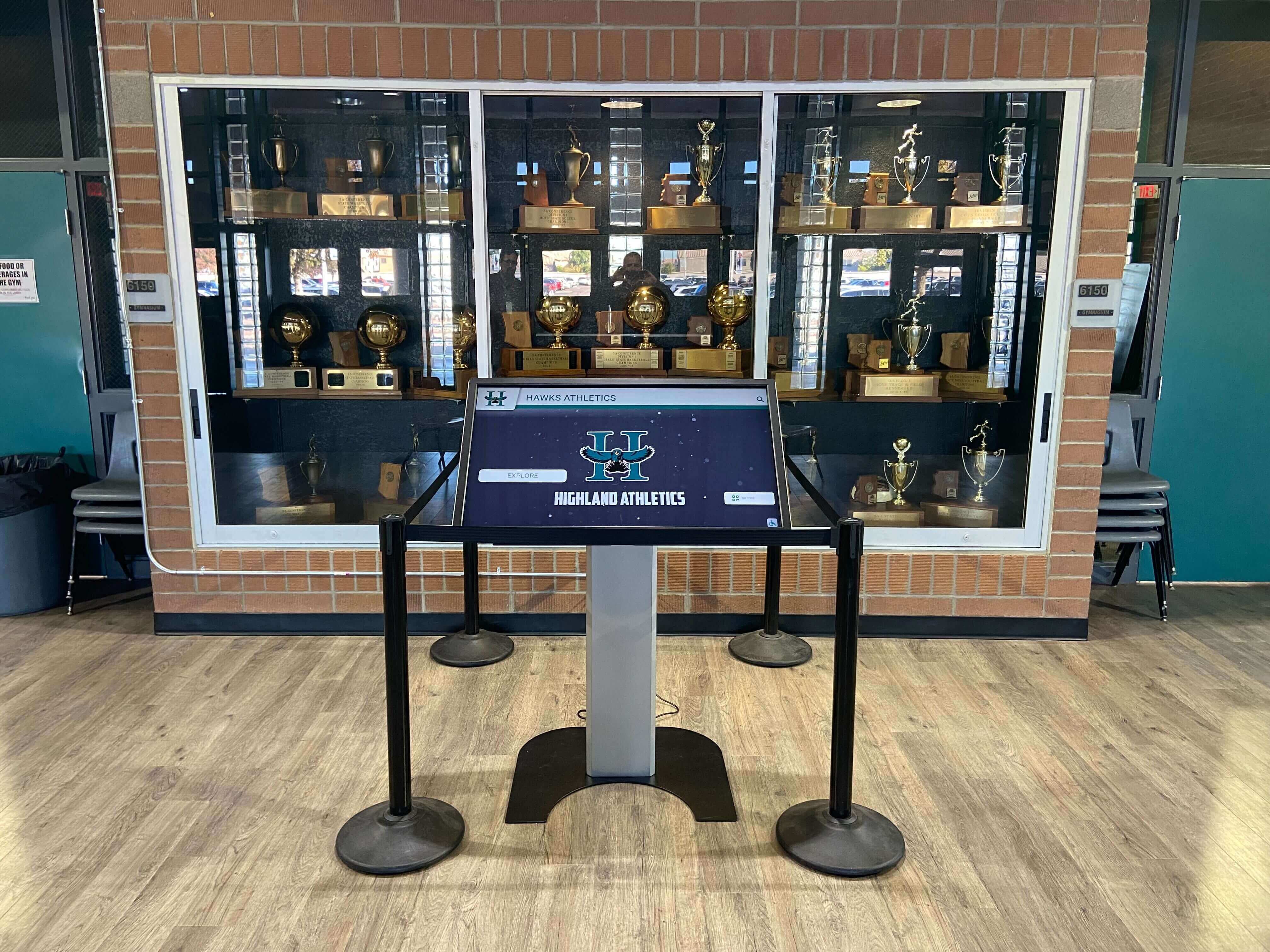
Touchscreen kiosks integrated into trophy cases need idle timeout policies that balance natural browsing pace with prompt return-to-home behavior between visitors
Why Idle Timeout Policy Matters for School Recognition Displays
Public recognition displays operate in a fundamentally different environment from workstation computers or classroom devices. No single user is assigned to the kiosk, visitors arrive in bursts throughout the day, and the display runs continuously through school hours, evening events, and weekend open houses. An undefined or poorly configured timeout creates predictable problems that compound over time.
Privacy Implications of Uncleared Sessions
A student or parent stops to look up an inductee profile and then walks away. The next visitor arriving 30 seconds later sees the previous person’s browsing trail. In most recognition browsing scenarios that presents no direct privacy violation—the content itself is public—but it creates an appearance of carelessness. More importantly, some recognition platforms include administrative shortcuts or contact forms accessible from within visitor-facing interfaces. A session left open without a timeout can surface features intended only for authenticated staff.
Schools implementing interactive alumni and recognition displays should treat each completed visitor interaction as a discrete session requiring a clean handoff to the home screen before the next visitor arrives.
Energy Consumption and Display Longevity
Commercial-grade touchscreen panels used in school recognition applications typically consume meaningful power during active operation. A display left in a fully active state rather than transitioning to a dimmed home screen wastes energy over a 16-hour daily operating window. More importantly, LCD and OLED panels degrade faster from static image burn-in, which occurs when the same content remains on screen for extended periods without change.
A properly configured timeout that returns to a rotating home animation rather than freezing on a static athlete profile extends display panel life—protecting a hardware investment that commonly represents several thousand dollars per unit. Multiply that across multiple displays across a campus and the longevity benefit becomes substantial.
First-Impression Reliability
Principals, superintendents, and visitors conducting campus tours frequently encounter recognition displays at unplanned moments between events. A kiosk stuck on a previous visitor’s partially-completed search path presents a poor first impression compared to an animated home screen showcasing championship banners and recognition highlights. A reliable idle timeout ensures every visitor encounter starts on the school’s best foot—particularly important for high-visibility lobby locations that serve as the de facto introduction to a school’s recognition culture.
Recommended Timeout Values by Location
No single timeout value suits every school display location. The right setting depends on typical visitor traffic patterns, depth of available recognition content, and whether the display operates as a standalone attraction or part of a larger facility experience.
| Display Location | Recommended Timeout | Rationale |
|---|---|---|
| Main lobby / front office | 90 seconds | High traffic; quick reset keeps the display welcoming for sequential visitors |
| Athletic hallway kiosk | 120 seconds | Moderate traffic; athletes and visitors browse deeper content like career stats |
| Trophy case touch panel | 150–180 seconds | Lower traffic; visitors browse historical records at a more relaxed pace |
| Gymnasium lobby during events | 60 seconds | Peak traffic; rapid turnover ensures each visitor gets a fresh starting point |
| Library or commons area | 120 seconds | Mixed use; content depth warrants a slightly longer browsing window |
| Administrative reception | 90 seconds | Intermittent visitor flow; quick resets maintain a professional appearance |
These values represent starting points. After deployment, use your content management system’s session analytics—where available—to check whether visitors are routinely hitting the timeout mid-browse. If drop-off logs show frequent mid-session resets, extend the value by 30 seconds and monitor again before making further adjustments.
Step-by-Step: Configuring Your Idle Timeout Policy
Setting up a school touchscreen idle timeout policy involves decisions at three levels: the operating system, the recognition software, and the display hardware itself. Configuring all three consistently prevents situations where the OS screensaver triggers before the application timeout, or where the display powers down before the software can complete a clean session close.
Audit your current timeout settings. Before changing anything, document what each layer currently does. Check Windows, ChromeOS, or Android display settings; your recognition platform’s administration panel; and any hardware sleep or power-save settings on the physical display unit itself. Mismatches between layers are the most common source of unpredictable behavior.
Set the recognition software timeout first. Your recognition platform’s application-level timeout should be the shortest timer in the chain. This triggers the session reset and returns the display to the home screen. Set it to your target value—90 to 120 seconds for most locations—and confirm it executes a full session clear rather than just a visual return to the home screen.
Set the OS screensaver or power settings to a longer interval. The operating system’s screensaver or display sleep timer should activate only if the application fails to respond—treat it as a fallback, not the primary mechanism. Set it 60 to 90 seconds longer than the application timeout so it never fires during a normal visitor session.
Configure display hardware sleep last. Panel-level sleep or power-off should trigger only after extended inactivity—typically 30 to 60 minutes after the OS screensaver activates. This prevents full power cycling between routine visitor sessions while still saving energy during overnight or weekend downtime.
Test the full handoff sequence. Walk through a complete visitor session: browse several athlete profiles, navigate into a championship record, then step away and watch the sequence execute. Confirm the application returns to the animated home screen at the expected time, that the OS screensaver does not interrupt before the application timeout fires, and that the display never freezes on static content.
Document the policy. Record your chosen timeout values for each display location, the rationale for each setting, and the configuration path for adjusting them in the future. Store this in your IT ticketing system or shared facilities documentation so future staff can replicate or adjust settings without starting from scratch.
Schedule a quarterly review. Timeout values that work during a low-traffic fall semester may feel too brief during peak enrollment periods or homecoming week. Build a quarterly review into your display maintenance calendar to verify values remain appropriate as traffic patterns shift throughout the school year.
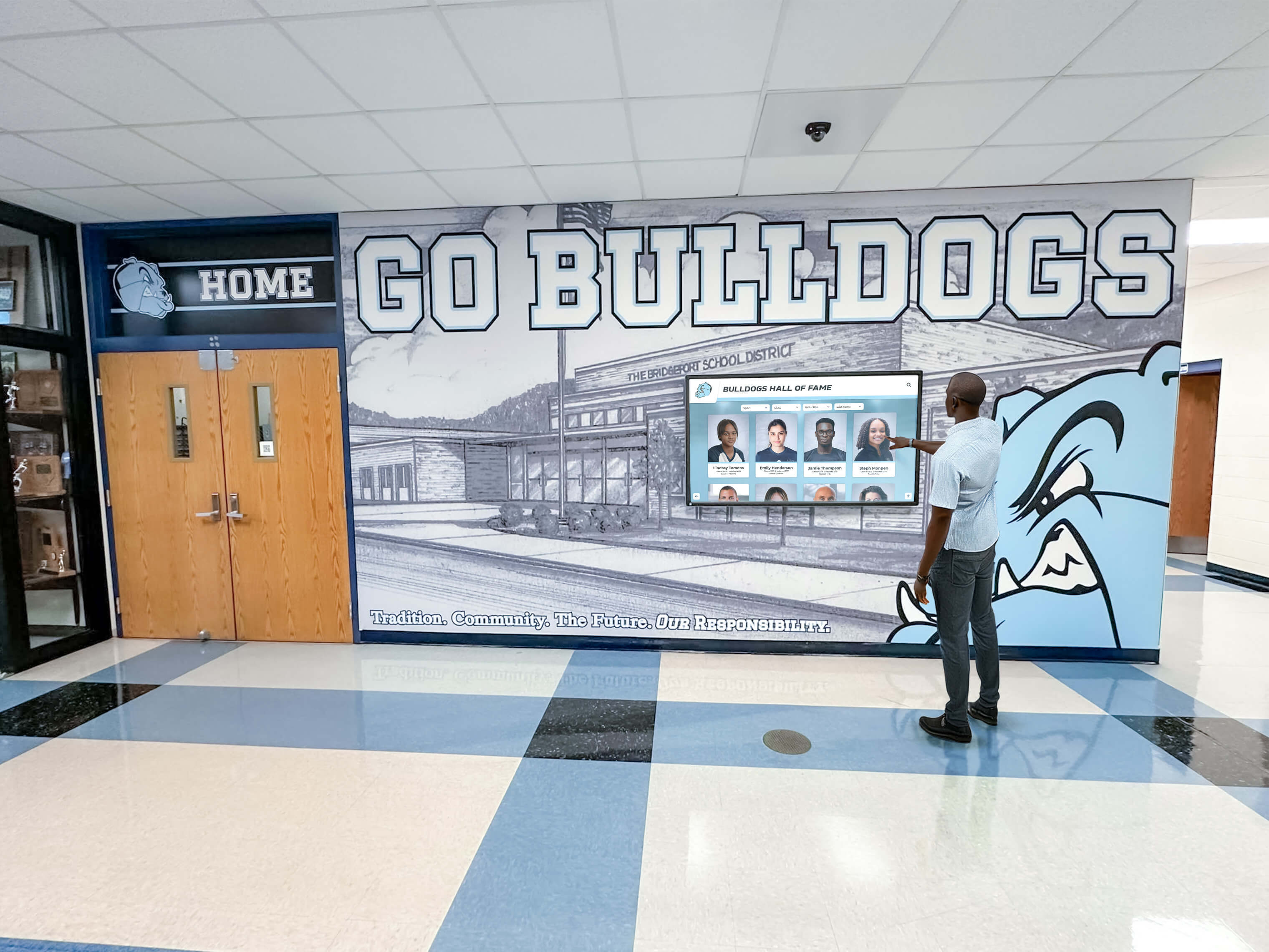
Hallway recognition panels benefit from slightly longer timeout windows that accommodate visitors stopping to browse between classes or events
Return-to-Home Behavior: What Should Happen After Timeout
The timeout value tells the system when to act; the return-to-home behavior defines what actually happens. These are separate policy decisions that schools often overlook when focusing solely on the countdown timer.
Animated Home Screen vs. Static Landing Page
An animated home screen—a rotating carousel of championship highlights, inductee spotlights, or recent award recipients—serves double duty. It provides an engaging idle state that draws passing visitors in, and it signals clearly that the display is ready for a new interaction. A static landing page achieves the session reset but misses the ambient recognition opportunity.
Schools with rich digital trophy case content can configure the home screen to rotate through recent inductees, upcoming ceremony dates, and recognition category highlights—turning idle display time into a continuous ambient recognition broadcast that reinforces school pride even when no one is actively touching the screen.
Session Data: Cleared vs. Preserved
Some recognition platforms offer a “soft reset” that returns visually to the home screen but preserves the previous visitor’s navigation path in a session cache. This may feel helpful for a returning visitor, but it creates privacy inconsistencies and unpredictable starting conditions for new visitors. Best practice for public school displays is a hard session reset—clearing all navigation history and returning the platform to its default launch state—so every visitor begins from identical starting conditions regardless of what the previous visitor explored.
Audio Behavior at Timeout
If your recognition platform or home screen animation includes audio—ambient background music, narration, or video highlights with sound—define explicit audio behavior at timeout. Common approaches include:
- Mute during active sessions, enable ambient audio at idle so background sound draws passing visitors toward the display
- Maintain consistent low-level ambient volume throughout both active and idle states for a seamless experience
- Full mute at all times for high-traffic areas where audio creates distraction rather than engagement
Define audio behavior in writing alongside your timeout values so facilities staff and IT can configure and troubleshoot consistently without conflicting interpretations.
Location-Specific Policy Considerations
Lobby and Reception Kiosks
Main entrance displays see the widest variety of visitors: prospective families, alumni attending events, community members, and students passing through daily. These visitors range from first-time explorers spending several minutes to quick passers-by checking a single name. A 90-second timeout with an animated home screen balances these extremes effectively.
Reception-area kiosks positioned near administrative offices also operate within sight of staff. Consider adding a visible inactivity indicator—a subtle progress bar or countdown animation—so staff members can see when the display is about to reset without interrupting a visitor who is still actively browsing.
Schools managing extensive historical archives alongside their recognition displays will find useful guidance in digital asset management frameworks for schools, which address related questions about how deep content libraries should be organized and surfaced for public touchscreen access.
Athletic Facility Hallways
Hallways connecting gymnasiums, fieldhouses, and locker rooms serve athletes, coaches, and event visitors who typically engage more deeply with content than casual lobby browsers. Career statistics, championship records by year, and coaching milestones invite extended browsing sessions. Extending the timeout to 120 to 180 seconds respects the browsing patterns typical of these spaces.
These displays also face concentrated use during competitive events when visitor volume spikes significantly. Consider configuring an “event mode” preset with a shorter timeout—60 seconds—that facilities staff can activate before games and deactivate afterward, returning to the standard 150-second value for normal school-day traffic.
Trophy Case Integration
Touchscreens integrated directly into traditional trophy cases present a unique scenario: the physical case provides visual browsing context while the digital panel adds interactive depth. Visitors tend to linger longer at these combined installations, making 150- to 180-second timeouts appropriate. The physical case itself holds visual interest that keeps visitors oriented even when the touchscreen returns to its home screen between interactions.
Recognition displays honoring academic achievements—including honors like salutatorian recognition and distinction-level awards—benefit from deeper content organization that justifies longer timeout windows, since visitors exploring multi-year academic honor records often browse more methodically than those searching for a single athletic name.
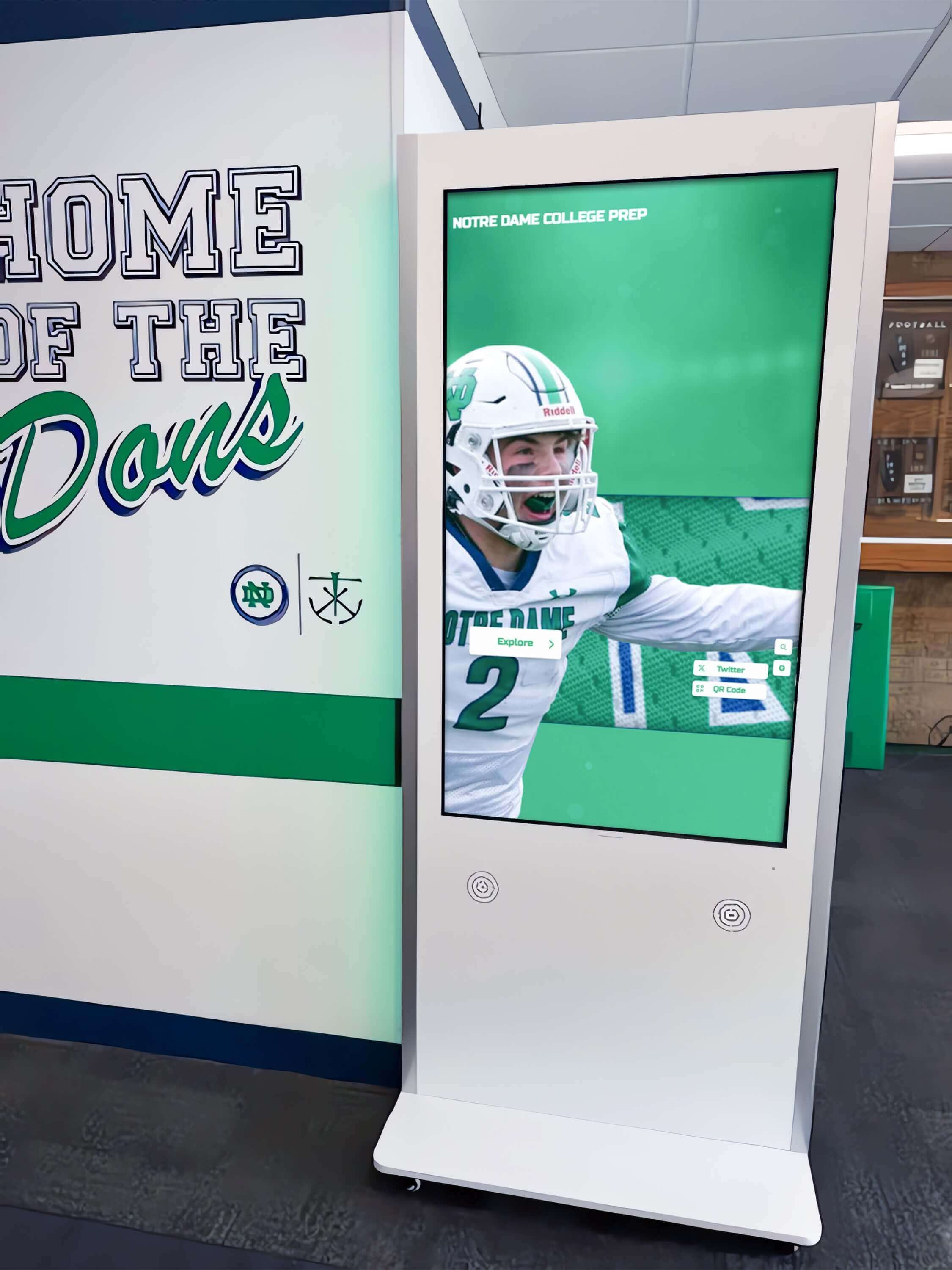
Athletic facility kiosks serve engaged visitors who benefit from longer timeout windows that accommodate browsing through multi-year championship records and team rosters
Privacy, Security, and Compliance Considerations
FERPA and Student Data on Public Displays
Recognition displays that include current student information—academic honor roll recipients, award winners, and team rosters—can implicate FERPA when they display personally identifiable information. While FERPA’s directory information provisions generally permit schools to publish names and recognized achievements publicly, your idle timeout policy interacts with FERPA compliance by determining how long any particular student’s information remains foregrounded on a public screen after the browsing visitor has left.
A 90-second timeout that resets to a rotating home screen effectively limits the unattended display time for any individual student’s profile to a brief window. Document this design choice as part of your compliance records for public display systems alongside your directory information policies.
Administrative Access Prevention
Some recognition platforms expose administrative functions—content management shortcuts, reporting dashboards, or staff login prompts—from within or adjacent to the visitor-facing interface. Timeout policy must ensure a visitor session cannot persist long enough to allow unauthorized access to these functions during unattended periods.
Best practice: Separate visitor-facing kiosk mode from any administrative interface at the authentication layer, not solely through idle timeout. The timeout should reset the visitor session; administrative access should require active re-authentication regardless of how recently the display was last used.
Athletic Award Reviews and Sensitive Recognition Content
Schools occasionally navigate situations where recognition content is under review—an athletic award appeals process, a retroactive eligibility determination, or a naming policy revision. When a profile or award entry is temporarily sensitive, IT teams should have a documented procedure for suspending that specific content item without taking the entire display offline. This operational flexibility is as important as timeout configuration in a comprehensive display management policy and should be established before a time-sensitive situation arises.
Energy Management and Extended Downtime
Overnight and Weekend Settings
School recognition displays typically run continuously during school days but sit unused for extended overnight and weekend periods. A runtime policy that addresses these windows separately from visitor-hours settings meaningfully reduces energy consumption and panel wear.
Recommended approach:
- School hours (6 a.m.–10 p.m.): Standard 90- to 120-second idle timeout to home screen; OS screensaver activates at 15 minutes; display dims to reduced brightness after 20 minutes of no interaction
- Off-hours (10 p.m.–6 a.m.): Display transitions to low-brightness ambient mode or powers off completely via scheduled OS task or managed power strip
- Extended closures (weekends, holidays, summer): Full display power-off via scheduled shutdown, with automatic restart scheduled before the first event or school opening day
Brightness Scheduling Alongside Timeout
Idle timeout and brightness management work together. A display returning to its home screen at full brightness in a darkened after-hours hallway consumes unnecessary energy and creates unintended light in adjacent spaces. Configure brightness schedules in parallel with timeout policies so the display automatically reduces brightness as visitor traffic decreases throughout the day.
Many commercial display management platforms allow centralized scheduling of both timeout behavior and brightness levels across multiple displays simultaneously—reducing the administrative burden of managing separate settings on individual units across campus locations.
Monitoring and Ongoing Maintenance
A timeout policy is only effective if it stays correctly configured. Firmware updates, recognition software upgrades, and OS patches can reset power management settings to defaults. Build the following into your regular display maintenance workflow:
| Maintenance Task | Frequency | Responsible Party |
|---|---|---|
| Verify timeout values in recognition software admin panel | Monthly | IT department |
| Confirm OS power settings match policy documentation | Monthly | IT department |
| Test full timeout-to-home-screen sequence manually | Quarterly | IT or facilities |
| Review session analytics for mid-session drop-offs | Quarterly | Recognition program owner |
| Update policy documentation after software upgrades | After each major update | IT department |
| Audit content for items requiring restricted display | Annually | Athletic director / administrator |
Schools using digital graphics and animated content for home screen design should include home screen animation review in the quarterly maintenance cycle—ensuring the rotating content remains current rather than displaying outdated event dates or content that references graduated students in present-tense contexts.
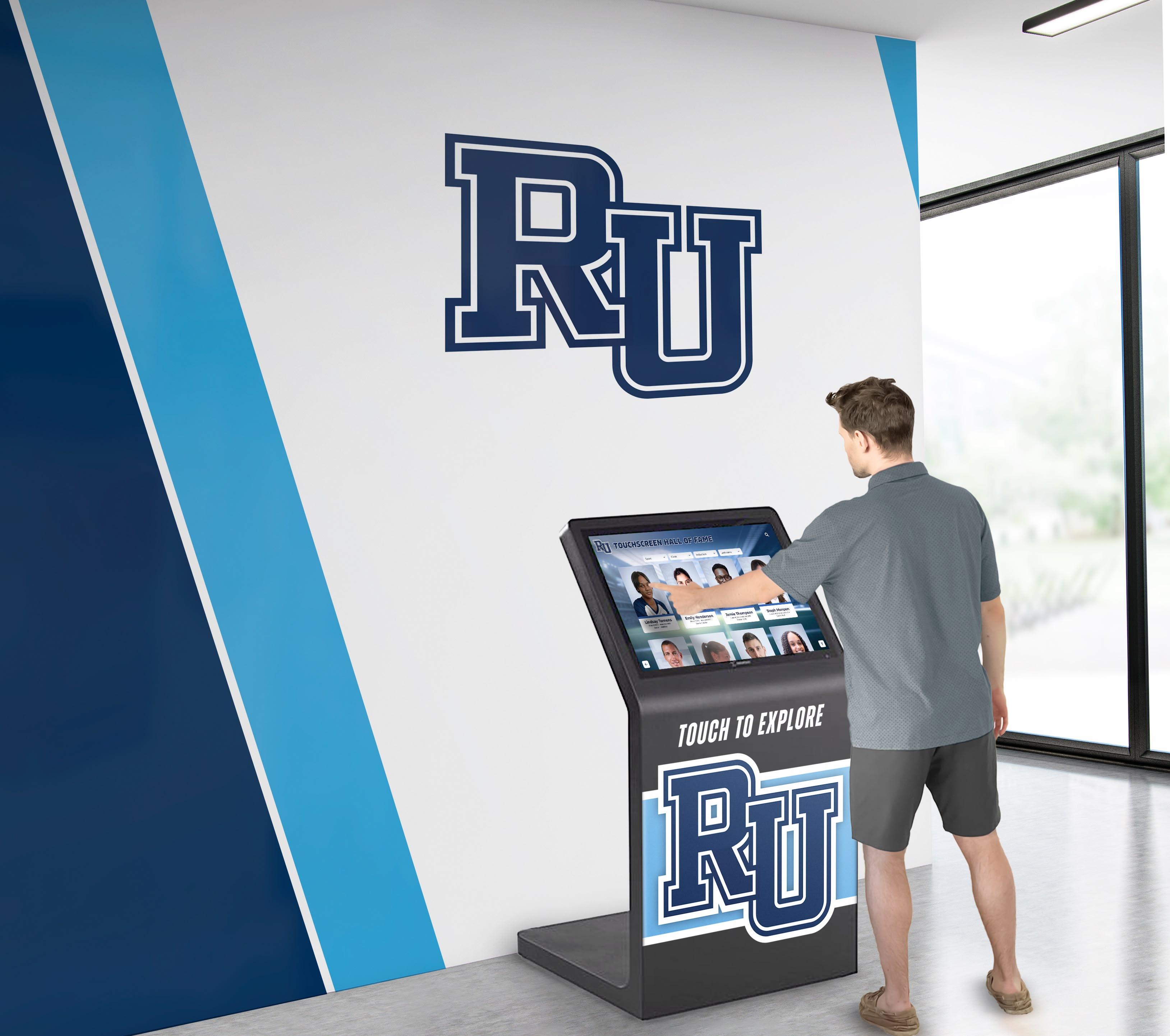
Regular manual testing of the complete timeout-to-home-screen sequence ensures every visitor encounters the display in its intended starting state
Frequently Asked Questions
What happens if I set the timeout too short?
Visitors browsing detailed content—multi-year championship records, full athlete profiles, or academic honor roll archives—will experience mid-session resets that interrupt their exploration. This reduces the time visitors spend engaging with your school’s recognition heritage and signals that the system is unreliable. If session analytics show high reset rates, extend the timeout by 30 seconds, deploy the change, and monitor for two to four weeks before adjusting further.
Can I set different timeouts for different times of day?
Yes, if your recognition platform or operating system supports scheduled tasks or time-based power profiles. Many schools configure shorter timeouts during peak-traffic periods—before school, during lunch, and immediately after dismissal—and longer timeouts during low-traffic hours when extended browsing is more common. This approach requires more complex initial configuration but produces a better visitor experience across diverse usage patterns throughout the school day.
Should the display power off completely between school years?
Extended summer closures present an opportunity for firmware updates, content refreshes, and hardware inspections. Powering down displays completely during multi-week closures reduces panel wear and energy consumption. Schedule a power-on test at least two weeks before school resumes to identify any issues requiring maintenance before the display returns to active service in a high-visibility location.
How does idle timeout interact with accessibility features?
If your display includes text-to-speech, high-contrast mode, or other accessibility features that individual visitors may activate, the session reset at timeout should return all accessibility settings to their defaults. This ensures the next visitor starts from standard settings rather than encountering an accessibility configuration intended for a different user’s needs. Include accessibility feature reset verification as a specific step in your quarterly timeout sequence testing.
Who should own the idle timeout policy?
The recognition program owner—typically an athletic director, principal’s designee, or communications coordinator—should define the target visitor experience: home screen design, session experience goals, and content privacy requirements. The IT department translates those goals into technical configuration across the OS, software, and hardware layers. Facilities staff verify the physical display presentation regularly. Document ownership clearly so timeout-related issues do not fall into an accountability gap between departments during a busy season.
See How Rocket Alumni Solutions Handles Display Management
Rocket Alumni Solutions builds idle timeout, session management, and return-to-home behavior directly into its recognition platform—so school IT teams configure once and maintain easily without juggling separate OS, software, and hardware settings. Request a demo to see how the platform manages display behavior alongside content for public recognition kiosks.
Request a DemoA well-crafted school touchscreen idle timeout policy protects visitor privacy, extends display hardware life, conserves energy, and ensures every visitor encounters your recognition program at its best. Starting with the recommended 90- to 120-second baseline, adapting to each display’s specific location and audience, and building in regular maintenance verification keeps your recognition kiosks performing reliably through the full school year and beyond.































