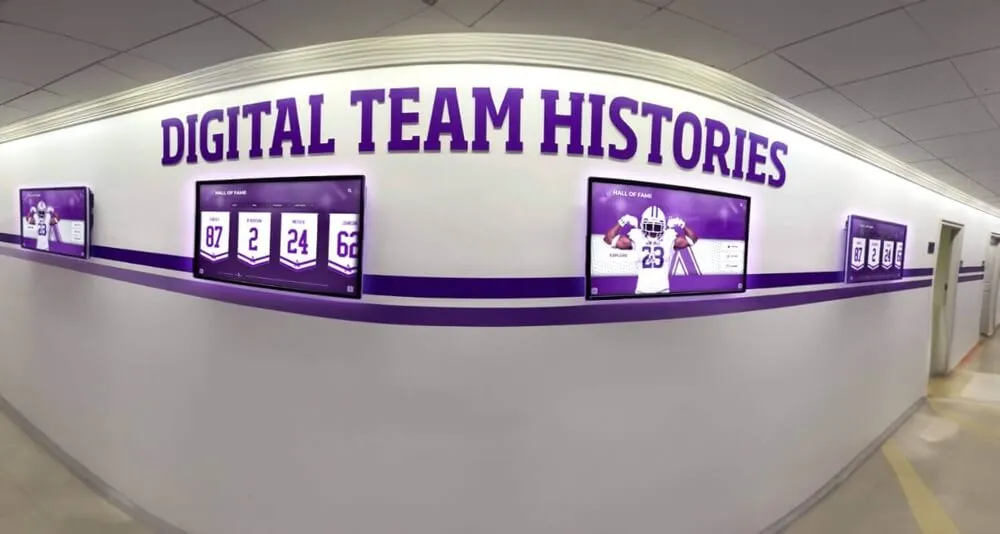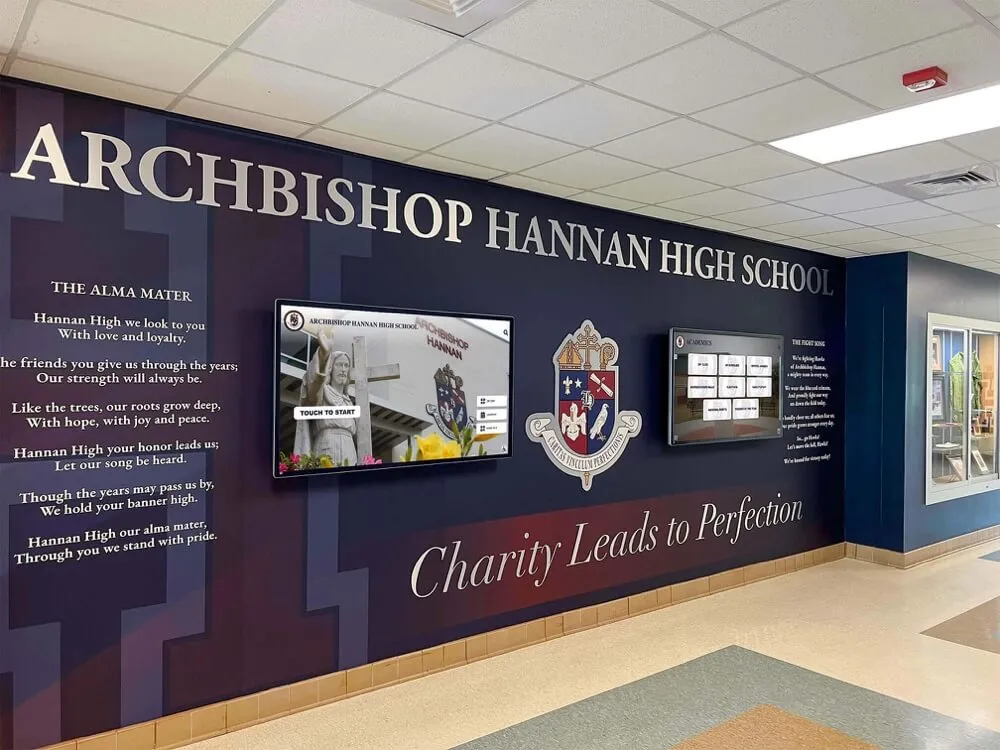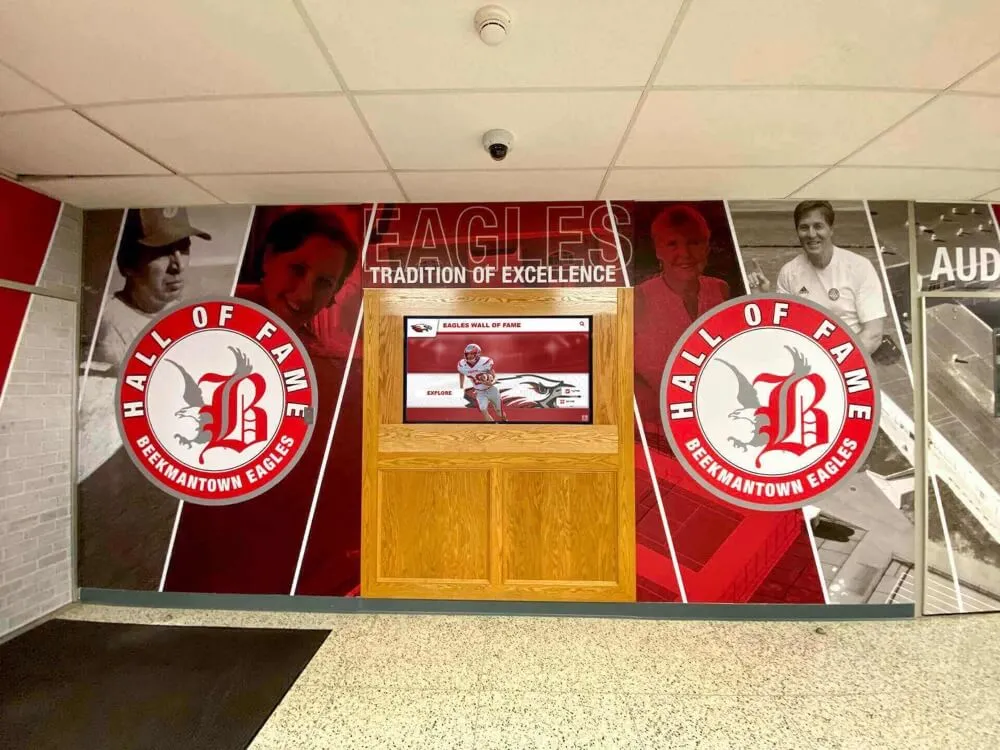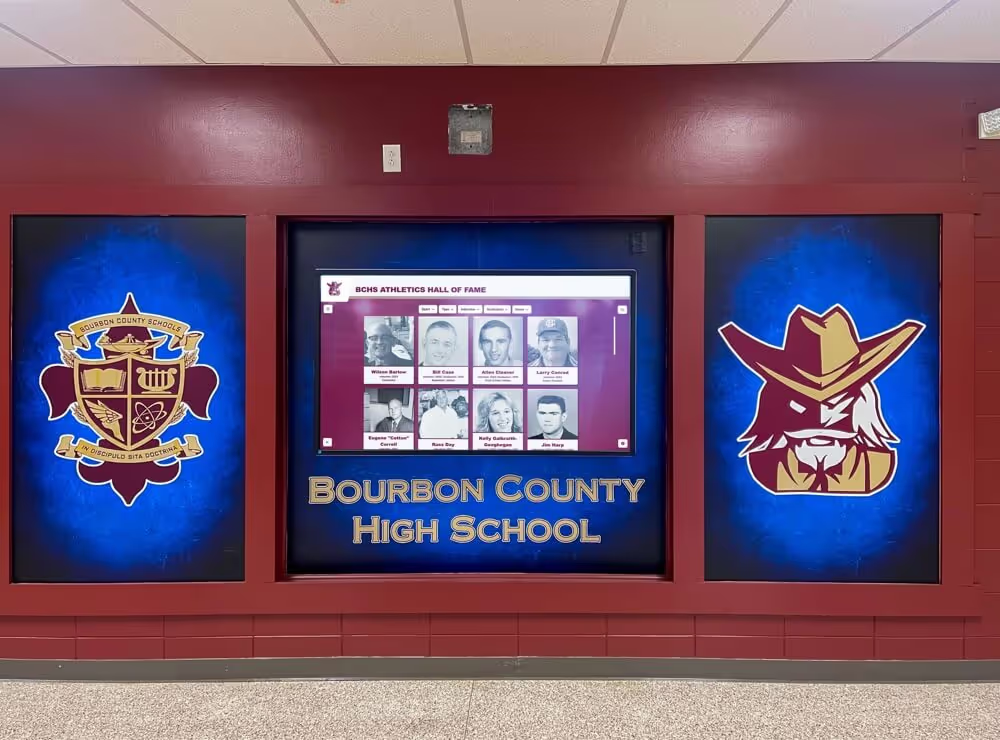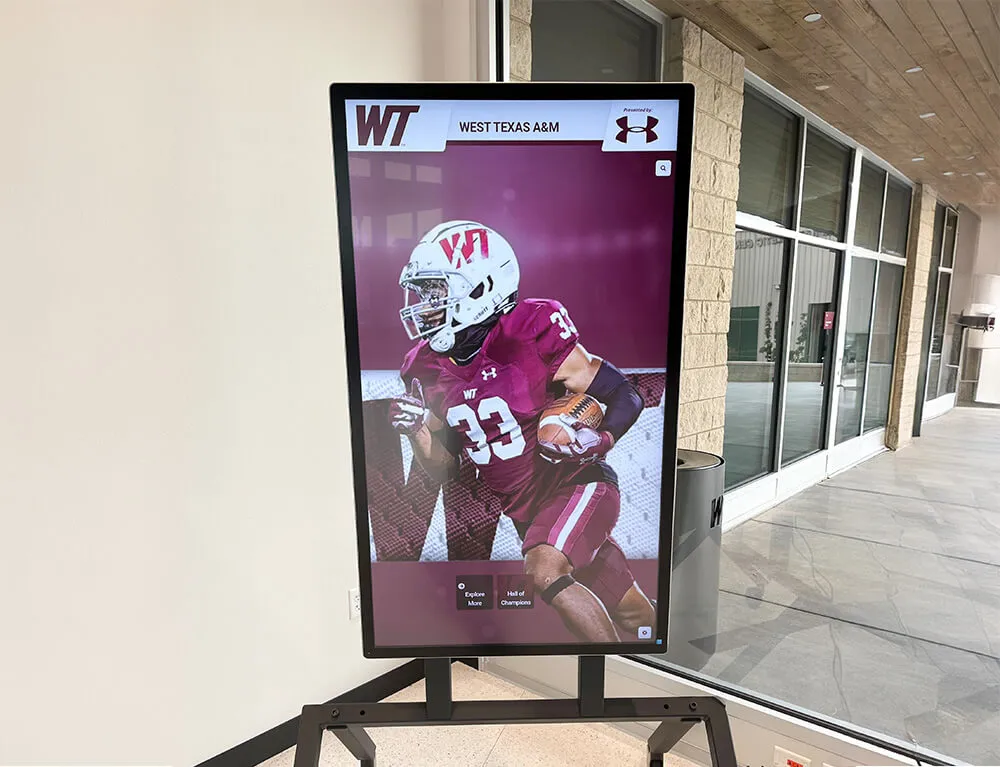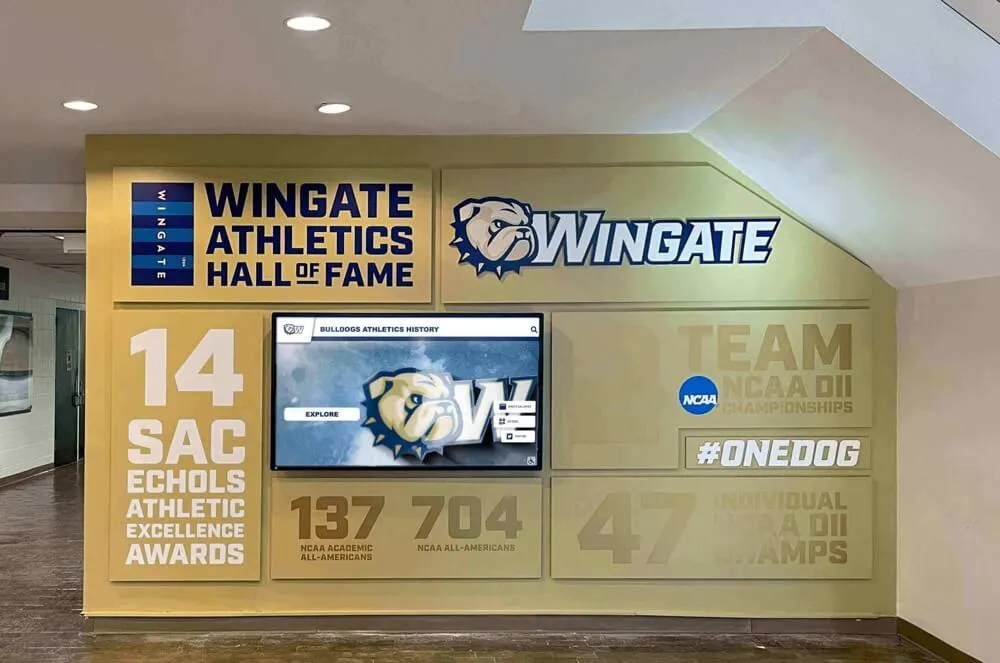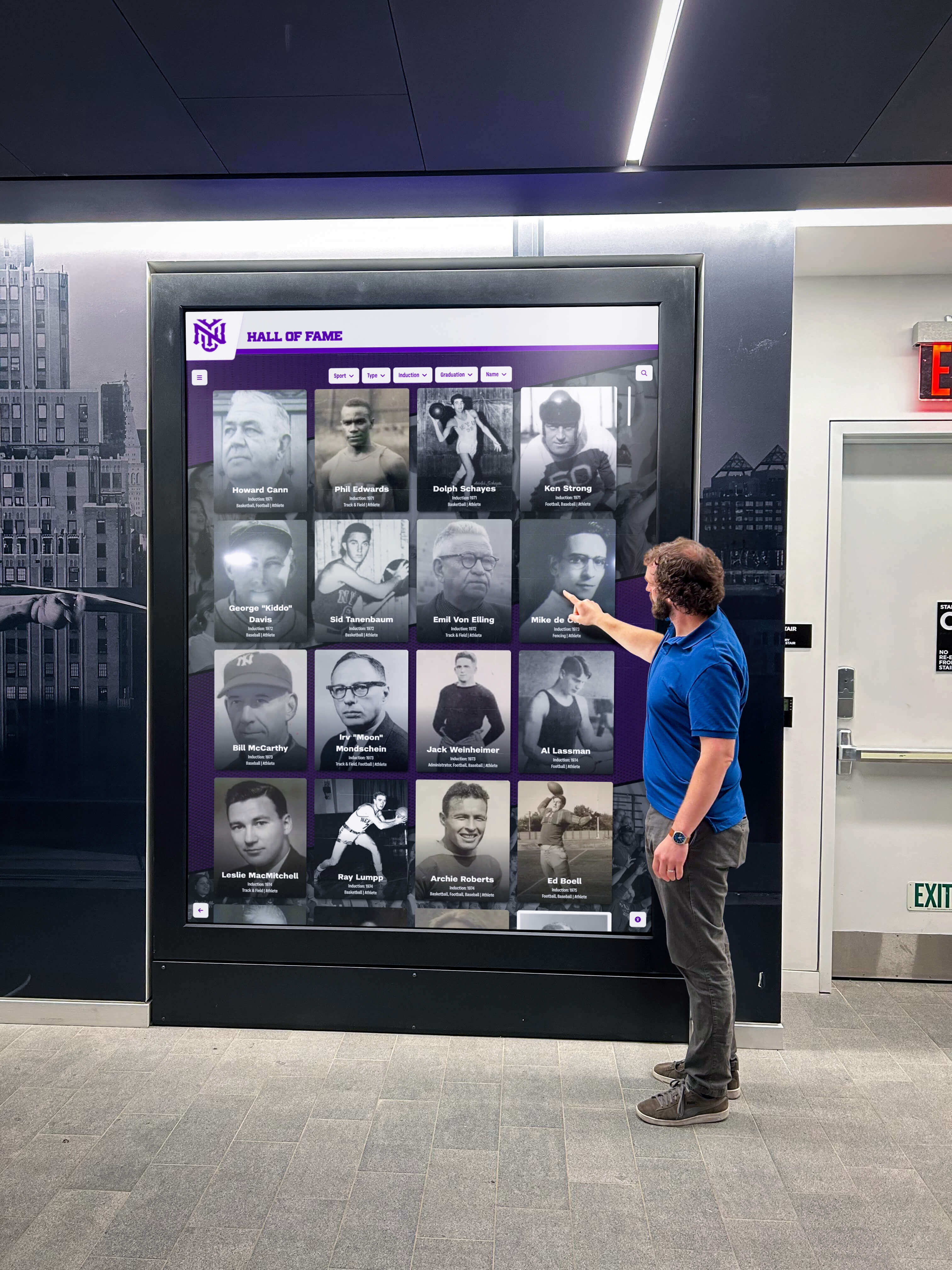




Touchscreen kiosk apps that fully lock down devices represent essential tools for schools, museums, libraries, corporate offices, and public facilities deploying interactive displays and self-service terminals. Whether you’re creating an information kiosk in a school lobby, deploying digital recognition displays throughout your campus, setting up wayfinding systems in a museum, or establishing public internet access stations, the right kiosk browser software determines whether your installation delivers secure, reliable service or becomes a constant source of technical headaches and security concerns.
The challenge many organizations face involves navigating a fragmented landscape of kiosk browser solutions—from expensive enterprise platforms to free but limited options, from Android-specific tools to cross-platform solutions, from simple URL lockers to comprehensive device management systems. Fully Kiosk Browser has dominated Android kiosk deployments for years, but many organizations seek alternatives offering better pricing, simpler management, Mac compatibility, or features better aligned with their specific needs.
This comprehensive guide explores the best touchscreen kiosk apps and fully locked-down browser solutions available in 2025, with particular emphasis on alternatives to Fully Kiosk Browser. You’ll discover free and paid options for Android and Mac, understand essential features distinguishing basic from professional solutions, learn what makes effective kiosk software for different use cases, and gain actionable frameworks for selecting platforms that match your organization’s requirements, technical capabilities, and budget constraints.
Organizations successfully deploying kiosk systems report that software selection matters far more than hardware choices—the right kiosk browser transforms tablets and computers into reliable, secure, user-friendly public access tools, while inadequate software creates constant troubleshooting demands, security vulnerabilities, and user frustration regardless of hardware quality. According to industry analysis, kiosk software features like remote management and device lockdown represent critical success factors determining whether deployments achieve their intended objectives or require expensive redesigns.

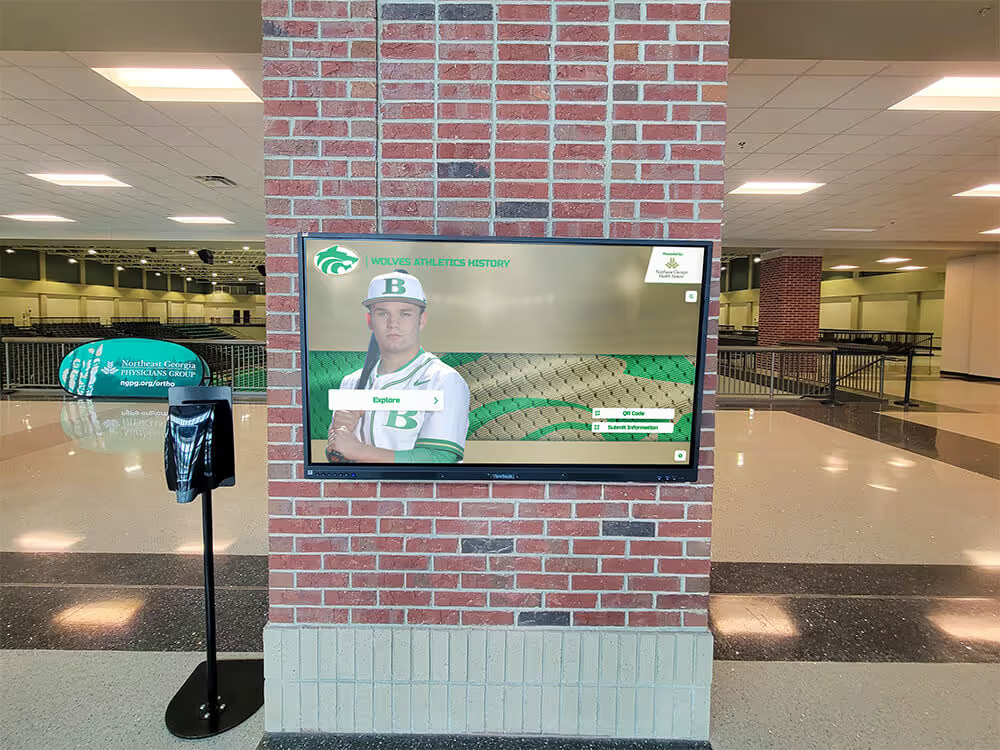
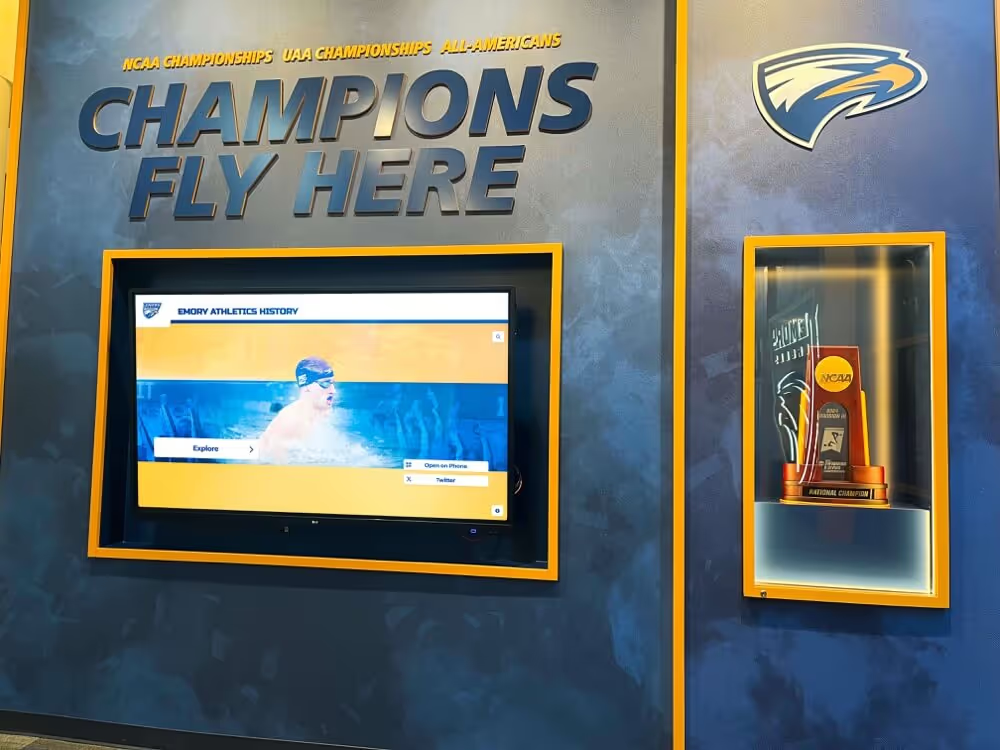
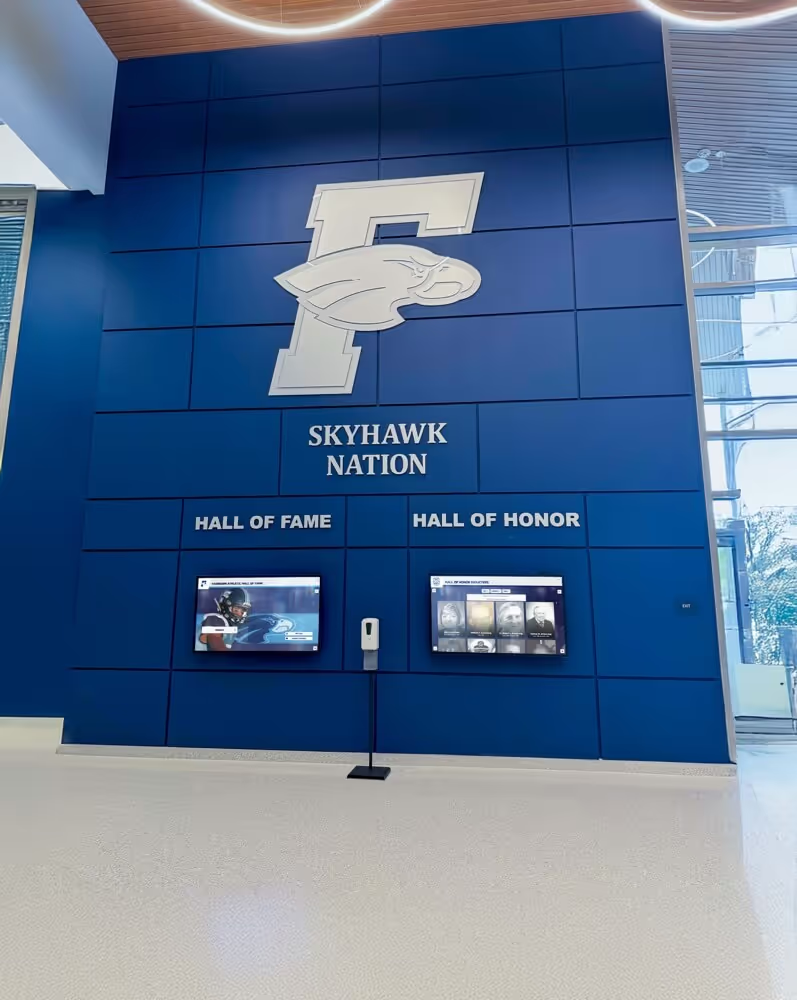
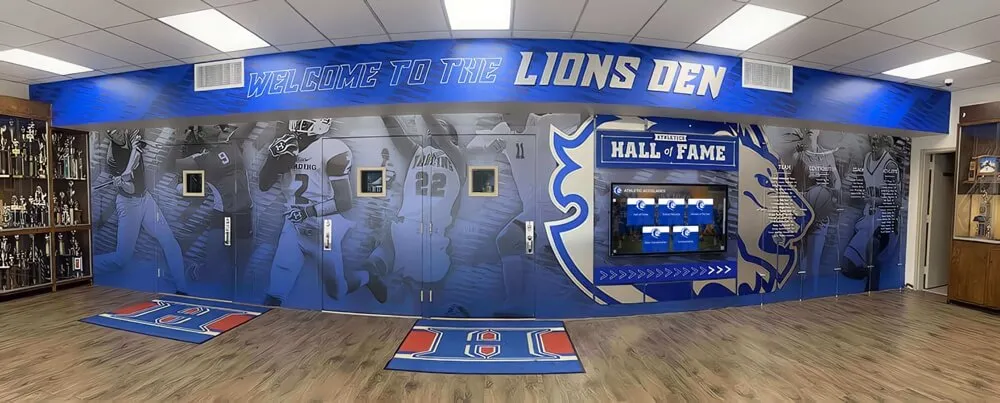
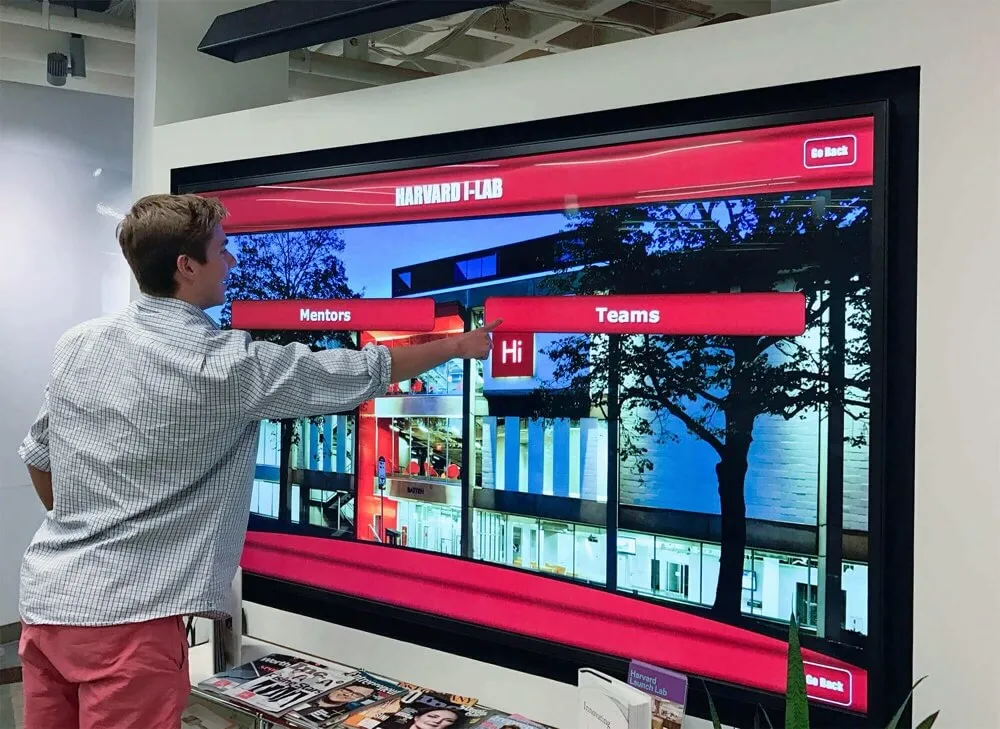
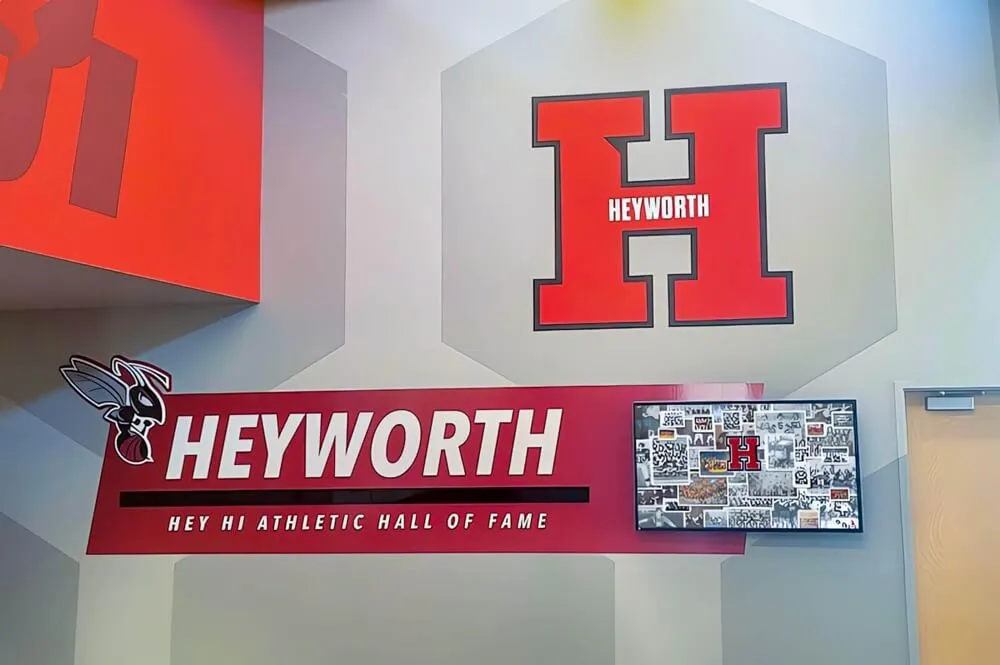
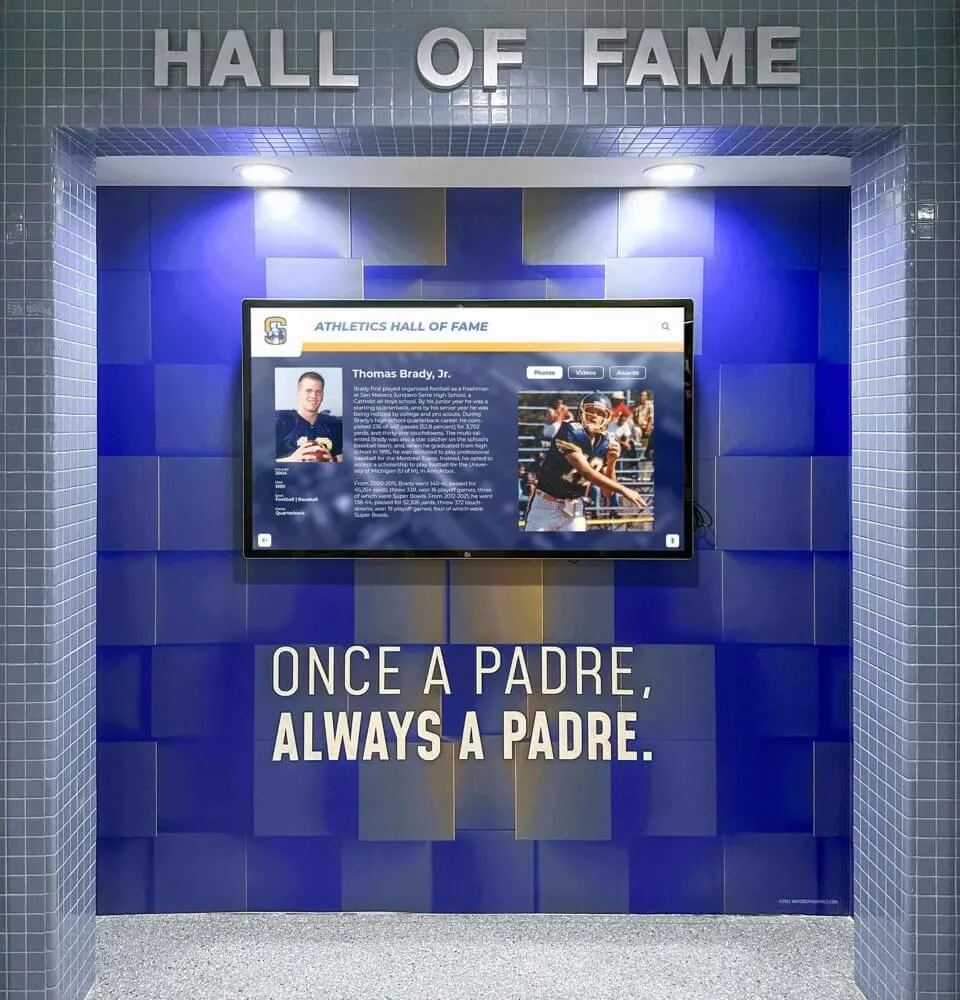
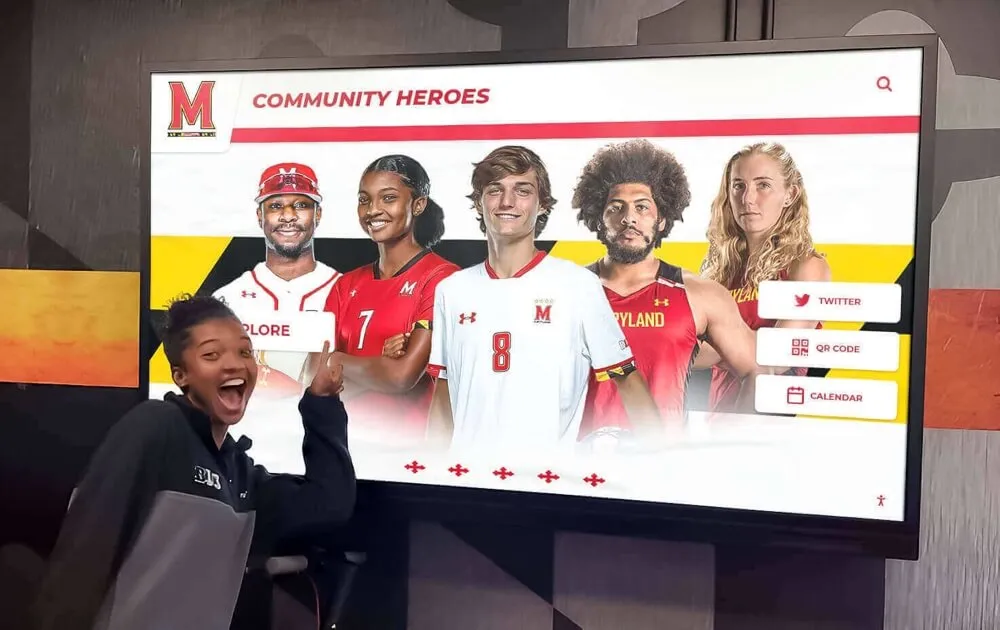
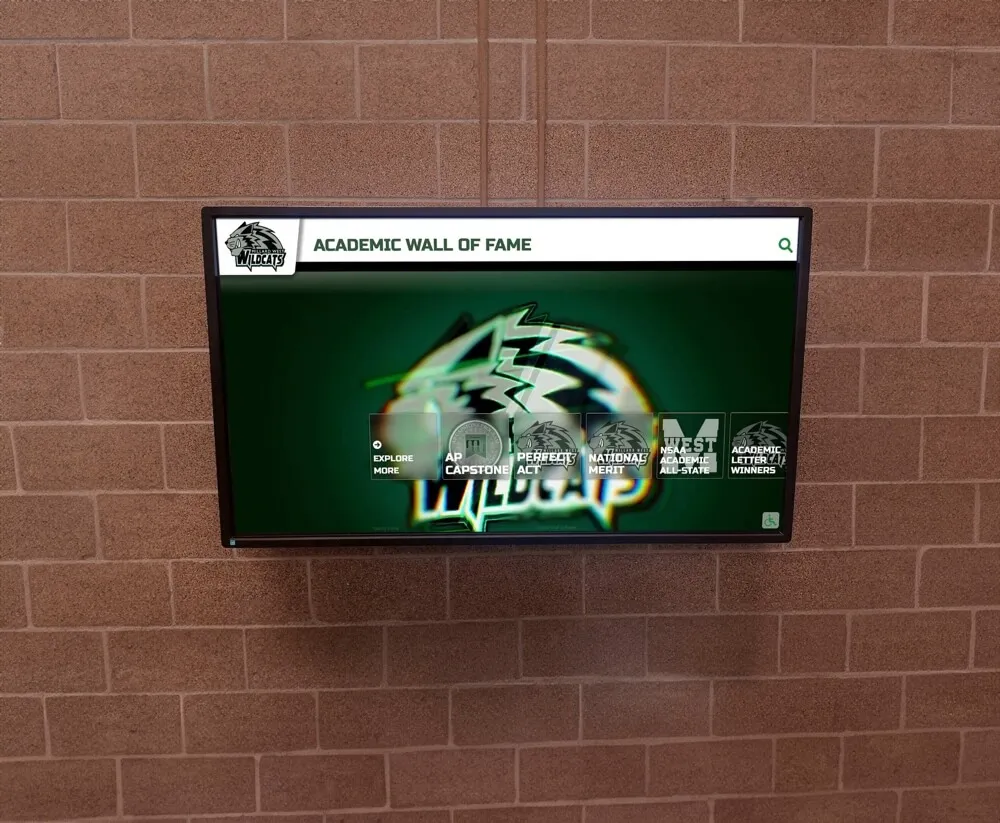
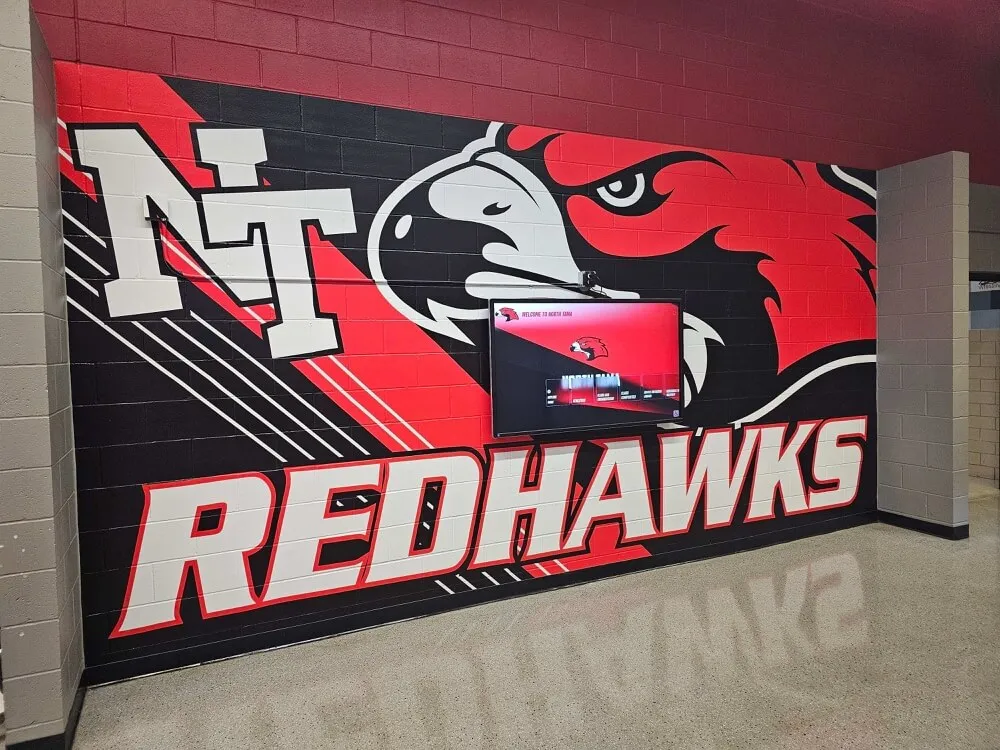
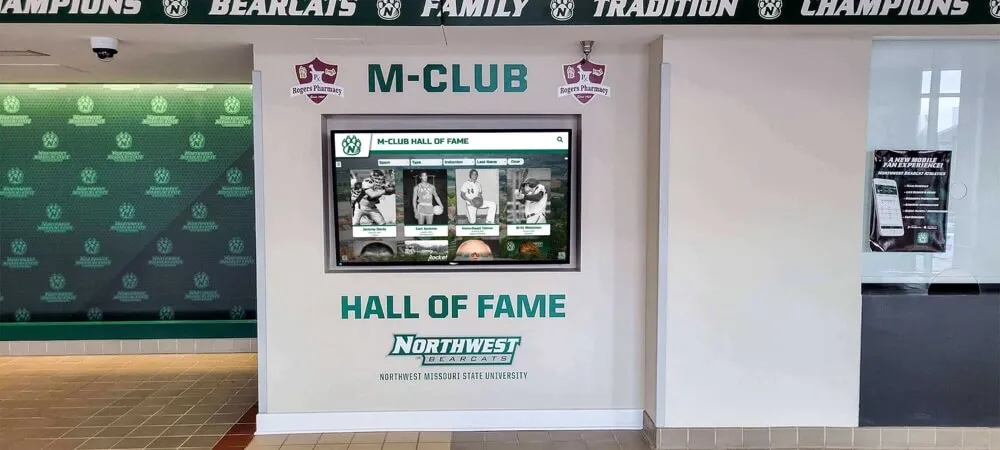
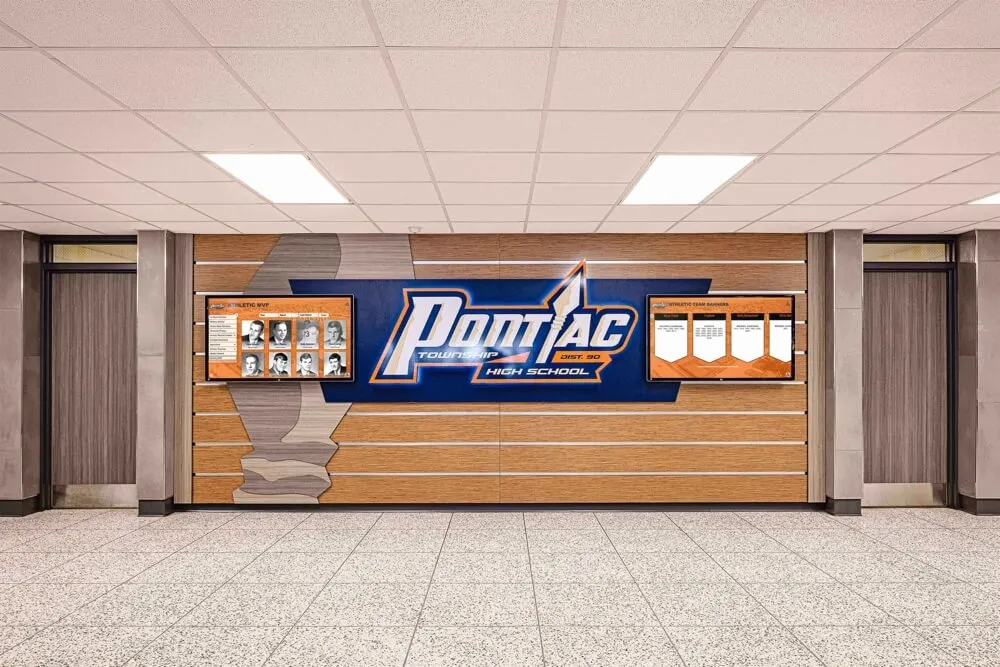
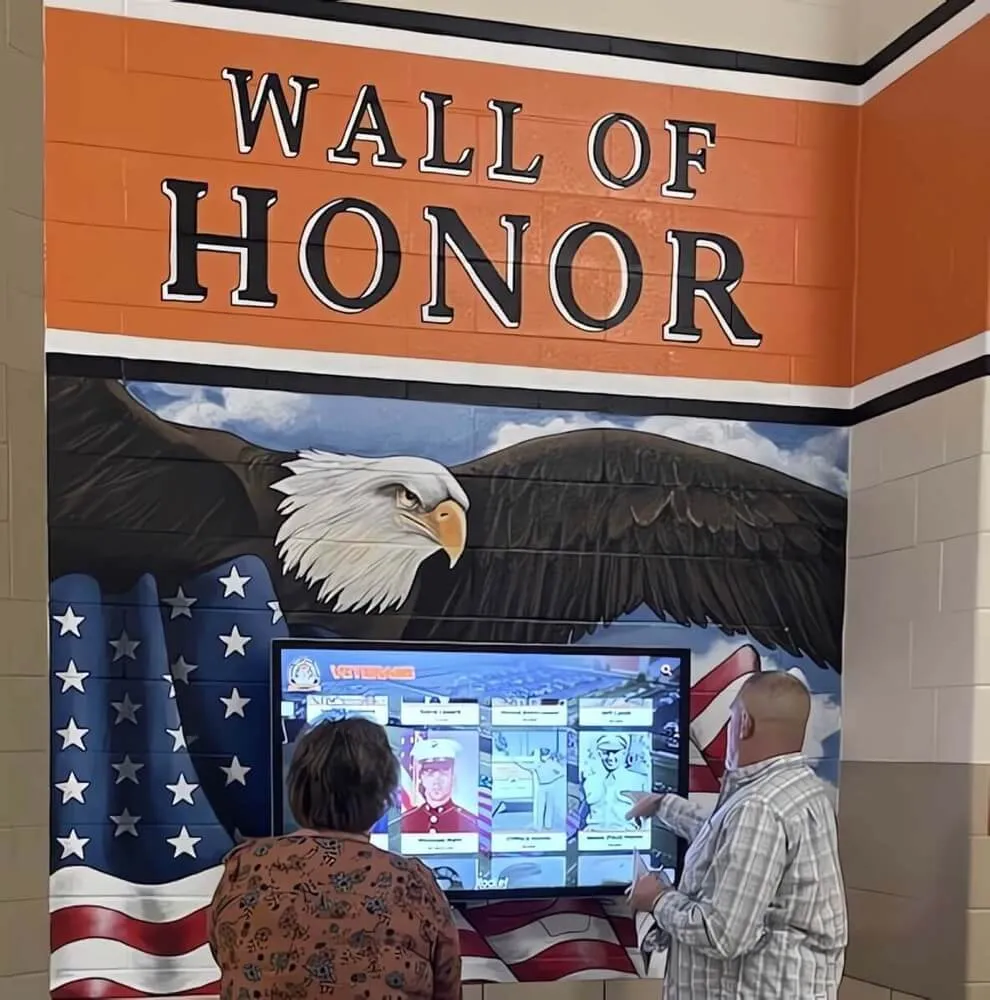
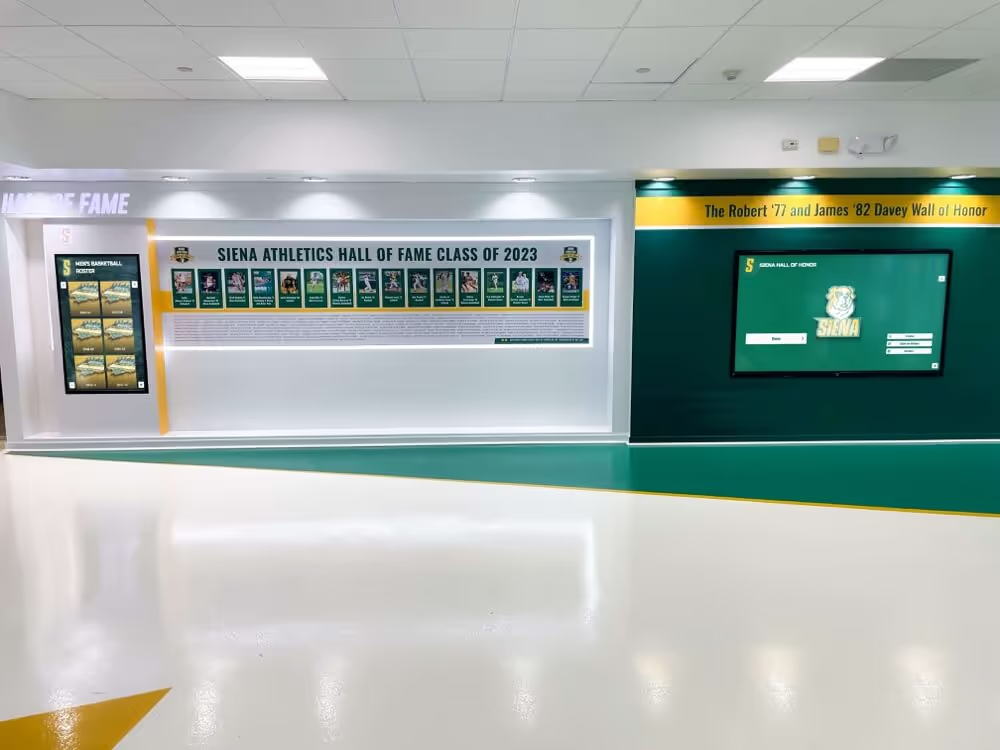
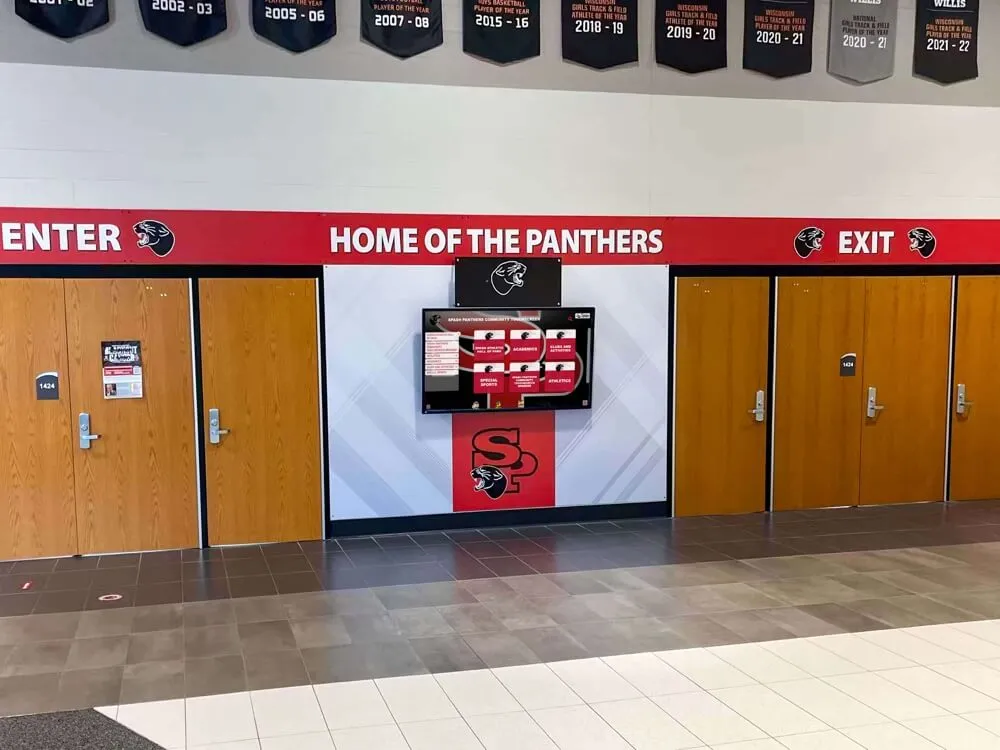
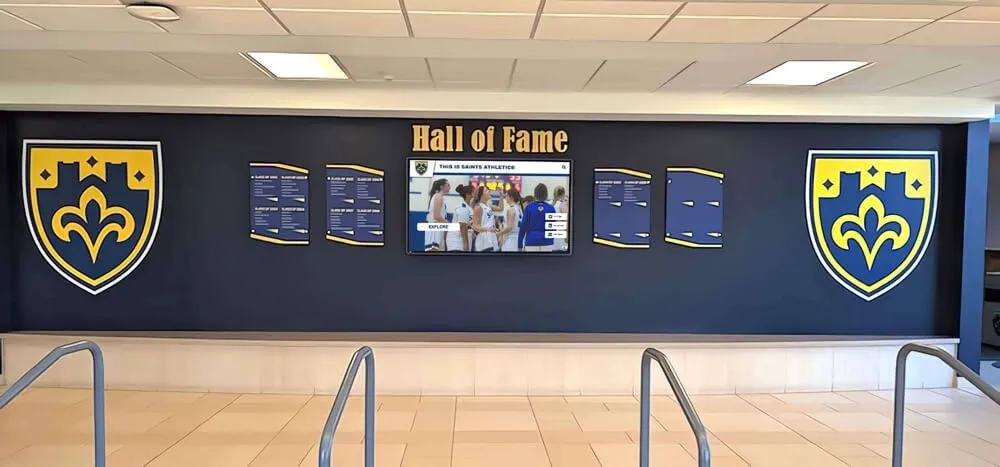
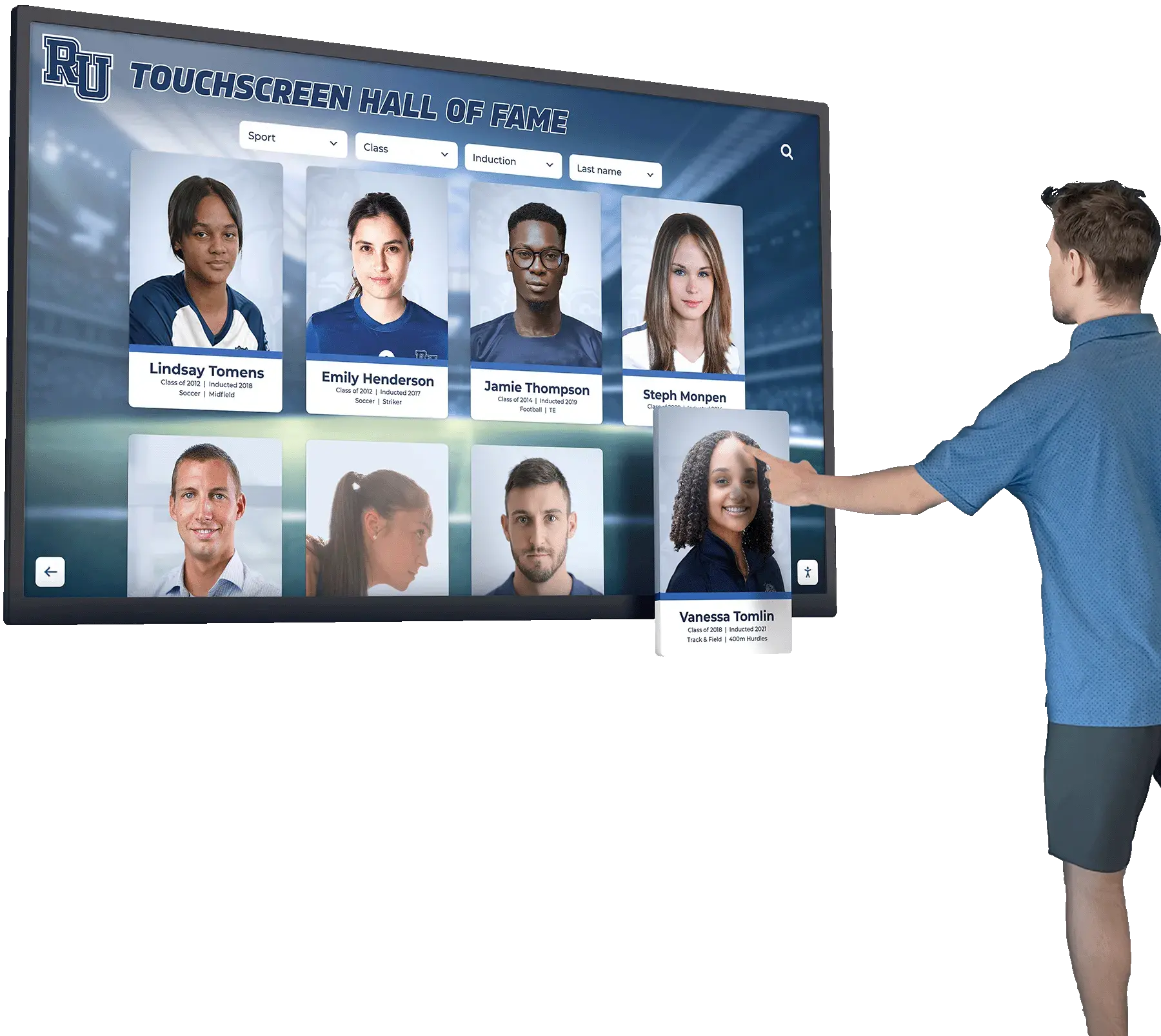
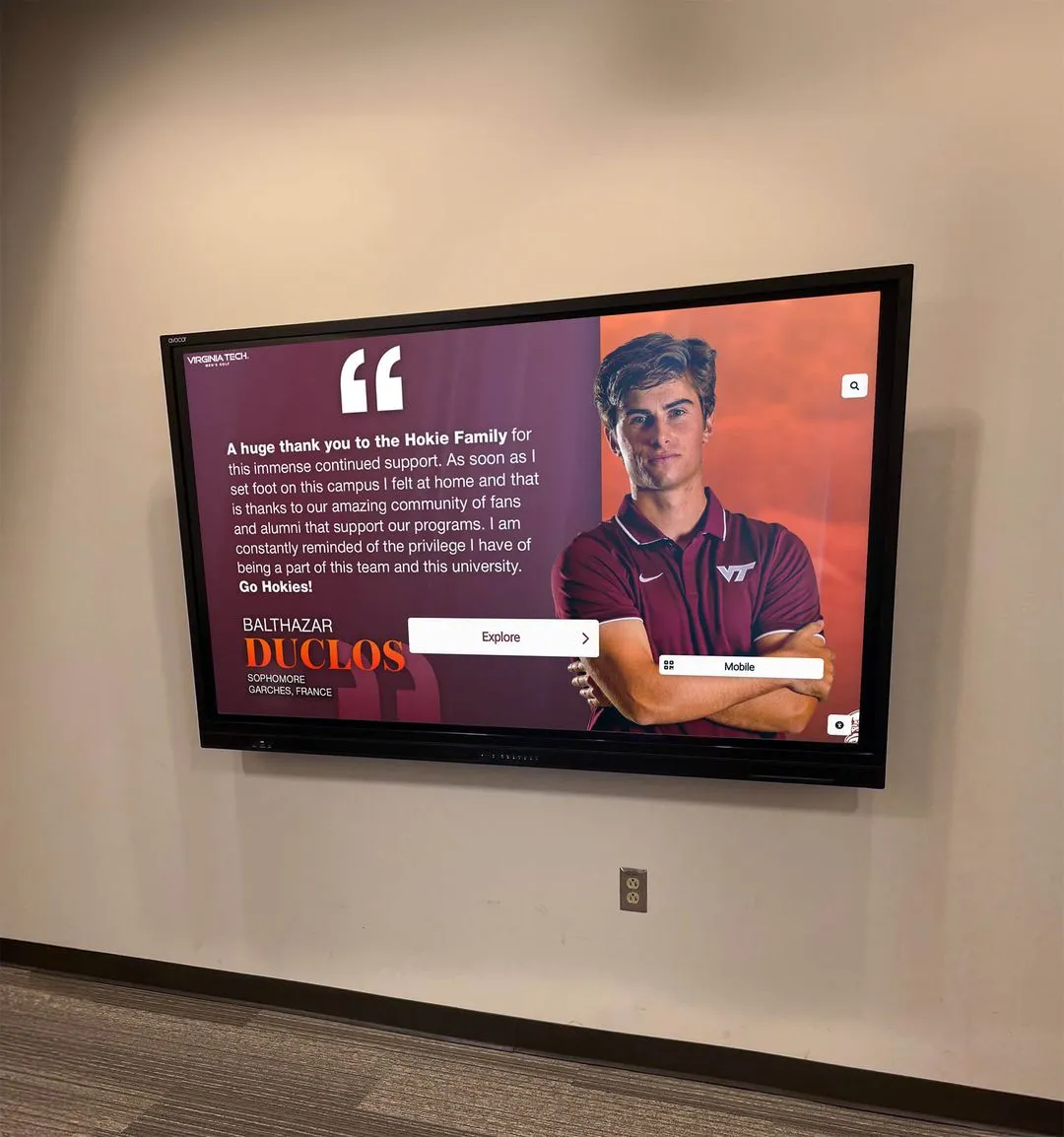
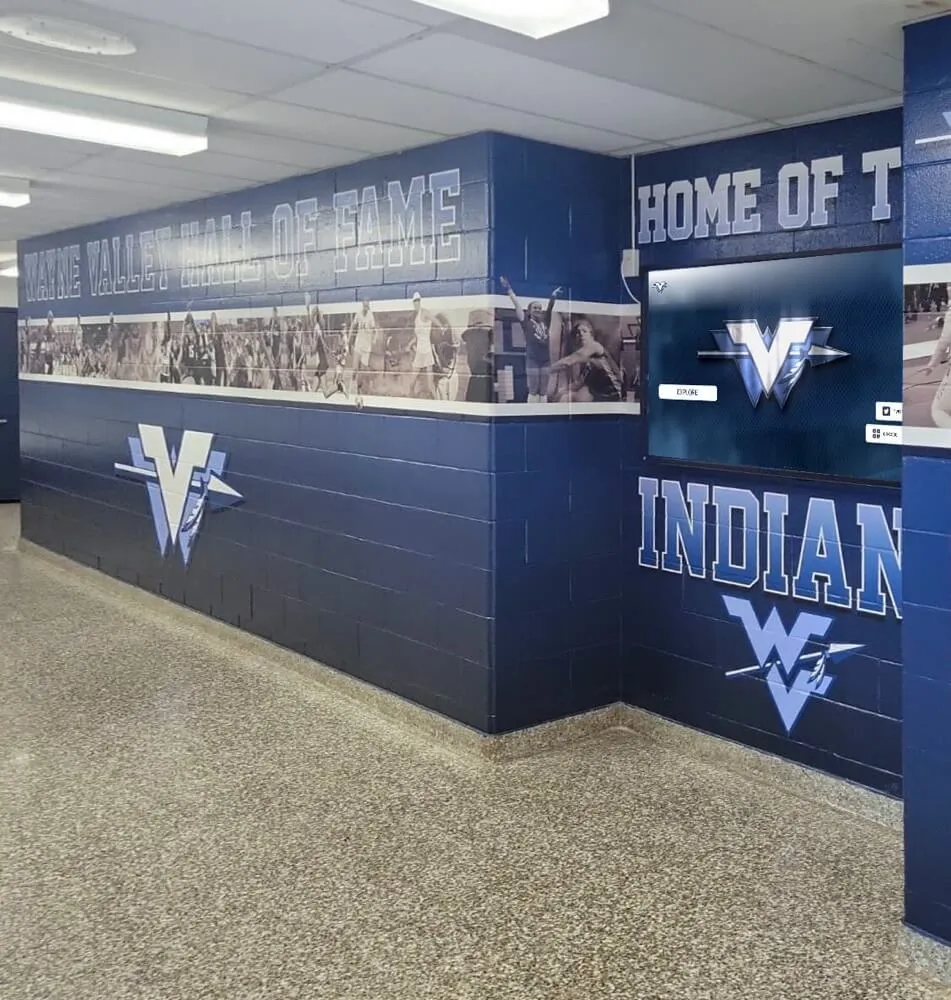
Professional kiosk browser software transforms standard devices into secure, reliable public access terminals
Understanding Kiosk Browser Software: What Makes Apps “Fully Locked Down”
Before comparing specific platforms, understanding what distinguishes true kiosk browsers from basic lockdown features helps organizations identify solutions genuinely meeting security and operational requirements.
Essential Features of Professional Kiosk Software
Not all apps claiming kiosk capabilities actually provide the security controls, reliability features, and management tools required for professional public-facing installations. Genuine kiosk browser software includes several critical capabilities:
True Device Lockdown
Professional kiosk apps prevent users from exiting the designated application, accessing device settings, switching to other apps, viewing notifications, using system shortcuts, downloading files, or modifying any configuration. This complete lockdown ensures devices remain dedicated to intended purposes regardless of user behavior—casual or intentional.
Android kiosk mode solutions emphasize restricting device functionality to specified websites or apps, preventing unauthorized access to underlying operating systems or unintended applications. Organizations implementing digital recognition systems like interactive hall of fame displays require this level of control ensuring displays remain dedicated to recognition content rather than becoming general-purpose browsers.
Browser Security Controls
Beyond device lockdown, kiosk browsers must restrict browser functionality itself including blocking address bar access preventing manual URL entry, disabling browser settings and configuration menus, preventing downloads and file uploads, restricting right-click context menus, controlling back/forward navigation availability, and managing cookie and cache behavior.
These controls ensure even if users somehow access the browser interface, they cannot navigate beyond intended content or compromise device security through browser-level actions.
Remote Management Capabilities
Managing kiosk deployments at scale demands remote administration enabling configuration updates without physical device access, monitoring device health and connectivity status, scheduling content updates and restarts, troubleshooting issues remotely, and coordinating updates across multiple installations simultaneously.
Organizations deploying touchscreen kiosks across school campuses or museum facilities particularly need remote management reducing operational overhead and enabling rapid response to issues without dispatching technical staff to individual display locations.
Automatic Recovery and Reliability
Unattended kiosks must recover automatically from common failures including application crashes requiring restart, network connectivity interruptions, scheduled system updates and reboots, power loss and restoration, and user-induced errors or unusual states.
Self-healing capabilities prove critical for installations in locations lacking nearby technical support—devices must return to proper kiosk operation automatically rather than remaining in error states until someone physically intervenes.
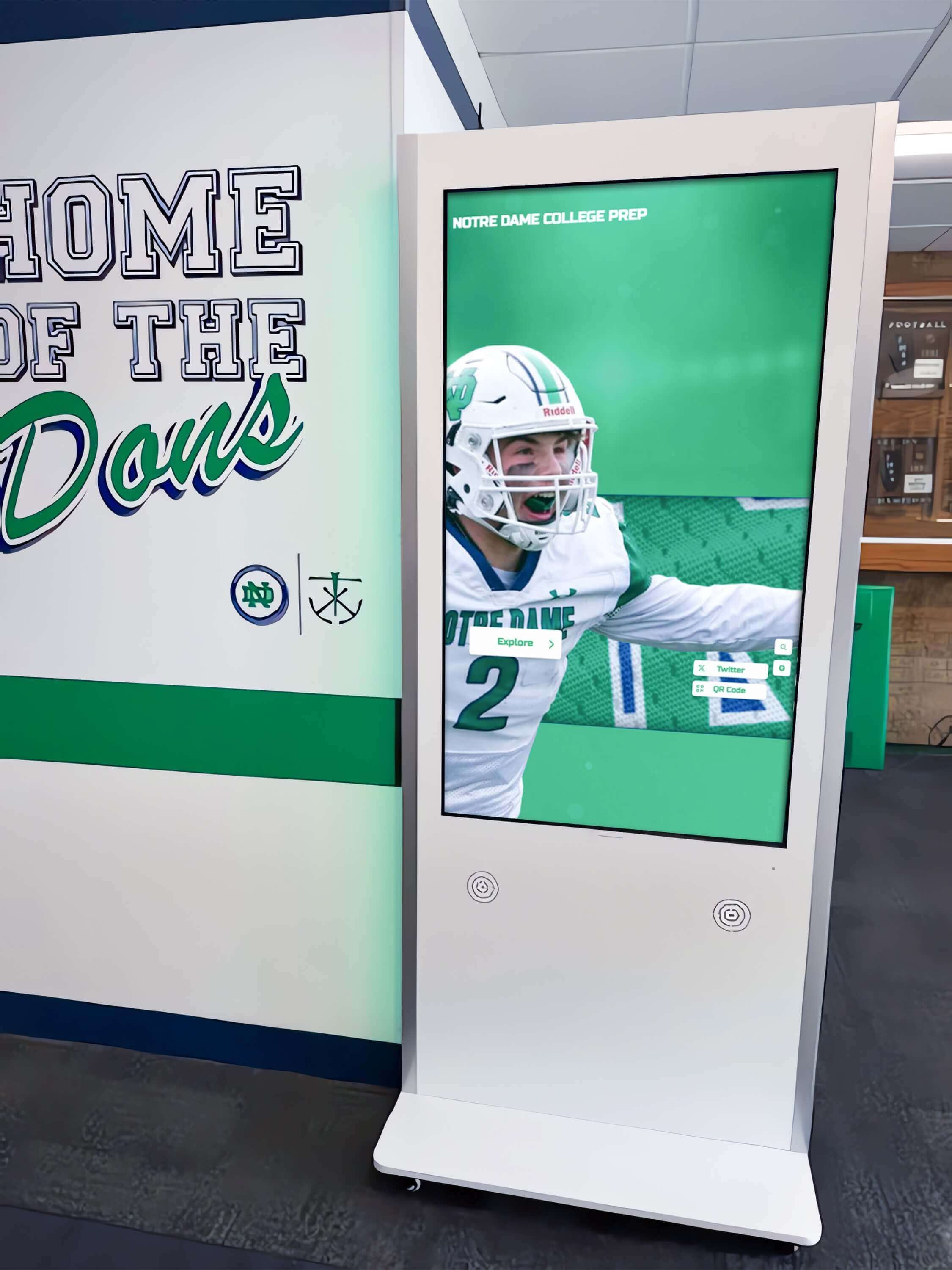
Professional kiosk installations require software providing true device lockdown and automatic recovery capabilities
The Difference Between Kiosk Mode and Guided Access
Many organizations mistakenly believe built-in operating system features like Android’s screen pinning or iOS’s Guided Access provide adequate kiosk functionality. While these native tools offer basic app locking, they lack features essential for professional kiosk deployments:
Native OS Lockdown Limitations
Built-in lockdown features typically provide single-session app pinning requiring manual activation each time, minimal remote management or monitoring capabilities, limited customization of allowed functionality, no scheduled content updates or automated management, and basic security easily defeated by knowledgeable users.
These native features work adequately for supervised environments with nearby staff who can reset devices between users, but prove insufficient for unsupervised public installations requiring reliable long-term operation without intervention.
Professional Kiosk Software Advantages
Dedicated kiosk applications like those highlighted in comparisons of Android kiosk software provide persistent lockdown surviving restarts, comprehensive remote management dashboards, scheduled content and configuration updates, detailed usage analytics and monitoring, customizable security policies and restrictions, and multi-device fleet management capabilities.
This professional-grade functionality proves essential for organizations managing multiple kiosk installations across different locations, deploying displays expected to operate reliably without constant technical attention, or serving sensitive applications where security requirements exceed casual lockdown needs.
Best Touchscreen Kiosk Apps for Android in 2025
Android dominates the touchscreen kiosk market due to hardware affordability, extensive device options, and mature kiosk software ecosystem. Understanding leading Android kiosk browser options helps organizations identify platforms matching their requirements.
Fully Kiosk Browser: The Market Standard
Fully Kiosk Browser established itself as the most popular Android kiosk solution through comprehensive features, reasonable pricing, and active development. Understanding its capabilities provides context for evaluating alternatives.
Core Fully Kiosk Features
Fully Kiosk Browser delivers extensive functionality including flexible website and app lockdown with multiple configurations, motion detection enabling displays to wake when people approach, remote administration through web dashboard or REST API, extensive device sensor integration for interactive experiences, scheduled actions automating routine tasks, camera integration for QR code scanning or photo capture, and customizable kiosk interface behavior.
According to comparisons of kiosk browser features, Fully provides one of the most comprehensive feature sets available, explaining its widespread adoption across industries from retail to education to healthcare.
Pricing Structure
Fully Kiosk Browser offers free functionality with basic lockdown capabilities plus paid licensing unlocking advanced features including remote administration, motion detection, scheduled actions, and premium support. Licensing costs approximately $14-20 per device for lifetime licenses or lower annual subscription rates for fleet deployments.
This affordable pricing positions Fully favorably compared to enterprise Mobile Device Management (MDM) platforms costing $50-200+ annually per device while delivering comparable kiosk-specific functionality.
When Fully Works Well
Organizations successfully using Fully Kiosk Browser typically deploy Android tablets or smartphones as dedicated kiosks, require extensive customization and sensor integration, manage small-to-medium device fleets within budget constraints, possess technical staff comfortable configuring advanced settings, and need flexibility for evolving requirements without vendor lock-in.
Schools implementing digital athletic recognition displays or museums creating interactive educational exhibits commonly find Fully’s combination of features and affordability aligns well with institutional needs and budgets.
Known Limitations and Concerns
Despite popularity, Fully presents challenges for some organizations including overwhelming configuration complexity for non-technical users, occasional stability issues particularly on manufacturer-customized Android versions, limited official customer support beyond community forums, complex remote admin interface requiring technical expertise, and potential feature overwhelm for simple kiosk requirements.
Additionally, some organizations seek alternatives offering simpler setup, stronger support commitments, or different feature priorities better matching their specific use cases.
Top Fully Kiosk Browser Alternatives for Android
Several strong alternatives address Fully Kiosk limitations or serve organizations with different priorities around simplicity, support, or specific capabilities.
AirDroid Business
AirDroid Business provides comprehensive Mobile Device Management (MDM) with strong kiosk mode capabilities, positioning itself as an enterprise alternative to Fully Kiosk Browser’s DIY approach.
Platform Capabilities: AirDroid offers centralized management dashboard for unlimited devices, single-app or multi-app kiosk configurations with granular controls, remote troubleshooting including screen viewing and control, website whitelisting and blacklisting for browser-based kiosks, scheduled actions and automatic policies, detailed usage analytics and device health monitoring, and workflow automation for routine management tasks.
Pricing and Target Market: Starting at approximately $12 per device annually for small-to-medium fleets, AirDroid targets organizations prioritizing ease-of-use, professional support, and centralized management over maximum feature customization. According to enterprise kiosk software comparisons, AirDroid particularly appeals to schools, retail chains, and corporate deployments managing dozens or hundreds of kiosk devices across multiple locations.
Best Applications: Organizations implementing standardized kiosk configurations across multiple sites, educational institutions lacking dedicated IT staff for complex technical management, retail or hospitality deployments requiring reliable uptime with minimal technical intervention, or corporate facilities prioritizing professional support and SLA commitments over maximum flexibility.
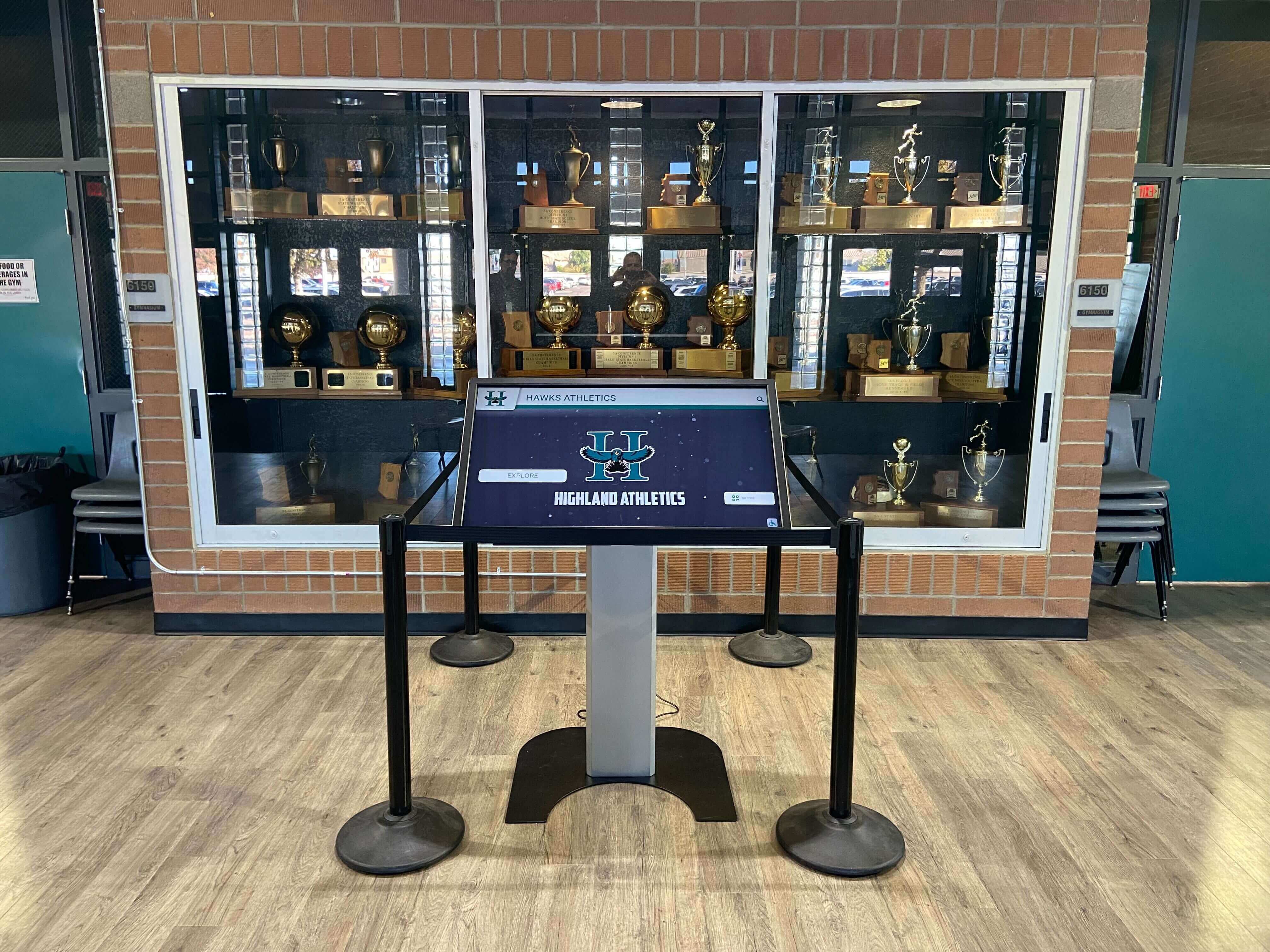
Enterprise kiosk solutions provide professional support and centralized management for multi-location deployments
KioWare for Android
KioWare brings decades of Windows kiosk experience to Android, offering robust lockdown functionality and monitoring capabilities targeting organizations prioritizing security and compliance.
Key Features: KioWare provides comprehensive browser lockdown with extensive security controls, remote monitoring and management dashboard, detailed usage tracking and session logging, scheduled operations including content updates and restarts, kiosk health monitoring with automated alerts, and customizable security policies for different deployment contexts.
Pricing Model: KioWare offers free basic lockdown with occasional popup reminders plus paid commercial licensing removing popups and unlocking professional features including remote management and monitoring. Commercial licenses cost approximately $299-499 annually per device depending on feature requirements and fleet size.
Target Scenarios: Government facilities requiring detailed audit logging and compliance documentation, financial institutions with strict security requirements, healthcare deployments protecting patient privacy through secure lockdown, and corporate environments prioritizing security over cost sensitivity.
Organizations implementing secure information kiosks in regulated industries often justify KioWare’s premium pricing through superior security controls and compliance features unavailable in consumer-grade alternatives.
SiteKiosk Online
SiteKiosk Online combines kiosk management with digital signage capabilities, appealing to organizations wanting integrated solutions handling both interactive kiosks and passive content displays from unified platforms.
Platform Overview: SiteKiosk provides cloud-based management for Windows and Android devices, kiosk browser lockdown with security controls, digital signage content scheduling and playback, remote configuration and monitoring across fleets, usage tracking and analytics, and flexible deployment supporting both kiosk and signage use cases.
Pricing and Positioning: Subscription pricing starts around $15-30 monthly per device depending on features and commitments. SiteKiosk positions itself as all-in-one solution for organizations deploying both interactive kiosks and passive digital signage, eliminating the need for separate platforms managing different display types.
Ideal Use Cases: Schools rotating between digital recognition content during school hours and passive announcements after hours, museums combining interactive exhibits with informational signage, corporate facilities deploying both employee information kiosks and public-facing marketing displays, and retail environments mixing transactional kiosks with promotional content screens.
Scalefusion Kiosk Browser
Scalefusion, part of the broader Scalefusion MDM platform, offers purpose-built kiosk browser functionality with strong security controls and user-friendly management interfaces.
Core Capabilities: Scalefusion includes secure browser lockdown transforming devices into dedicated kiosks, website whitelisting controlling accessible content, customizable homepage and browser settings, remote wipe and security controls protecting data, peripheral access management controlling connected devices, and integration with broader Scalefusion MDM for comprehensive device management.
Best Applications: Organizations already using or considering Scalefusion MDM for broader device management, educational institutions needing both kiosk lockdown and student device management from unified platforms, corporate deployments managing diverse device types including kiosks through consolidated systems, and IT teams preferring integrated tooling over separate specialized solutions.
According to mobile kiosk software comparisons, integrated MDM approaches like Scalefusion simplify operations for organizations managing not just kiosks but also employee devices, student tablets, or diverse hardware fleets through consolidated platforms.
Free Android Kiosk Solutions
Budget-constrained organizations, particularly schools and non-profits, often seek free kiosk software options meeting basic lockdown requirements without ongoing licensing costs.
STAROS (Glory Star)
Some touchscreen hardware manufacturers bundle proprietary kiosk software with their devices. Glory Star’s STAROS provides license-free kiosk lockdown on their Android touchscreen computers.
Platform Details: STAROS offers Android kiosk mode included free with Glory Star hardware, basic website and app lockdown functionality, simple configuration through settings interface, no ongoing licensing fees or subscriptions, and direct hardware integration for optimized performance.
Limitations and Considerations: STAROS availability depends on purchasing specific Glory Star hardware rather than installing on arbitrary Android devices. While eliminating software costs, this hardware dependency limits deployment flexibility. Organizations should evaluate whether hardware restrictions and feature limitations prove acceptable in exchange for zero ongoing software expenses.
KioWare Free Version
KioWare offers free basic kiosk lockdown with limited features acceptable for personal use or proof-of-concept deployments.
What’s Included: The free version provides basic browser lockdown preventing system access, full-screen kiosk display without browser chrome, and automatic return to designated content after idle periods.
Notable Restrictions: Free KioWare includes periodic popup reminders about commercial versions, lacks remote management capabilities, provides no official support or SLA commitments, and restricts advanced security and monitoring features to paid versions.
Organizations requiring professional reliability, support, or remote management typically find free version limitations unacceptable for production deployments, making it suitable primarily for testing or ultra-budget-constrained scenarios accepting reduced functionality.
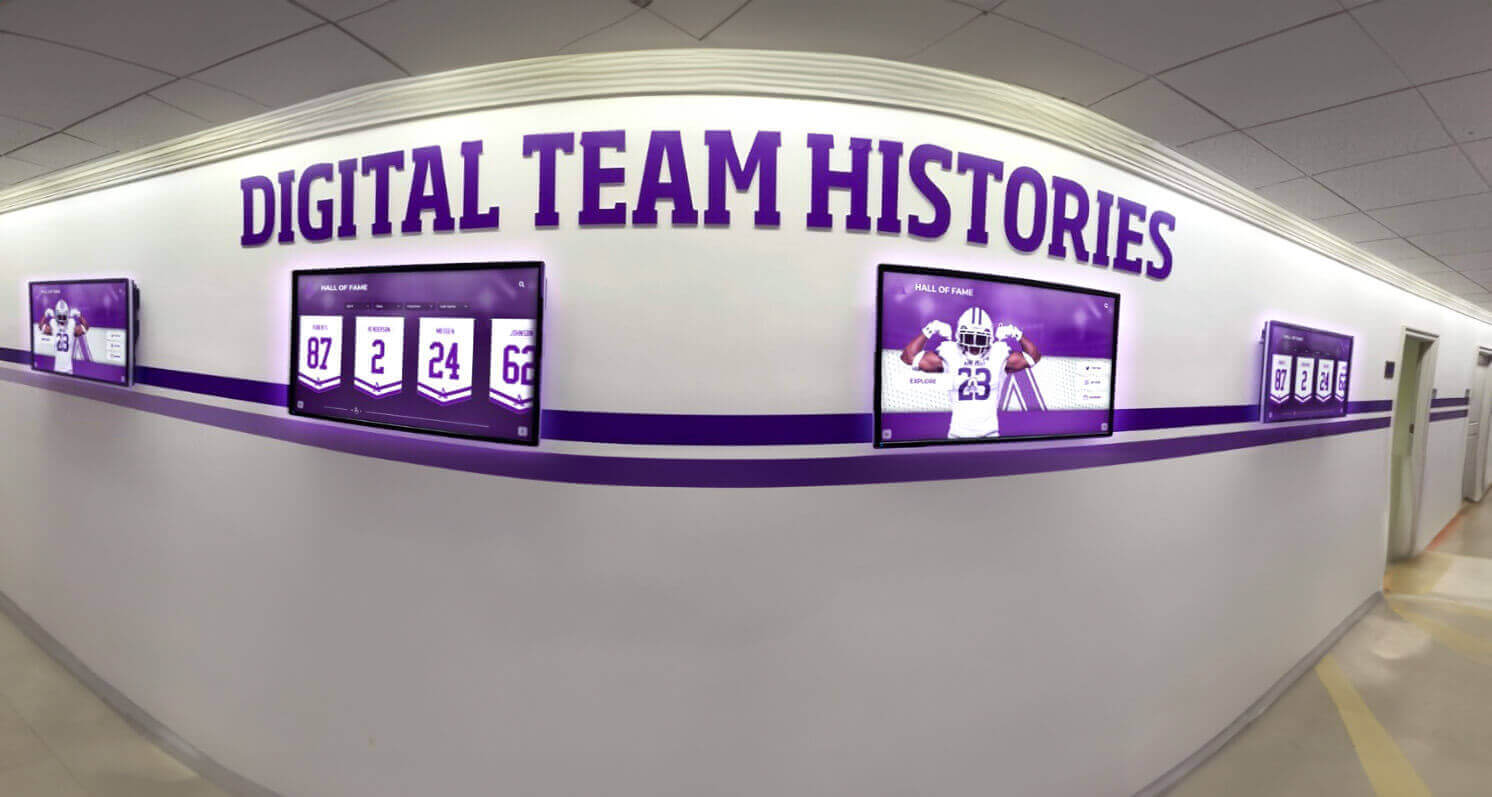
Managing multiple kiosk installations efficiently requires remote management capabilities typically unavailable in free solutions
Best Kiosk Browser Apps for Mac in 2025
While Android dominates touchscreen kiosk deployments, many organizations prefer Mac computers for reliability, aesthetics, security architecture, and institutional standardization. Understanding Mac kiosk browser options helps organizations leveraging Apple ecosystems.
Rocket Touchscreen (Mac App Store)
Rocket Touchscreen, available in the Mac App Store, provides purpose-built kiosk browser functionality specifically designed for transforming Mac computers into secure, user-friendly touchscreen kiosks with minimal configuration complexity.
Key Features and Benefits
Rocket Touchscreen addresses primary challenges organizations face deploying Mac-based kiosk systems:
Automatic Kiosk Mode Launch: The application launches automatically into full-screen locked-down kiosk mode, eliminating manual configuration and ensuring consistent operation across restarts. This automation proves particularly valuable for installations in locations where technical staff cannot easily access displays for troubleshooting.
Chromium-Based Browser Engine: Running on Chromium provides excellent web standards compliance ensuring modern websites display correctly without compatibility issues, strong performance for interactive content including video and animations, and familiar rendering behavior matching popular Chrome browser.
Single-Touch Optimized Interface: While supporting multi-touch capabilities when needed, Rocket Touchscreen optimizes for single-touch interaction preventing confusion from accidental multi-touch gesture recognition—particularly important for public kiosk environments serving users unfamiliar with complex gestures.
Simplified Management: Intuitive configuration interfaces enable non-technical administrators to specify URLs, adjust security settings, and modify display preferences without command-line expertise or complex configuration files—critical for schools and smaller organizations lacking dedicated IT resources.
Ideal Use Cases: Organizations implementing Mac-based digital hall of fame systems, schools creating interactive information kiosks in lobbies or libraries, museums deploying wayfinding displays or interactive exhibits, and institutions presenting web-based content on Mac hardware in secure kiosk configurations.
The app integrates seamlessly with web-based recognition platforms including Rocket Alumni Solutions’ single-touch mode, creating cohesive experiences optimized specifically for public touchscreen interaction in educational and organizational settings.
Availability and Pricing: Available through Mac App Store with standard Apple distribution model simplifying procurement compared to enterprise software requiring custom licensing agreements. This distribution method proves particularly convenient for educational institutions already managing software through institutional Apple IDs.
Alternative Mac Kiosk Solutions
Beyond purpose-built apps, several approaches enable kiosk functionality on Mac computers serving organizations with different requirements or technical capabilities.
Google Chrome Kiosk Mode (Command-Line)
Technically proficient organizations comfortable with terminal commands can configure Chrome’s built-in kiosk mode through launch parameters.
Implementation Approach: Launching Chrome with command-line flags enables kiosk functionality:
/Applications/Google\ Chrome.app/Contents/MacOS/Google\ Chrome --kiosk --app=https://your-url.com
Advantages: Zero software cost beyond free Chrome browser, maximum customization through extensive command-line flags, excellent web standards compliance, and familiar platform most web developers optimize for ensuring content reliability.
Significant Limitations: Technical complexity requiring command-line expertise uncommon among typical administrators, difficult auto-launch configuration demanding LaunchAgents or automation tools, limited security controls compared to purpose-built kiosk solutions, and no graphical management interface complicating routine changes like URL updates.
Chrome command-line kiosk mode works well for technically sophisticated organizations with IT staff managing configurations but proves frustrating for schools and smaller institutions preferring user-friendly interfaces.
Mac App Store “Kiosk” by Michael Jones
This established general-purpose Mac kiosk app provides comprehensive browser-based lockdown functionality with extensive customization options.
Core Functionality: The app offers full-screen web browsing without browser chrome or system elements, customizable keyboard shortcuts for administrative access, password protection preventing unauthorized exit, presentation mode hiding mouse cursors and interface elements, and automatic page cycling for rotation between multiple URLs.
Touchscreen Considerations: While excellent for keyboard/mouse kiosk applications, this solution wasn’t specifically designed for touchscreen interaction. Organizations deploying touch-based kiosks may find limited touch-specific optimizations compared to purpose-built touchscreen software like Rocket Touchscreen, interface elements sized for mouse precision rather than finger touch targets, and configuration complexity when optimizing for public touchscreen use cases.
The app serves reliably for general Mac kiosk deployments or basic touchscreen installations with limited interaction complexity, but dedicated touchscreen solutions typically deliver superior experiences for touch-primary scenarios.
For comprehensive guidance on Mac touchscreen software selection, organizations can explore detailed comparisons in guides covering best touchscreen software for Mac.
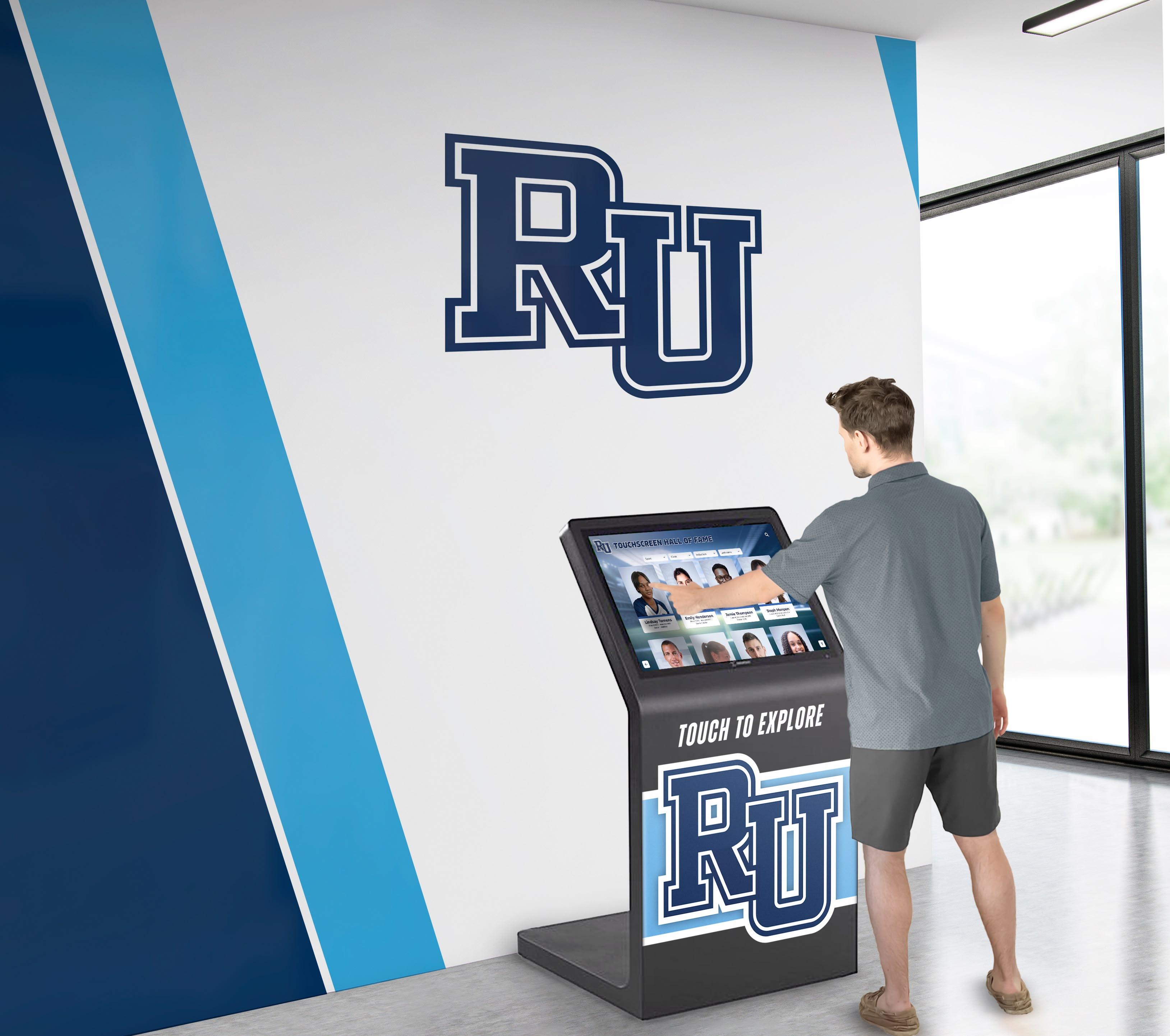
Mac-based kiosk solutions provide reliability and aesthetics particularly valued by educational institutions
Cross-Platform Kiosk Solutions Supporting Both Android and Mac
Organizations deploying mixed hardware environments or prioritizing future flexibility often prefer cross-platform kiosk software managing diverse devices through unified administration platforms.
Intuiface
Intuiface provides comprehensive interactive experience platform supporting Mac, Windows, iOS, Android, and web deployment—offering maximum flexibility for organizations standardizing multi-platform strategies.
Platform Capabilities
Intuiface emphasizes no-code interactive experience creation through visual development interfaces enabling sophisticated applications without programming, rich data integration connecting databases and APIs, touch-optimized interface elements designed specifically for touchscreen interaction, multi-screen coordination for large installations, comprehensive analytics revealing usage patterns and engagement metrics, and cross-platform deployment from single project sources.
Best Applications: Museums creating elaborate interactive exhibits requiring custom functionality, universities implementing comprehensive campus information systems, corporations deploying sophisticated lobby experiences, and large schools building digital recognition systems with unique interaction requirements exceeding standard platform capabilities.
Pricing and Positioning: Subscription pricing starts around $228 monthly for experience creation licenses with additional display licenses for content playback. While expensive compared to simple kiosk browsers, organizations requiring sophisticated custom interactive experiences find Intuiface investment worthwhile compared to custom development costs.
Enterprise MDM Platforms with Kiosk Capabilities
Several enterprise Mobile Device Management platforms include kiosk lockdown alongside comprehensive device management, appealing to organizations managing not just kiosks but broader device fleets.
Hexnode UEM
Hexnode provides unified endpoint management across Android, iOS, Windows, macOS, and ChromeOS with strong kiosk mode capabilities.
Key Features: Hexnode offers single-app or multi-app kiosk configurations, website kiosk mode for browser-based applications, peripheral access control managing connected devices, remote monitoring and troubleshooting, scheduled policies and automated actions, and comprehensive security controls protecting organizational data.
Target Organizations: Enterprises managing diverse device types through consolidated platforms, educational institutions managing student devices alongside kiosk installations, retail and hospitality companies deploying both employee devices and customer-facing kiosks, and IT departments preferring integrated tooling over specialized solutions.
According to recognition by industry analysts, Hexnode positions well for organizations prioritizing comprehensive device management beyond kiosk-specific functionality alone.
Esper
Esper specializes in managing dedicated device fleets—kiosks, digital signage, point-of-sale terminals, and other single-purpose installations—through purpose-built platform architecture.
Platform Strengths: Esper provides device provisioning and deployment automation, kiosk lockdown with granular security policies, over-the-air updates coordinated across fleets, remote debugging and troubleshooting tools, application management and distribution, and powerful APIs enabling custom integrations and workflows.
Best Fit: Organizations deploying dozens or hundreds of dedicated-purpose devices, retail chains managing point-of-sale systems or customer kiosks, restaurant groups deploying ordering kiosks or kitchen displays, and enterprises requiring sophisticated device fleet management with developer-friendly automation capabilities.
Choosing the Right Kiosk Browser: Decision Framework
Understanding available options proves valuable only when paired with systematic frameworks matching software capabilities to organizational requirements, contexts, and constraints. Strategic evaluation ensures selections genuinely meeting actual needs rather than creating expensive mismatches between capabilities and requirements.
Essential Requirements Assessment
Begin kiosk software evaluation by honestly assessing fundamental requirements revealing which solutions warrant consideration:
Operating System and Hardware
- What devices will run kiosk software—Android tablets, Mac computers, Windows PCs, iPads, or mixed environments?
- Do you already own hardware or have flexibility selecting devices based on preferred software?
- Are touchscreen capabilities required, or will keyboard/mouse suffice?
- What screen sizes and orientations need support?
Hardware decisions fundamentally constrain software options. Organizations standardized on Mac computers cannot choose Android-only solutions regardless of features. Similarly, existing hardware investments limit options to platforms supporting deployed devices.
Security and Lockdown Requirements
- How secure must kiosk lockdown be—casual user prevention or defense against determined tampering?
- Are kiosks supervised with nearby staff or completely unattended?
- Do compliance requirements mandate specific security controls or audit logging?
- Must systems protect sensitive organizational or user data beyond preventing unauthorized browsing?
Public library internet terminals face different security requirements than hospital patient check-in kiosks handling protected health information. Understanding actual security needs prevents both over-investment in unnecessary enterprise features and under-investment leaving installations vulnerable.
Management and Operational Context
- How many kiosk devices require management—single installations or dozens across locations?
- What technical expertise exists for setup, configuration, and ongoing management?
- Who will manage kiosks—IT professionals or non-technical administrators?
- Are kiosks accessible for manual intervention or must they operate autonomously?
Schools with single kiosk installations managed by non-technical staff have different operational realities than retail chains deploying hundreds of kiosks across states managed through centralized IT operations. Software complexity, remote management capabilities, and support requirements must match actual operational contexts.
Budget and Total Cost Considerations
- What initial budget exists for software licensing or development?
- What ongoing operational budget supports annual subscriptions or maintenance?
- Are free or low-cost solutions adequate, or do requirements justify enterprise platforms?
- Does total cost of ownership including management time matter more than licensing expenses alone?
Comparing upfront costs reveals only part of true expense pictures. Free software requiring extensive technical management may ultimately cost more than paid platforms with superior ease-of-use reducing administrative burden. Organizations should evaluate total cost of ownership across multi-year horizons rather than focusing exclusively on initial licensing fees.
Use Case Matching
Different kiosk applications suit different software approaches. Matching use cases to platform strengths improves selection success:
Simple Information Kiosks
Schools displaying announcements, schedules, and general information through kiosks benefit from straightforward solutions emphasizing ease-of-use over advanced features. Purpose-built kiosk browsers like Rocket Touchscreen for Mac or basic Fully Kiosk Browser configurations for Android often prove optimal—providing necessary lockdown without overwhelming complexity.
Interactive Recognition Displays
Organizations implementing digital halls of fame or achievement celebration systems need kiosk software pairing seamlessly with recognition-specific content platforms. Solutions like Rocket Touchscreen integrate naturally with web-based recognition systems like Rocket Alumni Solutions, while Android alternatives supporting custom URL configurations enable similar integration.
The key involves ensuring kiosk software provides secure lockdown without interfering with sophisticated interactive features including search, filtering, profile browsing, and multimedia content that recognition platforms deliver.
Self-Service Transactional Kiosks
Check-in systems, ordering terminals, wayfinding stations, and other transactional applications often require integration with backend systems, peripheral devices like card readers or printers, and customized user flows. These sophisticated scenarios typically demand enterprise MDM platforms or specialized kiosk solutions providing APIs, peripheral management, and workflow automation capabilities.
Public Internet Access
Libraries, community centers, and hospitality environments providing general internet access need robust web filtering, time management, session clearing between users, and comprehensive security controls preventing unauthorized activity. Solutions like eCrisper or KioWare emphasizing controlled web access align better with these requirements than basic kiosk browsers designed primarily for displaying specific content.

Effective kiosk software provides secure lockdown without compromising user experience quality
Implementation Best Practices for Kiosk Browser Deployments
Beyond software selection, successful kiosk deployments require attention to implementation details determining whether installations deliver reliable long-term value or become sources of ongoing frustration.
Content Optimization for Kiosk Browsing
Even excellent kiosk software cannot compensate for content poorly optimized for public touchscreen interaction in unattended environments.
Design for Touch Interaction
Websites and web applications displayed on kiosk browsers must accommodate touch input through large touch targets (60+ pixels for important elements), generous spacing preventing accidental activation, clear visual affordances indicating interactive elements, shallow navigation hierarchies minimizing taps to reach content, and simple intuitive language avoiding technical jargon or assumed knowledge.
Generic websites designed for mouse-and-keyboard interaction often prove frustrating on touchscreens when small links, dense layouts, or complex navigation create usability barriers. Organizations implementing interactive touchscreen displays should either select content platforms designed specifically for touch or invest in optimizing existing content for public touchscreen contexts.
Accommodate Public Environment Realities
Public kiosk users span diverse technical proficiency, ages, physical abilities, and attention spans. Content must work for everyone through accessibility compliance ensuring screen reader compatibility and keyboard navigation, brief scannable content respecting limited attention spans, forgiving interaction tolerating errors without catastrophic failures, and clear wayfinding helping users understand where they are and how to return to starting points.
Testing with actual representative users—students, elderly visitors, staff members—reveals usability issues invisible to technical teams designing interfaces, enabling refinement before broad deployment rather than expensive post-installation redesigns.
Security Configuration and Hardening
Proper security configuration proves critical for installations in public spaces preventing unauthorized access, protecting organizational systems, and maintaining reliable operation despite user behavior.
Network Isolation
Kiosk devices should operate on segregated network segments preventing compromised kiosks from accessing internal organizational systems. Guest network configurations, VLANs, or dedicated kiosk networks provide appropriate isolation while enabling necessary internet connectivity for cloud-based content.
Organizations implementing school recognition systems should ensure kiosk network access cannot reach student information systems, administrative networks, or other sensitive infrastructure even if kiosk security were somehow compromised.
Regular Software Updates
Both kiosk browser applications and underlying operating systems require regular security updates addressing discovered vulnerabilities. Establishing automated update schedules or routine manual update procedures ensures systems remain protected without creating ongoing administrative burdens.
Balance security patch urgency against testing requirements—immediate automatic updates risk breaking working configurations if updates introduce compatibility issues, while delayed updates leave systems vulnerable. Most organizations should test updates on representative devices before deploying across all installations.
Physical Security Considerations
Software security proves incomplete without physical security preventing direct device access or tampering. Secure mounting preventing device removal, restricted access to physical ports and buttons, cable management protecting connections from disconnection, and locked enclosures for completely unsupervised installations provide necessary physical protections complementing software lockdown.
Maintenance Planning and Operational Sustainability
Initial deployment success means little without sustainable operational models ensuring kiosks remain functional, current, and valuable throughout multi-year service lifespans.
Clear Ownership and Responsibility
Designate specific individuals or departments responsible for kiosk management including content updates and accuracy, software maintenance and troubleshooting, physical cleaning and hardware inspection, security monitoring and incident response, and visitor feedback collection and issue resolution.
Ambiguous responsibility creates situations where everyone assumes someone else manages kiosks, leading to gradually deteriorating installations nobody maintains effectively. Clear ownership with documented procedures enables consistent reliable operation.
Routine Maintenance Schedules
Establish regular maintenance activities including weekly physical cleaning removing fingerprints and dust, monthly content review verifying accuracy and currency, quarterly software updates addressing security and stability, and annual hardware inspection checking mounting security and component condition.
Scheduled maintenance prevents minor issues from escalating into failures requiring expensive emergency repairs while ensuring installations remain professional in appearance and reliable in operation.
Performance Monitoring and Analytics
Track kiosk usage patterns, engagement metrics, error rates, and technical health through available analytics and monitoring tools. This data reveals which content visitors explore, when kiosks experience highest usage, what technical issues occur most frequently, and where improvements would deliver greatest value.
Organizations implementing digital recognition displays benefit from understanding which honorees visitors explore most frequently, what search terms they use, and how long typical interactions last—insights enabling continuous experience optimization based on actual behavior rather than assumptions.
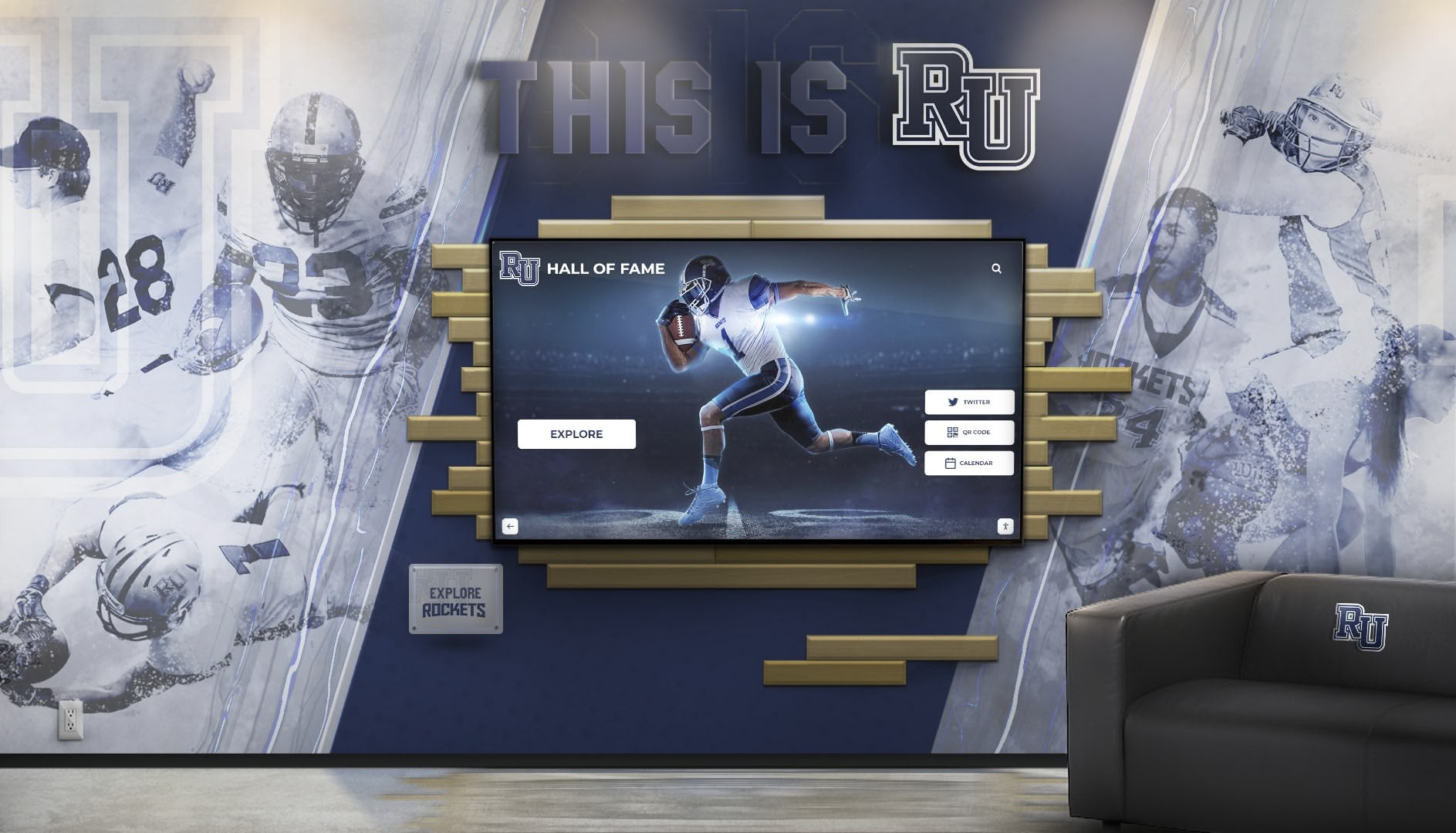
Successful long-term kiosk deployments require clear maintenance planning and designated operational responsibility
Special Consideration: Kiosk Apps for Recognition and Heritage Displays
While this guide covers general kiosk browser applications, organizations specifically implementing recognition programs, halls of fame, or heritage displays benefit from understanding how kiosk software integrates with purpose-built recognition platforms.
Why Recognition Displays Need Specialized Content Platforms
Generic kiosk browsers excel at displaying any web content securely but lack features essential for comprehensive recognition including unlimited individual profiles with photos and biographical narratives, powerful search and filtering enabling visitor discovery, achievement categorization organizing recognition logically, multimedia storytelling through video and photo galleries, and administrative interfaces enabling non-technical staff to manage content.
Organizations implementing digital hall of fame displays discover that pairing professional kiosk browsers with purpose-built recognition platforms like Rocket Alumni Solutions delivers superior results compared to attempting to build recognition systems using generic digital signage or basic content players.
Integrating Kiosk Software with Recognition Platforms
The ideal architecture involves kiosk browser software providing device lockdown and security while web-based recognition platforms deliver actual content and interactive experiences:
Kiosk Browser Role: Secure device lockdown preventing unauthorized access or tampering, automatic launch into full-screen kiosk mode, reliable operation across restarts and updates, and hardware optimization ensuring smooth performance.
Recognition Platform Role: Individual profile management for unlimited honorees, sophisticated search and navigation enabling content discovery, rich multimedia storytelling celebrating achievements appropriately, intuitive content management for non-technical administrators, and multi-device access extending recognition beyond physical kiosks.
This separation of concerns allows organizations to select best-in-class solutions for each purpose—professional kiosk lockdown through dedicated kiosk apps paired with specialized recognition content through purpose-built platforms—rather than compromising on either dimension through all-in-one solutions attempting to serve all needs adequately but none excellently.
Schools implementing college athletic recognition programs or academic achievement displays benefit from this integrated approach combining secure reliable kiosk operation with recognition-specific content capabilities designed explicitly for celebrating achievements and honoring contributors.
Conclusion: Selecting Your Ideal Kiosk Browser Solution
The landscape of touchscreen kiosk apps and fully locked-down browser solutions in 2025 offers mature, capable options serving diverse organizational needs—from free basic lockdown through affordable consumer-grade apps to sophisticated enterprise platforms. Success depends less on identifying the universally “best” solution and more on selecting platforms genuinely matching your specific requirements, operational contexts, technical capabilities, and budget realities.
For Android deployments, the choice spans:
- Fully Kiosk Browser for organizations prioritizing maximum features and customization despite configuration complexity
- AirDroid Business for schools and enterprises valuing professional support and simplified management over maximum flexibility
- KioWare for security-sensitive environments requiring robust controls and compliance capabilities
- Free solutions for ultra-budget-constrained scenarios accepting feature limitations
For Mac deployments, options include:
- Rocket Touchscreen for straightforward touchscreen kiosk requirements emphasizing ease-of-use and reliability
- Chrome kiosk mode for technically sophisticated organizations comfortable with command-line configuration
- General Mac kiosk apps for keyboard/mouse installations or basic touchscreen needs
Cross-platform and enterprise scenarios benefit from:
- Intuiface for sophisticated custom interactive experiences requiring visual development
- Hexnode or similar MDM platforms for organizations managing diverse device types through unified systems
- Esper for dedicated device fleets requiring developer-friendly automation capabilities
Transform Devices Into Professional Kiosks
Whether implementing interactive recognition displays, information kiosks, wayfinding systems, or public access terminals, selecting appropriate kiosk browser software determines success. Purpose-built solutions deliver secure lockdown, reliable operation, and simplified management optimized for organizational needs.
Explore Kiosk SolutionsBeyond software features alone, successful kiosk deployments require comprehensive attention to content optimization ensuring usability for diverse public audiences, security configuration protecting organizational systems while enabling necessary functionality, physical installation locations maximizing visibility and accessibility, and sustainable operational models ensuring long-term reliability and value.
Organizations specifically implementing recognition programs, digital halls of fame, or achievement celebration systems benefit from pairing professional kiosk browsers with purpose-built recognition platforms like Rocket Alumni Solutions. This integrated approach combines secure device lockdown through dedicated kiosk software with sophisticated recognition capabilities through specialized content platforms—delivering optimal results impossible with generic solutions attempting to serve all purposes adequately but none excellently.
Ready to deploy touchscreen kiosks for your school, museum, corporate facility, or organization? Whether exploring free alternatives to Fully Kiosk Browser, evaluating Mac kiosk solutions, or implementing comprehensive recognition systems, understanding kiosk software capabilities, requirements matching frameworks, and implementation best practices ensures successful outcomes delivering exceptional value across multi-year operational horizons these systems serve.
For organizations implementing recognition programs specifically, exploring how interactive digital recognition systems integrate professional kiosk browsers with purpose-built content platforms reveals pathways to celebrating achievements effectively while inspiring communities through accessible, engaging storytelling that honors excellence appropriately.
The kiosk software landscape in 2025 provides proven, mature solutions addressing diverse organizational needs across industries, institution types, and use cases. Organizations need only commitment to systematic evaluation matching capabilities to requirements, comprehensive implementation addressing technology and operational dimensions, and sustainable management ensuring displays remain secure, current, and valuable throughout their service lives.
Disclaimer: This comparison is based on publicly available information as of November 2025. All product names and trademarks belong to their respective owners. Comparative statements reflect Rocket Alumni Solutions’ interpretation of available data and may change over time. All trademarks are property of their respective owners. Rocket Alumni Solutions is not affiliated with or endorsed by Fully Kiosk Browser, AirDroid, KioWare, SiteKiosk, Scalefusion, Hexnode, Esper, Intuiface, or other referenced organizations.
Sources: