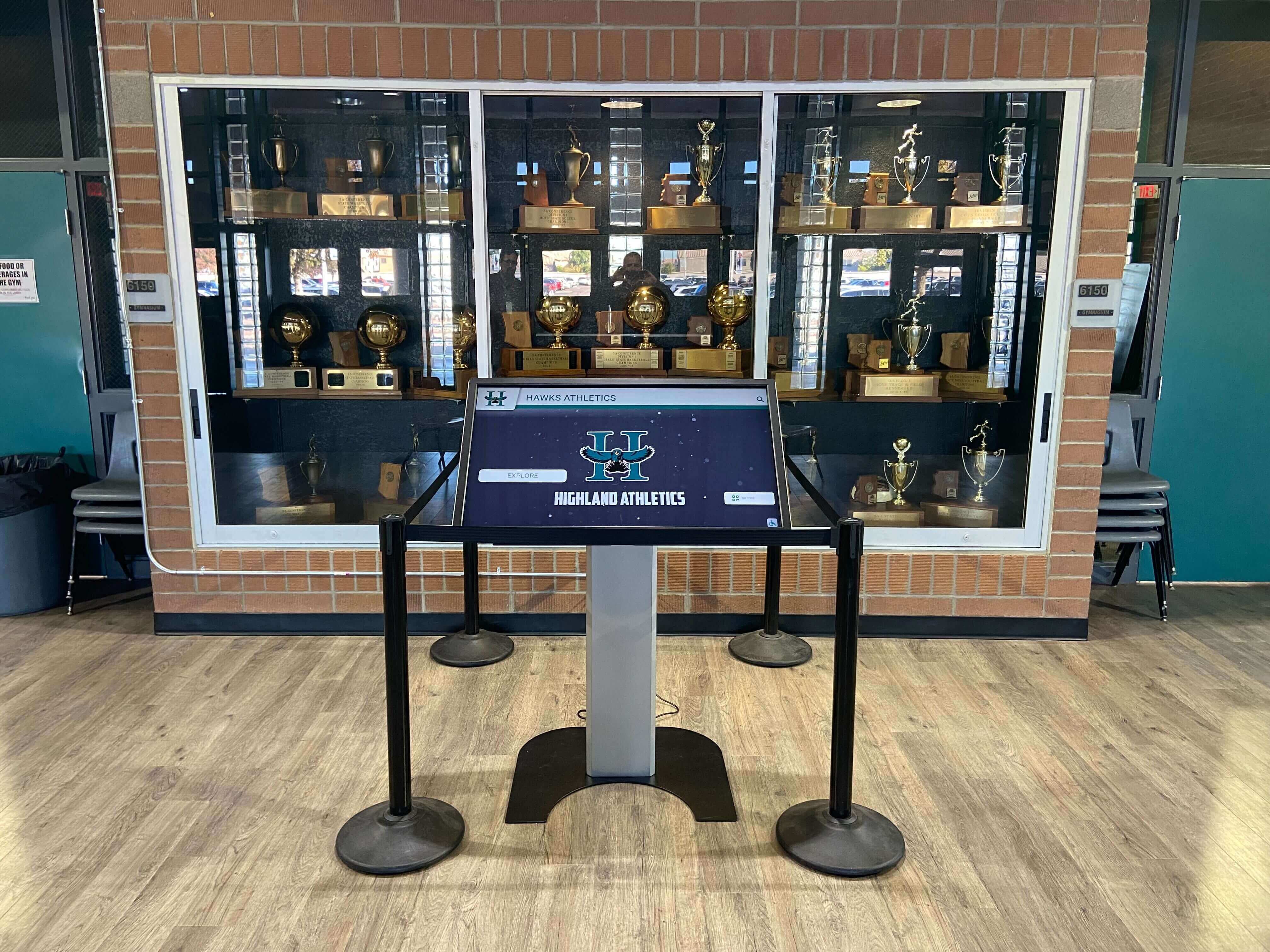




A clear touchscreen recognition display asset tagging policy is one of the most overlooked—yet most practical—steps a school can take after installing interactive athletic recognition hardware. When a display stops responding, a technician needs to know exactly which unit it is, who owns the support contract, and what software version is running. Without physical labels tied to organized records, that information gets scattered across emails, spreadsheets, and institutional memory that walks out the door every time a staff member changes roles.
This guide shows athletic directors, facilities coordinators, and IT administrators how to set up a labeling system, assign clear ownership, and build records that support long-term lifecycle management for every touchscreen recognition display on campus.
Schools that invest in digital hall of fame displays and interactive recognition walls know the upfront effort involved in installation. Asset tagging is the step that protects that investment across the full lifecycle—from warranty claims to capital-replacement budgeting to insurance documentation.

Every installed recognition display kiosk benefits from a physical asset tag connecting it to centralized ownership and support records.
Why a Touchscreen Recognition Display Asset Tagging Policy Matters
Athletic recognition displays are specialized capital assets. Unlike a laptop or projector that a teacher carries to a different room, a wall-mounted touchscreen is bolted to a specific location, tied to a specific software license, and serviced by a specific vendor. A tagging policy creates a permanent link between the physical unit and all of that supporting information.
Four Core Benefits of Asset Tagging Recognition Displays
- Faster support resolution: A technician scanning or reading a tag can pull up warranty status, vendor contact, and configuration notes in seconds rather than hunting through email archives.
- Accurate financial records: Auditors and grant reviewers expect capital assets to appear in district inventory with acquisition dates, values, and depreciation schedules.
- Clear ownership accountability: Tags designate a responsible department, which prevents the "who owns this?" confusion that delays repairs and renewals.
- Streamlined end-of-life decisions: When a display reaches end-of-life, tagged records show purchase date, replacement cost, and whether a software license transfers—information needed before any budget request goes to a board.
Proper records also matter when a recognition display needs to be referenced during a capital campaign or donor recognition review. Resources on capital campaign recognition and donor acknowledgment highlight how institutions must document both physical assets and their associated recognition purposes when reporting to donors on how contributions were used.
Step 1: Define What Gets Tagged
Not every piece of hardware requires the same level of documentation, but a recognition display installation typically involves multiple taggable components.
| Component | Tag Priority | Notes |
|---|---|---|
| Touchscreen display panel | Required | Primary unit; links to all other records |
| Media player / compute device | Required | Separate serial number from the display panel |
| Wall mount / kiosk enclosure | Recommended | Useful for facilities work orders and structural inspections |
| Network switch / PoE injector | Recommended | Tag if dedicated to this installation; shared switches follow general IT policy |
| Software license | Digital record | No physical tag; link license key to the display's asset record |
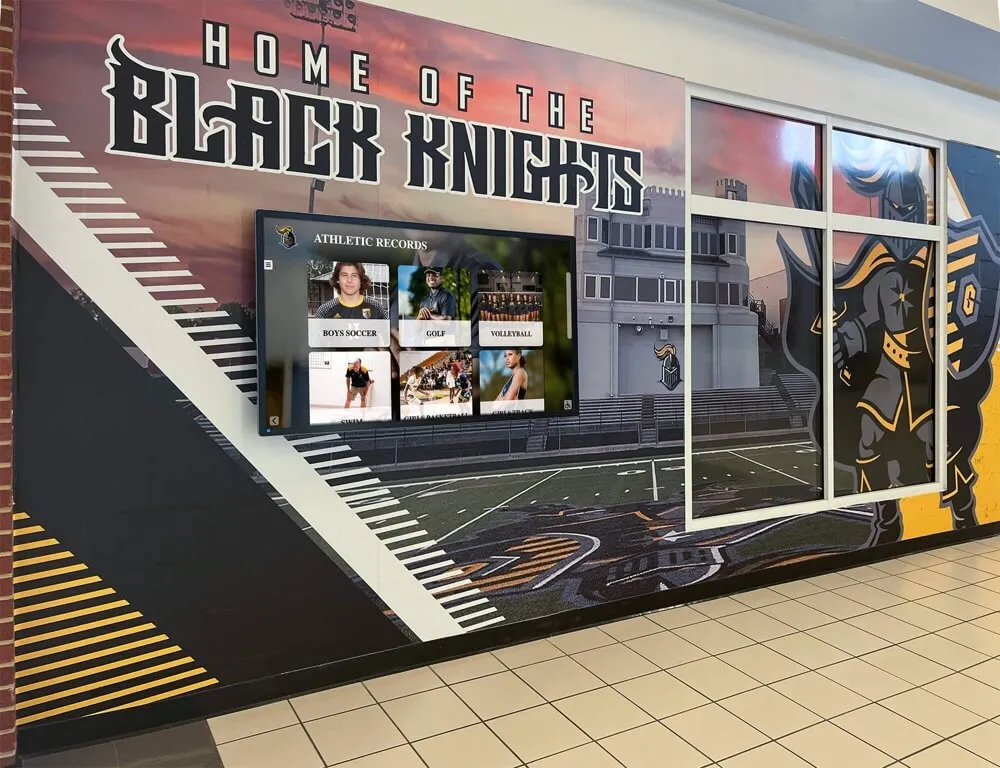
Athletic records displays installed in school hallways involve multiple hardware components, each benefiting from individual asset tags linked to a central record.
Step 2: Choose a Label Format
The physical label is the entry point to every downstream record. It needs to survive the environment—a gym lobby sees humidity, cleaning chemicals, and incidental contact—and it needs to be readable by humans and scannable by devices.
Recommended Label Specifications
Label Material
- Polyester or anodized aluminum for permanent installations
- Tamper-evident void labels for high-traffic or public-facing units
- Minimum 2" × 1" size for readability
Label Content
- Asset ID number (district or school prefix + sequential number)
- QR code linking to the digital asset record
- Vendor name and support phone number
- Installation date (month/year)
- Responsible department
QR code placement: The QR code on the label should resolve to a URL in your asset management system (or a shared drive folder if your district does not use dedicated software). A staff member scanning the code should land on a page showing the full record without needing a login if the display is in a public corridor—or behind a single-sign-on if it’s in a secured area.
Label placement on the unit: Place the label on the rear panel or lower side edge of the display where it is visible to a technician but not to a visitor standing in front of the screen. Kiosk enclosures should have a label on an interior panel accessible when the enclosure door is open.
Step 3: Assign and Document Ownership
“Ownership” in this context means the school department accountable for maintenance decisions, budget requests, and vendor communications—not necessarily the department that requested the display.
Ownership Assignment Framework
Common Ownership Models for Athletic Recognition Displays
Athletics Department Ownership
Best when the display is exclusively athletic in purpose (hall of fame wall, record boards, championship banner archive). The athletic director controls software updates, content refresh, and vendor renewals. Facilities handles physical maintenance on work order from athletics.
IT Department Ownership
Best when the display shares network infrastructure with other district technology and when software licensing follows IT's procurement calendar. Content decisions may still delegate to athletics, but IT owns hardware support contracts and network configuration.
Shared Ownership with Lead Department
A designated lead department (usually athletics or communications) holds the asset in its inventory and budget, while a secondary department (IT or facilities) has documented responsibilities for specific maintenance tasks. A simple one-page agreement covering each party's responsibilities avoids disputes when something breaks.
For displays that celebrate student-athlete achievements alongside donor recognition—a common configuration in school lobbies—donor recognition wall best practices suggest formally documenting which department manages each display function, especially when different budget lines funded different portions of the installation.
Clear ownership assignment ensures the right staff members are empowered to authorize maintenance, approve software updates, and manage vendor relationships for each display.
Step 4: Build the Asset Record
Each tagged display should have a corresponding digital record that staff can update without specialized software. A shared spreadsheet works for small installations; a formal IT asset management platform is better for multi-building or multi-campus deployments.
Minimum Required Fields per Asset Record
| Field | Example Value | Update Frequency |
|---|---|---|
| Asset ID | ATH-DISP-0042 | Set at installation; never changes |
| Location (building, room, wall) | Main Gym Lobby, East Wall | Update if display is relocated |
| Make / Model / Serial Number | Samsung 55" Commercial / PN55H5500 / ZZ1A9CWBC00001X | Set at installation; unchanging |
| Purchase date & cost | 2024-08-15 / $3,200 | Set at purchase; add later additions |
| Warranty expiration | 2027-08-14 | Update if warranty is extended |
| Software / platform name & version | Rocket Alumni Solutions / v4.2.1 | Update with each software release |
| License key / account ID | RAS-LIC-2024-0042 | Update at renewal |
| Support contract expiration | 2025-08-14 | Update at renewal; flag 90 days before expiry |
| Responsible department & contact | Athletics / J. Martinez, ext. 4210 | Update at staff transitions |
| Maintenance log (linked document) | Link to service ticket history | Append after each service event |
Linking Physical and Digital Records
The QR code on the physical label should resolve to this record directly. If your district uses a platform like Snipe-IT, AssetTiger, or an ERP-integrated asset module, use that platform’s native QR generation. If you are managing records in a shared drive, create a short URL or redirect that points to the record’s folder so the URL remains stable even if you reorganize files later.
Schools that maintain a comprehensive digital history archive for athletic and academic recognition understand the value of persistent, well-organized records. The same discipline that preserves a championship photo archive also preserves the hardware records that keep the display showing those photos for decades.
Step 5: Establish a Records Maintenance Cadence
A tag and record created at installation is only as useful as its most recent update. Assign specific annual tasks to keep records current.
Annual Asset Records Review Checklist
Annual Review Tasks (Recommended: August, before school year begins)
Regular asset record maintenance ensures recognition displays stay operational and serve the athletes, donors, and visitors who engage with them every day.
Step 6: Integrate with Vendor Support Workflows
A well-tagged asset is valuable only if support staff can act on the information quickly. When you contact your recognition display vendor for support, lead with the asset ID rather than a description of the problem. This lets the vendor’s support team pull the exact configuration, software version, and service history without time-consuming back-and-forth.
What to Include in Every Support Request
- Asset ID from the physical label
- Current software version from the asset record
- Description of the issue with date and time first noticed
- Any recent changes to the installation (network changes, content updates, power events)
Many schools that display Catholic honors or student recognition content on interactive panels discover during support calls that the vendor needs the software account ID, not just the hardware serial number. Keeping both in the same asset record eliminates this friction.
Digital Asset Management for Multi-Display Deployments
Schools with multiple recognition displays across several buildings—athletic lobby, gymnasium entrance, field house, auxiliary gym—benefit from a more structured approach to digital asset management (DAM).
DAM Considerations for Recognition Display Fleets
- Centralized platform: Use a single asset management system rather than department-level spreadsheets. A shared platform prevents duplicate records and conflicting ownership claims.
- Location hierarchy: Organize records by building, then by room, then by asset ID. This mirrors how facilities staff think about maintenance routing.
- Content asset linking: Link the hardware asset record to the content repository (athlete photos, championship records, event graphics) associated with each display. This matters during software migrations when content must be verified against a known-good backup.
- Access permissions: Athletics staff need read/write access to content-related fields; IT needs read/write access to hardware and network fields; finance needs read access for depreciation fields. Configure access roles accordingly.
A thorough guide to digital asset management for schools covers platform selection and governance models that translate directly to recognition display fleet management, especially for districts managing 10 or more installed units.
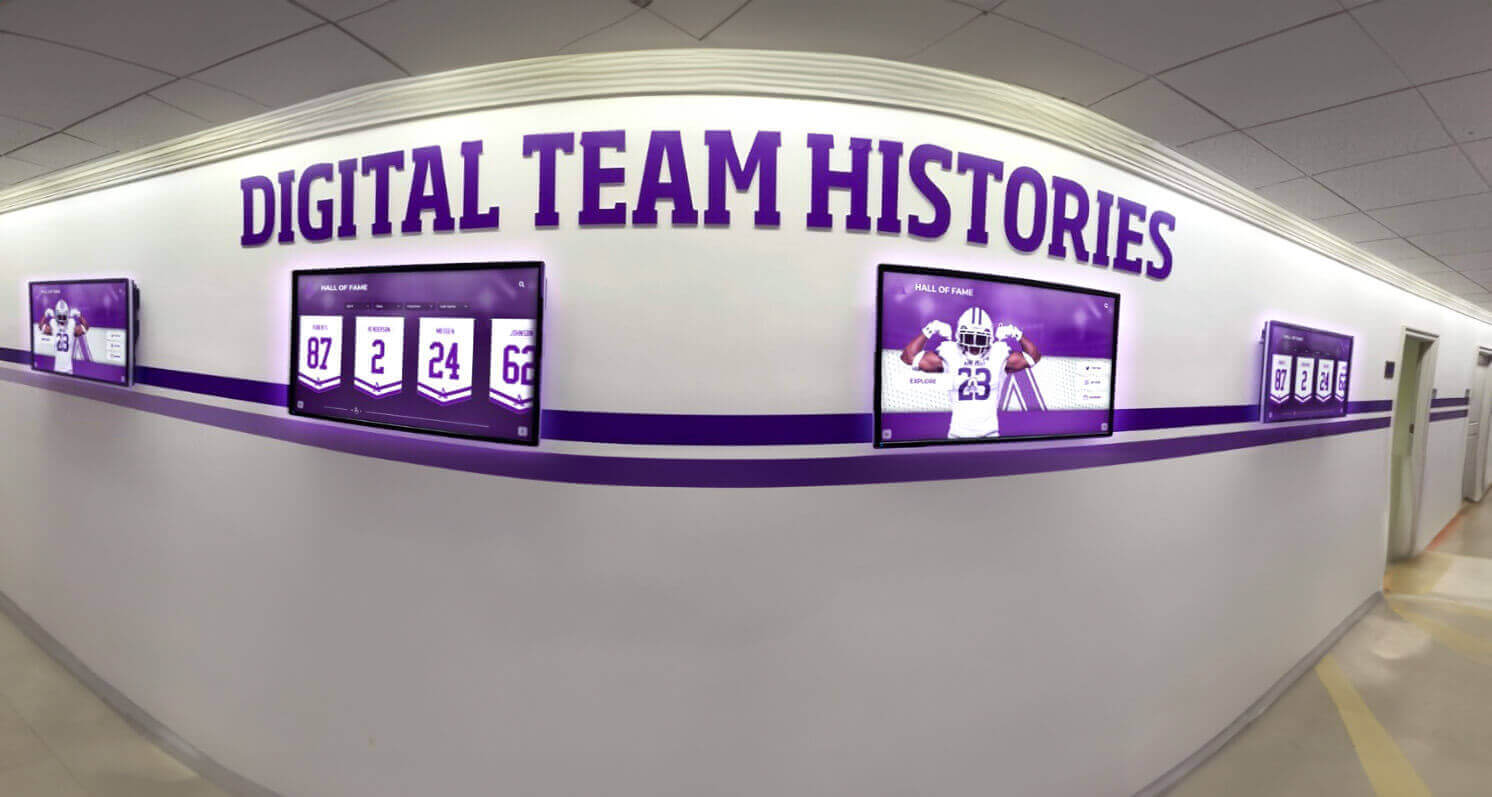
Schools with multiple recognition displays across a building or campus need centralized asset records and consistent labeling to manage the full fleet efficiently.
Frequently Asked Questions
Who should own the asset record when athletics and IT both have a stake in the display?
Designate one department as the record owner—typically the department whose budget funded the purchase. The other department becomes a secondary contact listed in the record. Both parties should be notified before any hardware change, warranty claim, or software upgrade is initiated.
How long should asset records be retained after a display is decommissioned?
Most district financial policies require capital asset records to be retained for the duration of the asset's useful life plus an additional period—commonly five to seven years after disposal. Check your district's records retention schedule for the governing rule. Records supporting donor-funded purchases may have longer retention requirements tied to the gift agreement.
Should we use the vendor's asset tag or create our own?
Use your own district-issued tag as the primary identifier and treat the vendor's serial number as a secondary field in your record. District tags follow your internal numbering convention and remain consistent even if you change vendors. The vendor serial number is critical for warranty claims but is not a substitute for your own asset ID.
What happens to asset records when a display is replaced under warranty?
Close the original asset record with a disposition note (replaced under warranty, date, new serial number) and create a new asset record for the replacement unit with a new asset ID. Link the two records so the maintenance history is traceable. Do not update the original record's serial number in place—this would obscure the replacement event in financial records.
Can asset tags double as ADA or accessibility information labels?
Asset tags should remain distinct from user-facing accessibility labels. ADA signage requirements (Braille, tactile characters, mounting height) govern labels intended for building occupants, while asset tags are maintenance tools for staff. Place them in different physical locations on the unit—accessibility labels on the user-facing surface at the correct ADA height, asset tags on a rear or side panel accessible to technicians.
Quick-Reference: Asset Tagging Policy in 10 Steps
Touchscreen Recognition Display Asset Tagging Policy Checklist
- Inventory all installed display components at each location
- Assign a district asset ID using a consistent naming convention
- Apply durable, tamper-evident labels with QR code, asset ID, vendor contact, and installation date
- Create a digital asset record with all required fields before the installation crew leaves the building
- Designate an owner department and a named contact in the record
- Link the software license, account ID, and support contract to the hardware record
- Configure the QR code to resolve to the digital record (test the link before applying the label)
- Notify the business office to add the asset to the district capital inventory
- Schedule an annual records review each August, before the school year begins
- Document every service event, software update, and hardware change in the maintenance log
A structured asset tagging policy also supports programs that celebrate broader student achievement. Schools that run events like field day competitions and special recognition ceremonies often use the same recognition display hardware for multiple events throughout the year, making accurate records even more important for scheduling maintenance around peak usage periods.
From Installation to Legacy Recognition
A touchscreen recognition display is not just a piece of hardware—it is a long-term institutional commitment to celebrating athletic achievement, preserving records, and honoring the students, coaches, and donors who made those achievements possible. A thorough asset tagging policy ensures the technology supporting that commitment remains accountable, maintainable, and financially transparent for as long as the school depends on it.
The labeling, ownership assignment, and record-keeping steps in this guide require modest effort at installation time but pay dividends across every support call, budget cycle, insurance claim, and capital replacement decision that follows.
See a Live Demo of Rocket Alumni Solutions
Explore how schools build lasting athletic recognition—complete with software management tools designed for long-term institutional use. Request a walkthrough tailored to your program.
Request Your Demo TodayReady to Build a Recognition Display Your School Will Be Proud of for Decades?
See how Rocket Alumni Solutions supports schools from initial installation through long-term lifecycle management—including the tools your staff needs to keep records accurate and assets running.
Schedule a Demo






























