



A touchscreen recognition display backup restoration test confirms that the athlete profiles, historical photos, statistical records, sponsor content, and display configurations stored in a school’s recognition system can actually be recovered after a hardware failure, ransomware incident, accidental deletion, or platform outage. A backup that has never been tested is not a backup—it is an untested assumption that could leave decades of institutional history unrecoverable at the worst possible moment.
This checklist guides school IT coordinators, athletic directors, advancement staff, and archives personnel through a complete restoration test cycle: what to gather before the test, how to execute a staged recovery, what to verify, and how to document the results in a format that survives staff turnover and satisfies district technology governance requirements.
Run this test at least once per year, and again before any major platform migration, hardware replacement, or facility renovation that will affect your recognition display systems.

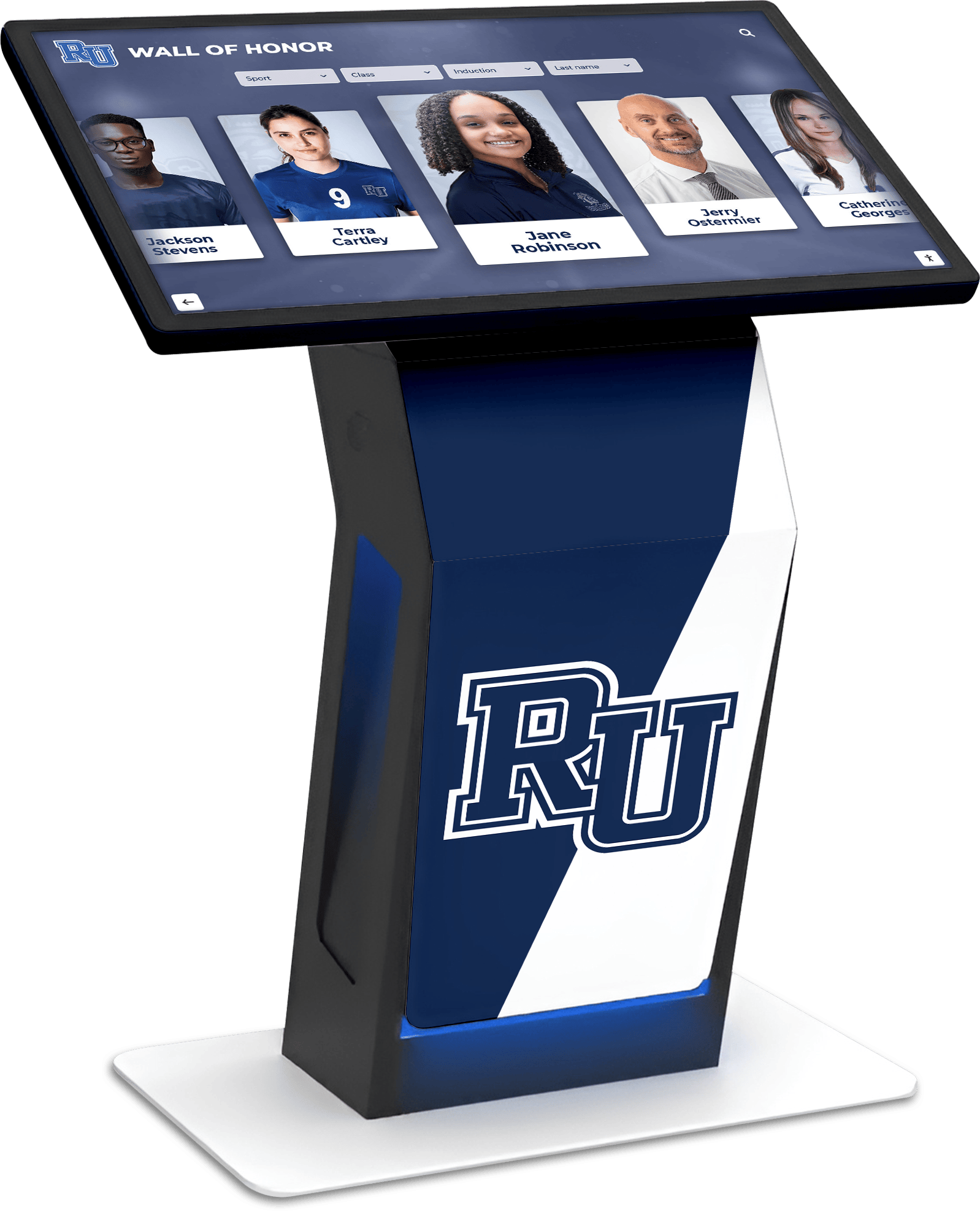
Touchscreen recognition displays store years of athlete profiles, photos, record boards, sponsor content, and display configurations that require verified backup coverage to protect against loss
Why Restoration Testing Is Different from Having a Backup
Schools that take data protection seriously typically have backup processes in place—automated cloud exports, weekly manual downloads, periodic vendor confirmations. What far fewer schools have done is actually attempt to restore from those backups.
Restoration testing reveals problems that backup creation alone cannot detect:
- Corrupt export files that appear complete but fail to open or import
- Missing media associations where inductee records restored but their linked photos did not
- Configuration data gaps where display themes, navigation structures, and category hierarchies were never included in the export scope
- Credential failures where cloud storage backups are present but access credentials have expired or been changed
- Format incompatibilities where exported data was not in a format the platform can actually re-import
- Incomplete scope where backups covered the database but not locally cached display hardware content
For schools with multi-platform recognition installations, each platform may have its own backup and export behaviors—and each needs its own restoration test, not just a single verification run across all systems.
Step 1: Pre-Test Audit — What Does Your Display System Actually Store?
Before running any restoration test, document exactly what data your touchscreen recognition system contains and where each category lives. Most schools underestimate how dispersed their recognition data actually is.
Data Categories to Inventory
| Data Category | Typical Location | Backup Owner |
|---|---|---|
| Inductee and honoree profiles | Vendor cloud platform | Vendor + school export |
| Historical photographs | Vendor platform + local staff devices | Both |
| Statistical record boards | Vendor platform + coach spreadsheets | Both |
| Display configuration files | Vendor platform + local display hardware | Vendor primary |
| Sponsor logos and acknowledgment content | Vendor platform + advancement office files | Both |
| Video highlights and ceremony recordings | Local network storage or personal devices | School |
| Navigation themes and branded layouts | Vendor platform | Vendor primary |
| Admin credentials and access documentation | IT department | School |
| Nomination forms and committee records | Shared drives or email archives | School |
| Alumni engagement content and web portal data | CMS or separate platform | School |
Walk through this inventory with everyone who touches the recognition system—IT coordinator, athletic director, advancement staff, any committee members who have uploaded content personally. Content managed informally by volunteers frequently exists only on personal devices and was never captured in any formal backup.

Athletic record displays contain statistical histories assembled over many years—a restoration test confirms this data survives hardware failure or platform transition
Step 2: Confirm Backup Copies Exist for Each Category
Before testing restoration, you need to know you have something to restore from. Work through each data category in your inventory and confirm the following:
Backup Existence Checklist
- Vendor platform backup: Confirm with your vendor the frequency of their automated backups and how long backup history is retained
- School-controlled export: Confirm that a full inductee data export (CSV, JSON, or XML) was downloaded within the past 30 days and stored in school-controlled cloud storage
- Media file archive: Confirm that a complete photo and video library export was downloaded and stored within the past 90 days
- Configuration documentation: Confirm that display theme settings, navigation structure, and category hierarchy are either exported or documented in writing
- Sponsor content archive: Confirm that all active sponsor logos and recognition content exist in both the platform and a school-controlled folder
- Credential documentation: Confirm that all platform login credentials and cloud storage access details are documented, encrypted, and accessible to the backup custodian role—not only to one individual
If any category has no confirmed backup copy, pause the restoration test and address the gap first. There is nothing to test if the backup does not exist.
Step 3: Scope the Restoration Test
A restoration test does not need to restore your entire system to be meaningful. Most schools run three tiers of restoration tests on a staggered schedule—and each tier confirms something distinct.
Tier 1: Subset Restoration Test (Quarterly)
Restore a representative sample of content to verify that backup files are readable and complete. For a touchscreen recognition display, a meaningful subset includes:
- 10–20 inductee profiles, including their associated photographs
- 1 full record board export with all records and attribution data
- 1 sponsor content package (logos and display text)
- The current display configuration documentation
This test should take 30–90 minutes and can be completed by one staff member with platform access and access to cloud backup storage.
Tier 2: Platform Import Test (Semi-Annual)
Attempt to import a full data export into either a vendor sandbox environment or a staging instance of the platform to confirm that the exported data is actually importable—not just readable. This is where most schools discover that their exported CSV is missing columns, their photo library archive did not include all files, or their vendor’s import tool requires a specific format that their export did not produce.
If your vendor does not offer a sandbox environment, ask them to walk through an import test with you using exported data. This is a reasonable request and a vendor that refuses it is telling you something important about their data portability practices.
Tier 3: Full Recovery Exercise (Annual)
Simulate complete loss of both the platform and your primary local backup. Starting only from your off-site or cloud backup copy, work through the full steps required to restore recognition display functionality. Document:
- How long it takes to locate and access backup files
- How long it takes to perform a complete data import
- What content was present in the backup and what, if anything, was missing
- Whether the restored display would be functional enough to support a recognition event within 72 hours
The annual exercise reveals gaps that quarterly and semi-annual tests cannot—particularly around display hardware reconfiguration, which often requires vendor coordination that adds days to recovery timelines if not planned in advance.
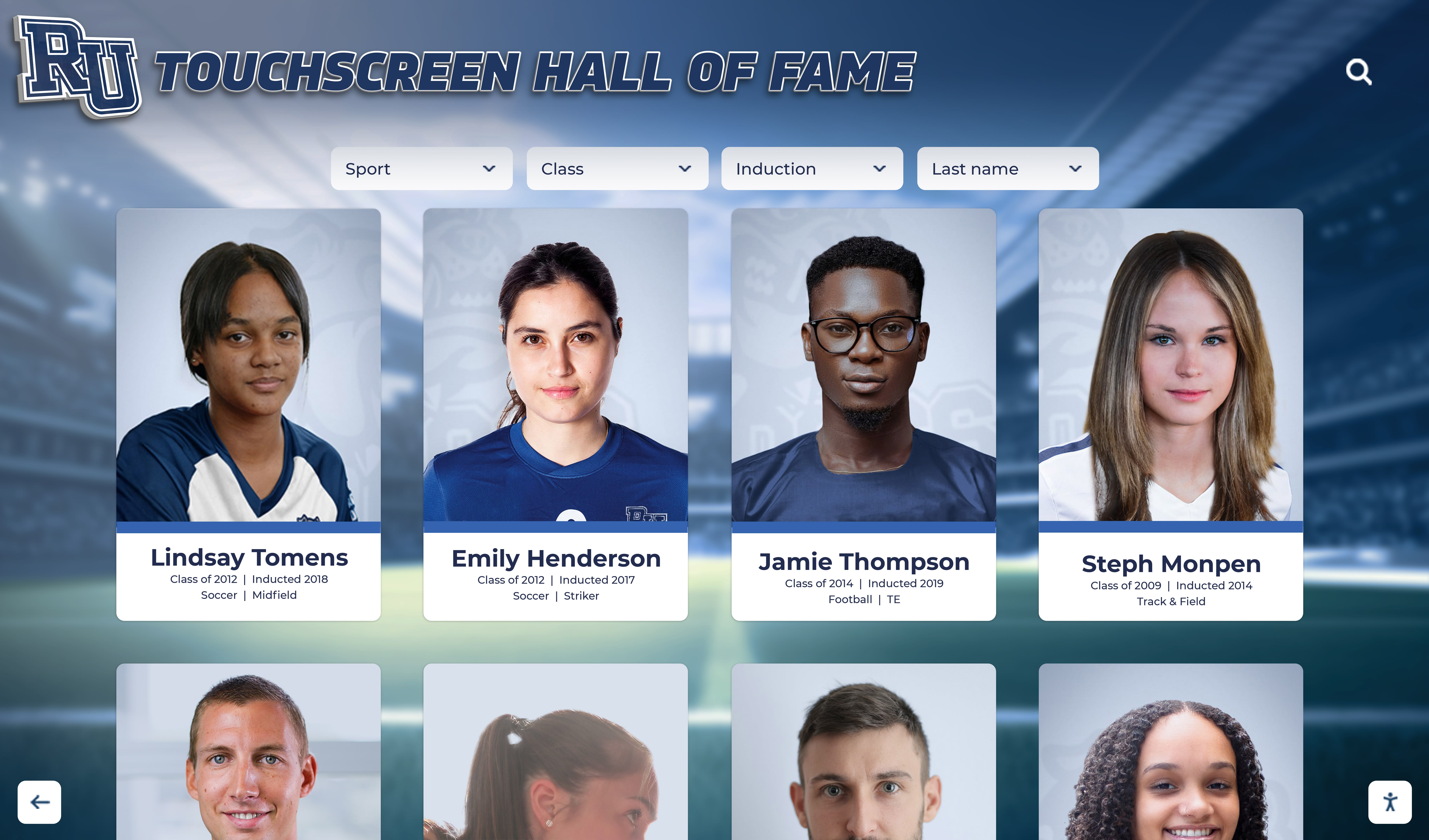
Individual athlete profile cards represent hours of research and data entry—a restoration test confirms all profiles, associated photos, and biographical content survive a recovery scenario
Step 4: Execute the Restoration Test — Numbered Procedure
The following steps apply to a Tier 1 subset restoration test. Adapt the scope for Tier 2 and Tier 3 tests.
Before you begin: Confirm that you are working in a test environment or a staging folder. Do not overwrite live display content during a restoration test.
Access your school-controlled backup copy. Log into the cloud storage location where your most recent export is stored. Confirm the file date, file size, and that the file is not flagged as corrupt or incomplete.
Open and inspect the inductee data export. Open the CSV or JSON export in a spreadsheet application or text editor. Confirm that all expected fields are present: name, graduation year, sport or activity, induction year, achievement summary, and any biographical narrative fields. Note any columns that appear empty, truncated, or missing.
Locate and verify associated media files. Find the photo archive corresponding to the inductee sample you are testing. Attempt to open each photo and confirm it displays correctly at full resolution. Confirm file naming conventions match the references in the data export. If photo files are named by inductee ID, confirm those IDs appear in the data export.
Open and inspect the record board export. Review at least one sport’s complete record board data. Confirm that athlete names, years, performance values, and any contextual notes are present and formatted correctly.
Review the sponsor content archive. Open sponsor logo files and confirm they are in current, high-resolution formats. Review any sponsor display text files and confirm they reflect current active sponsors.
Verify display configuration documentation. Open the configuration document and confirm it includes: active theme name and any custom color values, navigation category structure, any content scheduled in rotation, and current hardware access credentials.
Attempt a sample import if a staging environment is available. Import the inductee data subset into the staging environment and confirm that profiles display correctly with associated photos. Note any import errors or missing associations.
Document the test result. Record what was tested, what succeeded, what failed, how long the test took, and any action items. File the documentation in the shared backup log accessible to all backup role holders.
Step 5: Verify Recovered Content Against Expected State
After restoration, verify that the recovered content matches what was in the live system at the time of the backup. This step catches silent failures—cases where the restoration appeared to succeed but content is subtly wrong or incomplete.
Recovery Verification Table
| Content Type | Verification Check | Pass Condition |
|---|---|---|
| Inductee profiles | Open 10 profiles from backup, compare field count to live system | All expected fields present, no blank required fields |
| Profile photographs | Open photos for each verified profile | Photos open at expected resolution, no broken references |
| Record board data | Compare record count and athlete attribution to live display | All records present, no records with missing names or years |
| Sponsor logos | Open all active sponsor logos | Files open correctly, no low-resolution or outdated logos |
| Display configuration | Compare theme/navigation docs to current live state | Configuration matches live display setup at time of backup |
| Video content | Open a sample of video files | Files play correctly, no corrupt or zero-byte files |
| Admin credentials | Attempt login to platform using documented credentials | Login succeeds, account has expected permission level |
For schools running recognition displays alongside campus-wide installations—such as new building lobby displays or renovation-phase recognition systems—verify that any location-specific content configurations are also captured and confirmed in the restoration test.
Step 6: Document Results and Close the Loop
Every restoration test produces documentation. Without written records, the value of the test exists only in one person’s memory—and that person will eventually move on.
Test Documentation Requirements
Minimum log entry for every test:
- Date of test
- Tester name and role
- Tier of test completed (Subset / Platform Import / Full Recovery)
- Backup copy used (date of backup, storage location)
- Categories tested
- Pass/fail result for each category
- Specific failures identified
- Action items assigned and to whom
- Date test log was filed and where
Failure escalation: Any test that reveals a missing or corrupt backup category should be escalated to the policy owner (typically the athletic director or IT coordinator) within five business days. Action items from test failures should have explicit due dates, not open-ended assignments.
Annual review input: Restoration test logs feed directly into the annual backup policy review. A pattern of repeated failures in the same category—media files consistently missing, configuration data never captured—indicates a structural gap in the backup process that requires policy revision, not just individual remediation.
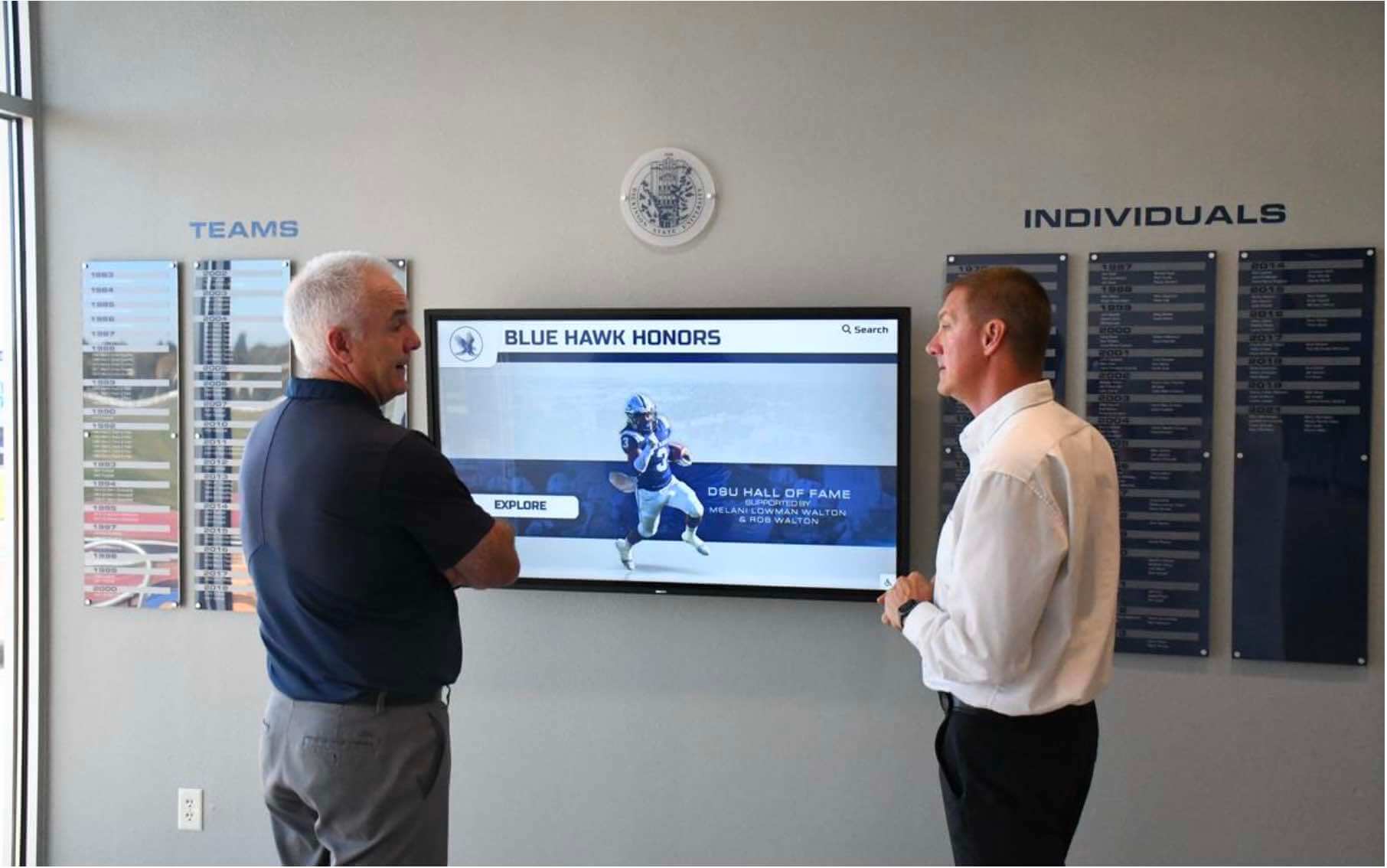
Staff and committee members reviewing recognition content depend on tested backup processes to ensure that institutional history survives technology transitions and unexpected failures
Special Considerations for Touchscreen Display Hardware
Touchscreen recognition displays introduce recovery considerations that generic data backup guidance does not address. Physical hardware failures, display replacements, and facility moves create recovery scenarios that affect the display experience even when the underlying data is intact.
Hardware-Resident Content
Some touchscreen display systems cache content locally on the display hardware itself—particularly for offline playback modes that allow displays to function without continuous network connectivity. When display hardware is replaced after a failure, this locally cached content may not be present in the cloud platform backup if it was never synchronized.
Identify whether your display system uses local caching and, if so, whether locally cached content is automatically synchronized to the platform on a defined schedule. If local content can diverge from the platform copy, your restoration test should include a step that confirms content synchronization is current.
For schools comparing recognition platform options across multiple vendors, content synchronization architecture is a meaningful selection criterion—not just a technical detail.
Display Configuration and Provisioning
Replacing a touchscreen display unit involves more than restoring data—it involves reprovisioning the hardware to recognize the correct content source, applying network credentials, and configuring display-specific settings that may not be stored in the platform backup. This provisioning step can add days to recovery time if the required information is not documented.
Your restoration test should verify that all information needed to reprovision a replacement display is documented and accessible, including: network credentials, content management URL, hardware device identifiers, any local configuration files required during initial setup, and vendor support contact information.
Multi-Display Installations
Schools with multiple recognition displays across a campus—gym lobby, athletic hallway, entrance corridor, trophy case integration—face a more complex restoration scenario. Each display may have its own content assignments or configurations. A restoration test for multi-display installations should confirm that the content assignment for each physical location is documented and restorable, not just the global platform backup.
For schools planning gymnasium display installations or expanding recognition systems to additional campus locations, documenting each display’s configuration at installation time is significantly easier than reconstructing it after a failure.
Connecting Restoration Testing to Recognition Content Quality
A restoration test does more than protect against failure—it periodically surfaces the quality and completeness of the content in your recognition system. When staff open backup files and review inductee profiles, record boards, and sponsor content during a test, they often identify content issues that would otherwise persist unnoticed: outdated sponsor logos, profiles missing photographs, record board entries with incomplete attribution.
Building a brief content quality review into each restoration test turns the exercise into a recognition program maintenance event, not just a technical compliance exercise. Reviewing content during a restoration test is also an opportunity to ensure that your recognition program reflects the full scope of honorees across different sports, activities, and eras.
For programs that integrate recognition with broader graduation and academic achievement content—including graduation recognition and honor display elements—the restoration test scope should include any content categories that appear on displays during graduation season, not only athletic recognition.
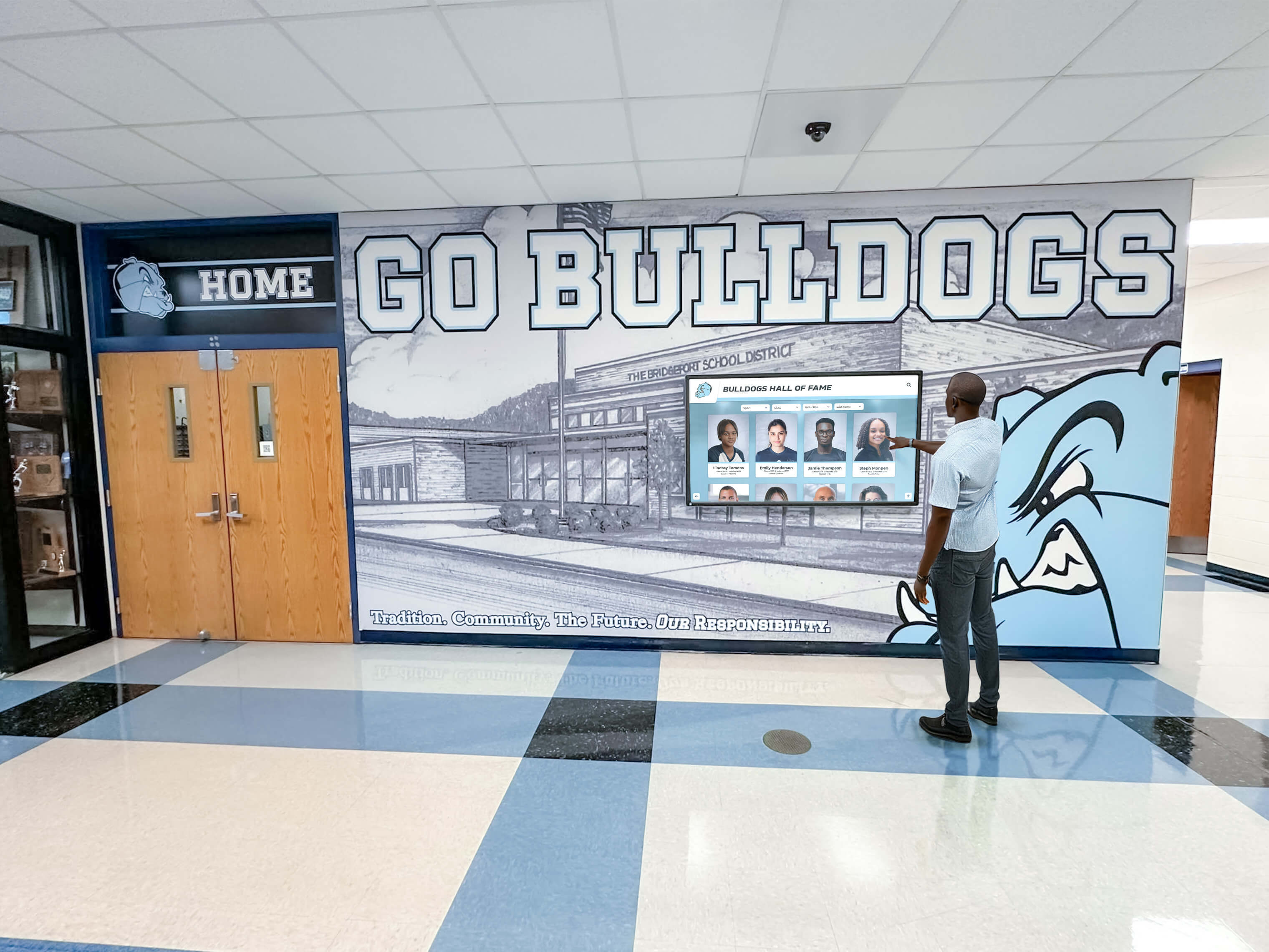
Staff reviewing touchscreen recognition content during a restoration test can identify content gaps and outdated information alongside confirming that backup data is intact and recoverable
Roles and Responsibilities for the Restoration Test
A restoration test that belongs to everyone tends to belong to no one. Assign specific roles before scheduling any test.
| Role | Responsibility |
|---|---|
| Test coordinator | Schedules the test, assembles backup copies, runs the test procedure, documents results |
| Backup verifier | Reviews test documentation after completion, confirms nothing was skipped, confirms action items are assigned |
| Vendor liaison | Coordinates any vendor-side steps (sandbox access, export generation, configuration documentation requests) |
| Content reviewer (optional) | Reviews recovered content for completeness and accuracy as a secondary benefit of the test exercise |
| Policy owner | Receives test results, escalates failures, updates backup policy based on findings |
For schools with limited staff, one person may hold multiple roles—but the backup verifier should never be the same person as the test coordinator. Independent verification is the point.
Restoration Test Master Checklist
Use this checklist to prepare for and execute a complete restoration test cycle.
Pre-Test Preparation
- Data inventory is current and accounts for all recognition content categories
- Backup copy exists for every category in the inventory
- Backup copy dates are known and within acceptable age window (≤30 days for core data)
- Test scope (Tier 1 / 2 / 3) is confirmed in advance
- Test environment or staging folder is prepared—live display content will not be overwritten
- Vendor liaison has been notified if platform-side steps are required
- Roles are assigned: test coordinator, backup verifier, policy owner
During the Test
- Backup file date and integrity confirmed before beginning
- Inductee data export opened and inspected (fields, record count, data completeness)
- Photograph archive opened and verified (files open correctly, naming matches export references)
- Record board export reviewed (athlete attribution, year data, performance values)
- Sponsor content archive reviewed (logos open correctly, text is current)
- Display configuration documentation reviewed (themes, navigation, credentials)
- Sample import attempted in staging environment (if available)
- Recovery time noted from start to functional state
Post-Test Verification
- All content types reviewed against recovery verification table
- Failures documented with specific details
- Action items assigned to named roles with due dates
- Test log filed in shared backup documentation location
- Backup verifier has reviewed and signed off on test log
- Policy owner notified of any failures requiring escalation
After Every Full Recovery Exercise (Annual)
- Complete restoration timeline documented (how long each phase took)
- Content gaps identified (what was missing or unrecoverable from off-site backup alone)
- Display reprovisioning steps tested and documented
- Multi-display configuration recovery confirmed
- Test findings included in annual backup policy review
- Next test scheduled and test coordinator confirmed
Aligning with District Technology Governance
Restoration test documentation is the evidence that your backup policy is functioning—not just written. If your school or district has formal technology governance, data retention policies, or audit requirements, your restoration test logs serve as that evidence.
Coordinate with district IT departments when aligning restoration testing schedules with broader district technology audits. Many districts conduct technology reviews annually, and submitting recognition display restoration test results as part of that review positions your program as a model for content data stewardship rather than an edge case.
For schools whose recognition systems connect with broader digital experience platforms—including campus directory displays or multi-purpose recognition systems serving athletics, academics, and community programs—aligning restoration testing with the broader platform’s backup governance ensures that recognition content receives the same protection as other institutional data.
Schools that have recently transitioned from traditional trophy cases to modern digital recognition systems often discover that digital content requires more active maintenance than physical displays—but also that a tested backup and recovery process eliminates the permanent loss risk that comes with physical damage to irreplaceable memorabilia.
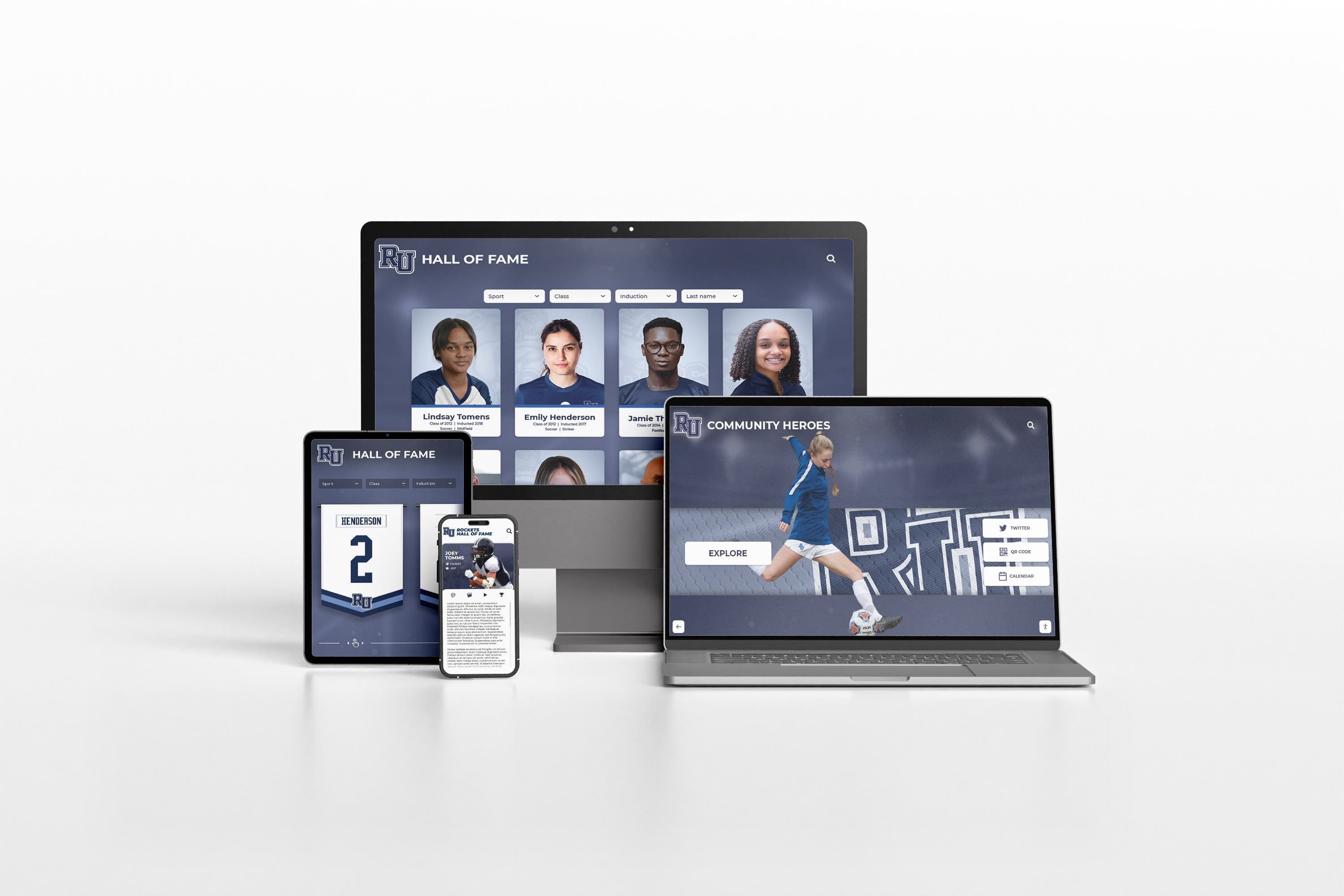
Recognition systems that serve audiences across multiple platforms—web, mobile, and in-building displays—require restoration testing that covers all content delivery channels, not just the primary display
Frequently Asked Questions
How often should a school run a touchscreen recognition display backup restoration test?
Run a Tier 1 subset test quarterly, a Tier 2 platform import test twice per year, and a Tier 3 full recovery exercise once per year. Additionally, run a pre-event backup and a post-event verification after every major content update—induction ceremonies, record board revisions, or seasonal content refreshes. If your platform undergoes any significant update or your school migrates to new hardware, schedule an additional Tier 2 or Tier 3 test regardless of the regular calendar.
Who is responsible for running the restoration test—IT or the athletic department?
Both. IT staff typically own the technical execution—accessing cloud storage, running imports, testing credentials. Athletic directors or advancement staff own the content verification—confirming that profiles, photos, records, and sponsor content are accurate and complete. The test coordinator role can sit in either department, but the content review step requires someone with direct knowledge of what the recognition content should contain.
What should we do if a restoration test fails?
Document the failure specifically, assign it to a named role with a due date, and notify the policy owner within five business days. Immediately determine whether the failure represents a gap in backup execution (the backup was never created) or a gap in backup quality (the backup exists but is unusable). The corrective action differs significantly. Do not reschedule the test until the underlying cause is addressed—retesting the same process that failed will not produce a different result.
Can we rely on our vendor’s backups instead of running our own tests?
Vendor backups protect against platform-side failures—server crashes, data center incidents, software corruption. They do not protect against accidental deletions, content that lives outside the platform, or loss of access when a vendor contract ends. Vendor backup coverage also varies by vendor and plan tier. Maintaining school-controlled backups and testing them independently is the only approach that ensures your institution has data access regardless of vendor circumstances. For schools evaluating platforms, new installation timing guides often address data portability as part of platform selection criteria.
Does a restoration test need to be done on the live display, or can it be done on a laptop?
Most restoration tests can and should be done outside the live display environment. Reviewing exported data files, opening photograph archives, inspecting configuration documentation, and confirming record board exports are all tasks that can be completed on a laptop with access to cloud backup storage. Platform import tests require a staging or sandbox environment—request one from your vendor if you don’t already have access. A full hardware reprovisioning test requires either a test device or a vendor walkthrough of the steps; it does not require taking a live display offline.
How do restoration test results connect to the annual backup policy review?
Every restoration test log should be reviewed as part of the annual backup policy review. Patterns of repeated failures in the same category indicate structural policy gaps. Single failures that were corrected and not repeated indicate the process is working. Zero failures over multiple tests may indicate that the test scope is too narrow—a test that never finds anything may need to be expanded. Use annual review as the moment to assess whether test scope, frequency, and assigned roles still match the actual complexity of your recognition system.
Summary
A touchscreen recognition display backup restoration test is how schools verify that decades of athlete profiles, historical photographs, record boards, sponsor content, and display configurations can survive unexpected failure. Backups without restoration tests are unverified assumptions. The checklist above walks every step from data inventory through post-test documentation in a format designed for school IT coordinators, athletic directors, and advancement staff working together.
For programs building recognition infrastructure that includes built-in content management, export capabilities, and data portability designed for long-term institutional stewardship, connecting with a platform that treats data governance as a core feature—not an afterthought—is a natural next step.
Ready to Verify Your Recognition Display Backup and Recovery?
Rocket Alumni Solutions builds digital hall of fame and recognition platforms with data export tools, content management infrastructure, and purpose-built backup support designed for school programs. Request a demo to see how a platform built for institutional continuity can support your backup, restoration testing, and data governance goals.
Request a DemoRecognition programs that honor athletes, scholars, alumni, donors, and community members carry a long-term institutional obligation. A case study in recognition display implementation demonstrates how organizations that treat their recognition content as a permanent institutional asset—rather than a technology project—build systems that endure across hardware generations, vendor transitions, and staff changes. A tested backup and recovery process is the practical foundation of that permanence.































