



A touchscreen recognition display certificate renewal checklist is the structured process a school IT team uses to track, validate, and renew every digital certificate that keeps a recognition display online and trusted by browsers, devices, and integrated systems. Without one, expired TLS certificates lock out visitors, lapsed device enrollment certificates drop kiosks from management, and stale integration tokens break the content pipelines that push athlete records, inductee profiles, and award histories to screens throughout your facility.
Certificate expiration is the most common cause of unexpected outages in school recognition display systems — and the most preventable. A single expired certificate can blank a lobby kiosk the morning of homecoming, disconnect a record board during a championship week, or trigger browser security warnings on the web-accessible version of your hall of fame. This guide gives school IT coordinators, athletic directors, and administrators a complete checklist and renewal timeline to prevent those situations from occurring.
The core answer: a complete certificate renewal checklist for touchscreen recognition displays covers TLS/HTTPS certificates on public and internal endpoints, device management enrollment certificates on display hardware, API and integration tokens connecting your recognition platform to upstream data sources, and any vendor-issued access certificates tied to support contracts. Each category requires a distinct renewal workflow, owner assignment, and calendar reminder set well before the expiry date.

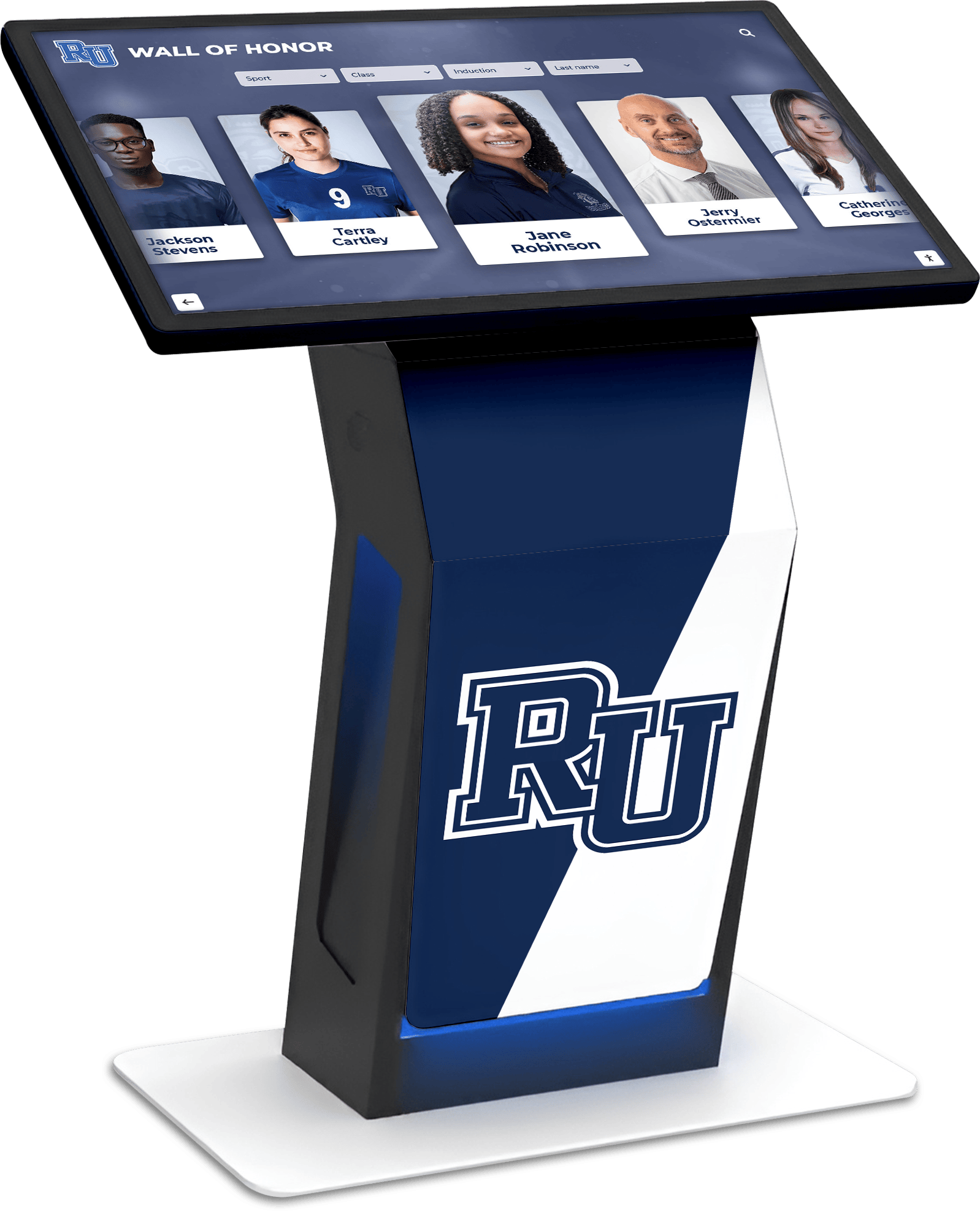
A touchscreen recognition display depends on valid certificates at every layer — TLS, device management, and integration — to remain online, trusted, and continuously updated
What Certificates Apply to Touchscreen Recognition Displays
Before building a renewal checklist, it helps to map the certificate landscape specific to school recognition systems. Recognition displays are not simple screens. Modern platforms connect cloud content management, on-premise hardware, student information system integrations, and public-facing web portals — each with its own credential and certificate dependencies.
TLS/HTTPS Certificates
TLS certificates authenticate your recognition platform’s web endpoints to browsers and other services. An expired TLS certificate on a public-facing hall of fame portal produces a browser security warning that blocks visitors entirely. On an internal admin dashboard, it may silently break content upload workflows as browsers refuse to submit forms to untrusted endpoints.
Schools using cloud-hosted recognition platforms typically rely on the vendor to maintain TLS certificates for their core domains. However, custom subdomain configurations — halloffame.yourschool.edu, for example — often require the school’s IT team to manage the certificate independently through a domain registrar or certificate authority. These school-managed TLS certificates are the ones most frequently missed in renewal cycles.
Device Management and Enrollment Certificates
Display hardware — kiosks, wall-mounted screens, lobby panels — is typically enrolled in a mobile device management (MDM) platform or endpoint management system. MDM enrollment certificates allow remote administration: pushing software updates, enforcing configuration policies, monitoring device health, and remotely rebooting displays that freeze.
When an MDM enrollment certificate expires, the device falls out of managed status. IT staff lose remote access, automatic updates stop, and recovering the device typically requires physical access to re-enroll it. In a multi-building school or district with displays in athletic halls, gymnasiums, and administrative lobbies, an MDM certificate lapse can create significant operational burden.
Integration and API Tokens
Recognition platforms pull content from connected systems — student information systems, athletic rosters, alumni engagement portals, donor management databases. These connections authenticate through API keys, OAuth tokens, or signed integration certificates that carry expiration dates. When they lapse, the data pipeline stops. Records stop updating, current season statistics freeze, and content displayed on recognition screens becomes stale without any visible error to prompt investigation.
The complete guide to touchscreen software for schools outlines the range of integrations a full-featured recognition platform supports, each of which represents a certificate or token renewal obligation for your IT team.
Vendor Support and Access Certificates
Recognition platform vendors sometimes issue access certificates tied to support agreements — credentials used to provide remote support, push platform updates, or access diagnostic logs. These certificates are easy to overlook because they are managed externally, but when they expire they can block vendor support access at the exact moment you need it most: when something else has broken.
Code Signing and Software Update Certificates
If your recognition display hardware runs custom applications or receives software updates through a signed update channel, the code signing certificate used to authenticate those updates may carry its own expiration. An expired code signing certificate does not necessarily stop existing software from running, but it will block future updates from installing — leaving displays on outdated software versions.
Table: Certificate Types and Renewal Impact for Recognition Displays
| Certificate Type | What It Secures | Impact of Expiry | Typical Owner | Renewal Frequency |
|---|---|---|---|---|
| Public TLS certificate | School-managed recognition portal domain | Browser security warnings block visitor access | School IT or web team | 90 days (Let’s Encrypt) or 1 year (paid CA) |
| Vendor TLS certificate | Platform vendor’s hosted endpoints | Vendor-managed; coordinate if using custom domains | Vendor (monitor for custom domains) | Vendor-managed |
| MDM enrollment certificate | Device management of display hardware | Device drops from management, remote access lost | School IT | 1–3 years depending on MDM platform |
| API key / integration token | Data feeds from SIS, athletic records, alumni portal | Content pipelines stop; records stop updating on displays | System owner (AD, advancement, IT) | Platform-defined; often 1 year |
| OAuth token | Third-party integrations (social, video, alumni portal) | Integration disconnects; content stops refreshing | System owner per integration | Platform-defined; often 90 days–1 year |
| Vendor support certificate | Remote vendor access for support and updates | Vendor cannot access system for support | Vendor (track against contract) | Contract cycle |
| Code signing certificate | Software update authentication | Future updates blocked; existing software continues | Vendor or school IT | 1–3 years |
| SAML/SSO certificate | Single sign-on for admin portal | Admin login fails for SSO users | School IT / identity provider | 1–3 years |
Why Certificate Expiry Disrupts Recognition Displays More Than Other Systems
Recognition displays operate in public spaces on institution schedules — not IT schedules. A certificate that expires overnight on a financial system gets noticed the next morning when staff try to log in. A certificate that expires overnight on a lobby recognition display may go unnoticed for days if no one walks past it, while athletic schedules, inductee announcements, and recognition events proceed assuming the display is functional.
Schools with strong athletic traditions use recognition displays at high-visibility moments: homecoming week, senior night, rivalry game events, and championship celebrations. Athletic tradition programming described in resources covering Texas high school football recognition illustrates how deeply community expectations are tied to continuous, reliable recognition presence. A display outage during these moments damages trust in the system even after the technical issue is resolved.
Certificate expiry risk is also compounded in school environments because staff turnover — particularly in IT and athletic administration — frequently disrupts institutional knowledge about which accounts and systems are in use. The person who set up a recognition platform integration three years ago may have left the district, and the API token they configured has no natural reminder mechanism unless a formal renewal checklist exists.
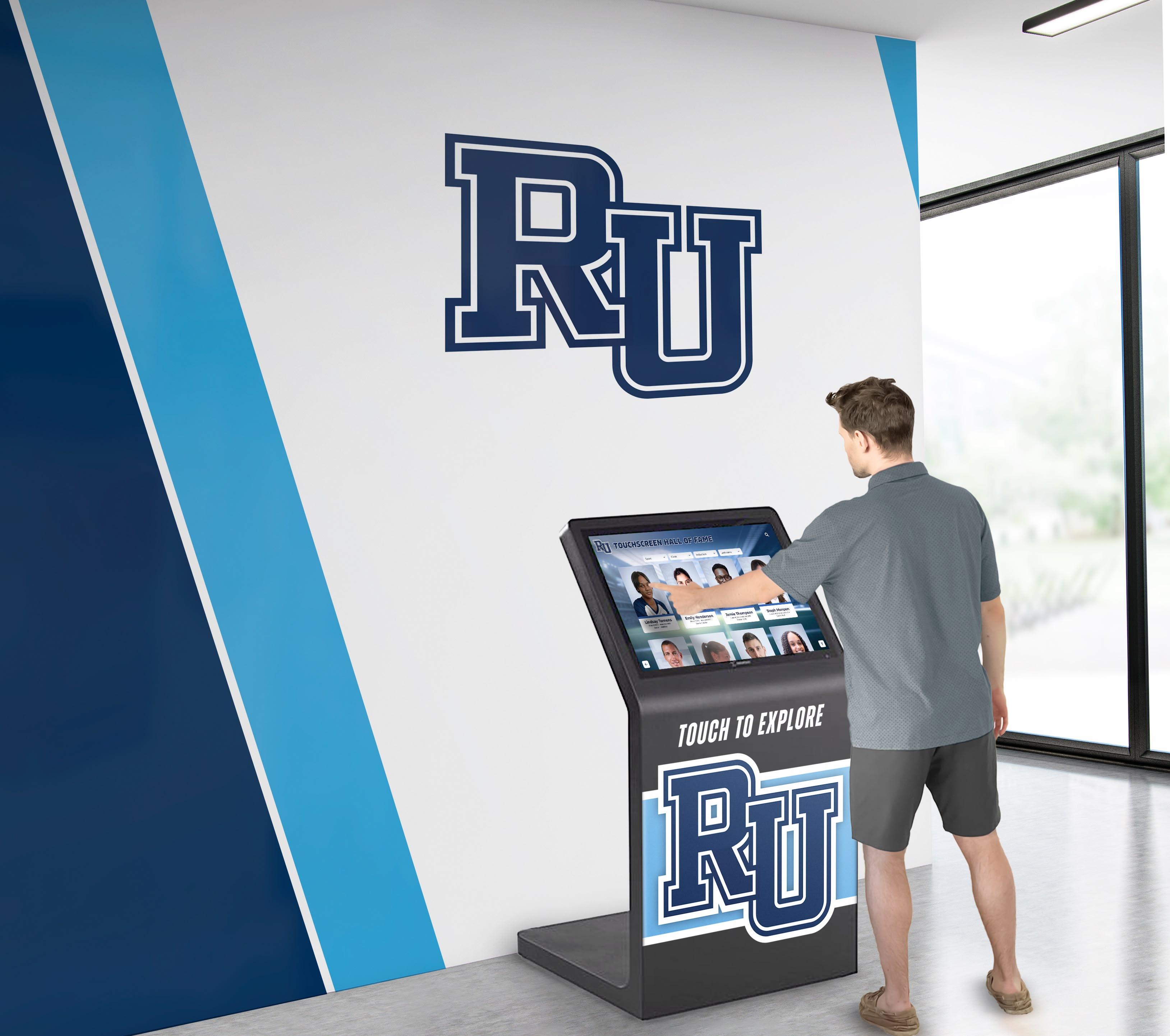
Recognition display uptime during high-visibility events — season kickoffs, homecoming, awards ceremonies — depends on certificate renewals completed weeks before those moments arrive
The Master Certificate Renewal Checklist
This checklist covers all four certificate categories. Work through it initially to document your current state, then use the applicable sections as renewal events approach. Not every item will apply to every school — skip items that do not match your infrastructure.
Section 1: TLS/HTTPS Certificate Checklist
Discovery
- List every public URL associated with your recognition platform (primary portal, admin dashboard, API endpoint, any custom subdomain)
- Identify which certificates are managed by the vendor vs. managed by your school IT team
- For school-managed certificates, document the certificate authority (CA), issue date, and expiry date
- Record where the private key is stored and who has access
Pre-Renewal Verification (30 days before expiry)
- Confirm current certificate is valid and not already showing warnings in any browser
- Verify the DNS record for the domain still points to the correct endpoint
- Confirm the renewal process and required approvals with your CA or registrar
- Notify the recognition platform vendor if the certificate change requires their coordination
Renewal Actions
- Generate or obtain the new certificate from your CA or registrar
- Install the new certificate on the appropriate server, load balancer, or CDN
- Verify the new certificate is serving correctly using a browser and an SSL inspection tool
- Confirm certificate chain is complete (no intermediate certificate missing)
- Update your certificate inventory with the new expiry date
Post-Renewal Validation
- Visit each public URL and confirm no browser security warnings appear
- Test the admin login flow through the secured endpoint
- Confirm any monitoring tools reflect the updated certificate
- Set a calendar reminder for 60 days before the new certificate’s expiry date
Section 2: Device Management (MDM) Certificate Checklist
Discovery
- List every recognition display device enrolled in your MDM platform
- Document the MDM enrollment certificate expiry date for each device (or device group)
- Identify any devices that have already fallen out of managed status
- Document the MDM platform’s renewal process for enrollment certificates
Pre-Renewal Actions (60 days before expiry)
- Confirm all enrolled devices are actively checking in with the MDM platform
- Identify any display devices that may need physical access for re-enrollment
- Review MDM platform documentation for enrollment certificate renewal steps
- Schedule maintenance windows for any devices requiring in-person renewal steps
Renewal Actions
- Renew the MDM enrollment certificate through the platform’s administrative console
- Push the updated certificate to enrolled devices via the MDM platform
- Confirm each device acknowledges the renewed certificate and returns to fully managed status
- Test remote management capabilities: reboot command, configuration push, software update delivery
Post-Renewal Validation
- Verify device check-in intervals are normal across all enrolled displays
- Confirm remote reboot and content push functions work on at least one device per location
- Update the device inventory with new MDM certificate expiry dates
- Set calendar reminders 60 days before next expiry
Section 3: Integration and API Token Checklist
Discovery
- Pull the API key and token list from your recognition platform’s admin console
- Document each active integration: what system it connects, what data it moves, when the token expires
- Identify the business owner for each integration (athletic director, advancement office, IT, etc.)
- Find any tokens documented outside the platform (spreadsheets, email threads, password managers) and consolidate
Pre-Renewal Actions (30 days before token expiry)
- Notify the integration’s business owner that renewal is approaching
- Confirm the integration is still needed and the connected system is still in use
- Review permission scope: verify the token only has access required for its function
- Prepare the process for generating a new token without interrupting the live integration
Renewal Actions
- Generate the new API key or token in the source system
- Update the token in every location where it is stored: the recognition platform’s integration settings, any automation scripts, server environment variables, and documentation
- Test the integration end-to-end: trigger a content update and verify data flows correctly to the display
- Revoke or delete the old token after confirming the new one is functional
Post-Renewal Validation
- Confirm that content that depends on this integration is updating correctly on displays
- Verify no error logs or failed-sync alerts appear in the recognition platform’s admin console
- Update the integration inventory with the new token expiry date
- Set calendar reminders 30 days before next expiry
Facilities that support a range of sports programs — not just football and basketball — often have multiple integration points feeding recognition content. The touchscreen software guide for club sports and facilities describes the range of sports and program types that schools incorporate into recognition systems, each potentially representing a separate content pipeline and token renewal obligation.
Section 4: Vendor and Support Certificate Checklist
Discovery
- Request from your recognition platform vendor a list of any certificates or access credentials they manage on your behalf
- Document any vendor-issued certificates tied to support contract terms or contract renewal dates
- Identify vendor certificates that require your IT team’s action at renewal (e.g., you must re-authorize vendor access)
Pre-Renewal Actions (60 days before contract or certificate expiry)
- Contact the vendor to confirm what certificate renewals they will handle automatically vs. what requires your action
- Align certificate renewal with contract renewal where possible to reduce separate renewal events
- Confirm vendor access is still appropriate for current support scope
Renewal Actions
- Complete any school-side actions required for vendor certificate renewal (re-authorization, new CSR, updated domain verification)
- Confirm with the vendor that renewed certificates are active and functional
- Document the new expiry dates in your master inventory
Post-Renewal Validation
- Request confirmation from the vendor that support access is functioning
- Test a support interaction or diagnostic check if your contract allows self-initiated testing
- Update your inventory with new certificate and contract dates
Section 5: SAML/SSO Certificate Checklist (If Applicable)
Discovery
- Confirm whether your recognition platform admin portal uses your district’s single sign-on (SSO) provider
- Document the SAML signing certificate used by your identity provider (Google Workspace, Azure AD, Okta, etc.)
- Identify the expiry date and the process for rolling the SAML certificate without locking out admin users
Pre-Renewal Actions (60 days before expiry)
- Review your identity provider’s documentation for SAML certificate rotation procedures
- Notify recognition platform users who log in via SSO that a maintenance window will be required
- Coordinate with your identity provider admin to schedule the certificate roll
Renewal Actions
- Generate and upload the new SAML signing certificate in your identity provider
- Update the recognition platform’s SSO configuration with the new certificate metadata
- Test SSO login for at least one admin account before closing the maintenance window
Post-Renewal Validation
- Confirm SSO login works for all admin roles in the recognition platform
- Verify that non-SSO admin accounts (emergency local accounts) remain functional as a fallback
- Document the new SAML certificate expiry and set renewal reminders
Certificate Renewal Timeline: 90-Day Pre-Expiry Calendar
The following timeline applies to any certificate type. Adapt the lead time based on your organization’s approval and procurement cycles — schools with centralized IT procurement may need to start earlier.
| Days Before Expiry | Action |
|---|---|
| 90 days | Review the master certificate inventory; flag all certificates expiring within 120 days |
| 60 days | Notify integration business owners; begin vendor coordination for any externally managed certificates |
| 45 days | Initiate procurement for paid CA certificates if required by your district’s purchasing process |
| 30 days | Generate new certificates or tokens; stage renewals for testing in a non-production environment |
| 14 days | Complete renewals for all certificates where installation does not require an extended maintenance window |
| 7 days | Execute any remaining renewals; validate each certificate category using the checklist above |
| Day of expiry | Confirm all certificates show valid status; no renewals should be pending at this point |
| 1 day after | Run a full validation sweep; investigate any alerts or failed check-ins |
Schools that host public recognition content — including athletic highlight archives and hallway display content visible to event visitors — benefit from building certificate renewal into the same academic calendar that governs athletic programming. Scheduling renewal reviews before major events (homecoming, spring signing day, alumni weekend) ensures displays are never offline during high-visibility moments.
The school hallway design and corridor recognition guide documents how recognition displays in corridors and lobbies serve as always-on institutional storytelling — an always-on system requires always-valid certificates to deliver on that promise.
Building a Certificate Lifecycle Management System
A one-time audit is not enough. Certificate lifecycle management is an ongoing process that requires a central inventory, ownership assignments, automated monitoring, and a review cadence that survives staff transitions.
The Certificate Inventory
Your certificate inventory is the single authoritative record of every certificate associated with your recognition display systems. At minimum, each entry should document:
- Certificate identifier — domain, device group, integration name, or system description
- Certificate type — TLS, MDM enrollment, API token, vendor support, SAML, code signing
- Issue date and expiry date — in a machine-readable format that supports automated alerts
- Certificate authority or issuing system — who issued it and where renewal requests are submitted
- Owner — the role (not just the person’s name) responsible for renewal actions
- Location — where the certificate is installed, stored, and documented
- Renewal procedure — the steps required to renew, including any approvals needed
- Last renewed — date of the most recent successful renewal
Store this inventory in a system that survives individual staff departures — a shared school IT documentation platform, a district-managed spreadsheet with access controls, or an IT service management tool. Inventory stored only in one person’s email or local files creates continuity risk identical to the service account governance gaps described in related IT policy frameworks.
Ownership and Accountability
Every certificate must have a named owner by role — not by individual name. Role-based ownership ensures accountability survives the staff transitions that are common in school environments. For a recognition display system, typical ownership assignments follow this pattern:
- TLS certificates on school-managed domains → IT Coordinator
- MDM enrollment certificates → IT Coordinator
- Athletic data integration tokens → Athletic Director with IT as technical backup
- Alumni and donor integration tokens → Advancement Office Director with IT as technical backup
- Vendor support certificates → IT Coordinator (coordinates with vendor)
- SAML/SSO certificates → Identity Provider Administrator
When a staff member in a named role departs, certificate ownership transfers as part of the role handoff — not as a separate action months later when a certificate has already expired.
Monitoring and Alerting
Manual calendar reminders are necessary but not sufficient. Certificate monitoring tools provide automated alerts when certificates approach expiry or when an installed certificate does not match the expected configuration. Many tools are available at no cost for small deployments:
- Certificate transparency logs and public monitoring services can track TLS certificates on public domains
- MDM platforms typically include built-in alerting for enrollment certificates approaching expiry
- Recognition platform admin consoles often display API token expiry dates and can be reviewed on a monthly schedule
- Browser-based SSL checking tools allow periodic manual validation of any public-facing endpoint
The combination of automated alerts and a scheduled monthly review covers both the planned renewals on your calendar and the unexpected certificate states that arise when configuration changes or vendor actions affect certificate validity without triggering a scheduled renewal.
Connecting Recognition Continuity to Athletic Programming
Certificate management may feel like infrastructure work disconnected from the recognition mission, but the connection is direct. Displays that go dark during football rivalry game week, spring sports championship season, or Thanksgiving tournament events represent a failure of recognition continuity at the moments when community attention is highest.
Strong athletic traditions — whether a decades-long rivalry game or a multi-year championship run — are remembered through the recognition systems that make those histories visible. Thanksgiving Day football rivalry recognition exemplifies the kind of tradition-rich programming that schools build permanent recognition content around. A certificate lapse during those events undermines the investment the school has made in recognition infrastructure.
Similarly, recognition displays increasingly incorporate dynamic multimedia content — highlight reels, video tributes, and award montages that bring athletic history to life in school hallways. Creating compelling athletic recognition video content for touchscreen walls depends on a system that is continuously online and authenticated across all its integration points. Certificate management is what keeps those integrations running.
Selecting a recognition platform with strong operational transparency — clear documentation of certificate responsibilities, vendor vs. school ownership, and renewal notification processes — is itself a factor worth evaluating during platform selection. The comparison of recognition platform vendors for schools identifies operational support and certificate management transparency as differentiating factors between platform options.
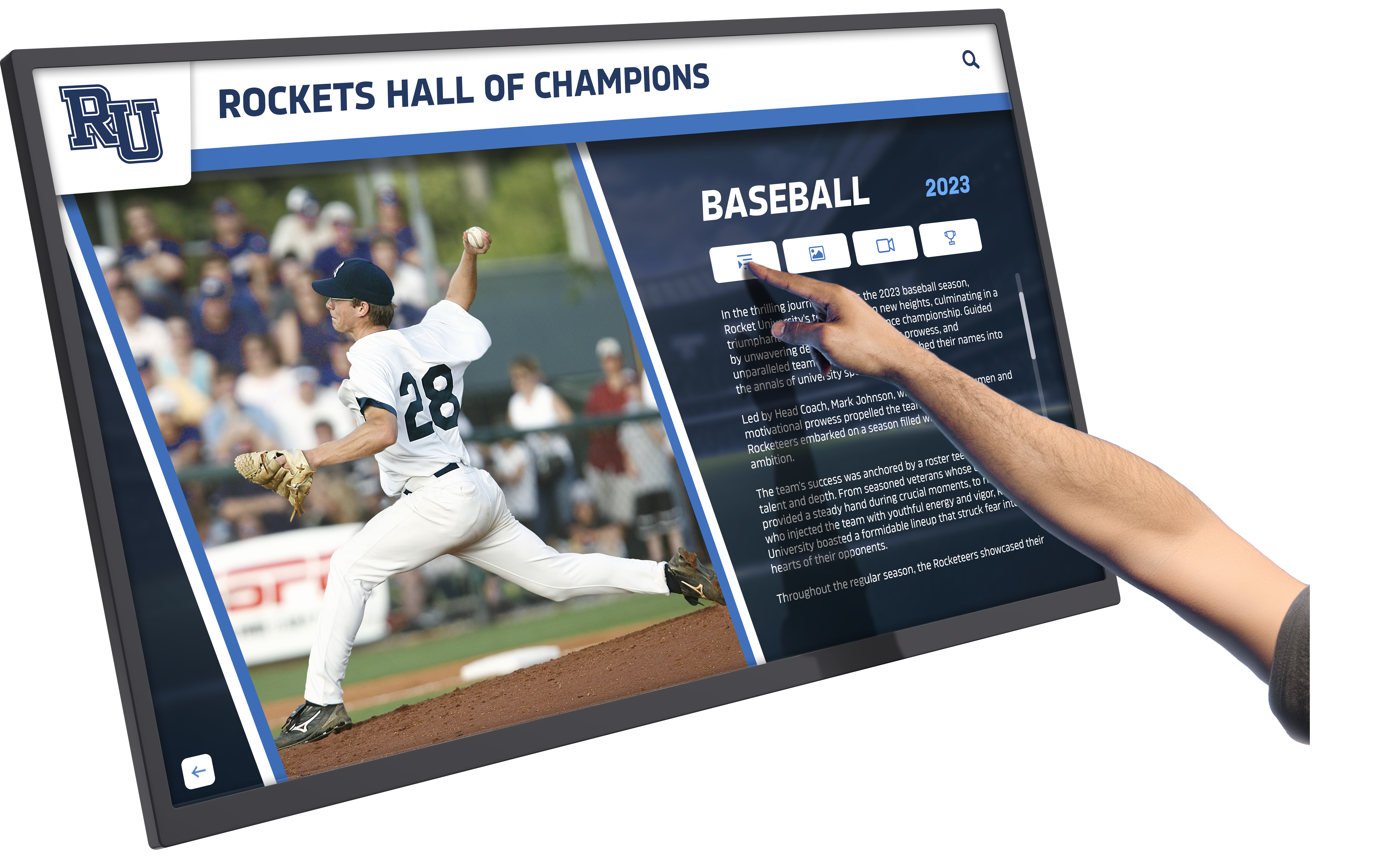
Recognition displays that showcase athletic tradition and hall of fame content depend on a continuous chain of valid certificates to remain available during the events and seasons when they matter most
Frequently Asked Questions
How do I find out when my recognition platform’s TLS certificate expires?
Visit your recognition platform’s public URL in any modern browser and click the padlock icon in the address bar. Select “Certificate” or “Connection is secure” to view the certificate details, including the expiry date. For a more complete view across multiple domains, use a free SSL checking tool by entering each of your platform’s URLs. For certificates managed by your vendor, ask your account manager for the certificate expiry dates and renewal process.
What happens if an API token expires and I do not renew it immediately?
When an API token expires, the integration it authenticates stops working. The recognition platform stops receiving data from the connected system — athletic records stop updating, inductee profiles stop syncing, and any other data that flowed through that integration becomes stale. Depending on the platform, this may produce error messages in the admin console, or it may simply stop silently. The displayed content will reflect whatever was last successfully synced before the token expired. Renewing the token and confirming the integration processes any missed updates resolves the issue.
How often should I review the certificate inventory?
Review the full inventory monthly. A monthly review catches certificates that will expire within the next 30–90 days and gives sufficient lead time for renewals that require procurement approvals or vendor coordination. Additionally, review the inventory immediately after any staff transition in a role that owns certificate renewals, and after any platform migration or significant infrastructure change.
Can I automate certificate renewal to reduce manual work?
For TLS certificates, automation is available and recommended where possible. Certificate authorities like Let’s Encrypt support automated renewal through protocols like ACME, and many web hosting platforms support automatic renewal for Let’s Encrypt certificates. For API tokens and MDM enrollment certificates, automation depends on the specific platform’s capabilities. Some MDM platforms support automated enrollment certificate renewal. API token renewal typically requires a manual action to generate the new token and update it in all locations where it is stored.
Who should own the certificate renewal process in a school district?
IT coordination and network administration staff are the natural owners for TLS and MDM certificates. Integration-specific tokens are better co-owned: the IT coordinator handles the technical renewal steps while the business owner (athletic director, advancement director) confirms the integration is still needed and the scope is still appropriate. The SAML/SSO certificate lives entirely within IT and the identity provider administrator’s domain. What matters less than who specifically owns each certificate type is that every certificate has a documented owner by role, and that ownership is verified and updated whenever staff transitions occur in those roles.
What should I do if a certificate has already expired before I discover it?
First, determine the impact: which systems are affected and what functionality is broken. For an expired TLS certificate, renew it immediately — most CAs allow emergency renewal without extended wait times. For an expired API token, generate a new one, update it in all integration configurations, and verify the integration is processing data again. For an expired MDM certificate that has dropped devices from management, follow your MDM platform’s re-enrollment procedure, which typically requires physical access to the device. After resolving the immediate issue, add the certificate type to your inventory with a renewal reminder set well in advance of the next expiry date.
Does my recognition platform vendor handle certificate renewals for me?
It depends on which certificates and how your platform is configured. Vendors hosting the recognition platform on their own infrastructure typically manage TLS certificates for their core domain. If your school uses a custom subdomain (e.g., halloffame.yourschool.edu), the certificate for that domain is almost always your responsibility. Vendors generally do not manage your MDM enrollment certificates, your API tokens for third-party integrations your school configured, or your SAML certificates. Ask your vendor account manager for a written list of which certificates they manage and which are the school’s responsibility — this question is worth asking before a certificate expires and the answer becomes urgent.
Keeping Recognition Displays Online Across Every Season
A touchscreen recognition display is most valuable when it is always available — displaying the history, records, and honors that define your school’s athletic and academic identity to students, families, recruits, and community members who walk through your halls every day. Certificate expiry is a technical event with a very human consequence: a dark screen or a security warning where your school’s history should be visible.
The checklist in this guide turns certificate management from a reactive crisis into a documented lifecycle. Run the discovery phase to build your inventory, assign owners by role, set renewal timelines, and review monthly. Connect that process to your athletic calendar so that renewals are always complete before the events that matter most.
For schools evaluating recognition platform options, the platform’s approach to certificate transparency and renewal support — what they manage, what documentation they provide, and how they communicate upcoming expirations — is a practical operational consideration worth including in the evaluation process alongside feature comparisons and design capabilities.
Ready to build a recognition display system with transparent operational support and clear guidance on certificate and integration management? Request a demo of Rocket Alumni Solutions to see how the platform handles certificates, integrations, and ongoing content management for school athletic and alumni recognition.































