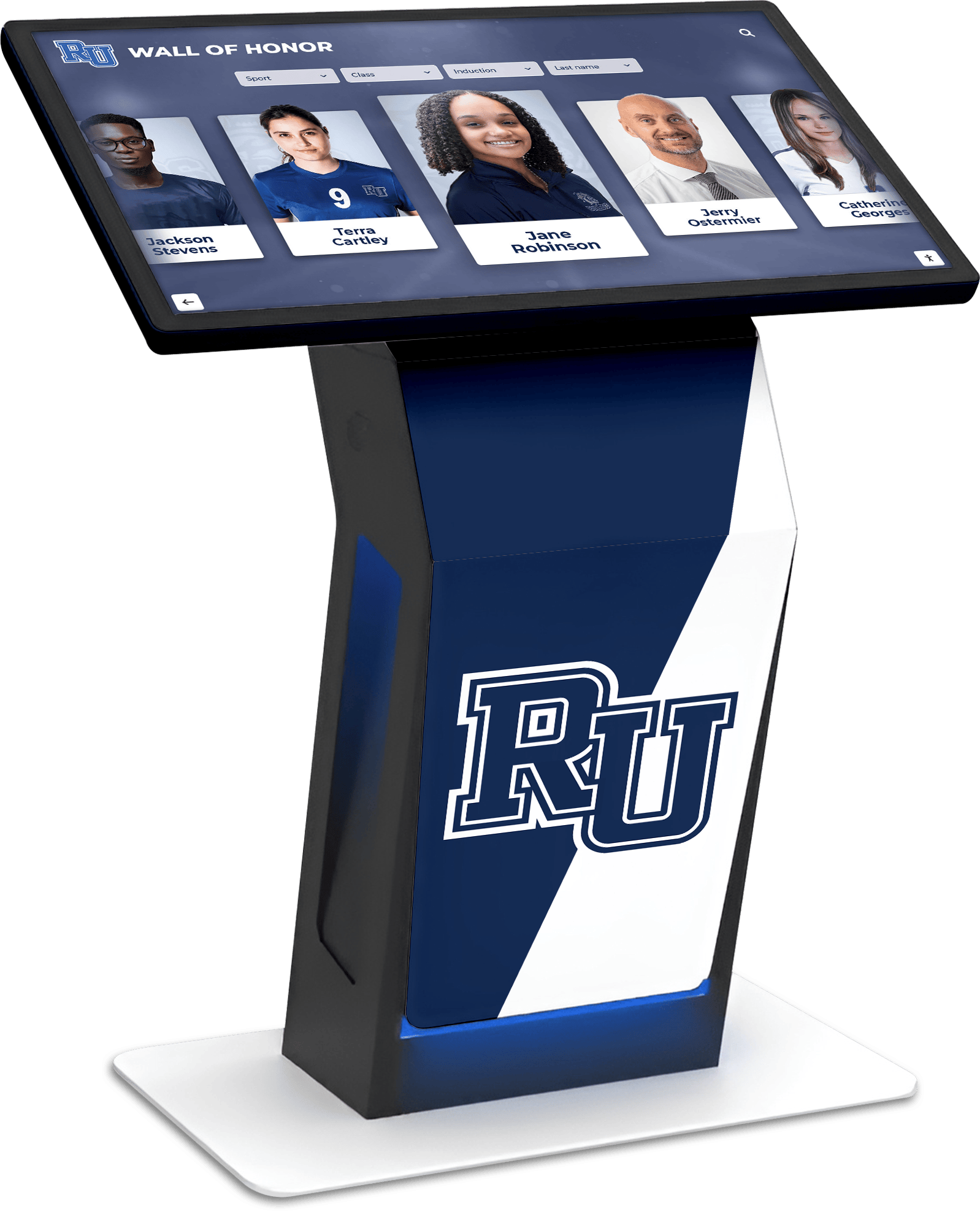




A touchscreen recognition display energy management policy is the documented set of operating schedules, power modes, and exception rules that school IT and facilities teams use to reduce unnecessary electricity consumption while keeping hall of fame kiosks, athletic record boards, and donor recognition screens fully available during building hours and events. Without a written policy, displays often run at full brightness around the clock — including weekends, holidays, and overnight hours when no one is present — wasting energy and shortening hardware lifespan without delivering recognition value to any visitor.
Recognition displays occupy a unique position in school energy planning: they are managed by IT, located in lobbies and athletic hallways where facilities staff control ambient lighting and HVAC, and carry content that belongs to athletics and advancement teams who care deeply about visibility during events and alumni visits. An energy policy that suits a back-office workstation — powering off outside business hours — can produce a black screen at the moment a prospective family walks into the main lobby on a Saturday open house morning. Getting the policy right means scheduling power states around actual visitor and event traffic, not around administrative convenience, and building in reliable exception handling so the display is ready whenever recognition matters most.
The direct answer: a touchscreen recognition display energy management policy should define at minimum five elements — a zone-based daily operating schedule tied to actual visitor hours, a graduated power mode sequence (full-on, ambient mode, standby, off), a pre-approved exception process for events outside the standard schedule, a remote management tool so IT can override schedules without physical access, and a review cadence that updates the schedule at the start of each academic year. With those five elements documented and implemented, most schools reduce display energy consumption by 30 to 50 percent relative to always-on operation while maintaining full availability during every meaningful recognition moment.

A lobby touchscreen recognition display should run at full power during visitor hours and transition to a low-power or off state overnight — an energy management policy defines exactly when each state applies
Why Recognition Displays Need Their Own Energy Policy
General school energy management policies are written for classrooms, offices, and labs. They assume that occupancy sensors, lighting controls, and HVAC scheduling cover the relevant equipment, or they address computers and projectors in instructional spaces. Touchscreen recognition displays do not fit either category cleanly.
Recognition displays differ from classroom technology in three critical ways that affect energy policy design. First, they are in public-facing spaces — lobbies, trophy hallways, athletic entrances — where the cost of a dark screen falls on visitors, not staff. A powered-down classroom projector inconveniences only teachers who can turn it back on. A powered-down hall of fame display fails a donor, an alumnus, or a family that arrived specifically to see the recognition content. Second, recognition displays serve events that fall outside standard school hours: evening games, alumni weekend receptions, Saturday open houses, and weekend tournaments all represent high-visibility periods that a standard 7 a.m. to 5 p.m. policy misses. Third, the hardware — high-brightness commercial displays, fanless media players, and touchscreen overlays — has its own power management behaviors that interact with scheduling software in ways that generic policies do not anticipate.
Understanding how different screen types and digital signage technologies behave under power management informs which power modes are available, how quickly a display wakes from standby, and how often power cycling affects hardware longevity. A commercial display used as a recognition kiosk has different power management characteristics than a consumer television, and the policy should reflect that.
A recognition-specific energy policy prevents two failure modes that general policies create: displays that are dark when visitors arrive because the schedule did not account for Saturday events, and displays that run at full brightness during multi-week holiday closures when no one is in the building. Both are avoidable with a written policy and a small amount of annual planning coordination between IT, athletics, and facilities.
Building a Zone-Based Operating Schedule
The foundation of a practical energy management policy is an operating schedule that reflects where each display is located and who visits that space and when. Not all recognition displays serve the same traffic pattern. A main lobby kiosk faces different visitor hours than an athletic hallway display near the gymnasium, which faces a different pattern than a donor recognition screen outside the auditorium.
Defining Display Zones
Group displays by traffic and event pattern rather than by building or floor. Three zones cover most school configurations:
Zone 1 — Public entrance and main lobby displays. These serve visitors, prospective families, and guests during all school day hours plus any Saturday open houses, community events, or public athletic events. They require the widest operating window and the most robust event exception handling.
Zone 2 — Athletic and competition venue displays. Hallway displays near gymnasiums, weight rooms, and athletic offices serve students and staff during school hours, but their highest-visibility periods are game nights and weekend tournaments. Their energy policy needs to account for event schedules that extend well into evenings and Saturdays.
Zone 3 — Academic and advancement displays. Donor recognition screens near auditoriums, academic hallways, and administrative wings serve more predictable school-hours traffic with occasional evening events for board meetings, arts performances, and donor receptions. These can typically run shorter daily windows with a more limited event exception list.
Standard Operating Schedule Table
The schedule below represents a starting framework. Adjust the specific hours to match your school’s building hours, bell schedule, and typical event patterns before adopting it as policy.
| Zone | Display Location | Mon–Fri On | Mon–Fri Off | Saturday On | Saturday Off | Sunday | Holiday Policy |
|---|---|---|---|---|---|---|---|
| Zone 1 | Main lobby, front entrance | 6:30 a.m. | 8:00 p.m. | 7:00 a.m. | 6:00 p.m. | Event-triggered only | Off unless event |
| Zone 2 | Athletic hallways, gym entrance | 6:30 a.m. | 10:30 p.m. | 7:00 a.m. | 11:00 p.m. | Event-triggered only | Off unless event |
| Zone 3 | Auditorium lobby, advancement wing | 7:00 a.m. | 6:00 p.m. | Event-triggered only | Event-triggered only | Off | Off unless event |
The on and off times in this table represent full-brightness active operation. They do not include ambient and standby transitions, which are described in the power mode section below.
Aligning the Schedule with the Academic Calendar
A static 12-month schedule is less useful than one that acknowledges the academic calendar’s natural rhythm. Schools with recognition display deployments across athletic and academic facilities benefit from tiering the schedule by period:
- In-session periods (August–December, January–May): Apply the full Zone 1, 2, and 3 schedules with standard event exception handling.
- Summer break (June–July): Reduce Zone 1 and Zone 3 to event-triggered operation. Zone 2 may retain limited summer hours for camps, alumni events, and facility tours.
- Holiday breaks (winter, spring, Thanksgiving): All zones default to off; event-triggered exceptions apply for any scheduled activities during the break.
- Testing periods and exam weeks: No change to standard schedules — these periods typically still involve visitor traffic and open houses.
Updating the schedule at the start of each academic year in coordination with the athletic director’s event calendar and the advancement office’s programming calendar ensures the policy matches actual school activity rather than a generic template.
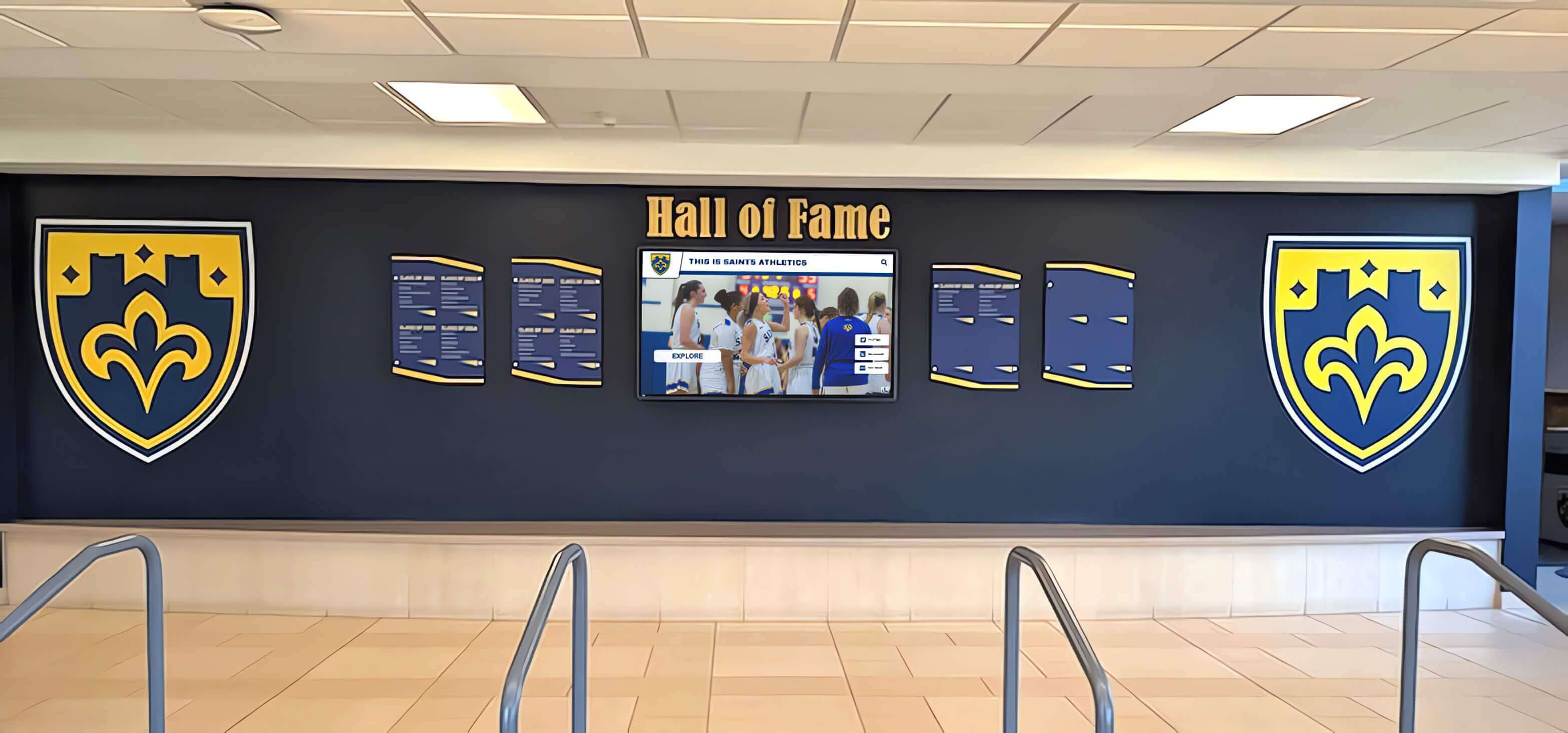
Lobby displays adjacent to traditional recognition elements like shields and trophy cases serve visitors throughout the full school day and during community events — their operating schedule should reflect that extended window
Power Mode Sequence: From Full-On to Off
A well-designed energy policy does not jump directly from full brightness to off. A graduated power mode sequence reduces energy consumption during transitional periods — early morning before staff arrive, late evening after events end — without creating the jarring experience of a completely dark display when someone unexpectedly arrives.
The Four-State Power Model
State 1 — Active (full-on). The display runs at full configured brightness, the touch interface is fully responsive, and all content — inductee profiles, athletic records, donor acknowledgments, video backgrounds — plays normally. This state applies during the scheduled operating window defined in the zone table above.
State 2 — Ambient mode. The display reduces brightness to 30–50 percent of maximum, content continues playing but video animations may slow or pause, and the touch interface remains responsive. Ambient mode applies during the 30-minute windows before the schedule-on time and after the schedule-off time, creating a gentle transition. It also applies in spaces where the display is visible but traffic is low — such as a lobby during a faculty meeting day when families are not expected.
State 3 — Standby. The display enters its low-power state: the screen is off or nearly dark, the media player remains on, and the display wakes within 10–30 seconds when a motion sensor detects nearby presence or a scheduled wake trigger fires. Standby reduces display power consumption by 70–85 percent compared to active state while preserving the ability to wake quickly when needed. This state applies during late evening hours after the ambient window closes but before the full off time.
State 4 — Off. Full power-down: the display screen is off, the media player is in deep sleep or powered down, and the display requires a scheduled power-on event or physical intervention to restore. Off state applies overnight (typically midnight to 6 a.m.), on days with no scheduled school activity, and during multi-week breaks. For displays connected to a managed power strip or smart outlet, the off state can include cutting circuit power entirely.
Power State Transition Schedule
| Time Window | Active State | Applies To |
|---|---|---|
| 12:00 a.m. – 6:00 a.m. | Off | All zones |
| 6:00 a.m. – 6:30 a.m. | Ambient (warm-up) | Zone 1, Zone 2 |
| 6:30 a.m. – scheduled off time | Active | Zone 1, Zone 2 |
| Scheduled off time to off time + 30 min | Ambient (wind-down) | Zone 1, Zone 2 |
| Off time + 30 min to midnight | Standby or Off | All zones |
| Event window (exception active) | Active | Any zone with active exception |
Display Hardware and Power Management Interaction
Commercial displays used in recognition deployments — typically 55-inch to 75-inch commercial-grade panels — support scheduled power states through their on-board scheduling menus, through RS-232 or LAN control, or through the media player software managing the content. Understanding the touch interface software stack helps IT teams determine whether power management is best implemented at the display hardware level, the media player level, or the recognition platform’s remote management console.
For displays managed through a recognition platform’s cloud console, scheduling is typically set once in the platform interface and pushed to each device — no physical access required. For displays using embedded scheduling in the display hardware itself, the schedule must be set manually at each unit or through the display’s LAN management interface. Document which management method applies to each display so that schedule updates can be made efficiently at the start of each academic year.
Avoid power cycling displays more than once per day. Frequent full power cycles — off and on multiple times in a single day — create thermal stress on commercial panel hardware and accelerate component aging. The graduated standby approach reduces this risk by maintaining the media player and control electronics in a low-power-but-not-off state during overnight hours, limiting full power cycles to once daily.
Event Exception Rules
The standard operating schedule covers the predictable academic calendar. Event exceptions cover everything else: game nights that run until 10:30 p.m., Saturday open houses scheduled by the principal’s office, hall of fame induction ceremonies on a Friday evening, alumni reunion weekends, and arts performances that fill the auditorium lobby with donors and families who will walk past the recognition display on their way in.
Who Can Authorize Exceptions
The exception process needs a clear owner and a clear submission path. Without defined authorization, the policy collapses — facilities staff receive last-minute requests from coaches, advancement staff, and principals who each assume someone else will extend the display schedule for their event.
A workable authorization structure assigns exception requests to a single coordinator — typically the athletic director or the school’s events coordinator — who maintains a master event calendar and submits approved exceptions to the IT team on a defined schedule.
Recommended exception authorization structure:
| Role | Responsibility |
|---|---|
| Athletic director | Submits all athletic event exceptions (home games, tournaments, induction ceremonies) by the first of each month for the following month |
| Events or advancement coordinator | Submits all non-athletic event exceptions (open houses, donor receptions, alumni weekends, arts performances) by the first of each month |
| IT coordinator | Receives all approved exceptions, implements schedule overrides in the display management platform, and confirms activation 48 hours before each event |
| Facilities manager | Notified of all events requiring Zone 2 or Zone 3 extended hours so lobby access and building HVAC align with display operation |
| Principal or administrator | Final approver for any exception request submitted with fewer than 48 hours’ notice |
Standard Exception Request Form
A simple structured form prevents the “can you just leave the screen on for us tonight?” problem that makes ad hoc exception management frustrating for IT.
Minimum fields for an exception request:
- Event name and description — What is the event and who will attend?
- Display zone(s) affected — Which display locations need extended operation?
- Requested active window — What time should the display go to active state, and what time should it return to the standard schedule?
- Content requirements — Does the event require specific recognition content to be featured, or is standard content appropriate?
- Requestor name and role — Who is authorizing this request?
- Submission date — When was this request submitted?
Requests submitted with fewer than 48 hours’ notice require principal-level approval and should be flagged for IT to determine whether the schedule override can be implemented in time.
Pre-Approved Exception Categories
To reduce routine approval burden, pre-approve certain recurring event categories at the policy level. These categories do not require individual approval — they are automatically applied to the display schedule when the event is on the master calendar.
Pre-approved exception categories:
- All home varsity athletic events listed on the official athletic calendar
- All scheduled school open houses listed on the school calendar at the start of the year
- All hall of fame induction ceremonies and athletic award events
- All board of education meetings held in the main building
- All graduation, spring concert, and performance events
Pre-approved categories should still be entered into the display management platform’s calendar — the pre-approval means no individual approval is needed, not that no schedule update is needed.

Zone 2 displays in athletic hallways must be fully active during game nights, tournaments, and induction ceremonies — the exception policy ensures these events are automatically covered without last-minute IT requests
The Policy Template
The following is a ready-to-adapt policy template for school use. Remove bracketed placeholders and fill in school-specific information before adopting.
[School Name] Touchscreen Recognition Display Energy Management Policy Effective Date: [Date] | Review Date: [Annual review date] | Owner: [IT Coordinator name and title]
Purpose. This policy establishes operating schedules, power modes, and event exception procedures for touchscreen recognition displays operated by [School Name]. Its purpose is to reduce unnecessary energy consumption while ensuring recognition displays are fully operational during all periods when students, staff, visitors, and event attendees are present.
Scope. This policy applies to all touchscreen recognition displays, digital hall of fame kiosks, athletic record boards, and donor recognition screens managed by the [School Name] IT department and located in school buildings.
Operating Zones and Schedules. All displays are assigned to a zone based on location and visitor traffic pattern. Zone assignments and standard schedules are maintained by the IT coordinator and updated at the start of each academic year. The current zone assignment and schedule for each display is documented in the display inventory log maintained by the IT department.
Power Modes. Each display operates in one of four power states: Active, Ambient, Standby, and Off. Transitions between states are managed automatically by the display management platform on the schedule defined in the zone table. Manual overrides for scheduled events are entered by the IT coordinator upon receipt of an approved exception request.
Event Exceptions. Scheduled events requiring display operation outside the standard zone schedule must be submitted to the IT coordinator using the standard exception request form no later than 48 hours before the event. Pre-approved event categories (listed in the policy appendix) do not require individual approval but must be entered into the display management platform calendar. Emergency exceptions submitted with fewer than 48 hours’ notice require approval from the principal or their designee.
Remote Management. All display schedules and power state overrides are managed through [Platform Name]’s remote management console. Physical access to display hardware for power management purposes is not required or authorized as a routine practice. Facilities staff should contact the IT coordinator for any display power state concerns rather than cycling power at the display hardware directly.
Annual Review. The IT coordinator reviews and updates this policy and all display zone schedules at the start of each academic year, in coordination with the athletic director (for Zone 2 schedules) and the events or advancement coordinator (for Zone 3 schedules and non-athletic event pre-approvals).
Compliance. Displays found running in active state during extended off-hours without an approved exception should be reported to the IT coordinator. Energy waste identified through this process will inform schedule refinements at the next annual review.
Remote Management: The Operational Core of the Policy
A written energy management policy is only as effective as the tools used to implement it. For school IT teams managing displays across multiple buildings or across a large campus, remote management capability is not a convenience — it is a requirement for the policy to function without constant physical access to each display location.
Recognition platform remote management consoles typically provide schedule management (setting on/off times by display or zone), content synchronization control, device health monitoring (confirming each display is online and responding), and manual override capability (forcing a display to active or standby state from the console without physical access). For displays that support LAN control commands, additional hardware-level power management is possible — including hard power-off and power-on commands sent to the display’s network interface.
When evaluating whether your school’s current recognition platform supports the energy management behaviors described in this policy, review whether the platform offers: scheduled power states configurable per-device or per-group, event-based schedule overrides manageable from the admin console without on-site access, monitoring alerts when a display has been in an unexpected power state for longer than a defined threshold, and reporting on display uptime and power state history useful for annual schedule refinement.
Exploring design and capability planning for recognition displays before deployment gives IT and facilities teams the opportunity to include energy management requirements in the platform selection criteria — making it easier to implement a schedule-based policy from day one rather than retrofitting it after installation.
Comparing Energy Management Capabilities: What to Look For
Schools selecting a recognition display platform or evaluating an existing one for energy management support should assess a consistent set of capability dimensions. The comparison below uses representative capability categories applicable to any platform evaluation, including Rocket Alumni Solutions and alternative approaches.
| Capability | What to Evaluate | Why It Matters for Energy Policy |
|---|---|---|
| Scheduled power states | Can on/off and ambient times be set per-device from a central console? | Eliminates need for physical schedule programming at each display |
| Event-based overrides | Can IT push a one-time schedule extension for a specific event without changing the standard schedule? | Prevents accidental permanent schedule changes when handling exceptions |
| Grouping / zone management | Can displays be grouped so a zone-wide schedule update is one action? | Reduces IT time for annual schedule reviews and academic calendar updates |
| Brightness scheduling | Can brightness levels be scheduled separately from on/off times? | Enables ambient mode implementation without manual intervention |
| Remote power commands | Can IT send a power-on or power-off command to a specific display from the console? | Enables immediate response to exception requests without on-site travel |
| Uptime monitoring | Does the platform alert IT when a display is offline or in an unexpected power state? | Catches both energy waste (display on during break) and availability gaps (display off during event) |
| Power state reporting | Does the platform log power state history per device? | Provides data for annual schedule refinement based on actual usage patterns |
Rocket Alumni Solutions includes remote management and device monitoring in its recognition platform, giving IT coordinators visibility into display power states and enabling schedule management from the admin console. When comparing platforms, request a demonstration of the specific scheduling workflow — how many steps does it take to add an event exception? — to assess how well the implementation matches the policy structure described in this guide.
Reviewing software comparison resources for school display systems before finalizing a platform selection helps teams identify which platforms support programmatic energy management and which rely on manual hardware-level scheduling that is difficult to maintain across multiple displays.
See Energy-Smart Recognition Displays in Action
Rocket Alumni Solutions builds schedule-based energy management into every recognition platform deployment — with remote power management, event exception tools, and device monitoring designed for school IT and facilities teams who need reliable uptime without unnecessary energy waste.
Request a DemoUptime Strategy: Protecting Recognition Availability Within the Policy
Energy management and display uptime are not competing goals — they are complementary when the policy is designed correctly. The risk to uptime comes not from the energy management schedule itself but from three specific failure patterns that a well-designed policy prevents.
Failure pattern 1: The event that wasn’t on the calendar. A hall of fame induction dinner scheduled by the advancement office does not appear on the athletic calendar, so the Zone 2 display is in standby mode during the reception. Visitors arrive to a dark screen in the hallway adjacent to the recognition space.
Prevention: Pre-approved event categories and a unified event submission process that routes both athletic and advancement events through the same IT calendar update. Schools that maintain active recognition programming for arts and academic achievement alongside athletic recognition need a submission process that is not sports-centric.
Failure pattern 2: The schedule that was never updated. The operating schedule was set at installation three years ago, reflecting the building hours of that academic year. The school’s extended athletic programming now regularly runs until 10 p.m., an hour after the Zone 2 schedule turns displays to standby.
Prevention: Annual schedule review at the start of each academic year, driven by the current athletic calendar and event programming, with explicit sign-off from the athletic director and advancement coordinator that the new schedules reflect current activity patterns.
Failure pattern 3: The manual power cycle that stuck. A facilities staff member, finding a display on during a holiday break, cycles power at the wall outlet. The display returns in its default state rather than recovering the managed schedule, and it runs at full brightness indefinitely until IT notices.
Prevention: A policy prohibition on manual power cycling by non-IT staff, combined with a clear escalation path (facilities contacts IT rather than cycling power directly), and a monitoring alert that detects when a display has been in active state outside its scheduled window for more than two hours.
Uptime Monitoring and the Recognition Event Calendar
Recognition display uptime monitoring is most valuable when it is connected to the event calendar. A display monitoring tool that only alerts on complete offline events misses the energy waste scenario (display on during break) and the partial availability scenario (display in standby during a live event because an exception was not entered).
Effective uptime monitoring for recognition displays includes:
- Offline alerts: Notify IT within 15 minutes when a display does not respond to a health check during its scheduled active window.
- Unexpected active alerts: Notify IT when a display is in active state outside its scheduled window and no override exception is active — indicating either a schedule error or a hardware issue.
- Upcoming event reminders: Two days before any event exception is scheduled to activate, send an automated confirmation that the exception is in the system and the display is verified as online.
- Post-event status confirmation: After an event exception window closes, confirm the display returned to its standard schedule rather than remaining in active state indefinitely.
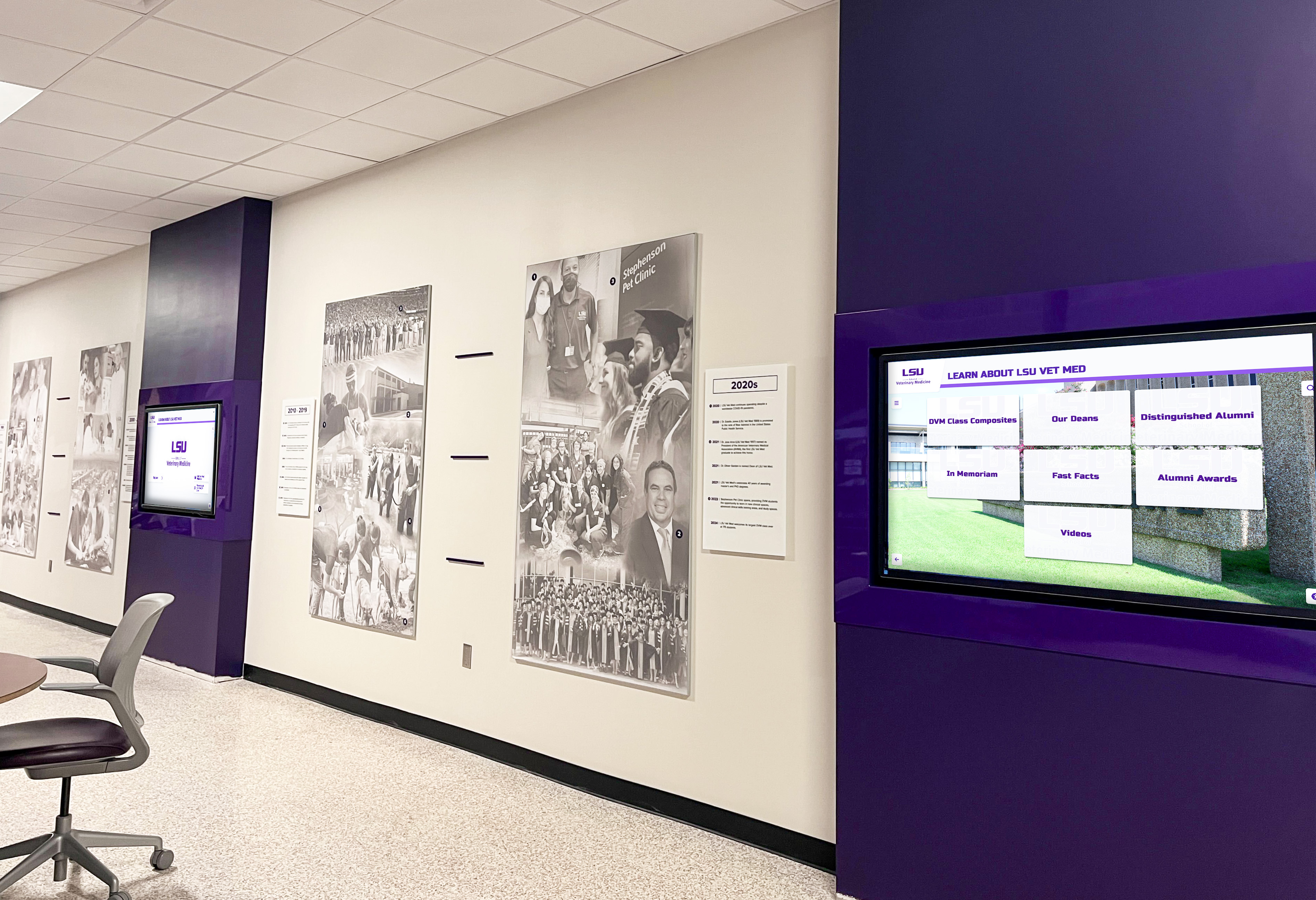
Schools with recognition displays across multiple hallways benefit from group-based zone scheduling — one schedule update applies to all displays in the zone, reducing the per-event management burden on IT coordinators
Facilities Team Integration: What Maintenance Staff Need to Know
The energy management policy involves facilities staff in two specific ways: they are often the first to notice display behavior issues (a display on during a holiday break, a dark screen during an active event), and they may control building infrastructure — power circuits, HVAC scheduling, lobby access — that interacts with the display operating schedule.
What Facilities Staff Should Do
- Report unexpected power states to IT, do not cycle power. A display that appears to be on when it should not be, or off when it should be on, is a policy or configuration issue for IT to resolve — not a hardware issue for facilities to address by cycling the power outlet.
- Coordinate building access with IT for event exceptions. Zone 1 and Zone 2 event exceptions that extend operating hours into evenings or weekends require the relevant areas of the building to be accessible. Facilities should receive event exception notifications so building access aligns with display operation.
- Include display locations in HVAC scheduling conversations. Commercial display panels generate heat. Spaces with active recognition displays benefit from HVAC coverage during display operating hours. When facilities schedules HVAC shutoffs for evenings and weekends, confirm those shutoff times do not conflict with Zone 2 event windows.
- Flag physical access concerns. If a display is in a location where the power circuit is controlled by a shared panel, or where a circuit breaker has been tripped during after-hours operation, report it to IT so the power management configuration can be adjusted to account for the circuit’s behavior.
Display visibility in school entrance and lobby environments is a facilities planning consideration as much as a technology decision — facilities teams that understand the recognition content purpose of lobby displays are better positioned to coordinate access and infrastructure support around the operating schedule.
Frequently Asked Questions
How much energy does a typical recognition display consume?
A commercial 55-inch display used as a recognition kiosk consumes approximately 100–200 watts in active operation depending on brightness setting. Running at full brightness 24 hours per day for a full year consumes roughly 876–1,752 kilowatt-hours per display. Reducing operation to 12 hours per day with a standby overnight cycle cuts that consumption to approximately 360–720 kilowatt-hours per display annually — a reduction of 50 to 60 percent. For a school with multiple recognition displays, this represents meaningful ongoing cost savings achievable with schedule management alone, without hardware changes.
Should we turn recognition displays completely off overnight, or leave them in standby?
For most school recognition displays, an overnight standby state — screen off, media player on — is preferable to a full power-off. Standby allows the display to wake quickly when the morning schedule activates, prevents the thermal stress of a full cold-start power cycle each morning, and maintains the media player’s content cache in a ready state. A full power-off (circuit off or media player shutdown) is appropriate for extended break periods — winter break, spring break, summer — where multiple weeks of zero activity justify the energy savings of complete shutdown over standby.
Who is responsible for making sure the recognition display is on during our game tonight?
Under the policy framework described in this guide, the athletic director is responsible for submitting the event exception request, and the IT coordinator is responsible for confirming the override is active. The clearest way to prevent game-night failures is to submit all home athletic events at the start of the month and confirm with IT that the monthly batch was processed. IT should send a monthly confirmation email listing all exceptions active for the upcoming month so the athletic director can catch any missing events before the game week arrives.
Can we set the display to come on automatically when someone walks by?
Many commercial displays and recognition platform configurations support motion-triggered wake from standby — a PIR motion sensor near the display triggers the media player to push the display from standby to active state. This approach works well for Zone 3 locations where traffic is intermittent and running at full active state throughout the day is less justified. However, for Zone 1 lobby displays where the goal is immediate readiness for any arriving visitor, a scheduled active window is more reliable than motion-triggered wake because it eliminates the brief delay (typically 10–30 seconds) between detection and full display operation.
What happens to the recognition content if the display loses power during an outage?
Recognition platforms designed for educational environments maintain a local content cache on the display media player. When power is restored after an outage, the media player reboots and resumes serving cached content — inductee profiles, athletic records, donor acknowledgments — without requiring a full network resync before content is visible. The energy management policy’s overnight standby mode does not affect this behavior because the cache resides on storage that persists through standby. A full power-off (circuit off or complete shutdown) may require a brief resync after the media player restarts, but modern platforms complete this process automatically within minutes of reconnecting to the network.
How do we handle recognition displays at NJROTC and other co-curricular spaces that have irregular schedules?
Programs with irregular or season-dependent schedules — NJROTC and similar co-curricular programs whose activity peaks around award ceremonies, inspection events, and leadership events — benefit from the event exception model rather than a fixed daily schedule. Assign the relevant display to a Zone 3 classification with event-triggered operation as the baseline, and route all NJROTC events through the standard exception submission process. This approach avoids running the display on a Zone 2 athletic schedule during periods when the program is between active events.
What should we do differently for a recognition display that is also used as a digital trophy case?
Displays functioning as digital trophy cases alongside physical trophy elements — combined cases where a digital panel sits among physical hardware and historic photos — often occupy high-visibility lobby positions where Zone 1 operating hours are appropriate. Apply the standard Zone 1 schedule and pay particular attention to the ambient mode transition: the ambient brightness level should be set high enough that the digital panel remains visually legible from a distance even in reduced-brightness mode, so the combined display space looks fully active to someone walking through the lobby during the pre-schedule or post-schedule transition window.
How often should we review and update the energy management schedule?
At minimum, review the schedule annually at the start of each academic year in coordination with the athletic director and events coordinator. Additionally, review the schedule any time a significant change occurs: a new event category is added to the school calendar, a display is moved to a new location, the school’s building hours change, or a new recognition program is launched that creates a new event pattern not reflected in the current schedule. Modern digital wall of fame deployments in active schools tend to expand their event programming over time, which means the energy policy’s exception categories often need growth to match the recognition program’s maturity.
Putting the Policy into Practice: Implementation Steps
For school IT coordinators ready to draft and implement a recognition display energy management policy, these steps provide a structured path from current state to operational policy.
Complete a display inventory. Document every recognition display in the school — location, display size, media player type, current power management configuration, and which department owns the content. This inventory is the foundation of the zone assignment.
Assign each display to a zone. Using the Zone 1, 2, and 3 framework above, assign each display based on its location and the visitor and event traffic pattern that location serves. For displays in ambiguous locations, default to the higher-demand zone to avoid availability gaps.
Draft the standard operating schedule. Using the zone schedule table as a template, draft specific on/off times for each zone based on your school’s actual building hours, athletic event patterns, and community programming calendar.
Identify the pre-approved event categories. Work with the athletic director and events coordinator to define the recurring event categories that will receive automatic schedule extensions without individual approval.
Design the exception request process. Create the exception request form, define the submission deadline (48 hours recommended), identify the authorizing roles for standard and emergency requests, and document the IT workflow for entering approved exceptions into the display management platform.
Configure the operating schedule in the display management platform. Enter the zone schedules and power state transitions into the platform’s scheduling console. Test the schedule by observing display behavior through at least one full daily cycle before the policy goes live.
Communicate the policy to relevant staff. Share the policy with the athletic director, events coordinator, facilities manager, and any other staff who regularly interact with recognition display operation. Specifically communicate the exception request process and the prohibition on manual power cycling.
Schedule the annual review. Add an annual policy review to the IT calendar at the start of each academic year. Block time with the athletic director and events coordinator to review the current schedule and update it for the new year’s event calendar.
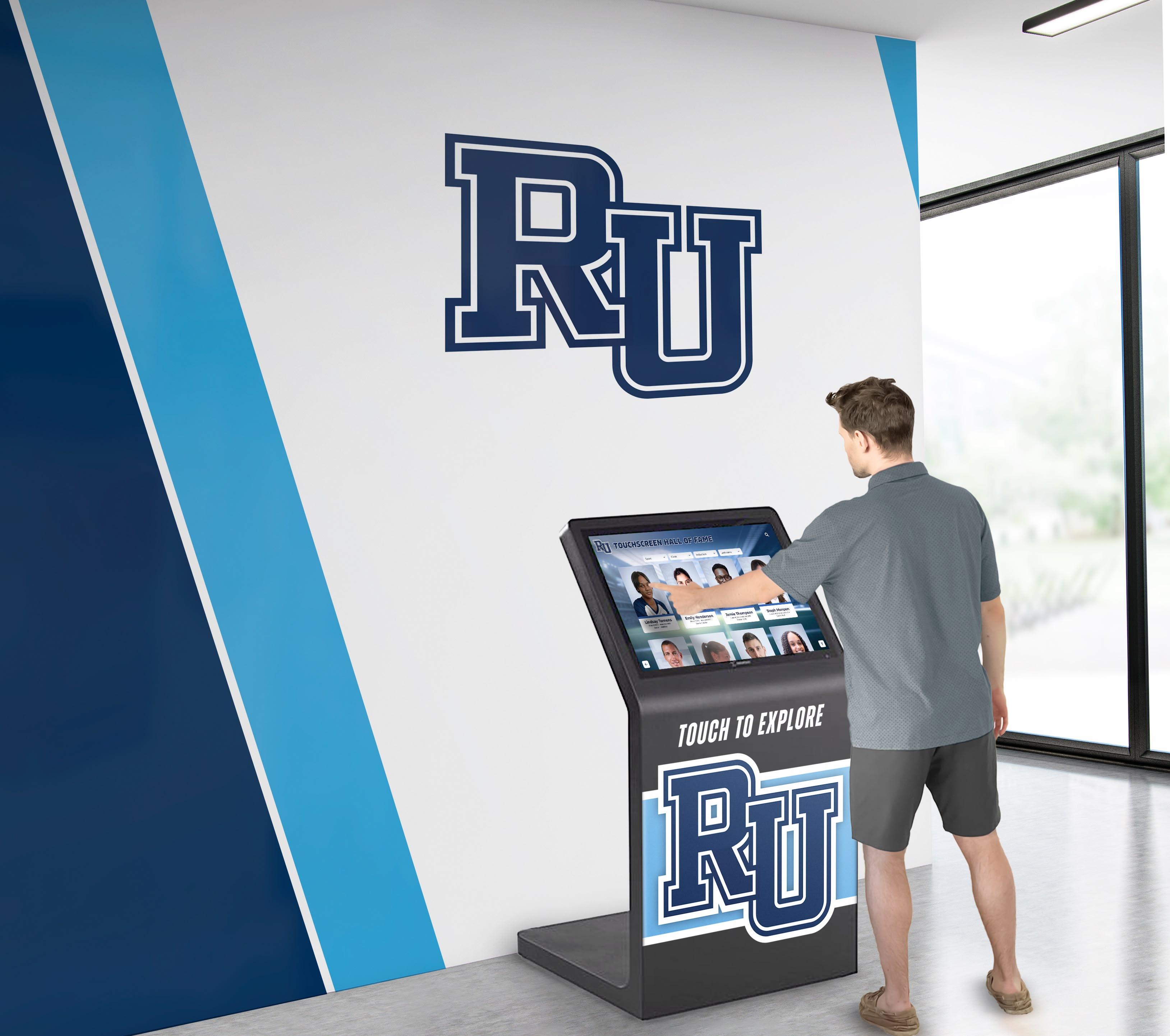
An effective energy management policy ensures this recognition kiosk greets every visitor with full-brightness active content during building hours — and conserves energy during the hours when no one is present
Connecting Energy Policy to Long-Term Recognition Program Goals
An energy management policy is operational infrastructure — it is not a recognition strategy. But the two are connected in a practical way that school administrators often underestimate. The recognition display program’s credibility with athletics, advancement, and the broader school community depends on the display being reliably available at the moments that matter: when families arrive for open houses, when alumni return for induction ceremonies, when donors attend receptions, when guests walk through the lobby during a community event.
A policy that causes a display to be dark during any of those moments — because an event was not on the exception list, because the schedule was not updated for a new event category, or because a facilities staff member cycled power during a break — erodes confidence in the recognition program itself. The IT coordinator who builds a robust, well-communicated energy policy is directly supporting the athletic director’s ability to maintain a living hall of fame, the advancement team’s ability to honor donors visibly, and the principal’s ability to show prospective families a school that takes recognition seriously.
Planning a digital wall of fame that serves the school’s full recognition community starts with a clear understanding of which spaces serve which audiences — the same analysis that drives zone assignment in an energy management policy. Teams that complete both exercises together — recognition content planning and operating schedule design — produce more coherent outcomes than teams that treat them as separate workstreams.
The energy management policy, at its best, is invisible: the display is always on when it should be, always resting when no one is there, and always ready for the next event. Getting to that outcome requires the preparation, coordination, and annual review process described throughout this guide — none of which is technically complex, but all of which requires deliberate ownership and consistent follow-through.
Ready to implement schedule-based energy management for your school’s recognition displays? Request a demo of Rocket Alumni Solutions to see how the platform’s remote management console, group scheduling, and device monitoring tools support the policy framework described in this guide — and to explore how other school IT and facilities teams have built reliable recognition display operations around it.































