



A touchscreen recognition display network failover checklist is the structured test plan and response procedure that school IT teams, athletic directors, and facilities managers use to confirm recognition content stays visible to visitors when the primary network connection fails. Without one, a fiber cut on the morning of a homecoming game, a router failure during an alumni event, or a campus-wide ISP outage leaves lobby kiosks showing error screens or blank panels at exactly the moment families and guests expect to find induction records, championship histories, and donor acknowledgments on display.
Recognition displays occupy a distinct position in school infrastructure: they are managed by IT, care for content that belongs to athletics and advancement, and are located in lobbies and hallways where failures are immediately public. A network outage that goes unnoticed in a back-office system becomes a visible institutional embarrassment when it blanks the hall of fame display in the main entrance. This guide gives school IT coordinators, athletic directors, archives owners, and facilities teams a complete failover checklist — covering cached content verification, backup connectivity, DNS and authentication resilience, recovery sequencing, and stakeholder communication — to keep recognition content available through any network disruption.
The core answer: a complete network failover checklist for touchscreen recognition displays addresses five areas — local content cache verification, backup connectivity options, DNS and authentication fallback, an ordered recovery sequence after connectivity restores, and a communication plan for stakeholders during an outage. Each area requires testing on a schedule, documented owners, and pre-approved response steps so the team acts from a playbook rather than improvising under pressure.

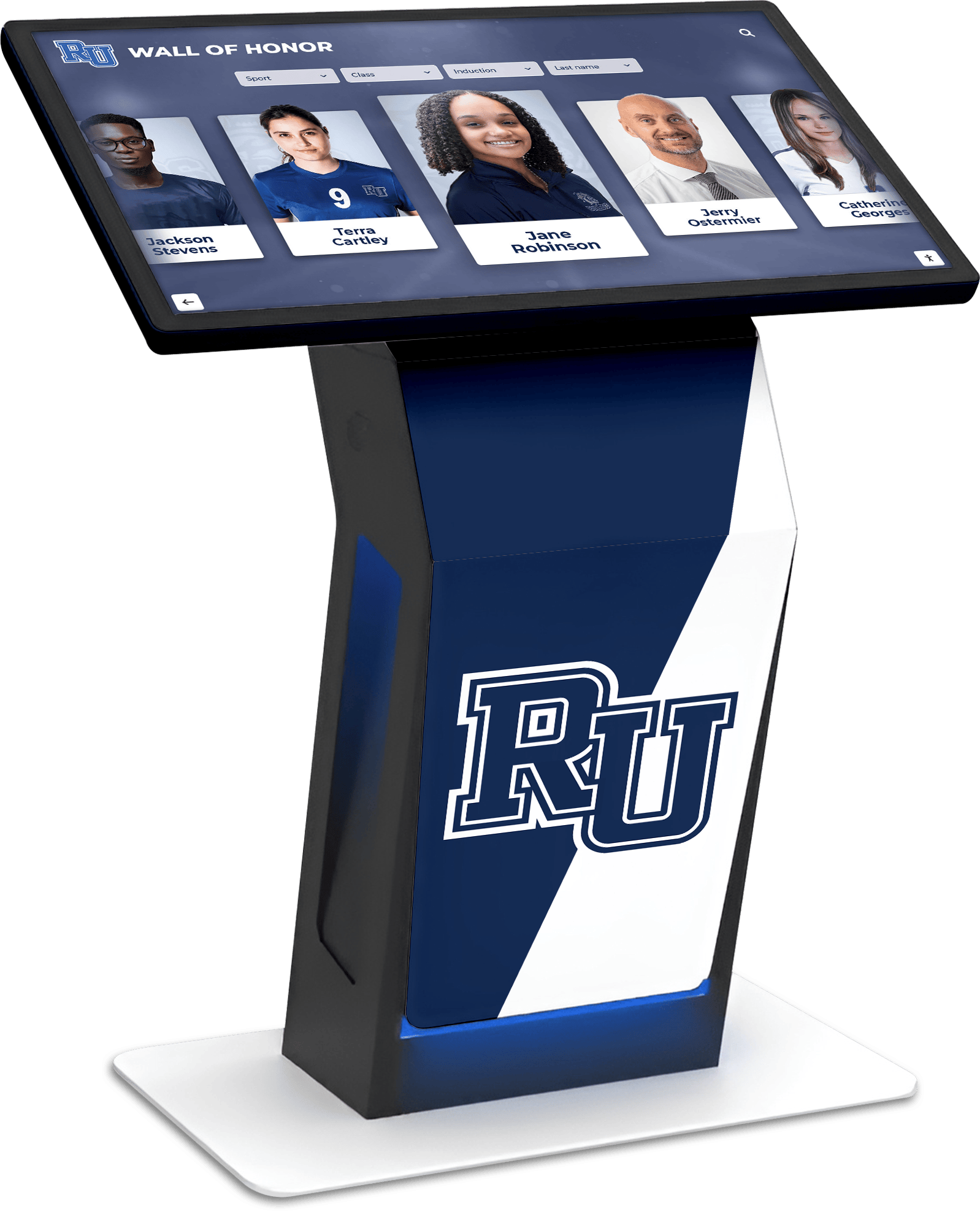
A touchscreen recognition display in a school lobby must serve recognition content to visitors even when the primary network connection is unavailable — the failover checklist in this guide keeps that content visible through any network disruption
What Network Failover Means for Recognition Displays Specifically
Standard network failover planning in schools focuses on administrative continuity: keeping the student information system reachable, email running, and class scheduling accessible. Recognition displays sit outside that planning frame. They are not administrative tools, so they rarely appear in business continuity checklists. But they face a different kind of exposure — a public-facing failure that reflects on the institution’s commitment to its recognition traditions.
Modern touchscreen recognition platforms address this by maintaining a local content cache on the display hardware. When network connectivity is unavailable, the display continues serving cached content — inductee portraits, championship records, donor acknowledgments, athletic milestones — from local storage rather than requiring a live connection to the cloud backend. The failover checklist exists to verify that cache is current, confirm the display falls back to it correctly, test backup connectivity options, and ensure recovery from an outage restores cloud synchronization without manual intervention.
Schools supporting AP Scholar and academic achievement recognition, athletic hall of fame programming, and active donor recognition walls all depend on this content being visible whenever a visitor walks through the door — regardless of what is happening with the network at that moment.
Pre-Failover Preparation Checklist
These steps are completed in advance — not during an outage. Complete the full preparation checklist when the recognition system is first deployed, and review it at the start of each academic year.
Local Content Cache Verification
- Confirm the display’s local cache is enabled. Access the recognition platform’s device settings or admin console and verify the offline cache option is active for each display. Most enterprise recognition platforms cache content automatically, but confirm the setting rather than assuming.
- Verify the cache contains current content. Trigger a manual content sync from the admin console and confirm the sync completes successfully. After sync, note the timestamp of the last successful sync for each display.
- Test offline mode on a non-production display. Disconnect a test display from the network and confirm that inductee profiles, athletic records, and recognition content load from the local cache without error. Document which content categories are available offline versus which require a live connection.
- Identify content that cannot be served offline. Some recognition platform features — live social media feeds, real-time leaderboard updates, externally hosted video — may require network access. Document these exclusions so stakeholders know what to expect during a network outage.
- Document cache storage capacity and expiration policy. Know how much content the local cache can hold, how long cached content remains valid, and whether the cache auto-purges when storage is full. A cache that purges aggressively before a network event can leave content unavailable during an outage.
- Set a sync monitoring alert. Configure the recognition platform’s admin console (or a monitoring tool) to alert IT when a display has not synced for longer than a defined threshold — typically 24 hours for daily-updated content, or 4 hours for near-real-time boards. A missed sync before a network event is the most common cause of stale content during an outage.
Backup Connectivity Options
- Inventory available backup connectivity for each display location. For each recognition display location in your facility, document what backup connectivity options exist: cellular failover, a secondary wired ISP, campus Wi-Fi on a separate VLAN, or a mobile hotspot device.
- Test the failover path for each location. Disconnect the primary network connection and confirm the display switches to backup connectivity automatically or within an acceptable manual response time. Record the time to failover and the IP address changes, if any.
- Confirm the backup connection supports required platform traffic. Some backup connections — particularly cellular with data caps — may throttle or block the content sync traffic the recognition platform requires. Test a full content sync over the backup connection and verify it completes within an acceptable window.
- Document backup connectivity credentials and access procedures. If backup connectivity requires switching SSID, inserting a SIM, or enabling a hotspot device, document those steps and store them with the display’s maintenance documentation — not only in a system accessible over the primary network that just failed.
- Set a maintenance reminder for backup connection testing. Backup connectivity equipment — cellular modems, secondary routers, failover switches — requires its own maintenance cycle. Add it to the quarterly IT review schedule alongside primary network equipment.
DNS and Authentication Resilience
- Verify DNS resolution works on the backup network path. Some campus networks and cellular connections route DNS through the primary ISP. Test that the recognition platform’s domain resolves correctly on the backup connection. If DNS fails on the backup path, the display may be able to reach the internet but unable to resolve the platform’s endpoints.
- Confirm authentication does not require primary network access. Some recognition platforms use an SSO or identity provider that may not be reachable during a campus network outage. Test whether the display hardware can authenticate and continue serving content without reaching the campus identity provider.
- Document static IP fallback procedures. If the recognition platform supports IP-based authentication as a fallback when DNS is unavailable, document the static IP addresses and configure the display to use them if needed.
- Review firewall and proxy rules for the backup network path. Traffic that passes freely on the primary path may be blocked by firewall rules or web proxies on the backup path. Test the full platform connection — content sync, admin console access, and push notification channels — over the backup path before an outage occurs.
Network Failover Testing Checklist
The preparation steps above are completed once and reviewed annually. The testing checklist runs on a recurring schedule to verify the failover configuration remains correct as the network and platform evolve.
Quarterly Failover Test Procedure
- Schedule the test during an approved maintenance window. Coordinate with the athletic director and advancement office to confirm the window falls outside event blackout periods — away from induction ceremony planning periods, homecoming weeks, and alumni programming weekends.
- Notify relevant stakeholders before the test. Send a brief notification to the athletic director, front office staff, and the advancement or archives team that the display will briefly show test behavior during the window.
- Document the pre-test state. Record the content displayed on each test display, the last sync timestamp, and the current network configuration before beginning.
- Simulate primary network failure. Disconnect or disable the primary network connection at the display or at the network switch serving the display location. Do not simulate a building-wide failure unless the maintenance window and stakeholder approvals explicitly cover that scope.
- Verify the display continues serving cached content. Confirm that after the simulated failure, the display shows cached inductee profiles, records, and recognition content without presenting error screens or blank panels.
- Verify backup connectivity activates. Confirm that the backup connection — whether automatic failover or manually activated — comes online within the documented response time.
- Test content sync over the backup connection. Push a minor content update from the admin console and verify the display receives and applies the update over the backup connection.
- Restore primary network and verify recovery sync. Reconnect the primary network and confirm the display automatically returns to the primary connection, re-syncs any content updates, and returns to normal operational state without manual intervention.
- Document the test results. Record pass/fail for each checklist item, the time to failover, the time to recovery sync, and any anomalies observed. Use the results to update the failover configuration before the next event season.
Failover Test Schedule Summary
| Test Type | Frequency | Who Conducts | Scope | Documentation Required |
|---|---|---|---|---|
| Local cache content verification | Quarterly | IT coordinator | All active displays | Sync timestamps, cache status per display |
| Backup connectivity activation test | Quarterly | IT coordinator | All displays with backup connectivity | Time to failover, IP changes, sync test result |
| Full simulated outage test | Semi-annual | IT coordinator (with stakeholder notification) | One display per location type | Full pass/fail log per checklist item |
| DNS and authentication test on backup path | Annual | IT coordinator | All displays | DNS resolution confirmed, auth test result |
| Backup connectivity hardware inspection | Annual | IT coordinator or facilities | All backup modems, routers, hotspot devices | Hardware condition, firmware version, data plan status |
During-Outage Response Checklist
When a network outage is detected — by IT monitoring, by a staff member noticing a display error, or by a vendor alert — work through these steps in order.
- Confirm the scope of the outage. Determine whether the failure affects a single display, a single network segment, or the entire campus. A display showing an error screen may indicate a localized network issue, a failed display hardware component, or a platform authentication issue rather than a building-wide network failure.
- Check whether displays are serving cached content. Walk to the affected display or use remote monitoring to confirm whether the display is showing cached content (acceptable offline behavior) or a blank screen or error state (requires action).
- Activate backup connectivity if cached content is not displaying. If the display is blank or in an error state rather than serving cached content, activate the backup connectivity option documented in the preparation checklist.
- Verify backup connectivity supports content display. After activating backup connectivity, confirm the display resumes serving content. If the platform requires a fresh authentication or sync over the backup connection, initiate those steps from the admin console.
- Notify stakeholders according to the communication plan. See the communication template in the next section. The athletic director, front office, and advancement team need to know the display status during any outage that overlaps with a visible event window.
- Avoid attempting configuration changes on display hardware during an active outage. Outages are not the time to update firmware, modify network settings, or change display configurations. Document what occurred and limit changes to the pre-tested recovery steps.
- Log the outage start time, detected symptoms, and actions taken. This log informs post-outage analysis and may be required if the recognition platform vendor’s support team needs to assist with recovery.
Recovery Checklist
Recovery begins when the primary network connection is restored. Do not close out the outage until each recovery step is verified.
- Confirm primary network connectivity is restored at the switch or router level. Verify with network monitoring tools or a simple connectivity test before expecting the display to recover automatically.
- Verify the display reconnects to the primary network. Check the display’s network settings (via remote management or direct access) to confirm it has acquired a primary network IP address and has released the backup connectivity configuration.
- Trigger a manual content sync from the admin console. Even if the platform initiates an automatic sync on reconnection, trigger a manual sync immediately to ensure the display receives any content updates that occurred during the outage.
- Confirm sync completes successfully. Review the sync status in the admin console and verify the last successful sync timestamp updates to the current time.
- Verify live-connection features resume. If the display includes social feeds, real-time leaderboard data, or externally hosted video, confirm these features return to normal operation after the sync completes.
- Walk the display and confirm content appearance. A technical sync success does not always mean the display is presenting content correctly. Physically verify or use a screen capture tool to confirm inductee profiles, records, and recognition content appear as expected after recovery.
- Deactivate backup connectivity and confirm primary path is handling all traffic. If backup connectivity was manually activated, confirm it is deactivated after the primary network is confirmed stable. Leaving backup connectivity active unnecessarily can incur cellular data costs or create routing complications.
- Document the outage end time, recovery steps taken, and final sync timestamp. Update the outage log and file it with the display’s maintenance documentation.
- Schedule a post-outage review within one week. Review what the outage revealed about the failover configuration, whether cached content held correctly, and whether any checklist items need updating before the next test cycle.
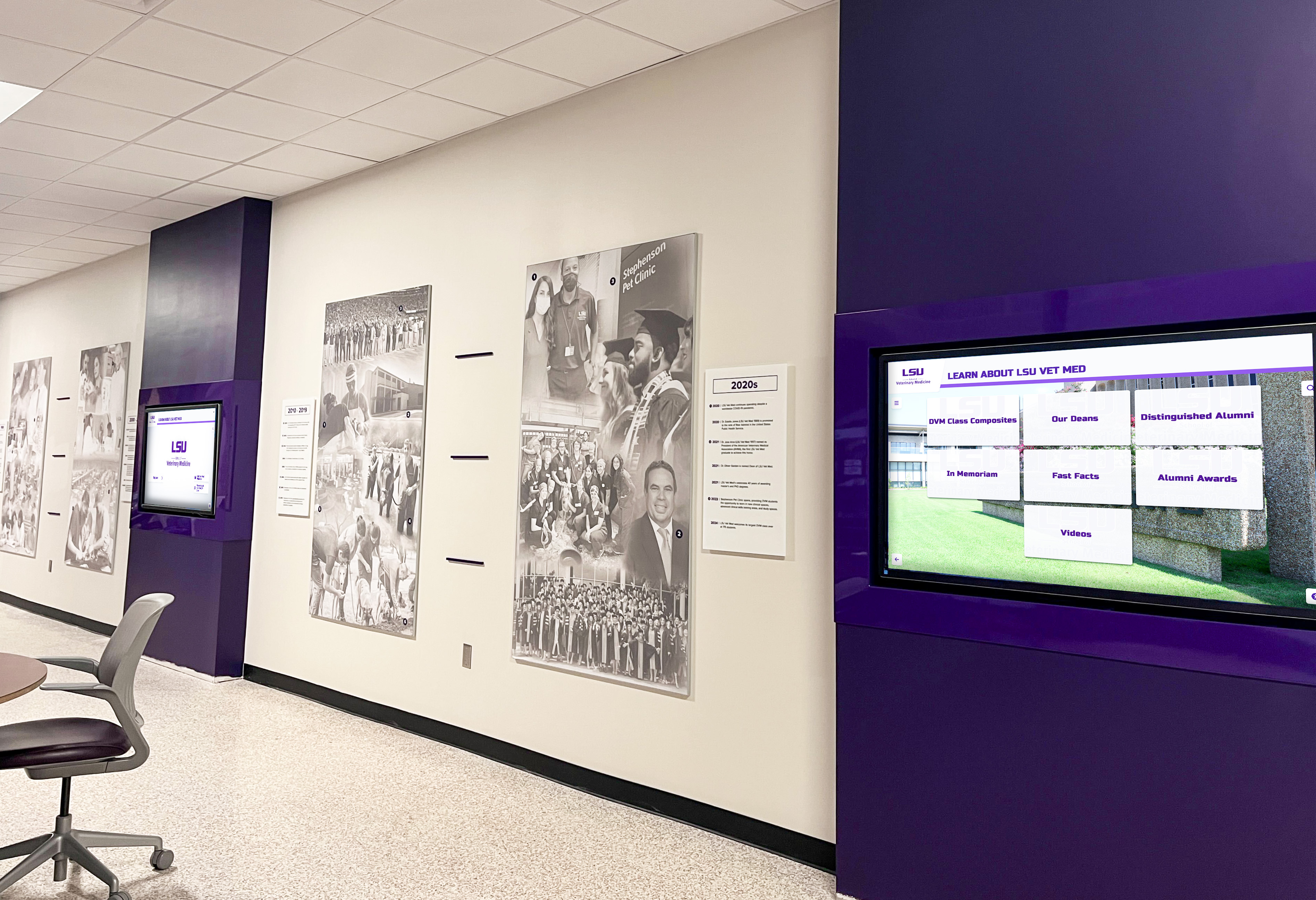
Hallway recognition displays in high-traffic areas must continue serving content during network outages — the recovery checklist ensures synchronized content returns promptly after primary connectivity restores
Connecting Failover Planning to the Recognition Event Calendar
The most important dimension of network failover planning for school recognition systems is timing. A network outage that occurs during a summer weekend has minimal visibility impact. The same outage during homecoming week, a hall of fame induction event, or a donor appreciation reception has an immediate and public impact on the school’s recognition programming.
Athletic directors managing programs with robust recognition traditions — coordinating recognition across sports, seasons, and alumni events — operate from dense event calendars where there is rarely a low-stakes week during the academic year. Building and maintaining athletic support systems involves scheduling recognition moments throughout the year that families and community members plan around. Failover testing that takes place during an event week, or a cache that was last verified three months ago, creates unnecessary risk for those moments.
Practical calendar integration:
- At the start of each academic year, obtain the complete athletic event calendar, the advancement office’s donor and alumni programming calendar, and any facility use calendar for recognition spaces. Mark all high-visibility periods as protected from disruptive failover testing.
- Schedule quarterly failover tests during low-activity windows. For most schools, these windows fall in late July or early August before the fall season opens, in late December during winter break, in mid-March around spring break, and in early June after graduation.
- Complete semi-annual full outage tests during summer. The extended low-activity window in June and July allows for more thorough testing without the risk of a test-induced outage overlapping with a visible event.
- Add a pre-event failover readiness check to the event preparation checklist. Two weeks before any high-visibility event — an induction ceremony, a class reunion or alumni gathering, a donor recognition evening — verify the local content cache is current, backup connectivity is functional, and the admin console shows a recent successful sync for each display.
This calendar-aware approach ensures that the operational work of failover planning reinforces rather than disrupts the recognition programming it is designed to protect.
Communication Plan During a Network Outage
When a network outage affects recognition displays, the people who need to know are not necessarily the people who would notice a standard IT outage. Athletic directors monitoring a recognition display’s status during a game night, advancement staff expecting a donor recognition screen to be running during a board visit, and facilities coordinators responsible for lobby presentation all need timely, accurate information.
Who to Notify and When
| Stakeholder | Notify When | Message Content | Channel |
|---|---|---|---|
| Athletic director | Outage affects athletic hall of fame or record board displays during event windows | Display status, whether cached content is visible, estimated recovery time | Direct text or call |
| Advancement or alumni office | Outage affects donor recognition or alumni hall of fame displays | Display status, cached content availability, estimated recovery | Email or direct contact |
| Front office or principal | Outage affects any lobby display visible to guests or families | Brief status: display is in maintenance mode, content team is aware | |
| Facilities team | Any outage requiring physical access to backup equipment | Specific steps needed, which equipment, location | Direct contact |
| Recognition platform vendor | Outage that backup connectivity does not resolve, or that persists past recovery timeline | Outage start time, symptoms, steps taken, platform account ID | Vendor support channel |
Communication Template
A brief, pre-drafted outage notification saves time during an active incident. Adapt this template for your school’s communication channels:
Recognition Display Status Update — [Date, Time] One or more recognition displays in [location] are currently offline due to a network interruption. [Cached content is available on the display / The display is in maintenance mode while we restore connectivity]. Our IT team is working to restore full connectivity. We expect full service to resume by [estimated time or “as soon as the network issue is resolved”]. We will confirm when the display is fully operational. Contact [IT coordinator name and contact] with questions.
Preparing and storing this template in a location accessible without the primary network — a shared drive on a secondary connection, or printed and posted in the IT office — ensures it is available when needed.
DNS and Authentication Failover: Technical Reference
For IT coordinators handling the technical configuration of recognition display network failover, these additional reference items supplement the preparation checklist above.
DNS redundancy: Configure the display hardware (or the recognition platform’s device agent) to use at least two DNS resolver addresses — the primary campus DNS and a secondary public resolver that operates independently of the campus network. During a primary network failure that leaves backup connectivity accessible but campus DNS unreachable, the secondary resolver allows domain resolution to continue.
Authentication token caching: Many enterprise recognition platforms cache authentication tokens locally on the device so that a brief authentication service outage does not interrupt content display. Verify with the platform vendor that token caching is enabled and understand the token validity window — typically 24 to 72 hours — so you know how long content can be served without an authentication refresh.
Platform endpoint IP documentation: If the recognition platform publishes static IP addresses for its content delivery endpoints (separate from domain names), document those IPs as a fallback for scenarios where DNS resolution is unavailable. Some content delivery configurations allow IP-based fallback configuration in the display agent.
Content delivery network resilience: If your recognition platform delivers cached content through a CDN, verify the CDN’s failover behavior when the primary endpoint is unreachable. CDN-delivered content is typically more resilient to regional network failures than direct-to-origin delivery, but the specific behavior depends on the platform’s CDN configuration.
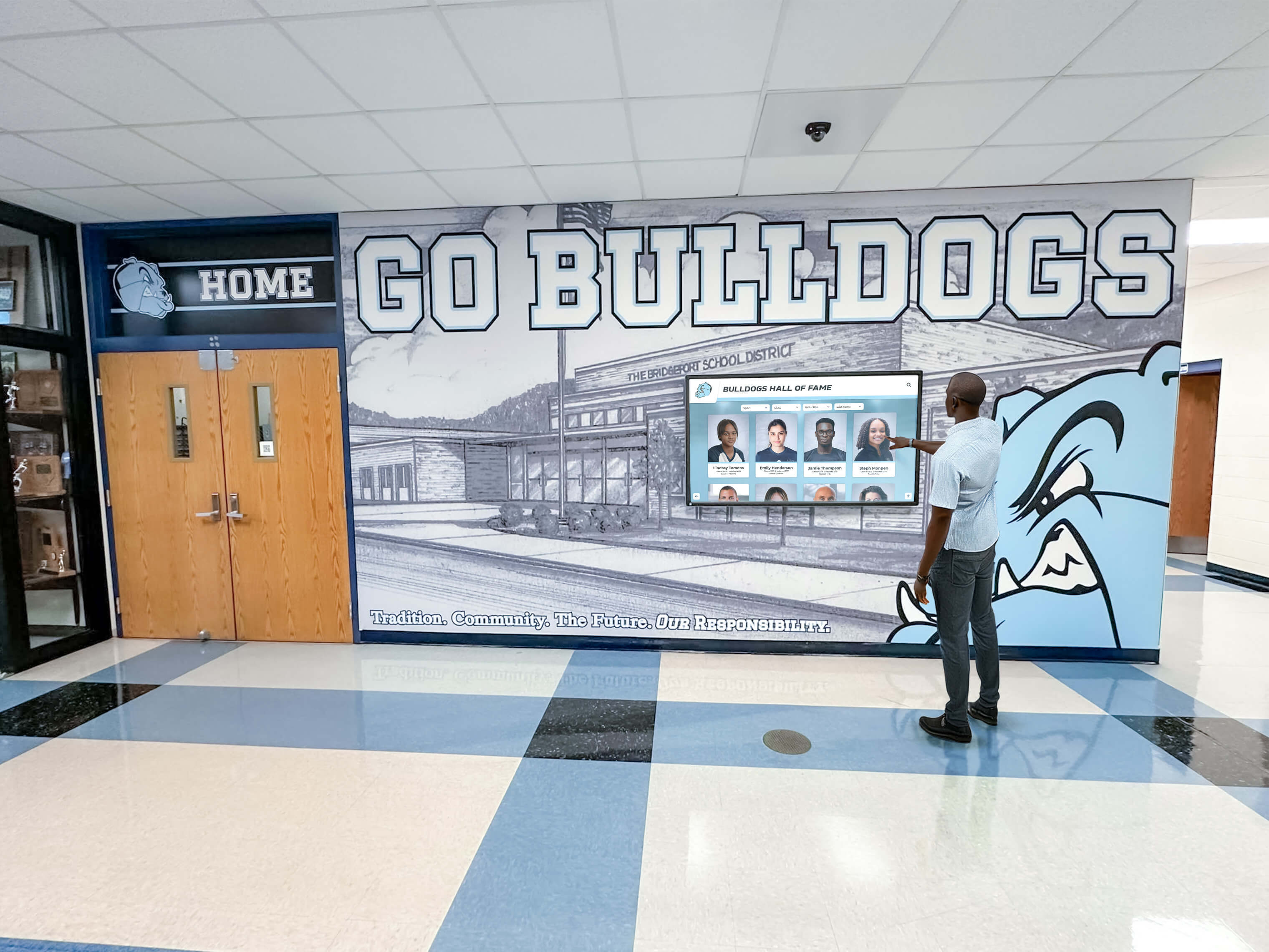
Visitors engaging with interactive recognition content in school hallways expect consistent availability — DNS and authentication failover configuration ensures the platform connection restores quickly after any network event
Integrating the Failover Checklist with Broader Display Maintenance
Network failover planning does not stand alone. It is one layer of a complete recognition display maintenance program that includes certificate management, UPS power protection, content synchronization monitoring, and hardware inspection. For school IT teams managing displays across multiple buildings, integrating all of these maintenance layers into a single calendar creates a more manageable operational picture than running each as a separate program.
For schools managing interactive displays across athletic and academic facilities, the network failover checklist complements physical and power maintenance cycles: UPS battery replacement completed before the fall season, certificate renewals tracked on a 90-day calendar, and network failover tests scheduled in the same low-activity windows used for other maintenance tasks.
Schools with active donor recognition programming have an additional motivation for reliable display operation: donors who have contributed to recognition programs — naming rights, hall of fame sponsorships, athletic facility investments — notice when the recognition display bearing their support is unavailable or degraded. The failover checklist is, in part, a donor stewardship tool as much as an IT maintenance procedure.
For athletic directors responsible for recognition programming and understanding what that role requires operationally, the practical implication is straightforward: partner with IT to schedule and document failover testing before the school year, identify the displays most critical to upcoming recognition events, and confirm backup connectivity for those locations as part of event preparation.
Frequently Asked Questions
How often should we test network failover for a recognition display?
Quarterly testing of local cache behavior and backup connectivity activation is appropriate for most school deployments. A full simulated outage test — disconnecting primary connectivity and walking through the complete failover and recovery sequence — should occur at least semi-annually, timed to low-activity periods before the fall and spring event seasons. Annual testing of DNS and authentication failover paths completes the cycle. If your school has experienced network reliability issues or has upcoming high-visibility recognition events, increase testing frequency for the specific displays most at risk.
What if our recognition display has no backup connectivity option at its location?
Locations without backup connectivity options depend entirely on the local content cache to serve recognition content during outages. In this case, the preparation checklist items related to cache verification become even more critical: confirm the cache is enabled, confirm it is current (synced within the last 24 hours), and confirm the display falls back to cached content correctly when the network is unavailable. For displays in high-visibility locations without backup connectivity, evaluate whether installing a cellular modem or configuring a mobile hotspot as a backup is justified by the visibility and event frequency of that location.
How long does cached content remain available during a network outage?
Cache validity depends on the recognition platform’s configuration and the amount of storage available on the display hardware. Most enterprise recognition platforms maintain cached content indefinitely as long as storage capacity is not exhausted — the cache is updated when the network is available and served from local storage when it is not. Verify the specific cache validity behavior with your platform vendor, and confirm that content updated shortly before an outage will be reflected in the cache for the duration of the outage.
What is the right response if a display shows a blank screen rather than cached content during an outage?
A blank screen during a network outage typically indicates one of three conditions: the local cache is not enabled or was not populated before the outage, the display’s media player process has crashed and requires a reboot, or the display is configured to require a live network connection for content delivery. Walk through the recovery checklist: activate backup connectivity if available, access the display via remote management to check cache status and restart the media player if needed, and contact the platform vendor if the issue is not resolved by those steps. Document the incident and add a cache verification step to the pre-event checklist for that display.
Should we test failover on all displays or just the most visible ones?
Test all displays, but prioritize the testing schedule by visibility and event frequency. Lobby entrance displays, athletic hall of fame kiosks, and displays in venues used for donor events should be tested first and most frequently. Displays in lower-traffic areas with lower event density can be tested on the standard semi-annual schedule. The goal is to verify that every display behaves correctly during a network failure, with testing sequenced by the potential impact of a failure at each location.
Who owns the network failover checklist — IT or athletics?
IT owns the technical execution of the failover checklist: testing connectivity, verifying cache configuration, activating backup connectivity, and conducting recovery procedures. Athletics and advancement own the event calendar inputs that define when testing can and cannot occur and which displays are critical for which events. Shared ownership of the communication plan — IT knows how to communicate system status, athletics and advancement know which stakeholders need notification — ensures the checklist works operationally rather than only on paper.
Keeping Recognition Content Available Through Every Network Event
A touchscreen recognition display carries institutional history that families, alumni, donors, and community members expect to find available whenever they visit — not only when the network is cooperating. The network failover checklist in this guide addresses that expectation systematically: local content cache verified and current, backup connectivity tested and ready, DNS and authentication resilient on alternate paths, recovery sequenced and documented, and communication planned before the outage occurs.
The schools that maintain visible, reliable recognition displays through network events are the ones that treat failover planning as a regular maintenance task rather than a post-incident response. Quarterly cache checks, semi-annual connectivity tests, pre-event readiness reviews, and clear stakeholder communication plans create a system that serves recognition content consistently throughout the academic year — from the first home game of the fall to the back-to-school display programming that greets families at the start of each new year.
Ready to build a recognition display program designed for reliable, year-round operation? Request a demo of Rocket Alumni Solutions to see how the platform’s offline caching, cloud synchronization, and monitoring tools support school IT teams in maintaining recognition content availability through any network condition.































