



A touchscreen recognition display packet loss monitoring checklist gives school IT coordinators, athletic directors, and facilities managers the structured process to detect network problems before they interrupt video playback, break cloud content synchronization, or block remote support access on interactive recognition hardware. Packet loss is one of the most common yet least-visible causes of recognition display degradation: a display can appear to function while silently dropping enough network traffic to stall video buffers, delay inductee record updates, and prevent the vendor’s remote diagnostic session from connecting.
This guide walks through every layer of a practical monitoring plan—from establishing a network baseline at each display location to configuring alerts, running diagnostic commands during an active event, and escalating to vendor support with the data they need. It is written for the IT coordinator managing the display’s network connection, the athletic director responsible for the content, and the facilities team that fields the first call when something looks wrong on screen.
Packet loss above 1% begins to degrade video content on touchscreen recognition displays; above 5%, cloud content synchronization stalls and remote support sessions become unreliable. The complete checklist below covers baseline measurement, continuous monitoring setup, alert thresholds, on-site diagnostic steps, root cause categories with remediation, and an escalation protocol so every team member knows their role when a display starts behaving unexpectedly.

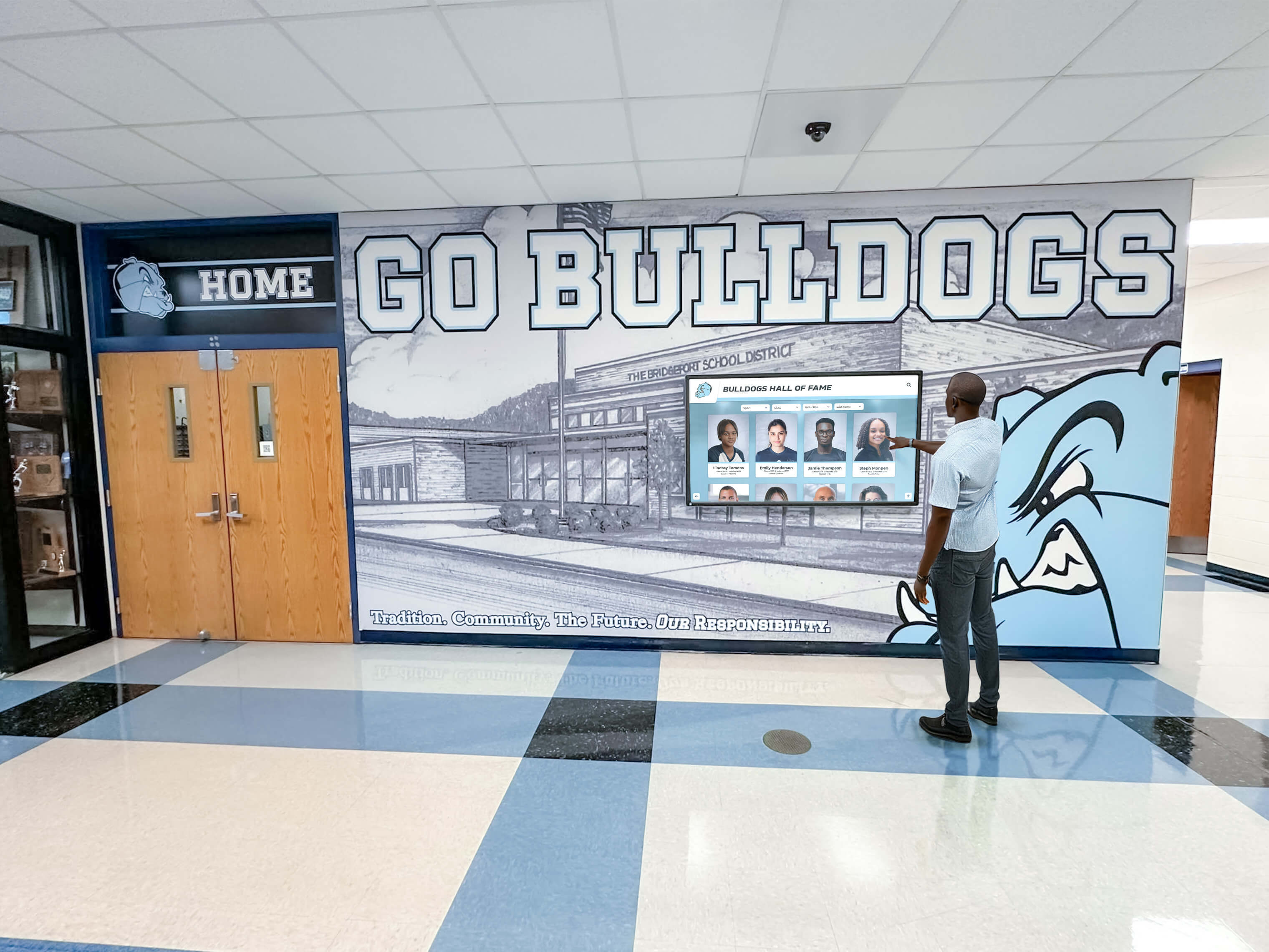
Recognition displays in school hallways and lobbies depend on reliable network connections to deliver video highlights, current inductee records, and search functionality to every visitor who stops to explore.
How Packet Loss Affects Touchscreen Recognition Displays
Recognition displays are not simple web pages. They deliver video highlights of athletic programs, synchronize cloud content updates from the recognition platform’s backend, and maintain persistent connections for remote management and license verification. Each function degrades at a different packet loss threshold.
| Display Function | Packet Loss Where Degradation Begins | Symptom Visible to Visitors |
|---|---|---|
| Video highlight playback | ~1% | Buffering pauses, pixelation, dropped frames |
| Cloud content synchronization | ~3% | New inductee records or updated profiles fail to appear |
| Search and navigation | ~3–5% | Search results load slowly or time out |
| Remote support and vendor access | ~5% | IT vendor cannot connect for remote diagnostics |
| Platform heartbeat and license check | ~10% | Display may show license error or enter limited mode |
Schools that invest in touchscreen hall of fame systems for athletic and academic recognition know the upfront effort involved in building a complete recognition archive. Packet loss silently undermines that investment by preventing updated content from reaching the display before key events—homecoming, induction nights, or championship celebrations—without triggering an obvious alert.
Step 1: Establish a Network Baseline at Each Display Location
Monitoring is meaningful only when you have a baseline showing what normal looks like at each specific location. Building infrastructure varies considerably: a display in the main lobby wired directly to the core switch behaves very differently from one in an auxiliary gym connected over aging Cat5e through a patch panel in the equipment room.
Baseline Measurement Procedure
- Run a baseline ping test during normal school hours. From the display’s compute device—or a laptop plugged into the same wall port—ping the recognition platform’s primary cloud endpoint for ten minutes during a typical traffic period. Record average round-trip time (RTT), maximum RTT, and packet loss percentage.
- Repeat the baseline test during peak network hours. School networks often see congestion during first and last periods when student devices authenticate, sync, and update simultaneously. Run the same ten-minute ping test during these windows and compare the results to the normal-hours baseline.
- Document the wired path from the display to the core switch. Record every network device the display traffic passes through: the wall port, any patch panels, intermediate switches, and the core switch or router. This map becomes essential during troubleshooting when you need to isolate which segment is dropping packets.
- Test at the network layer closest to the display. If the display connects over Wi-Fi, also test with a wired connection from the same physical location. A wired-versus-wireless comparison reveals whether packet loss originates in the wireless layer or deeper in the network path.
- Save baseline results in the display’s maintenance documentation. Store average packet loss, average RTT, and peak-hour RTT alongside the asset record for each display. Update the baseline annually and after any significant network infrastructure change.
Baseline Packet Loss Benchmarks for Recognition Displays
Healthy
0.0–0.5% packet loss
RTT under 20 ms to core switch
RTT under 100 ms to cloud endpoint
Marginal
0.5–2% packet loss
RTT 20–50 ms to core switch
Monitor closely; test cabling
Problematic
Over 2% packet loss
RTT over 50 ms to core switch
Investigate before next event
Schools running recognition programs that include football senior banners and multi-sport photo archives depend on the display delivering high-resolution images and video reliably. A baseline test run before the fall sports season confirms the network path is ready for the increased content load that accompanies a full year of recognition updates.
Step 2: Deploy Continuous Packet Loss Monitoring at the Display
Spot-testing during a maintenance window catches problems that exist at that moment but misses intermittent issues that appear only under load, at specific times of day, or when adjacent network segments are congested. Continuous monitoring closes that gap.
Monitoring Tool Options
ICMP-Based Ping Monitoring (Entry-Level)
Tools such as Ping Plotter, SmokePing, or the monitoring module built into most managed switch dashboards send continuous ICMP pings to the recognition platform's cloud endpoint and graph packet loss over time. This approach requires minimal configuration and produces visual timelines that immediately reveal when packet loss spikes and how long the spike lasts. It is adequate for single-display deployments where a staff member reviews the dashboard weekly.
SNMP Polling from Core Switch (Intermediate)
If your district uses a network monitoring platform such as PRTG, Zabbix, or LibreNMS, add the switchport serving each recognition display as a monitored interface. SNMP polling collects error counters, discards, and utilization at 60-second intervals. Rising error counters on a switchport are an early indicator of physical-layer problems before packet loss becomes visible at the application level.
Application-Layer Synthetic Monitoring (Advanced)
Some recognition platforms expose a health endpoint or synthetic check that confirms the display can reach the content delivery network, authenticate to the platform, and download a test payload. This verifies the full stack—network connectivity, DNS resolution, TLS handshake, authentication, and content delivery—in a single test. A synthetic check that fails pinpoints the layer where the problem occurs, significantly reducing diagnostic time during an active event.
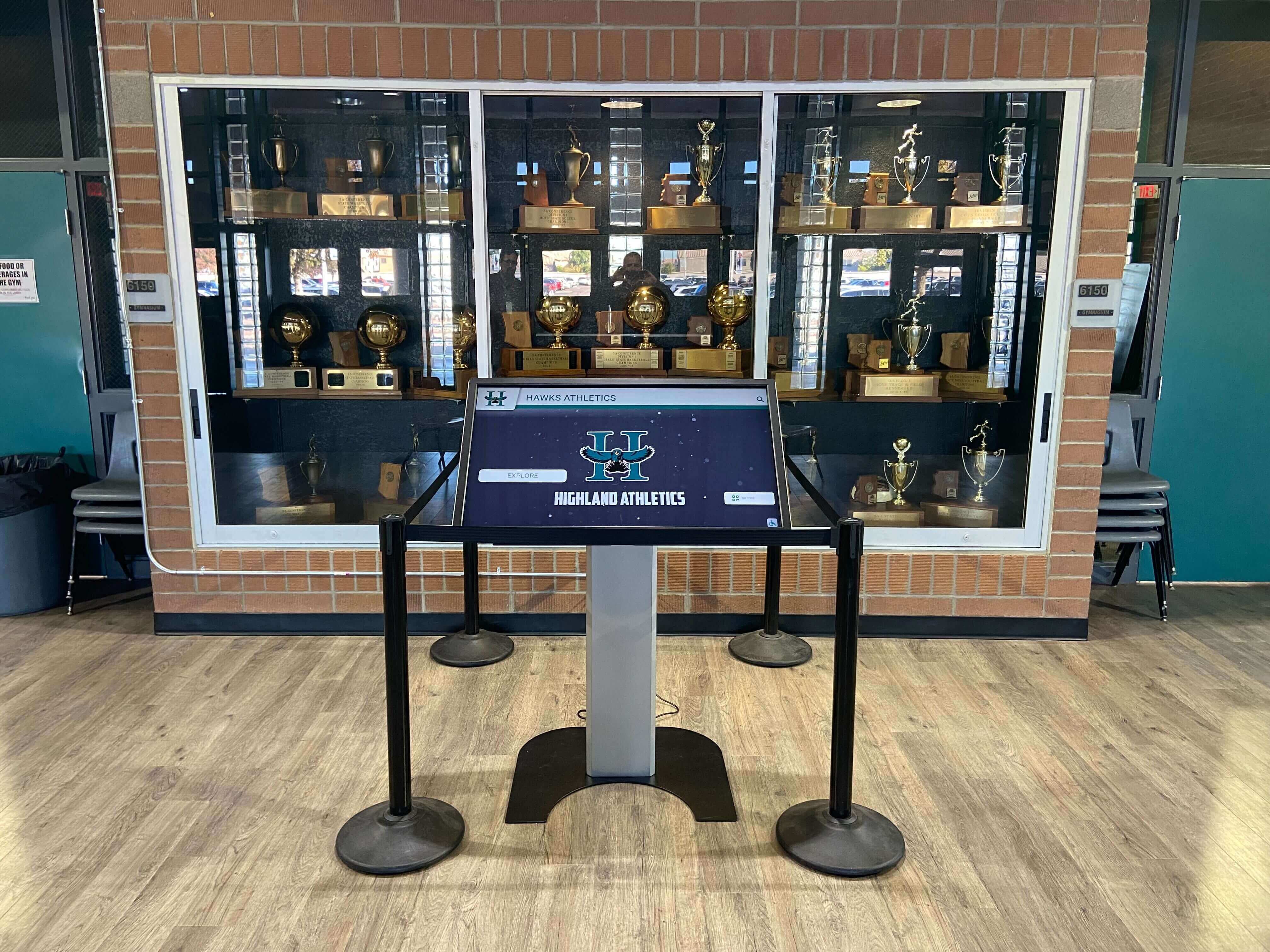
Recognition displays installed in trophy cases and dedicated kiosks often connect through wall ports that share infrastructure with nearby classrooms—monitoring the specific switchport serving each display reveals congestion patterns that are invisible from the core network dashboard alone.
Monitoring Configuration Checklist
- Install or configure a monitoring tool that records packet loss over time. A tool that shows only current up/down status is insufficient; you need historical graphs showing when loss occurred and for how long.
- Point monitors at the recognition platform’s cloud endpoint, not just a local gateway. Monitoring only the local gateway confirms the display can reach the building’s router but does not confirm it can reach the content delivery infrastructure. Use the cloud endpoint URL provided by your recognition platform vendor.
- Add the local gateway as a second monitor target. Comparing packet loss to the local gateway versus the cloud endpoint identifies whether the issue is inside the building network or outside it on the internet path.
- Configure alerting to notify the IT team when packet loss exceeds 1% sustained over five minutes. Five-minute sustained thresholds filter out brief transient drops while catching real degradation early enough to investigate before a scheduled event.
- Confirm the monitoring system itself uses a reliable notification path. A monitoring tool running on the same segment it monitors may lose its own alerts during the outage it is trying to report. Route alert notifications over a separate path—email, SMS, or a cloud-based alerting service—that does not depend on the monitored segment.
Step 3: Set Alert Thresholds Matched to Recognition Display Requirements
Generic network monitoring thresholds are designed for administrative traffic. Recognition displays have stricter requirements for video and synchronization traffic. Set thresholds that reflect what actually degrades recognition content, not what would merely slow down a web browser session.
| Alert Level | Packet Loss Threshold | Recommended Action | Notification Target |
|---|---|---|---|
| Warning | ≥1% sustained 5 min | Log and monitor; review next business day | IT coordinator |
| Elevated | ≥3% sustained 5 min | Begin remote diagnostics; notify athletic director | IT coordinator + athletic director |
| Critical | ≥5% sustained 5 min | On-site response; contact vendor support | IT coordinator + athletic director + facilities |
| Event Blackout | Any sustained loss during event window | Immediate response; escalate regardless of percentage | IT coordinator + program owner |
Event blackout periods deserve special handling. Schools that run scheduled athletic award and recognition events rely on recognition displays functioning reliably during the event itself. Configure your monitoring platform to use a tighter alert threshold—any sustained packet loss above 0.5%—during the 48-hour window surrounding induction ceremonies, homecoming events, and championship celebrations. Many monitoring platforms support time-based threshold overrides for exactly this purpose.
- Create a recurring calendar block for each major recognition event in the school year. Add these dates to your monitoring platform’s event calendar so tighter event-period thresholds activate automatically without requiring manual changes each time.
- Define who receives each alert level and through what channel. Document the escalation contact list in the display’s maintenance records so a substitute IT coordinator following the checklist knows who to reach.
Step 4: Diagnose Packet Loss When Alerts Fire
When the monitoring system reports packet loss, work through a structured diagnostic sequence rather than jumping to conclusions or immediately contacting the vendor. Most packet loss issues resolve to one of five root cause categories, and a systematic approach narrows the field quickly.
On-Site Diagnostic Sequence
- Confirm the alert is real by checking the display directly. Visit the display location and note what the screen shows. A display that appears normal while the monitor reports packet loss suggests the local cache is serving content—the network issue may be preventing updates without disrupting the immediate visitor experience. Log this distinction for the vendor support call.
- Run a manual ping test from the display’s compute device. Open a terminal or command prompt on the display device and run a continuous ping to the cloud endpoint. Record the current packet loss percentage, RTT, and how long the condition has persisted.
- Test from a separate device on the same network segment. Bring a laptop, connect it to the same wall port or Wi-Fi SSID, and run the same ping test. If the laptop shows no packet loss but the display does, the problem is device-specific—NIC, driver, or software. If both show packet loss, the problem is in the shared network infrastructure.
- Move up the network path. Plug a laptop directly into the switch port that normally serves the display. If packet loss disappears, the wall port or cabling run between the switch and the display location is suspect. If packet loss persists at the switch port, the issue is upstream of the switch.
- Check switch error counters on the relevant port. Log into the managed switch and inspect port statistics: input errors, CRC errors, discards, and collisions. A port showing rising error counters has a physical-layer problem—bad cable, damaged port, or duplex mismatch—rather than a congestion or routing issue.
- Check bandwidth utilization on the uplink. A switch uplink running near capacity during school hours will discard packets from all downstream ports, including the recognition display. Review uplink utilization for the past hour in your monitoring dashboard. Utilization above 80% means the display is competing for bandwidth with other traffic.
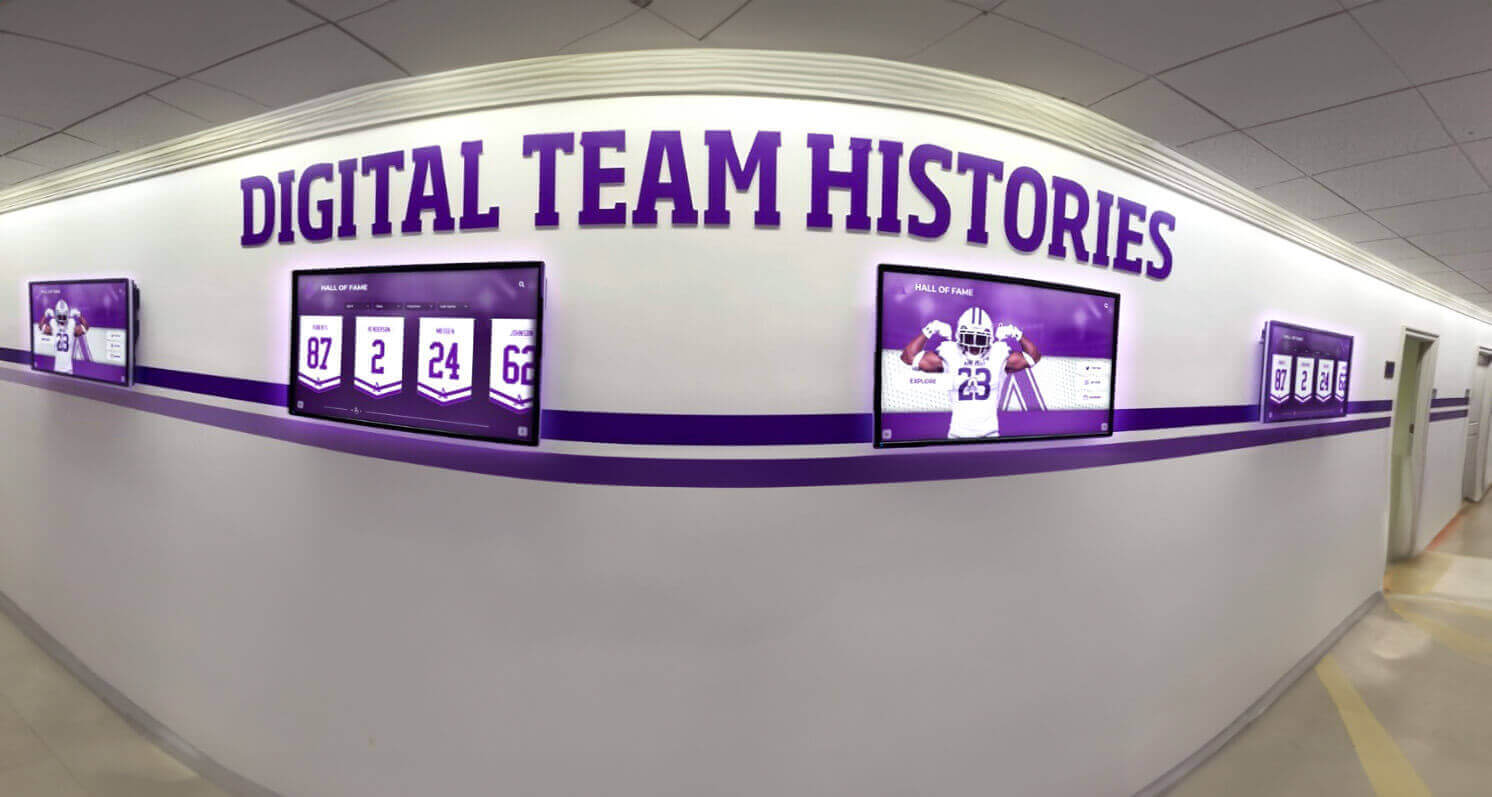
Schools with multiple recognition displays across a building need to diagnose packet loss at each display location independently, since network conditions vary significantly between switch ports and different wiring runs within the same facility.
Step 5: Root Cause Categories and Remediation
Most packet loss problems on recognition displays fall into five categories. Matching observed symptoms to the correct category points to the right fix.
Root Cause Categories
Category 1: Physical Layer Problems
Symptoms: High CRC errors or input errors on the switch port. Loss disappears when plugging directly into the switch. Loss is intermittent or correlates with vibration or temperature changes.
Remediation: Replace the patch cable between the display and the wall port. If error counters persist, trace and replace the structured cabling run. Test the wall port on a different switch port to rule out a damaged port. Inspect cable runs passing through areas of high electromagnetic interference such as athletic lighting panels or HVAC equipment.
Category 2: Network Congestion
Symptoms: Packet loss appears only during specific time windows (first period, lunch, dismissal). Loss affects multiple devices on the same segment. Uplink utilization is above 75% during affected periods.
Remediation: Move the recognition display to a dedicated VLAN with QoS prioritization. Work with the district network team to allocate guaranteed bandwidth for recognition display traffic. Schedule large content sync jobs during off-peak hours rather than allowing automatic sync during the school day when network contention is highest.
Category 3: Wireless Interference
Symptoms: Loss occurs only on Wi-Fi-connected displays. A wired connection from the same location shows no loss. Loss correlates with high student density periods or with events in adjacent spaces.
Remediation: Run a wired connection to the display if the location allows it—this is the definitive fix. If wiring is not feasible, relocate the display to a spot with a stronger AP signal, switch to a 5 GHz SSID on a less congested channel, or add a dedicated AP near the display. Schools hosting [cheerleading programs](https://digitalwalloffame.com/blog/cheerleading-hall-of-fame-recognition-schools-deserve/), [wrestling tournaments](https://donorswall.com/blog/high-school-wrestling-state-tournament-bracket-guide/), and other events in spaces adjacent to recognition displays should note that event crowds can temporarily saturate Wi-Fi channels—plan for this in event-day network provisioning.
Category 4: ISP or WAN Path Degradation
Symptoms: Packet loss appears simultaneously across multiple buildings or sites. Loss appears on the monitor targeting the cloud endpoint but not on the local gateway. The local gateway shows no packet loss.
Remediation: Contact your ISP with the monitoring data including timestamp, duration, and loss percentage. If packet loss is persistent and the ISP cannot resolve it within an acceptable window, activate backup WAN connectivity if available. Document the outage for the vendor support record so the recognition platform team can review any failed sync jobs and re-push content updates once connectivity is restored.
Category 5: Display Device Hardware or Software
Symptoms: Packet loss appears on the display device but not on a separate device connected to the same port. NIC errors appear in the device's operating system logs. Loss persists after replacing the patch cable.
Remediation: Update the NIC driver on the display's compute device. Disable power management settings that put the NIC into a low-power state during periods of low activity. If the problem persists, replace the NIC or the compute device. Contact the recognition display vendor before replacing hardware—they can confirm whether a known driver issue affects the specific hardware model in your installation.
Step 6: Escalation Protocol and Vendor Support Communication
When on-site diagnostics do not resolve the issue, or when the loss pattern suggests an ISP or platform-side problem, escalate to vendor support with structured documentation rather than a general description of the symptom.
What to Include in a Vendor Support Escalation
- Asset ID and display location. The vendor’s support team needs to know which specific unit is affected and what software version it is running—this information determines which configuration files and platform logs to review.
- Monitoring data showing the packet loss timeline. A screenshot or export from your monitoring tool showing when loss started, current loss percentage, and RTT trends is far more useful than a verbal description. Include both the local gateway test and the cloud endpoint test results side by side.
- Results from the on-site diagnostic sequence. Document which steps you completed, what you observed at each step, and which root cause categories you ruled out before escalating.
- Event calendar context. Note whether any scheduled recognition events—induction ceremonies, homecoming, sports banquets—fall within the next 72 hours so the vendor’s team can prioritize the ticket accordingly.
- Any recent infrastructure changes. Network equipment replacements, firmware updates, VLAN reconfigurations, or ISP circuit changes can introduce packet loss. Report any changes made in the previous 30 days even if they appear unrelated to the symptom.
Schools that run booster club fundraising programs alongside recognition display programming sometimes fund network infrastructure upgrades through booster campaigns. Those upgrades need IT review before they go live—a well-intentioned switch replacement can introduce packet loss if the new equipment is misconfigured during cutover, and the support escalation record should note the change.
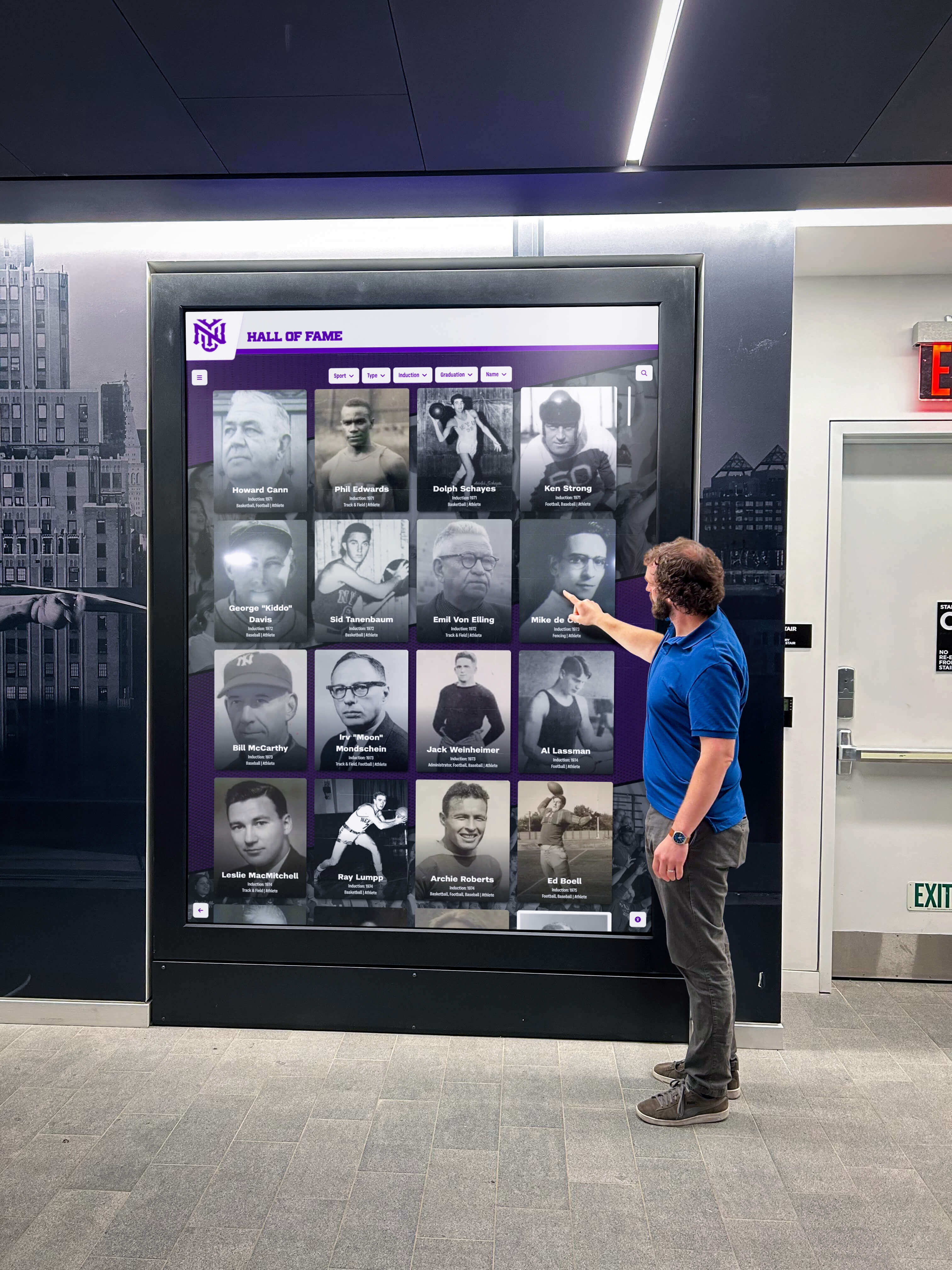
Families, alumni, and guests who stop at recognition displays in school lobbies experience packet loss problems directly—as frozen video, missing inductee records, or unresponsive search. Fast escalation with good diagnostic data cuts resolution time significantly.
Monitoring Schedule and Recurring Maintenance
A monitoring plan that runs continuously but is never reviewed produces background noise rather than actionable intelligence. Assign specific review tasks on a recurring schedule so the data drives action before a problem surfaces at an event.
| Frequency | Task | Owner |
|---|---|---|
| Daily (automated) | Continuous ping monitoring to cloud endpoint; alert on threshold breach | IT monitoring platform |
| Weekly | Review monitoring dashboard for trends; check alert history; confirm no unresolved warnings | IT coordinator |
| Monthly | Review switch port error counters for each display; confirm sync logs show successful daily sync | IT coordinator |
| Quarterly | Run a manual baseline test; compare to documented baseline; investigate any regression above 0.5% | IT coordinator |
| Annually (August) | Update baseline documentation; verify alert contacts are current; review event blackout calendar for the new school year | IT coordinator + athletic director |
| Pre-event (48 hours before) | Manual ping test; confirm last successful content sync; activate tighter alert threshold | IT coordinator |
The annual August review aligns monitoring documentation with the school year startup cycle. Schools that also use this period to plan school celebration events and recognition programs benefit from having the recognition display network verified before the event calendar is finalized, so IT can flag infrastructure concerns before scheduling commitments are made.
Connecting Packet Loss Monitoring to Athletic Recognition Operations
Packet loss monitoring is an IT discipline, but its impact is felt most directly by the people responsible for recognition content—the athletic director, the archives coordinator, and the recognition program owner who manages what appears on the display. Building a shared understanding of the connection between network health and content delivery makes the monitoring plan more likely to receive the cross-department support it requires.
How IT Monitoring Supports Athletic Recognition Operations
- New inductee records appear on time: Cloud sync failures caused by packet loss prevent updated inductee profiles from reaching the display before a ceremony. Monitoring catches sync failures before stakeholders discover them at the wrong moment.
- Video highlights play without interruption: Athletic highlight reels, championship footage, and senior recognition videos that stall or pixelate during events reflect poorly on the recognition program. Packet loss monitoring identifies the network conditions causing this before the event begins.
- Remote support sessions succeed: When a display behaves unexpectedly before an event, the vendor's remote support team needs a reliable connection to diagnose it. A monitoring record showing current packet loss levels helps the vendor decide whether to attempt remote access or dispatch a technician.
- Content sync scheduling is informed by network patterns: Monitoring data that reveals peak congestion periods allows IT to schedule large content uploads—new inductee photo batches, video files, banner graphics—during off-peak windows when packet loss risk is lowest.
Schools that recognize school leadership contributions alongside athletic achievement on shared recognition displays add additional content update cycles throughout the year. Each update cycle carries the same packet loss risk as any other cloud sync. A monitoring plan that runs continuously across the full school year catches problems regardless of which recognition program triggers the content change.
Frequently Asked Questions
What packet loss percentage is acceptable for a touchscreen recognition display?
Target less than 0.5% packet loss as a steady-state goal for recognition displays that serve video and cloud-synced content. Packet loss above 1% begins to degrade video playback, and above 3% cloud sync operations start to fail reliably. Set monitoring thresholds to alert at 1% so your team has time to investigate before loss reaches the level where content quality degrades visibly to visitors. For remote support sessions, confirm the maximum acceptable packet loss with your specific recognition platform vendor, as their remote management protocol may have its own tolerance threshold.
How do I tell if packet loss is coming from inside the school network or from the ISP?
Run simultaneous ping tests to two targets: the building's local gateway and the recognition platform's cloud endpoint. If packet loss appears on the cloud endpoint test but not on the local gateway test, the problem is outside the building—on the ISP's network or on the internet path to the platform's servers. If both tests show packet loss, the problem is inside the building's network infrastructure. This two-target approach eliminates guesswork and tells you whether to escalate to the ISP, the recognition platform vendor, or your own network team.
Should the recognition display be on its own VLAN?
Placing recognition displays on a dedicated VLAN with QoS policies is a best practice, particularly in schools where student device traffic competes for the same network segments. A dedicated VLAN allows the IT team to apply bandwidth guarantees for recognition display traffic, monitor display network behavior independently from general device traffic, and apply specific firewall rules for the platform's cloud endpoints without affecting other devices. If a dedicated VLAN is not immediately feasible, applying a DSCP marking to the display's sync and video traffic provides a partial benefit within the existing network configuration.
What free tools can a small school IT team use to monitor packet loss?
Several free or low-cost tools are appropriate for school environments. SmokePing is an open-source tool that graphs packet loss and latency over time with a web interface. The free tier of Uptime Robot supports ICMP ping monitoring with email alerts. Ping Plotter offers a free version suitable for a small number of monitored targets. Most managed switches include a basic port statistics dashboard that displays error counters at no additional cost. For schools already running open-source network management platforms such as Zabbix or LibreNMS, adding the recognition display's IP address as a monitored host costs nothing beyond initial configuration time.
How does packet loss affect the recognition display's offline content cache?
The local cache is populated during successful cloud sync operations. Packet loss severe enough to abort a sync session leaves the cache with whatever content was present before the sync began. If a content update was scheduled—new inductee records, updated photo galleries, championship documentation—those updates will not appear on the display until the next successful sync completes. Monitoring packet loss before scheduled content updates ensures the network path is stable when the sync needs to run. After a period of elevated packet loss, trigger a manual sync from the admin console and confirm it completes successfully before considering the cache current.
Quick-Reference: Packet Loss Monitoring Checklist
Touchscreen Recognition Display Packet Loss Monitoring Checklist
- Run and document a baseline packet loss test at each display location during normal and peak hours
- Map the full network path from each display to the core switch
- Deploy continuous monitoring targeting both the local gateway and the recognition platform's cloud endpoint
- Set alert thresholds: Warning at 1%, Elevated at 3%, Critical at 5% sustained over five minutes
- Configure tighter thresholds (0.5%) during 48-hour event blackout windows
- Document escalation contacts for each alert level in the display's maintenance records
- On alert: run manual ping test from the display device and from a separate device on the same segment
- Check switch port error counters; compare against documented baseline
- Match symptoms to root cause category: physical layer, congestion, wireless, ISP, or device hardware
- Escalate to vendor support with monitoring data, diagnostic results, and event calendar context
- After resolution: trigger a manual content sync and confirm the cache is current before the next event
- Update baseline documentation with any network changes made during remediation
- Review monitoring dashboard weekly; run quarterly baseline comparisons; update escalation contacts annually
Keeping Recognition Content Ready for Every Visitor
A packet loss monitoring plan for touchscreen recognition displays is not a complex IT project—it is a structured discipline that protects the investment schools make in preserving athletic history and celebrating the students, coaches, and donors who define that history. The checklist above gives IT coordinators a clear starting point, athletic directors visibility into what can affect their content, and facilities teams an escalation path when something is visibly wrong on screen.
The monitoring work happens in the background. What it delivers is a recognition display that works correctly when the first visitor of the morning walks through the lobby and touches the screen to find a former athlete—on every normal school day and during every event that matters to the school community.
See How Rocket Alumni Solutions Supports School IT Teams
Explore how Rocket's recognition platform is built for reliability in school network environments—including remote management tools, sync monitoring, and content delivery designed for the school IT team's workflow. Request a demo tailored to your program.
Request Your Demo Today






























