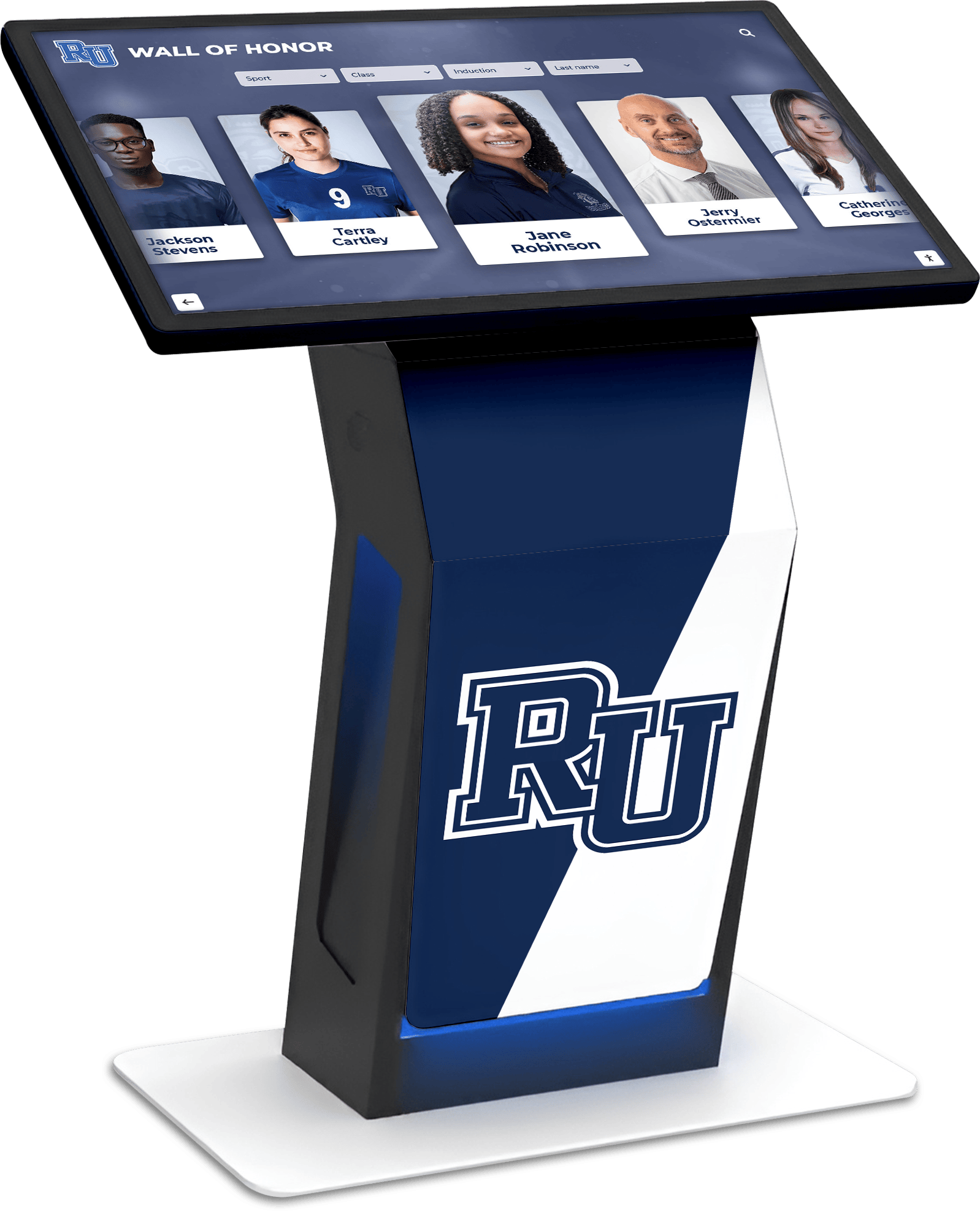




A touchscreen recognition display synthetic monitoring plan is a documented schedule of automated tests that simulate real visitor interactions — checking that inductee profiles load, media plays, search returns results, and call-to-action paths complete — on a recurring basis so school IT teams learn about failures before families, donors, and guests do. Without one, the first indication that a hall of fame kiosk is broken is often a blank screen at the start of a homecoming reception or an induction ceremony, when there is no time to diagnose the problem and stakeholders are already in the building.
Synthetic monitoring differs from passive infrastructure monitoring. A network monitor that confirms a device is online does not confirm that the recognition software is serving content, that the touchscreen is registering input, or that the content management system has successfully pushed the latest inductee class to the display. A synthetic monitor actually exercises each of those paths on a schedule — the same way a visitor would — and alerts the team when any step fails. For schools that depend on their hall of fame, athletic record boards, and donor recognition screens to deliver a quality experience during the highest-visibility moments of the academic year, a synthetic monitoring plan is the operational layer that makes that dependability real rather than assumed.
The direct answer: a complete touchscreen recognition display synthetic monitoring plan runs four categories of automated tests — display availability, content delivery, interaction functionality, and alerting paths — on a schedule that increases check frequency in the 72 hours before any school event where the display plays a meaningful role. Tests run continuously during event windows, generate immediate alerts to the designated IT and program contacts, and feed a weekly incident log used to identify recurring failure patterns before they become event-day emergencies.

A touchscreen recognition display in a school lobby must pass availability, content, and interaction checks automatically and on a schedule — not only after a visitor discovers a problem
What Synthetic Monitoring Means for Recognition Displays
Synthetic monitoring is the practice of running scripted, automated tests against a system at regular intervals to confirm it behaves as expected, without waiting for a real user to discover a failure. In enterprise web operations, synthetic monitoring checks whether a website loads, whether a checkout flow completes, and whether login works — automatically, from multiple locations, around the clock. For a touchscreen recognition display at a school, the same concept applies to a different set of user paths: does the kiosk launch its recognition software at startup? Does the homepage carousel of recent inductees load within an acceptable time? Does the search function return results for a specific athlete name? Does tapping a profile card open the correct biography?
These are the interactions that matter to visitors. A campus IT infrastructure monitor that confirms the media player device is powered on and connected to the network answers a different question than synthetic monitoring does. Both are useful, but infrastructure monitoring alone leaves the space between “device is online” and “visitor had a good experience” unexamined. That gap is where most recognition display failures actually occur: the device is reachable on the network but the recognition software has hung, the content sync failed 36 hours ago and the latest inductee class is not showing, or the touchscreen input layer has stopped registering presses while the display continues showing content.
Understanding the full stack of what must work — hardware, network, software service, content, and interaction layer — makes clear why a monitoring plan is more than a single network ping. Each layer needs its own check, run at an appropriate frequency, with an alert path that reaches the person who can actually fix it.
Recognizing the full hardware and environmental context of these displays — including how thermal conditions, power quality, and physical configuration all affect uptime — supports a more complete monitoring approach. A thermal monitoring checklist for recognition displays and a power quality monitoring log address the environmental layer that synthetic software checks do not cover; both complement the plan described here.
The Four Layers of Synthetic Monitoring for Recognition Displays
A complete plan monitors four layers, each requiring a different type of check and a different response owner.
Layer 1: Display Availability
The availability layer confirms the recognition display hardware and software service are reachable and responsive. Tests at this layer include:
- Heartbeat check: A lightweight network ping to the media player or display controller confirms the device is powered on and connected. This is the fastest check and runs most frequently — every one to five minutes for displays in high-traffic public spaces.
- Software service check: A test that confirms the recognition application process is running on the display device, not just that the device is online. A hung or crashed application can keep a device reachable on the network while showing a frozen screen or a black panel.
- Display-on confirmation: Where display hardware supports it, a check via the device API or a network-connected monitoring agent that confirms the panel itself is powered and receiving signal. A media player that is running the recognition application but has lost its HDMI handshake with the display panel will show nothing to visitors.
- Admin console reachability: A check that the content management system’s administrative interface is accessible from the school network, confirming that the backend platform is operational and capable of pushing updates.
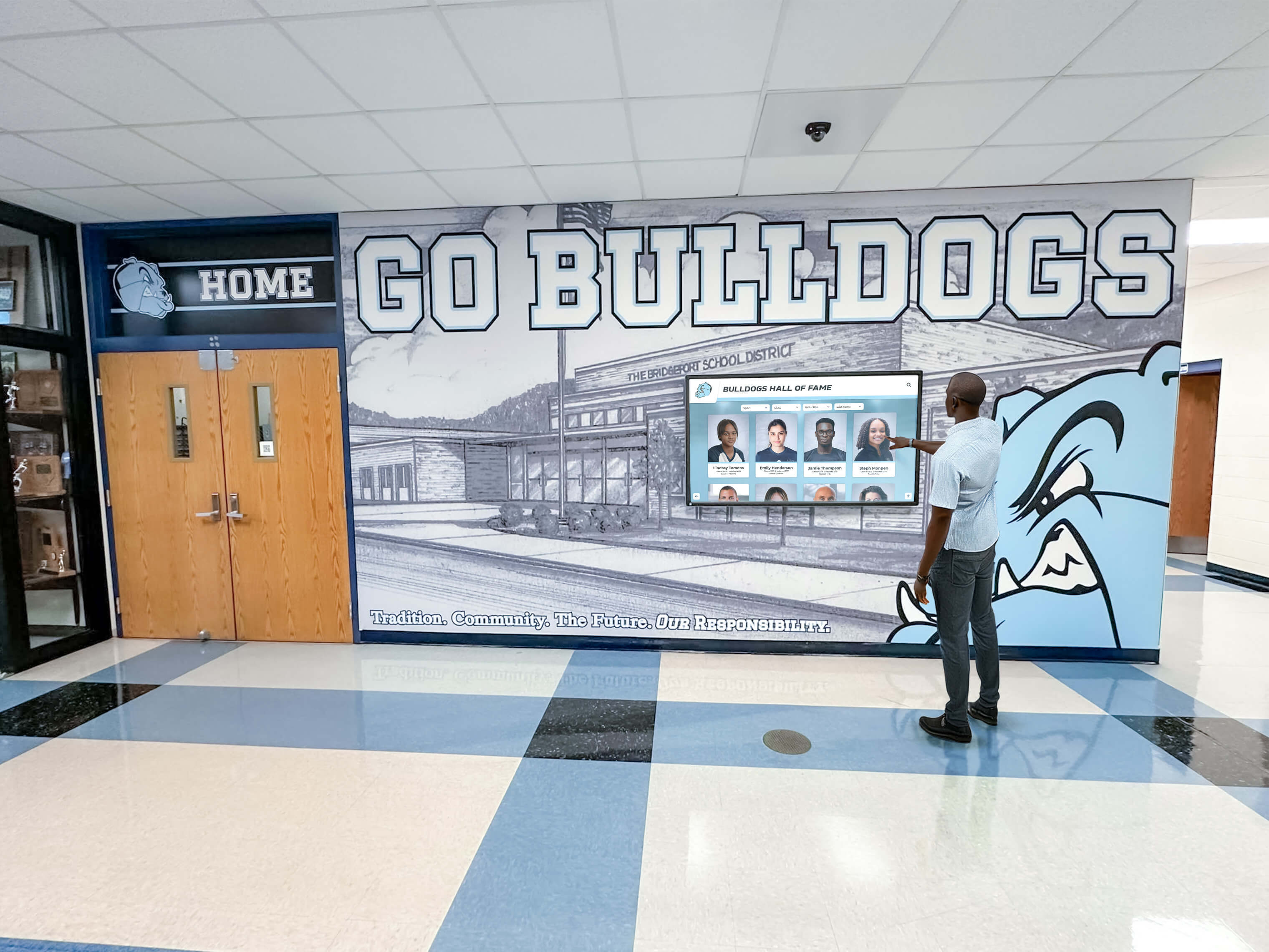
Display availability monitoring confirms the hardware is on, the software is running, and the recognition application is serving content — not just that the device is reachable on the network
Layer 2: Content Delivery
The content delivery layer confirms that the recognition platform is actually serving current, complete content to the display. A device can be fully available at the network and software level while presenting stale or incomplete content if the content sync has failed.
- Last sync timestamp check: An automated query to the recognition platform’s admin console or API that reads the last successful content sync timestamp for each display. If the timestamp is older than the defined threshold — typically 24 hours for standard schedules, or 4 hours in the 48 hours before a scheduled event — the check fails and generates an alert.
- Content count verification: A test that confirms the total number of inductee profiles, records, or content items on the display matches the expected count in the content management system. A sync that completes without error but delivers fewer records than expected indicates a partial sync failure.
- Media asset availability: A test that checks whether the image and video assets associated with recognition profiles are accessible and loading. A content record that loads but displays broken media — missing inductee photographs, corrupted championship graphics — provides an incomplete experience even when the software layer is healthy.
- Homepage carousel load time: A timed test that measures how long the display takes to render its primary content view. Load times that exceed a defined threshold (typically three to five seconds for a lobby display) may indicate a caching problem, a network degradation, or an application performance issue that will be noticeable to visitors.
Schools that maintain campus directory displays alongside hall of fame recognition apply content delivery monitoring to both systems, since directory content and recognition content often sync through different backend systems that can fail independently.
Layer 3: Interaction Functionality
The interaction layer is the most recognition-specific part of the monitoring plan. It confirms that the paths a visitor actually follows through the display are working end to end, not just that the underlying services are available.
- Search path test: An automated test that submits a known search query — an inductee name, a sport category, a graduation year — and confirms the search returns the expected number of results within an acceptable response time. Search failure is one of the most common recognition display issues that availability monitoring misses entirely.
- Profile navigation test: A test that taps through a defined sequence: homepage to a specific inductee category, category to an individual profile card, profile card to the full biography view. Each step is confirmed before the next begins, and the full sequence completion time is recorded.
- Record board display test: For displays that include athletic record boards, a test that confirms the record board module loads, populates with current record data, and is navigable. Record board content often comes from a different data source than inductee profiles, making it a separate failure point.
- CTA path test: A test that confirms any call-to-action elements on the display — links to the school website, forms for alumni updates, QR code deep-links — resolve to the correct destinations and do not return errors. A broken CTA that was working during installation may stop working silently after a domain change or a platform update.
Layer 4: Alert and Escalation Paths
The alerting layer confirms that the monitoring system’s own notification mechanisms are working — because a monitoring plan that detects failures but cannot reach the responsible team delivers no operational value.
- Alert delivery test: A scheduled test alert sent through the monitoring system’s notification channels — email, SMS, or a ticketing system integration — to confirm the delivery path is functional. This test runs weekly for monitoring systems that use email and daily for systems that handle event-window coverage.
- On-call contact verification: A monthly check that the contact information in the monitoring system’s alert configuration is current. Staff turnover, role changes, and phone number changes are common reasons that alert delivery fails to reach the person responsible for response.
- Escalation chain test: A test that confirms the secondary alert path — the person who should be notified if the primary contact does not acknowledge an alert within a defined window — is reachable and correctly configured.
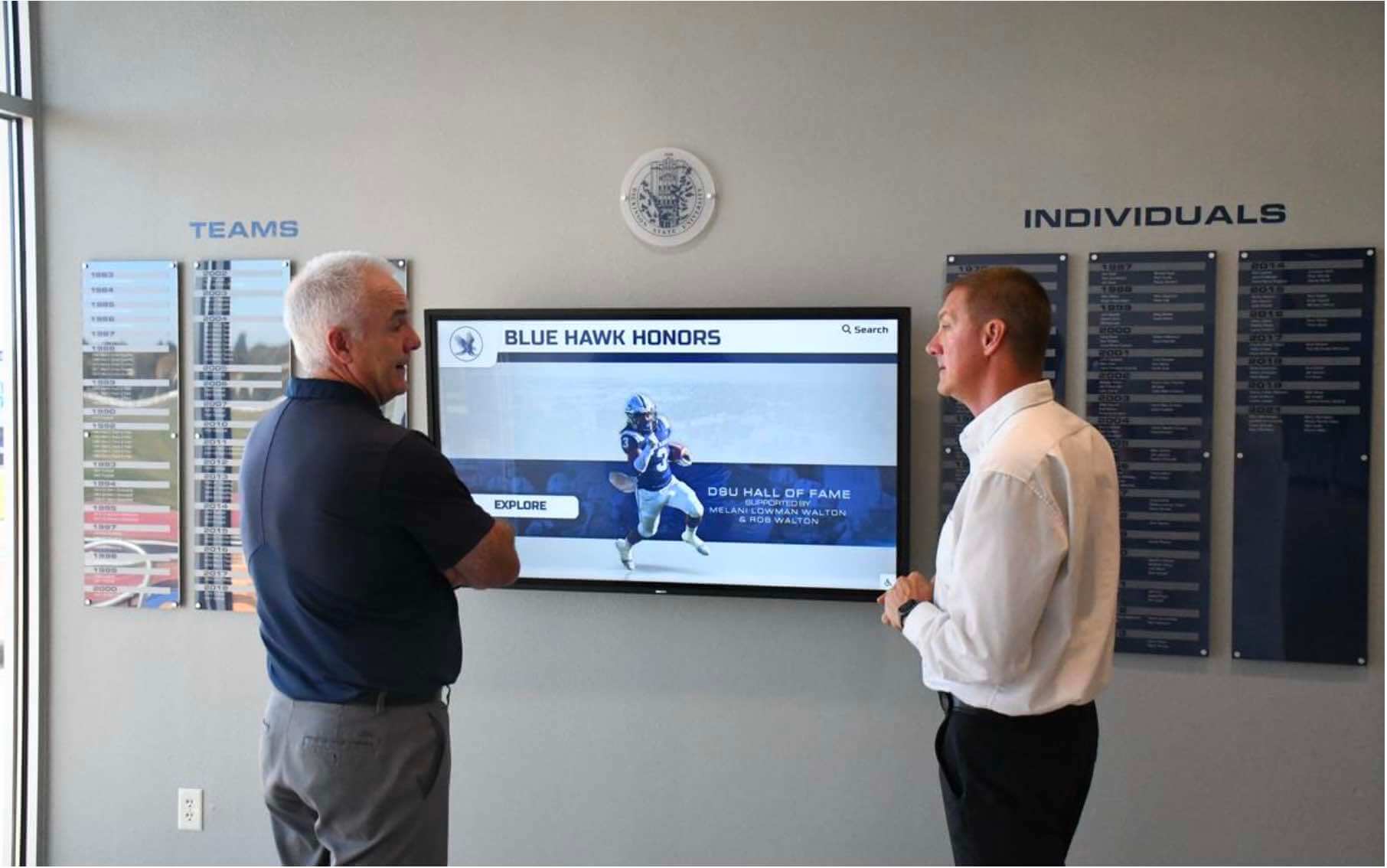
Recognition displays serve guests during high-visibility school events — the alerting layer of a monitoring plan ensures failures reach the response team before guests do
Building a Monitoring Schedule Around the School Calendar
The most important design decision in a recognition display monitoring plan is how check frequency changes relative to the school event calendar. Running every check at the same frequency — every five minutes around the clock — is expensive in monitoring tool capacity and generates alert fatigue during overnight periods when no visitors are present. Running checks at the same low frequency during event weeks as during summer break provides inadequate coverage when it matters most.
A tiered schedule matches monitoring intensity to event proximity and visitor traffic.
Standard Operations: Low-Frequency Baseline
During periods without upcoming events and outside visitor hours, the monitoring plan runs at baseline frequency:
| Check Type | Baseline Frequency | Alert Threshold |
|---|---|---|
| Heartbeat / network availability | Every 10 minutes | 2 consecutive failures |
| Software service health | Every 30 minutes | 1 failure |
| Last content sync age | Every 2 hours | Sync older than 26 hours |
| Search path test | Every 4 hours | Any failure |
| Profile navigation test | Every 4 hours | Any failure |
| Alert delivery test | Weekly | Any failure |
During multi-week holiday breaks when the building is closed and no events are scheduled, the content delivery and interaction checks can scale back further — every 8 to 12 hours — since there are no visitors to affect. However, the heartbeat check should continue at baseline so the team discovers any hardware failure before the break ends, not when staff return and begin preparing for the next event.
Event Preparation: Elevated Monitoring (72 Hours Out)
Beginning 72 hours before any scheduled event where the recognition display is a guest-facing element — induction ceremonies, homecoming receptions, alumni weekends, open houses, championship game nights — the monitoring plan escalates to elevated frequency:
| Check Type | Elevated Frequency | Alert Threshold | Response Owner |
|---|---|---|---|
| Heartbeat / network availability | Every 2 minutes | 2 consecutive failures | IT on-call |
| Software service health | Every 5 minutes | 1 failure | IT on-call |
| Last content sync age | Every 30 minutes | Sync older than 4 hours | IT + Program admin |
| Content count verification | Every 2 hours | Count mismatch | Program admin |
| Search path test | Every 30 minutes | Any failure | IT on-call |
| Profile navigation test | Every 30 minutes | Any failure | IT on-call |
| CTA path test | Every 2 hours | Any failure | IT on-call |
| Alert delivery test | Daily | Any failure | IT supervisor |
The 72-hour window gives IT and program staff enough time to diagnose and resolve most issues before the event. A content sync failure discovered 48 hours before an induction ceremony is a manageable problem. The same failure discovered 45 minutes before guests arrive is a crisis.
Event Window: Continuous Monitoring
During the event window itself — from two hours before scheduled guest arrival through one hour after the event concludes — monitoring runs at maximum frequency:
| Check Type | Event Window Frequency | Alert Response Time |
|---|---|---|
| Heartbeat / network availability | Every 1 minute | Immediate page |
| Software service health | Every 2 minutes | Immediate page |
| Search path test | Every 5 minutes | Immediate page |
| Profile navigation test | Every 5 minutes | Immediate page |
| On-site staff notification | Manual | Within 5 minutes of alert |
Event-window monitoring alerts should reach a staff member who is physically present at the event or immediately reachable by phone — not a general IT queue that may not be monitored in the evening. Define this contact in the monitoring plan for each event type, and confirm availability as part of the pre-event check protocol.
Mapping School Events to Monitoring Elevation Windows
Not every school event requires the same monitoring intensity. A well-designed plan identifies the events where recognition display failure would have the highest impact and assigns monitoring elevation accordingly.
Tier 1: Signature Events (Full Monitoring Elevation 72 Hours Out)
These events carry the highest recognition display stakes — guests attend specifically expecting to engage with inductee archives, championship records, or donor acknowledgment content:
- Athletic hall of fame induction ceremonies — inductees and their families are present, often viewing the display for the first time to see their own records
- Alumni reunions and homecoming receptions — graduates returning to campus expect to find their class and era represented
- Donor appreciation events — contributors who funded recognition installations expect to see the program operating with quality
- Facility tours for prospective major donors — a single failed display during a capital campaign tour can undermine a multi-year cultivation relationship
- Championship celebrations and recognition banquets — athletic milestones are being honored; the display is part of the ceremony
Tier 2: High-Traffic Events (Monitoring Elevation 48 Hours Out)
These events drive visitor traffic through spaces where recognition displays are located, even if the display is not the primary event focus:
- Season home opener games — families and community members entering the athletic facility encounter hallway recognition displays
- National Honor Society induction nights — academic recognition events draw families to lobbies where donor and athletic displays are visible
- College visits and campus open houses — prospective students and families form impressions of institutional quality from lobby displays
- Graduation and commencement events — high foot traffic through main lobbies and athletic areas
Tier 3: Routine Elevated-Traffic Periods (Standard Monitoring Plus Weekly Content Verification)
- Beginning of each semester — new students, families, and staff are forming first impressions
- Fall sports season — athletic traffic increases through gymnasium lobbies and hallway recognition areas
- Spring awards season — recognition programming activity increases across athletics and academics
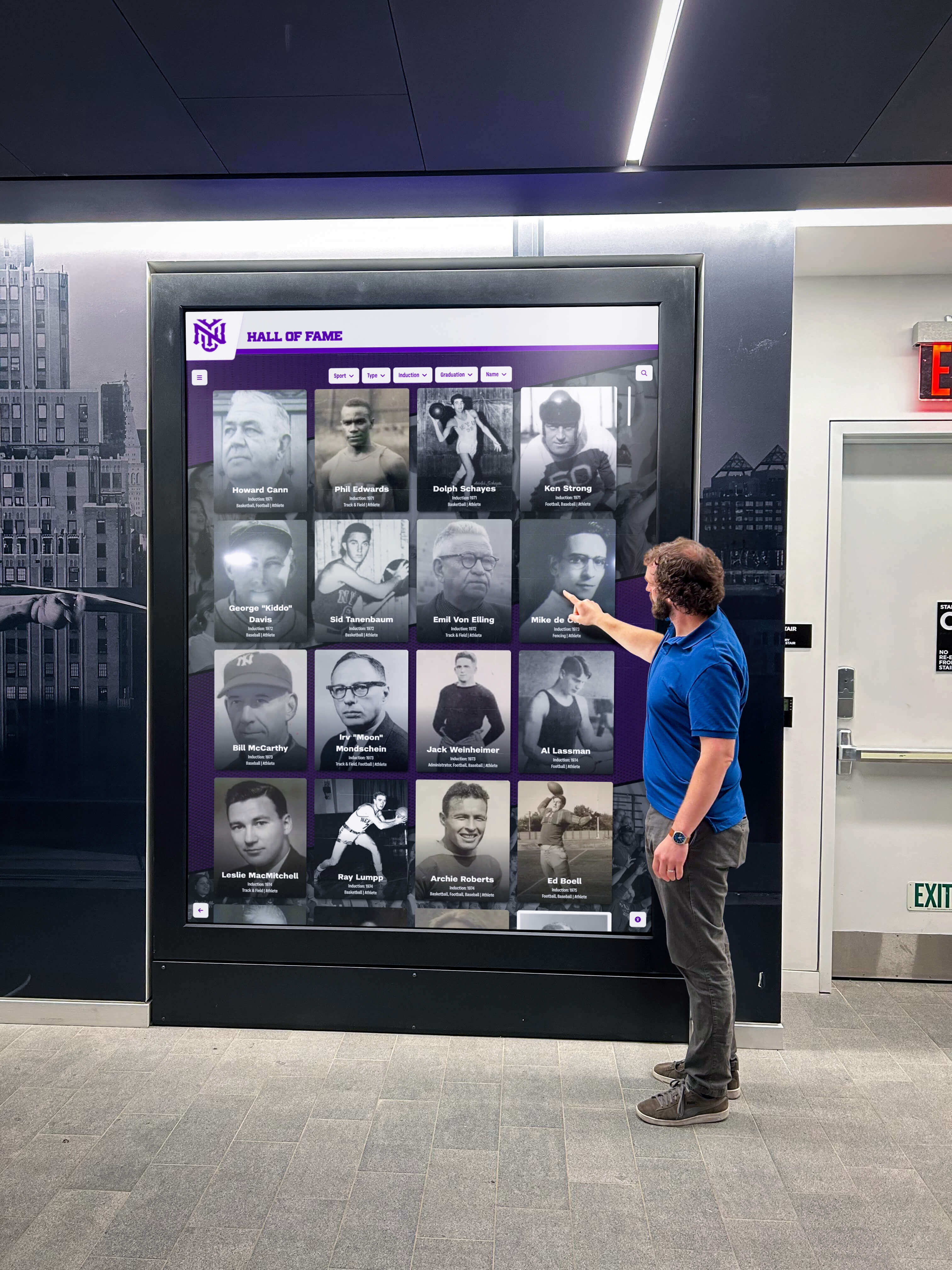
Open houses and campus tours bring prospective families to lobby spaces where recognition displays make an immediate institutional impression — synthetic monitoring confirms those displays are ready before the first family walks in
The Pre-Event Check Protocol
Synthetic monitoring runs automatically, but a manual pre-event check conducted by a designated staff member in the 24 hours before each Tier 1 or Tier 2 event adds a human verification layer that automated tests alone cannot fully replicate. The check takes 15 to 20 minutes and covers the interaction paths that matter most during the specific event.
Pre-Event Check: Induction Ceremony
Complete this check the day before the ceremony, then again on the morning of the event:
- Confirm all inductees from the current class are present and displaying correctly. Search for each inductee by name and verify that the full profile — biography, sport or category, graduation year, photograph — appears as expected. Do not rely on the content count check alone; synthetic monitoring may confirm the correct number of records exist without verifying that a specific new inductee’s content is correct.
- Verify media assets for current inductees. Open each new inductee profile and confirm that images load without error and that any video content plays correctly. Video assets are the most common content delivery failure point.
- Test the display’s search from the lobby side, not the admin interface. Stand at the physical display and search for two or three inductee names from different eras. Confirm results appear within three seconds and navigation to the profile works correctly.
- Confirm the display is set to the appropriate power schedule for the event. Verify that the energy management schedule — or a manual override — ensures the display is on and running during the full event window, including the time before guests arrive when staff are setting up.
- Review the last three monitoring alerts. If any automated checks have flagged warnings in the past 72 hours, confirm they were resolved and the underlying condition is not recurring.
Completing routine maintenance checks before events — including confirming the display’s physical and electrical environment — aligns with the broader discipline of pre-event readiness. A color calibration log for recognition displays and the broader practice of maintaining hardware within documented operating parameters both contribute to displays that pass synthetic monitoring checks consistently, not just when recently serviced.
Pre-Event Check: Game Night or Athletic Event
Complete this check the afternoon before the event:
- Confirm athletic records are current. For displays that include record boards, verify that the most recent season’s records are reflected. Record board data often comes from a different sync path than inductee content.
- Test navigation from the lobby side. Confirm the display responds to touch immediately and that the most prominent pathways — hall of fame navigation, record board access, search — are working without delay.
- Verify display power schedule for evening hours. Athletic events frequently extend beyond standard school operating hours. Confirm the display is scheduled to remain on through the end of the event window, not shut off automatically at the standard 5 p.m. or 6 p.m. cutoff.
- Confirm backup contact availability. Identify who is physically present during the event and reachable within five minutes if the monitoring system generates a critical alert.
Pre-Event Check: Open House or Campus Tour
Complete this check the morning of the event:
- Run a full interaction sequence. Complete the homepage-to-inductee-profile path on the physical display, including search, and time the response. Anything over five seconds is worth investigating before guests arrive.
- Check external links and QR codes. If the display includes links to online alumni profiles, scholarship program pages, or QR codes to web content, test each one on a mobile device to confirm they resolve correctly.
- Confirm display brightness and visual quality. Lobby displays in particular may need brightness adjustments for different lighting conditions — a Saturday morning open house may have different ambient light than a weekday afternoon. Verify the display is visually calibrated for the event’s likely conditions. Power quality and environmental monitoring throughout the school year helps maintain the stable operating conditions that make visual quality consistent during events.
Alert Thresholds and Escalation Matrix
The monitoring plan’s alert configuration determines who learns about a failure, how quickly, and what they are expected to do. An alert that goes to the wrong person, or that requires deciphering to understand the urgency, costs response time that may determine whether a problem gets resolved before an event begins.
Defining Alert Severity Levels
Critical alerts — require immediate response, even outside business hours, and should reach the on-call IT contact within two minutes via SMS or phone:
- Display heartbeat fails for two consecutive checks during a Tier 1 or Tier 2 event window
- Software service check fails during an active event
- Search path test fails during an event window
- Profile navigation test fails during a Tier 1 event
High alerts — require same-day response during business hours, with escalation if not acknowledged within 30 minutes:
- Content sync older than 8 hours, with an event scheduled in the next 48 hours
- Content count mismatch (fewer records than expected)
- CTA path test failure
- Display heartbeat failure outside of event windows for more than 10 consecutive minutes
Informational alerts — logged for the weekly review, no immediate response required unless the condition persists:
- Load time exceeds threshold by less than 50 percent
- Content sync delayed but within 24-hour threshold
- Backup network connectivity failover triggered and resolved automatically
Escalation Matrix
| Alert Level | Primary Contact | Response Window | Escalation If No Response |
|---|---|---|---|
| Critical (event window) | IT on-call (SMS + call) | 5 minutes | IT supervisor + Athletic Director |
| Critical (non-event) | IT on-call (SMS) | 15 minutes | IT supervisor |
| High | IT coordinator (email + SMS) | 2 hours | IT supervisor |
| Informational | IT coordinator (email) | Weekly review | None |
The escalation matrix should be reviewed at the start of each semester to confirm contact information is current. Staff transitions, new athletic directors, and changes to IT on-call rotation all affect whether alerts reach the right person in practice.
Incident Logging and Pattern Analysis
Each monitoring alert that generates a response — not just each resolved failure — should be logged in a shared incident document. The incident log does not need to be complex. A shared spreadsheet or a simple ticketing system entry covering five fields is sufficient:
- Date and time of the alert
- Alert type (heartbeat failure, content sync failure, search path failure, etc.)
- Display affected (identified by location, not just device name)
- Root cause (as identified after resolution)
- Resolution steps and time to resolve
The incident log’s value accumulates over time. A display that generates three search path failures in a six-week period — each resolved by restarting the recognition application — is telling IT that the application has a memory or stability issue worth investigating. A display that loses its content sync every Friday afternoon is pointing to a scheduled maintenance task or network change that IT can identify and fix. These patterns are invisible without a log; they become actionable diagnostic data with one.
Review the incident log monthly during the school year and quarterly during summer. Bring findings to the annual energy management and technology planning review so patterns inform decisions about hardware replacement, vendor escalation, or infrastructure changes before the next event season begins.
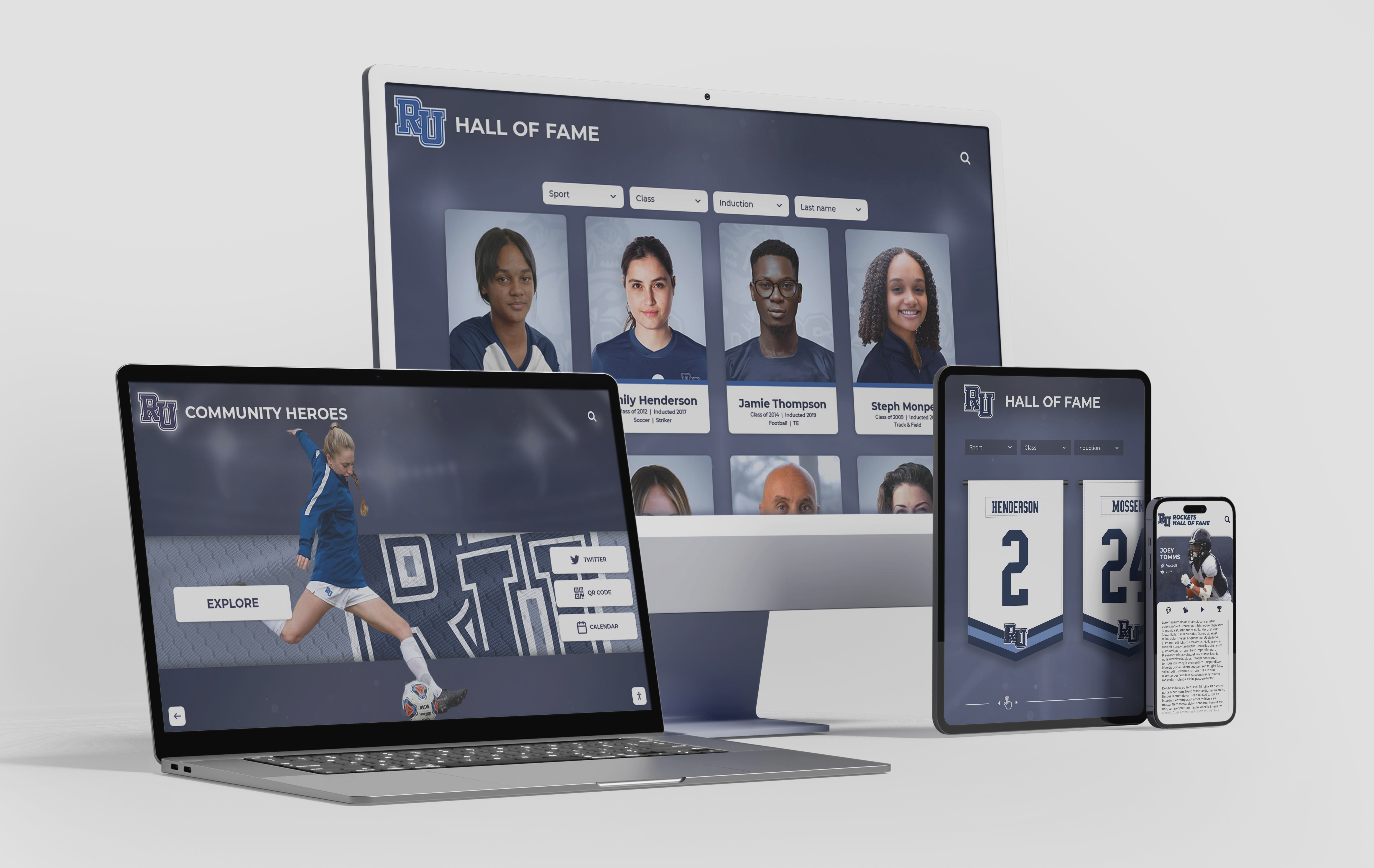
Recognition systems with web-accessible components allow synthetic monitoring to check online content delivery alongside in-facility display health — both surfaces need independent verification before events
Integrating Synthetic Monitoring With Broader Display Operations
A synthetic monitoring plan works best as one layer within a broader operational discipline for recognition displays, not as a standalone document consulted only when something breaks. The monitoring plan should be referenced in, and reference, the other operational documents that govern display health:
Energy management policy: The operating schedule in the energy management policy determines when displays are powered on. Synthetic monitoring checks that expect a display to be active should align with the power schedule — otherwise, an automated content delivery check that runs during the display’s scheduled off window will generate false failure alerts. The monitoring configuration should account for scheduled power-off windows, either by pausing non-critical checks during those windows or by adjusting alert thresholds accordingly.
Network failover procedures: When a failover event occurs and the display shifts to backup connectivity, the synthetic monitoring system should continue running — but the alert thresholds for load time and sync completion may need temporary adjustment to account for reduced backup connection speed. Build failover awareness into the monitoring configuration so a backup connectivity event does not generate a cascade of alerts that look like a system failure.
Hardware maintenance calendar: Displays that have not had physical inspection, cleaning, or thermal environment checks recently are more likely to fail synthetic monitoring checks due to hardware degradation rather than software issues. Coordinating the maintenance calendar with monitoring configuration helps IT distinguish between a persistent software failure and a hardware condition that repeated restarts will not resolve. Reviewing a decommissioning plan for aging recognition displays helps IT identify when a display is generating recurring monitoring failures because it is approaching end of serviceable life, rather than because of a configuration issue worth troubleshooting.
Vendor support SLA: The monitoring plan should document the vendor’s response time commitment so that when a synthetic monitoring check identifies a failure that requires platform-side investigation, the IT team knows how quickly the vendor is contractually obligated to respond and can time their escalation accordingly.
For schools managing multiple display types — a lobby hall of fame kiosk alongside hallway record boards and donor recognition screens in the auditorium wing — the monitoring plan should explicitly list each display, its check schedule, and its responsible contact. A monitoring plan that covers only the main lobby kiosk while leaving satellite displays unchecked creates partial coverage that can mislead the team into thinking a location is fully monitored when it is not.
Country club and community organization recognition displays face analogous operational challenges — high-visibility events, infrequent maintenance windows, and stakeholder expectations that the display will be operational on demand — and apply the same monitoring principles described here. Touchscreen recognition implementations in diverse institutional contexts benefit from the same tiered event-proximity monitoring schedule that school-based programs use.
Monitoring Tools and Configuration Options
School IT teams have several practical tool options for implementing synthetic monitoring, ranging from purpose-built monitoring platforms to the monitoring capabilities built into enterprise recognition display software. The right choice depends on existing tool investment, staff familiarity, and the complexity of the monitoring plan.
Recognition Platform Built-In Monitoring
Many enterprise-grade recognition platforms include health dashboards, sync status reporting, and email alerting built into the admin console. These native tools cover the content delivery and sync monitoring layers effectively and require no additional software. Their limitation is that they typically do not support custom interaction path testing — they can report that a sync completed but cannot simulate a visitor’s search-to-profile navigation sequence.
For schools where the primary monitoring need is content currency and sync health, the built-in platform tools may be sufficient, supplemented by a quarterly manual interaction test.
Network and Infrastructure Monitoring Tools
IT teams already using network monitoring tools — for campus switches, access points, and server health — can extend those tools to cover the heartbeat and software service checks for recognition displays. Adding a recognition display device to an existing monitoring scope is typically a configuration task, not a new tool deployment, and integrates alert delivery into an already-managed notification system.
Synthetic Transaction Monitoring Services
For schools that want automated interaction path testing — search queries, profile navigation, CTA path verification — without maintaining custom scripts, cloud-based synthetic transaction monitoring services can simulate browser-based interactions on a schedule. These services are widely used in enterprise web operations and are increasingly available at price points accessible to school IT budgets. Configuration requires mapping the recognition platform’s user interface to test scripts, which typically takes a few hours of IT staff time per display type.
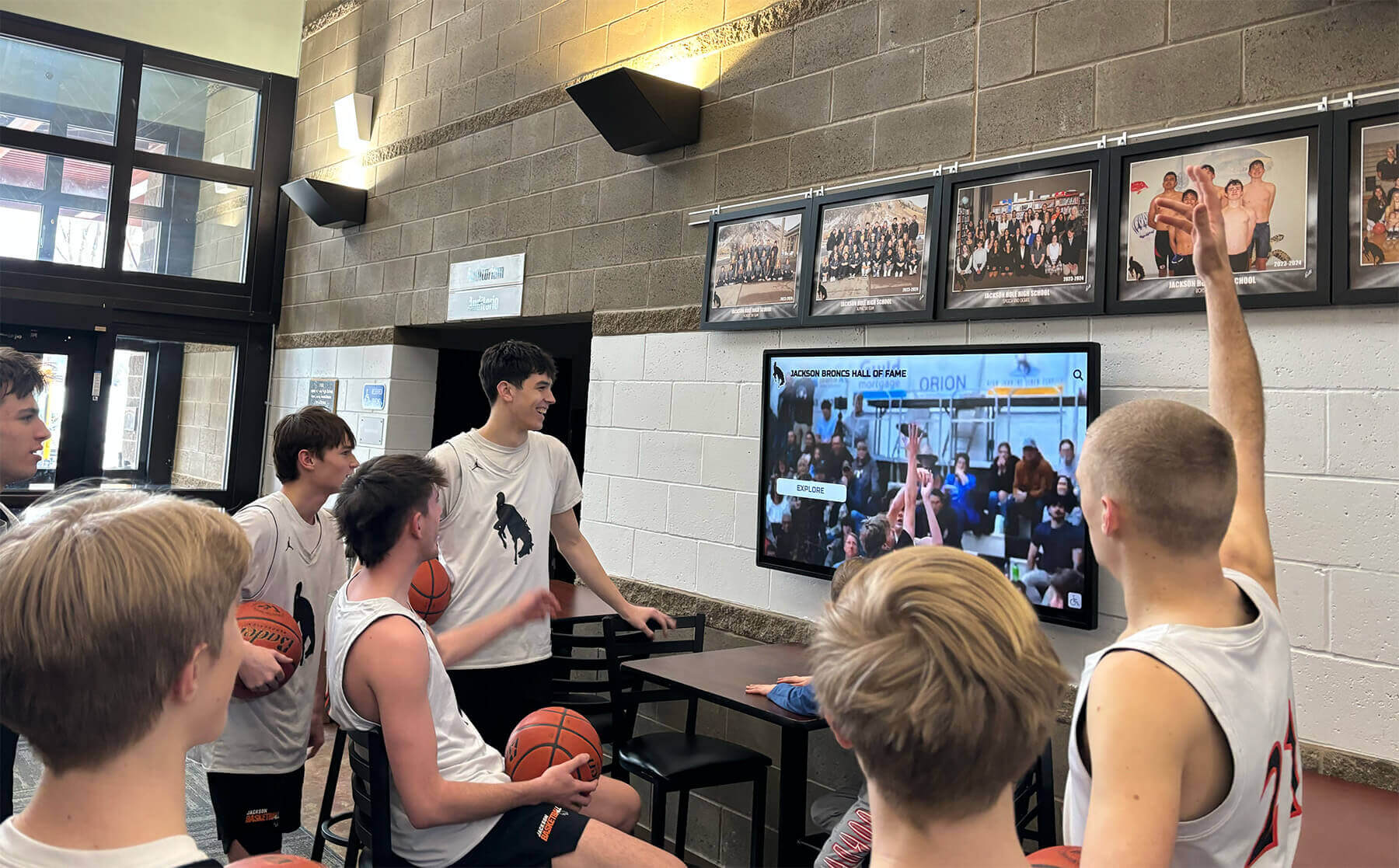
Athletic hallway and lobby displays serve students and families throughout the school day and during evening events — monitoring that scales with event proximity keeps these displays reliable when traffic peaks
Configuration Checklist for Any Monitoring Tool
Regardless of tool choice, each monitoring configuration should document:
- Display device name, location, and IP address
- Check types enabled and their frequencies per schedule tier
- Alert severity mapping and notification contacts for each level
- Event calendar integration method (manual schedule updates vs. calendar API)
- Blackout windows for scheduled maintenance
- Escalation sequence and acknowledgment timeouts
- Log retention period and review schedule
Store this configuration documentation in the same location as the broader display operations plan — not embedded in the monitoring tool’s settings where it may be lost during tool migration or account changes.
Q&A: Common Questions About Recognition Display Monitoring Plans
Q: How do we know which monitoring checks to prioritize if we have limited IT capacity?
Start with the two checks that catch the highest-impact failures: the software service health check (which catches application hangs that infrastructure monitoring misses) and the content sync age check (which catches failed updates before they result in stale content during an event). Add the search path test before your first Tier 1 event window. Those three checks cover the majority of recognition display failures that affect visitors, without requiring a full synthetic transaction monitoring platform.
Q: Should the athletic director or advancement office be directly involved in the monitoring plan?
Yes, and specifically in two ways. First, the school calendar input: IT cannot know which events require elevated monitoring without input from the athletic department and advancement office on their event schedules. Build an annual calendar coordination step into the plan’s maintenance process. Second, alert escalation: for Tier 1 event windows, an escalation path that reaches the athletic director or advancement director — not just IT — ensures that program leadership is informed of a failure in time to activate fallback options if restoration is not possible before the event.
Q: What should we do if the monitoring system generates false positives — alerts for failures that are not actually affecting visitors?
False positives are usually a sign of misconfigured thresholds, not a reason to disable alerts. If load time alerts fire during low-traffic overnight hours when response times are naturally longer, adjust the threshold to apply only during visitor hours. If sync age alerts fire during holiday breaks when content is intentionally not being updated, add a maintenance mode to the monitoring schedule. Tuning the configuration to match operational reality takes a few review cycles but produces a monitoring plan that the team trusts and responds to quickly.
Q: How often should the full interaction path test be run manually versus relying on automated synthetic tests?
Automated synthetic tests provide continuous baseline coverage. Manual interaction tests — where a staff member actually uses the display as a visitor would — should run before each Tier 1 event and at least monthly for displays with high visitor traffic. Manual tests catch visual or UX issues that automated scripts miss: a font that is rendering incorrectly, an inductee photograph that is displaying at the wrong aspect ratio, or a touch target that is technically present but requires unusual precision to activate. The automated tests confirm functionality; the manual tests confirm quality.
Summary: Touchscreen Recognition Display Synthetic Monitoring Plan Checklist
Use this checklist to build and maintain your monitoring plan.
Layer configuration:
- Heartbeat / network availability check configured for each display
- Software service health check configured
- Content sync age monitoring configured with event-aware thresholds
- Content count verification scheduled
- Search path synthetic test configured
- Profile navigation synthetic test configured
- CTA path test configured
- Alert delivery test scheduled weekly
Schedule tiers:
- Baseline check frequencies defined for standard operations
- Elevated check frequencies defined for 72-hour pre-event window
- Event-window frequencies and response requirements defined
- Blackout windows for scheduled maintenance documented
Alert configuration:
- Alert severity levels defined (critical, high, informational)
- Primary and escalation contacts configured for each severity level
- Response time windows documented
- Escalation sequence tested
Event calendar integration:
- School event calendar reviewed and monitoring elevation windows entered at start of each semester
- Tier 1 and Tier 2 events explicitly listed with elevation start dates
- Athletic department and advancement office provide event updates through a defined process
Pre-event protocol:
- Induction ceremony pre-check checklist documented and accessible
- Game night pre-check checklist documented
- Open house pre-check checklist documented
- Backup contact confirmed for each Tier 1 event
Incident logging:
- Incident log template created and location shared with all responsible contacts
- Monthly review scheduled during the school year
- Quarterly review scheduled during summer
- Annual findings incorporated into operational planning
Tool and documentation:
- Monitoring tool(s) selected and configured
- Configuration documentation stored outside the monitoring tool
- Plan reviewed at start of each academic year
- New IT staff onboarding includes monitoring plan orientation
A touchscreen recognition display synthetic monitoring plan is the operational commitment that separates recognition programs that discover failures during events from those that resolve failures before any visitor is affected. Inductees, donors, and families who come to your school expecting to find a hall of fame that works deserve a program that has done the work to make that expectation reliable — not just on installation day, but on every day that matters.
See How Rocket Keeps Recognition Displays Reliable Before Every Event
Rocket Alumni Solutions builds digital hall of fame and recognition systems with platform health monitoring, content sync reporting, and support structures designed around the school event calendar. Request a demo to see how a purpose-built recognition platform gives IT and program staff the operational visibility they need to keep recognition available when it matters most.
Request a Demo






























