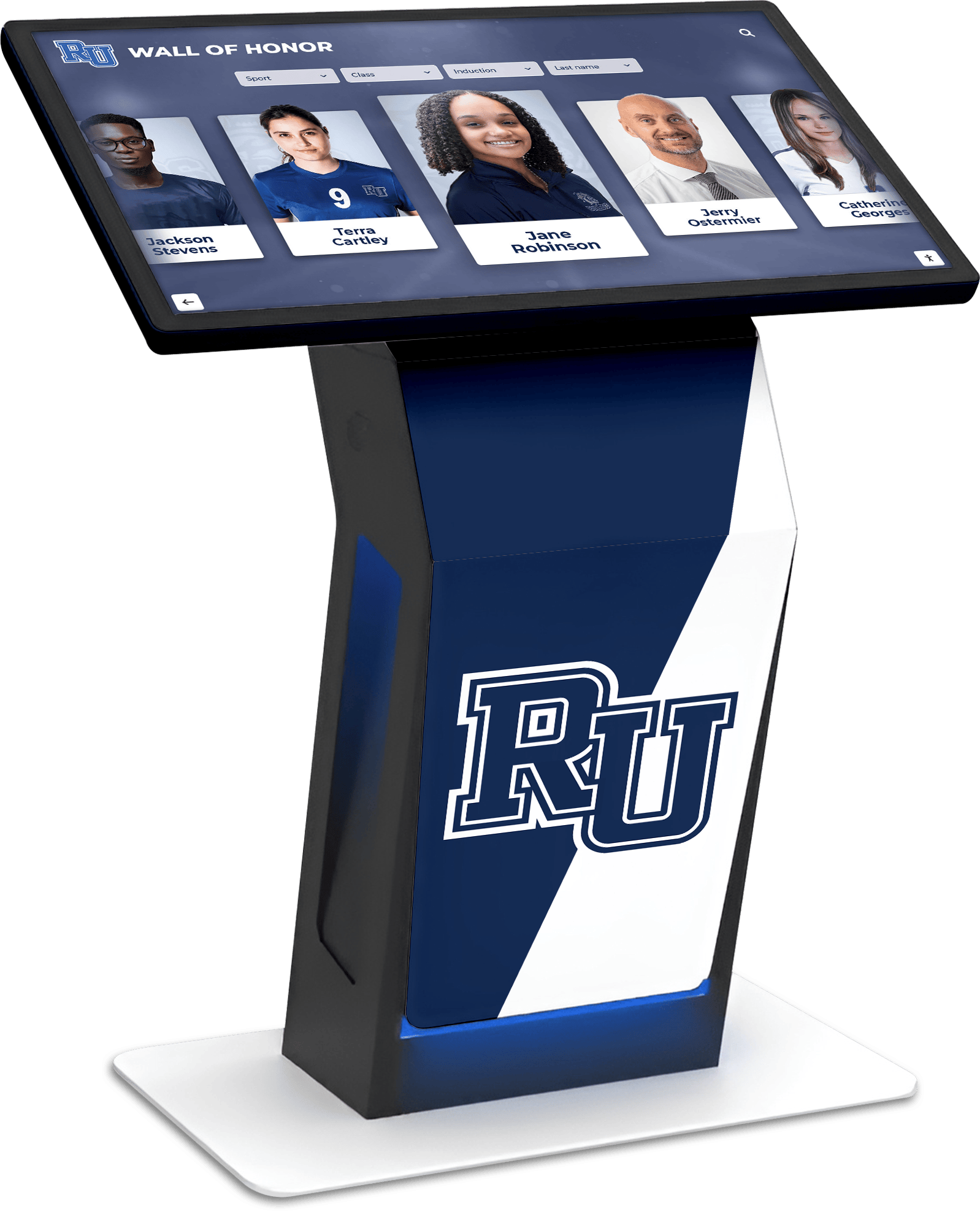




A touchscreen recognition display UPS battery maintenance checklist is the structured routine that school IT and facilities teams follow to keep an uninterruptible power supply unit healthy enough to protect recognition kiosks and digital hall-of-fame screens from abrupt shutdowns. Without a maintained UPS, a brief power interruption during a thunderstorm, a grid switching event, or a campus-wide outage can cut power to a display mid-write — corrupting the media player’s storage, scrambling the display’s operating system, or wiping the cached content that shows inductee profiles, athletic records, and award histories in hallways throughout your facility.
Recognition displays carry content that matters: decades of athletic tradition, alumni portraits, championship records, and donor recognition that families and community members expect to find visible when they visit. A UPS that has degraded past its useful service life provides false confidence — it appears to be there, but it will not deliver the runtime needed when the power event actually occurs. This guide gives school IT coordinators, athletic directors, and facilities managers a complete maintenance checklist to keep UPS units in working condition and recognition content protected year-round.
The core answer: a complete UPS battery maintenance checklist for touchscreen recognition displays covers monthly visual inspections, quarterly self-test verification, semi-annual runtime load tests, annual capacity measurements, and replacement on a manufacturer-specified cycle — typically every three to five years for sealed lead-acid batteries, or when capacity falls below 80 percent of rated specification. Each step has a clear owner, a pass/fail threshold, and a calendar trigger that keeps the routine running without relying on memory.

A touchscreen recognition display in a school lobby depends on a healthy UPS to survive power interruptions — the checklist in this guide keeps that protection reliable through every athletic season
Why UPS Maintenance Matters for Recognition Displays Specifically
General IT infrastructure — servers, switches, workstations — is typically covered by data center UPS maintenance programs. Lobby recognition displays are often outside that coverage, enrolled in a school’s MDM platform but physically located in hallways, gymnasiums, and athletic wings where facilities staff manage the physical environment and IT staff manage the software. That gap in ownership is where UPS maintenance tends to fall through.
Recognition displays also operate differently from office workstations. They run continuously, often on a 24/7 schedule, accumulating more operating hours per year than a laptop or desktop. That continuous operation drains UPS batteries faster than intermittent-use equipment, and it means the system is always running when a power event occurs — there is no natural “off” state that coincides with a weather event the way there might be for office equipment.
The consequence of an unprotected outage on a recognition display is more disruptive than on a standard workstation. Recognition platforms store locally cached content on the display hardware to ensure availability even when the network is slow or disconnected. That local cache can be corrupted by an abrupt power loss, requiring a full resync from the cloud platform — a process that can take hours on a slow school network and may not complete before the next morning’s events.
For schools investing in digital touchscreen athletic building and team records, the UPS is the last line of defense for all that content between the platform’s cloud backup and the screen that families see when they walk through the door.
The Complete Touchscreen Recognition Display UPS Battery Maintenance Checklist
This checklist is organized by frequency. Work through the full checklist initially to document your current state for each display’s UPS, then use the frequency-appropriate sections on schedule. Not every item applies to every UPS model — skip items that do not match your hardware.
Monthly: Visual Inspection Checklist
Perform these checks by walking to each UPS unit and taking a two-minute visual inventory.
- Check the status indicator lights. Green or normal status on all indicators means the UPS is on utility power and the battery is charged. Any amber, red, or blinking indicator that was not present on the previous inspection requires investigation.
- Listen for audible alarms. Most UPS units emit a periodic beep when battery capacity is degraded or a fault condition is present. Silence does not guarantee healthy status, but active alarms signal an immediate issue.
- Inspect for physical damage. Check the UPS enclosure for cracks, bulging (which can indicate a swelling battery), signs of heat damage, or liquid exposure. Any physical abnormality warrants immediate removal from service pending inspection.
- Confirm the display device is still connected to the UPS. Verify that the recognition display’s power cord runs to the UPS’s battery-backed outlets, not to a surge-only outlet or a wall socket bypassing the UPS entirely. This connection is sometimes accidentally changed during cleaning or facility maintenance.
- Check the UPS’s input voltage reading. If the UPS has a display, verify the incoming utility voltage is within the acceptable range for your facility. Chronic overvoltage or undervoltage can accelerate battery degradation.
- Record the observation. Log the date, UPS unit identifier, display location, and status for each inspection. A running log is the primary evidence base for replacement decisions and for identifying patterns before they become failures.
Quarterly: Self-Test Verification Checklist
Most UPS units support a self-test function that briefly switches to battery power to verify the battery can hold a charge under load. Run this test manually if the UPS does not perform it automatically on a quarterly schedule.
- Initiate the self-test from the UPS interface or management software. Some units have a front-panel button; others require the vendor’s management application.
- Confirm the display remains online throughout the test. The self-test should be brief — typically ten to thirty seconds — and the display should continue running without interruption. If the display loses power or reboots during the self-test, the battery is not delivering adequate power for even a brief switch.
- Review the self-test result in the UPS log. Most UPS units record self-test pass/fail status with a timestamp. A failure indicates battery capacity has degraded below the threshold for basic protection.
- Note the estimated runtime reported by the UPS. If the UPS management software reports estimated runtime, compare it against the previous quarter’s reading. A declining runtime trend indicates battery aging even if individual self-tests are still passing.
- Check for firmware updates for the UPS. Quarterly is a reasonable cadence to review whether the manufacturer has released UPS firmware updates. Firmware updates sometimes include battery calibration improvements, alarm threshold adjustments, and management software compatibility fixes.
Semi-Annual: Runtime Load Test Checklist
A runtime load test places the UPS on battery power under a known load for an extended period to measure actual delivered runtime. This test is more disruptive than a self-test and should be scheduled during an approved maintenance window — not during event weeks or high-visibility periods.
- Schedule the test during an approved maintenance window. Coordinate with the athletic director and advancement office to confirm the test date falls outside blackout periods around dedication ceremonies, athletic events, and alumni programming.
- Notify stakeholders. Even a brief planned display outage warrants notification to the athletic director, front office staff, and any department whose recognition content is featured on that display.
- Measure the load connected to the UPS. Use a clamp meter or the UPS management software to record the actual wattage draw of the connected display equipment before the test begins.
- Transfer the UPS to battery power. Either disconnect the UPS from utility power at the wall outlet (for units without a software-controlled bypass) or use the management software to force a battery transfer.
- Monitor and time the battery runtime. Record how long the UPS sustains the load before the low-battery warning activates. Most UPS units are designed to provide the connected equipment enough runtime to complete a graceful shutdown — typically five to fifteen minutes depending on rated capacity and load.
- Compare measured runtime against the manufacturer’s specification. A runtime that falls below 80 percent of the specified value at the measured load indicates the battery should be replaced.
- Restore utility power and verify the display resumes normally. Confirm the recognition platform reconnects to its cloud backend, resumes content display, and shows no error states after the utility power is restored.
- Document results in the UPS maintenance log. Record the date, load measurement, measured runtime, pass/fail determination, and any anomalies observed.
Annual: Capacity Test and Battery Assessment Checklist
An annual capacity test provides the most accurate measure of remaining battery health. Unlike the runtime load test, a capacity test discharges the battery to a precise endpoint to calculate actual remaining capacity as a percentage of original specification.
- Review the UPS manufacturer’s recommended capacity test procedure. Procedures vary by model — some require dedicated test equipment, others can be performed through the UPS management software.
- Record the battery’s age and installation date. A battery that has reached or exceeded its manufacturer-specified service life should be replaced regardless of test results, as degradation can accelerate unpredictably near end of life.
- Perform the capacity test per manufacturer specifications. Record the resulting capacity percentage.
- Compare against the replacement threshold. Replace the battery if measured capacity is at or below 80 percent of rated specification, or if the battery has reached its service life limit.
- Inspect battery terminals and connections. During annual maintenance, visually inspect the battery terminals for corrosion (a white or greenish residue), loose connections, or signs of heat damage at the contact points.
- Verify that the UPS replacement battery model is still available. For older UPS units, confirming battery availability before the battery actually fails gives time to source the correct replacement without emergency procurement constraints.
- Update the replacement forecast. Based on capacity trend across multiple annual tests, project the likely replacement date and add a purchase order reminder to the facilities or IT budget planning cycle.
UPS Maintenance Schedule Summary Table
| Task | Frequency | Who | Pass Threshold | Action if Failed |
|---|---|---|---|---|
| Visual inspection of status lights and enclosure | Monthly | IT coordinator or facilities staff | Green indicator, no alarms, no physical damage | Investigate immediately; remove from service if physical damage |
| Verify display is on battery-backed outlet | Monthly | IT coordinator or facilities staff | Power cord confirmed on UPS battery outlet | Reconnect to correct outlet; document correction |
| Self-test verification | Quarterly | IT coordinator | Test passes, display stays online | Schedule runtime load test; plan battery replacement |
| Firmware review | Quarterly | IT coordinator | Current firmware version confirmed | Apply update during next maintenance window |
| Runtime load test | Semi-annual | IT coordinator (scheduled maintenance window) | Measured runtime ≥ 80% of specification | Schedule battery replacement |
| Battery capacity test | Annual | IT coordinator | Measured capacity ≥ 80% of rated spec | Replace battery; budget for replacement |
| Battery age review | Annual | IT coordinator or facilities | Battery within manufacturer service life | Replace battery if at or past service life |
| Terminal and connection inspection | Annual | IT coordinator (or qualified facilities) | Clean terminals, secure connections | Clean corrosion; tighten connections; replace if damaged |
Battery Replacement: Timing and Procedure
Sealed lead-acid (SLA) batteries — the most common type in wall-mount and desktop UPS units used with school display hardware — carry a manufacturer-specified service life of three to five years under normal operating conditions. Continuous-use environments like lobby displays may see shorter service life because the battery cycles more frequently than in intermittent-use deployments.
The replacement decision should be based on whichever threshold is reached first:
- Age: At or past the manufacturer’s specified service life
- Capacity: Measured capacity at or below 80 percent of original specification
- Runtime failure: The UPS fails to sustain the connected load through a self-test or runtime load test
- Physical condition: Swelling, leakage, or visible damage to the battery
When scheduling replacement, coordinate the timing with the same event-aware calendar used for maintenance windows. Schools planning induction ceremonies, hall of fame events, and alumni recognition programming need recognition displays fully operational in the weeks surrounding those events — battery replacement scheduled during a summer low-activity period avoids the risk of an unexpected complication disrupting a high-visibility moment.
Replacement procedure steps:
- Confirm the replacement battery model number with the UPS manufacturer before ordering — specifications vary between UPS revisions even within the same model line.
- Schedule the replacement during an approved maintenance window and notify stakeholders.
- Power down the recognition display gracefully using the platform’s shutdown procedure before removing UPS power. Never allow the display to lose power abruptly during the replacement process.
- Follow the UPS manufacturer’s replacement procedure. Most SLA battery swaps in small UPS units require only basic tools and no specialized expertise, but confirm this against the specific model’s documentation before beginning.
- After installing the replacement battery, allow the UPS to complete its initial charge cycle before returning the display to service. Full initial charge typically takes four to eight hours.
- Run a self-test after the charge cycle completes to verify the new battery is functioning correctly.
- Update the maintenance log with the replacement date, new battery model, and the initial self-test result.
- Update the replacement forecast in your facilities or IT planning calendar based on the new battery’s expected service life.

Athletic record boards and recognition displays in school hallways run continuously — UPS battery maintenance ensures they survive any power interruption without content corruption or data loss
Connecting UPS Maintenance to Recognition Content Protection
UPS maintenance is infrastructure work, but its purpose is directly tied to content protection. The recognition content stored on and displayed by a school’s touchscreen system represents years of institutional history: athletics records going back decades, inductee biographies, donor acknowledgments, championship documentation, and the award and achievement histories that define a school’s identity.
Modern recognition platforms store locally cached content on display hardware to ensure fast load times and offline availability. Keeping team records and award histories accurate on digital displays depends on that local cache remaining intact through every power event. An abrupt power loss — the exact scenario a functioning UPS prevents — can corrupt that local storage and require a full re-synchronization from the platform’s cloud backend.
A re-synchronization on a typical school network takes time, and during that window the display may show partial content, error states, or a blank screen. If that window overlaps with a dedication ceremony, a visiting family’s tour, or a booster club event, the impact extends beyond technical inconvenience into a visible recognition failure.
Athletic directors and advancement leaders investing in recognition infrastructure — whether for a hall of fame wall, an athletic record board, or a donor recognition display — benefit from understanding that UPS maintenance is a direct requirement of that investment, not a separate facilities concern. The recognition system is only as reliable as the power protection behind it.
For facilities teams supporting schools with active booster club programming and donor engagement calendars, adding UPS battery maintenance to the annual facilities checklist alongside HVAC, lighting, and AV equipment creates a single integrated review cycle rather than a separate IT-only process.
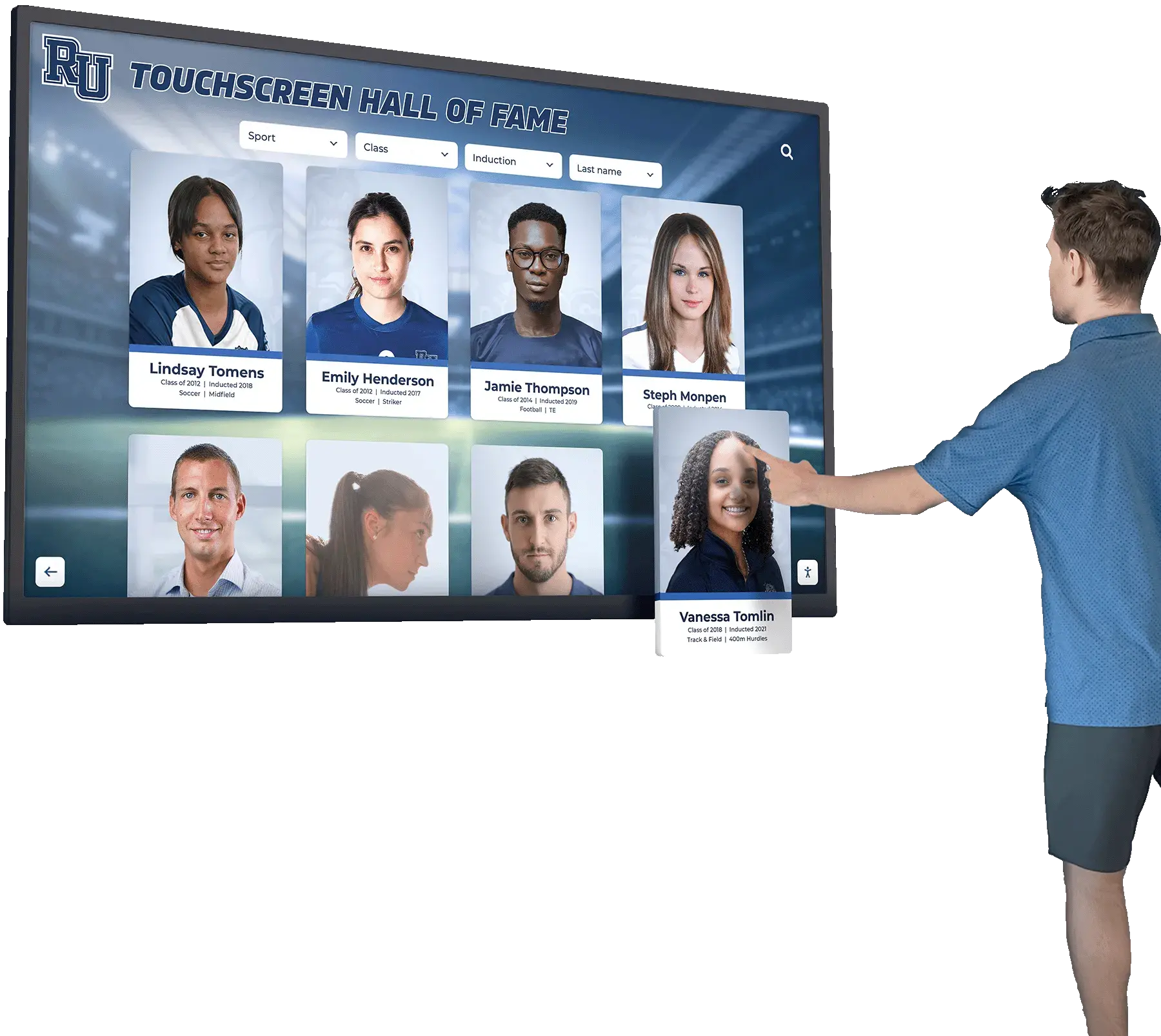
Visitors engaging with recognition content — inductee profiles, athletic records, and award histories — depend on display hardware that UPS maintenance keeps protected and continuously available
Coordinating with Athletic and Advancement Calendars
The most common failure in school UPS maintenance programs is not a lack of knowledge — it is a scheduling disconnect between IT and the event calendar. Battery replacements and runtime load tests require brief display outages, and those outages need to avoid the windows when displays are most visible.
A practical coordination approach:
- At the start of each academic year, obtain the full athletic calendar (game dates, tournament schedules, banquet dates) and the advancement calendar (reunion weekends, donor events, campaign launches) and mark those periods as unavailable for disruptive maintenance.
- Schedule battery replacements, runtime load tests, and annual capacity tests during summer or winter break periods when campus activity is minimal.
- Reserve monthly visual inspections and quarterly self-tests — which require no display downtime — for any time in the calendar, including during active event seasons.
- For schools planning end-of-year recognition events, graduation ceremonies, or athletic banquets in spring, complete all scheduled battery replacements by February to ensure display reliability through the high-activity spring season.
Athletic recognition programming, including athletic trainer and sports medicine hall of fame recognition, often involves bringing honorees and their families on campus for specific events. Those moments carry expectations of a fully functional, professionally presented display experience. UPS maintenance completed on schedule is what makes that expectation consistently achievable.
Frequently Asked Questions
How do I know what size UPS my recognition display needs?
Match the UPS to the total wattage draw of the connected equipment plus a 20 to 25 percent headroom above that load. A typical touchscreen recognition kiosk — including the display, media player, and any embedded peripherals — draws between 150 and 400 watts depending on screen size and hardware configuration. Check the specifications for your specific hardware and select a UPS rated for at least 25 percent above that load to ensure adequate runtime and to avoid running the battery at full capacity, which accelerates degradation.
What is the difference between a UPS self-test and a runtime load test?
A self-test is an automated, brief transfer to battery power — typically ten to thirty seconds — that verifies the battery can accept and deliver a charge. It confirms basic functionality but does not measure actual runtime capacity. A runtime load test is a longer, manually initiated test that measures how long the battery sustains the actual connected load, providing a direct comparison against the manufacturer’s specified runtime. Both tests are necessary: the self-test as a frequent automated check, and the runtime load test as a less frequent, more accurate capacity assessment.
Can I use the same UPS maintenance checklist for multiple display locations?
Yes, but maintain a separate maintenance log for each UPS unit. UPS batteries age differently depending on operating temperature, load, utility power quality, and the number of discharge cycles the unit has experienced. A single checklist format applied consistently across all locations with separate per-unit logs gives you both operational consistency and the per-unit history needed to make accurate replacement decisions.
What should I do if the UPS alarms during a school event?
If a UPS alarm activates during an active event, do not attempt battery replacement or hardware changes during the event. First, determine whether the alarm indicates a current fault (battery has failed and the display is unprotected) or an anticipated future failure (battery capacity is degraded but functional for now). If the display is currently running on utility power with a degraded but functional battery, the immediate risk is low — document the alarm, notify IT, and schedule replacement after the event. If the display is currently on battery power and the UPS is alarming for low battery, the situation requires immediate attention: restore utility power if possible, or allow the UPS to initiate its automated graceful shutdown if utility power is unavailable.
How does UPS maintenance relate to broader recognition display maintenance?
UPS maintenance is one layer of a complete recognition display maintenance program. Other layers include software updates and certificate renewals, content platform synchronization, network connectivity monitoring, and hardware physical inspection. A recognition display that has a healthy UPS but an expired TLS certificate or a failed network connection will still fail to serve content correctly. Treating UPS maintenance as part of a comprehensive maintenance calendar — rather than an isolated task — provides more reliable overall display performance.
Should UPS units be replaced as a group or individually?
If a school installed multiple UPS units at the same time as part of a single recognition display deployment, the batteries in those units will age on roughly the same timeline. Replacing them as a group during a planned summer maintenance period is more efficient than replacing them individually as they fail, and it avoids the situation where several units fail in close succession during an active school year. If units were deployed at different times, replace them individually based on their own capacity measurements and age.
Keeping Recognition Content Available Through Every Power Event
A touchscreen recognition display is a long-term investment in institutional storytelling — the athletic records, inductee histories, and award archives it presents are meant to be visible for years and decades, not disrupted by a brief power fluctuation on a Tuesday afternoon. UPS battery maintenance is the infrastructure layer that protects that investment from the most common and most preventable cause of unexpected display outages.
The checklist in this guide — monthly visual inspections, quarterly self-tests, semi-annual runtime load tests, annual capacity assessments, and proactive battery replacement — creates a documented maintenance cycle that keeps UPS units delivering reliable protection throughout their service life. Connecting that cycle to the school’s athletic and advancement calendars ensures that planned maintenance never creates the outage it is designed to prevent.
For schools evaluating or expanding recognition display programs, choosing a platform with strong operational documentation — clear guidance on hardware requirements, power protection specifications, and maintenance expectations — makes UPS planning straightforward from installation day forward.
Ready to build a recognition display system designed for reliable, long-term operation? Request a demo of Rocket Alumni Solutions to see how the platform supports school IT and facilities teams in maintaining hall of fame and athletic recognition displays throughout the year.































